How to Restore Image to Dissimilar Hardware with AOMEI Backupper
Universal Restore( Bare Metal Recovery ) is the process of restoring systems and data from the original computer to different hardware. It could be applied to many situations in people's daily life.
The following are the most common cases that would need the universal restore function.
-
Instant recovery of a crashed system on different hardware: When a computer crashes and you want to restore it, you can create a system image on another functional PC using AOMEI Backupper and restore the system image to the failed computer.
-
Migrate system to a machine with dissimilar hardware installed: You can use AOMEI Universal Restore to restore a system image created on other computers to your current one.
-
Real-to-virtual and virtual-to-real computer migration for system recovery, as well as testing and other purposes: Software testers can use this function to install systems between the physical computer and virtual machine.
-
There is a computer hardware change: If you change the hardware such as motherboard, CPU, etc., the computer will require a system reinstallation. To prevent this, you can use AOMEI Universal Restore to "install" the system.
-
New computers that need to install an operating system: If you want to manage computers on the LAN, you can install the operating system on one computer, configure drivers and applications, and then perform a system backup. Then, you can boot all other computers with AOMEI PXE Boot Tool or Backupper bootable media, and use AOMEI Universal Restore to restore the system image. This method can save significant time when installing operating systems and applications on different computers.
How to Perform Universal Restore with AOMEI Backupper in Windows 10 step by step
Prerequisites for Universal Restore
Before restoration, here are some things you need to prepare.
-
A bootable USB drive to boot the target computer. For more information about how to create a bootable disc, please see create bootable drive.
-
A system image created on a functional PC. You can save the image to a NAS, or a USB drive.
Step 1: Boot the PC into WinPE
Boot the second computer via a bootable USB drive. You may need to change the boot priority in the BIOS/UEFI.
Step 2: Select Task/Image File
In the left "Home" tab, click Restore. Click "Select image to restore" to navigate manually to the image file location.

Step 3: Restore Entire System
Select to restore the entire backup image or a partition, and click Next. Remember to select Restore to New Location if you want to restore the system image to a new hard drive.

Step 4: Select Destination Path
Select a restore path (Existing Partition or Unallocated Space) to receive the system image and click Next to continue.

Step 5: Tick "Universal Restore" and Start Restore
On the "Operation Summary" page, preview the operation that will be executed. If your new computer has different hardware, you can click the "Settings" button and tick the "Universal Restore" option. Then, click Start Restore.
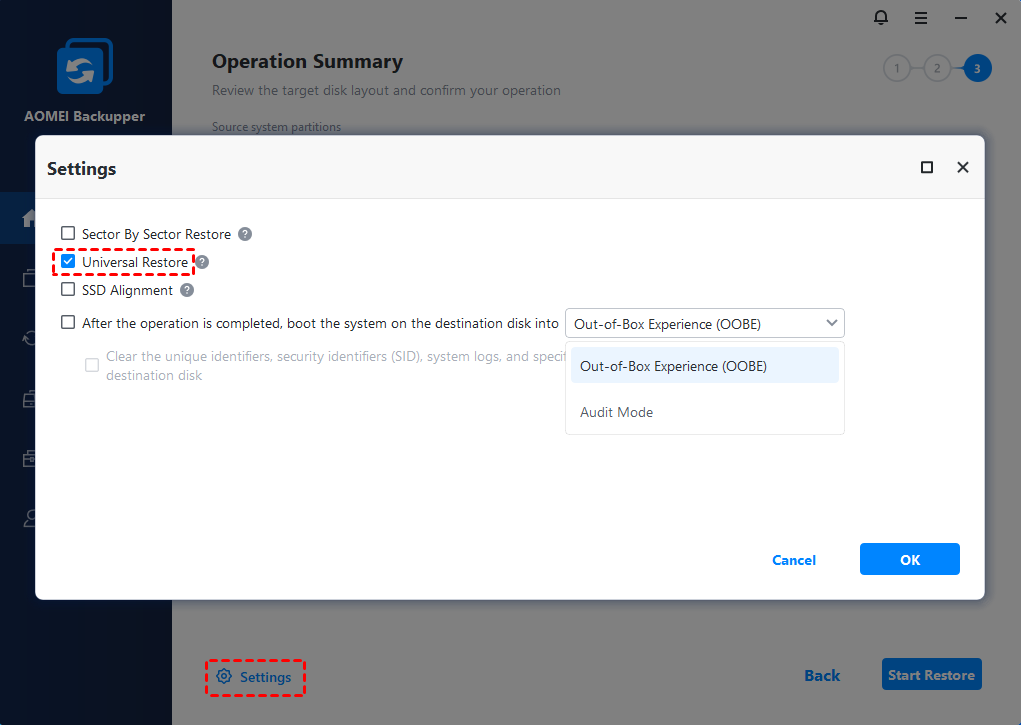
Important: On this page, you can also choose to boot the system on the destination disk into either OOBE or Audit mode after the image restore.
OOBE (Out-of-Box Experience) Mode is primarily designed for end users (individuals/general users). It is a user setup wizard that runs the first time the system is started after installation, guiding end users through settings such as language, region, network, accounts, and privacy. These settings must be completed before the desktop becomes available.
Audit Mode is primarily designed for OEMs, enterprise administrators, and system imaging engineers. It is an administrator customization mode that runs after system installation but before the OOBE. This mode is used for customization and testing prior to bulk deployment. It allows you to install drivers, software, language packs, and run scripts, making it suitable for creating bulk system images (such as for corporate standardized desktops or OEM pre-installation).
If you choose OOBE Mode, you can select to clear the unique identifiers and security identifiers (SID), system logs, and specific driver caches from the system on the destination disk. After you boot from the system on the destination disk, the SID has been cleared and it will work as a completely new PC. In this way, it provides a clean end-user onboarding experience.
If you choose Audit Mode, you can boot from the system on the destination disk as an administrator account and the sysprep command has been executed. Then, you can choose to either Enter System OOBE or Enter Audit mode. In this way, it works to customize Windows before installation, install applications, drivers, and updates, configure settings and scripts, remove unwanted apps, and prepare a master image for deployment.
Notes:
- If the target PC cannot boot or has no system installed, you can first create a bootable media with AOMEI Backupper. And then, please boot the PC from the bootable media to do "Universal Restore". For more information about how to operate universal restore, please refer to restore Windows 10 to dissimilar hardware.
- Before universal restore on a new machine, it is recommended to first delete all partitions on the destination drive.
- The system image cannot be restored to the same drive the backup image resides on, as the selected drive will be formatted before restoration begins.
- After restoring Windows to a computer with dissimilar hardware, it may be necessary to enter license codes to reactivate Windows, Office, etc.
- Some drivers (such as the video/sound card drivers, display driver, NIC drivers, etc.) are not installed by Universal Restore for dissimilar hardware. As these drivers will not affect system startup, they can be installed following the restoration.
- Universal Restore is available for system/disk restore only. So, for disk backup images to be used, they must be created from the boot system disk.
Conclusion
Universal Restore allows you to migrate systems and data across hardware platforms and provides a flexible and reliable solution for hardware failure, system migration, disaster recovery, hardware upgrades, and backup verification scenarios. It ensures system continuity and data security, enabling you to quickly recover and resume normal operations.
The whole process is very simple and easy. This feature is like a bridge among different computers. With this function, you can install systems on dissimilar computers more effectively.
FAQs
Q: Why is there no "Universal Restore" when restoring a disk image?
A: Please check if the disk you backed up is the system disk of a functional PC. If not, "Universal Restore" is unavailable when doing a restore.
And, please make sure you first install the right program version, register the program, and then create a new WinPE bootable media.
If it still does not work, if possible, please create a new bootable media without ticking the option "Download WinPE creating environment from internet" when creating the bootable media.