How to Create Disk Clone in Windows Easily
Disk cloning is a process that involves copying all data, partitions, and file systems from one disk to another disk. This operation holds significant significance in various usage scenarios:
Backup and Recovery: Disk cloning serves as a comprehensive backup strategy for disaster recovery. By regularly cloning the primary disk, you can ensure quick system and data recovery in cases of hardware failures, data corruption, or other catastrophic events.
Isolation Environments: For security and isolation needs, disk cloning can create isolated environments for sensitive operations, avoiding impacts on the primary system.
Upgrading to a Larger Disk: As our data storage needs grow, a larger disk becomes necessary. System cloning facilitates a seamless transfer of the entire system, along with all data and configurations, to a new and larger disk. This process ensures that we have sufficient storage space for our expanding data and allows the computer to function smoothly without storage-related performance issues.
Replacing Aging or Faulty Disks: As disks age or develop issues like bad sectors, their reliability, and performance may degrade. System cloning provides a solution to migrate the entire system to a brand new disk, eliminating potential problems and ensuring data integrity and stability. This replacement extends the lifespan of the system while minimizing the risk of data loss due to disk-related issues.
Create Disk Clone in Windows 10 Step by Step
Prerequisites for Disk Clone:
Please boot the Windows system and install AOMEI Backupper. AOMEI Backupper currently supports Windows system clone only.
Connect the appropriate target disk to the computer, and please make sure the destination space is larger than or at least equal to the total used size of all system partitions.
Note: For the system disk, Disk Clone is a paid feature; you need to upgrade to AOMEI Backupper Professional. If you want to clone a server system, please use AOMEI Backupper Server Edition. And, if you need to clone for multiple computers, you can consider the Tech or Tech Plus Edition.
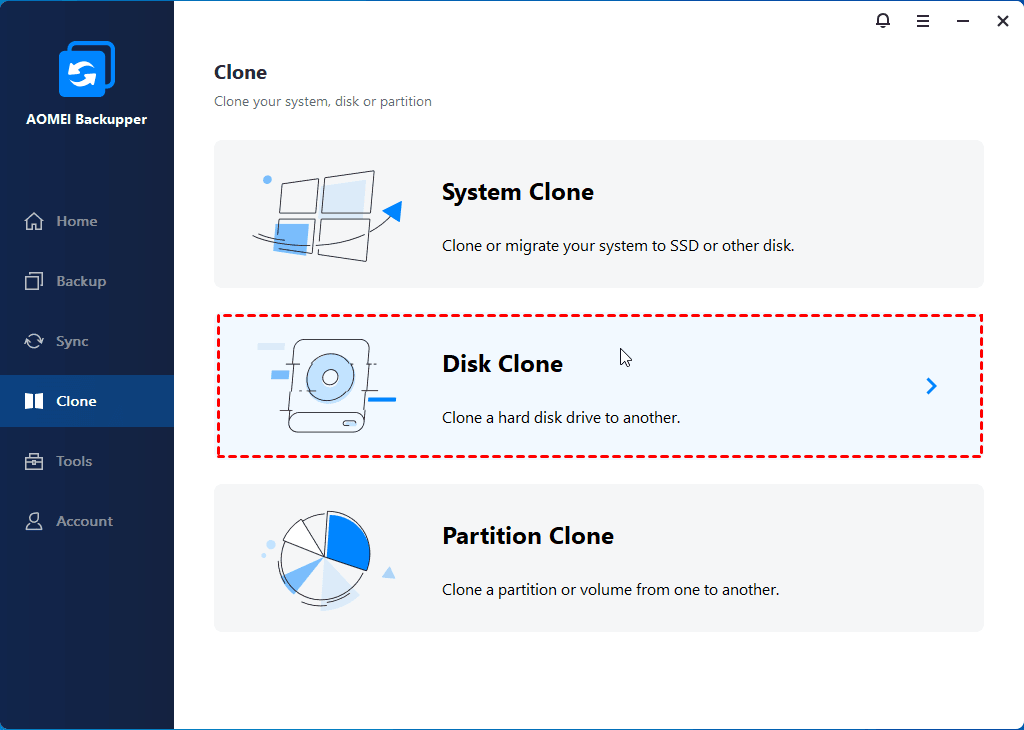
Step 1: Initiate Disk Clone
Select "Clone" from the left-hand side menu and then select "Disk Clone".
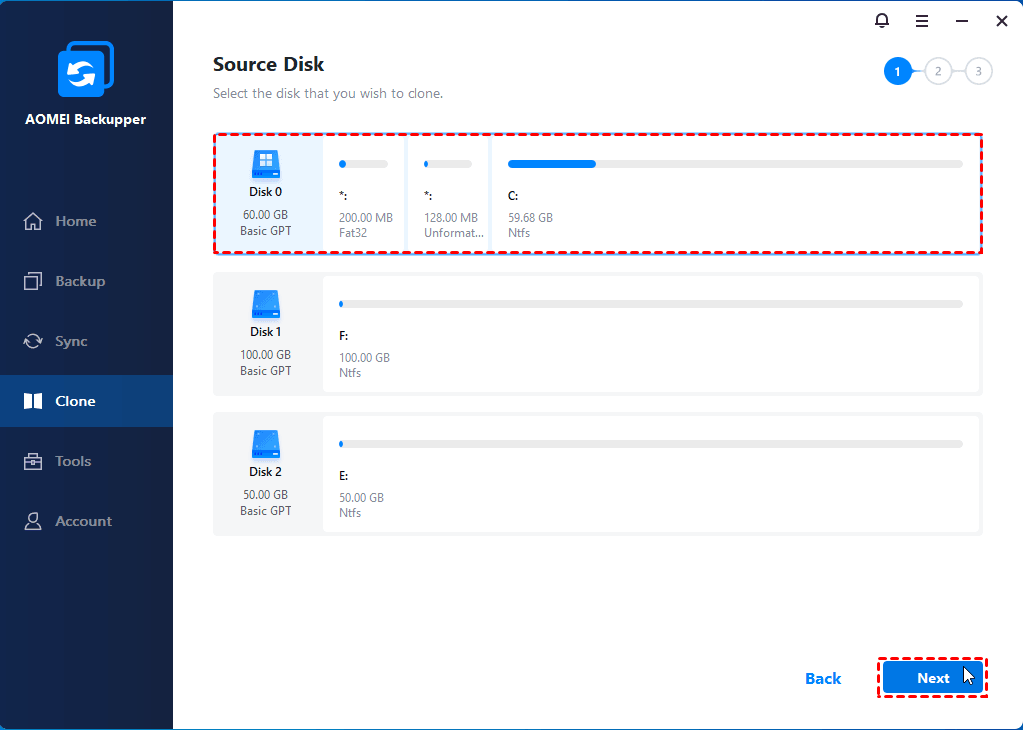
Step 2: Select Source Disk
Select the source disk that you want to clone. Click "Next".
Step 3: Select Destination Disk
Select the destination disk to which the source disk will be cloned, and click "Next".
Tips: The destination disk will be formatted and all existing data will be overwritten! Backup important files beforehand.

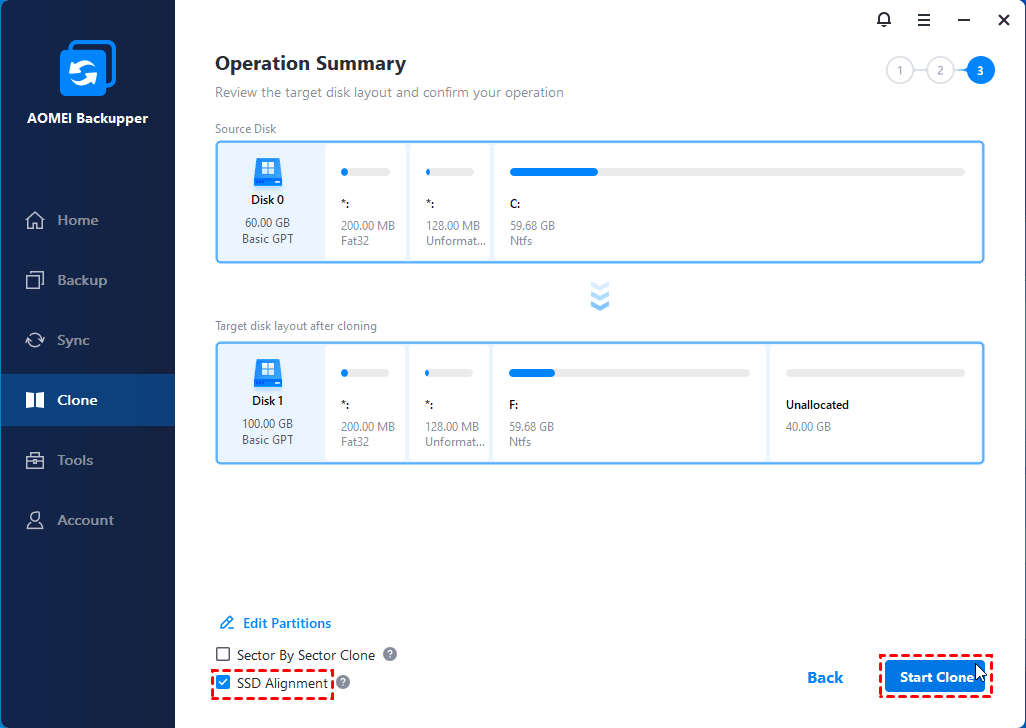
4. Preview the information of your source and destination disks. In the lower-left corner, set desired advanced settings as follows.
Step 4: Additional Clone Settings (Optional but Important)
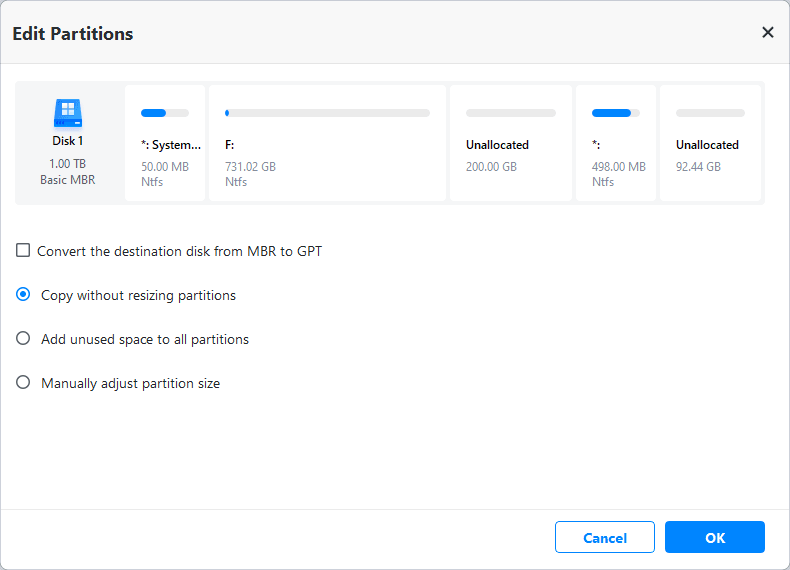
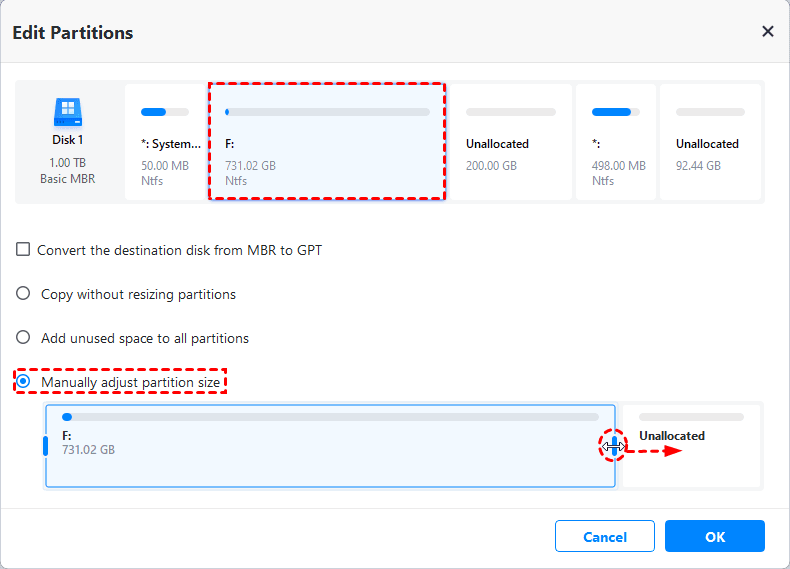
a) Edit Partitions: To adjust the size of the partitions on the destination disk if it's larger, you can select the feature and one of the following options.
Important Options:
Convert the destination disk from MBR to GPT:
1. If the source disk is GPT but the destination disk is MBR, please tick this option so the destination MBR drive will be converted to GPT after the clone. In this way, it is able to boot from the cloned drive after the disk clone.
2. If the source disk is MBR but the destination disk is GPT, the option will be "Convert the destination disk from GPT to MBR". Please tick this option so the destination GPT disk will be converted to MBR after the clone. In this way, it is able to boot from the cloned drive after the disk clone.
3. If the source disk and the destination disk are both MBR/GPT, please do not tick this option.
-
Copy without resizing partitions: Do not make any changes to the partition sizes. If you want to clone disk to larger disk, select the last two options instead.
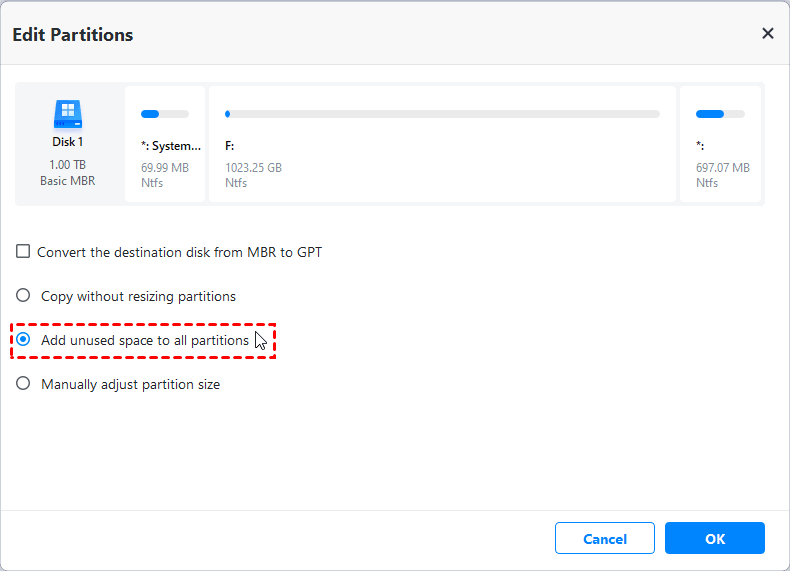
- Add unused space to all partitions: The destination disk partitions will be automatically resized to fit the entire disk, appropriate for the disk size.
-
Manually adjust partition size: Manually adjust the partition size by dragging a slider bar. With this feature, you can simply select and modify the size of every partition as your requirements.
You can also click the "Settings" button for more settings.
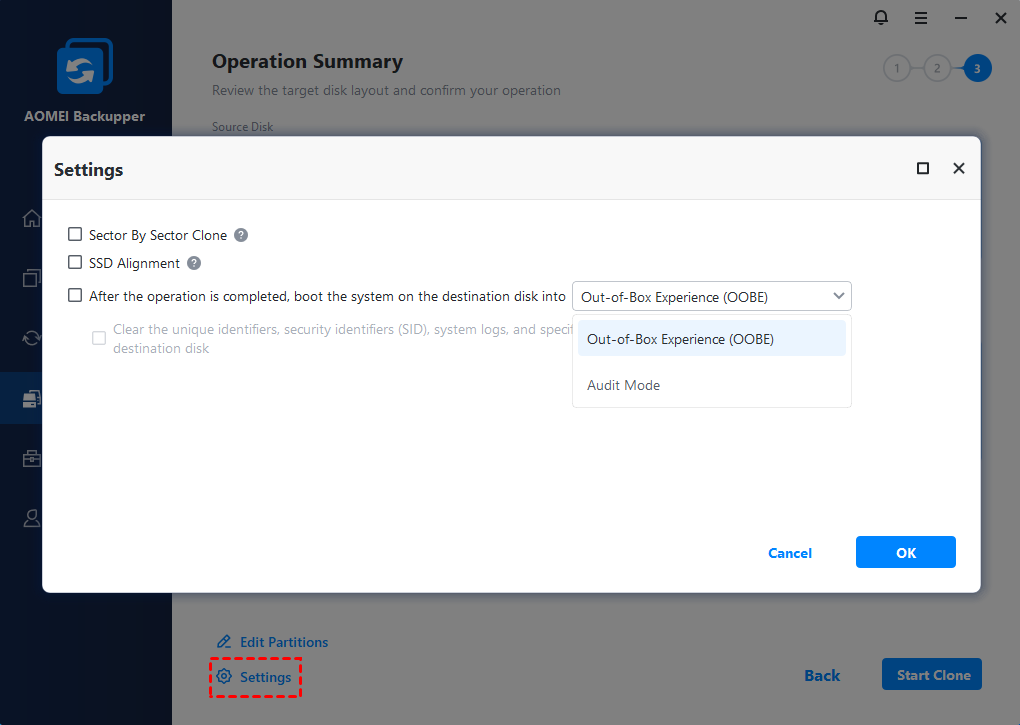
b) Sector by sector clone: This feature requires that the destination disk size must be equal to or larger than the source disk, and it will need more cloning time and disk space.
c) SSD Alignment: If you are cloning hard drive to an SSD (Solid-State Drive), we highly recommend you check this option for optimizing the performance of the SSD.
d) For system disk clone, an option will be available to choose to boot the system on the destination disk into either OOBE or Audit mode after the disk clone is complete.
OOBE (Out-of-Box Experience) Mode is primarily designed for end users (individuals/general users). It is a user setup wizard that runs the first time the system is started after installation, guiding end users through settings such as language, region, network, accounts, and privacy. These settings must be completed before the desktop becomes available.
Audit Mode is primarily designed for OEMs, enterprise administrators, and system imaging engineers. It is an administrator customization mode that runs after system installation but before the OOBE. This mode is used for customization and testing prior to bulk deployment. It allows you to install drivers, software, language packs, and run scripts, making it suitable for creating bulk system images (such as for corporate standardized desktops or OEM pre-installation).
If you choose OOBE Mode, you can select to clear the unique identifiers and security identifiers (SID), system logs, and specific driver caches from the system on the destination disk. After you boot from the system on the destination disk, the SID has been cleared and it will work as a completely new PC. In this way, it provides a clean end-user onboarding experience.
If you choose Audit Mode, you can boot from the system on the destination disk as an administrator account and the sysprep command has been executed. Then, you can choose to either Enter System OOBE or Enter Audit mode. In this way, it works to customize Windows before installation, install applications, drivers, and updates, configure settings and scripts, remove unwanted apps, and prepare a master image for deployment.
Step 5: Start Clone and Finish
Finally, click "Start Clone". Wait for the process to complete and then click "OK".
Notes:
- To ensure the destination disk is accessible after cloning, you should install the target disk internally after cloning. Note that if the source disk and target disk are of different types (one uses MBR mode and the other uses GPT mode), you have to modify the boot mode in BIOS/UEFI when you boot from the target drive.
- If the destination disk is locked by other programs or applications, then Backupper will request the computer to be restarted so as to execute the disk clone operation in "Restart Mode".
- If "Sector by sector clone" is selected, the "Edit Partitions" option is unavailable. And for an encrypted disk, Backupper will use the “Sector by sector clone” mode by default.
- If there are non-NTFS or FAT32 partitions on the source disk, Backupper will use "Sector by sector clone" mode to clone these partitions.
- The time to complete a disk clone task depends on the size of the source disk. Besides, the following aspects can also influence the operation speed: USB connection, bad sectors on the source or target disk, old computer configuration, etc.
- The Professional Edition supports cloning system disk from MBR to MBR, MBR to GPT, GPT to GPT, and GPT to MBR. If you just want to clone a data disk, you could consider using the free edition - AOMEI Backupper Standard.
- Disk Clone doesn't support dynamic disks. Please use the System Clone or Partition Clone options to clone a dynamic disk.
- To boot Windows from the new disk, you need to restart the computer, enter the BIOS Settings, and change the boot drive. That's the whole process of using AOMEI BackUp to clone a hard disk. With it, you can easily clone a disk and boot from it successfully.
Conclusion
Disk cloning is a crucial technological tool with broad applications in various situations, offering convenience and assurance to users, ranging from data protection to system migration.
Despite the numerous advantages of disk cloning, it's essential to proceed with caution before performing any cloning operations. Make sure to meticulously back up critical data and familiarize yourself with the tools and steps involved to avoid potential issues.
FAQs
Q: Can I connect the destination drive via a USB connector during disk clone?
A: Yes, you can connect the destination drive via a USB connector during disk clone. But after a successful disk clone process, please connect the cloned drive internally to boot from it.
Q: After disk clone, will the source system be deleted or not bootable?
A: Disk clone won't have any effect on the source system.
Q: After disk clone, how to change the drive letter of the system partition on the destination disk to C:?
A: When you boot from the cloned drive, Windows will assign letter C to this partition automatically; you can't manually assign letter C to the partition.