



[Top 3 Ways] to Transfer Photos from iPhone 6 to Computer
Need to back up your iPhone 6 photos? Discover three simple ways to transfer them to a computer – using AOMEI FoneBackup, Windows Photos, or File Explorer.

By Lily Updated on September 8, 2026


iPhone photos often contain valuable memories that you do not want to lose. Transferring them to a computer is a practical way to create an additional backup, free up iPhone storage, and make pictures easier to edit or organize.
If you are wondering how to transfer photos from iPhone 6 to computer, there are several options available. Although this guide focuses on the iPhone 6, iPhone 6 Plus, and iPhone 6s, most of the methods can also be used to transfer pictures from newer iPhone models to a Windows PC.
|
Method |
Best For |
Key Advantage |
|
AOMEI FoneBackup |
Selectively transferring photos |
Easy photo selection and flexible transfer |
|
Windows Photos |
Importing photos with a built-in Windows tool |
No additional transfer software required |
|
File Explorer |
Manually copying accessible DCIM photos |
Works directly through Windows folders |
Method 1. Transfer Photos from iPhone 6 to Computer with Free Transfer Tool
If you want to selectively export photos and avoid manually searching through multiple folders, AOMEI FoneBackup can be a convenient option. It is an iOS data transfer and backup tool for Windows PCs. It can help you transfer a variety of data between your iPhone and computer, such as transferring music, photos, videos, and contacts, etc.
 AOMEI FoneBackup
- Selective transfer: Preview available photos and choose only the pictures you want to export.
- Flexible photo access: Transfer supported photos from your iPhone without manually searching through DCIM folders.
- Original file quality: Export photos without intentionally reducing their quality.
- Easy operation: Complete the transfer through a simple interface.
- Wide compatibility: Supports multiple iPhone models and compatible iOS versions.
 100% Secure
Learn how to transfer pictures from iPhone 6 to computer using AOMEI FoneBackup below:
Step 1. Download and install AOMEI FoneBackup on your Windows computer.
Step 2. Connect your iPhone 6 to the computer using a USB cable. Unlock your iPhone and enter the passcode. Tap Trust if you are asked to trust the computer.
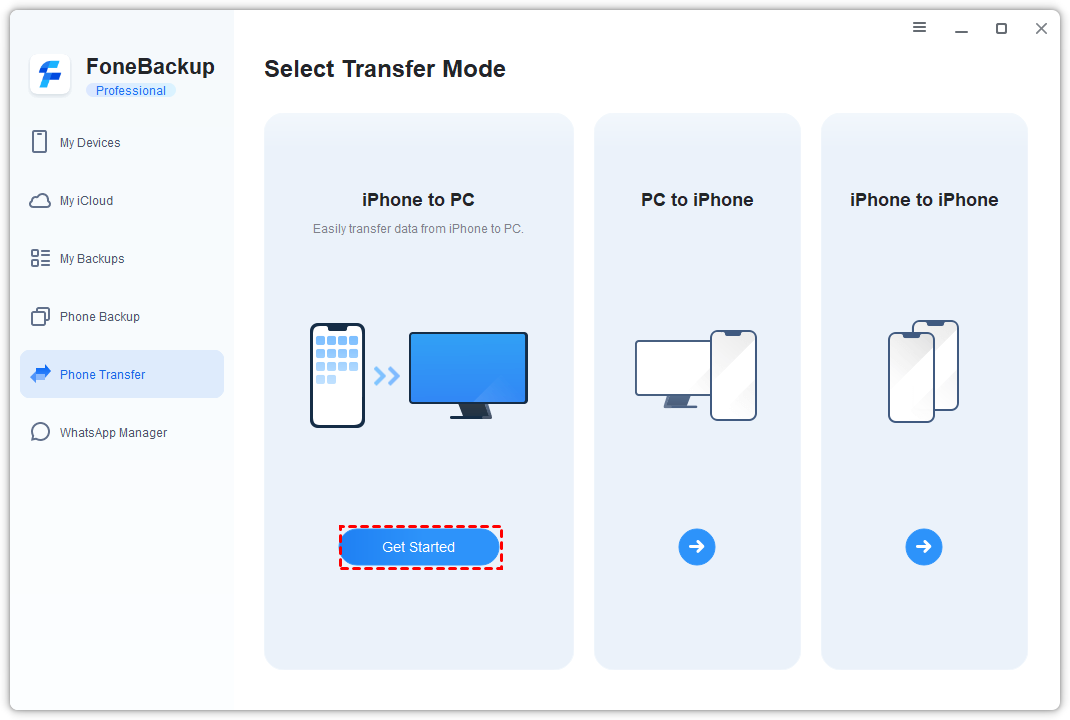
Step 3. Launch AOMEI FoneBackup and select Phone Transfer from the main interface. Then choose iPhone to PC and click Get Started.
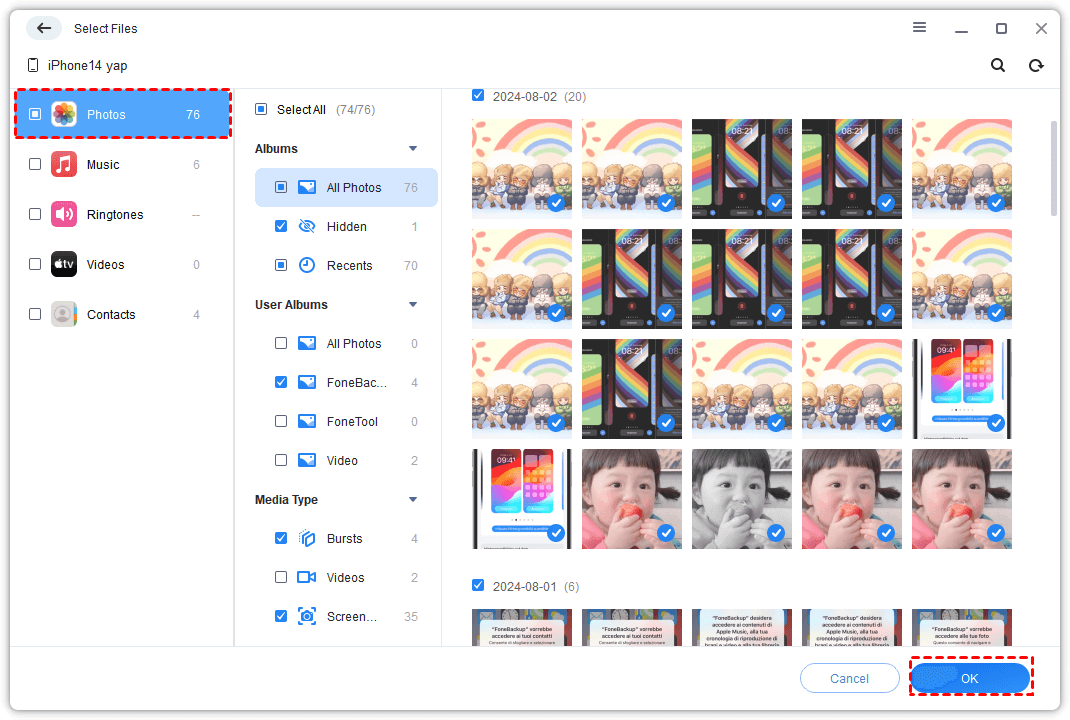
Step 4. Select Photos from the available data categories. Preview the photos and choose the pictures you want to transfer. Then click OK to confirm your selection.
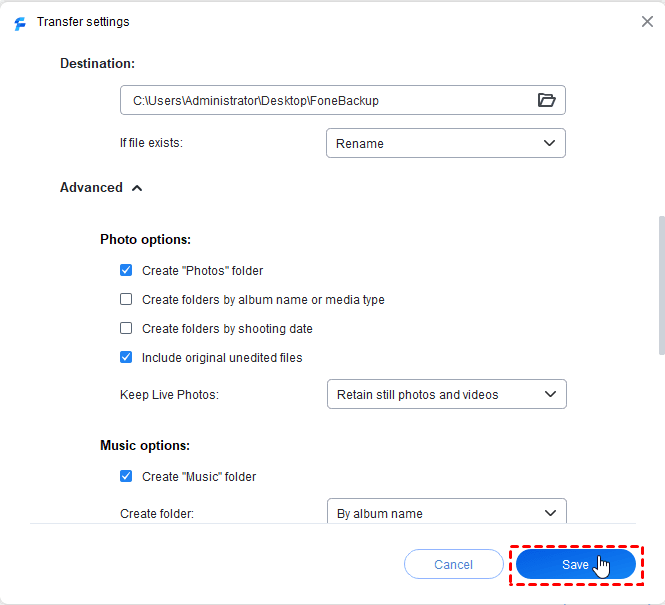
Step 5. Click Transfer Settings to choose a destination folder on your computer where you want to save the photos.
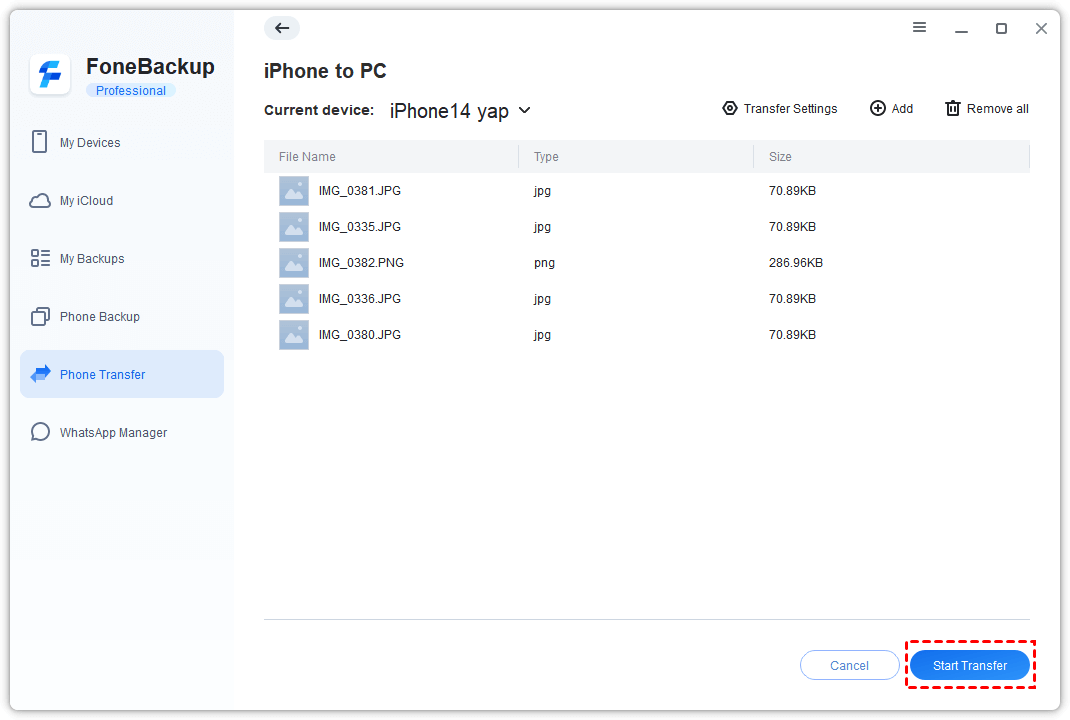
Step 6. Click Start Transfer to begin transferring the selected pictures. Once the process is complete, you can open the destination folder and view your exported photos.
✍ Tip: AOMEI FoneBackup also provides a PC to iPhone transfer feature, which can be useful when you need to transfer photos from PC to iPhone.
Method 2. Download Photos from iPhone 6 to PC with Windows Photos
The built-in Windows Photos app is another way to import photos from iPhone 6 to PC. This option is useful if you do not want to install additional transfer software and simply want to import pictures directly to your computer. Follow the instructions below to import photos using Windows Photos:
Step 1. Connect your iPhone 6 to the computer with a USB cable. Unlock your iPhone and tap Trust or Allow if prompted.
Step 2. Open the Photos app on your Windows computer.
Step 3. Click Import > Apple iPhone. Wait for Windows to scan your iPhone for available photos.
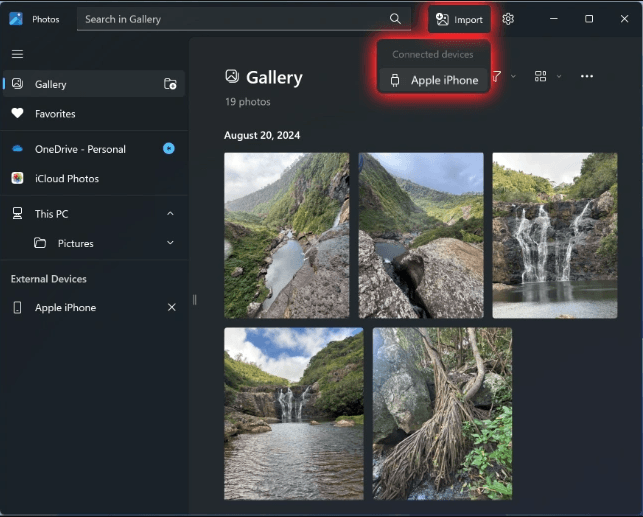
Step 4. Select the pictures you want to import and click the blue button Add xx items (xx stands for the number of selected photos).
Step 5. Confirm the destination folder (C:\Users\Username\Pictures). Then click Import to start transferring the photos.
Step 6. After the process finishes, you can find the imported photos in the destination folder on your computer.
Method 3. Transfer iPhone 6 Photos to Computer with File Explorer
File Explorer offers a straightforward way to copy photos from your iPhone to a Windows computer.
Your iPhone usually appears as a portable device after you connect it to the PC. You can then access the DCIM folder and copy photos to your preferred location.
However, this method may not provide access to every photo displayed in the iPhone Photos app. Learn how to transfer photos with File Explorer below:
Step 1. Connect your iPhone 6 to the computer using a USB cable. Unlock your iPhone and tap Trust when prompted.
Step 2. Open File Explorer > This PC. Locate your iPhone under Devices and drives or Portable Devices.
Step 3. Open your iPhone and select Internal Storage.
Step 4. Open the DCIM folder. Then browse the available folders and select the photos you want to copy.
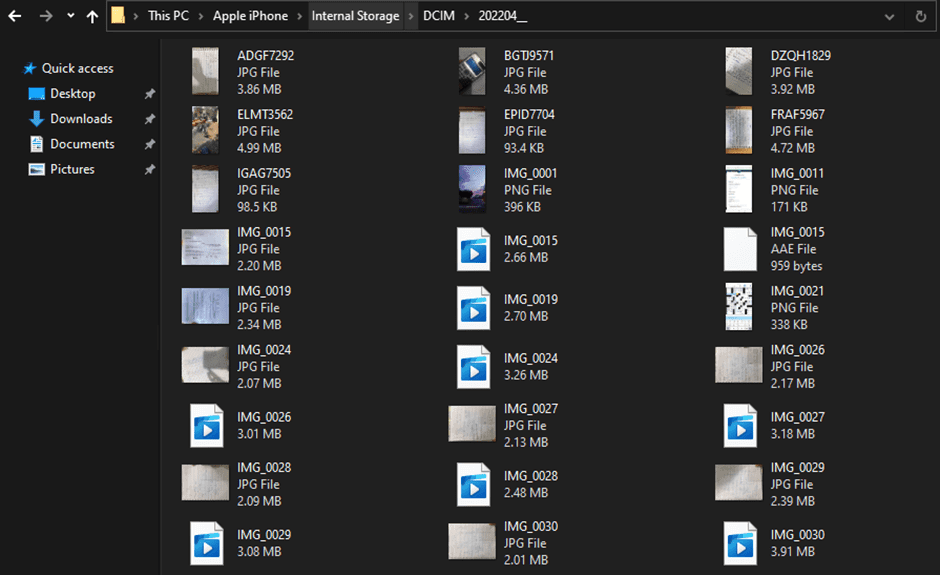
Step 5. Right-click and choose Copy, then open your preferred destination folder and paste the photos. You can also drag the selected photos to the destination folder.
✍ Tip: If you encounter iPhone internal storage is not showing on PC, find fixes in this guide.
Troubleshooting: Can't Transfer Photos from iPhone 6 to Computer
Sometimes, you may encounter problems when trying to download photos from iPhone 6 to PC. Below are several common causes and solutions.
🎯 Make Sure the iPhone Is Unlocked
Windows may not be able to access your photos while the iPhone is locked. Unlock the device and tap Trust when the permission prompt appears.
🎯 Check Your USB Cable
A damaged or incompatible USB cable can interrupt the connection between the iPhone and computer. Try another compatible cable if your computer does not recognize the iPhone.
🎯 Try Another USB Port
If the iPhone repeatedly disconnects, plug the cable into another USB port on your computer. Avoid unstable USB hubs when possible.
🎯 Restart Both Devices
Temporary software issues may prevent your computer from detecting the iPhone correctly. Restart your iPhone and computer, then reconnect the devices and try again.
🎯 Check Whether Photos Are Stored Locally
If you use a cloud photo service, some pictures may not currently be stored in the iPhone's local storage. Make sure the photos you want to transfer are available on the iPhone before attempting the transfer.
FAQs About Transferring Photos from iPhone 6 to Computer
1. Can I transfer photos from iPhone 6 to a Windows PC without iTunes?
Yes. You can use AOMEI FoneBackup, Windows Photos, or File Explorer to transfer photos from iPhone 6 to computer without using iTunes.
2. Why won't my computer recognize my iPhone 6?
Make sure your iPhone is unlocked and that you have tapped Trust when prompted. You can also try a different USB cable, USB port, or restart both devices.
3. Can I transfer photos from iPhone 6 to an external hard drive?
Yes. You can first transfer the photos to your computer and then copy them to an external drive. AOMEI FoneBackup enables you to import iPhone photos to external hard drive directly.
Verdict
There are several easy ways to transfer photos from iPhone 6 to computer. You can use Windows Photos to import pictures, File Explorer to manually copy files from the DCIM folder, or AOMEI FoneBackup for a more flexible photo transfer process.
If you need to transfer selected pictures and want greater control over the process, AOMEI FoneBackup can be a useful option. It supports various destinations, such as transferring photos from iPhone to USB. Why not give it a shot?

 as a preferred
source on Google
as a preferred
source on Google