



iPhone Internal Storage Not Showing? 6 Ways to Fix
Is your iPhone storage not showing up on your PC? Try these 6 proven fixes for DCIM, driver, and connection problems.

By Lily Updated on August 18, 2026


Why Is iPhone Internal Storage Showing Empty?
When you connect an iPhone to a Windows PC, transferring photos and videos isn’t as simple as with Android. File Explorer typically only shows items in the Camera Roll/DCIM folder.
If Windows File Explorer recognizes your iPhone but the DCIM folder contains no photos or videos, the basic USB connection and driver may already be working. In many cases, the problem is related to permissions.
Another common cause is iCloud Photos. If Optimize iPhone Storage is enabled, some original photos may be stored in iCloud rather than locally on the iPhone. As a result, they may not appear in the DCIM folder when you connect your device to a PC.
How to Fix iPhone Internal Storage Not Showing on PC
Before trying the software fixes, check your USB cable and port. If possible, use another cable or USB port, and connect the iPhone directly to the computer instead of using a USB hub. If this doesn’t work, you can go to the following fixes.
Fix 1. Trust the Computer on Your iPhone
If you haven't granted the connected PC permission to access your iPhone, Windows may not be able to display the device's photos.
Step 1. Connect your iPhone to the Windows PC using a USB cable.
Step 2. Unlock your iPhone and wait for the Trust This Computer? prompt to appear.
Step 3. Tap Trust on your iPhone. Enter your iPhone passcode if prompted.
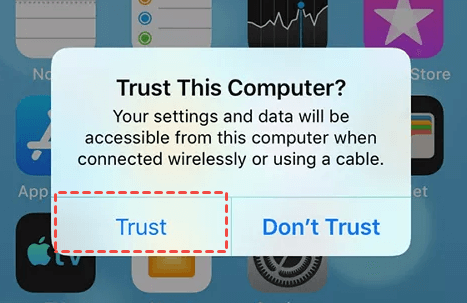
Step 4. Open Windows File Explorer and check whether your iPhone and its DCIM folder are now visible.
💡 Note: Even if you previously trusted the computer, iOS may ask for authorization again in some situations. If you see the prompt, make sure you tap Trust.
Fix 2. Unlock Your iPhone
A locked iPhone may prevent Windows from accessing its photos and videos. This is particularly common when you connect the device and immediately check File Explorer.
Step 1. Connect your iPhone to the PC.
Step 2. Unlock the iPhone with your passcode, Face ID, or Touch ID.
Step 3. Keep the iPhone unlocked while Windows detects the device.
Step 4. Open File Explorer on your PC. Navigate to your iPhone and check the DCIM folder.
💡 Note: If the folder appears only after unlocking the iPhone, keep the device unlocked while transferring your photos.
Fix 3. Restart Your Computer
Temporary Windows or USB-related glitches can prevent your iPhone from appearing correctly in File Explorer. A simple restart can refresh the USB connection and Windows device services without requiring additional changes.
Step 1. Disconnect your iPhone from the computer.
Step 2. Click the Start button in Windows. Select Power > Restart.
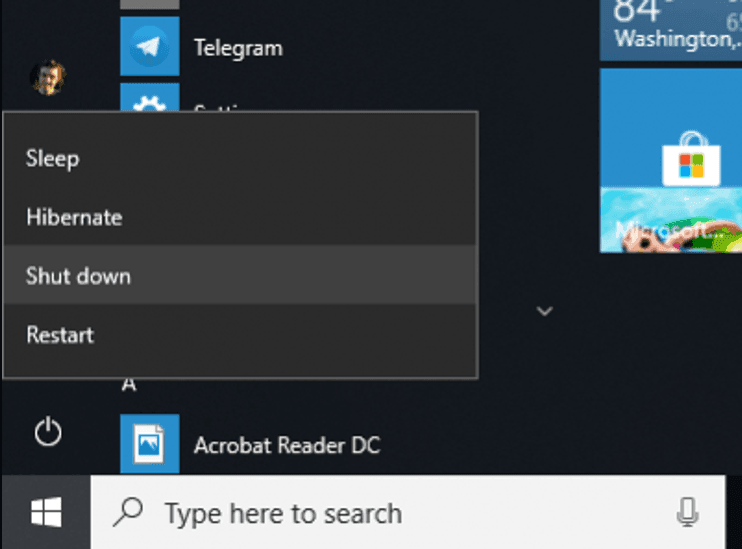
Step 3. After Windows starts again, connect your iPhone with a USB cable.
Step 4. Unlock your iPhone and tap Trust if the permission prompt appears.
Step 5. Open File Explorer and check whether your iPhone internal storage is showing.
Fix 4. Download and Keep Original Photos on Your iPhone
If you use iCloud Photos and have Optimize iPhone Storage enabled, your iPhone may keep smaller versions of some photos while storing the original files in iCloud. This can explain why iPhone photos are not showing on PC even though you can see them in the Photos app. Follow the steps below to fix it:
Step 1. Open Settings on your iPhone. Tap [your name] > iCloud > Photos.
Step 2. Select Download and Keep Originals.
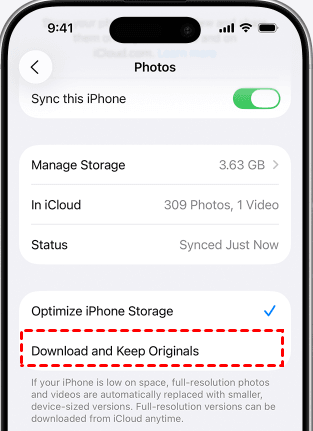
Step 3. Connect your iPhone to a fast and stable Wi-Fi network. Wait for the original photos and videos to finish downloading to your iPhone.
Step 4. Connect the iPhone to your PC again and check the DCIM folder.
💡 Notes:
- If only some photos appear on your computer, the remaining originals may still be downloading from iCloud. Give the iPhone enough time to complete the download before trying the transfer again.
- If you don't want to use a USB cable, you can download your iCloud Photos directly to your Windows PC from iCloud.com/photos.
Fix 5. Update the Apple iPhone Driver
If the installed Apple device driver is outdated or malfunctioning, it can prevent Windows from communicating correctly with your iPhone. You can try updating it through Device Manager.
Step 1. Connect your iPhone to the computer using a USB cable and unlock it.
Step 2. Right-click the Start button and select Device Manager.
Step 3. Expand Portable Devices, right-click your Apple iPhone, and select Update driver.
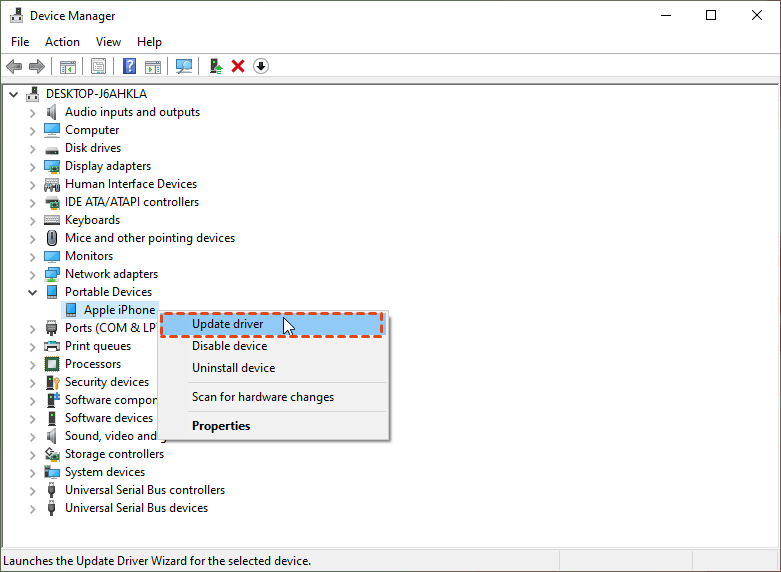
Step 4. Choose Search automatically for drivers. Follow the on-screen instructions to complete the update.
Step 5. Restart your PC if Windows asks you to do so. Reconnect your iPhone and check whether the DCIM folder is now available.
💡 Note: If updating the iPhone driver doesn’t work, you can choose Uninstall device in step 3 to reinstall the iPhone driver. Windows should reinstall the necessary driver when the iPhone is connected again.
Workaround: Transfer iPhone Photos Without Relying on File Explorer
Windows File Explorer is convenient for accessing photos from an iPhone, but it has limitations. It does not provide full access to the iPhone's internal storage, and connection, permission, iCloud, or driver problems can interrupt the transfer.
If your main goal is to move photos and videos from iPhone to PC, AOMEI FoneBackup provides a more direct solution. It is an iPhone data transfer tool that lets you select the photos and videos you want to move instead of relying solely on the DCIM folder. It can also transfer other types of iPhone data, including music and contacts.
 AOMEI FoneBackup
- Fast transfer speeds are useful when moving large numbers of photos or videos.
- Supports transferring music, photos, videos, contacts, and other supported data between iPhone and PC.
- Lets you preview and select specific files before transferring them.
- Helps preserve the original photos during the transfer.
- Supports a wide range of iPhone models, iOS versions, and Windows systems.
 100% Secure
Learn how to transfer photos from iPhone to PC with AOMEI FoneBackup below. This method can be especially useful when iPhone photos not showing on PC and you simply want a reliable way to transfer your photos to a Windows PC.
Step 1. Download and install AOMEI FoneBackup, then connect your iPhone to the PC with a USB cable.
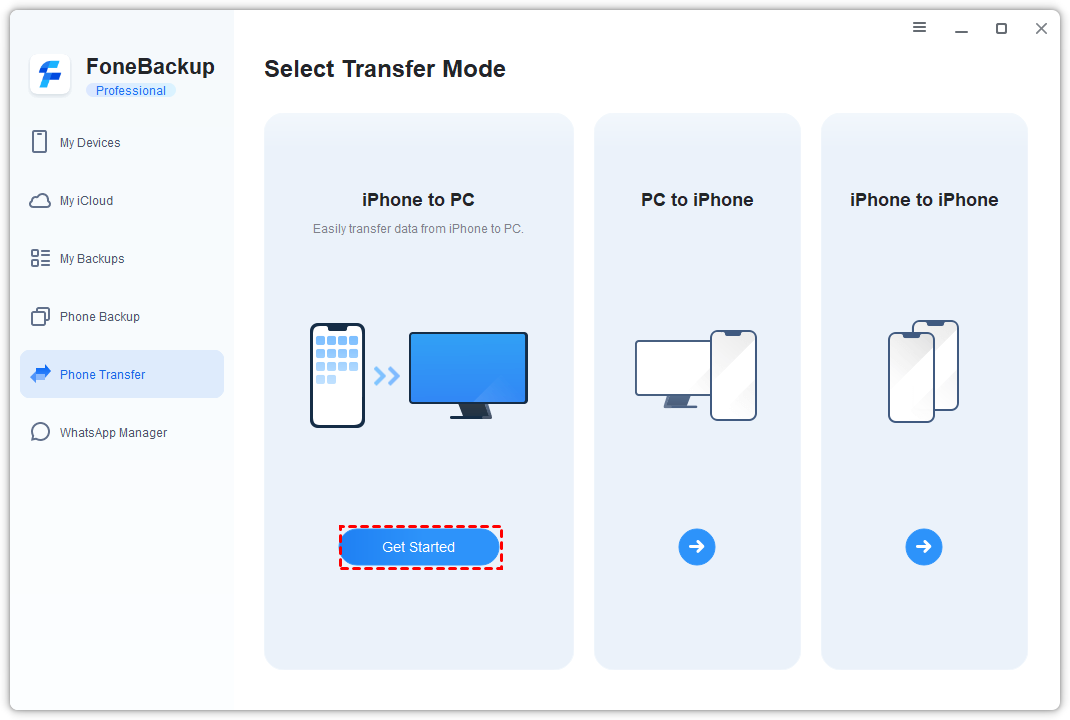
Step 2. Open AOMEI FoneBackup and select Phone Transfer > iPhone to PC > Get Started.
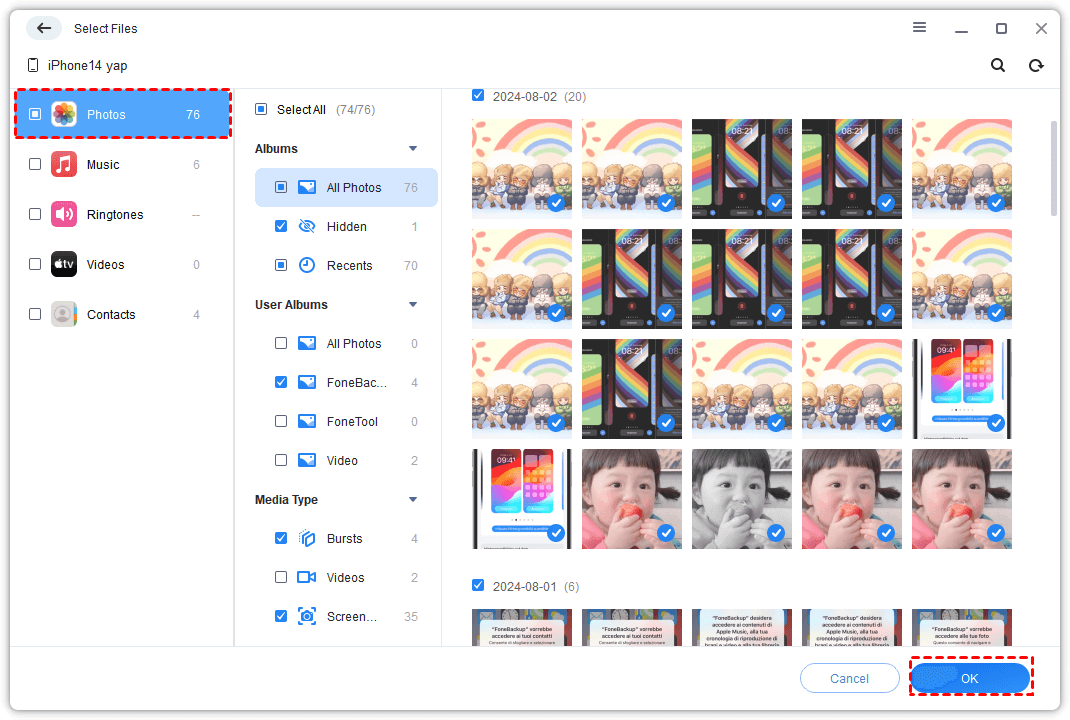
Step 3. Check the Photos checkbox to transfer all photos on your iPhone, or click the Photos icon to select only desired photos in the Select Files window.
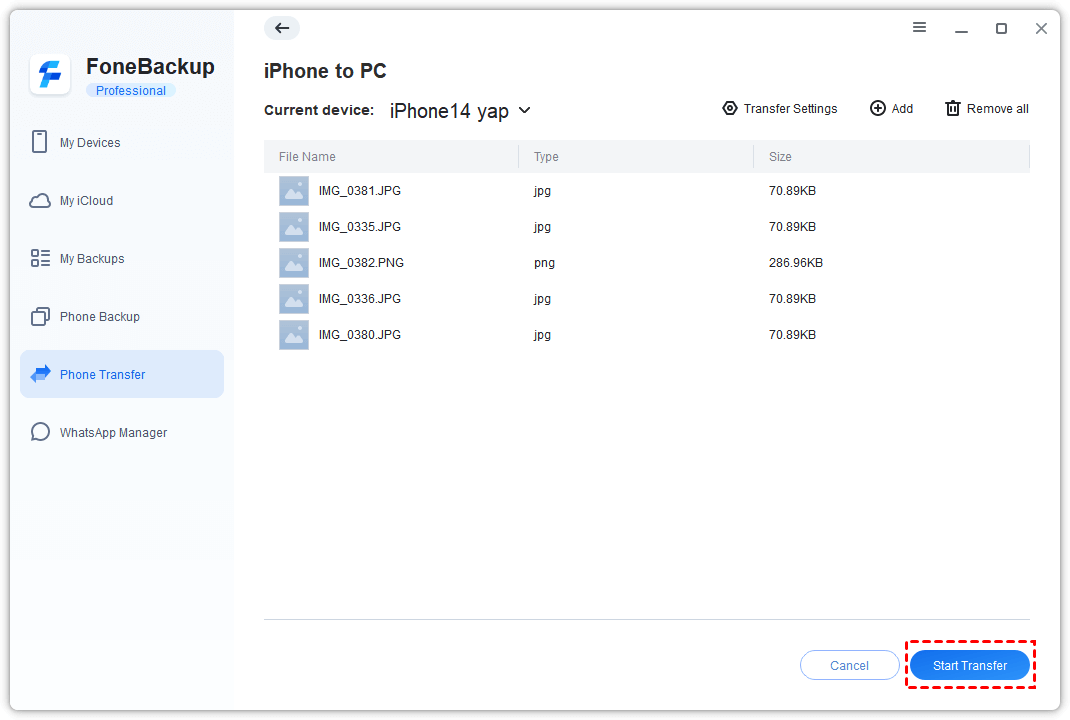
Step 4. Click Transfer Settings to choose a destination on your computer if necessary. Then click Start Transfer and wait for the process to finish.
FAQs About iPhone Internal Storage Not Showing
1. Why is my iPhone DCIM folder not showing on PC?
Your iPhone may not appear correctly because it hasn't trusted the computer, the device is locked, the USB connection is faulty, iCloud Photos hasn't downloaded the original files, or the Apple driver has a problem.
2. Can I access all iPhone internal storage from Windows?
No. Windows File Explorer does not work like Android's file system access. iOS restricts what a Windows PC can access directly, so you generally cannot browse all of the iPhone's internal files through File Explorer.
3. What is the easiest way to transfer photos if iPhone storage is not showing?
If File Explorer isn't working properly, you can use AOMEI FoneBackup to connect the iPhone and selectively transfer photos and videos to your PC. This avoids relying entirely on the DCIM folder.
Conclusion
When iPhone internal storage is not showing on a Windows PC, the problem doesn't necessarily mean that your iPhone or storage is damaged. Start with the simple fixes: use a reliable USB connection, unlock the iPhone, tap Trust, restart the PC, and check your iCloud Photos settings. If the issue continues, update or reinstall the Apple driver.
If your priority is simply transferring photos and videos rather than troubleshooting File Explorer, AOMEI FoneBackup offers a convenient alternative for selecting and transferring your iPhone data to a Windows computer. It also works as the best iPhone backup software to help you protect your iPhone data. Just give it a shot!

 as a preferred
source on Google
as a preferred
source on Google