



iPhone Files Not Showing Up on PC? 5 Fixes for 2026
iPhone files not showing up on your PC? This guide covers 5 fixes, from USB connection and trust settings to HEIC format issues and driver updates. Plus a direct transfer method when nothing works. Keep reading.

By Ivy Updated on July 10, 2026


You connect your iPhone to a Windows PC, open File Explorer, and wait. You see the iPhone icon under "This PC", but when you click into the DCIM folder, it's empty. Or worse, some files show up, but others don't. The video you just shot? Nowhere to be found.
This is one of the most common and frustrating issues iPhone users face when trying to transfer files to a Windows computer. The good news? In most cases, the problem is caused by something simple and fixable.
This guide walks you through 5 proven solutions, starting with the quickest and most common fixes. If none of them work, we'll also show you a direct alternative that bypasses the troubleshooting entirely.
Quick Diagnosis: Which Fix Should You Try First?
Not sure where to start? Here's a quick guide based on what you're experiencing:
| Your Situation | Most Likely Cause | 👇 Try This |
|---|---|---|
| iPhone icon doesn't appear in File Explorer at all | USB connection or driver issue | Fix 1 |
| iPhone appears but DCIM folder is empty | Trust setting or unlock issue | Fix 2 |
| Some files appear, but photos/videos are missing | HEIC/HEVC format incompatibility | Fix 4 |
| All files appear but won't open | Format or driver issue | Fix 4 or Fix 5 |
| Everything worked before but stopped | Outdated driver or iOS | Fix 3 or Fix 5 |
| None of the fixes work and you need files now | Skip troubleshooting | Turn to a dedicated tool |
Why Are iPhone Files Not Showing Up on PC?
There are several common reasons why iPhone files don't appear on Windows. Here are the most frequent culprits:
-
The computer hasn't been trusted: iPhone blocks access until you tap "Trust"
-
Your iPhone is locked: Files won't appear until you unlock your device
-
USB connection issues: Faulty cables or ports can break the connection
-
HEIC/HEVC format incompatibility: Windows doesn't natively support Apple's photo and video formats
-
Outdated or corrupted drivers: Apple Mobile Device Service may need updating
-
iOS bugs: Occasionally, an iOS glitch can interfere with file access
5 Fixes for iPhone Files Not Showing Up on PC
Fix 1: Check Your USB Connection and Cable
A faulty USB connection is one of the most common reasons why iPhone files don't appear on your PC. If the connection is unstable, your PC may recognize the device but fail to read the files.
✅ What to try:
- Try a different USB port on your computer, USB 3.0 ports (usually blue) often provide more stable connections.
- Use a different USB cable, preferably the original Apple cable that came with your iPhone or an Apple-certified (MFi) cable.
- If you're using a USB hub or extension cable, try connecting your iPhone directly to the computer instead.
After switching ports or cables, your iPhone files should appear in File Explorer. If not, move to Fix 2.
Fix 2: Unlock Your iPhone and Trust Your Computer
This is the most common and easiest fix. If your iPhone is locked, or if you haven't tapped "Trust This Computer", your PC won't be able to access your files.
How to check:
Step 1. Unlock your iPhone using Face ID, Touch ID, or your passcode before connecting it to your PC.
Step 2. Connect your iPhone to a computer. If a "Trust This Computer" prompt appears, tap Trust and enter your passcode.
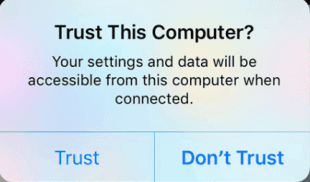
Step 3. If you don't see the prompt, disconnect and reconnect your iPhone. The message should appear.
💡 If you accidentally tapped "Don't Trust":
- On your iPhone, go to Settings > General > Transfer or Reset iPhone > Reset (or Settings > General > Reset on older iOS versions).
- Tap Reset Location & Privacy > Reset Settings. Enter your passcode when prompted.
- Reconnect your iPhone to your computer, the "Trust" prompt should reappear.
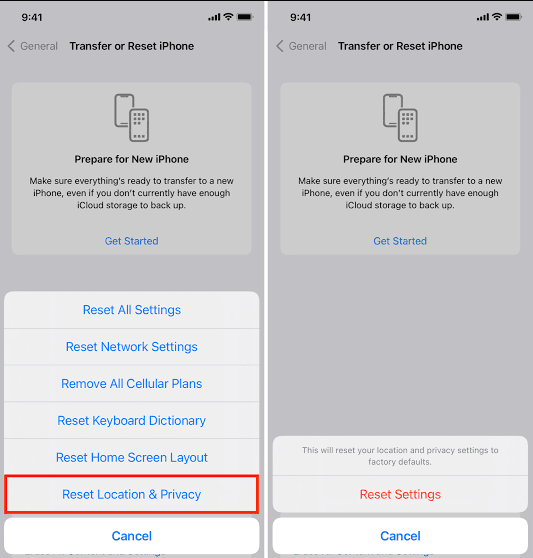
After unlocking and trusting the computer, your files should appear in File Explorer under This PC > [Your iPhone] > Internal Storage > DCIM.
Fix 3: Update iOS to the Latest Version
Occasionally, iOS bugs can interfere with file transfer. Apple often fixes these issues in newer versions.
How to check for updates:
Step 1. On your iPhone, go to Settings > General > Software Update.
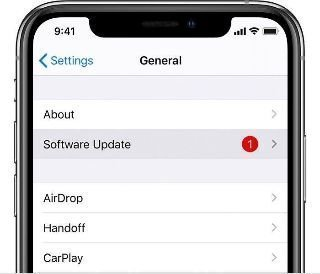
Step 2. Wait for your device to check for available updates. If an update is available, tap Download and Install and follow the prompts.
After updating, reconnect your iPhone to your PC and check if files appear.
Fix 4: Check Photo and Video Format Compatibility (HEIC/HEVC)
If your iPhone shows up on your PC but photos or videos are missing, or if they appear but won't open, the issue is likely the HEIC (photos) or HEVC (videos) format. Windows doesn't natively support these formats, which can cause files to be hidden or unreadable.
Option 1: Change iPhone transfer settings
This setting controls how photos are transferred when you connect your iPhone to a PC via USB.
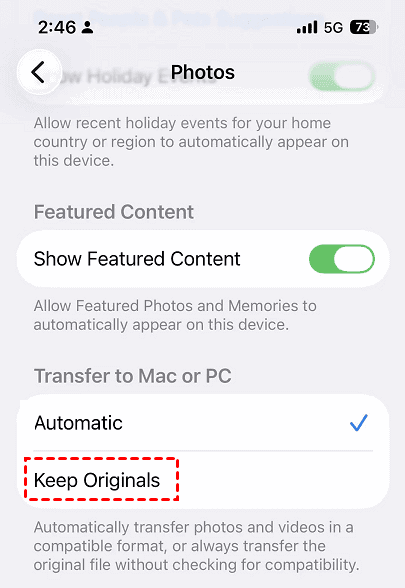
Step 1. On your iPhone, go to Settings > Photos.
Step 2. Scroll down to Transfer to Mac or PC, select Keep Originals. This preserves the original HEIC format but may not solve the viewing issue.
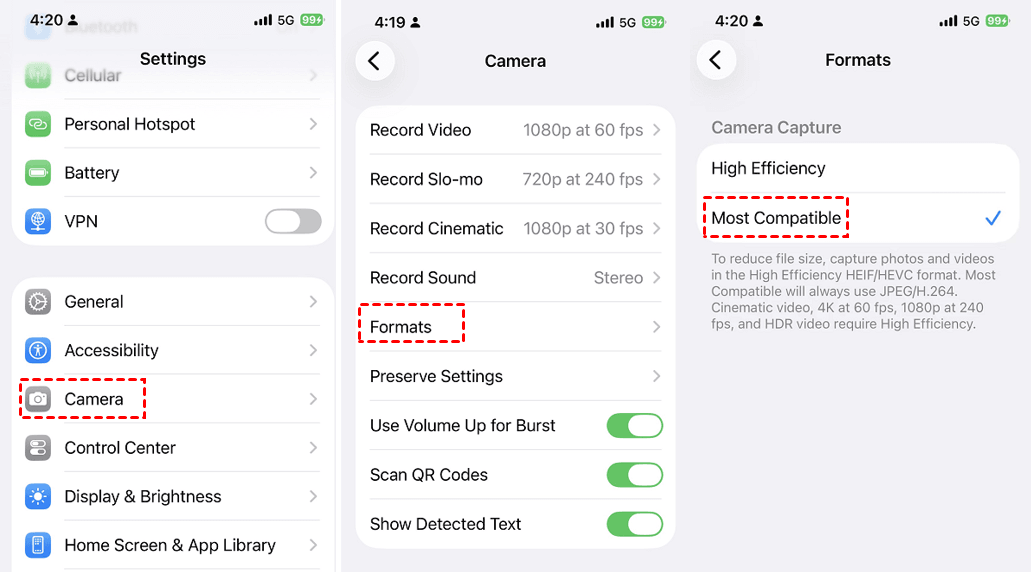
Option 2: Change the camera format on your iPhone
This setting controls how photos are saved on your iPhone.
Step 1. On your iPhone, go to Settings > Camera > Formats.
Step 2. Select Most Compatible (JPEG) instead of High Efficiency (HEIC).
Option 3: Install HEIF/HEVC extensions on Windows
If you want to keep HEIC/HEVC files but view them on Windows, you can install the official extensions.
Step 1. Open the Microsoft Store on your Windows PC.
Step 2. Search for HEIF Image Extensions and install it (free).
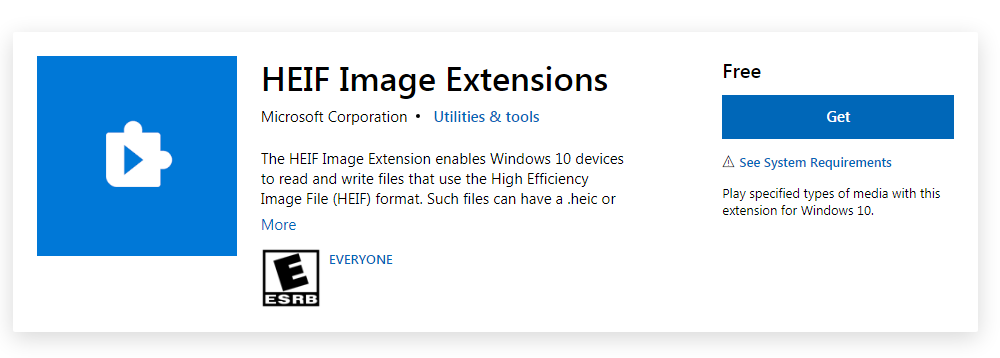
Step 3. Also search for HEVC Video Extensions. This may require a small payment, but it's essential for HEVC video playback.
After changing the format or installing the extensions, your photos and videos should appear and open correctly.
Fix 5: Update or Reinstall Apple Mobile Device Service
If you've tried all the fixes above and still can't access iPhone files on your PC, the Apple Mobile Device Service driver may be outdated or corrupted.
How to update the driver:
Step 1. Press Windows + X and select Device Manager.
Step 2. Expand Portable Devices or Universal Serial Bus devices, right-click Apple iPhone (or Apple iPad), and select Update Driver.
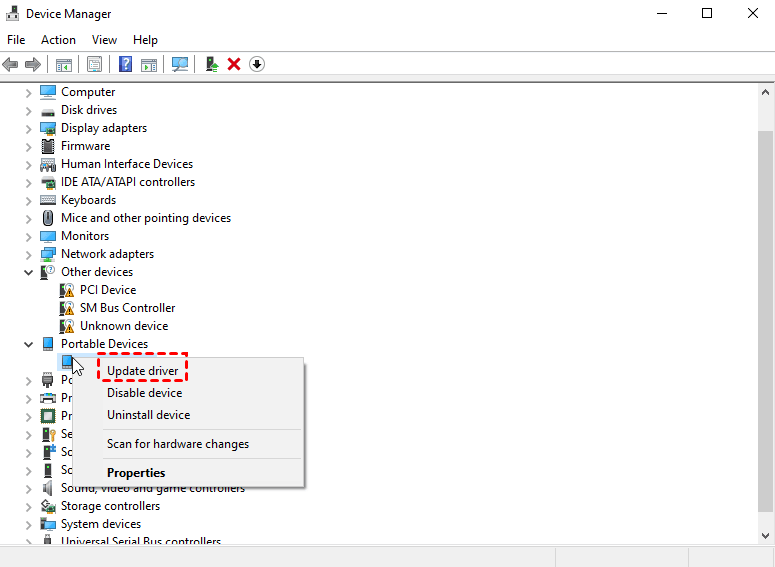
Step 3. Choose Search automatically for updated driver software, then follow the prompts.

💡 If updating doesn't work:
- In Device Manager, right-click Apple iPhone and select Uninstall Device.
- Disconnect your iPhone, restart your computer, then reconnect your iPhone. Windows will automatically reinstall the driver.
After updating or reinstalling the driver, your iPhone files should appear in File Explorer.
Nothing Works? Transfer Files Directly with AOMEI FoneBackup
If you've tried all the fixes above and your files still won't show up or if you simply don't have time to troubleshoot, there's a faster way.
AOMEI FoneBackup is a professional iPhone data transfer tool that works regardless of USB connection issues, trust settings, or format compatibility. Instead of relying on Windows to read your iPhone's DCIM folder, it transfers files directly from your iPhone to your PC with a USB cable.
 AOMEI FoneBackup
-
With a user-friendly interface, no technical skills are needed.
-
3 transfer modes - iPhone to PC, PC to iPhone, iPhone to iPhone, works even when files don't show up in File Explorer
-
Fully or selectively transfer files, such as photos, videos, messages, contacts, etc.
-
Preview files before transferring to PC or iPhone.
-
Fast transfer speed.
-
Save files to your computer, flash drive, external hard drive, etc.
 100% Secure
How to transfer files with AOMEI FoneBackup:
Step 1. Download and install AOMEI FoneBackup on your Windows PC. Connect your iPhone to your computer via a USB cable and tap Trust on your iPhone.
Step 2. Launch AOMEI FoneBackup, select Phone Transfer from the left panel. Then, choose iPhone to PC and click Get Started.
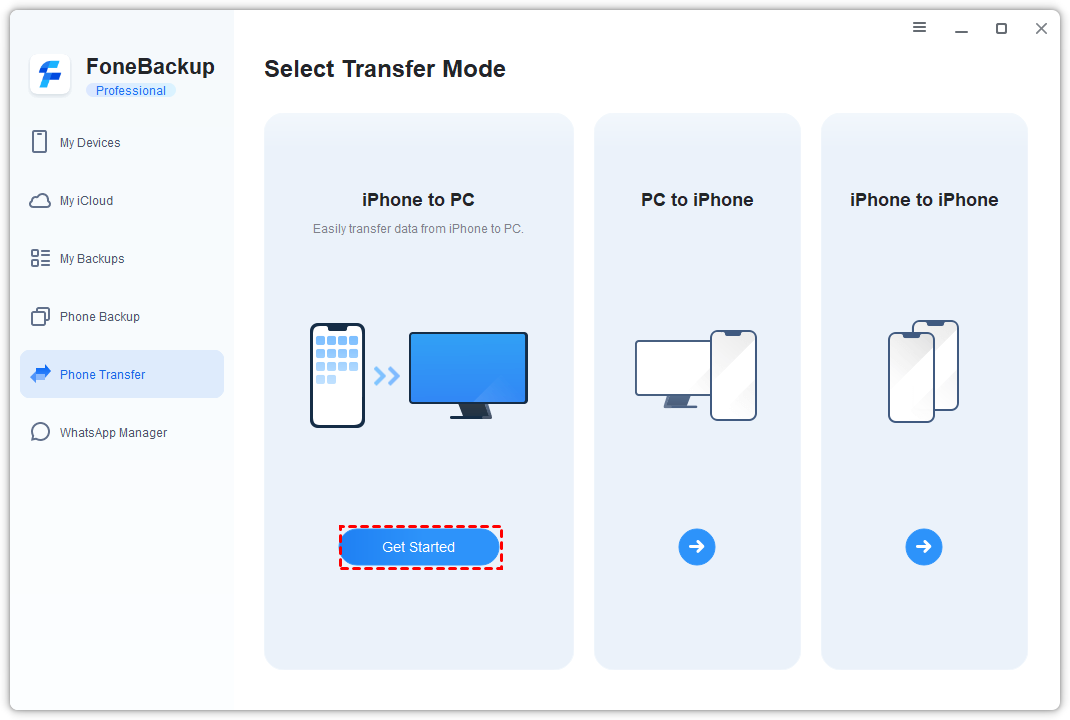
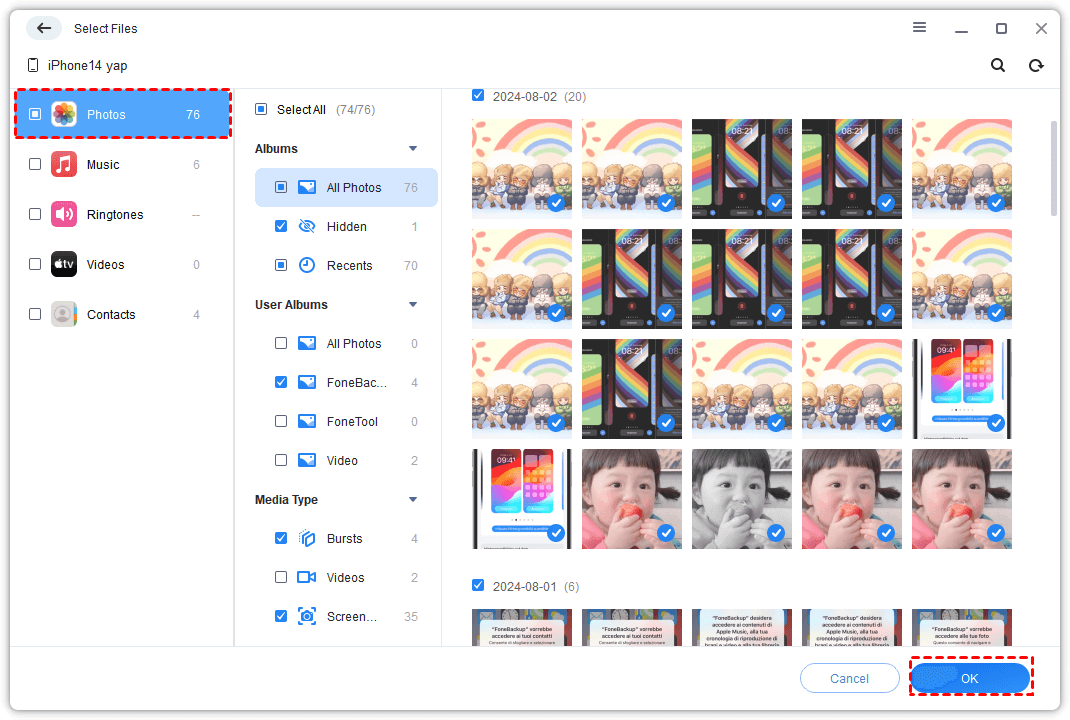
Step 3. Click the + icon to preview and select the files you want to transfer, such as photos, videos, music, contacts, and more.
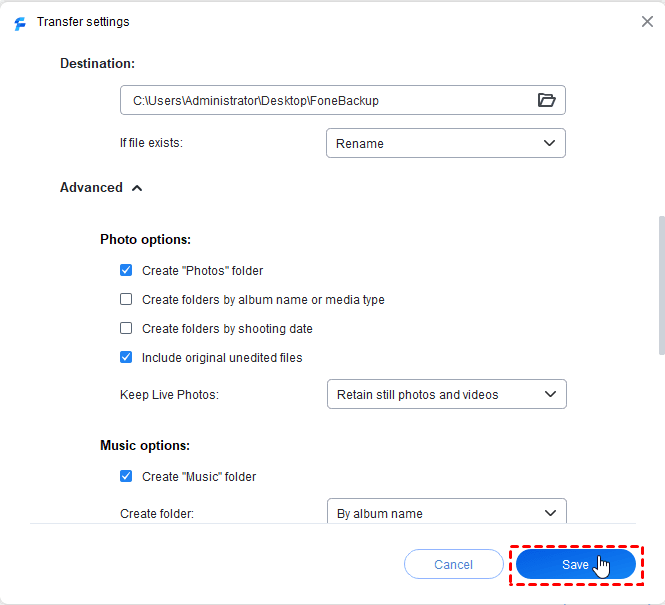
Step 4. Click Transfer Settings to choose where to save. Adjust other settings as needed and click Save.
Step 5. Back to the main screen, click Start Transfer to transfer files from iPhone to PC.
Final Words
If your iPhone files aren't showing up on your PC, don't panic. In most cases, the problem is caused by something simple - a missed "Trust" prompt, a locked iPhone, a faulty cable, or a format incompatibility.
Here's the simple rule:
-
Start with Fix 1 (USB connection) - it's the quickest and often solves the problem.
-
Try Fix 2 (Unlock and Trust) - this is the most common cause of missing files.
-
If photos or videos are missing, use Fix 4 (Format compatibility) - HEIC/HEVC is the usual culprit.
-
If nothing works, use the Bonus Tip (AOMEI FoneBackup) - it bypasses all the troubleshooting and transfers files directly.
Your iPhone files are too important to lose. Try these fixes, and you'll likely be back up and running in no time.

 as a preferred
source on Google
as a preferred
source on Google