



Best M.2 Cloning Software to Clone M.2 SSD [Full Guide]
You can use AOMEI Cloner, the top M.2 NVMe SSD cloning software, to easily clone your M.2 SSD to a larger one and successfully boot from it on Windows 11, 10, 8, 7 or Server OS.

By Lily Updated on August 10, 2026


Why clone M.2 SSD to another M.2 SSD?
An M.2 SSD (Solid State Drive) is a high-performance storage device that utilizes the M.2 interface, which is faster and more compact than traditional SATA-based SSDs. M.2 SSDs are commonly used in modern laptops, desktops, and even gaming consoles due to their speed, reliability, and slim design.
You may want to clone M.2 SSD to another M.2 SSD for the following reasons:
- Upgrade to a Larger SSD: If your current SSD is running out of storage space, cloning it to a larger M.2 SSD allows you to expand your storage capacity without reinstalling your operating system and applications.
- Improved Performance: Newer M.2 SSD models often come with better performance specifications, such as faster read/write speeds. Cloning to a newer, more advanced SSD can boost system performance.
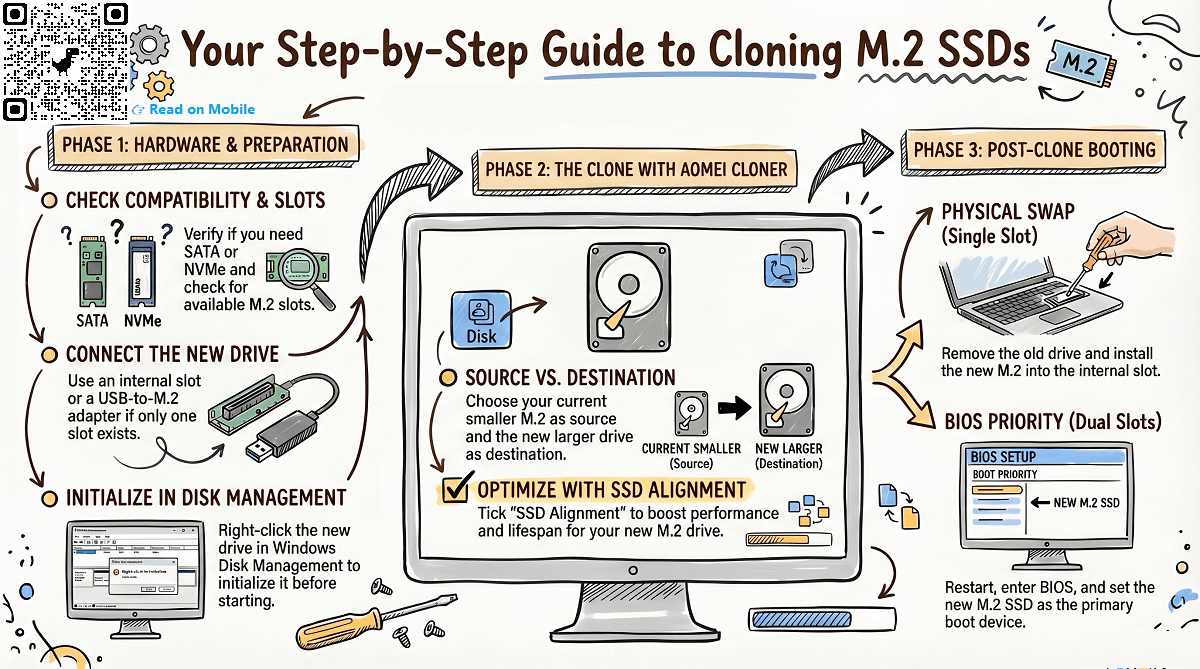
Best M.2 cloning software for Windows PC
To be honest, there are so many M.2 SSD cloners you can find on the Internet, but it’s difficult to distinguish which one is the best. Here, it's strongly recommended to try M.2 NVMe cloner - AOMEI Cloner because of its following advantages.
 AOMEI Cloner
- Offer "Disk Clone" to help you clone HDD/SSD and clone GPT disks/MBR disks while ensuring a secure boot after cloning.
- Improve the performance of the M.2 SSD disk and its lifespan with the powerful feature “SSD Alignment”.
- Clone and resize larger M.2 SSD with the "Edit Partitions" feature to resolve cloned SSD not showing the full capacity issue.
- Allow to clone a larger drive to a smaller drive by only cloning the used sectors.
- Support cloning all branded M.2 SSD disks, such as WD M.2 SSD, Samsung M.2 SSD, SanDisk M.2 SSD, etc. It also supports different disk types like PCIe, SATA or IDE.
 100% Secure
Free download the M.2 drive duplicator - AOMEI Cloner now.
How to clone M.2 SSD to M.2 SSD in Windows 11/10/8/7
This part will describe how to clone M.2 SSD to larger M.2 SSD with the best M.2 SSD cloner. Please check the detailed guide below.
#1. Preparations before cloning M.2 SSD
✅ Choose a compatible M.2 SSD
Check your computer's supported interface type to determine whether you should buy a SATA M.2 SSD or an NVMe M.2 SSD.
Also, choose a capacity larger than the amount of data stored on your current M.2 SSD. Keep in mind that SSDs with higher capacities tend to have better performance and longer lifespans.
✅ Check M.2 slot number
Check how many M.2 slots your computer has. If your computer only has one, you may need a USB to M.2 SSD adapter or a PCIe M.2 expansion card.
✅ Connect the new M.2 SSD
- For the computer with two slots, directly slide your M.2 SSD into the slot and screw it up tightly.
- For the computer with one slot, connect your M.2 SSD with an adapter or enclosure.
✅ Get the new M.2 SSD ready
- If it’s a brand new SSD, you may initialize it in Disk Management. Open Disk Management, locate and right-click the new M.2 SSD and select Initialize Disk.
- If the SSD is already initialized and has some data on it, backup the data you still need before cloning. The destination disk will be overwritten during the cloning process.
#2. Steps to clone M.2 SSD to larger M.2 SSD
Now, see below and learn the detailed steps to clone M.2 SSD to larger M.2 SSD with M.2 SSD clone software in Windows 11/10/8/7.
Step 1. Open AOMEI Cloner to enter its main interface after the installation. Select Disk Clone in the left panel.
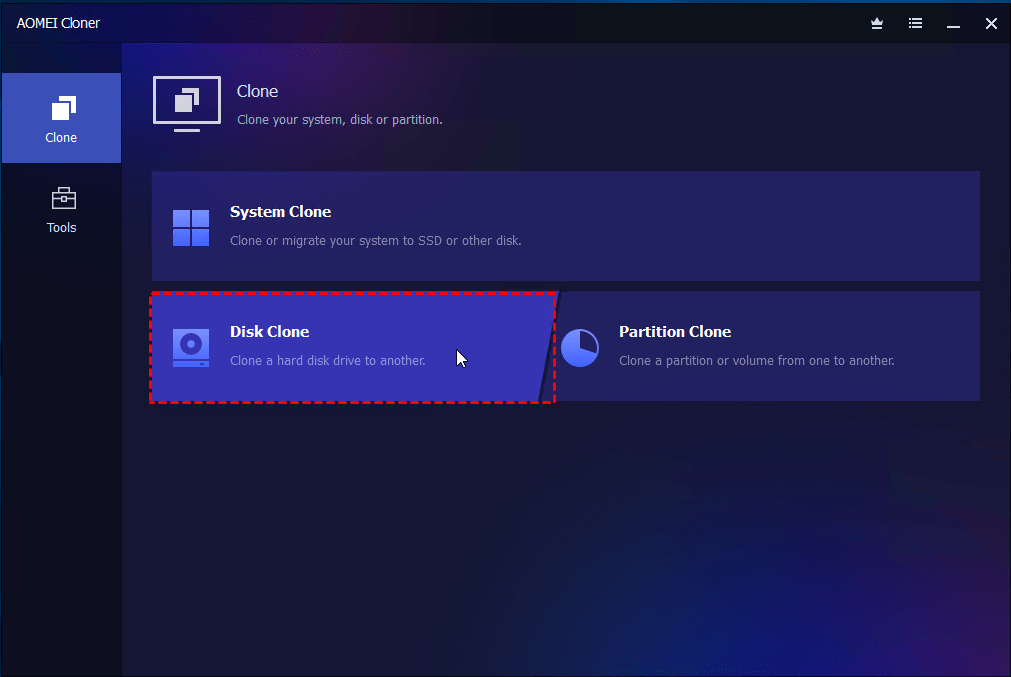
💡 Note: You can also clone only OS to M.2 SSD with the System Clone feature.
Step 2. Click Select Source Disk to choose the smaller M.2 SSD drive as the source disk, and go to Next.
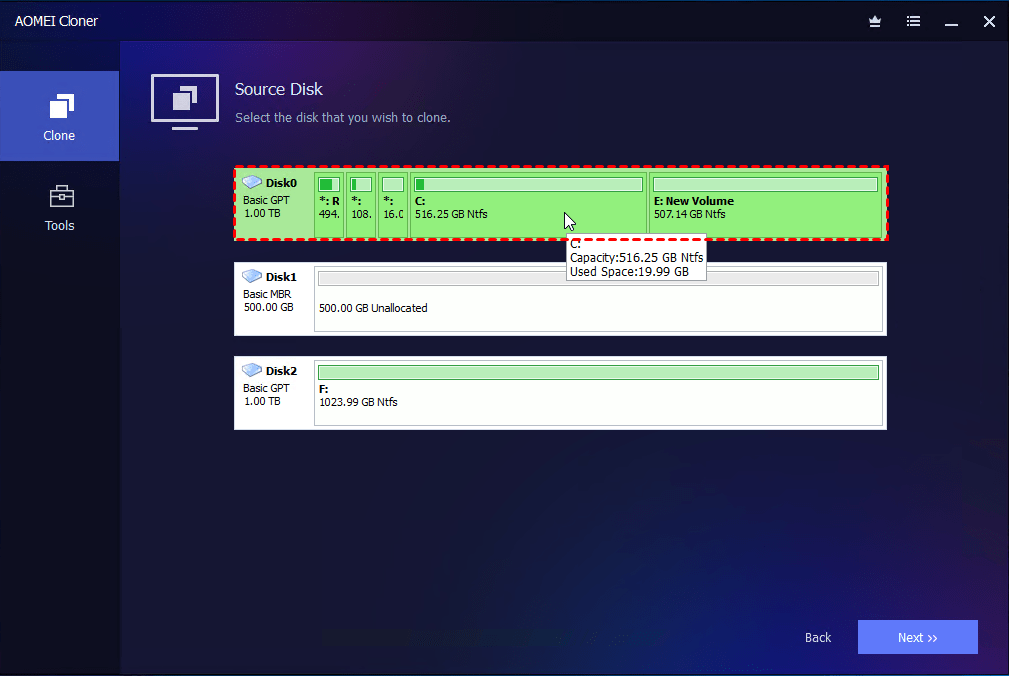
Step 3. Click Select Destination Disk to select the larger M.2 SSD as the destination disk, and go to Next.
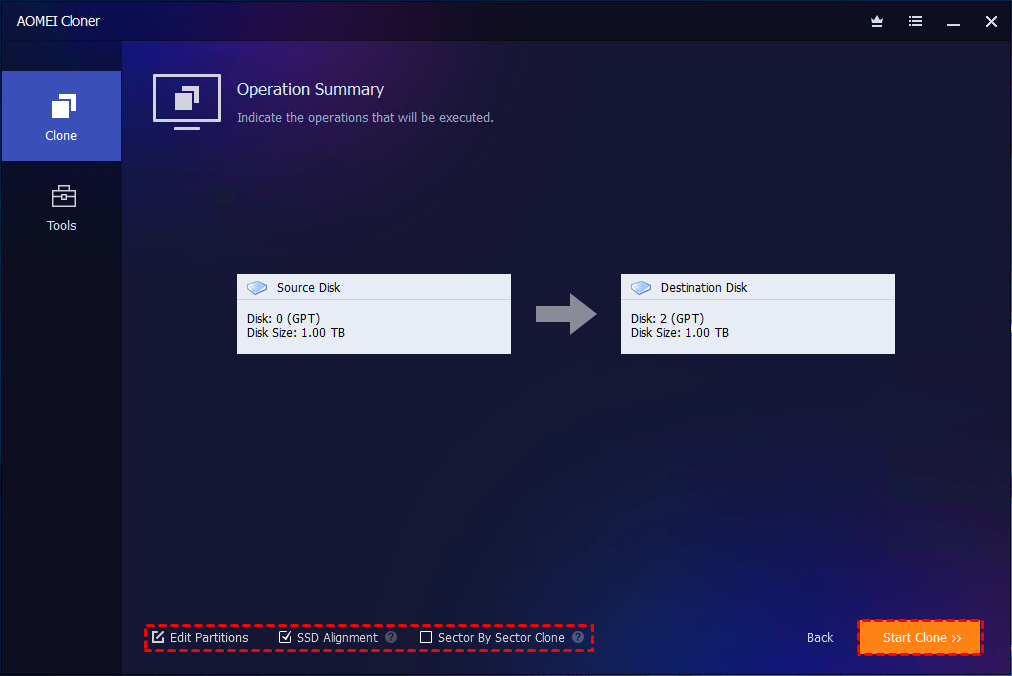
Step 4. In the Operation Summary page, click Edit Partitions and choose Add unused space to all partitions or Manually adjust partition size to resize partitions and avoid unallocated space. You can also convert disk types (MBR and GPT) with it.
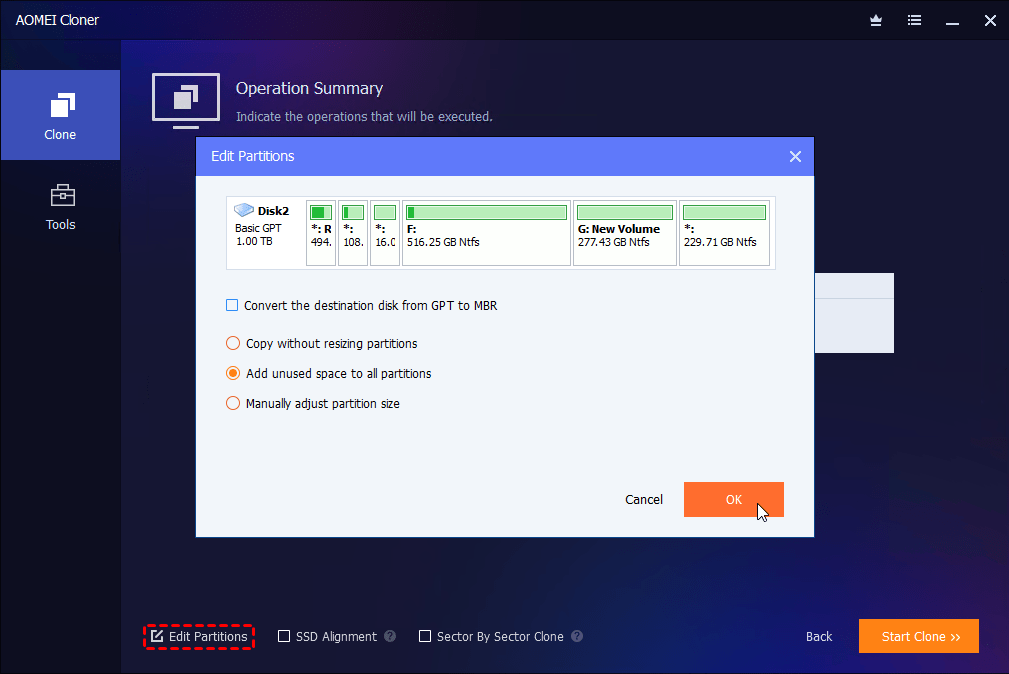
Step 5. Tick SSD Alignment to optimize the performance for M.2 SSD disk and click Start Clone.
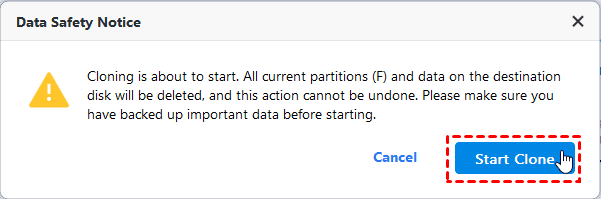
Step 6. Confirm the data loss warning and click Start Clone to perform M.2 clone safely.
#3. Boot from the cloned M.2 SSD
After cloning M.2 SSD to M.2 SSD, you may need to boot from the cloned M.2 SSD. Pick one way to boot from the new M.2 SSD according to your situation.
👉 Situation 1: The new M.2 SSD is connected via an adapter
1. Open your computer case. Remove the mounting screw from the M.2 slot and take out the old M.2 SSD.
2. Plug the new M.2 SSD into the slot and pay attention to the notch.
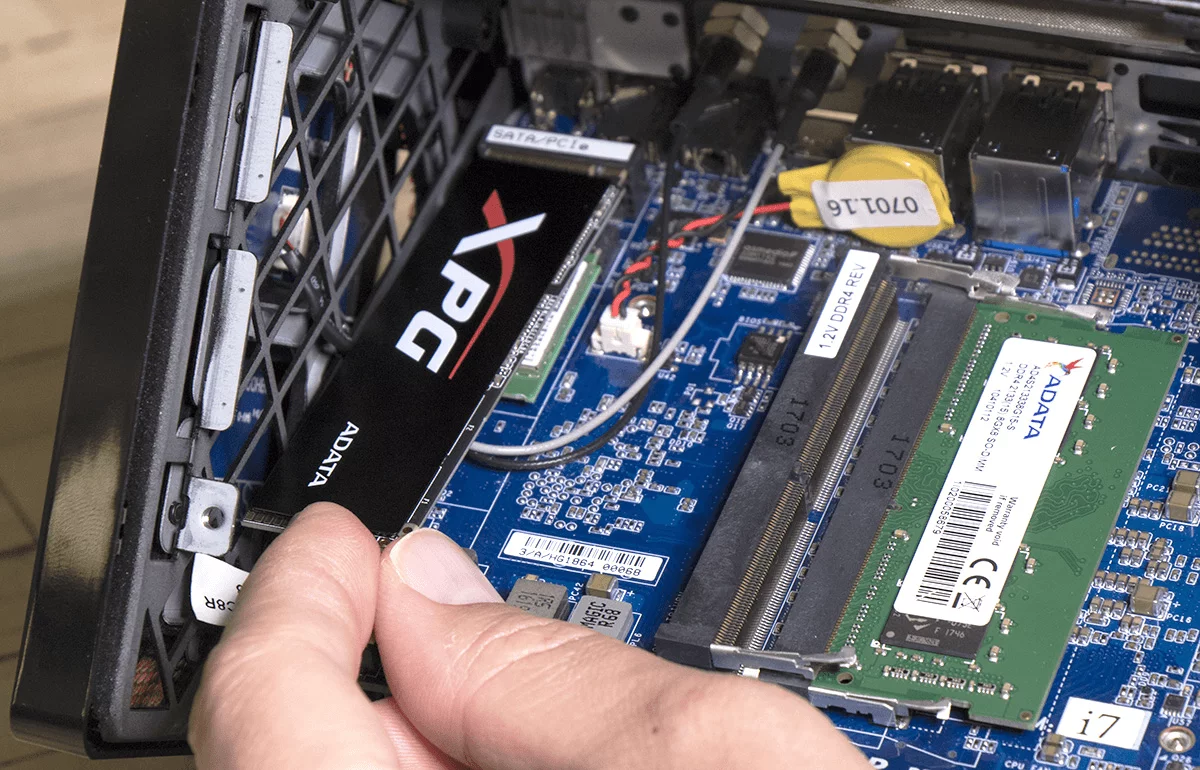
3. Secure the M.2 SSD with the mounting screw removed earlier.
4. Reassemble your computer and restart. It should boot as normal.
👉 Situation 2: The new M.2 SSD is installed in an extra slot
1. Restart your computer and press the specified key in the initial screen (e.g.: F2, ESC) to access BIOS.
2. Go to the Boot Menu. At the boot priority section, set the new M.2 SSD as the first boot drive.
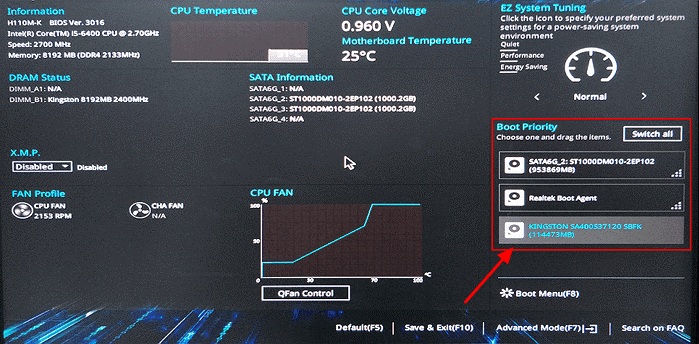
3. Press F10 to save all the changes and restart the computer.
💡 Note: If your computer doesn't boot as expected, please refer to this article: "Cloned SSD Won't Boot."
Related guides to help you clone M.2 SSD easily
Cloning an M.2 SSD can vary depending on your hardware setup, SSD type, and available slots. To help you tackle different scenarios with confidence, explore the in-depth guides below.
Upgrading from a SATA-based M.2 SSD to a faster NVMe drive is a common performance boost. However, differences in interface and speed can introduce compatibility considerations. This guide walks you through how to clone M.2 SATA to M.2 NVMe safely, ensuring proper boot configuration and full performance utilization after migration.
If you're moving from a traditional 2.5-inch SSD to a compact M.2 drive, the process involves both physical installation and system migration. This tutorial focuses on how to clone 2.5 SSD to M.2, helping you transfer your OS and data without reinstalling Windows while maximizing space efficiency.
🎯 How to Clone M.2 SSD with Only One Slot
Working with a system that has only one M.2 slot can be tricky, since you can’t connect both drives internally at the same time. This guide provides a practical solution (using a USB-to-M.2 adapter or external M.2 enclosure) to help you clone an M.2 SSD with only one slot, without data loss or downtime.
If you're using Samsung SSDs, you may benefit from brand-specific tools and optimizations. This guide explains how to perform a Samsung clone M.2 to M.2 using dedicated software like Samsung Magician, along with a reliable alternative tool when compatibility issues arise.
FAQs about cloning M.2 SSD
1. Can I clone M2 SSD without reinstalling Windows?
Yes, you can clone an M.2 SSD without reinstalling Windows. Disk cloning software allows you to copy the operating system, installed programs, and personal files onto another SSD. Once the cloning process is complete, you can boot directly from the new drive without going through a fresh OS installation.
2. How to clone M2 SSD to a larger drive?
Cloning an M.2 SSD to a larger drive is straightforward with the right tool. When upgrading to a larger SSD, you can resize partitions during the cloning process to take full advantage of the extra space. After cloning, remember to verify that all partitions are correctly expanded and usable in Windows Disk Management.
3. How to clone M2 SSD to NVMe laptop?
To clone an M.2 SSD to an NVMe SSD in a laptop, you need to ensure your device supports NVMe drives. Then, connect the new NVMe SSD—either via a second slot or an external enclosure—and use cloning software to transfer data. After cloning, replace the old SSD (if necessary) and adjust the boot order.
4. Which external enclosure to use to clone M2 SSD?
The external enclosure to use to clone M2 SSD should match your SSD type:
- M.2 SATA SSD → Use a USB enclosure that supports SATA (usually B-key or B+M key).
- M.2 NVMe SSD → Use an NVMe enclosure (typically M-key) with USB 3.1/3.2 or Thunderbolt support for faster transfer speeds.
Make sure the enclosure is compatible with your SSD size (e.g., 2242, 2260, 2280) and supports UASP for better performance.
In the end
To clone M.2 SSD to M.2 SSD effortlessly, you need a great M.2 cloning software like AOMEI Cloner. It could not only clone hard drive with a secure boot, but also improve the performance of your computer. Don’t hesitate to try it out!

 as a preferred
source on Google
as a preferred
source on Google