



How to Clone a GPT Disk to SSD in Windows 11/10
Looking to clone GPT HDD to SSD? Here's everything you need to know to ensure the cloned drive is bootable, whether you're using an MBR or GPT SSD.

By Lily Updated on August 14, 2026


Can you clone GPT HDD to SSD?
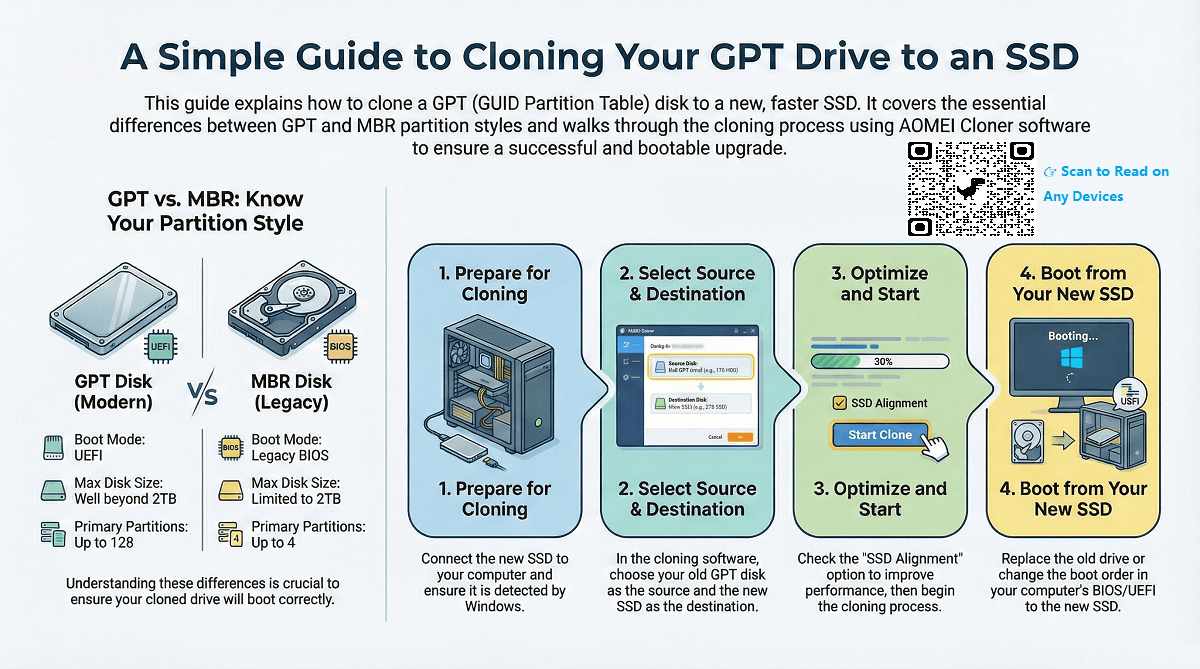
GPT (GUID Partition Table) and MBR (Master Boot Record) are two different ways of storing partitioning information on a drive, with GPT being the newer standard. You can clone GPT disks with qualified software, and it's also a good decision to clone GPT HDD to SSD for better performance.
It is not difficult to clone GPT HDD to GPT SSD - what you may encounter are mostly common problems of cloning HDD to SSD; But if you are cloning GPT to MBR SSD, you need to pay particular attention to the partition style and boot mode issue, otherwise you may not access the system properly.
In this article, I will introduce the best cloning software to do GPT disk clone.
🌟To check various cloning scenarios, please refer to this complete guide: Clone Hard Drive to SSD.
Best cloning software to clone GPT disk to SSD
While there are many clone tools on the market, I will use AOMEI Cloner here for its compatibility.
 AOMEI Cloner
- Cloning options - It gives you options to clone entire hard drive, selected partitions or only operating system. Just choose based on the data you want to migrate.
- Cloning modes - Its intelligent clone mode copies only used sectors, hence allowing the migration to smaller SSD. It also offers the sector-by-sector clone mode to copy all sectors indiscriminately.
- Edit partitions - When cloning to a larger drive, the software allows you to allocate unused space automatically or manually.
- Partition style - It supports cloning both MBR and GPT disks. You can clone GPT to MBR, GPT to GPT, MBR to MBR, or MBR to GPT as needed.
 100% Secure
To get started, you could download and install AOMEI Cloner on your PC now.
How to clone GPT disk to smaller SSD easily
AOMEI Cloner provides an intuitive interface that is easy to understand even for a novice. Before cloning, you just need to connect the target SSD and make sure it can be detected by Windows. Then, launch the software to try the cloning features.
Notes:
👉 If you are cloning a GPT disk with over 4 primary partitions to an MBR disk, the additional partitions will be converted to logical ones to comply with MBR's limitations.
👉 If you are cloning a Windows 11 hard drive, the target disk should be a GPT disk. Use Edit Partitions to convert partition style if the target disk is an MBR disk.
👉 The cloning will overwrite everything on the target drive, so if there's any important data on it, make a backup first.
Step 1. Navigate to the Disk Clone tab to clone the entire GPT disk.

Step 2. Click Select Source Disk to select the GPT disk that you want to clone, and click Next.
Step 3. Click Select Destination Disk to select the smaller SSD to receive the cloned data, and click Next to continue.
Step 4. Check the SSD Alignment option to accelerate the target SSD, and click Start Clone.
✍ Related tips:
💬 Sector By Sector Clone: When you have a larger or equally sized target disk, you can tick this option to ensure cloning all the sectors, including unused or logically bad sectors.
💬 Edit Partitions: It allows you to adjust the partition size on the destination disk as well as convert disk type if it's different from source disk.
- Copy without resizing partitions: It will not resize the partition size.
- Add unused space to all partitions: It will reallocate the unallocated space to each partition of the target disk, appropriate for the disk size.
- Manually adjust partition size: It allows you to extend unallocated space to any partition on the destination disk as you want.
- Convert the destination disk from MBR (GPT) to GPT (MBR): It helps to convert the partition style of the destination disk if it is different from the source disk.
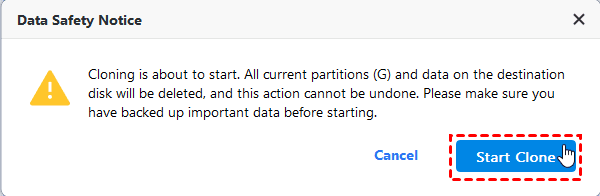
Step 5. Confirm the data loss warning and click Start Clone to execute this operation.
How to boot from the cloned SSD
Once the cloning is complete, you can shut down your computer and replace the GPT with the cloned SSD, then restart to check if it works properly.
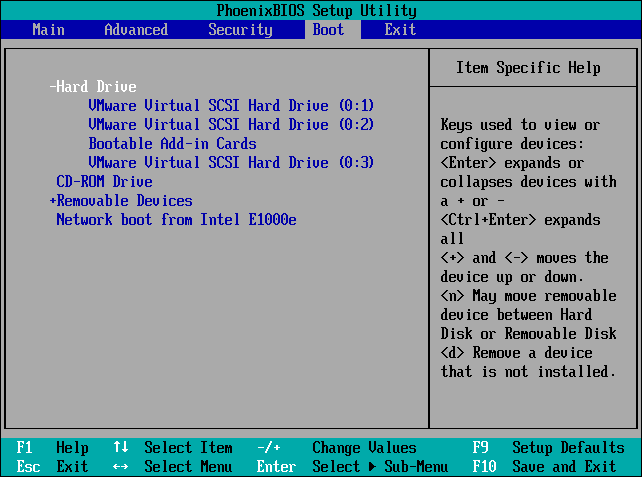
If your computer has more than one slot, you can keep the old HDD as secondary storage, and press the specific key (F2, F10, Esc, Del, etc.) during startup to enter BIOS, then select the cloned SSD as the first boot option.
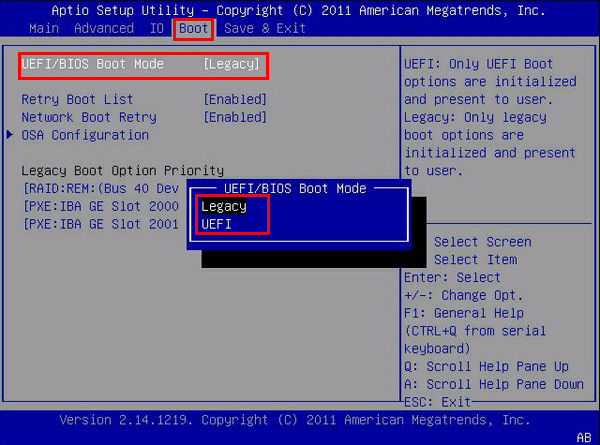
If the SSD is partitioned with MBR and hasn't been converted to GPT, then you will need to switch the boot mode from UEFI to legacy BIOS.
Bonus: Differences between GPT disk and MBR disk
The primary differences between GPT and MBR disks lie in how they store partitioning information, their capabilities, and compatibility with modern systems. Here's a breakdown of their key differences:
|
Feature |
GPT Disk |
MBR Disk |
|
Boot mode support |
Works with UEFI boot mode (common on modern systems) |
Works with Legacy BIOS boot mode (typical on older systems) |
|
Maximum disk size |
Supports very large disks (well beyond 2TB) |
Limited to 2TB maximum |
|
Number of primary partitions |
Supports up to 128 primary partitions |
Supports 4 primary partitions, or 3 primary + 1 extended partition |
|
System architecture support |
Only supports 64-bit systems |
Supports both 32-bit and 64-bit systems |
Summary
To clone GPT disk to SSD, especially MBR SSD, the first thing is to understand the differences between GPT and MBR, otherwise your computer may fail to boot. After that, you need to find a reliable and powerful software like AOMEI Cloner, which can convert MBR to GPT during the cloning, or cloning GPT to MBR directly.

 as a preferred
source on Google
as a preferred
source on Google