



[Top 2 Ways] to Samsung Clone M.2 to M.2 SSD in Windows
Cloning Samsung M.2 SSD to another Samsung M.2 SSD? This guide offers the best 2 tools to help with a smooth transition.

By Lily Updated on August 10, 2026


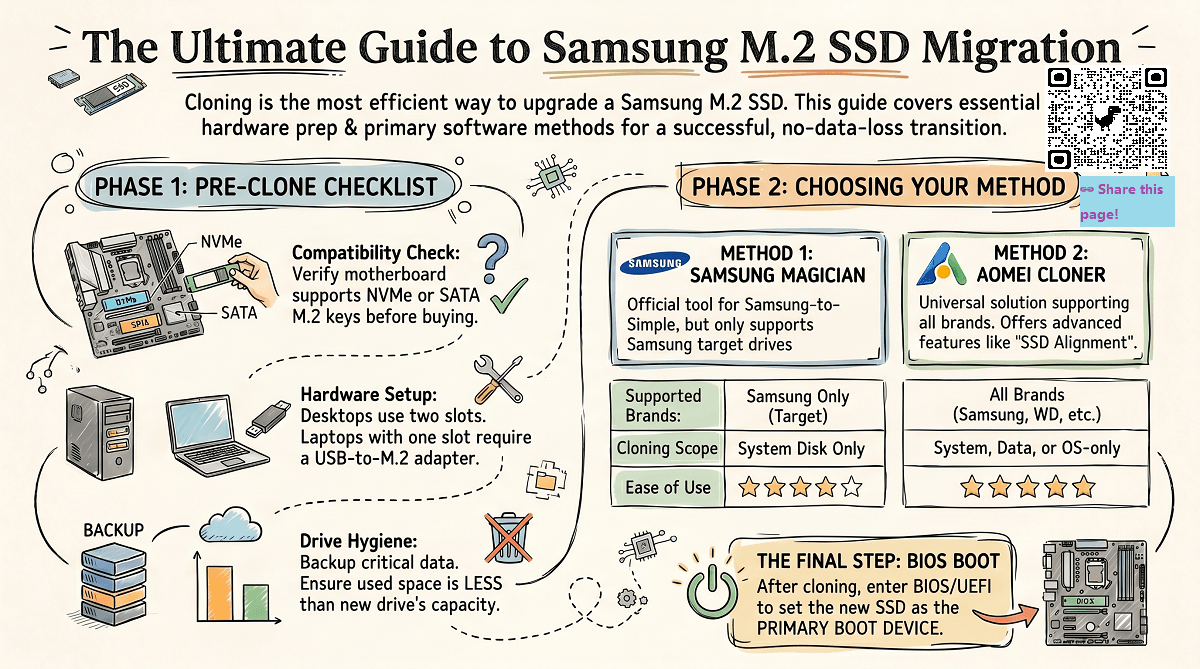
Upgrading your Samsung M.2 SSD but don’t want to reinstall Windows or lose your data? Cloning your current M.2 drive to a new one is the most efficient way. Whether you're switching to a larger capacity, a faster NVMe model, or simply replacing a failing drive, this guide will show you exactly how to Samsung clone M.2 to M.2 with ease.
🌟 To check more M.2 SSD cloning scenarios, please refer to this complete guide: Clone M.2 SSD.
Prepare for Samsung M.2 Clone
Before you jump into cloning your Samsung M.2 SSD, it’s crucial to get everything ready to ensure a smooth and successful process. Here's what you need to do before starting the clone.
1. Check M.2 SSD Compatibility
Open your PC case or laptop back panel and locate the M.2 slot on your motherboard (usually near the CPU or GPU). If your motherboard has an M.2 slot with M Key and PCIe support, most NVMe SSDs will work. If it’s SATA-only, you’ll need a SATA M.2 SSD. Buy a new M.2 SSD that is compatible with your computer.
2. Get the Right Hardware Setup
- Laptop with One M.2 Slot: You’ll need an M.2 to USB adapter or enclosure to connect the new SSD externally during the cloning process.
- Desktop with Two M.2 Slots: You can usually plug both the source and target SSDs directly into the motherboard, making cloning easier.
Make sure both SSDs are securely connected and recognized by the system before starting.
3. Free Up Space on the Source SSD
Cloning works best when the used space on your current SSD is less than or equal to the capacity of the target drive. Clean up unnecessary files, uninstall unused programs, and empty the Recycle Bin to avoid cloning issues.
4. Backup Important Data
While cloning is generally safe, there’s always a small risk of data loss due to errors or power interruptions. It’s wise to back up critical data to an external drive or cloud storage before you begin.
With these steps completed, you're now ready to clone your Samsung M.2 SSD confidently and efficiently. In the following parts, we’ll dive into 2 effective methods of Samsung M.2 data migration.
|
|
Cloning Scope |
Supported SSD Brands |
Ease of Use |
|
System disk clone |
Only Samsung SSDs (target must be Samsung) |
⭐⭐⭐⭐ |
|
|
Supports all brands (Samsung, WD, Crucial, etc.) |
⭐⭐⭐⭐⭐ |
 AOMEI Cloner
If you're dealing with mixed-brand SSDs or want advanced cloning options, AOMEI Cloner is a powerful alternative to Samsung's own tools.
Method 1: Samsung Clone M.2 to M.2 via Samsung Magician
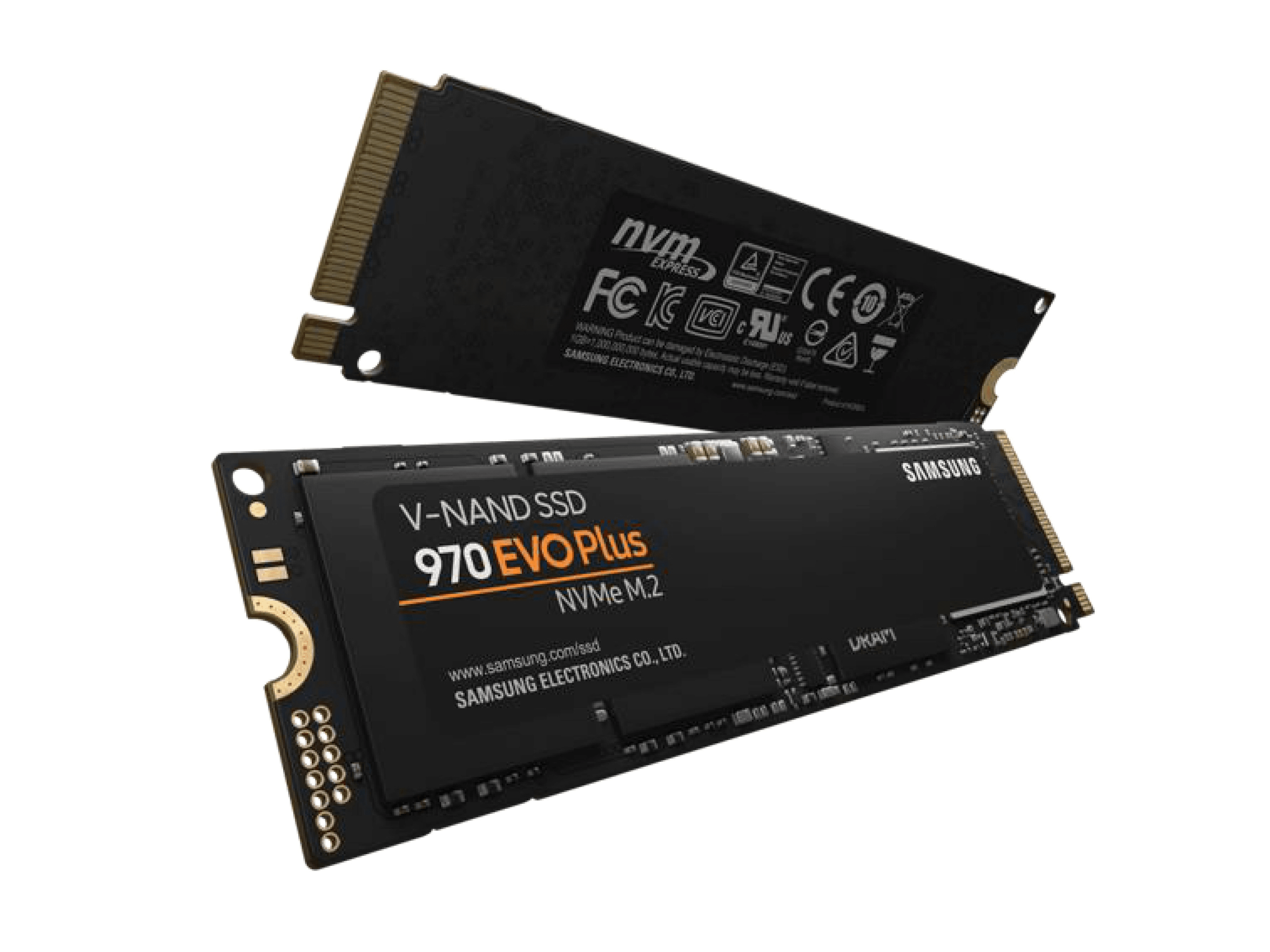
Samsung Magician includes powerful tools for managing and optimizing Samsung SSDs. It also integrates the Data Migration feature to clone your M.2 SSD. This method is ideal if you're moving data from an old Samsung M.2 drive to a new Samsung-branded M.2 SSD (like the 970 EVO Plus or 980 Pro).
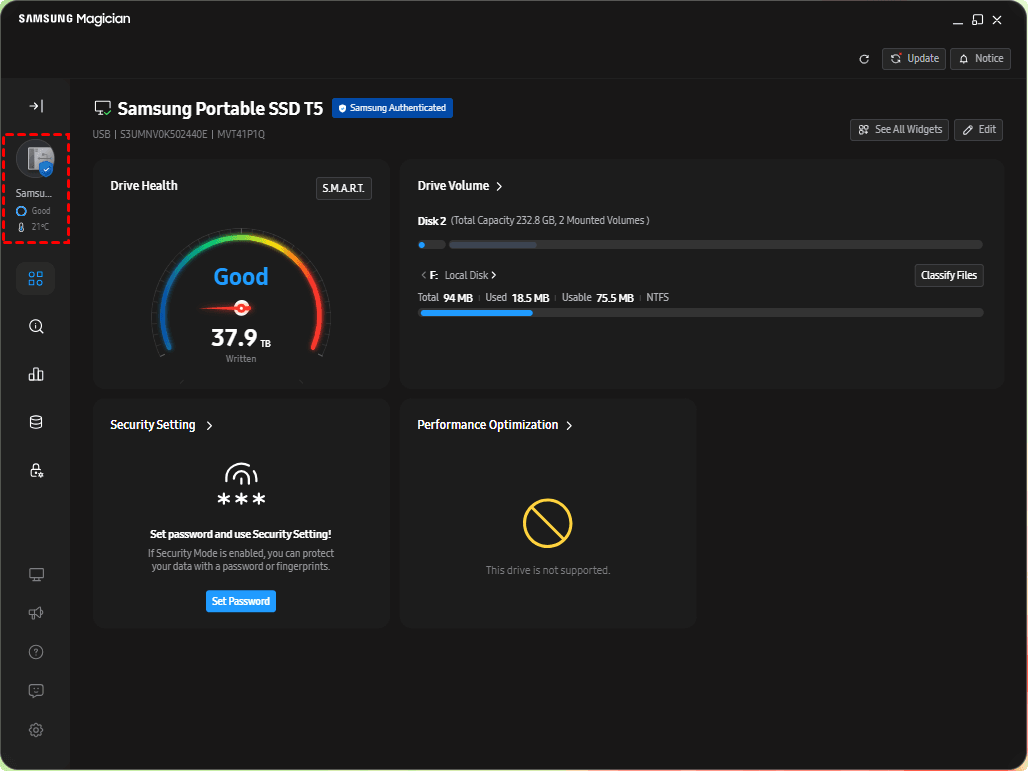
Step 1. Download and install Samsung Magician. Launch Samsung Magician, click the disk section on the left panel, and select the current system disk from the disk list.
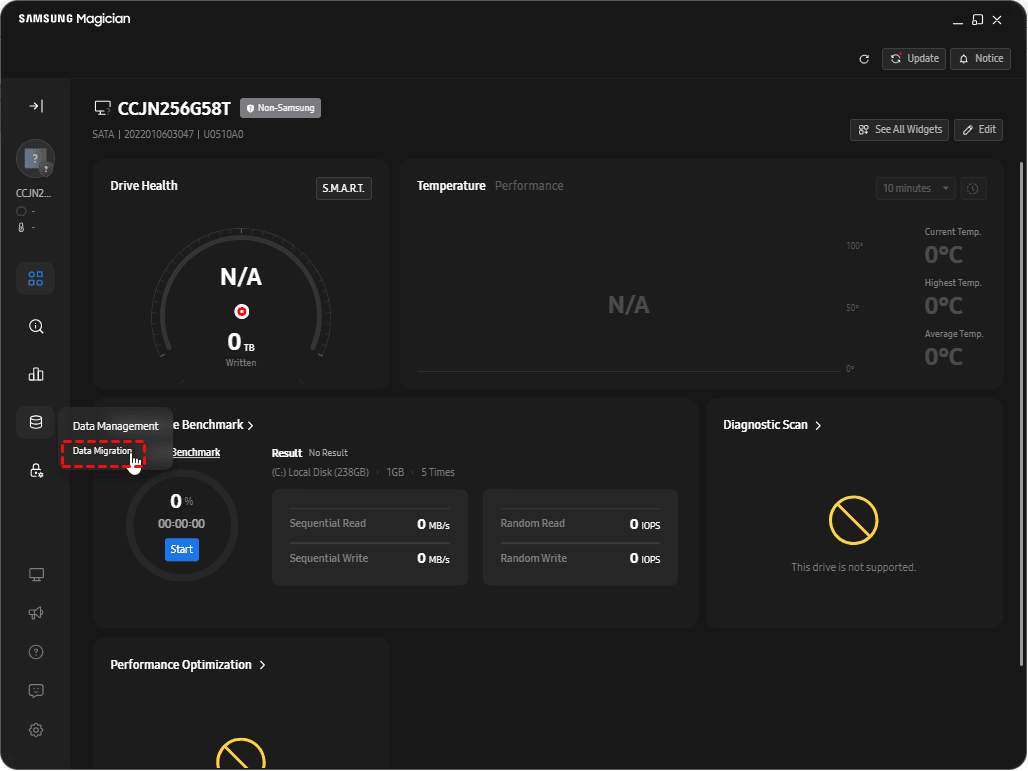
Step 2. Select Data Migration under Data Management.
Step 3. Choose source and target drive.
- Data Migration will automatically scan and choose the C drive as source drive. Add other partitions you want to clone by clicking the "+" button.
- Select the new Samsung M.2 SSD as the destination.
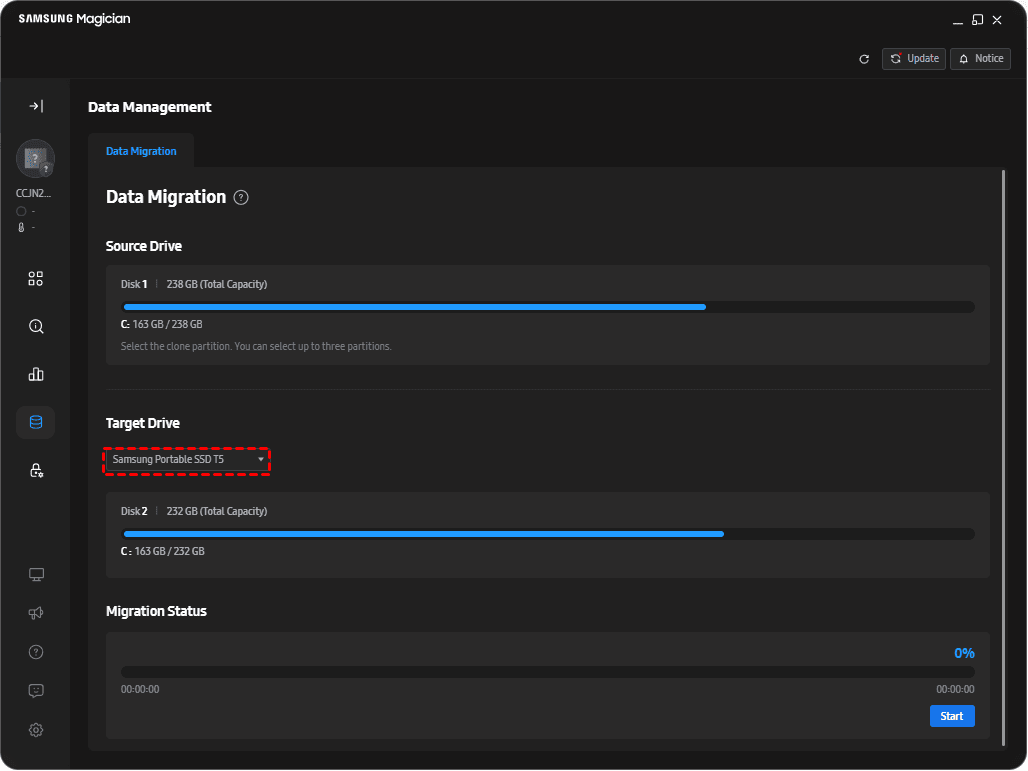
Step 4. Click Start to begin the cloning process. The program will copy the OS, partitions, apps, and data to the new M.2 SSD. Do not use your computer during the cloning operation.
Step 5. Set the new SSD as boot drive.
- Once cloning is complete, power off your PC or laptop.
- (Optional) If using an external adapter or replacing the old SSD, remove the old M.2 SSD and install the new cloned M.2 SSD in its place.
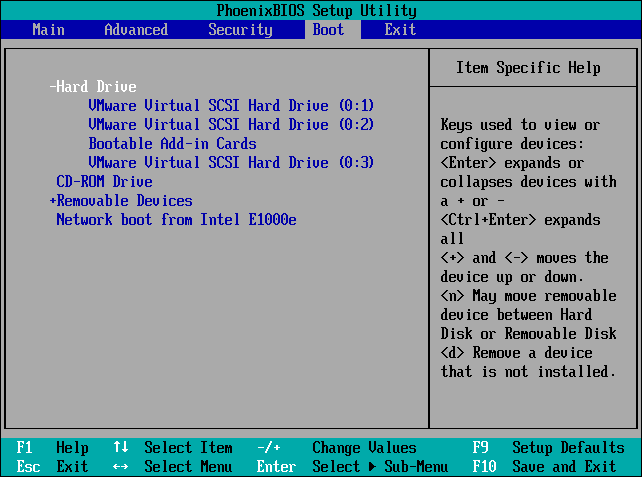
- Enter your BIOS/UEFI during startup (usually by pressing Del, F2, or F10).
- Navigate to Boot and set your new Samsung SSD as the primary boot device.
Method 2: Samsung Clone M.2 to M.2 via Third-Party Tool
Samsung Data Migration is not difficult to use, but you may get stuck on the errors thrown by it sometimes, such as Samsung Data Migration interrupted for unknown reason. If you are disappointed with Samsung Data Migration and want a more advanced cloning tool, try AOMEI Cloner.
 AOMEI Cloner
- Supports All Brands – Unlike Samsung’s tool, AOMEI Cloner works with any SSD, not just Samsung. You can use it to clone HDD to WD SSD, Crucial SSD, and Kingston SSD, etc.
- Selective Cloning – You can choose to clone an entire disk, only OS, or a specific partition.
- Intelligent Clone – Migrate from a larger drive to a smaller drive by copying only used sectors.
- SSD Optimization – Automatically align partitions for SSDs, enhancing performance and longevity.
- Bootable Media Creation – Clone your drive even if Windows won’t start by using a bootable USB/CD/DVD.
 100% Secure
Download the best Samsung M.2 SSD clone software and follow the steps below to clone Samsung M.2 SSD to another M.2 SSD:
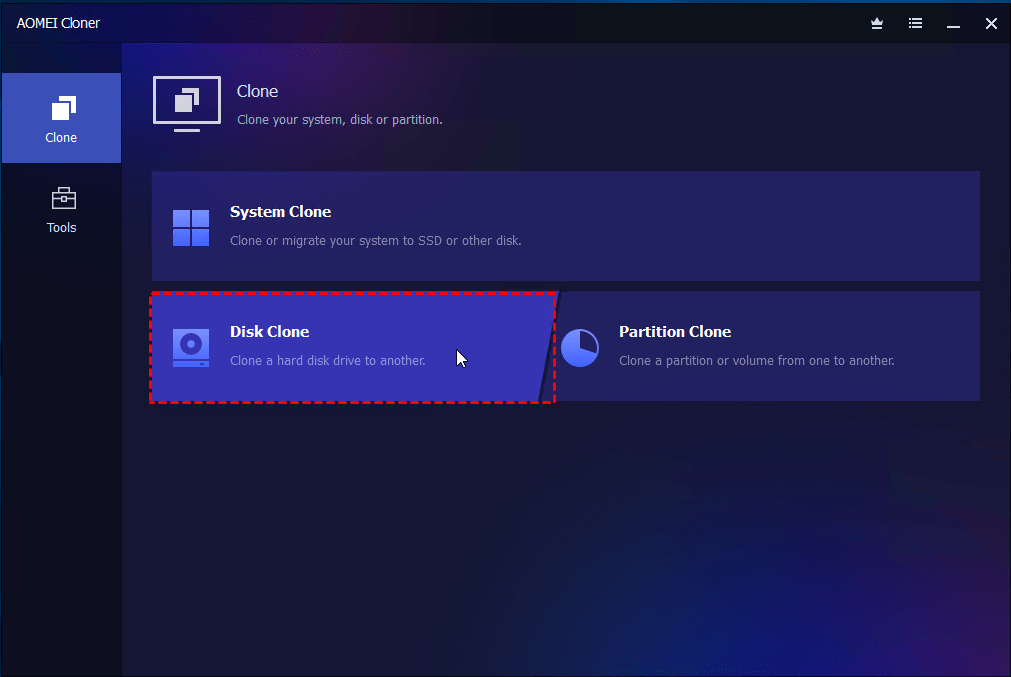
Step 1. Install and launch AOMEI Cloner. Then go to Disk Clone to copy the entire system disk.
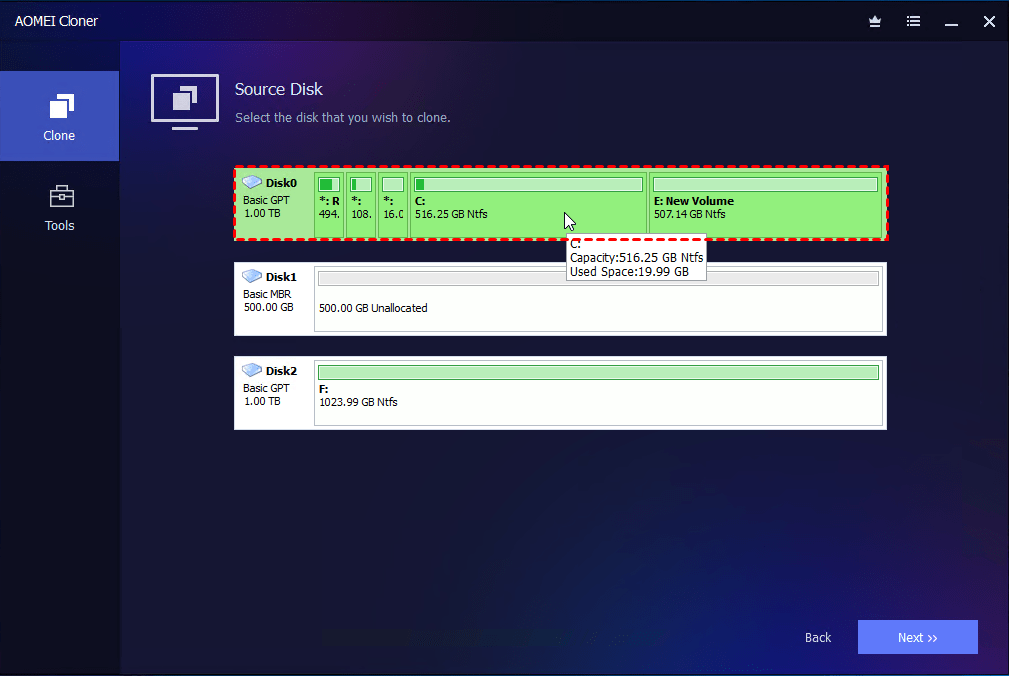
Step 2. Select your current Samsung M.2 SSD as the source disk and select your new M.2 SSD as the destination disk.
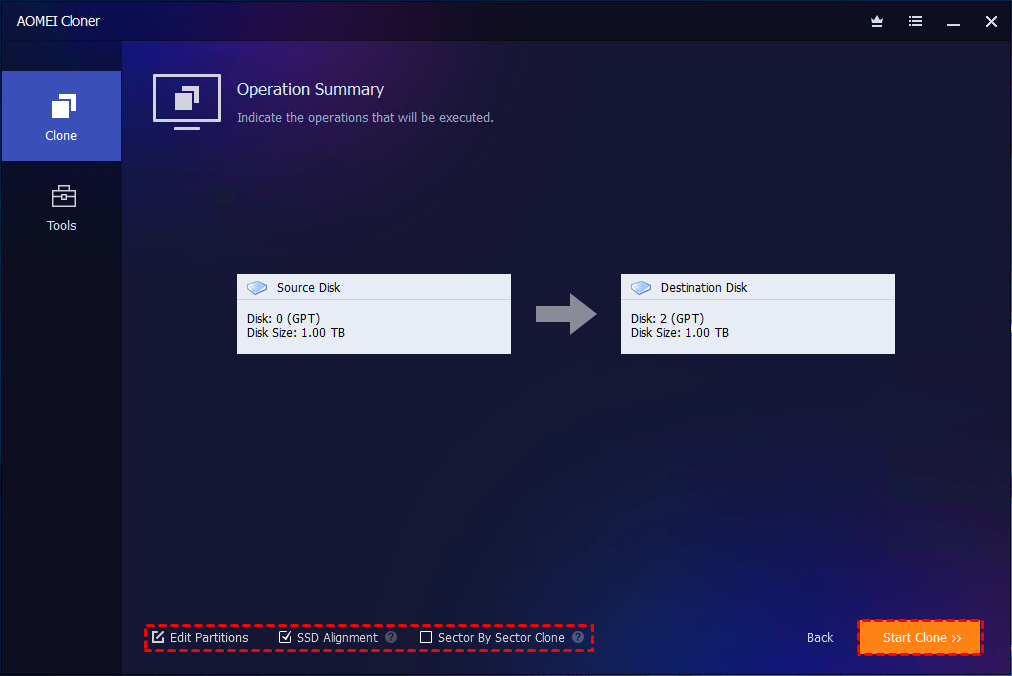
Step 3. On the Operation Summary page, review the details of the source and destination disks.
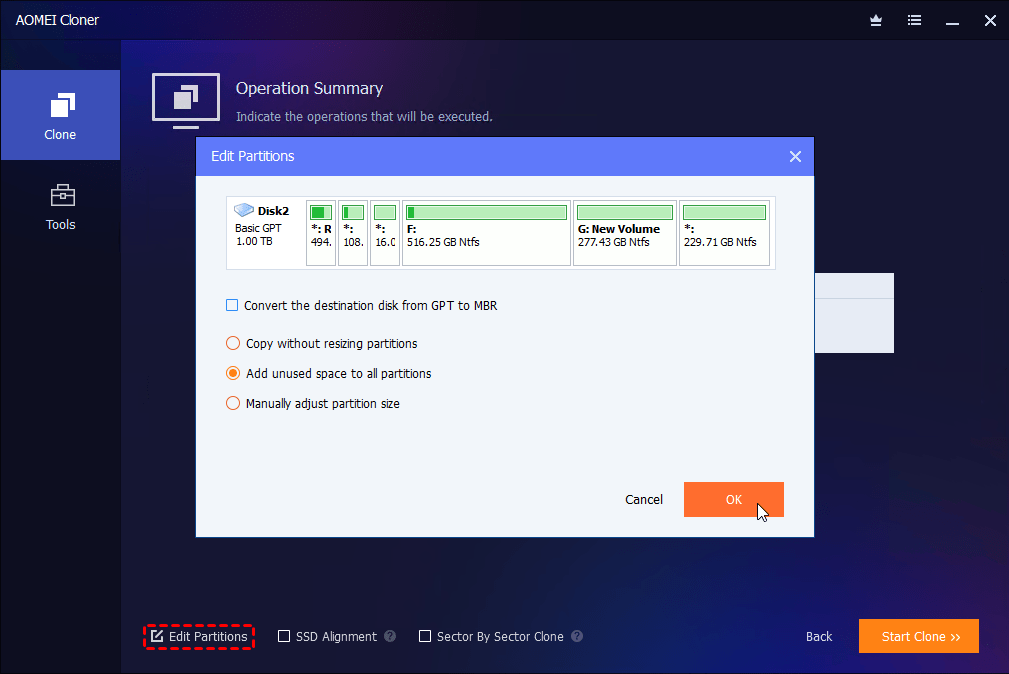
- If the two disks have different partition styles (one is MBR and the other is GPT), click Edit Partitions > Convert the destination disk from MBR to GPT (or GPT to MBR) to ensure compatibility. This prevents boot issues caused by a BIOS/UEFI mismatch.
- If the new M.2 SSD is larger than the old M.2 SSD, click Edit Partitions > Add unused space to all partitions or Manually adjust partition size to fully utilize the new SSD's capacity.
Step 4. Check the option SSD Alignment to ensure optimal performance and lifespan of your target SSD. Then click Start Clone.
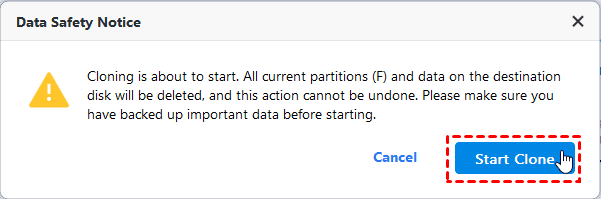
Step 5. Confirm the data loss warning and click Start Clone to begin the process.
Step 6. Once the cloning is finished, boot from the new M.2 SSD as mentioned in method 1.
FAQs about Samsung Cloning M.2 to M.2
1. What is the fastest way to clone Samsung NVMe M.2 SSD?
The fastest way to clone Samsung NVMe M.2 SSD is to use a reliable disk cloning tool with NVMe support and sector-level optimization, such as Samsung Magician or a third-party tool like AOMEI Cloner.
2. How to migrate Windows from Samsung M.2 drive?
To migrate Windows from Samsung M.2 drive, you have two ways to go: system clone and disk clone. System clone copies only system-related partitions while disk clone copies everything on the source disk.
3. Do I need an adapter to clone M.2 to M.2 SSD?
Whether you need an adapter to clone M.2 to M.2 SSD depends on your system:
- If your computer has two M.2 slots, you can connect both drives internally—no adapter needed.
- If there is only one slot, you’ll need a USB-to-M.2/NVMe enclosure or adapter to connect the second SSD externally during cloning.
Using a direct internal connection is usually faster and more stable than using a USB adapter.
Bonus: Recommended Samsung M.2 SSD
Samsung is known for producing high-performance, reliable SSDs across a wide range of budgets and use cases. Here are some of the best Samsung M.2 SSDs to consider for your SSD upgrade:
|
Model |
Interface / Type |
Max Read / Write Speed |
Capacity Options |
Best For |
|
Samsung 990 PRO |
PCIe 4.0 / NVMe |
7,450 / 6,900 MB/s |
1TB, 2TB, 4TB |
High-end gaming, 4K editing, workstation builds |
|
Samsung 980 PRO |
PCIe 4.0 / NVMe |
7,000 / 5,000 MB/s |
250GB–2TB |
Power users and professionals |
|
Samsung 970 EVO Plus |
PCIe 3.0 / NVMe |
3,500 / 3,300 MB/s |
250GB–2TB |
Mainstream upgrades |
|
Samsung 980 |
PCIe 3.0 / NVMe |
3,500 / 3,000 MB/s |
250GB–1TB |
Budget NVMe users |
|
Samsung 860 EVO M.2 |
SATA |
550 / 520 MB/s |
250GB–1TB |
Older systems with M.2 SATA slot |
Summary
Samsung clone M.2 to M.2 SSD is the fastest and most efficient way to upgrade your system without reinstalling Windows or losing data. Both Samsung’s official Data Migration tool and a versatile third-party solution like AOMEI Cloner offer a smooth transition to your new drive.
If you're dealing with mixed-brand SSDs or want full control over the cloning process, AOMEI Cloner is a better choice. It's perfect for more complex upgrade scenarios like HP Envy x360 SSD upgrade. Download now to try it out!

 as a preferred
source on Google
as a preferred
source on Google