




How to Let Windows 10 Undo Permanent Delete - 4 Free Methods
Files got permanently deleted by emptying the Recycle Bin or using Shift + Delete? Here are effective solutions to let Windows 10 undo permanent deletion.

By Jonna Updated on September 21, 2026


Are Permanently Deleted Files Gone Forever?
Not always. Pressing Shift + Delete, emptying the Recycle Bin, deleting from Command Prompt, or removing a file too large for the Recycle Bin can bypass normal Recycle Bin recovery. Windows usually removes the file's directory reference and marks its storage space as available. Until new data overwrites that space, recovery software may still locate file content or metadata.
Recovery is not guaranteed. If you continued computer use, downloads, software installation, updates, and saving new files can reuse the released space. Recovery may also be harder on an SSD because storage-management processes can clear deleted blocks. Shut down unnecessary applications, avoid writing to the affected drive, and never install a recovery tool or save restored files on that same drive.
Way 1. Windows 10 Undo Permanent Delete without Backup
When the Recycle Bin is empty and no usable backup exists, a read-only recovery scan is the most direct option. AOMEI FastRecovery is designed for Windows data-loss situations, including accidentally deleted or missing files, when the drive is logically accessible enough to scan.
 AOMEI FastRecovery
- 3 Step Recovery: Offer Quick Scan and Deep Scan to find all recoverable data, and filter & preview data before recovery.
- Recpvery of 1000+ Data Types: Support word, excel, PPT, XLSX, photos, videos, audio, compressed files, emails, and so on.
- Support 500+ Device Recpvery: Support recovery from SD cards, HDDs/SSDs, USB drives, etc., and NTFS, FAT32, exFAT, and ReFS file systems.
- Support Most Data Loss Scenarios: Recover files from formatted drive, emptied Recycle Bin, accidental deletion, virus attack, crashed computer, and more.
 100% Secure
Step 1. Install and open AOMEI FastRecovery on a drive other than the one containing the deleted files. Select Deleted Files Recovery or the recovery entry that matches your data loss scenario.

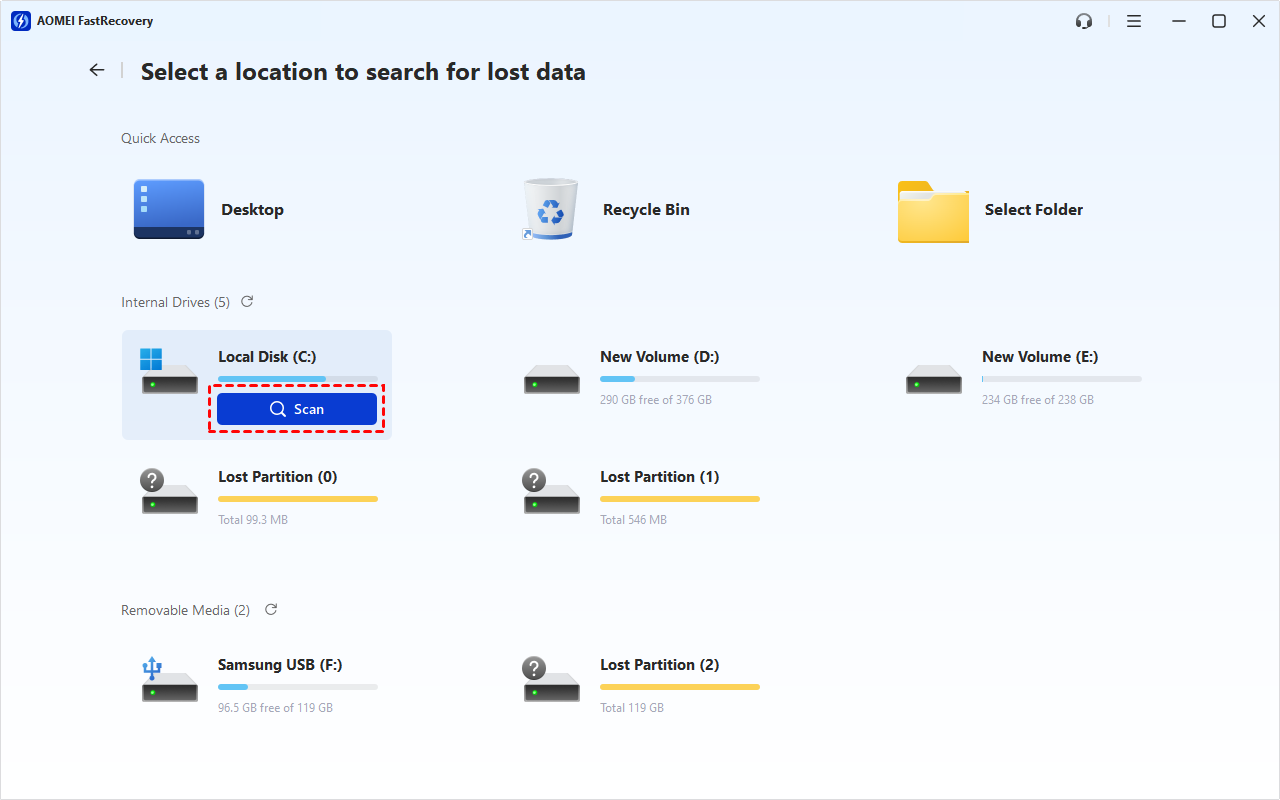
Step 2. Select the original disk or partition and click Scan. Check the drive letter and capacity carefully if several devices are connected.
Step 3. Review results by type or path. Use Filter, search, and preview controls to narrow the list. If the initial result is incomplete, use Deep Scan when available.
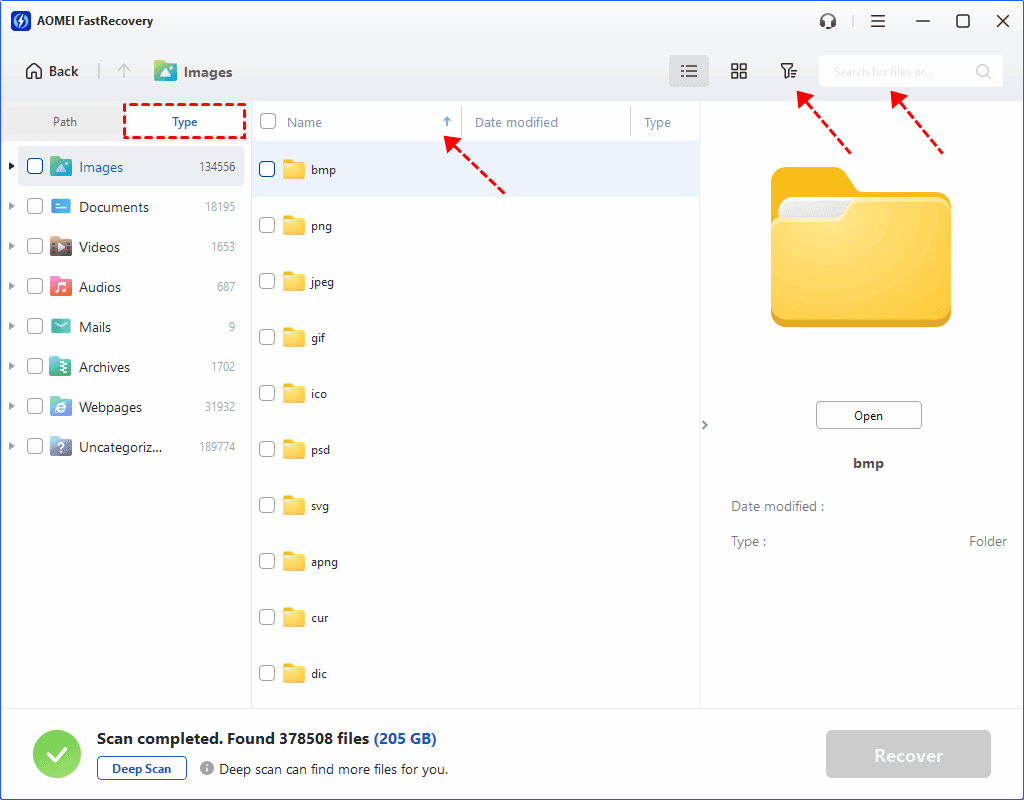
Step 4. Select the required files, click Recover, and choose a different healthy drive as the destination. Open representative files before making changes to the source disk.
Way 2. Recover Permanently Deleted Files from an Older Backup
Use this method if you created a Windows backup with Backup and Restore (Windows 7)before the deletion. It restores the stored copy rather than scanning free disk space, so it is usually the most predictable option when the backup is current.
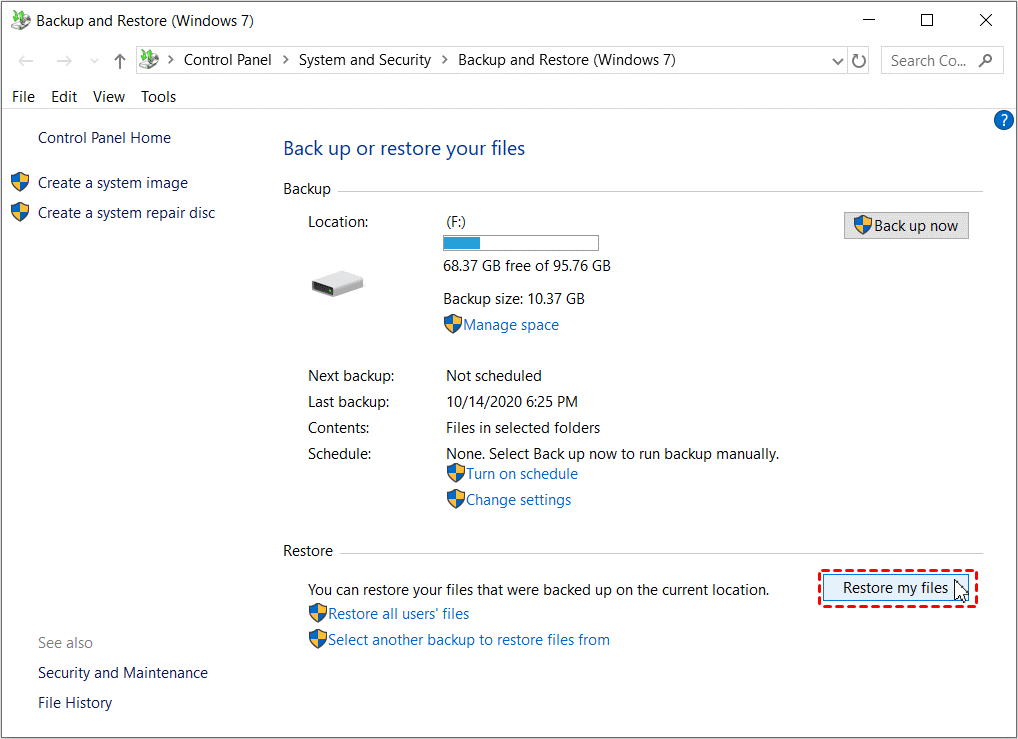
Step 1. Connect the external drive that contains the backup. Open Control Panel, then select System and Security > Backup and Restore (Windows 7).
Step 2. Choose Restore my files. If the required backup belongs to another location or installation, choose Select another backup to restore files from.
Step 3. Use Search, Browse for files, or Browse for folders to locate the deleted content in the backup, then add it to the restore list.
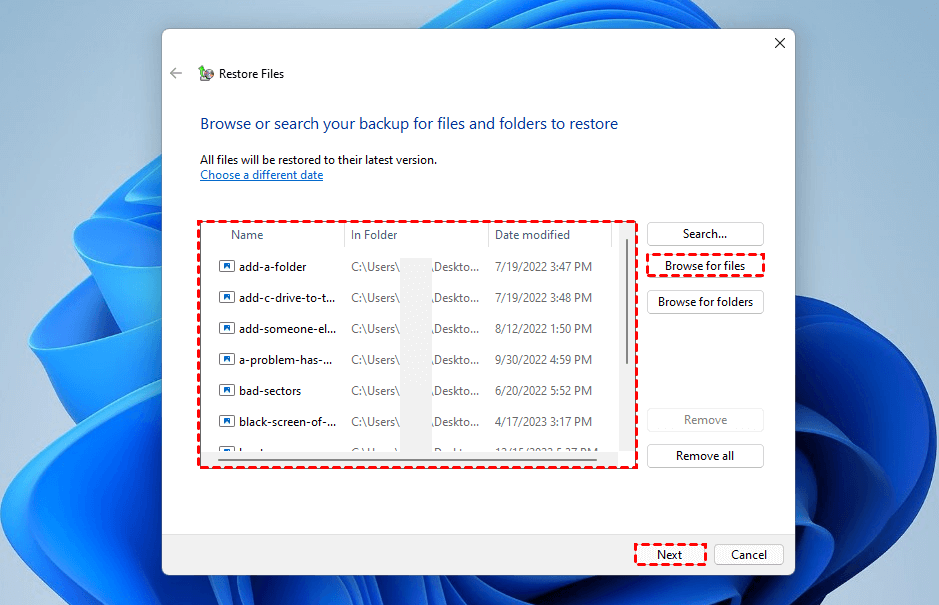
Step 4. Choose the original location or a different folder. A different location is safer when you want to compare the restored copy with current files. Select Restore and review the result.
If no backup is listed, confirm that the backup drive is connected and readable. If Windows still cannot find a backup created before deletion, use Way 1 instead of creating a new backup now; a new backup cannot recreate already deleted data.
Way 3. Get Permanently Deleted Files Back with File History Backup
File History periodically saves copies of protected personal folders to an external drive or network location. It can recover a deleted item only if File History was enabled and captured the file before deletion.
Step 1. Connect the File History drive. Open Control Panel > System and Security > File History.
Step 2. Select Restore personal files. Browse to the folder that previously contained the deleted item.
Step 3. Use the left and right arrows to move through backup dates. Select the file or folder from a version created before it was deleted.
Step 4. Select the green Restore button. To avoid replacing a current file with the same name, right-click Restore and choose Restore to when that option is available.
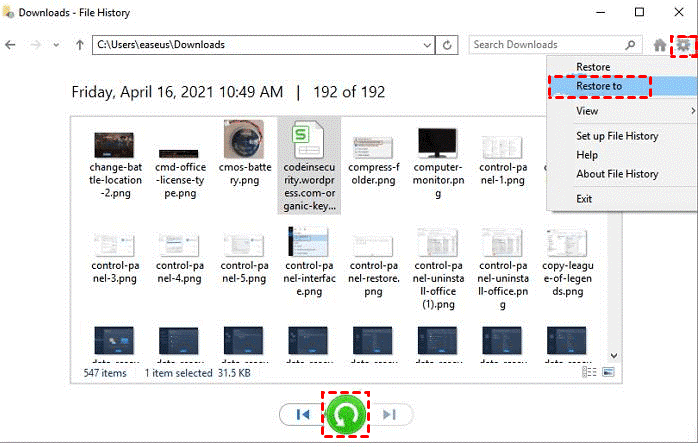
If the folder is missing from File History, it may not have been included in a protected library or backed-up folder. If there are other errors, like File History doesn't recognize this drive, check other backup dates and the correct File History drive; if no copy exists, move to Way 1.
Way 4. Restore Previous Versions of Permanently Deleted Files
The Previous Versions tab can expose earlier folder copies created by File History or compatible Windows backup and snapshot features. This method is useful when the individual file is gone but an older version of its parent folder still contains it.
Step 1. Open File Explorer and navigate to the folder that used to contain the deleted file. If the folder itself was deleted, open its parent folder.
Step 2. Right-click the folder and select Restore previous versions. For an item stored at the root of a drive, right-click the drive instead.
Step 3. Select a version dated before the deletion. Choose Open or Open in File History to confirm that the required file is present.
Step 4. Use Restore to and select another location when possible. Direct Restore can replace the current folder version, and that replacement may not be reversible.
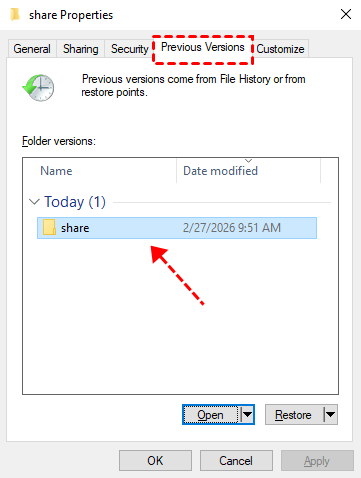
An empty Previous Versions list usually means Windows has no available copy for that location. System Restore is not a substitute for personal-file backup because its main purpose is restoring system files and settings.
Frequently Asked Questions
1️⃣Can Ctrl + Z undo a permanent deletion?
It may undo a very recent deletion in the same File Explorer session, but it is not dependable after other actions, a restart, or emptying the Recycle Bin. Use a backup or recovery scan instead.
2️⃣Can System Restore bring back permanently deleted documents?
Normally no. System Restore is intended for system files, applications, registry settings, and configuration changes; it is not a personal-file recovery backup.
3️⃣Why should recovered files be saved elsewhere?
Writing them to the source can overwrite other deleted data that has not yet been recovered.
Conclusion
Windows 10 undo permanent delete is possible in two ways: recover residual data when no backup exists, or restore a copy created before deletion. Use AOMEI FastRecovery promptly for a detectable drive without a backup. When an older backup is available, prefer Backup and Restore, File History, or Previous Versions because they retrieve known copies. In every case, minimize source-drive use and verify recovered files before returning the disk to normal work.

 as a preferred
source on Google
as a preferred
source on Google