




PNY SD Card Recovery: Get Your Deleted Files Back Fast
Lost files on your PNY SD card? Don’t panic yet. This guide introduces 3 effective PNY SD card recovery tools to get files back quickly. Scroll down to learn more.

By Ivy Updated on May 26, 2026


Is it possible to perform PNY SD card recovery?
PNY memory cards are widely used in cameras (e.g., Nikon, Canon, Olympus, Sony, Kodak, Fuji, etc.) and portable devices, but even reliable storage media can suddenly lose photos, videos, documents, and other valuable files.
Lost important files from a PNY SD card? Whether your data disappeared due to accidental deletion, virus attacks, formatting, or corrupted devices, you still have a good chance to recover it. In this guide, you’ll learn 3 powerful tools to recover data from PNY SD cards quickly and safely.
It's important to note that the methods discussed in this article primarily rely on third-party data recovery software, which can help you recover files on your own. However, in cases of severe data corruption, you may need to consult a professional data recovery service for a comprehensive examination.
Causes of data loss on PNY SD cards
Given the widespread use of PNY SD cards, data loss occurs from time to time. The following are the main causes of data loss on PNY SD cards:
- Accidental formatting of the camera, which actually formats the memory card, can lead to the loss of valuable photos, videos, etc.
- Accidental deletion while viewing files on mobile phones, cameras, Windows computers, etc. E.g., it is not rare to accidentally delete photos from SD cards for users who use cameras a lot.
- PNY cards are infected by viruses/malware, resulting in file loss.
- PNY card errors, such as file system corruption (becoming RAW) or the SD card is not accessible.
Now, with the potential reasons clear, it is time to check the solutions to recover files from SD cards of PNY easily.
3 Methods to recover files from PNY SD cards
Discover the 3 different data recovery tools for recovering files from PNY SD cards.
Method 1. Perform PNY SD card recovery using AOMEI FastRecovery
One of the best do-it-yourself methods for PNY micro SD card data recovery is by utilizing high-quality SD card data recovery tools, such as AOMEI FastRecovery. With the advanced scanning technologies, you can save time and labor. In addition, you cans till enjoy a user-friendly interface, impressive success rates, excellent storage and data format compatibility, etc.
 AOMEI FastRecovery
- 🔥 Free data recovery, up to 500 MB.
- Recover 1000+ data types, including Documents (TXT, DOC, XLSX, CSV, PDF, PPT), Photos (JPG, PNG, TIF, GIF, PSD, SVG), Videos (MP4, MOV, AVI, WMV, FLV), and so on.
- Integrates Quick Scan and Deep Scan to find all recoverable data, ensuring a high recovery rate.
- Organize and display data by Type or Path, with options to sort, search, filter, and preview files, making it easier and faster to recover data.
- Compatible with different SD card types (i.e., Standard card, SDHC, SDX, CSDUC) and brands, including PNY,SanDisk, Samsung, Lexar, Sony, etc.
- Support Windows 11/10/8/7/Server and NTFS, exFAT, FAT32, and ReFS file systems.
 100% Secure
-
Don't download and install FastRecovery on the SD card where you store deleted files, as this may cause data to be overwritten.
-
Any newly added data or disk formatting can overwrite data. Please avoid these operations after deletion.
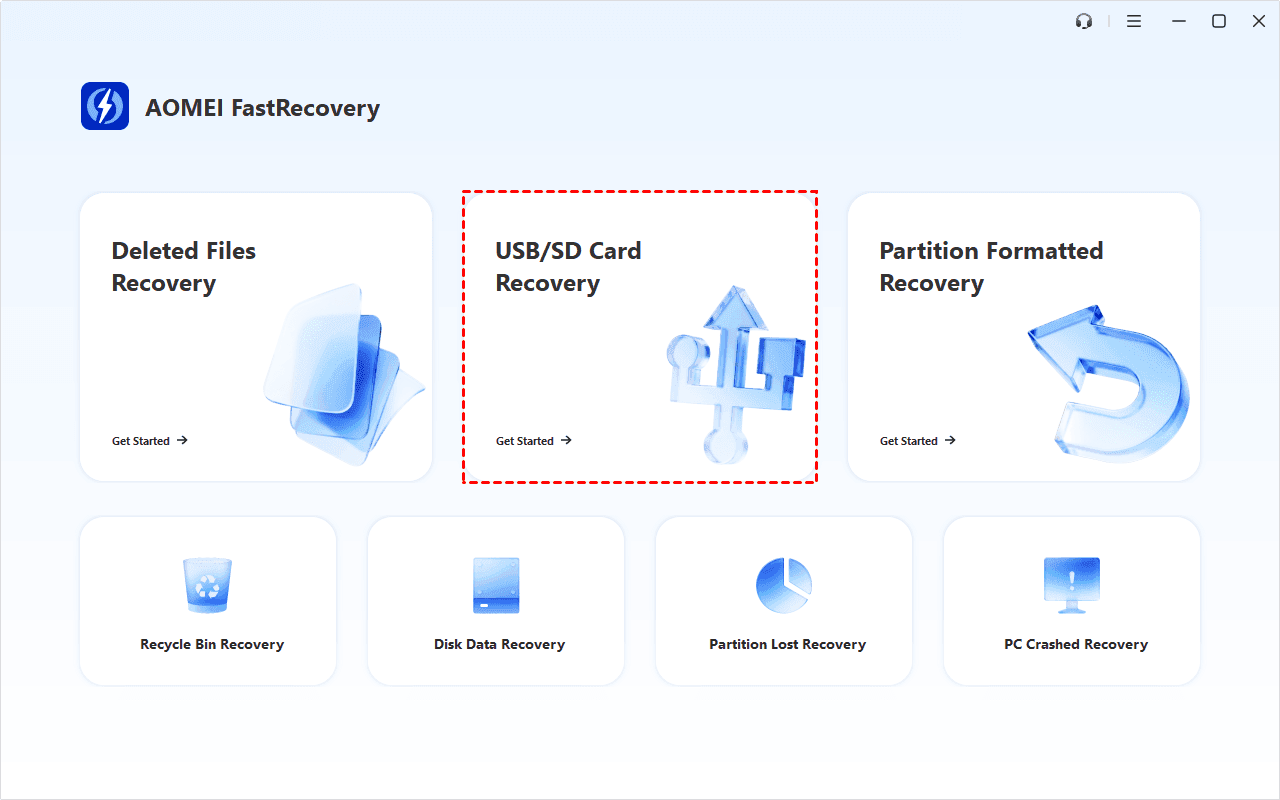
Step 1. Install and launch FastRecovery. On the main page, click USB/SD Card Recovery.
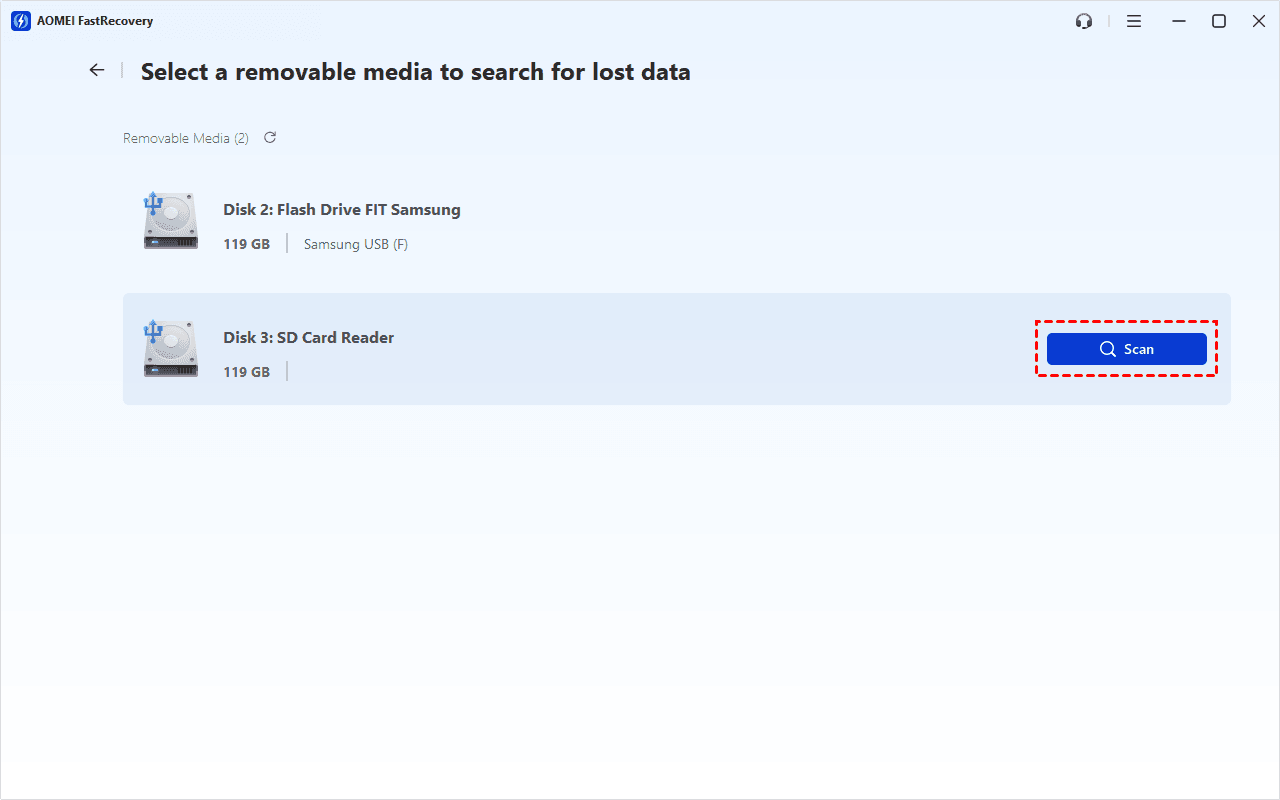
Step 2. Hover the mouse over the SD card and click Scan to scan it.
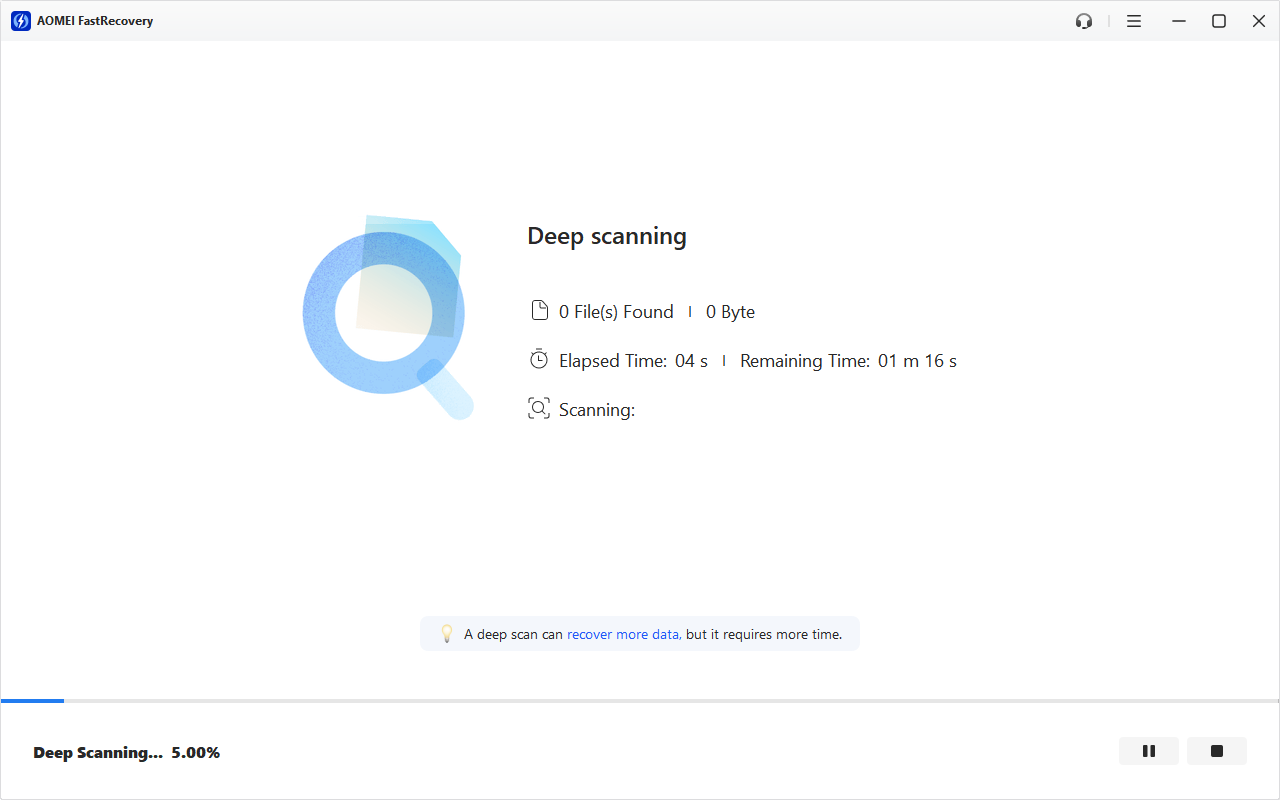
Step 3. It will start a deep scanning process to find files on the PNY SD cards. Files detected on SD cards are most fragmented due to frequent write and delete operations.
Step 4. Wait for the process completes. You can select files by Type (default) or Path, and combine them with options to sort, filter, search, and preview files.
👉Under the Type section:
- Specify the data type and click the arrow next to type, size, date modified, etc., to sort files.
- To locate files quickly, type the file name or extension in the search box.
- Or use the filter feature, similar to the Type category, allowing you to further specify the size of files, from less than 512 KB to 1GB above.
- Once found, double-click the files to preview.
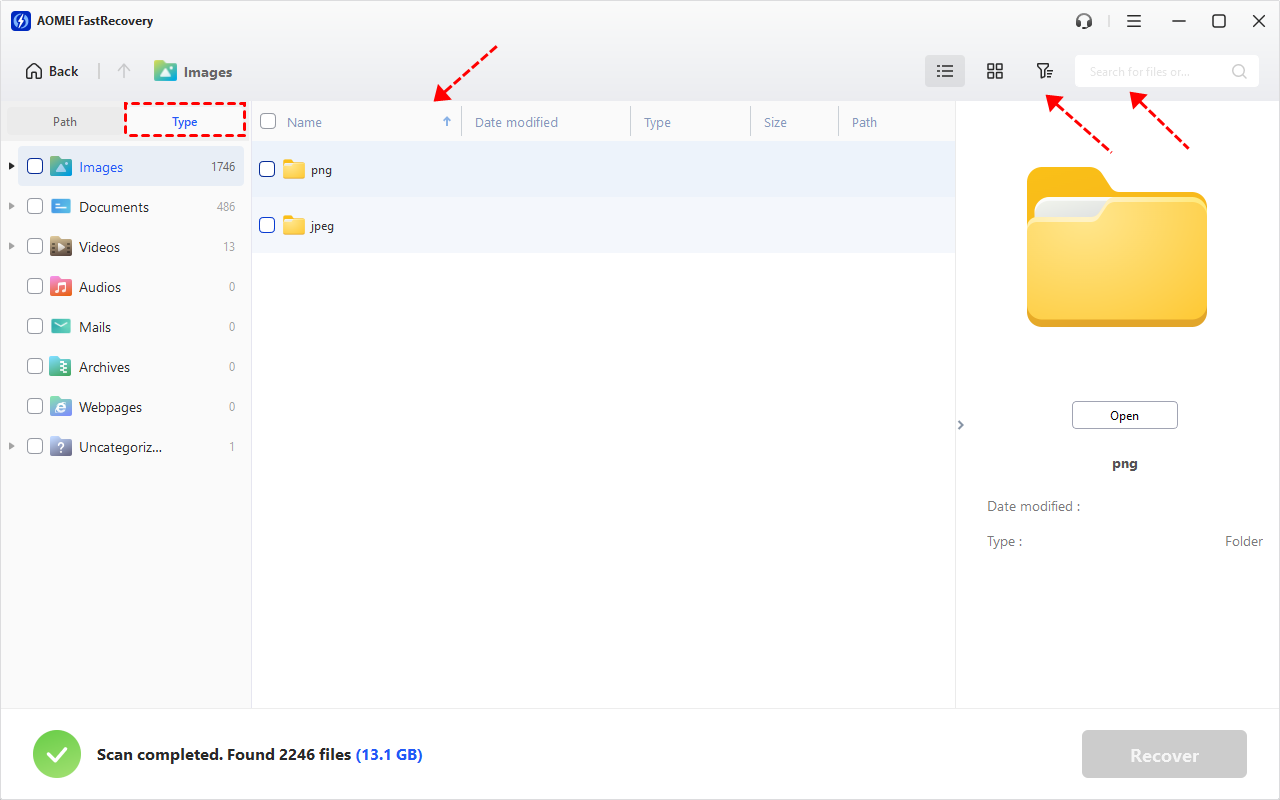
👉 Under the Path section: Directly navigate to the original location where you saved deleted files. Sort files if needed.
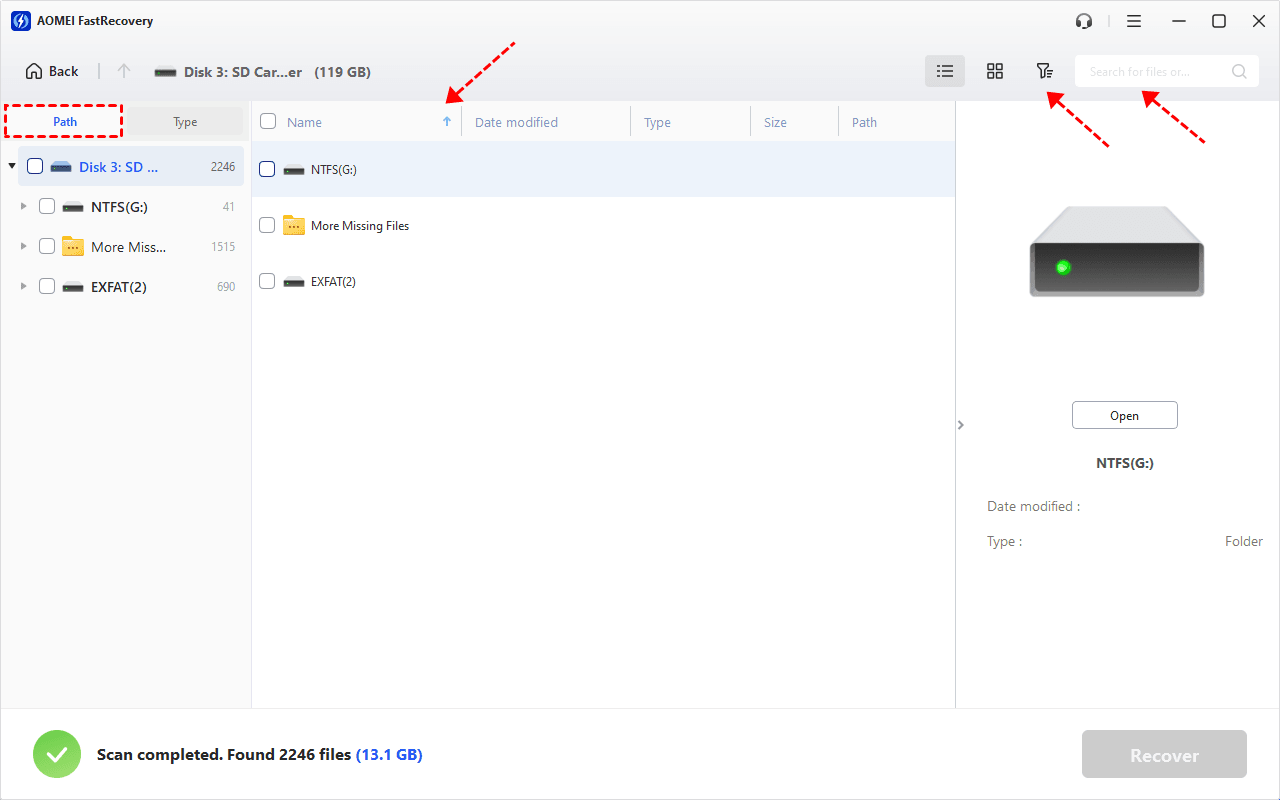
- The Type category and filter option include all supported data types, such as images, videos, documents, mails, web pages, compressed files, etc.
- You can preview a wide range of data formats, such as wav, ico, jpg, png, bmp, jpeg, tif, svg, gif, mp4, mp3, txt, xlsx, pdf, ini, docx, etc.
Step 5. Choose the desired data and click Recover. Please select a new location to save them, significantly reducing the risk of data overwriting.

Currently, AOMEI FastRecovery allows you to perform 500MB of free data recovery. To recover all data, please upgrade FastRecovery to the advanced versions
Method 2. Recover files from PNY SD cards using PNY PHOTORECOVERY
PNY offers its own PNY SD card recovery software called PHOTORECOVERY. Despite its name, this software not only recovers photos but also helps retrieve lost or deleted videos, music, text files, spreadsheets, and various other file types.
However, the interface of this software appears outdated, reminiscent of the early 2000s design. According to PNY, this official tool only supports data recovery from SD cards. What's more, the free version allows you to scan your SD card for recoverable files, but the actual recovery process requires purchasing the program. Considering its quality, the price may be quite high.
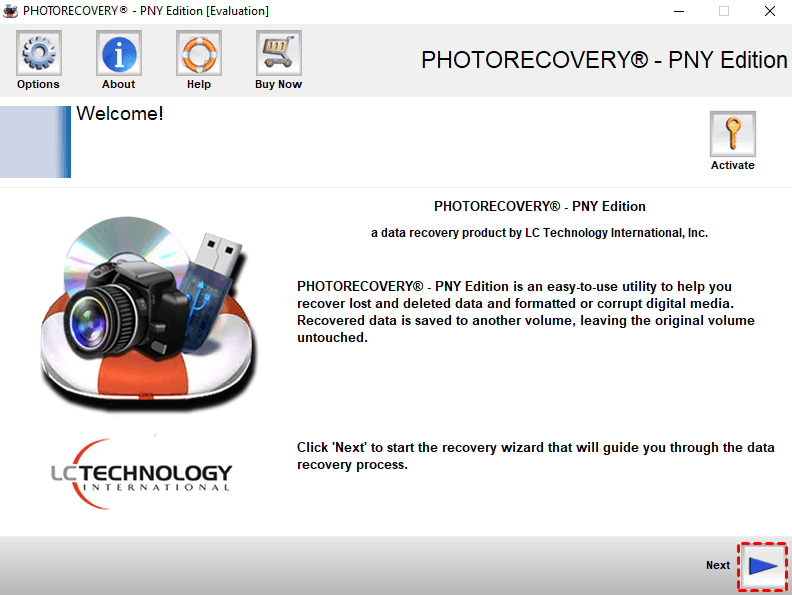
Step 1. Download the PNY PHOTORECOVERY installation file from the official website. On the welcome page, click Next to continue.
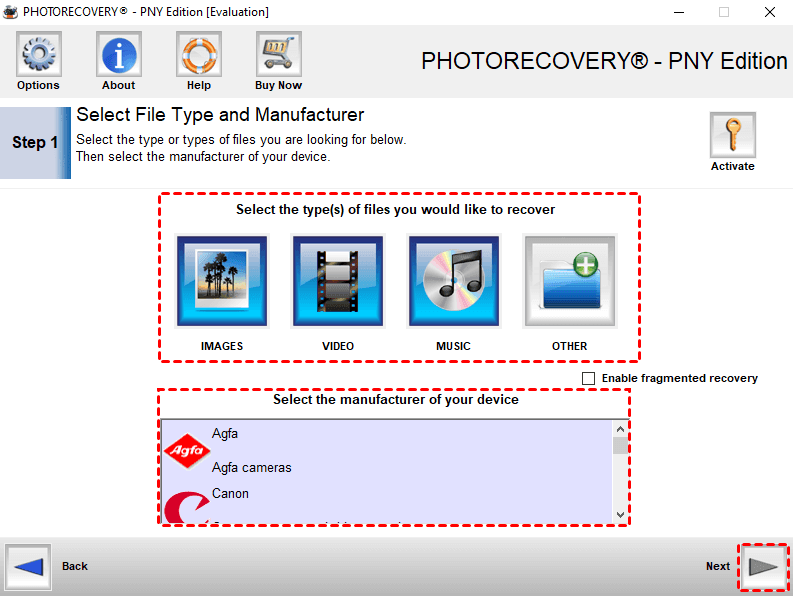
Step 2. Select the file types you want to recover and your PNY SD card. Then, click Next.
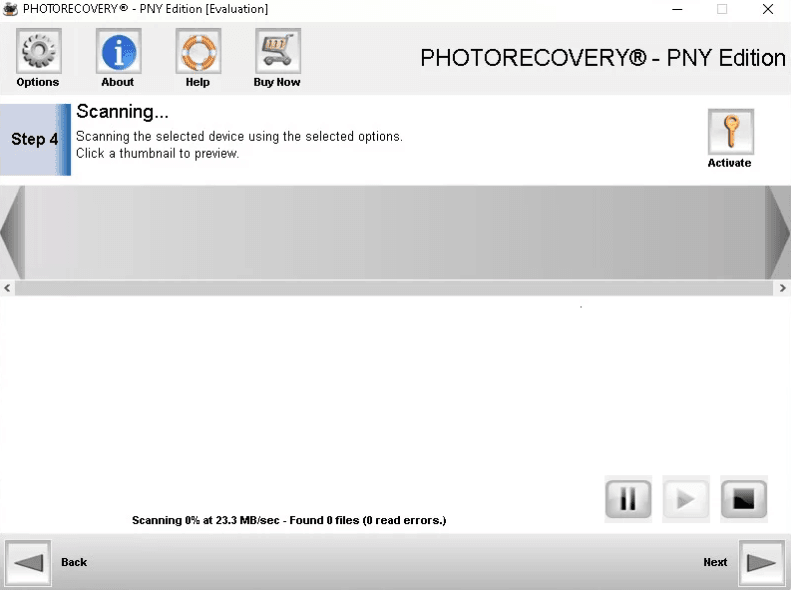
Step 3. It will scan your device and show recoverable files that needs to be recovered.
Step 4. Choose what you need and restore it to a different place you would like.
Method 3. Restore data from PNY SD cards using Windows File Recovery
Typically, when attempting to recover files from a local drive, users rely on Windows backups or try to restore previous versions of files.
However, these backup functions are not useful for memory cards and external storage media, as they only store copies of users data, usually on C: drive. In such cases, official data recovery software - Windows File Recovery becomes helpful. It requires you to learn the syntax and necessary parameters, making it ideal for technicians.
- The syntax: winfr source-drive: destination-drive: [/mode] [/switches]
- The source drive and destination must be different.
- Verifying the file system of your PNY SD card helps identify the recovery mode.
- This app is only available for Windows 10 version 19041.0 and above.
Step 1. Insert the PNY SD card using a card reader. Locate the card in This PC, right-click it, and select Properties to check its file system.
Step 2. Select a recovery mode based on the file system and scenarios (extensive mode for non-NTFS drives).
| File system | Scenarios | mode |
| NTFS | Deleted recently | Regular |
| NTFS | Deleted for a while | Extensive |
| NTFS | Formatted disk | Extensive |
| NTFS | corrupted disk | Extensive |
| FAT and exFAT | Any | Extensive |
Step 3. Select the switches to filter the files you want.
| Switches | Meaning | Supported mode(s) |
| /n | Filter the scan range: scans for a specific file with its file name/path/type, etc. | All |
| /y: | Recovers specific extension groups. | Signature |
| /k | Recovers system files. | NTFS Segment |
| /segment | Segment mode; recovers files under NTFS drives using file record segments. | Segment |
| /signature | Signature mode; recovers files under all file system types using file headers. | Signature |
| /u | Recovers undeleted files, for example, from the Recycle Bin. | NTFS Segment |
Step 4. Go to Microsoft Store > click Get to install it.
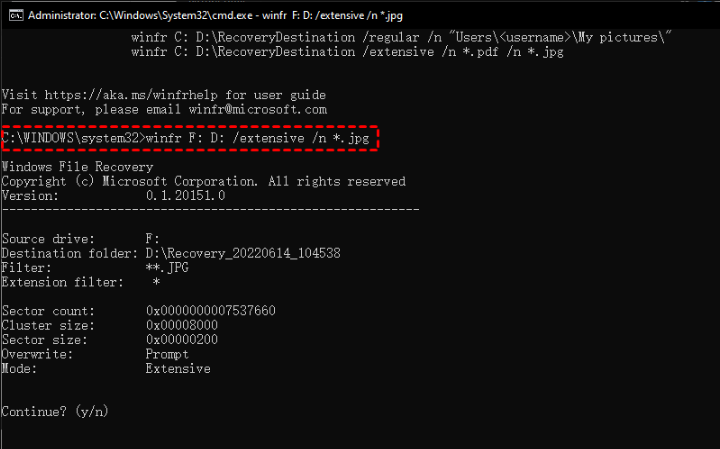
Step 5. Open Windows File Recovery and enter the command based on syntax and example:
winfr source-drive: destination-drive: [/mode] [/switches]
For example, to recover JPG files from F: to D:, type: winfr F: D: /extensive /n *.jpg.
FAQ
1. What should I do if my PNY SD card is corrupted or not recognized?
If your PNY SD card is corrupted or not recognized, try the following steps:
- Use a different card reader or USB port.
- Check if the card is physically damaged.
- Use Disk Management (Windows) or Disk Utility (Mac) to reformat the card.
If these methods don't work, consider using data recovery software to recover your files and then replace the SD card. FastRecovery will be of some help if you need to recover data from corrupted SD cards.
2. How can I recover files from a formatted PNY SD card?
To recover files from a formatted PNY SD card, use a reliable data recovery software, such as FastRecovery.
- Connect the formatted device to your computer. Then, launch the software, and select Partition Formatted Recovery.
- Select the formatted drive, and click the Scan button.
- Once the scan is complete, select and preview files.
- Once confirmed, select the files you want to recover and click the Recover button.
3. Can I recover data from a physically damaged PNY SD card?
To recover data from physically damaged PNY SD cards, it is challenging and may require professional assistance. You can try:
- Connect the damaged device to different ports.
- Use a different card reader.
- Consult a professional data recovery service to explore specialized recovery options.
Conclusion
Considering the outdated nature, lack of a free trial, and the relatively high price of PNY's own data recovery software, as well as the complex command-line data recovery tool - Windows File Recovery, FastRecovery remains the recommended option for PNY SD card recovery.
However, if your PNY SD cards are severely physically damaged, it may be necessary to seek the assistance of a professional data recovery service near you. They can provide a dust-free lab to manage to extract data from your devices.

 as a preferred
source on Google
as a preferred
source on Google