




How to Recover Photos from Corrupted SD Cards [Free]
Do you know how to recover photos from corrupted SD cards? Don't worry, and we will introduce a powerful tool to recover files effectively. The methods to fix the corrupted SD card are included.

By Ivy Updated on April 2, 2026


SD card is easy to carry and performs well in data transfer and storage. Thus, many people are willing to use this storage device to save photos and other essential files during work, life, and travel.
However, for various reasons, users may find that their SD cards stop working, fail to be recognized by the PC, and thus lose access to their photos. They are bothered by SD card corruption. Read on to learn more!
Is it possible to recover photos from a corrupted SD card?
[ADVICE] Trying to recover photos from a corrupted 64GB SD card
I have a 64GB SD card from the Android phone that contains multiple images/videos I want to recover. The SD card probably needed to be corrected or something similar, so it's getting stuck every time I try to read the information from it. I believe that the file system on the card was FAT32.
- Question from CGSecurity
Photo and other data loss caused by SD card corruption is not rare to see. Many users urgently need a guide to corrupted SD card recovery. Luckily, it is possible to recover photos from a corrupted SD card with a reliable tool. Also, this article aims to provide 3 proven methods to fix your corrupted SD card.
Symptoms and error messages of corrupted SD card
First of all, let’s check the signs to assess corruption. The signs of a corrupted SD card are pretty obvious. Check the possible symptoms of a corrupted SD card to estimate the damage.
📌 Symptoms of a corrupted SD card:
- Fail to be recognized.
- Empty SD card or file loss.
- Unreadable code.
- RAW SD card.
- SD card deletes files by itself.
📌 You may also see error messages like
- This inserted SD card has an incompatible file system.
- Remove and reinsert the card to see if it fixes the error.
- A read-write error occurred on your SD card. If this continues, format your SD card or replace it.
Now, it is time to view the methods to recover pictures from corrupted SD cards.
How to recover photos from corrupted SD cards effortlessly
Some preparations are necessary prior to the SD card data recovery process.
If your SD card is still readable, please skip this section and move on to the data recovery part. The professional data rescue app will help you recover corrupted SD card photos in a breeze.
Beforehand: try getting the SD card readable
Since your SD card is now inaccessible/unrecognizable/unmounted, we should make some attempts to make it readable.
📌 Try these quick fixes:
- Use erasers to rub the metal contact.
- Change the card reader you use.
- Change an adapter.
- Connect the SD card to a different port.
- Connect to another computer.
📌 If the SD card is now accessible, quickly transfer the files or back up SD card to the computer, cloud storage, etc.
📌 If NOT, your SD card may be seriously damaged. To get your data back, you may need to employ a professional data recovery service.
How to recover photos from corrupted SD cards free 🔥
The most efficient way to recover pictures from corrupted SD cards is to turn to a reliable data recovery tool for Windows - AOMEI FastRecovery. Using this trustworthy tool, you could effortlessly scan and search for lost or deleted images from internal/external healthy/corrupted/formatted storage devices.
 AOMEI FastRecovery
- Recover data in any scenario, such as accidental deletion, Recycle Bin empty, disk formatting, system crash, virus attack, etc.
- Integrate Quick Scan & Deep Scan to find all recoverable data, ensuring a complete recovery.
- Recover deleted or lost photos, audio, videos, documents, compressed files, and more, over 1000 data types.
- Compatible with Standard SD card, micro/mini SD, SHC/CF, etc., and NTFS, FAT32, FAT16, exFAT file systems.
- Recover a total of 500MB of files for free. 🔥
 100% Secure
Step 1. Run AOMEI FastRecovery after installing. Connect your SD card to the PC as well. Hover the mouse over the SD card and click Scan.
Step 2. It will run Quick Scan automatically to find all the deleted or lost files and display them by Type or Path. You can sort, search, filter, and preview files.
Step 3. Choose the files you need and click Recover. You can then recover lost or accidentally deleted photos from SD cards in 3 simple steps.
-
Please save the recovered files in a new location instead of the original SD card. Otherwise, they may be overwritten.
-
The free version of AOMEI FastRecovery lets you recover 500 MB of files for free, giving you a glimpse of its amazing potential. For unlimited data recovery, consider upgrading to advanced versions.
How to fix corrupted SD cards (3 ways)
Fixing the SD cards is also essential. This part will offer solutions to help you bring the SD cards back to life.
Method 1. Run Windows Repair Tool or use CHKDSK
For CHKDSK command:
CHKDSK is one of the commands used to check and fix file system errors. The format goes as follows:
chkdsk [volume[[path]filename]] [/f] [/v] [/r] [/x] [/i] [/c] [/l[:]] [/b]
If you need to get photos off SD cards without formatting, this tool would be helpful. But what is noteworthy is that the recovery rate is relatively low.
Step 1. Input cmd in the search box to start Command Prompt and select Run as administrator.
Step 2. Input chkdsk X: /f to fix the corrupted file system. Try the usable parameters like /r, /f, /x, etc.
For Disk Check Tool:
The Disk Check Tool is the GUI version of CHKDSK, which is also usable if the CMD is too difficult.
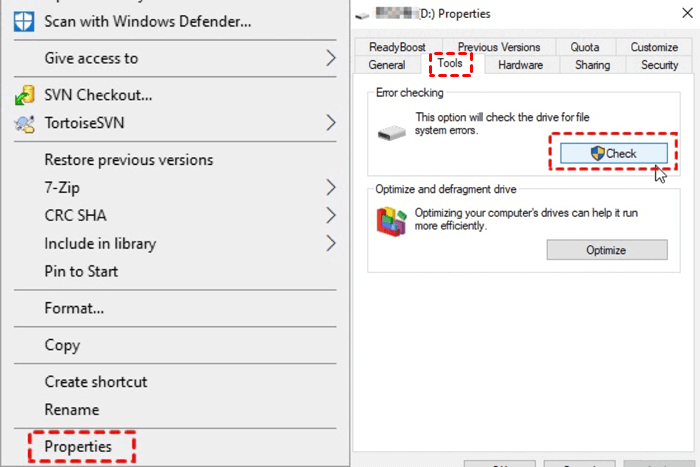
Step 1. Open File Explorer. Right-click on the corrupted SD card and select Properties.
Step 2. Under the Tools tab, click Check under Error checking.
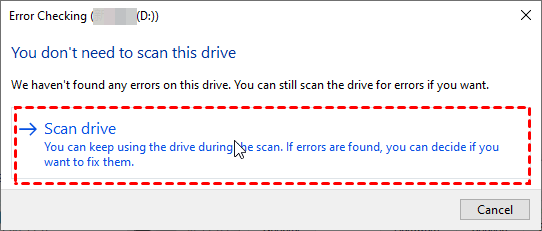
Step 3. In the pop-up window, click Scan Drive.
Method 2. Assign a drive letter
If the SD card isn’t showing in File Explorer, a drive letter might be lost. Go to Disk Management and verify. If so, assign a letter to it and make it visible in File Explorer.
Step 1. Connect your SD card with a card reader properly. Right-click the Start menu and select Disk Management.
Step 2. Right-click on the drive and select Change Drive Letter and Paths.
Step 3. Click Change and select a file system from the Assign the following drive letter drop-down menu.
Method 3. Format the corrupted SD card
Disk formatting builds a new file system that fixes the SD card corruption resulting from file system defects. Try to format the SD card to bring it back to normal.
Step 1. Right-click on the Start menu and select Disk Management.
Step 2. Right-click the corrupted drive and select Format. Choose a target file system like FAT32, exFAT, etc.
Conclusion
This article introduces you to a powerful data recovery tool - AOMEI FastRecover, and how to recover photos from corrupted SD card step by step. It can directly scan the disk to find deleted or lost data and allow you to locate them quickly by sorting, searching, filtering, etc.
In addition, you can get 3 simple and effective methods to fix corrupted SD cards, which help you to restore SD card to its original status. You can then reuse it for data storage. Don't forget to backup data regularly if you want to protect them safely.

 as a preferred
source on Google
as a preferred
source on Google