USB Drive Data Recovery Software: Recover Deleted or Lost Files from USB Flash Drives
Lost data from USB drivers due to formatting, deletion, RAW errors, virus attacks, or partition loss? By combining quick and deep scanning, AOMEI FastRecovery effectively locates your lost files and allows you to preview them before clicking recover. Furthermore, it is capable of recovering over 1000 file types, including documents, photos, videos, archives, and more, while working flawlessly with any USB brand, including SanDisk, Kingston, Samsung, PNY, and many others.

Important: If you notice data loss, stop using the USB drive immediately. Writing new files to the drive can overwrite the lost data, and make recovery much more difficult.
Can I Recover Deleted Files from a USB Drive?
Yes, in many cases, deleted files can be recovered from a USB drive as long as they haven't been overwritten. Unlike files deleted from your computer's internal drive, files removed from a USB flash drive usually bypass the Recycle Bin. Although they appear to be permanently gone, the data often remains on the drive until it is replaced by new data.
Stop using the USB drive immediately, avoid formatting it, and run a recovery scan as soon as possible. AOMEI FastRecovery lets you preview recoverable files before restoring them, so you can confirm what can be recovered before saving the files.
See How It WorksCommon Causes of USB Data Loss and Recovery Chance
Losing files from your thumb drive is incredibly stressful. Let’s look at what went wrong and check your realistic chances of getting that data back safely.
If you hit "Delete" or "Shift+Delete", your computer just removes the file's reference, not the actual data. Your files are still hiding on the USB drive. As long as you don't save new things, they are completely recoverable.
Recovery Chance: HighClicked "Quick Format" by mistake? Don't panic. A quick format only clears the drive's directory, leaving your actual data not completely erased. Stop using the USB right away, and a deep scan can get everything back together.
Recovery Chance: HighWhen your PC suddenly asks you to format the drive or shows it as "RAW," the file system is just confused or damaged. Your data is still trapped inside. Our data recovery software can easily bypass this error and recover your files safely.
Recovery Chance: MediumNasty shortcut viruses or malware can quickly hide, lock, or delete your files, making your USB pen drive look completely empty. Don't worry, those files are usually just marked as hidden by the virus, and USB file recovery tool can safely uncover them.
Recovery Chance: MediumPulling your USB out without clicking "Safely Remove" interrupts background saving. This sudden disconnect often scrambles the drive's directory, making it unreadable. Thankfully, the underlying files usually survive the shock and can be rescued with a quick scan.
Recovery Chance: MediumA sudden power outage or system crash while moving files leaves data partially written. This abrupt stop breaks the file structure, causing frustrating errors. However, FastRecovery can dig through the mess to restore the intact pieces.
Recovery Chance: MediumMessing with Disk Management or third-party partition tools can sometimes wipe out your entire USB partition. The drive will show up as "Unallocated". Everything looks gone, but FastRecovery can rebuild the lost partition table and bring all files back.
Recovery Chance: HighUSB thumb drives don't last forever. After years of heavy use, the memory chips naturally wear out and develop bad blocks. This leads to random errors or sudden corruption. When this happens, you need to pull the data out quickly.
Recovery Chance: LowSnapped connectors, water damage, or burnt chips mean your drive is physically dead. If your computer doesn't react at all when you plug it in, software can't help. You will need to send it to a professional data recovery lab.
Recovery Chance: LowBefore You Recover: 5 Things to Do Right Now
Getting your files back safely depends heavily on what you do next. Make sure to follow these 5 quick steps first to give your lost data the best recovery chance.
Hands off the USB right away
The exact
moment you realize your data is missing, stop using the drive
completely. Keeping the USB connected allows background system
tasks to silently overwrite space, which can permanently
destroy your lost files before you even start.
Say “No” to formatting pop-ups
If
Windows throws an error saying you need to format the drive to
open it, always click cancel. Formatting resets the entire
file layout and makes it much harder to get your original data
back together.
Avoid adding any new data
Think of
deleted files as invisible data waiting to be replaced. If you
save new pictures, documents, or apps onto that same USB, you
will physically stamp over the old data, destroying any chance
of getting it back.
Save recovered files elsewhere
When you
click "Recover," always save your rescued files to your PC's
main drive or another disk. Saving them straight back to the
same USB will overwrite other data you are still trying to
safely rescue.
Make a safe copy beforehand
If your USB
is unstable or failing, scanning it directly can stress the
hardware. Making a sector backup image first with AOMEI
Backupper lets you safely scan the copy on your PC
instead of
risking the fragile drive itself.
WRITING
TO USB
Recover Lost Data from a USB Drive Using AOMEI FastRecovery
Lost your critical USB files? Don't panic. Whether your data was accidentally deleted, formatted, or corrupted, follow this simple 4-step guide to safely rescue everything.
Step 1. Connect Your USB to Start
Plug your USB drive into your computer's USB port and launch AOMEI FastRecovery. On the main interface, choose the "USB/SD Card Recovery" section. Hover your mouse over the USB and click "Scan".
Tips: Ensure your USB is connected directly to the motherboard port (for desktops) rather than an external USB hub for a more stable connection.Step 2. Scan for Lost Files
The software will automatically initiate a two-phase scan. It starts with a Quick Scan to instantly find recently deleted files, seamlessly followed by a Deep Scan to dig out deeply hidden or formatted data from the RAW sectors.
Tips: While files are not displayed on the screen during the active scanning process, you can click "Stop" at any time to review the data found so far, or simply wait for the scan to complete for the best results.Step 3. Filter, Locate, and Preview Files
Don't waste time scrolling through thousands of files. Use the Filter function to narrow down results by file type or size. Alternatively, type the exact file name in the Search bar.
Tips: Double-click on any image, video, or document to preview it. Previewing helps confirm you've found the correct version before saving it.Step 4. Recover Files to a Safe Location
Check the boxes next to the files or folders you want to rescue, then click the "Recover" button. The software will prompt you to choose a destination path.
Important: ALWAYS save your recovered files to your computer’s local hard drive (like your C: or D: drive) or a different external disk. Never save them back to the original USB drive where you lost them, as this can cause permanent data corruption.Universal Compatibility: Built for Every USB Drive & File Type
No matter the brand, interface, or file type, our software delivers comprehensive support for all your USB recovery needs.
 SanDisk
 Kingston
 SAMSUNG
 PNY
PNY
 Lexar
Lexar
 HP
HP
 TOSHIBA
 SONY
SONY
 Transcend
 ADATA
ADATA
 Corsair
 Verbatim
 USB 3.2 / 3.1 / 3.0
High-Speed Drives
USB 3.2 / 3.1 / 3.0
High-Speed Drives
 USB 2.0 / 1.1
Legacy Drives
USB 2.0 / 1.1
Legacy Drives
 USB Type-C
Modern Multi-port Drives
USB Type-C
Modern Multi-port Drives
 USB Type-A
Standard Rectangular Connector
USB Type-A
Standard Rectangular Connector
 DocumentsTXT,
DOC, XLSX, CSV, PDF, PPT, ODP, etc.
DocumentsTXT,
DOC, XLSX, CSV, PDF, PPT, ODP, etc. ImagesJPG,
PNG, TIF, HEIC, GIF, PSD, SVG, ARW, X3F, NEF,
etc.
ImagesJPG,
PNG, TIF, HEIC, GIF, PSD, SVG, ARW, X3F, NEF,
etc. VideosMP4,
MOV, AVI, ASF, WMV, RM, FLV, QSV, RMVB, X3F,
etc.
VideosMP4,
MOV, AVI, ASF, WMV, RM, FLV, QSV, RMVB, X3F,
etc. AudiosMP3,
CDA, WAV, AIFF, WMA, VQF, OGG, ARM, APE, FLAC,
etc.
AudiosMP3,
CDA, WAV, AIFF, WMA, VQF, OGG, ARM, APE, FLAC,
etc. Archives7Z,
ZIP/ZIPX, ZAP, RAR, AR/ARC, BZ/BZA, CAR, etc.
Archives7Z,
ZIP/ZIPX, ZAP, RAR, AR/ARC, BZ/BZA, CAR, etc. OthersMSG,
EML, XHTML, MHT, HTML/XHTML, ASPX, LAB, etc.
OthersMSG,
EML, XHTML, MHT, HTML/XHTML, ASPX, LAB, etc.How to Recover USB Files Without Software
Explore completely free, built-in Windows utilities to repair logical errors, unhide missing folders, and recover lost USB data using standard command lines and backup systems.
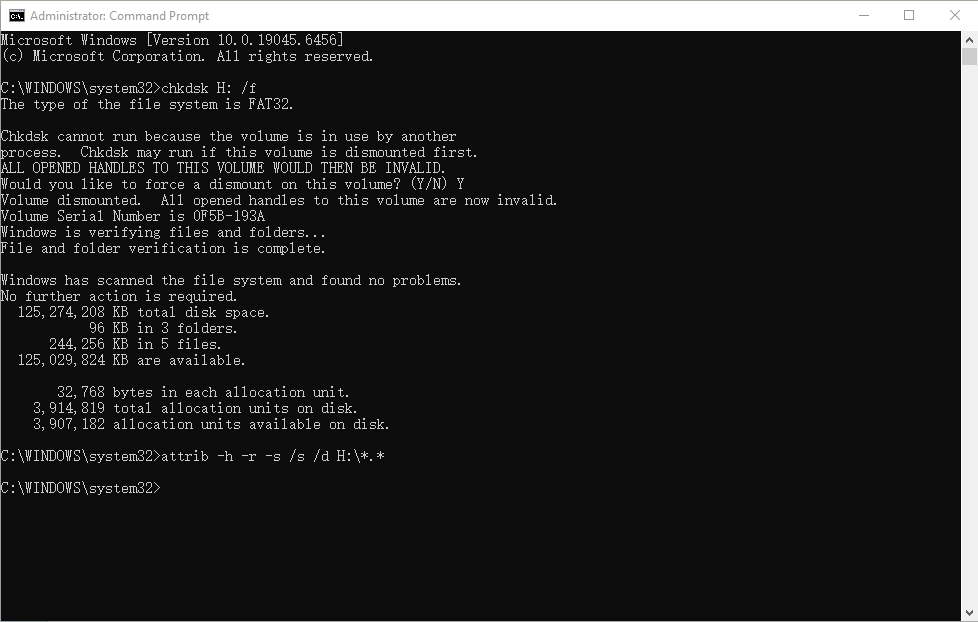
Method 1: Unhide Files Using CMD (Attrib Command)
USB drives that show as "full" in storage capacity, but appear completely empty when you open them (usually caused by shortcut viruses or malware).
- Connect the USB Drive: Plug your flash drive into your computer and open This PC to note its drive letter (e.g., E: or F:).
- Open Command Prompt as Administrator: Click the Windows Start button, type cmd in the search bar, right-click Command Prompt, and select Run as administrator.
- Fix Logical Errors First: Type chkdsk X: /f (replace X with your actual USB drive letter) and press Enter. Wait for the process to complete to ensure the drive is free of basic file system errors.
- Execute the Attrib Command: Type the following command exactly as shown and press Enter: attrib -h -r -s /s /d X:\*.* (Remember to replace X with your USB drive letter).
- Wait and Check: The command prompt will move to a new line when finished. Open your USB drive again. Your hidden files should now be visible, often placed inside a newly generated folder.
Method 2: Fix Corrupted Drives via Windows Error Checking
Situations where Windows prompts "You need to format the disk in drive before you can use it" or when the USB drive becomes sluggish and files fail to open due to bad sectors.
- Locate Your Drive: Plug in your USB drive and press Win + E to open File Explorer. Go to This PC.
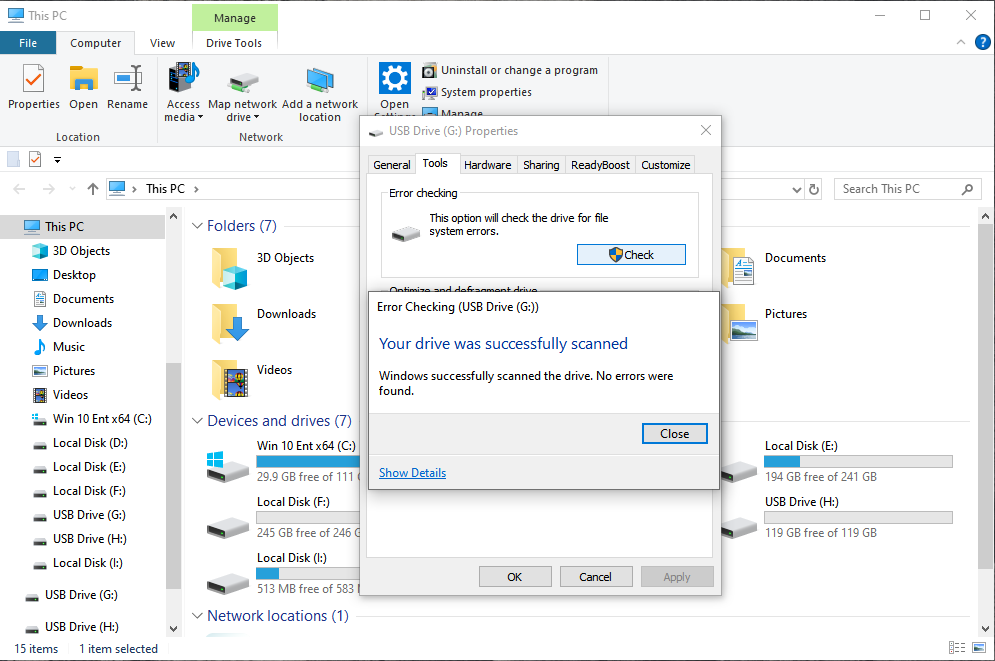
- Access Properties: Right-click on your USB drive and select Properties from the drop-down menu.
- Navigate to the Tools Tab: In the Properties window, click on the Tools tab at the top.
- Initiate Error Checking: Under the "Error checking" section, click the Check button. (You may need administrator privileges).
- Run the Scan: A new window will pop up. Even if Windows says "You don’t need to scan this drive" manually click on Scan and repair drive.
- Complete the Repair: Windows will now scan for file system errors and bad sectors. Once the process is complete, safely eject your USB, plug it back in, and check if your data is accessible.
Method 3: Restore from Windows Previous Versions
Accidentally deleted documents or overwritten files that are not in the Recycle Bin. Note: This method strictly requires that you have previously set up Windows Backup or File History for that specific drive/folder.
- Locate the Original Folder: Connect your USB drive and navigate to the exact folder where your lost files were originally saved.
- Open Previous Versions: Right-click on that specific folder (or the entire USB drive if the files were in the root directory) and click Restore previous versions.
- Select a Timeline: A Properties window will open with a list of available file versions organized by date and time.
- Preview the Content: Don't just hit restore blindly. Select a version from the list and click the Open button at the bottom to verify if it contains your missing files.
- Restore the Data: Once you confirm it's the correct version, select it and click Restore to bring the files back to their original location. Alternatively, click the arrow next to Restore and choose "Restore to... " to save them to a safer location on your computer's hard drive.

How to Prevent USB Flash Drive Data Loss
A few simple habits can significantly reduce the risk of losing files from a USB drive. Follow these best practices to keep your data protected.
Removing a USB drive while files are still being read or written can damage the file system and lead to corruption. Before unplugging your device, always use Safely Remove Hardware (Windows) or Eject (macOS) to ensure all pending operations have finished.
USB drives are notorious vectors for malware and shortcut viruses. Make it a habit to scan your flash drive using reliable security software immediately after plugging it into any public, office, or unfamiliar computer.
Working directly on documents or editing videos stored on a USB drive increases the risk of file crashes if a minor power fluctuation occurs. Always copy the files to your computer's local hard drive to edit them, then move them back when finished.
A USB drive is a temporary transit tool, not a permanent storage vault. Follow the gold standard of data safety with AOMEI Backupper: keep 3 copies of your data on 2 different media types, with 1 copy stored in the cloud.
Flash memory components are sensitive to environmental stress. Keep your USB drives away from extreme heat, moisture, strong magnetic fields, and physical drops, which can cause unrecoverable hardware controller chip failure.
Choose a file system that matches your needs. NTFS is ideal for Windows users, exFAT works well across Windows and macOS while supporting large files, and FAT32 offers broad compatibility but limits individual files to 4 GB.
Frequently Asked Questions About USB Data Recovery
Where do deleted USB files go? Can they be recovered?
When you delete a file from a USB drive, it permanently bypasses the Windows Recycle Bin and cannot be restored manually. However, the data is not actually gone. The system simply marks that file storage space as "free" and ready to be overwritten. AOMEI FastRecovery can scan these unmarked sectors to safely retrieve your files before new data takes over that space.
What should I do immediately after accidentally deleting USB files?
Stop using the USB drive immediately and unplug it safely. Do not save new files, edit existing documents, or run programs from the drive. Any new write activity can overwrite the hidden sectors where deleted files may still remain.
Is USB data recovery safe?
Yes. A reliable recovery tool scans the USB drive in a read-only way and saves recovered files to another location, helping avoid additional changes to the original lost data.
How long does a full USB data recovery scan typically take?
Scan time depends on the USB drive capacity, connection speed, file system condition, and the amount of data being searched. A small healthy USB drive may finish quickly, while larger or damaged drives can take longer.
Can I recover files from a physically damaged USB drive?
It depends on whether the computer can still detect the device. If the USB drive appears in Disk Management, recovery software may be able to scan it. If the drive is physically broken, burned, or completely undetected, a professional data recovery lab is usually required.
Does Windows have a built-in USB data recovery tool?
Windows includes basic repair and backup tools, such as Error Checking, CMD commands, File History, and Windows File Recovery. These options can help in some cases, but they may require manual commands and usually provide fewer preview options than dedicated recovery software.
Why Users Trust AOMEI FastRecovery
Read what users say about their recovery experience and why they trust AOMEI FastRecovery to recover important USB files safely and efficiently.

“Recovered 200+ photos from a formatted drive.”
"I made the ultimate mistake of formatting the wrong USB drive containing over 200 vacation photos. I thought they were gone forever. AOMEI’s deep scan found every single image. Being able to use the Free Preview feature to check the photo integrity before making any decision gave me huge peace of mind."
“An absolute lifesaver for non-techies!”
"I accidentally deleted a crucial client folder from my flash drive and panicked when it wasn't in the Recycle Bin. I tried following online tutorials for CMD commands but was terrified of breaking my system. AOMEI FastRecovery was incredibly simple. Within 5 minutes, it scanned my drive and let me get everything back in just three clicks."
“Defeated a shortcut virus that hid all my files!”
"My flash drive got infected by a virus at a public print shop. The drive showed as full, but when I opened it, it looked completely empty. I didn't know the complex CMD parameters to unhide them, so I tried AOMEI FastRecovery. It bypassed the corrupted file system instantly and fetched my entire presentation folder back perfectly healthy."
“Saved a corrupted RAW drive seamlessly.”
"My computer suddenly flagged my office USB as 'RAW' and demanded a format. Before wiping it, I ran this software. A quick tip for new users: the screen stays blank while it actively scans to maximize speed, so just hit pause if you want to check what it found early. It extracted 16GB of unreadable spreadsheets flawlessly."
“Recovered my data after an unsafe USB ejection.”
"I made the mistake of yanking my USB out mid-transfer, which corrupted the file system completely. AOMEI FastRecovery salvaged my business receipts safely without overwriting anything. Now, I use their AOMEI Backupper software to automatically back up my flash drive to the cloud every time I plug it into my PC to prevent this from ever happening again."
Get Your Lost USB Files Back in Minutes
Every minute you wait increases the risk of data overwriting. Download now to scan your drive and preview your missing documents completely free.
Download FreewareWindows 11/10/8/7/Server