




Can You Undo a Formatted Hard Drive? (Yes, Sometimes)
Can you undo a formatted hard drive? The answer is yes if you are using quick format and immediately stop using this drive afterward. Scroll down to get 5 useful methods!

By Ivy Updated on May 8, 2026


Can you undo a formatted hard drive?
“Is it possible to undo a format? We did one without backing up files from my hard drive that I required. Is it possible to reverse this? Please assist.”
- Question from Microsoft community
If you are referring to recovering deleted data from a quick formatted hard disk, then the answer is yes in most cases, but it requires some proven methods. Learn more about quick format vs. full format:
😒Full Format: Only writethe file system structure blocks and completely erasedata on the formatted hard drive, rendering data unrecoverable, even with professional recovery software. Includes an additional step to scan for bad sectors.
How to recover data from quick formatted hard drive using software
2 methods of how to undo a format on a hard drive without backupare given in this part. You need to start data recovery as soon as possible because data overwriting is risky.
⚠️Don't do the following, which may cause permanently deleted files:
❌Don't add new files or continue using your drive.c
❌Don't format this disk again.
❌ Disconnect SSD immediately (if it is) as it may have the TRIM feature enabled.
Option 1. Recover data after a quick format via AOMEI FastRecovery
The first choice for recovering data from a quick formatted hard drive is using simple but powerful data recovery software - AOMEI FastRecovery. With its clean interface andstrong technologies, you can recover data after a quick format in only 3 steps.
 AOMEI FastRecovery
- 2️⃣ crucial scanning algorithms: Scan a formatted disk quickly and deeply to find as many files as possible, laying the basis for a high success rate of data recovery.
- ✅ Over 1000+ data types: Recover deleted or lostdocumentsto images, videos, compressed files, emails, etc.
- 🧬Flexible Layout: Organize and display deleted or lost files by Type or Path, allowing sorting across multiple options.
- 🔥 Highlight features: Support search, filter, preview, selective recovery, crashed PC recovery, making the process simple and efficient.
- 💻Strong compatibility: Recover data fromNTFS/FAT32/exFAT/ReFS drives, and support Windows 7/8/10/11 and servers.
- 👍Free data recovery, supporting up to 500MB.
 100% Secure
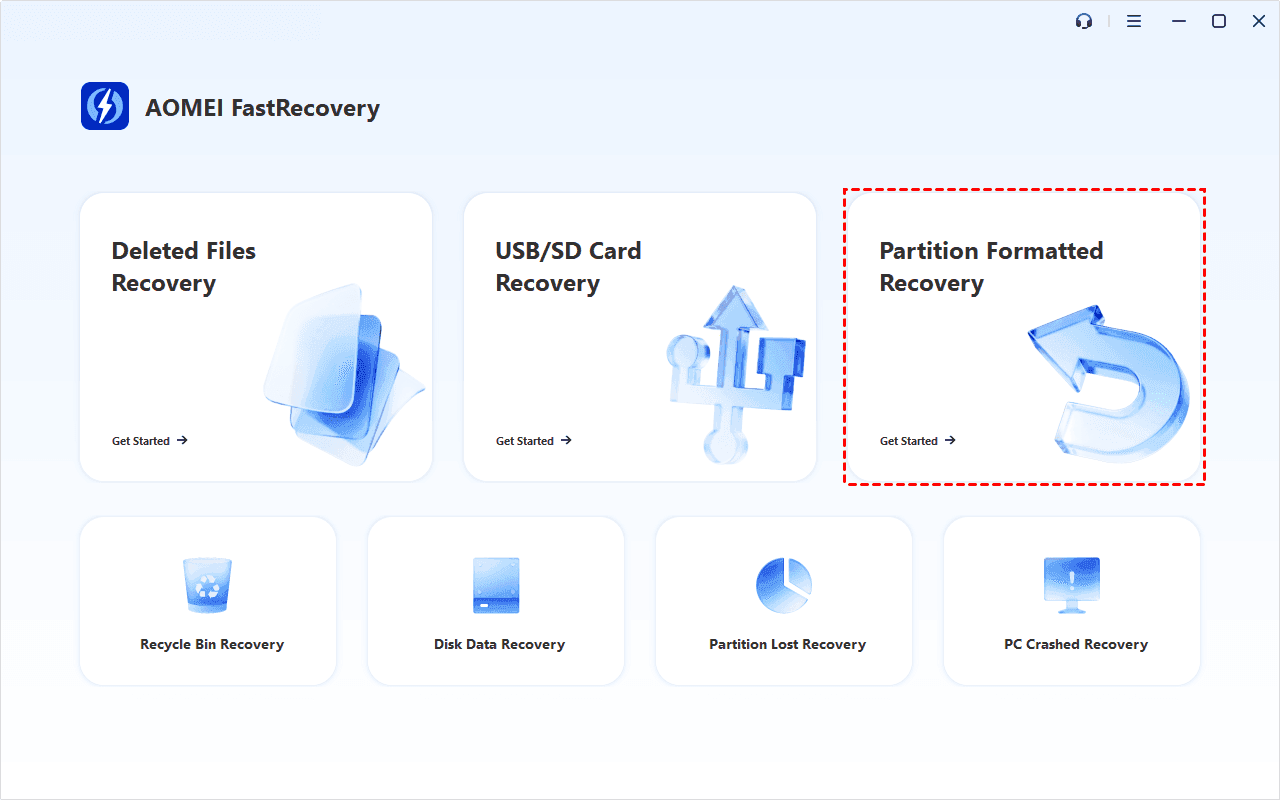
Step 1. Open AOMEI FastRecovery after installing. Click Partition Formatted Recovery. You can also choose a more suitable alternative. All of them can help you retrieve data without causing any damage.
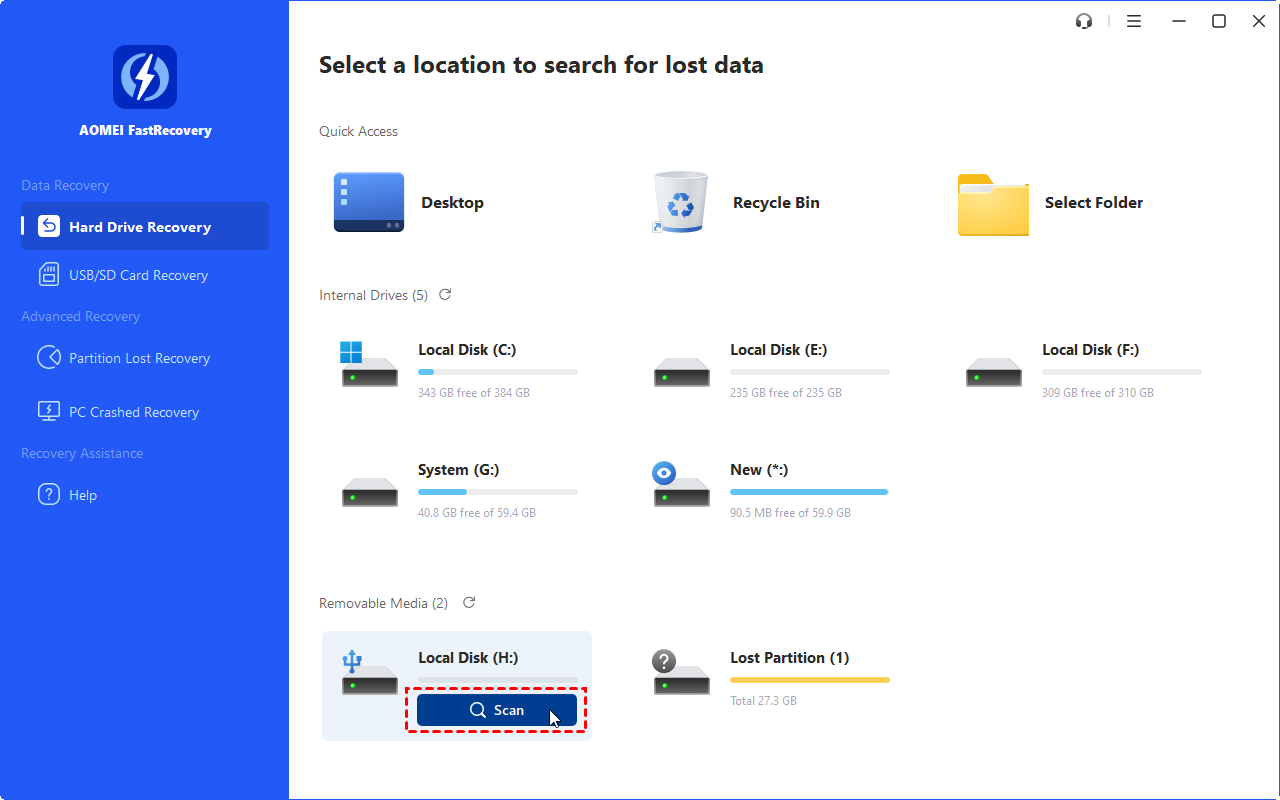
Step 2. Hover the mouse over the quick formatted drive and click Scan to get started.
Step 3. It will perform Deep Scan to scan deleted or lost data automatically. Wait until all the recoverable files are found. They will be displayed by Type (default) or Path, allowing you to sort across multiple options.
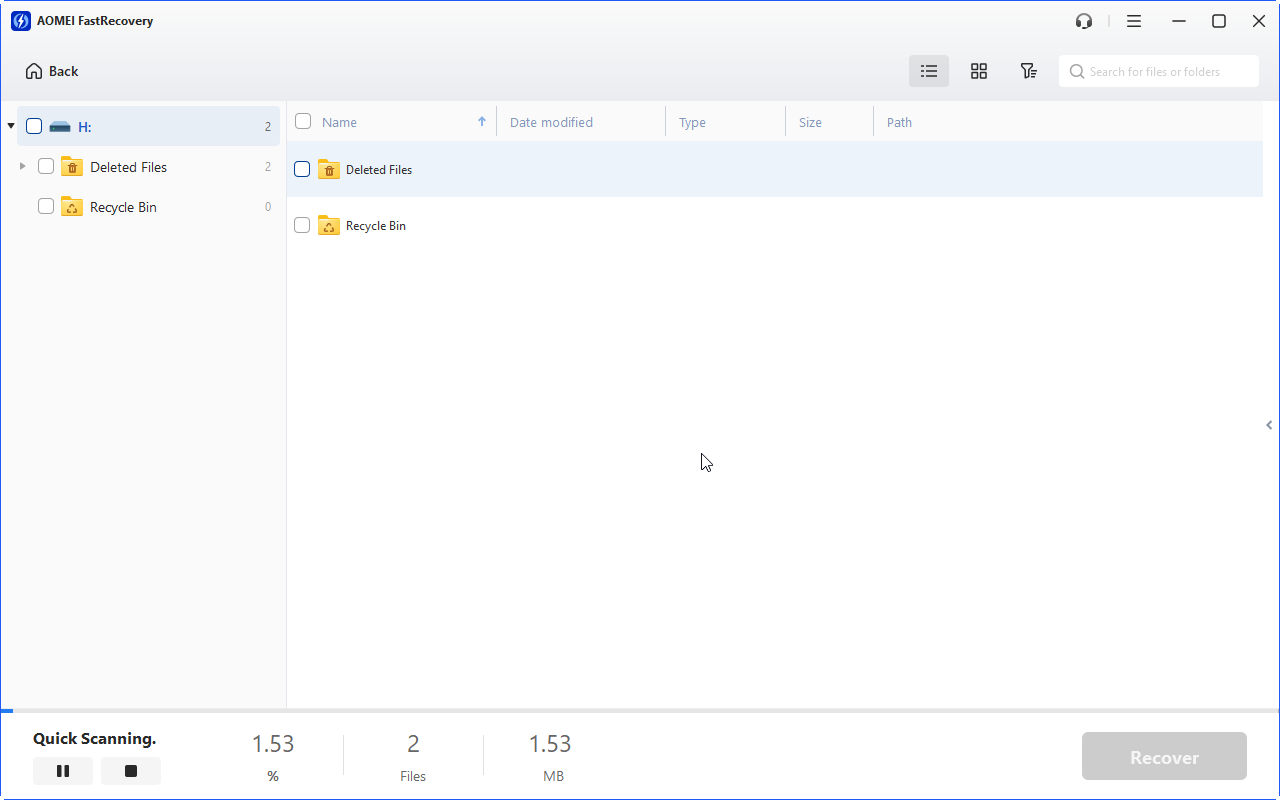
🌟Tip: To narrow your search, click the Filter button to specify the data type. Or directly typethe file name or extension (.xlxs) in the search box.
Step 4. Simply select the desired files and click the Recover button. Please choose a new path to save the restored data, preventing data overwriting or corruption.
Option 2. Perform quick format data recovery via Windows File Recovery
Windows File Recovery is one of the qualified tools released by Microsoft and applies to Windows 10 2004 and later versions. It's a command line tool, more suitable for computer savers, which requires users to learn some necessary parameters before using it including file system, source and destination drive, recovery modes, and switches.
Step 1. Go to This PC > right-click on the formatted hard drive > click Properties. Check the file system of this drive.
Step 2. Choose a recovery mode. Extensive is recommended.
| File system | Scenarios | mode |
| NTFS | Deleted recently | Regular |
| NTFS | Deleted for a while | Extensive |
| NTFS | Formatted disk | Extensive |
| NTFS | corrupted disk | Extensive |
| FAT and exFAT | Any | Extensive |
Step 3. Select switches to narrow the scanning range and target your files faster.
| Switches | Meaning | Supported mode(s) |
| /n | Filter the scan range: scans for a specific file with its file name/path/type, etc. | All |
| /y: | Recovers specific extension groups. | Signature |
| /k | Recovers system files. | NTFS Segment |
| /segment | Segment mode; recoversfiles under NTFS drives using file recordsegments. | Segment |
| /signature | Signature mode; recoversfiles under all file system types using fileheaders. | Signature |
| /u | Recovers undeleted files, for example, from the Recycle Bin. | NTFS Segment |
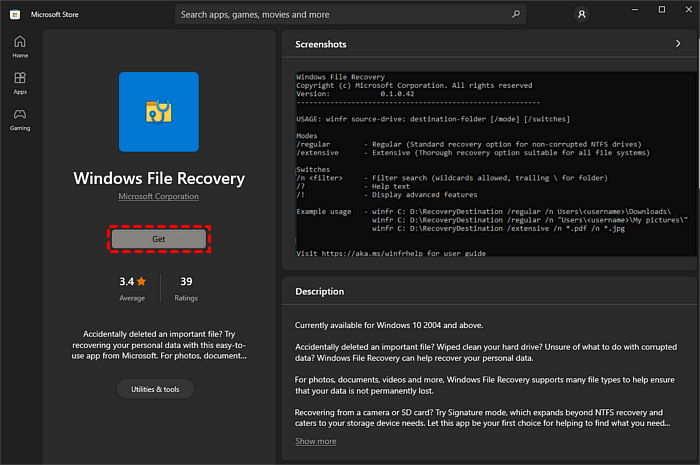
Step 4. Go to Microsoft Store > click Get to install Windows File Recovery.
Step 5. Run the program > input the command:
winfr source-drive: destination-drive: [/mode] [/switches]
For example, if you need to recover deleted photos from C: drive to D: drive, then the command will be like:
winfr C: D: /n *.png
How to undo formatting a hard drive using backups
If you back up regularly, then you can restore your files after a quick format by restoring them from a backup. The main backup features on Windows are covered here.
Option 1. Retrieve data from formatted hard drive using File History
File History, another tool provided by Windows, can backup files to external hard drive automatically and allows you to recover data from a formatted hard drive when you realize your files are deleted or lost. Please ensure that it is turned on.
⚠️Note: File History will only back up your files in Documents, Music, Pictures, Videos, and Desktop folders, as well as OneDrive files on your computer that are available offline.
Step 1. Go to Control Panel > System and Security > File History.
Step 2. Click Restore personal files.
Step 3. Select the files you need to recover and then click the Restore button.
Option 2. Undo quick format with Backup & Restore
Backup and Restore was the primary backup utility in Windows 7 and earlier. Although File History has since replaced it, it is still available in subsequent versions of Windows, not only for backward compatibility, but also because it is still used by many as a reliable way to back up their data.
Step 1. Start Control Panel > System and Security > Backup and Restore (Windows 7). Click Restore my files.
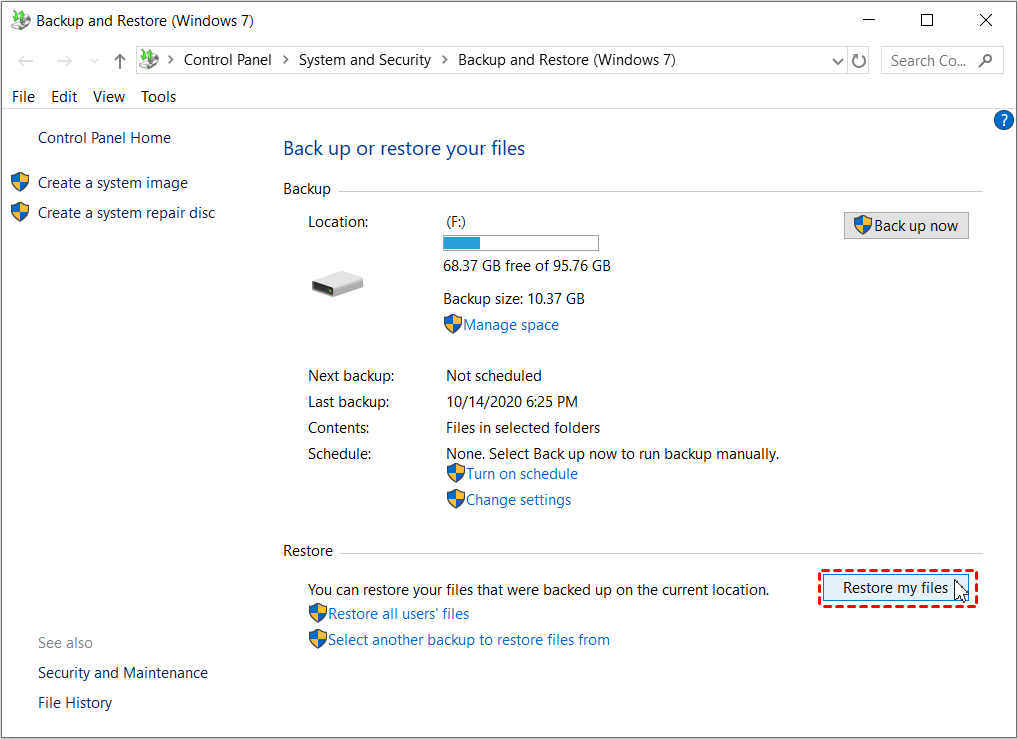
Step 2. Click Browse for files/folders > select the files you need >click Next.
Step 3. Specify the destination according to your preferences > click Restore.
Option 3. Undo a format drive through OneDrive
If you've ever backed up your files to OneDrive, you can get them back when the drive is formatted with a OneDrive backup. By signing into your Microsoft account, you can visit, share, and download your files on any device you like.
Sign in to the OneDrive website with your Microsoft account > choose the files or folders you need > click the 3-dot menu icon > Choose Download in the drop-down menu.
Conclusion
Can you undo a formatted hard drive? This post primarily introduces 5 methods of how to undo a formatted hard drive. Please make sure that you have committed a quick format instead of a full format before trying the mentioned methods. Also, always making a backup of your hard drive using AOMEI Backupper is a good way to avoid data loss.
FAQs
1. Does formatting hard drive permanently delete?
Whether formatting a hard drive permanently deletes data on it depends on the format method you use. A quick format only deletes thereference path of files, leavinga data recovery chance, while a full format overwrites data as it is formatted.
2. Does formatting damaged hard disk?
Formatting is a proven way to repartition a hard drive and return itto a good state. So it will not damage your disk.
3. How to format a hard drive in Windows 11?
The fastest way to format a hard drive is in File Explorer. Just open it and follow the steps below:
- Open File Explorer. Right-click thedisk you want to format and select Format.
- Be sure the Quick Format is checked, as it leaves you a chance to undo formatting a hard drive.
- Then, clickOK. It will start a quick format automatically.
4. How do I undo formatting a hard drive without software?
Windows comes with different backup software, such asBackup and Restore (Windows 7) to help you. Try it if you create a copy of your files with it,
- Go to Control Panel >System and Security and select Backup and Restore (Windows 7).
- Then, click Restore my files.
- Click the Search…, Browse for files, and Browse for folders options to find your deleted files or folders.
- Select a new location to restore your filesand then click Restore to undo formatting a hard drive without software.
5. How to recover a formatted external hard drive
If you saved your data on the external hard drive to OneDrive, log in to your account and restore it.
- Open a web browser and go to https://onedrive.live.com/.
- Sign in to your Microsoft account.
- Search the deleted files in OneDrive. Select and click Download to restore them locally.
- You can also check the Recycle Bin directory in OneDrive.

 as a preferred
source on Google
as a preferred
source on Google