




How to Recover Deleted Videos on Windows 7/8/10/11
How to recover deleted videos on Windows 7? Try professional data recovery software - AOMEI FastRecovery, Recycle Bin, Backup and Restore (Windows 7), etc.

By Ivy Updated on April 2, 2026


Is it possible to recover deleted videos from Windows 7?
Not thinking clearly, I deleted some great videos of my vacation from my Windows 7 computer. Is it possible to recover deleted videos on Windows 7? I desperately need help if there is any way to recover the videos.
- Question from a user
Accidental deletion of files is a common data loss situation. Meanwhile, files can also be easily lost due to other various reasons, such as being formatted by virus attacks, hard drive or software failure, and system crashes.
If you realize that your data is important after it has been accidentally deleted or lost, you can try effective methods for recovering deleted videos from a Windows 7 in this guide to get back your lost video files.
Part 1. Recover deleted videos in Windows 7 using software 🔥
The easiest way to complete video recovery from Windows 7 is to use a data recovery tool. AOMEI FastRecovery, a tool that can help you recover permanently/recently deleted videos quickly and completely, is exactly what you need.
 AOMEI FastRecovery
- It has a free edition that can recover data up to 500MB.
- Recover deleted files from Recycle Bin after empty, with a high success rate, even without a backup.
- Recovermore than 1000 file formats, including documents, videos, photos, emails, webpage files, and zip files.
- Perform a Quick Scan automatically and integrate Deep Scan to search for all recoverable files.
- Organize and display files by Type or Path, allowing you to sort, search, filter, and preview files.
- Apply to various data recovery scenarios, such as formatted data recovery, virus attack recovery, partition loss recovery, system crash recovery, etc.
 100% Secure
Now, download it for free and learn how to recover permanently deleted videos in Windows 7 in 3 steps. It also works smoothly on Windows 11/10/8 and all Windows Servers.
Step 1. Select a partition for scanning
Run AOMEI FastRecovery. Hover the mouse over the drive saved deleted files before, and click Scan to scan.
Step 2. Scan all deleted and lost files automatically
It will use Quick Scan automatically to scan and find all lost and missing files. Under the Type section, scroll down to Videos and select any video type you want to recover. For the specific video type, directly type the extension in the search box.
Step 3. Preview and choose deleted files for recovery
Double-click the files to preview and select the desired items for recovery. After selection, click on the Recover button to store the videos at a new secure location.
-
Please save the recovered videos in a new location instead of the original location. Otherwise, they may be overwritten.
-
You can recover deleted videos for free, up to 500MB. Once exceeded, please upgrade to the advanced editions.
Part 2. Recover deleted videos in Windows 7 without software (3 Ways)
Here we also provide you with 3 common solutions to recover deleted videos on Windows 7 without using software for your reference.
Method 1. Recover deleted videos from Recycle Bin
When you delete files from Windows, they are not actually wiped completely from your computer immediately, but moved to the Recycle Bin. Thus, you can perform Recycle Bin data recovery to get back deleted videos.
However, if the Recycle Bin is emptied or if you are in the following situations, recovering files from the Recycle Bin will not work for you.
- Videos are deleted with the Shift + Delete shortcut.
- Recycle Bin is not enabled on Windows.
- Storage space in the Recycle Bin is smaller than that of the deleted files.
- Files are deleted from an external storage device, like a USB flash drive, SD card, and so on.
Step 1. Double-click on the Recycle Bin icon on the desktop. Or you can search for “recycle bin” in File Explorer to open the Recycle Bin folder.
Step 2. Locate the video files that need to be recovered, right-click on them, and choose the Restore option to restore videos deleted to their original locations.
Method 2. Restore deleted videos from backup
It is simple to recover deleted Windows files from a backup file if you have previously created a copy of the data using the Windows data recovery component - Backup and Restore.
Step 1. Open Control Panel, navigate to System and Security, and select Backup and Restore (Windows 7).
Step 2. Tap on Restore my files.
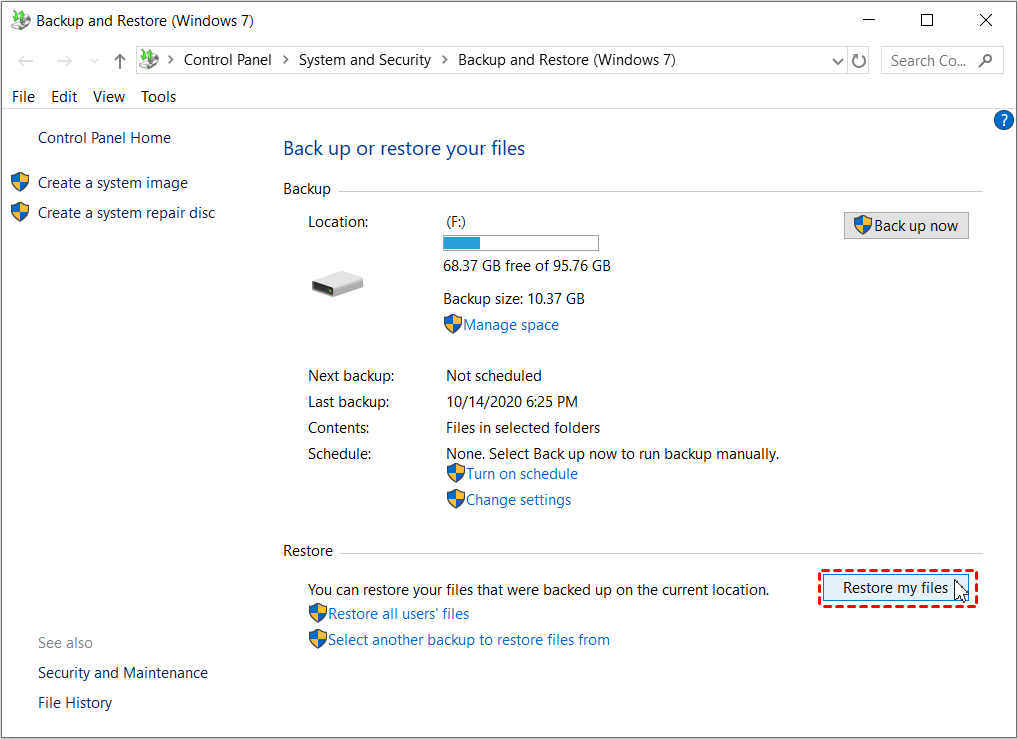
Step 3. Click the Browse for files option to find the video files you wish to restore and hit Next.
Step 4. Select a location, preferably a new one, to store the restored data. Then, click Restore.
Method 3. Retrieve deleted videos from previous versions
Restoring previous versions is also an effective way to recover permanently deleted videos in Windows 7, and it can also be helpful to recover deleted folders not in the Recycle Bin.
Step 1. Go to the folder that stored your deleted videos before, right-click it, and click Restore previous versions.
Step 2. A list of previous versions of this folder will be displayed in the Previous Versions tab. Pick the wanted folder version and tap on Restore.
To sum it up
Recovering deleted videos on Windows 7 is easy if you apply the right method. If data files are backed up before the loss, you can directly find the backup files and follow the steps above to restore them. If there is no backup file, with the help of AOMEI FastRecovery, you can also effectively recover lost data, even if the Recycle Bin is emptied.
As you probably know by now, it is very important to back up your precious data to avoid complete data loss. We strongly recommend you use AOMEI Backupper. It supports creating backups to various data storage devices such as local disks, external hard disks, cloud storage services, etc., and run automatically.

 as a preferred
source on Google
as a preferred
source on Google