




How to Recover Deleted JPEG/JPG Files
What if I accidentally deleted JPEG/JPG files from your computer, SD card, etc.? Don't worry, we've got 3 ways to recover deleted JPEG/JPG files right here.

By Ivy Updated on May 10, 2026


Can you recover deletedJPEG/JPG files?
Photos that are taken and saved as JPEG or other formats are supposed to capture passing experiences. However, they may be lost or mistakenly destroyed for a variety of reasons. You may have deleted them accidentally, or they may have been lost due to system crashes, malware assaults, and other factors.
Can JPG files be recovered? Fortunately, there is a chance that you will be able to safely recover deleted or lost JPEG files. The 3 methods below can all be workable to recover JPEG files on various kinds of storage devices, like SD cards, USB drives, etc. Be sure to connect your external storage devices before data recovery.
Way 1. Recover deleted JPEG files via photo recovery software
The most compatible way to recover deleted JPEG/JPG files from different storage space is, of course, to make use of a professional Windows data recovery tool. AOMEI FastRecovery is highly recommended to recover permanently deleted photos without a backup.
 AOMEI FastRecovery
- ✅Recoverable Scope: Recover data in any scenarios, such as permanent deletions, disk formatting, system crashes, virus attacks, etc.
- 🔎 Dual-Scan Mode: Perform a Quick Scan automatically and integrate Deep Scan for more thorough results.
- 👍 Support A wide range of image formats, such as JPG/JPEG/JPE, PNG, TIF/TIFF, HEVC/HEIC/HEIF, GIF, PSD, SVG, ARW, X3F, etc.
- 📚 Pinpoint the file: Organize and display deleted or lost files by Type or Path, allowing you to sort, search, filter, and preview files.
- 🔥 Free data recovery, supporting up to 500MB.
 100% Secure
Free download the JPEG/JPG file recovery software on your computer, and recover deleted JPEG files from SD card, USB, hard drive, etc. in 3 simple steps.
Step 1. Launch AOMEI FastRecovery on your computer, then click Deleted Files Recovery for fast recovery. You can also choose a more suitable alternative. All of them can help you retrieve data without causing any damage.

Step 2. Hover the mouse over the disk where the deleted JPEG files were stored before. Click Scan to continue.
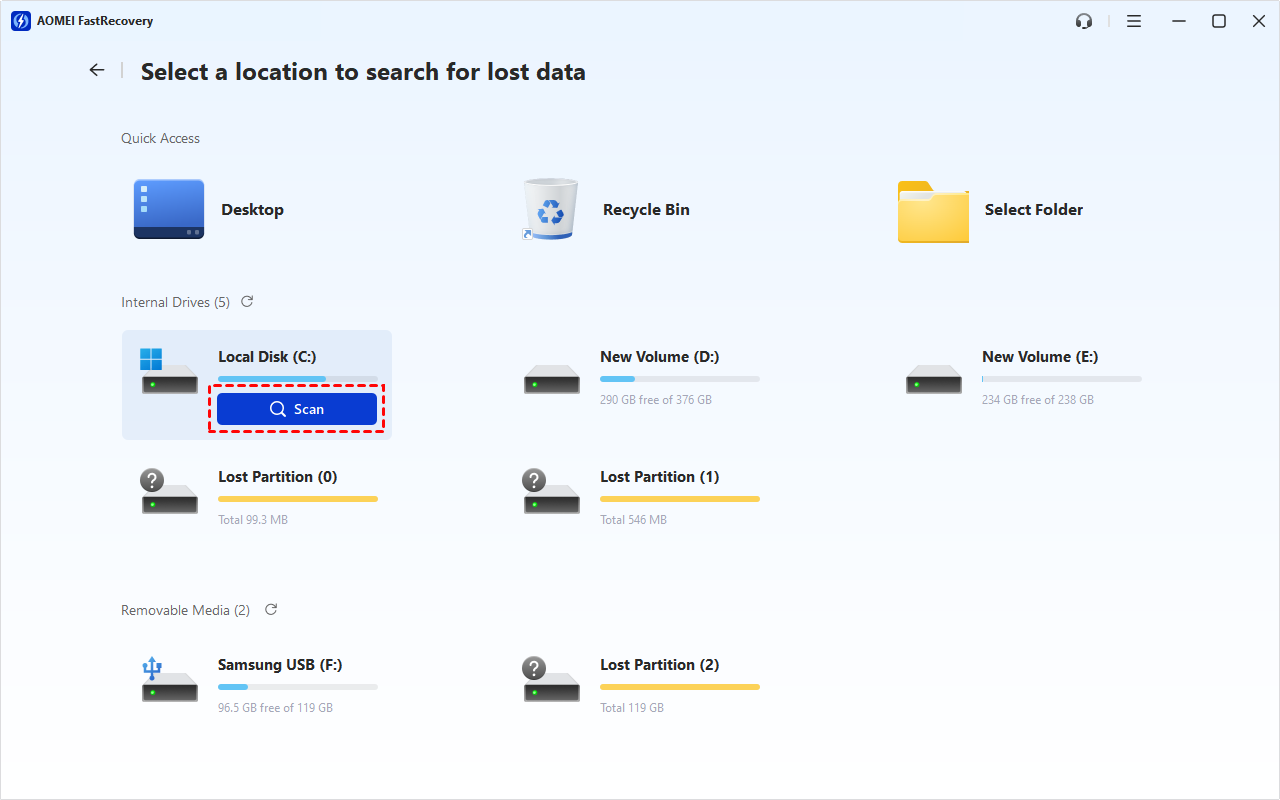
Step 3. It will automatically start Quick Scan to find deleted or lost files.
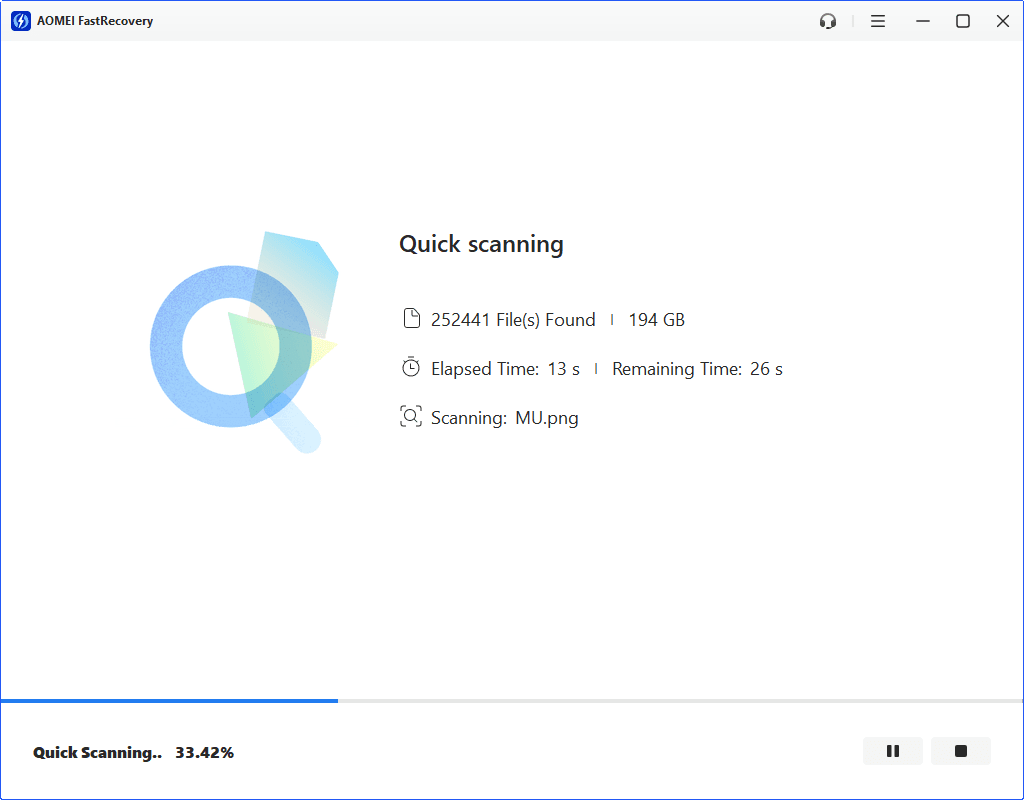
-
Scan time mainly depends on disk size and health, especially regarding bad sectors or file system corruption.
-
During scanning, you can click the Stop or Pause button if you select the wrong disk or something goes wrong.
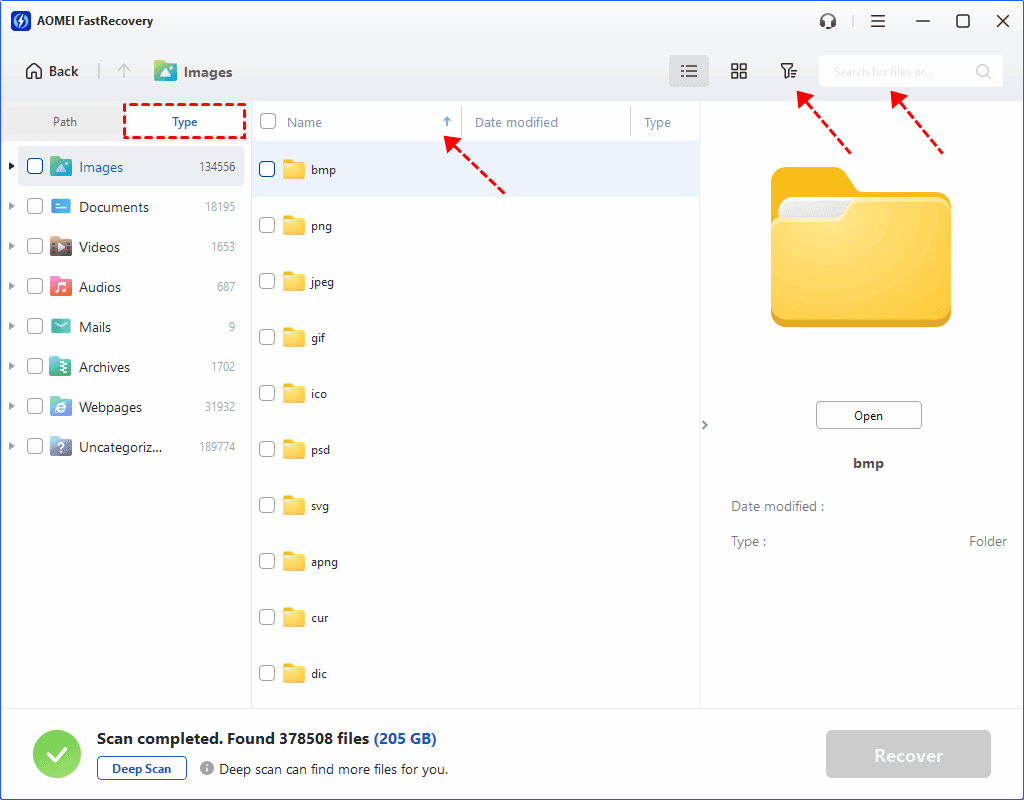
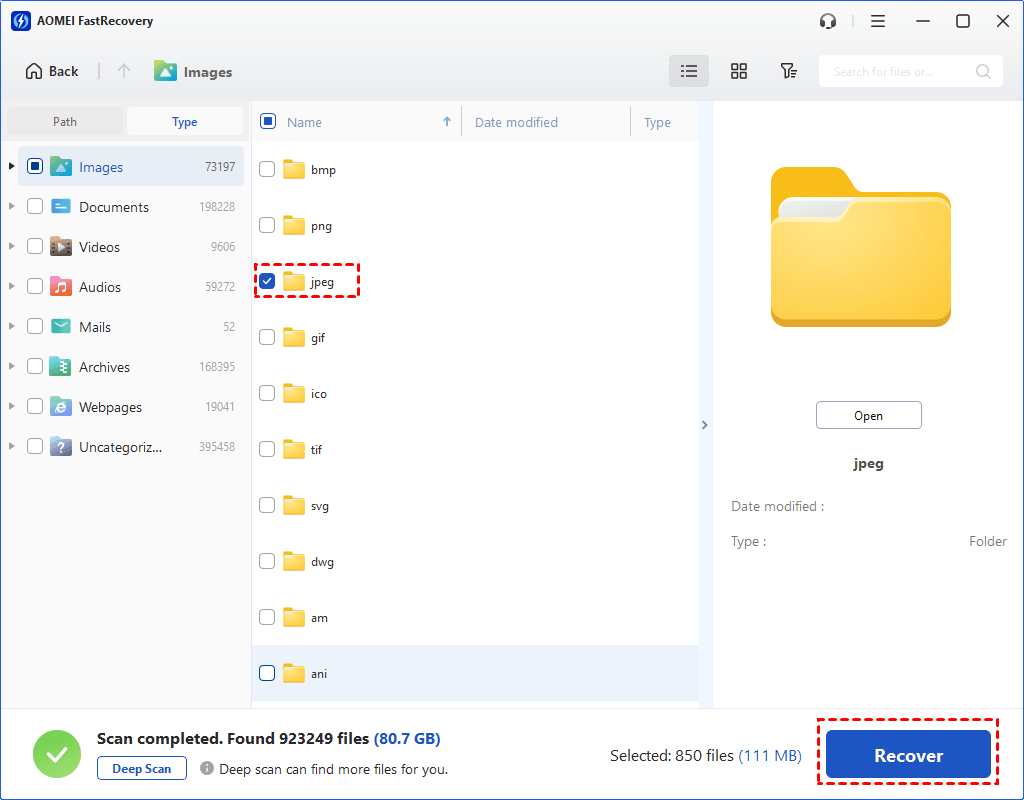
Step 4. Wait for the process to finish scanning. All your lost files will be displayed by Type or Path, allowing you to sort, search, filter, and preview files.
👉Under the Type section:
- Specify the data type (e.g., Image) and click the arrow next to type, size, date modified, etc., to sort files.
- To locate files quickly, type the file name or extension (.jpeg) in the search box.
- Or use the filter feature, similar to the Type category, allowing you to further specify the size of files, from less than 512 KB to 1GB above.
- Once found, double-click the files to preview.
👉 Under the Path section: Directly navigate to the original location where you saved deleted JPEG files. Sort files if needed.
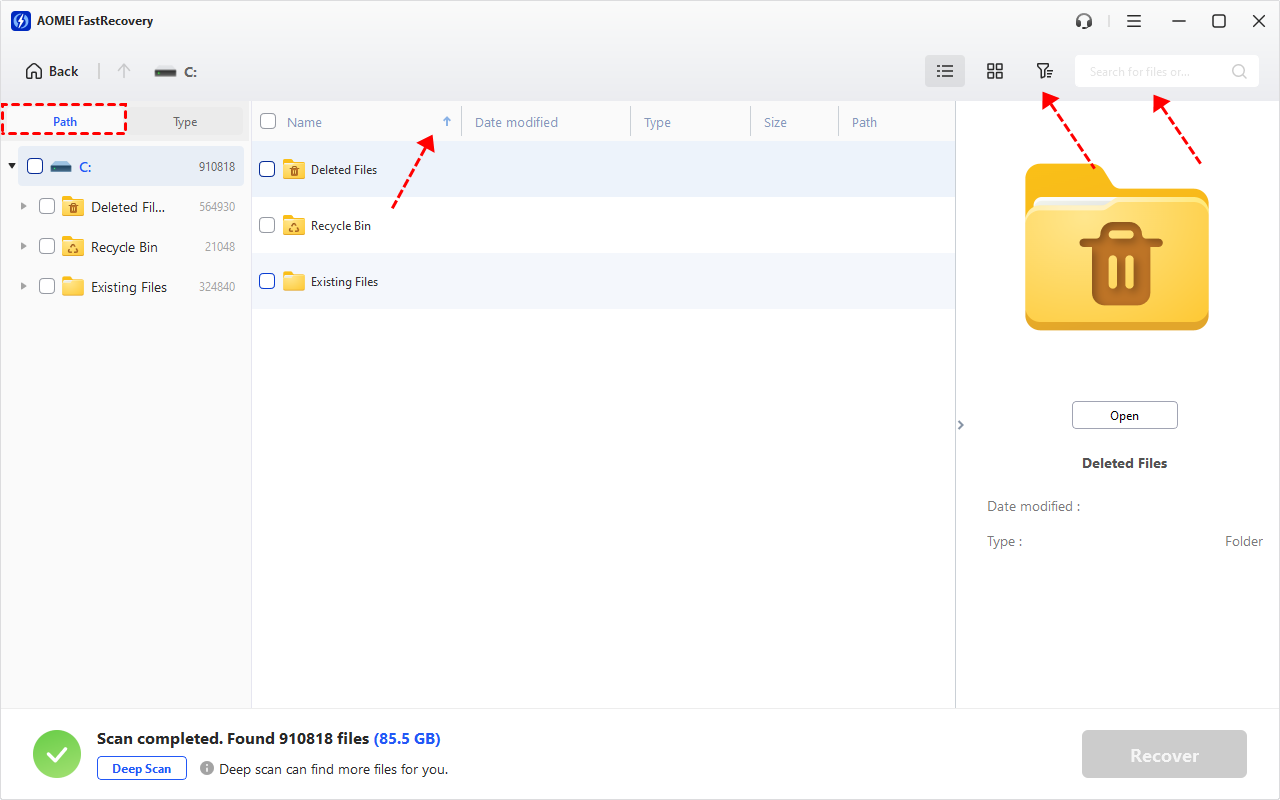
- The Type categories and filter options include all supported data types, such as images, videos, documents, mails, web pages, compressed files, etc.
- Click the Deep Scan to find more data if Quick Scan fails. It will scan every sector of the disk and take longer.
Step 5. Find and select the JPEG files you deleted and click Recover. Finally, choose a new destination to save the retrieved files.
-
Don’t save them to the original location, as it may cause data overwriting.
- You can recover deleted JPEG files for free up to 500MB. To recover all data, try the advanced editions.
Way 2. Restore deleted JPEG files from Recycle Bin
If the deleted JPEG files were saved on your computer, the Recycle Bin should be the first place to go to look for deleted files on a Windows computer, unless it is being emptied.
Step 1. Double-click the Recycle Bin icon on your desktop. In the search bar at the top-right, type"JPEG" to find your JPEG files quickly.
Step 2. Right-click on the JPEG files you want to restore and select Restore. Go to the location where the file was originally stored to make sure it’s back.
Way 3. Recover deleted JPEG files using the Windows backup feature
This method can only be available if you have backed up your JPEG files using Backup and Restore (Windows 7). It gives you a chance to recover deleted JPEG files from Windows backup.
Step 1. Right-click the Windows Start button and go to Control Panel > System and Maintenance > Backup and Restore (Windows 7). Then, click Restore my files.
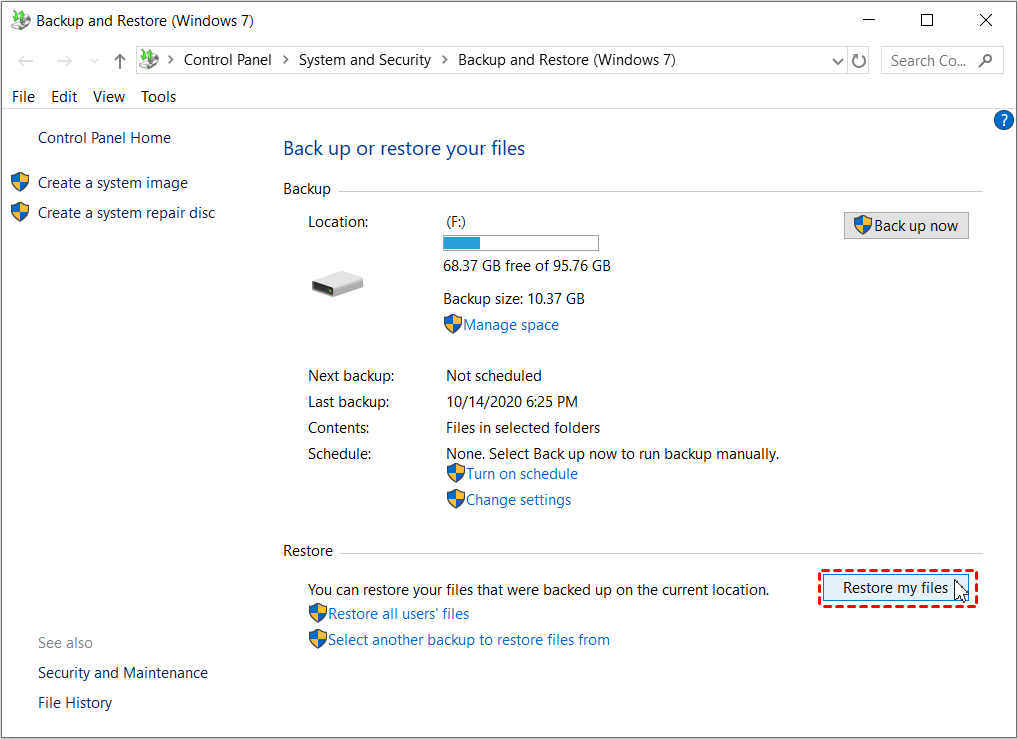
Step 2. Select Browse for files or Browse for folders to search for JPEG files you want to recover. Select the photos and click Restore to retrieve them.
Summary
That’s all for the 3 methods to recover deleted JPEG files on Windows PC. To make sure you can get all deleted JPEG and other types of files back, AOMEI FastRecovery must be one of the best choices for you. Also, this software can help you recover deleted files in Windows 10/11 for free.

 as a preferred
source on Google
as a preferred
source on Google