




Formatted SD Card? 3 Steps to Recover Data
This guide covers two effective Intenso data recovery software - one is simple and easy to use, the other is command-line based. Choose what suits you.

By Ivy Updated on July 2, 2026


Can I Recover Files from a Formatted SD Card?
I have accidentally formatted my SD card which stores lots of photos of my daughter. Can I recover photos from a formatted SD card? If I can, how to perform?”
Can you recover files from a formatted SD card? It depends on how you formatted it.
Most operating systems and devices offer two options: Quick format and Full format. The one you choose determines whether your files are still there or gone forever.
-
Quick format simply removes the file index. Your data stays on the card until it's overwritten - which means recovery is still possible.
-
Full format wipes everything, including the data itself. Once that's done, even professional recovery software can't bring your files back.
So before you panic, ask yourself: which format did you use? If it was a quick format, there's a good chance you can still get your data back. If it was a full format, the odds drop significantly.
Either way, the next step is the same - stop using the card and start recovery as soon as possible.
Recover Data from Formatted SD Card in 3 Steps – Best for Most Users
Supposing that you have accidentally quickly formatted your SD card, you’re recommended to use FastRecovery to recover data from the formatted SD card. With an intuitive interface and easy operating process, you can quickly recover data from a formatted SD card in only 3 steps with a high success rate.
 AOMEI FastRecovery
- Dual-scan modes: Integrate Quick Scan and Deep Scan to scan hard drive for deleted files, ensuring a high recovery rate.
- 1000+ data types: Recover deleted or lost documents (TXT, DOC, XLSX, CSV), images (JPG, PNG, TIF, HEIC, GIF), videos (MP4, MOV, AVI, ASF, WMV), and more.
- Find your files fast: Browse by type or path; Sort, search, filter, and preview files before recovery
- Brand compatibility: Works seamlessly with SanDisk SD cards, as well as Kingston, Lexar, PNY, Sony, Transcend, and more.
- Free to try: The free edition can recover data up to 500MB – no commitment required.
- Safe & easy to use: Read-only, no data overwriting. simple, intuitve interface.
 100% Secure
-
Don't download and install FastRecovery on the SD card where you store deleted files, as this may cause data to be overwritten.
-
Any newly added data or disk formatting can overwrite data. Please avoid these operations after deletion.
Step 1. First, connect your formatted SD card to your computer properly. After launching FastRecovery, click Deleted Files Recovery, specifically designed for quick recovery. Or click USB/SD Card Recovery for complete recovery.

Step 2. Hover the mouse over the SD card and click Scan to scan.
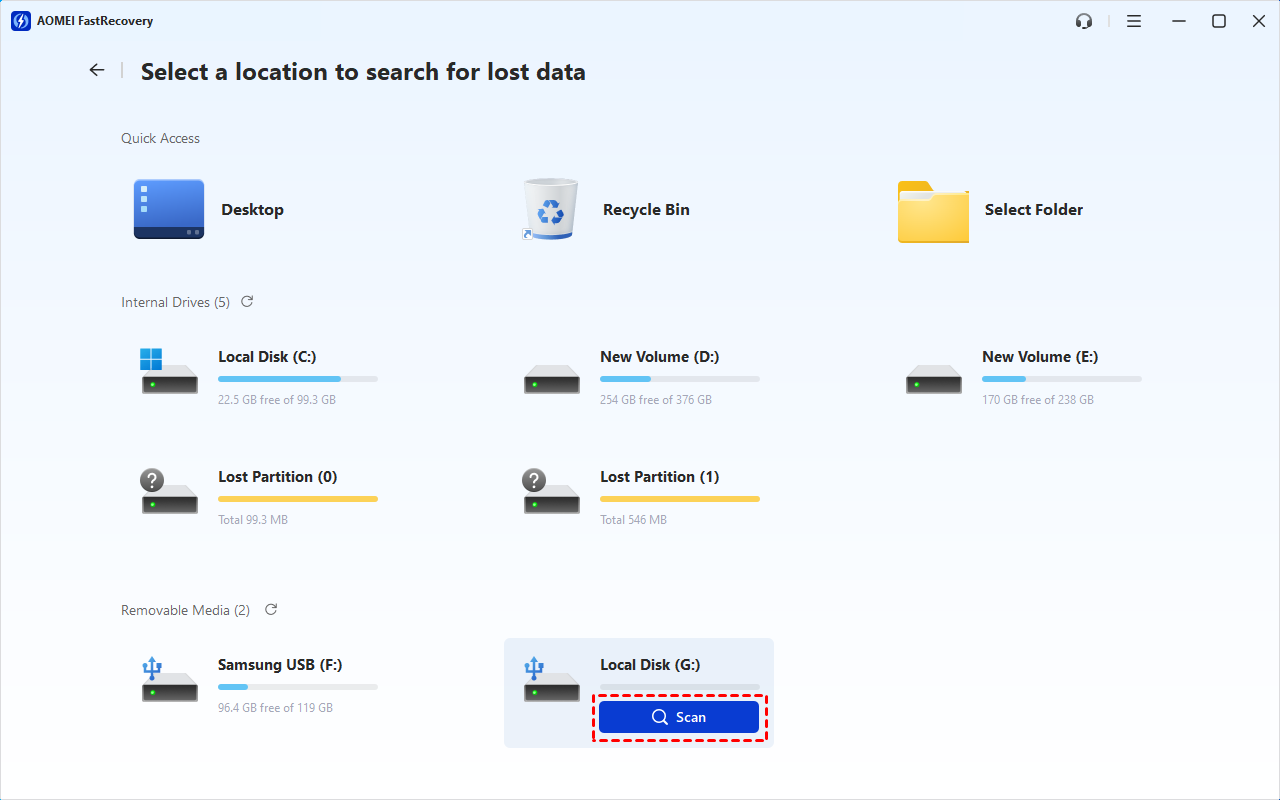
Step 2. It will start a quick scanning process automatically. Wait, and in the scanning result window, check Images, Videos, etc., data type and specific formats.
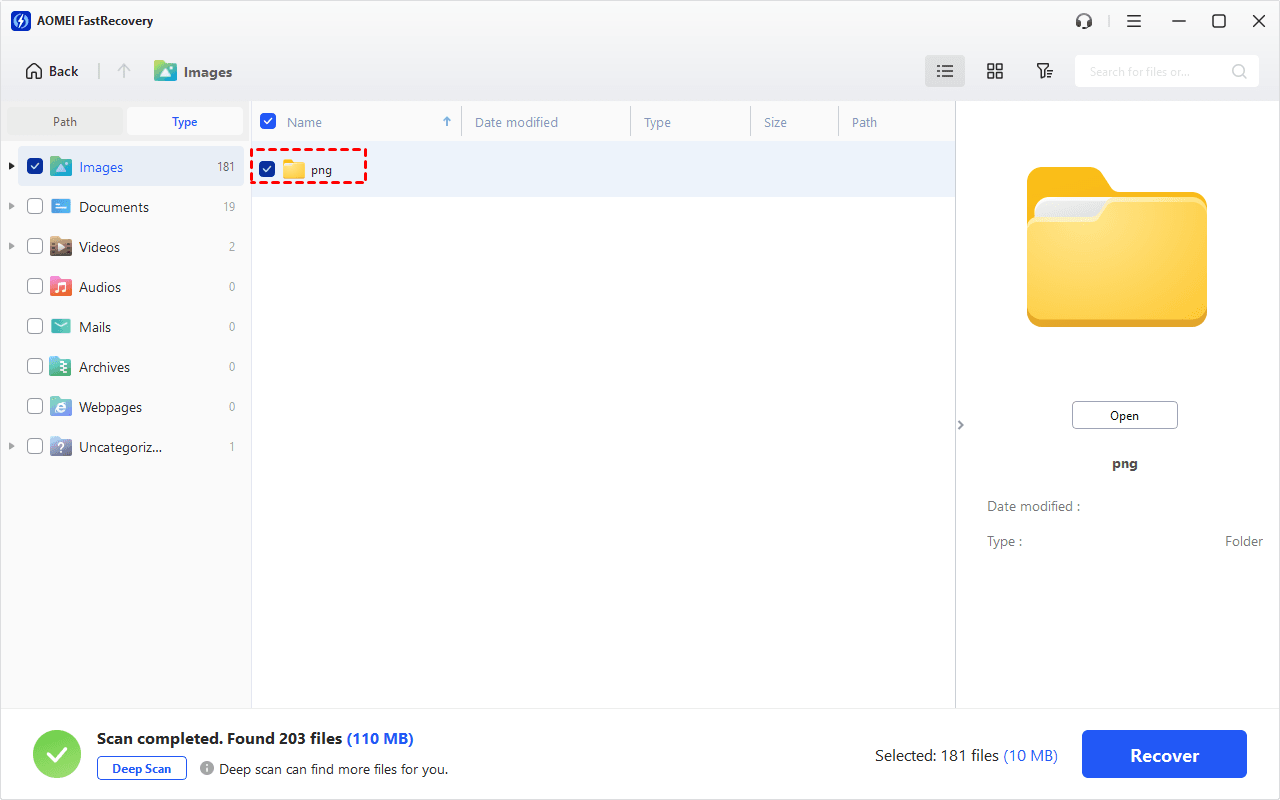
You can also expand to check Deleted Files, Recycle Bin, or Existing Files for specific files. To find files quickly, combine the following options:
-
Sort files by name, date modified, type, etc., using the column headers.
-
For faster searching, type the file name or extension (.png, .mp4) in the search box.
- Or click the funnel-shaped button to narrow your search by type or size, especially useful for large deleted files.
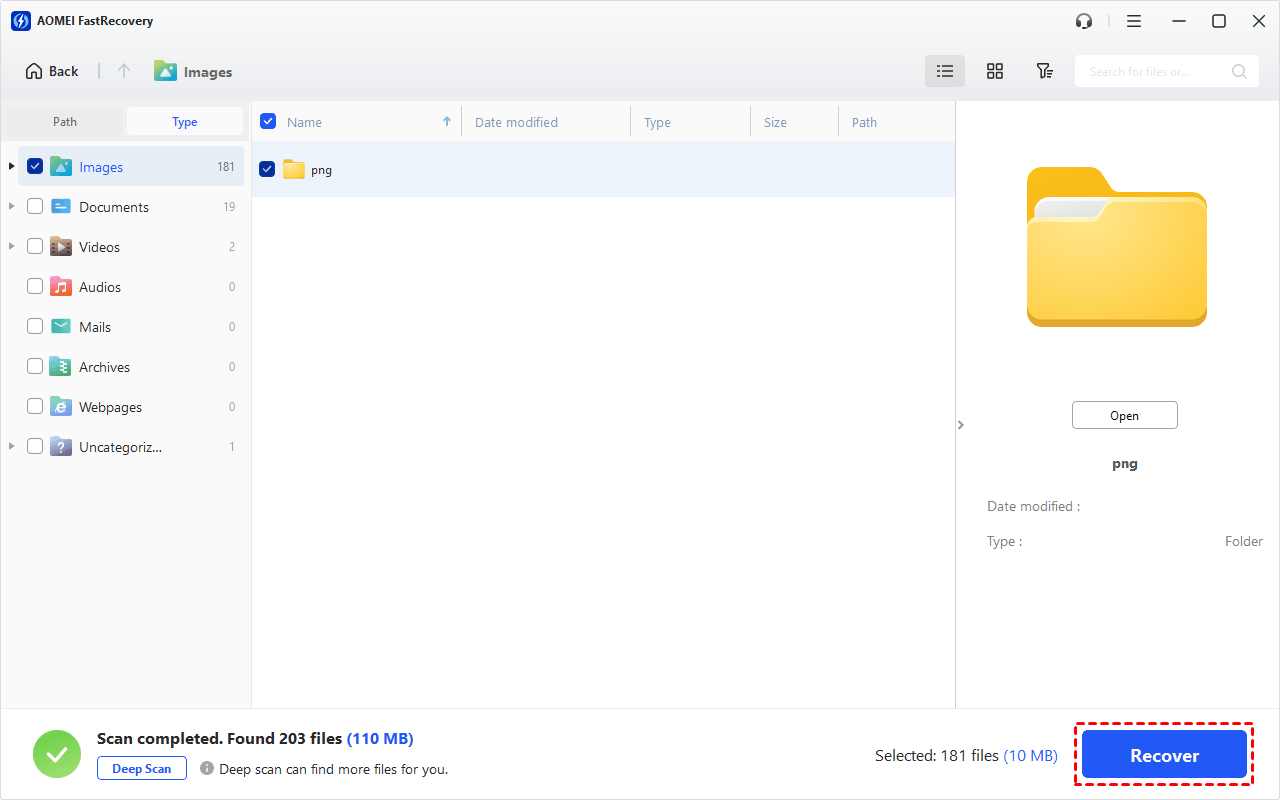
Step 4. Once found, double-click to preview files and select what you want. Then, click Recover and select a new location to get your data on the SD card back quickly.
Manual Recovery: Recover Data from Formatted SD Card with CMD
A supplementary method for you is to recover data from a formatted SD card using Windows File Recovery via CMD. Because this method involves command lines, it is a little more technically demanding, especially for people who are unfamiliar with command lines. Besides, its recovery rate remains to be proven. Also, please note that this tool only works with Windows 10 versions 2004 and up.
Preparation work before using Windows File Recovery:
To use this tool, check out your File System first. Go to This PC > right-click on the external drive that contains the deleted files > click Properties.
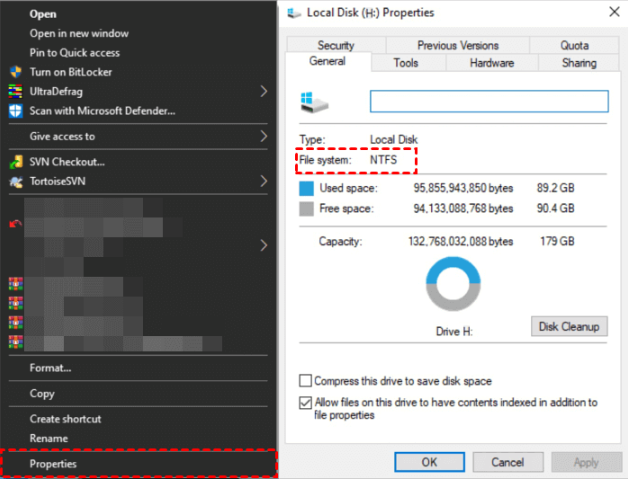
In addition, you need to use recovery mode and switches to get back your files. To decide which mode to use, refer to this table.
| File system | Scenarios | Mode |
| NTFS | Deleted recently | Regular |
| NTFS | Deleted for a while | Extensive |
| NTFS | Formatted disk | Extensive |
| NTFS | Corrupted disk | Extensive |
| FAT and exFAT | Any | Extensive |
Switches are used to filter the scanning range, thus can save the scanning time.
| Switches | Meaning | Supported mode(s) |
| /n | Filter the scan range: scans for a specific file with its file name/path/type, etc. | All |
| /y: | Recover specific extension groups. | Signature |
| /k | Recovers system files. | NTFSSegment |
| /u | Recovers undeleted files, for example, from the Recycle Bin. | NTFSSegment |
Step 1. Download and install Windows File Recovery on your computer from the Microsoft Store and then open it.
Step 2. In the Command Prompt window, enter commands in the following command format:
winfr source-drive: destination-drive: [/mode] [/switches]
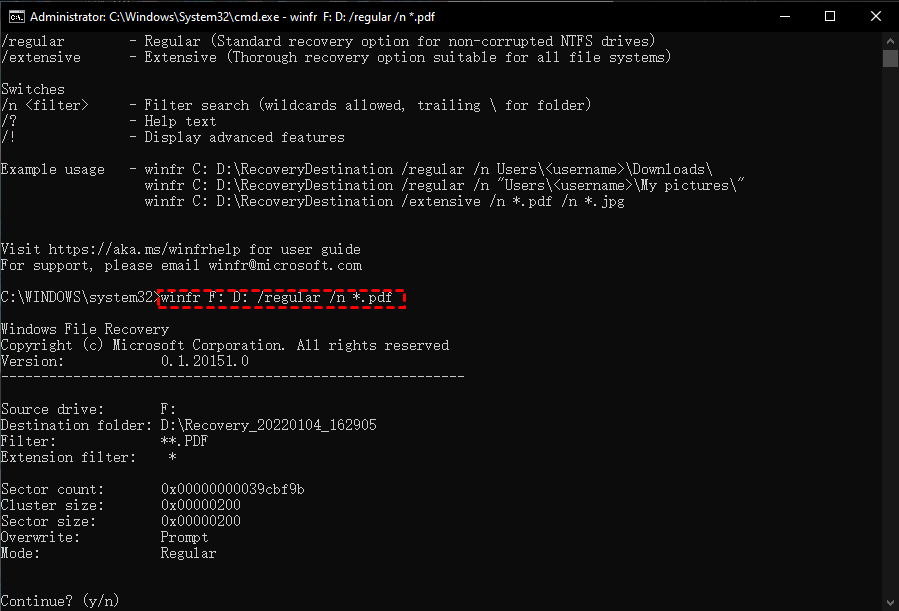
For example, if you need to recover deleted pdf files from F: drive (the SD card) to D: drive, then the command will be like:
winfr F: D: /regular /n *.pdf
Conclusion
After reading this post, you're able to answer the question “Can you recover data from a formatted SD card?”. According to this post, you are able to recover data from a formatted SD card via FastRecovery and Windows File Recovery if it was quickly formatted instead of fully formatted. Two tools are introduced to help you recover data. Among these, ADR is highly recommended for its fast speed and high success rate.
At the end of this post, we would like to advise you to use AOMEI Backupper to regularly back up your important data on your internal/external hard drives, SD/memory cards, or partitions to avoid data loss in the future.
FAQs
Q1. How can I recover my formatted SD card without a computer?
We're sorry to inform you that recovering a formatted SD card without a computer is impossible. Except for specialized data recovery equipment used by professional data recovery labs.
Q2. How can I recover photos from a formatted SD card for free?
In this post, we recommend the easiest way to recover photos from a formatted SD card for free. You can recover your data using data recovery software such as FastRecovery. It's free and widely used around the world. Furthermore, you are permitted to recover an unlimited amount of data.
Q3. Does format an SD card delete everything?
When you format an SD card, everything on it is deleted. However, the data is only deleted, not permanently erased. Formatting an SD card deletes the directory of entries used to define the path of data stored and makes the data on it practically unusable, but it does not permanently delete it. The data, however, is not permanently lost and can be recovered with the help of data recovery software.

 as a preferred
source on Google
as a preferred
source on Google