




How to Recover Permanently Deleted MP4 Files (4 Ways)
How to recover permanently deleted MP4 files in Windows 11, 10, 8, and 7? You can try powerful data recovery software - AOMEI FastRecovery, or built-in backup software - File History and Backup and Restore (Windows 7).

By Ivy Updated on April 30, 2026


It is possible to recover deleted MP4 files?
HELP: Accidentally deleted 200 GB of .mp4 files in Windows
I am desperate. I'm using a Thinkpad P52, Windows 10 21H2, and a Samsung 970 EVO Plus 2 TB drive. I accidentally deleted 200 GB of video files in Windows 10. As in I accidentally pressed Ctrl + Z after pasting files that I had moved after deleting the source files.
Are my files gone for good? Is there any way to recover them? I would greatly appreciate help."
- Question from Reddit

Yes, it is. When an MP4 file is deleted, the operating system does not remove the file data from the disk immediately, but marks the space as “free”. As long as this space is not overwritten by new data, the file data still exists on the disk, Therefore, you can scan the space with free file recovery software to find and reorganize the file data for file recovery.
How to recover deleted MP4 files on Windows 10 or 11 effectively
Your files can be recovered easily if you use the Del key or just delete files. If not, thing may be more complex. Luckily, there are still some proven methods to recover them.
▶ Way 1. Try Some Simple Solutions
For MP4 files that have just been deleted or moved, you can right-click in File Explorer and select “Undo” or press "Ctrl + Z" to recover them.
If you cannot undo deleted files, you can recover MP4 files from Recycle Bin before emptying it. Open the Recycle Bin, locate the deleted MP4 file, right-click on it, and select “Restore”.
If neither of the above methods works, the file is permanently deleted, requiring backup or specialized data recovery software.
▶ Way 2. MP4 video recovery software free download (with highest success rate)
Most of the time, when you lose MP4 files, you need professional video recovery software like AOMEI FastRecovery to retrieve them in Windows 11, 10, 8.1/8, 7, and Windows Server.
AOMEI FastRecovery- Recover a wide range of video formats, includingMP4, MOV, AVI, ASF, WMV, RM, FLV, QSV, RMVB, X3F, etc., without losing quality.
- Deal with permanent deletion, disk formatting, system crashes, and other data loss scenarios.
- Integrate Quick & Deep Scanto find all recoverable data for complete recovery.
- Organize data by type and path for easier navigation, providing options to sort, search, filter, and preview files.
- Compatible with HDDs/SSDs, external disks, USB drives, etc., andNTFS, FAT32, exFAT, and ReFS file systems.
 100% Secure
-
Stop using the drive containing deleted MP4 files and don't add new data to it as they may cause data overwriting.
-
Don't download and install AOMEI FastRecovery to a location where deleted MP4 files were stored.
-
The free version supports 500MB MP4 file recovery. To recover more data, upgrade to the premium version of AOMEI FastRecovery.

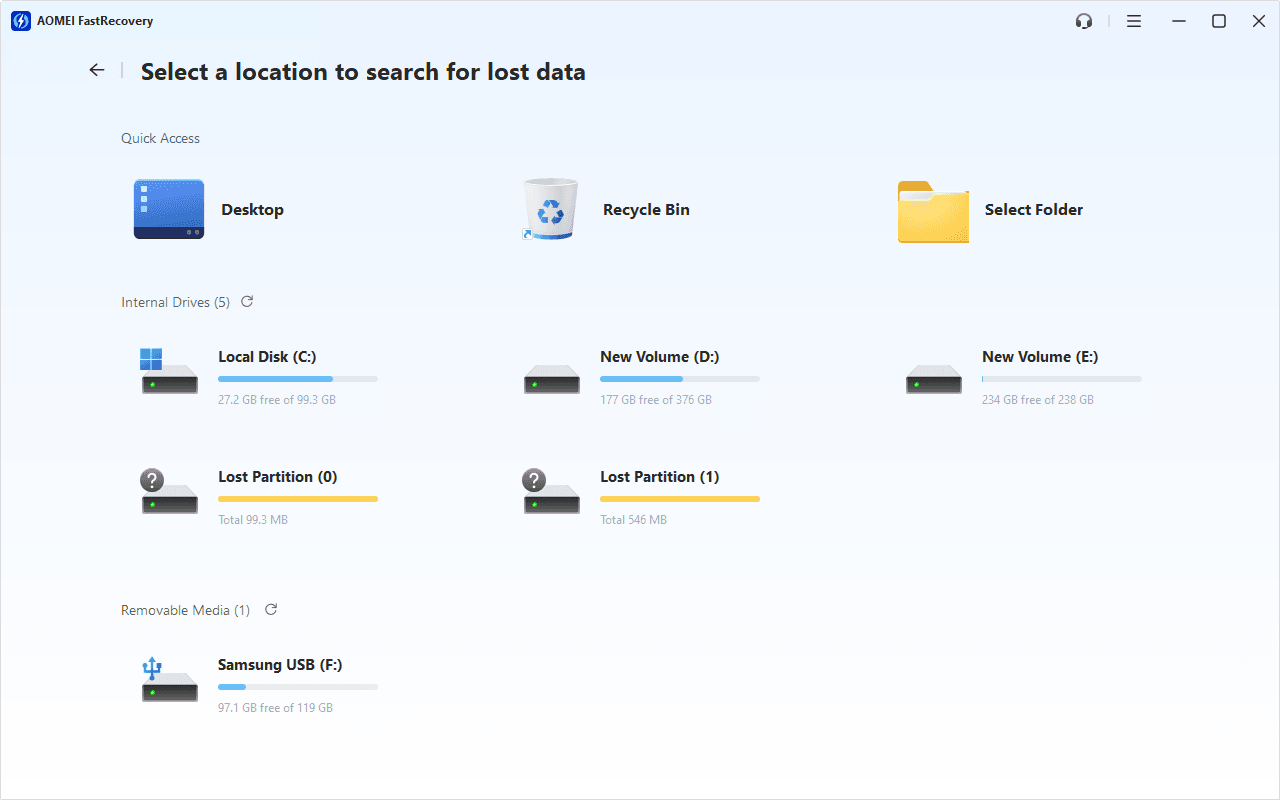
Step 2. Hover the mouse over the drive containing deleted MP4 files, and click Scan to start the quick scanning process and display all recoverable data.
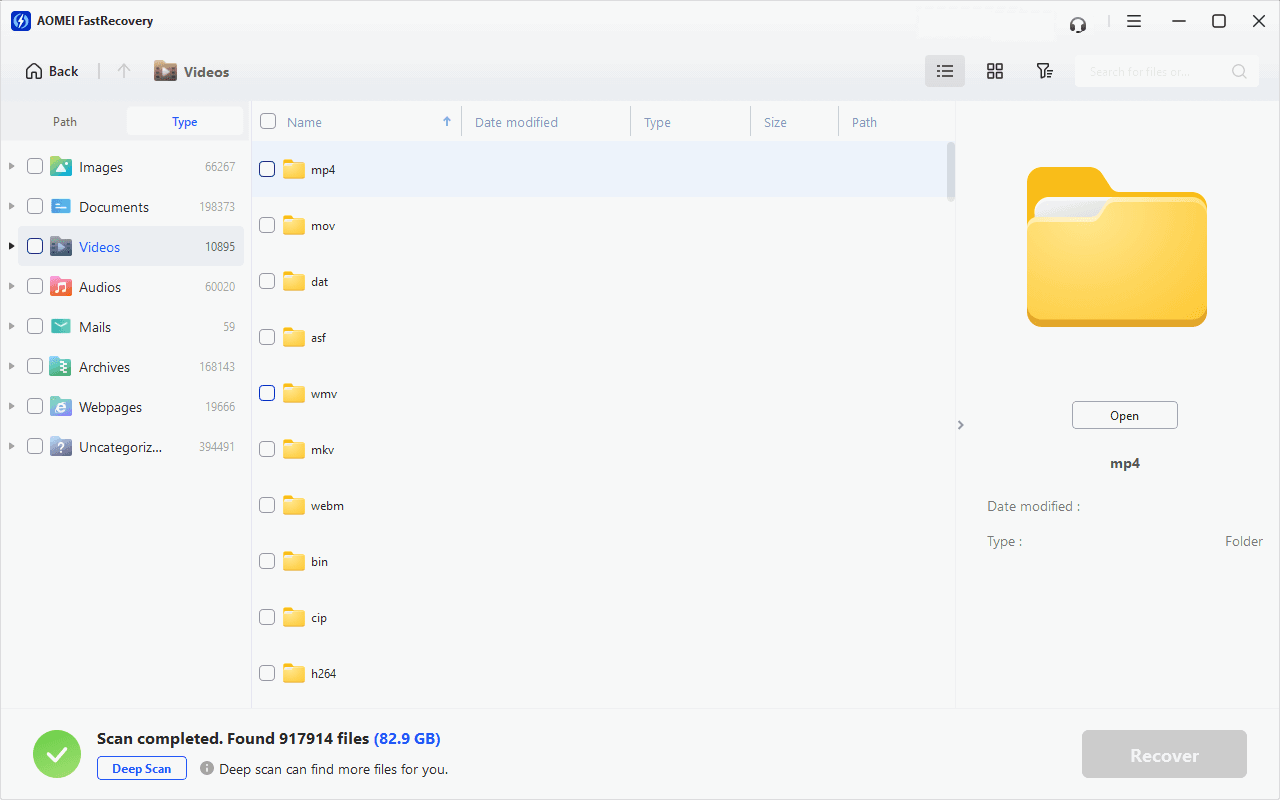
Step 3. Under the Type section, specify the Videos data type and expand it to see all data formats. You can sort them or search the extension (.mp4) to locate files quickly.
-
You can also locate deleted files by Path if you remember this.
-
Click the Deep Scan button if the Quick Scan fails. Deep Scan searches every sector of the disk to find more files.
Step 4. Select the deleted MP4 files you want and then click Recover to get them back quickly. Please select a new location to save them, as restoring to the original location may result in data overwriting.
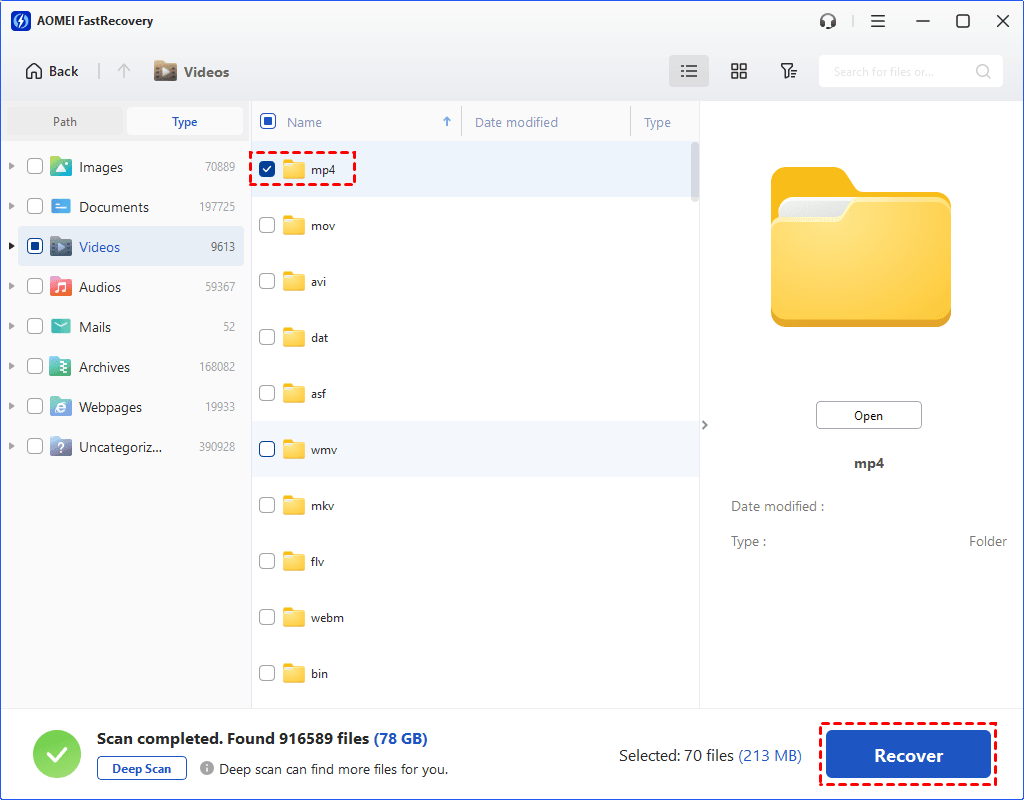
The free edition allows you to recover deleted MP4 files up to 500MB. Once exceeded, please upgrade to the advanced edition of AOMEI FastRecovery.
▶ Way 3. Recover deleted MP4 files from Backup and Restore (Windows 7)
To recover MP4 files, a reliable backup software is essential. As the name “Backup and Restore (Windows 7)” suggests, this feature was released with the Windows 7 operating system and serves as a practical tool for backing up user data. If you store MP4 files in these locations, try to restore files from backup.
Step 1. Open your Control Panel by entering it in the search box. Then, click System and Security > Backup and Restore (Windows 7).
Step 2. Under the Restore tab, click the Restore my files button.
Step 3. Select the Browse for files option to find your deleted MP4 files. You can store the recovered files in the original location or a new location as you prefer.
▶ Way 4. Recover deleted MP4 files through File History
File History is a newer backup software, released by Windows 8, to save copies of files in Documents, Music, Pictures, Videos, Desktop folders, and OneDrive offline files stored on your PC. Be sure to enable it, and then you can use it to restore deleted files, such as MP4 videos.
Step 1. Open Control Panel and then select System and Security > File History > Restore your files with File History.
Step 2. Click Restore personal files.
Step 3. Select the folder containing deleted MP4 videos and click Restore to get them back quickly. To change the destination, click the Settings icon and select Restore to.
Wrapping up
If you’re wondering how to recover deleted MP4 files in Windows, please read this post and get the corresponding solutions. All in all, if there’s an accessible backup for you, you can restore files from these backups. If not, maybe the best MP4 recovery software, AOMEI FastRecovery, is your top choice.
Besides, there’s one point that deserves your attention. That is the regular and updated backup. Since you’re more familiar with the above Windows features, why not try to make backups with them? Likewise, you can also try this freeware, AOMEI Backupper Standard.
FAQs
1. Is it possible to recover permanently deleted videos?
Definitely, you can recover permanently deleted videos. Be sure your videos are not overwritten. Please pay more attention to:
- Stop using the drive right now.
- Don't add new data to the drive containing deleted videos.
- Don't format the drive, even if you are asked.
2. How do I recover accidentally deleted files?
- Check your Recycle Bin folder first.
- If your deleted files are not in the Recycle Bin, check if you have any backup.
- If not, please consider using a reliable recovery software.
3. How do I recover deleted MP4 files on Windows 11?
Like Windows 10, Windows 11 also provides you with free backup software - File History, Backup and Restore (Windows 7), Previous Version, etc., to backup and restore deleted files. If you store MP4 files in the corresponding location, try to restore files from backup.

 as a preferred
source on Google
as a preferred
source on Google