




[Answered] Will System Restore Recover Deleted Files in Windows 10?
This article details "Will System Restore recover deleted files?" and provides 3 useful methods to recover deleted files. Scroll down to learn more.

By Ivy Updated on April 2, 2026


Will System Restore recover deleted files?
“Can System Restore recover deleted files from the recycle bin? I happened to delete some files from the recycle bin. Will System Restore return my computer to an earlier state where the files were not deleted?”
– Question from Microsoft Community
Are you wondering, “ Will System Restore recover deleted files? The answer is NO, System Restore does not care about your personal files. It only takes snapshots of system files, installed programs, Windows Registry, and system settings, not including personal files like documents, photos, videos, songs, etc
In fact, you can use it to restore Windows to a previous date when something goes wrong with your system after installing updates, drivers, or applications. It ensures your computer is in a good working state, providing all the resources used by third-party recovery tools like AOMEI FastRecovery in the following, and thus greatly increases the success rate of data recovery.
- Windows Registry
- Files in the Windows File Protection folder
- Local user profiles
- COM+ and WMI databases
- IIS metabase and others
How to recover deleted files in Windows 10
System Restore cannot recover accidentally deleted files or files deleted from the Recycle Bin. How can I recover them? You still can try data recovery software or backup (if available).
Way 1. Recover deleted files in Windows 10 using software
AOMEI FastRecovery, designed by AOMEI, the leading benchmark of the data security industry, is a powerful data recovery software you can rely on. It integrates top algorithms to scan the disk and analyze and classify its data thoroughly. So, you can easily find and recover deleted or lost files in Windows 7, 8, 10, 11, and server computers, including the latest Windows Server 2025.
 AOMEI FastRecovery
- The intuitive interface and easy-to-follow guide make it easy to use for all users.
- Integrate Quick & Deep Scan to find all recoverable data for complete recovery.
- Retrieve 1000+ data types, including texts, pictures, videos, audios, emails, compressed files, etc.
- Organize and display data by Type or Path, allowing you to sort, search, filter, and preview files.
- Recover specific files or folders instead of all.
- Recover lost data due to accidental deletion, lost partition, virus attacks, system crashes, etc.
- Support storage devices in NTFS, FAT32, exFAT, and ReFS file systems.
 100% Secure
Step 1. Open AOMEI FastRecovery. Then, hover the mouse over the drive, and click Scan.
Step 2. It will automatically scan the disk through Quick Scan and display deleted or lost data by Type or Path. Under the Type section, check the data type and format you want to recover.
-
For a specific image format, type its file extension, e.g., e.g.,.jpeg, in the search box.
-
You can also locate deleted files by Path if you remember this.
-
Click the Deep Scan button if the Quick Scan fails. Deep Scan searches every sector of the disk to find more files.
Step 3. Once found, preview and select the files you want to recover. Finally, click the Recover button and select a new location to recover deleted files in Windows 10.
Way 2. Recover deleted files from backup
If you have File History enabled on your computer, then there should be a backup of your files. So you can try to restore files from File History backup.
Step 1. Go to Control Panel > System and Security > File History to check if you have that feature enabled.
Step 2. If it shows File History is on, click Restore personal files on the left side.
Step 3. It displays the latest backup and all the data in it. Just browse and find the deleted files, then click Restore to recover deleted files.
Way 3. Restore the previous version of the files
Also, there is a chance that you just want to restore the previous version of the files. System Restore helps at this time if you turn it on.
Step 1. Go to the folder containing files, right-click it, and select Properties.
Step 2. In the Previous Versions tab, scroll down to File versions and check the previous version of your file.
Step 2. Select the correct file version and click Restore or Restore To (if you want to select a new location). If you are not sure, click Open or Open in File History to check the content first.
-
If the Restore button is greyed out, you can't restore a previous version of the file or folder to its original location.
-
If the Open is grayed out, it means this version comes from File History. You cannot preview the content in old files.
-
The restored file will overwrite the current file version, which is irreversible. To keep the current version, please use the Save as option to keep a different name.
How to turn on System Restore in Windows 10
Although System Restore can't undo deleted files in Windows, it's necessary to turn on System Restore as a computer in a good state can greatly increase the success rate of data recovery. It also gives you a chance to restore previous files at this time.
Step 1. In File Explorer, right-click on This PC and select Properties. Then, click System Protection under the Related settings section. It will open the System Properties window.
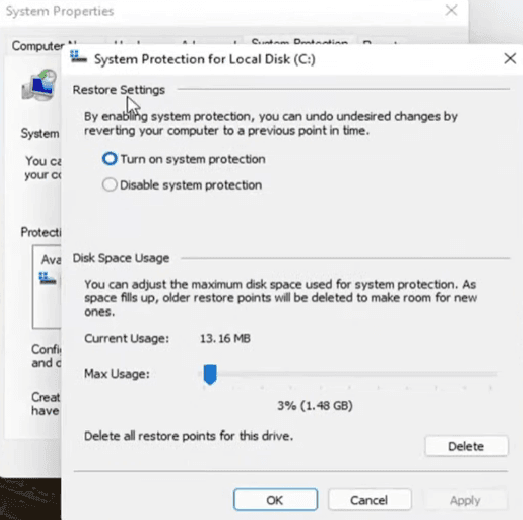
Step 2. Check if the C drive is labeled as On. If not, select it and click Configure.
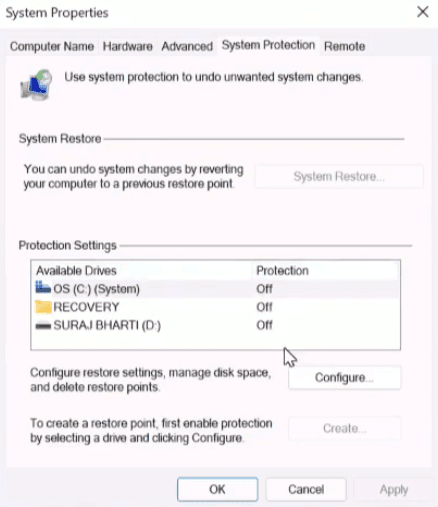
Step 3. In the pop-up window, tick Turn on system protection and click Apply to confirm it.
Final words
Will System Restore recover deleted files? The answer is No. System Restore is a feature that backs up system files and undoes some unwanted system changes. To recover deleted files, you can try the data recovery software - AOMEI FastRecovery if there is no available backup.
At last, it's suggested to backup files with built-in backup software like File History, Backup and Restore (Windows 7), or a third-party one, such as AOMEI Backupper Standard to create more flexible backups. It provides users with many useful features.

 as a preferred
source on Google
as a preferred
source on Google