




How to Recover Deleted TOD Files on Windows/Mac
Learn how to recover deleted TOD files on Windows/Mac with the corresponding solutions in this article. Besides, there’s a practical data loss prevention measure for your reference.

By Ivy Updated on March 10, 2026


What is a TOD video file?
TOD is a file format designed for storing information on random-access media. Each file is given a sequential name, ending with three hexadecimal characters. This system limits the number of files that can be stored, capping it at 4096.
TOD files use MPEG-2 video compression, which helps to reduce file size while maintaining good quality. This compression format supports both the traditional 4:3 aspect ratio and the widescreen 16:9 format for video.
The MPEG-2 standard, defined by ISO/IEC 13818, is key to the TOD format. It combines audio and video compression to create efficient files while making the most of available storage space. TOD files are primarily used in tapeless video camcorders and are similar to another format called MOD, which also stores video in standard definition.
Increase the success rate of data recovery
In some cases, TOD videos are essential to partial users. TOD videos may be lost due to various reasons. So, those users without backups might be eager to recover deleted TOD files. Read this guide to get 3 reliable ways to recover deleted TOD videos.
🤞 For a higher data recovery rate, please take these simple tips:
- Recover Data Quickly: Start the recovery process as soon as possible to avoid the file being overwritten, which can make TOD file recovery harder.
- Don’t Add New Data: Don’t save new files on the same device or file you want to recover from, as it could overwrite the deleted file.
- Use Reliable Recovery Methods: Always try the safest recovery method first to avoid damaging the file and increase your chances of getting it back.
How to recover permanently deleted TOD files effortlessly
So, are you bothered by how to recoverpermanently TOD files without file backups? If it happens to be your case, using powerful video recovery software - AOMEI FastRecovery can be the most efficient approach. It eliminates the need for manual backups and improves the data recovery rate.
 AOMEI FastRecovery
- ❌💰 Free: It has a free edition that can recover data up to 500MB.
- 📚 1000+ data types: Recover deleted videos (TOD, MP3, MP4, MOV, AVI, RMVB, MKV, WMV, ASF, 3G2/3GP, TS, etc.) as well as other data types.
- 🔎 2 scanning methods: Perform a Quick Scan automatically and integrate Deep Scan to search for all recoverable files.
- 🚀 High-efficiency: Sort, search, and filter files to find them quickly; preview files before recovery.
- 🧩💾 Recoverable Scope: Retrieve deleted files in any scenario, such as accidental deletion, disk formatting, virus infection, etc.
- 💻 Excellent compatibility: Compatible with Windows 11, 10, 8, 7, Server, andNTFS, FAT32, exFAT, and ReFS file systems.
 100% Secure
Step 1. Install and run AOMEI FastRecovery on your Windows. Then, hover the mouse over the local disk C drive and click Scan.
Step 2. AOMEI FastRecovery will automatically run Quick Scan to scan your selected C drive and display all the recoverable files. You can find TOD videos under the Type section. Or directly search .tod in the search box to locate them quickly.
Step 3. Select your desired files and then click Recover to start SVG file recovery. Double-click the files to preview if you are not sure.
-
After video recovery, please save your retrieved TOD videos in another path.
-
You can recover deleted TOD files for free, up to 500MB. Once exceeded, please upgrade to the advanced edition.
Another 2 options to recover deleted TOD files onWindows/Mac
Besides, you can also refer to the following two options to recover accidentally, recently, or permanently deleted TOD videos according to the computer OS and deletion method.
1. Recover deleted TOD files from the Recycle Bin and Trash
As the title suggests, this way aims to restore accidentally or recently deleted TOD files.
For Windows:
Open your desktop Recycle Bin > type “tod” in the search bar to quickly locate your deleted TOD videos > right-click on one TOD file and click Restore to its original location.
For Mac:
Open your Mac Trash > right-click on one deleted TOD video you intend to restore and choose Put Back.
2. Restore permanently deleted TOD files from backups
But how to retrieve permanently deleted videos from computers? Apart from third-party tools, partial users who’ve taken the foresighted step of creating backups can seamlessly reinstate their needed TOD videos from these prepared backups.
For Windows:
Windows offers several backup features, such as File History, to back up files in Documents, Music, Pictures, Videos, Desktop folders, and offline OneDrive files saved on your Windows system. You can then restore deleted, missing, or damaged files.
Step 1. Enter “System and Security” in the search bar to open the Control Panel and select System and Security.
Step 2. Under the File History tab, select the “Restore your files with File History” option.
Step 3. Click the “Restore personal files” button.
Step 4. Use the left or right arrow to find the desired files and click Restore to get your TOD file back.
To save your recovered TOD video in another path, right-click on Restore > select Restore to.
For Mac:
Apple also introduces safeguarding measures like Time Machine, a feature designed to mitigate the risk of data loss at its very origin. After enabling this feature, Time Machine can create hourly, daily, or weekly backups according to your situation.
Step 1. Open the window where you lost TOD videos.
Step 2. Click the Launchpad icon in the Dock, find Time Machine, and click Enter Time Machine.
Step 3. Use the up and down arrows to locate the TOD file you want to restore and click Restore to get your desired TOD videos back.
How do I open a TOD file?
When it comes to opening TOD files, Windows users can employ Windows Movies & TV, Media Player, CyberLink PowerDirector 365, CyberLink PowerDVD 21, MAGIX VEGAS Pro 18, Nero 2022, VideoLAN VLC media player, etc. to open TOD videos.
Press Win + E to open File Explorer and click Downloads. Right-click on your downloaded TOD video, select Open with > Movies & TV.
For Mac OS, Apple iMovie 10, Squared 5 MPEG Streamclip, and VideoLAN VLC media player can also help you.
How to backup TOD files
In addition, you can choose to back up TOD files, which is the best practice to prevent data loss. AOMEI Backupper Standard is a free backup software with sufficient features for daily use.
If you prefer more flexible features and simpler operating steps during the backup and restoration process, this freeware AOMEI Backupper Standard is a pretty good choice.
- This free Windows backup software is good at backing up files, folders, partitions, disks, or systems and provides schedule backup and incremental backup.
- You can save your backups to your internal/external hard drives, USB drives, networks, or cloud drives.
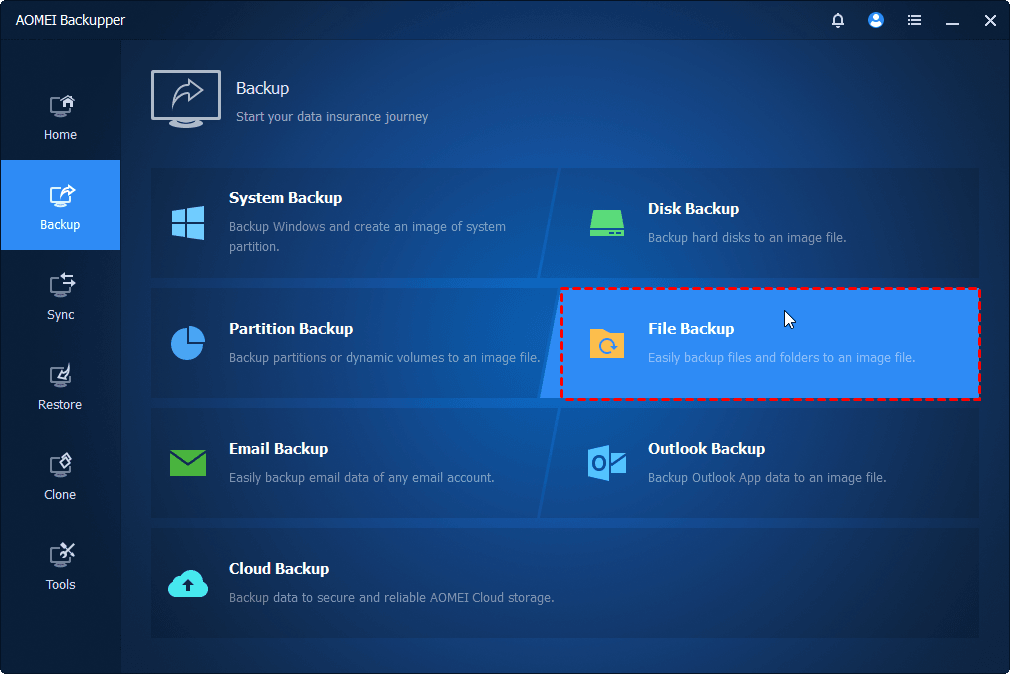
Step 1. Install and run AOMEI Backupper Standard on your Windows system. Then, select Backup > File Backup.
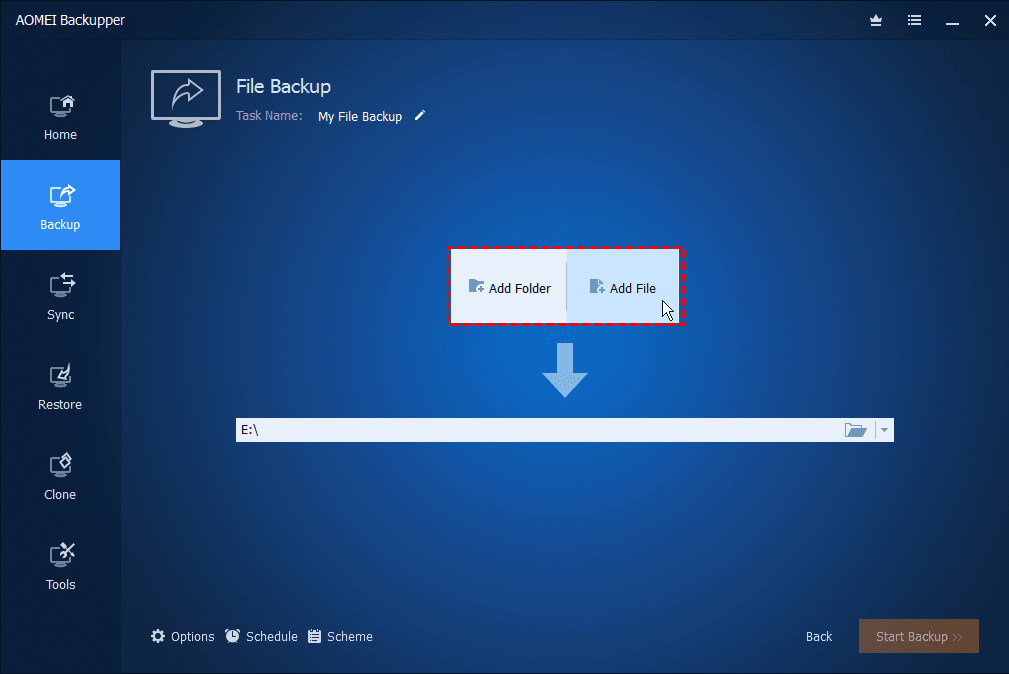
Step 2. Click Select Source > Add Folder/Add File to select the folder or TOD files you want to back up.
Step 3. Set schedule backups, such as Daily, Weekly, Monthly (By Date), Event Triggers, etc. Once done, click Start Backup.


 as a preferred
source on Google
as a preferred
source on Google