




4 Effective Ways to Recover Deleted Large MKV Files
This article describes how to recover deleted large MKV files in 4 proven methods, including using recovery tools like FastRecovery. Scroll down to explore more.

By Ivy Updated on April 29, 2026


What is the MKV file format?
Known as MKV, the Matroska Multimedia Container is a free open video format that enables you to store a vast array of video, audio, image, or subtitle tracks within a single file. When utilizing MKV, the file extensions vary depending on the content type.
- For video files that may include subtitles or audio, the extension is .mkv.
- Stereoscopic videos are denoted by .mk3d, while audio-only files adopt the extension .mka.
- Subtitles-only files carry the .mks extension.
Like other files, MKV files may also be deleted due to different reasons, such as accidental deletion, disk formatting, virus infection, interruption during file transfer, system crashes, etc. It does not matter, you can easily recover deleted MKV files as long as you act quickly.
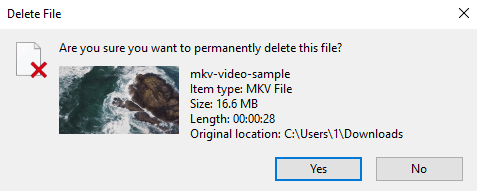
How to recover deleted MKV large files on Windows 10 or 11
So, how to recover deleted large MKV files? Here are 4 proven methods to make it.
Option 1. Restore deleted MKV files from Recycle Bin
It’s easy to restore accidentally or recently deleted large MKV files from the desktop Recycle Bin if you are sure:
- Don't empty the Recycle Bin
- Don't press Shift + Delete while deleting large MKV videos
- The Recycle Bin is big enough to save deleted MKV files.
Here's how to recover deleted MKV files from the Recycle Bin:
Step 1. Open your desktop Recycle Bin.
Step 2. Find your deleted large MKV video, right-click on it, and select Restore. You can also hold Ctrl to select multiple files.

Option 2. Recover deleted large MKV files via software 🔥
If your files are permanently deleted, in the absence of regular backups, you might have no choice but to seek the help of a powerful data recovery tool. AOMEI FastRecovery, released by AOMEI Tech, has 10 years of experience in the data recovery industry and is a good choice.
It provides advanced scanning methods to find and does well in recovering deleted/missing videos (MKV, MP4, MOV, WebM, AVI, etc.) from internal or external drives, USB drives, SD cards, etc.
AOMEI FastRecovery- ✅ Handle data loss scenarios such as deletion, disk formatting, system crashes, virus attacks, and more.
- ✅ Integrate Quick & Deep Scan to search all the recoverable files for complete recovery.
- ✅Recover 1000+ data types, such as videos, photos (JPG/JPEG/JPE, PNG, TIF/TIFF), documents (TXT, DOC, XLSX, CSV, PDF), audio (MP3, CDA, WAV, AIFF, WMA), and more.
- ✅Optionally recover specific files or folders, partition, or entire drive data.
- ✅ Organize data by type and path for easier navigation, providing options to sort, search, filter, and preview files.
- ✅ Compatible with Windows 11, 10, 8, 7, Server, and NTFS, FAT32, exFAT, and ReFS file systems.
 100% Secure
The free edition can recover deleted MKV videos up to 500 MB. For large MKV videos, starting at 100 MB and usually 1GB or more, upgrading AOMEI FastRecovery is a better and more cost-effective choice.
- Don't install AOMEI FastRecovery to the drive where containing deleted MKV files as it may result in data overwriting.
- Continuing to use this drive or adding new data to it may also overwrite deleted/missing MKV videos. Avoid these operations after deletion.
Step 1. Install and launch FastRecovery on your computer. On the main page, click Deleted Files Recovery.

Step 2. Hover the mouse over the drive containing deleted large MKV files, and click Scan to start the quick scanning process and display all recoverable data.
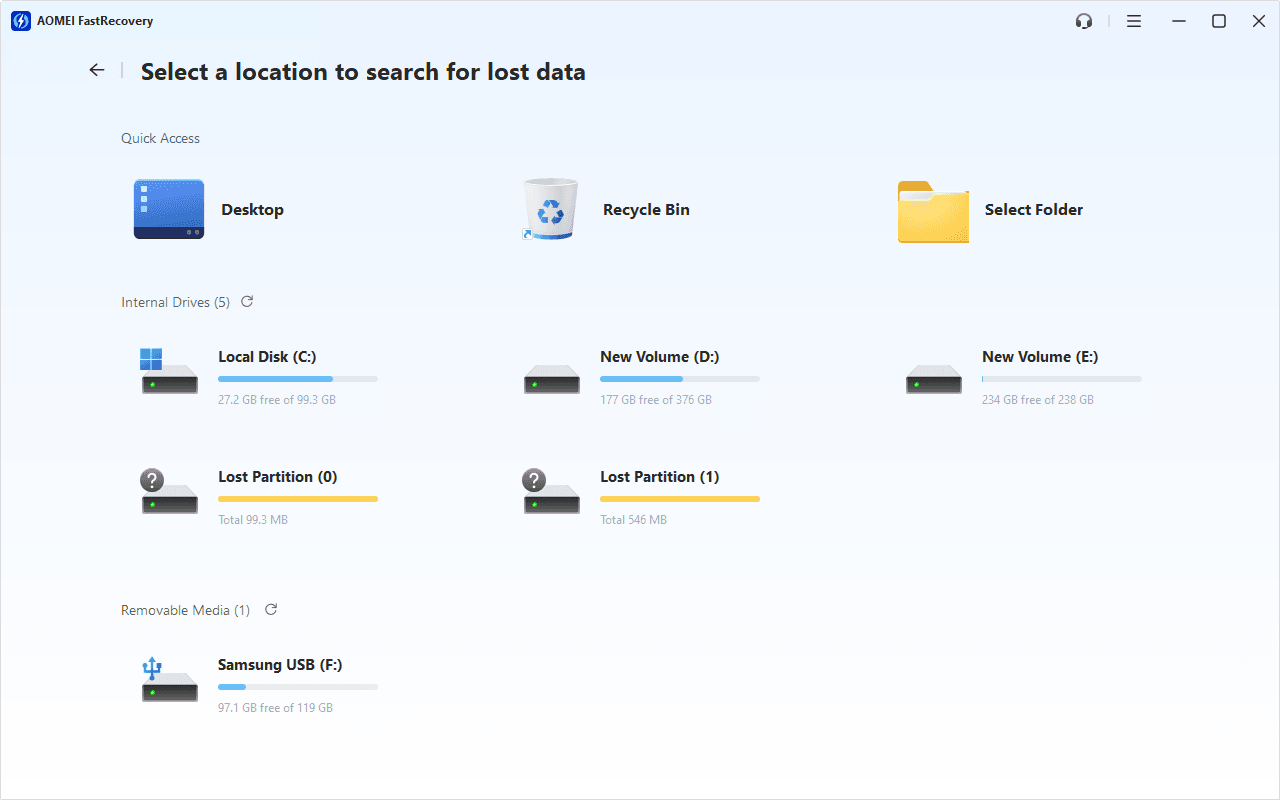
Step 3. Under the Type section, specify the Video data type and expand it to see all data formats. To locate files quickly, you can try the following options:
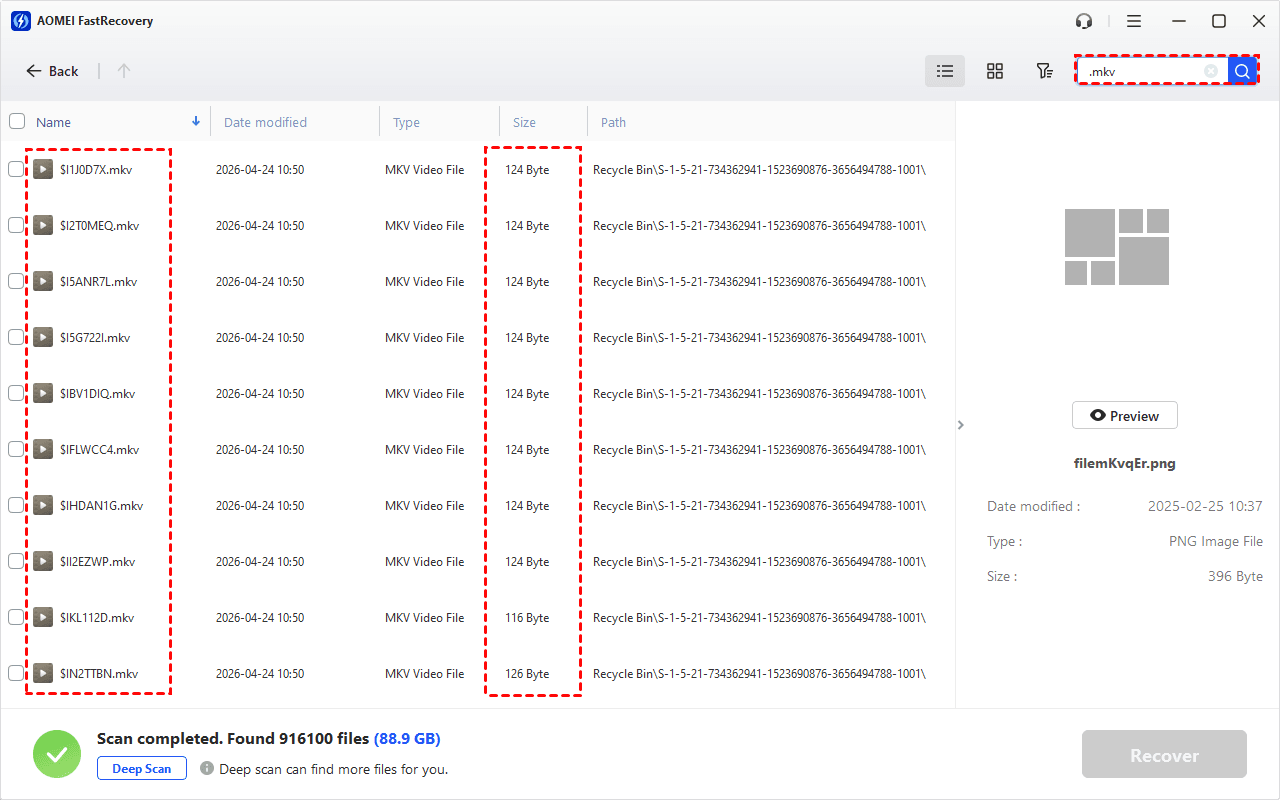
- Search for the name or extension (.mkv) of MKV videos. Then, sort name, date modified, type, etc., on the right panel.
- Click Filter to specify the type and rough size, from 100MB to 512MB, 512MB to 1GB, or 1GB above.
- Double-click the file to preview and confirm it's exactly what you want.
-
You can also locate deleted files by Path if you remember this.
-
Click the Deep Scan button if the Quick Scan fails. Deep Scan searches every sector of the disk to find more files.
Step 4. Select the deleted large MKV files you want and then click Recover to get them back quickly. Please select a new location to save them, as restoring to the original location may result in data overwriting.
You will be asked to upgrade to the advanced edition of AOMEI Fast Recovery to enjoy unlimited data recovery. The free edition supports up to 500MB of free MKV file recovery.
Option 3. Recover deleted MKV files from Backup
As you can see, backups are the best hedge against data loss. If you saved these MKV videos before they were lost, you can restore them from backup directly.
Step 1. Type System and Security in the search bar to open it. Then, select Restore files from backups under the Backup and Restore (Windows 7) tab.
Step 2. Click the Restore my files button.
Step 3. Select Browse for files to find your wanted MKV videos. Then, click Next to continue.
Step 4. To retrieve your selected MKV files to their original location or set a new saved path. At last, click Restore.
Option 4: Recover lost MKV files using CMD
If your files are hidden rather than deleted, you can use CMD to recover them from a USB drive. The Attrib command can assist you in modifying and changing file attributes (read-only, hidden, system, and archive) and allow you to restore them. Here's how:
Step 1. Type cmd in the search bar, and select Run as administrator.
Step 2. Copy attrib –h –r –s /s /d G:\*.* in the Command Prompt window and hit Enter. Please replace the letter G with the real drive letter of your drive.
How to opens MKV files
👉 For Windows: Media Player, File Viewer Plus, CyberLink PowerDVD 16, Nero 2016, DivX 7 for Windows, VideoLAN VLC media player, BS. Player, KMPlayer, MPlayer, etc.
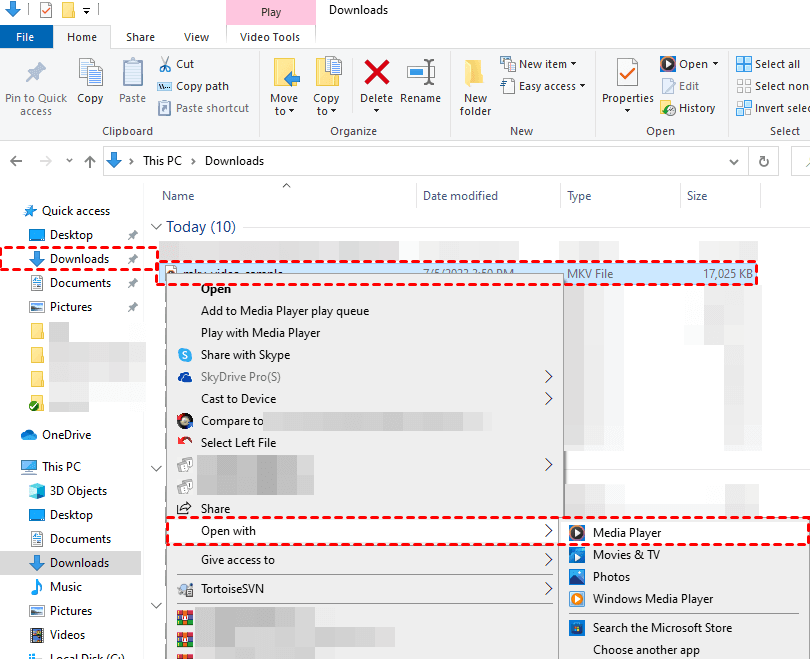
To open MKV videos on Windows 10 or 11:
Press Win + E to open File Explorer > click Downloads > right-click on your saved MKV video > select Open with > choose Media Player.
👉 For Mac: VideoLAN VLC media player, Eltima Elmedia Player, Roxio Popcorn, Divx 7 for Mac, ShedWorx Smart Converter, etc.
👉 For Linux: VideoLAN VLC media player, MPlayer, etc.
👉 For iOS: VideoLAN VLC for iOS 2, olimsoft OPlayer, Pentaloop PlayerXtreme Media Player, etc.
👉 For Android: BIT LABS Simple MP4 Video Player, Videolabs VLC for Android, etc.
Useful tips to prevent MKV video loss
Here are some useful tips for you to prevent MKV video loss. Please consider these pertinent suggestions and put them into action.
- Handle your storage device with care.
- Avoid power outages or failures while file transferring.
- Use reliable media players to open MKV files.
- Please be cautious with file conversion.
- Don’t download MKV video files from insecure or untrusted sources.
- Protect your computer with the latest antivirus software.
- Perform regular backups -valuable backups are the best hedge against data loss.
Since regular backup is the most practical prevention measure, it's suggested to employ reliable backup software, such as Backup and Restore (Windows 7), File History, or third-party software like AOMEI Backupper Standard, with an intuitive interface and rich features.
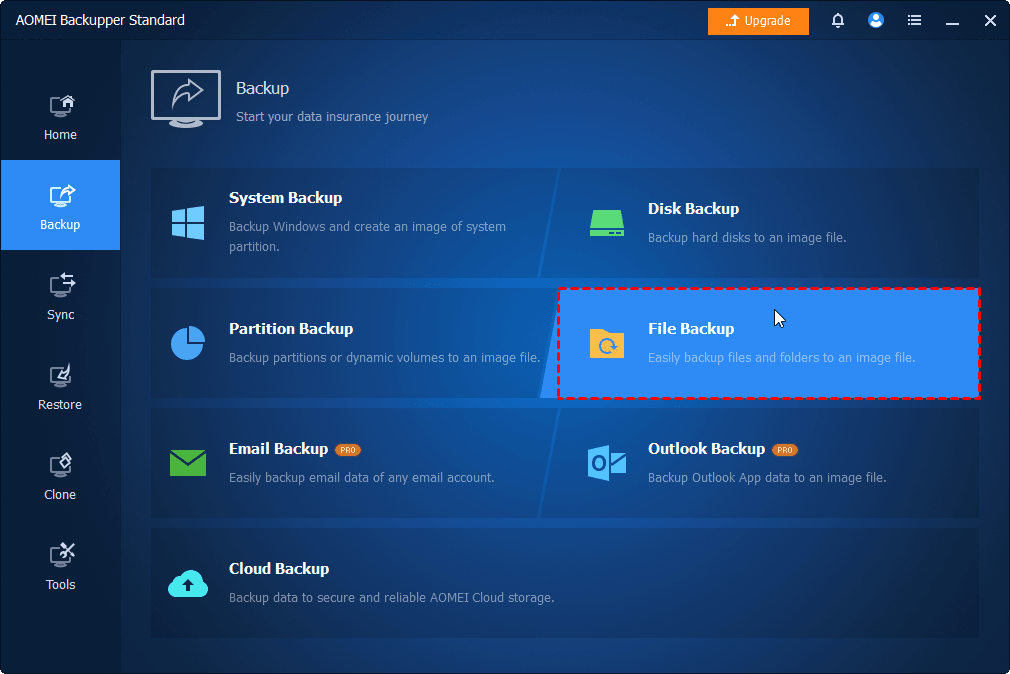
Step 1. Launch AOMEI Backupper on your Windows PC. Under the Backup tab, select the File Backup option.
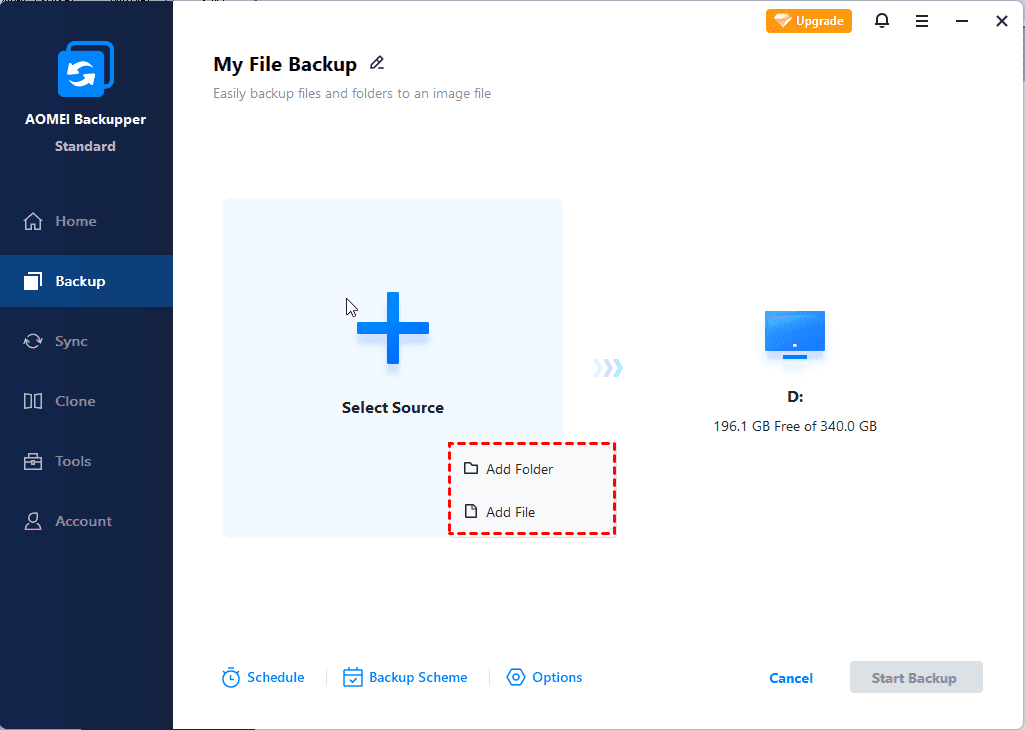
Step 2. Click Select Source > Add Folder/Add File to add the folder or MKV files you want to back up.
Step 3. Click Schedule Backup to enable Daily, Weekly, Monthly (By Date), Event triggers, etc., based on your needs. Then click the Start Backup button.

FAQs
1. How does MKV work?
In the MKV file format, data is organized into distinct units called blocks. These blocks are further grouped into block groups and clusters. Within these structures, important time code metadata is specified, which includes headers for the blocks, block groups, and clusters
2. Why is MKV good?
- MKV stands out due to its fully transparent specifications & predominantly open-source software implementation.
- A wide range of codecs is supported, catering to diverse multimedia needs. Notably, it extends its support to subtitle formats such as SRT, SSA, and USF (Universal Subtitle Format).
- For DVDs, MKV includes compatibility with VobSub.
- Additionally, the format is capable of accommodating 3D video content.
- MKV also has the excellent capability to accommodate multiple audio and subtitle tracks in a single file, making it popular within the anime fan-subbing community. They translate films and TV shows into different languages.
3. Why is my MKV file not playing?
This issue can be attributed to a range of factors, including malfunctioning SD cards, technical glitches, audio/video codec problems, outdated media players, corrupted or damaged video files, and incompatible video file formats.
4. Can VLC fix MKV files?
Yes, it can. Let’s show how it works. Besides, this video player can also fix and recover AVI files.
- Download and install the VLC media player on your computer.
- Go to Tools > Preferences > Input/Codec.
- Check Always Fix next to Damaged or Incomplete AVI file and save these changes.
5. How do I convert MKV to MP4 for free?
You can convert your MKV to MP4 via online tools like WEED.IO.
- Upload your video or audio file.
- Select your needed output format, like MP4 from the dropdown.
- Click Convert and export your converted MP4 file. After that, you can cut, split, or rearrange this video file according to your needs.

 as a preferred
source on Google
as a preferred
source on Google