




How to Recover Permanently Deleted Excel File from Desktop
How to recover permanently deleted Excel file from desktop? Try Previous Versions, File History, Backup and Restore (Windows 7), or file recovery software.

By Ivy Updated on May 10, 2026


Due to its great data visualization and analysis capabilities, the Microsoft Excel workbook is widely used all over the world. Many retailers, industries, and businesses rely heavily on it. No one can afford excel file loss and want to know how to recover permanently deleted Excel file from desktop.
Having trouble recovering an Excel file that was deleted by pressing Shift and Delete. Please help me with the steps to recover the sheet.
- Question from Microsoft Community
Are you being bothered by the same or a similar problem? Don’t worry, this article offers 4️⃣ practical solutions to recover permanently deleted Excel files from desktop, even if the Recycle Bin is emptied or not. Try to restore Excel files from backup or use a reliable data recovery software - AOMEI FastRecovery.
Method 1: Recover permanently deleted excel files without backups
Accidents are always unexpected and happen with no clues. But don’t worry, a reliable Windows data recovery software - AOMEI FastRecovery will take care of your data, even without backup.
 AOMEI FastRecovery
- 💰 Free data recovery, supporting up to 500MB.
- 💾 It is specially designed for Windows users, quickly detecting and restoring lost/deleted files from HDD/SSD/USB/SD cards.
- 📚 In addition,1000+ filetypes are supported, including documents, photos, videos, compressed files, etc.
- 🔎 Utilizing advanced scanning technology, it can locate your deleted and missing data quickly.
- 🧬 Support file filter, search, preview, and crashed PC recovery, making recovery simple and efficient.
- 💻 What’s more, as a compatible tool, it works perfectly with Windows 11/10/8/7 SP 1 & Server, also NTFS/exFAT/FAT32/ReFS, etc.
 100% Secure
Follow the easy recovery process to solve the problem of how to restore deleted Excel file from desktop.
Step 1. Install and run AOMEI FastRecovery. Then, click Deleted Files Recovery for fast recovery. You can also choose a more suitable alternative. All of them can help you retrieve data without causing any damage.

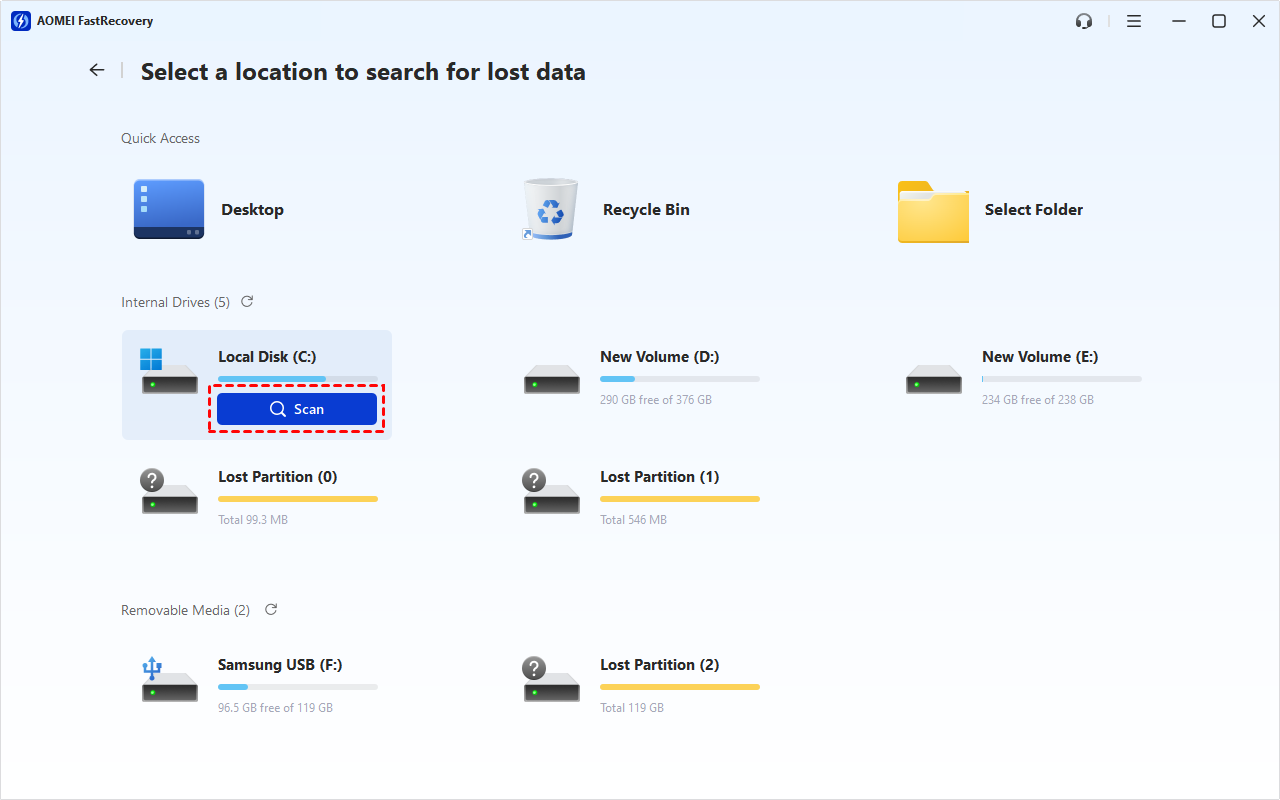
Step 2. Hover the mouse over the C: drive and click Scan.
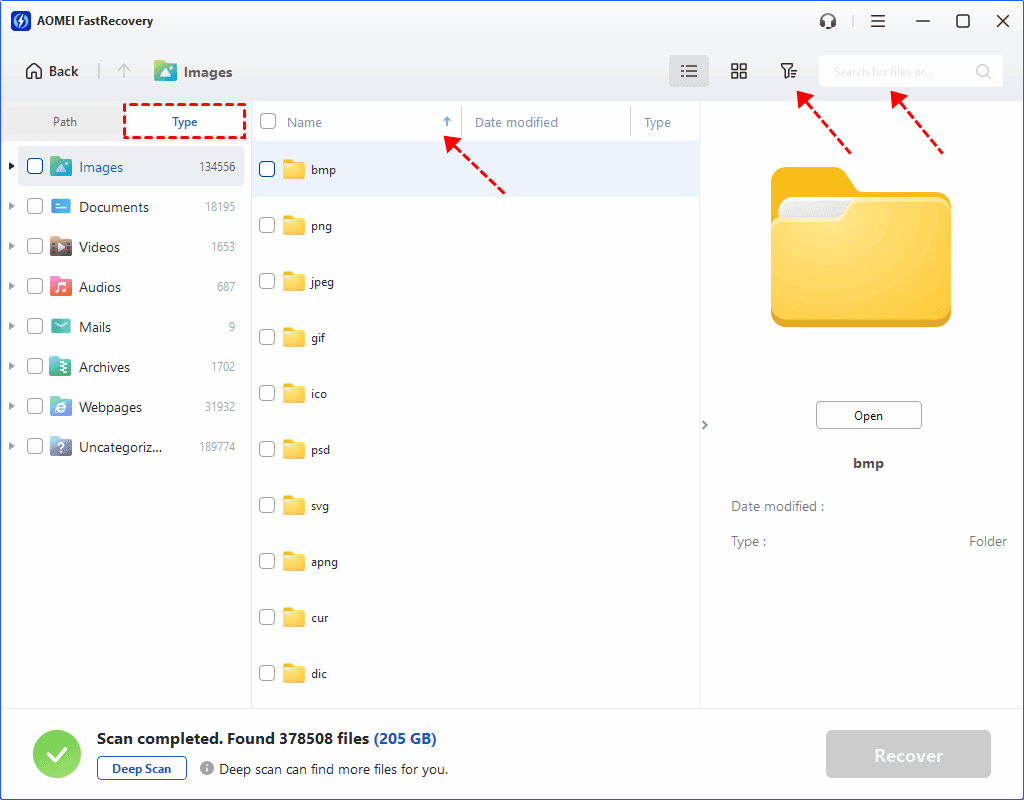
Step 2. The tool will atomically scan the drive with Quick Scan, displaying all files by Type or Path, and supports sorting through multiple options.
👉Under the Type section:
- Specify the data type (e.g., Documents) and click the arrow next to type, size, date modified, etc., to sort files.
- To locate files quickly, type the file name or extension (e.g., xlxs) in the search box.
- Or use the filter feature, similar to the Type category, allowing you to further specify the size of files, from less than 512 KB to 1GB above.
- Once found, double-click the files to preview.
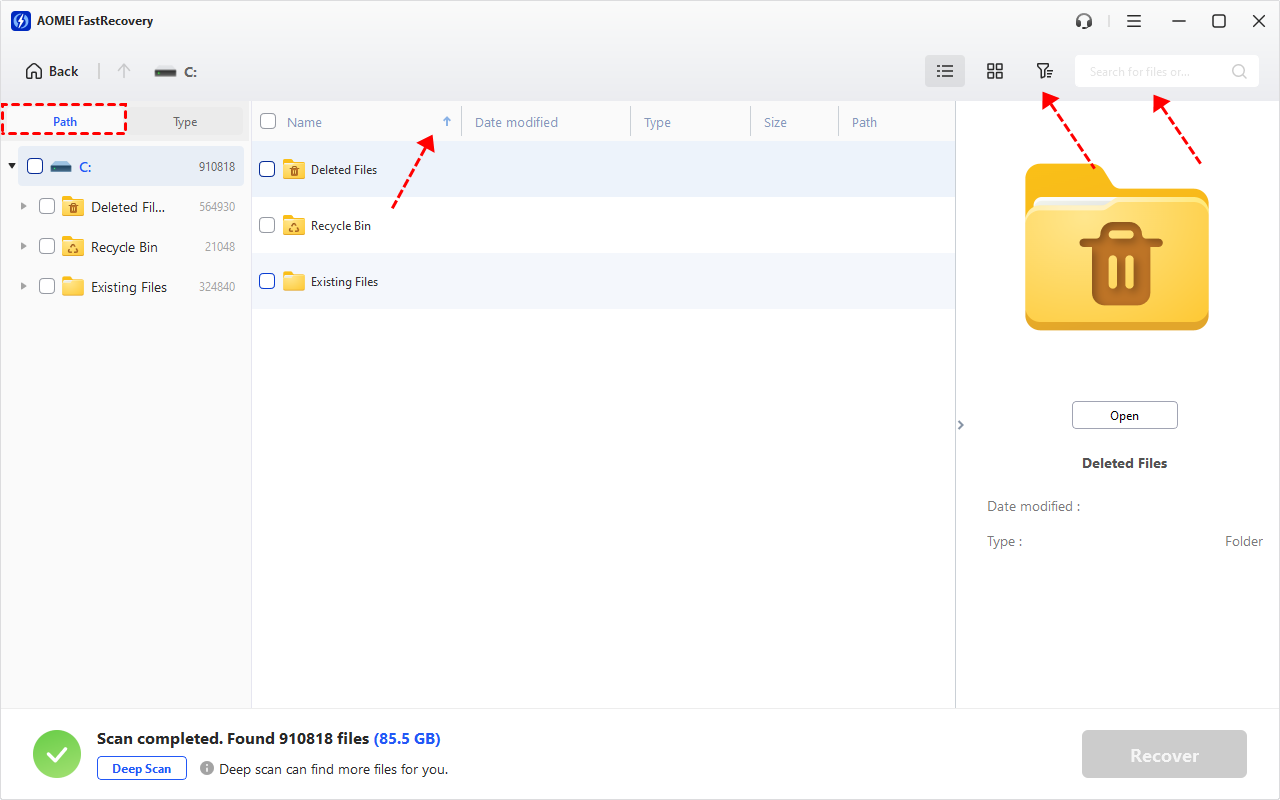
👉 Under the Path section: Directly navigate to the original location where you saved deleted files. Sort files if needed.
- The Type category and filter option include all supported data types, such as images, videos, documents, mails, web pages, compressed files, etc.
- Click the Deep Scan to find more data if Quick Scan fails. It will scan every sector of the disk and take longer.
Step 5. Select the deleted Excel files and click the Recover button to recover Excel file deleted from desktop in a breeze. Don't forget to save the recovered file to a new location.
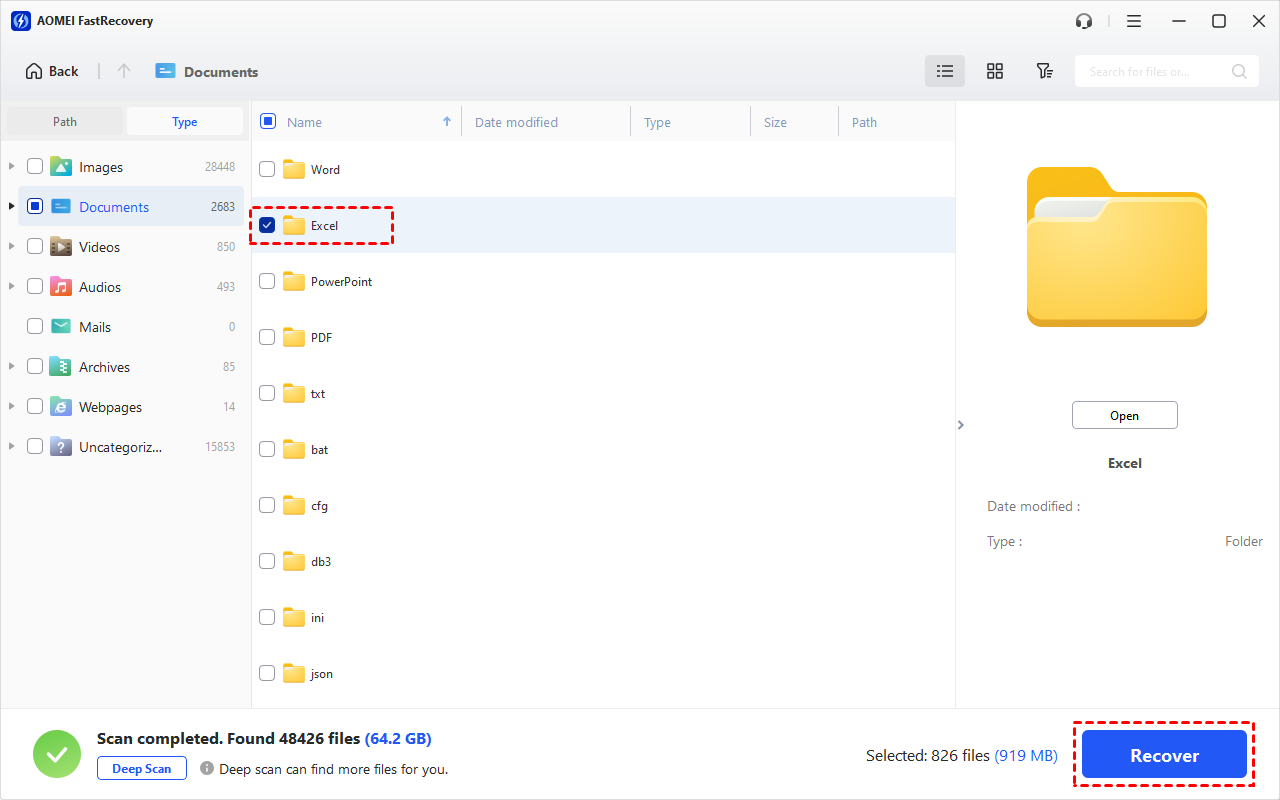
The free edition can recover deleted Excel files for free, up to 500MB in total. To recover unlimited files, try the advanced editions.
Method 2: Restore deleted Excel files from File History
File History is a good option to recover permanently deleted Excel files from computers. Be sure to enable File History to backup files every hour by default.
Step 1. Start Control Panel > System and Security > File History. Then, click Restore personal files.
Step 2. Select the deleted Excel files you need and click the Restore button. Click the left arrow icon to see earlier versions.
Method 3: Recover the previous version of Excel files
The Previous Versions is a tool that saves copies of your files when the File History or restore point is enabled. You can try to restore the previous version of Excel files.
Step 1. Go to File Explorer, locate the folder where the Excel file was previously saved, right-click the folder and select Properties.
Step 2. Under the Previous Versions tab, select an earlier version and click Restore. The deleted Excel file will come back to this parent folder.
Method 4: Get deleted Excel file back from Windows Backup
On Windows 10 or 11, you can try Backup and Restore (Windows 7) to backup and restore deleted Excel files.
Step 1. Start Control Panel > System and Security > Backup and Restore (Windows 7). Then, click Restore my files.
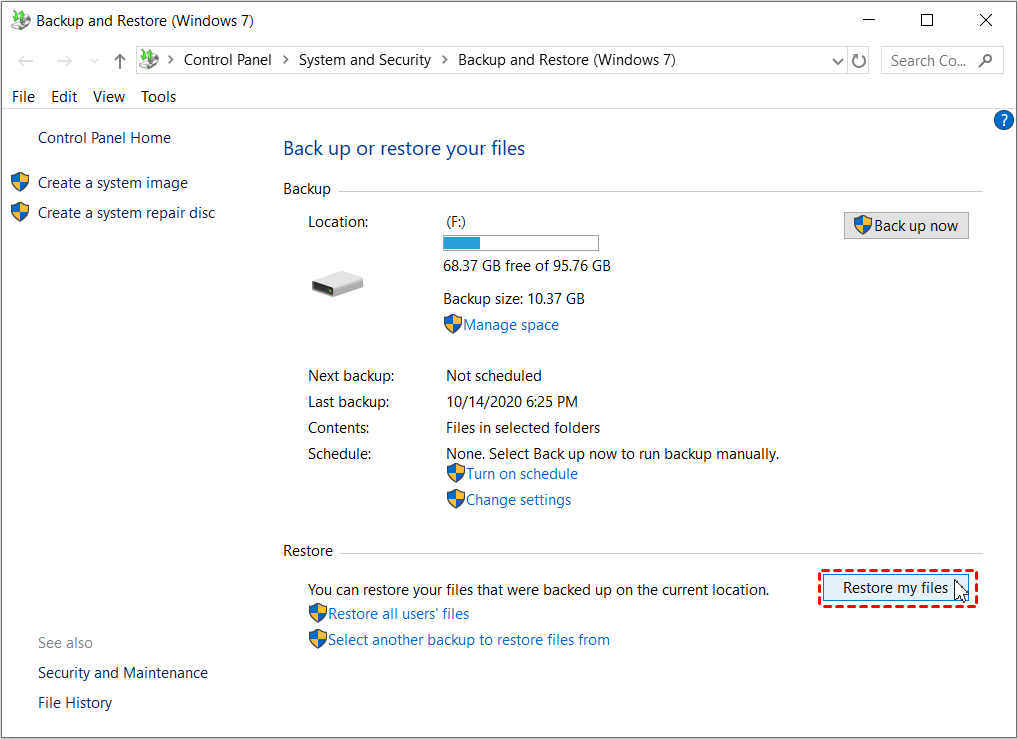
Step 2. Click Browse for files/folders and select the Excel files you need.
Step 3. Choose a preferred destination and click Restore to get back deleted Excel files from backup.
Wrap things up
This article describes 4 useful methods and how to recover permanently deleted Excel file from desktop step by step. File History, Previous Versions, and Windows backup could be of some help. Without a backup, you might as well choose reliable data recovery software - AOMEI FastRecovery, and it's more straightforward.

 as a preferred
source on Google
as a preferred
source on Google