




Files Disappeared from External Hard Drive (6 Proven Ways)
This article primarily describes how to fix "files disappeared from external hard drive" without losing data, along with step by step instructions.

By Ivy Updated on May 10, 2026


Sometimes, you plug in your external hard drive to see all your documents, photos, and videos, but... poof! Your files are missing from external hard drive, but still taking up space.
Frustrating, right? Well, you're not alone. People encounter this problem more often than you'd think. The good news is, there are solutions for "files disappeared from external hard drive" issue, depending on what actually caused the problem.
Why Did Files Disappeared from External Hard Drive?
Here are some of the most common reasons behind the "files disappeared from external hard drive" issue.
- Human errors, such as accidental deletion or formatting. For example, you meant to delete some files but ended up deleting the whole folder.
- A corrupted or missing file system can result in the file being inaccessible.
- The "CheckedValue" has changed.
- Your files are hidden instead of deleted.
- Viruses or malware can hide or delete your files without your consent.
- Using the external hard drive across multiple devices or different systems might cause incompatibility issues, leading to files disappearing or being unreadable.
How to Fix "Files Disappeared from External Hard Drive" (6 Ways)
Now, you can attempt to fix the “file disappeared from external hard drive” issue in Windows 11, 10, or other systems. Here are 6 effective methods to help you. Each one addresses a different potential cause, so pick the one that best fits your situation.
Fix 1: Recover Deleted or Lost Files using Software
Thanks to its cutting-edge scanning technologies, AOMEI FastRecovery can get files disappeared from external hard drive back quickly and efficiently. With it, you can recover deleted or lost documents, photos, audios, videos, compressed files, etc., regardless of the scenarios.
 AOMEI FastRecovery
- 👵 Easy to use & fast recovery: With a user-friendly interface, you can easily recover deleted or lost data in 3 steps.
- 📃 1000+ data formats: Recover DOCX/XLSX/PPT documents, JPG/ PNG /GIF/SVG images, MP3 /WAV/AIFF/ audios, MP4 /MOV/AVI/WMV/F4V videos, 7Z/ ZIP /RAR archive, etc.
- 🚀 High efficient: Sort, search, filter and preview files before recovering, and recover specific files or folders instead of all, saving much time and effort.
- 🧬 Flexible Layout: Organize and display deleted or lost files by Type or Path, allowing sorting across multiple options.
- ❌💰 Free data recovery, up to 500MB.
- 👍 Wide Compatibility: It supports different external hard drive brands, such as Seagate, WD, Samsung, Crucial, Intel, etc., as well as NTFS, FAT32, exFAT, or ReFS file systems.
 100% Secure
Step 1. Download AOMEI FastRecovery and install it on your computer. Then, click Deleted Files Recovery, specifically designed for quick recovery. You can also choose a more suitable alternative. All of them can help you retrieve data without causing any damage.

Step 2. You'll see all the available drives. Select your external hard drive and click Scan.
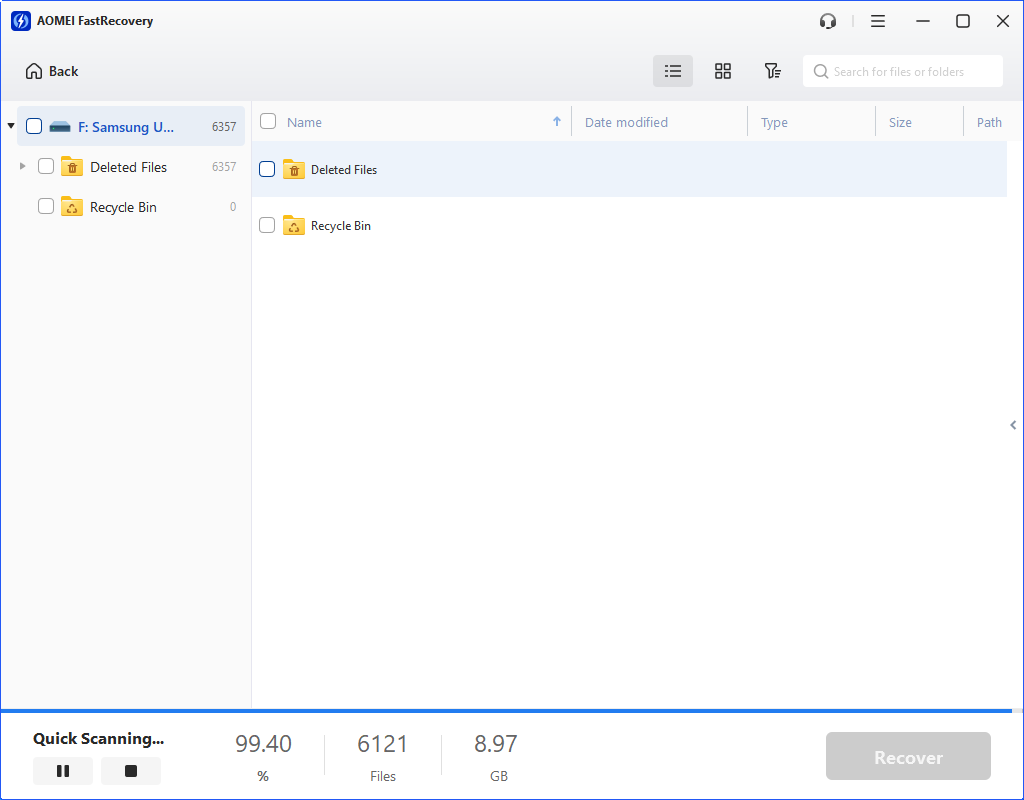
Step 3. It will automatically start Quick Scan to find disappeared files on external hard drive. You don't need to wait too long.
-
Scan time mainly depends on disk size and health, especially regarding bad sectors or file system corruption.
-
During scanning, you can click the Stop or Pause button if you select the wrong disk or something goes wrong.
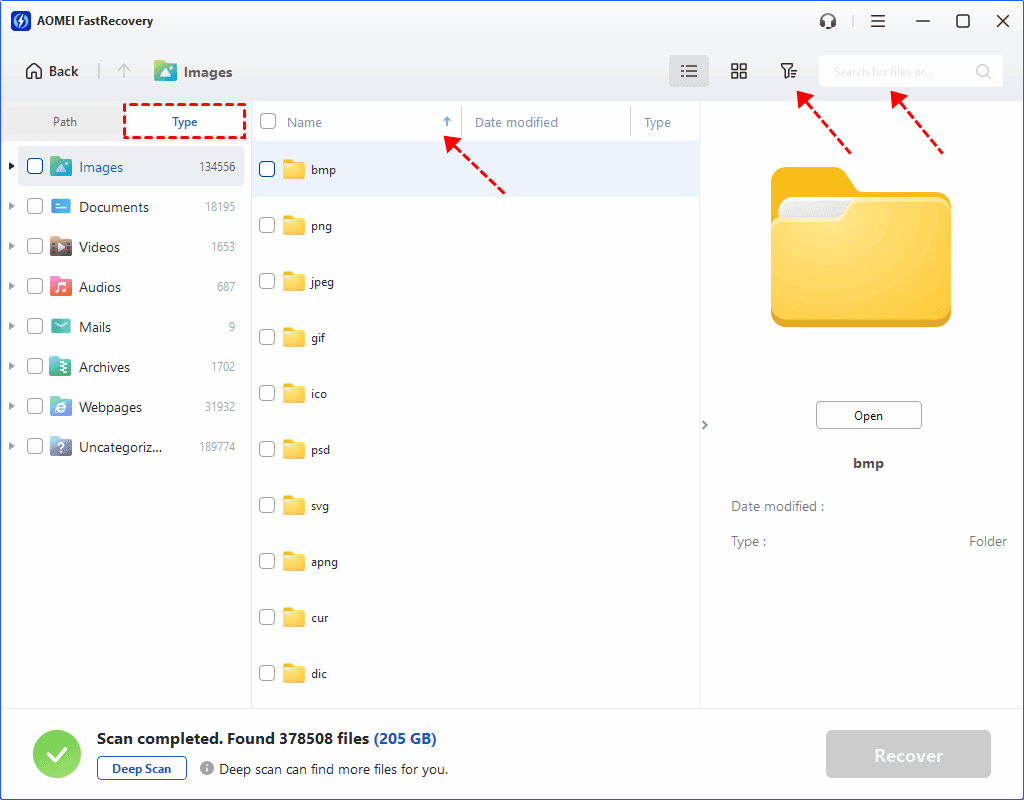
Step 4. Wait for the process to complete, then select files by Type (default) or Path, with options to sort, search, filter, and preview files.
👉Under the Type section:
- Specify the data type and click the arrow next to type, size, date modified, etc., to sort files.
- To locate files quickly, type the file name or extension in the search box.
- Or use the filter feature, similar to the Type category, allowing you to further specify the size of files, from less than 512 KB to 1GB above.
- Once found, double-click the files to preview.
👉 Under the Path section: Directly navigate to the original location where you saved deleted files. Sort files if needed.
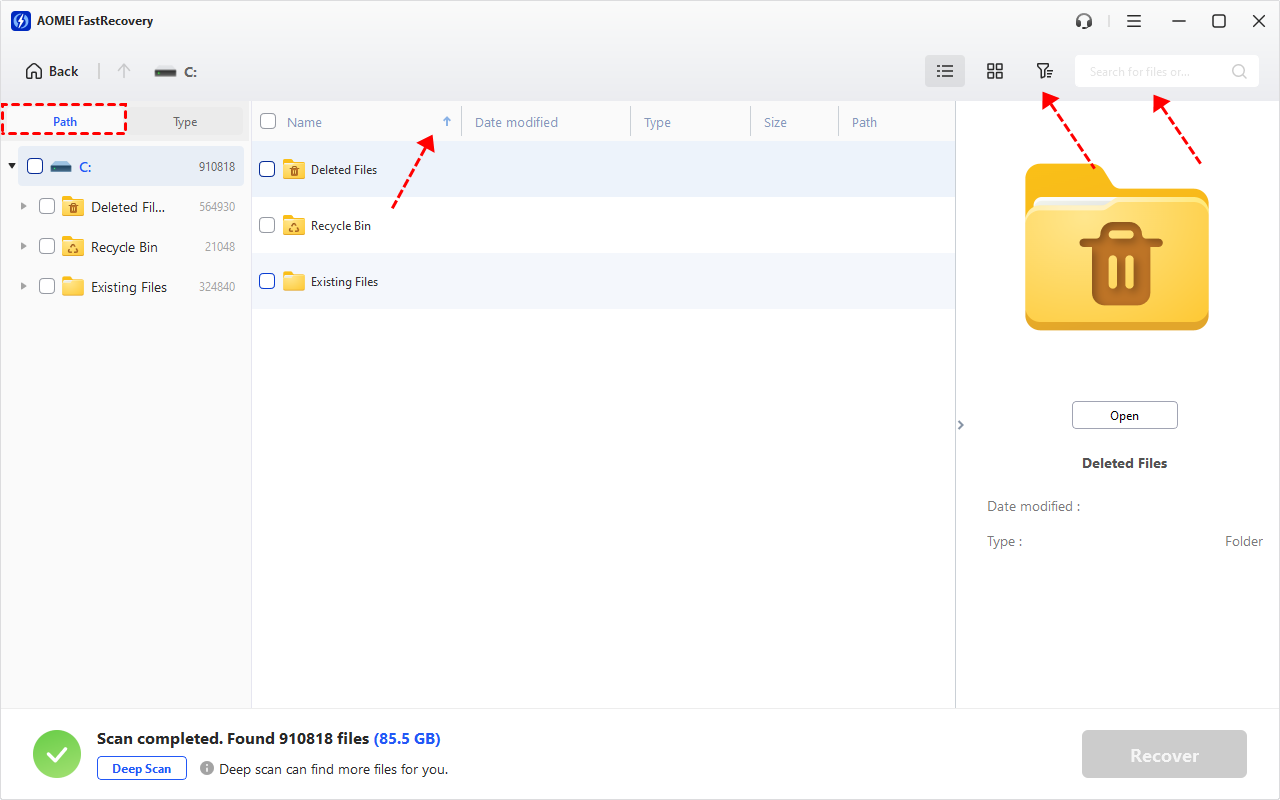
- The Type categories and filter options include all supported data types, such as images, videos, documents, mails, web pages, compressed files, etc.
- Click the Deep Scan to find more data if Quick Scan fails. It will scan every sector of the disk and take longer.
Step 5. Select the files you need and click the "Recover" button. Always save the recovered files to a different location (not the external hard drive) to avoid overwriting data you're trying to restore.
You can perform external hard drive data recovery for free, up to 500MB. To recover all of them, try advanced editions of AOMEI FastRecovery.
Fix 2: Show Hidden Files or Folders
If your files have mysteriously vanished, there's a chance they're just hidden. Here are 3 ways in the following:
👉 Using File Explorer:
This is the easiest and most common one to unhide files or folders.
1. Open File Explorer.
2. Under the View tab, click Show >Hidden items.
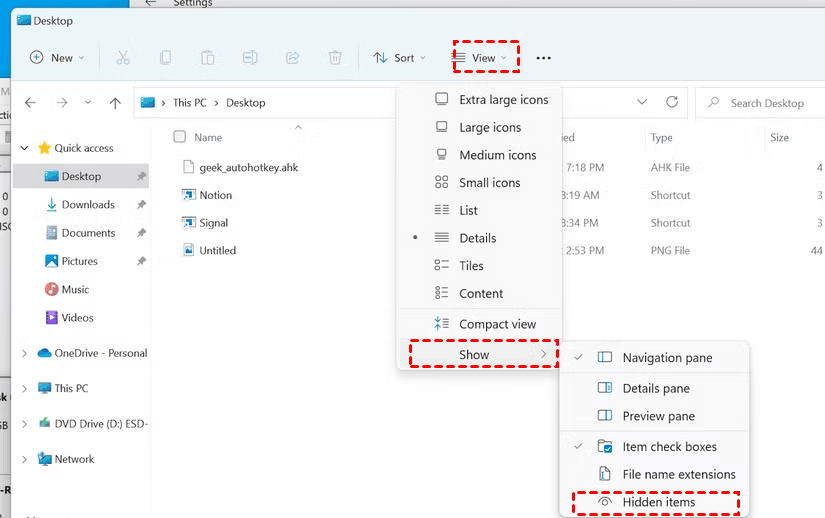
Also, you can click Options >View in File Explorer. Then, check Show hidden files, folders, or drives, and click Apply > OK.
👉 Using Registry Editor:
In Registry, there is a hidden file attribute, which can be used to toggle this behavior through a .reg file. It can unhide files from the entire computer instead of specific drives.
1. Press Win + R and type regedit in the Run window to open Register.
2. Navigate to the following path.
HKEY_CURRENT_USER\Software\Microsoft\Windows\CurrentVersion\Explorer\Advanced
3. Right-click the Hidden attribute and select Modify. Set its value to1 and click OK to unhide files or folders.
4. Open the ShowSuperHidden attribute and change its value to1 to display system-protected files.
👉 Using Attrib Command
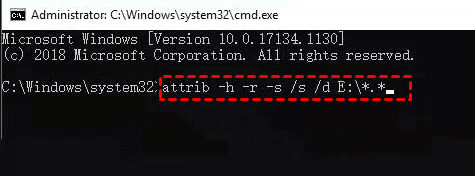
You can also use the Attrib command to change file attributes of external hard drive to unhide files or folders on it.
1. Type cmd in the search box and select Run as administrator.
2. Input attrib -h -r -s /s /d F:*.* and press Enter to execute. Please replace F: with the drive letter of your external hard drive.
Fix 3: Run CHKDSK to Repair Disk Errors
You can also use the CHKDSK command to repair file system or disk errors and make it function normally if your cause is corrupt file system or disk errors (e.g., bad sectors).
⚠️Sometimes, to restore the integrity of the file system, CHKDSK deleted files, especially when some files or their part are not recognized as belonging to any data structure. But these files usually can be recovered by the software.
1. Open CMD as an administrator.
2. Type chkdsk F: /f /r and press Enter to scan and repair found error. Please replace F: with your drive letter.
Fix 4: Change the CheckedValue in Registry
The CheckedValue attribute decides how your system finds files and folders. If it is damaged, you may find files or folders on external hard drive disappeared. To make it work properly, you need to modify its value in the Registry manually.
1. Open Registry Editor and goto the following path:
HKEY_LOCAL_MACHINE\SOFTWARE\Microsoft\Windows\CurrentVersion\Explorer\Advanced\Folder\Hidden
\SHOWALL
2. Check if the CheckedValue is 1. If not, delete it and create a new one, specify the value data as1.
Fix 5: Scan for Viruses or Malware
Viruses or malware are one of the culprits of files or folders on external hard drive disappeared. You need to find and remove them using antivirus software (e.g., Windows Defender). Otherwise, you may encounter this issueagain.
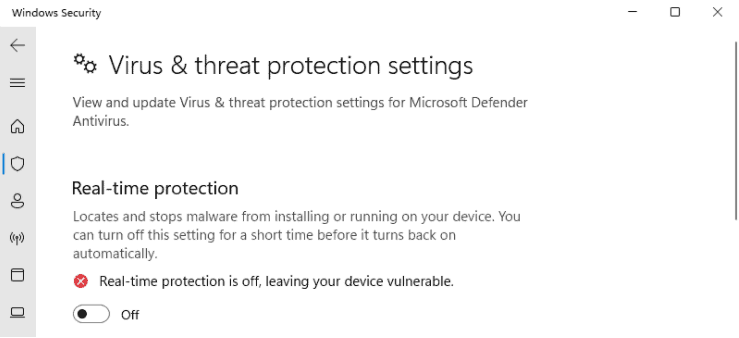
1. Be sure your external hard drive is recognized by Windows. Type windows security in the search box and select the top result. Click Virus & threat protection.
2. Scroll down to Virus & threat protection settings and click Manage settings. Then, turn on Real-time protection.
3. You can then go to File Explorer. Right-click your external hard drive and click Scan with Microsoft Defender. Wait for the scanning process to finish, safely quarantine, and remove any found viruses.
Fix 6: Check for Hardware Issues
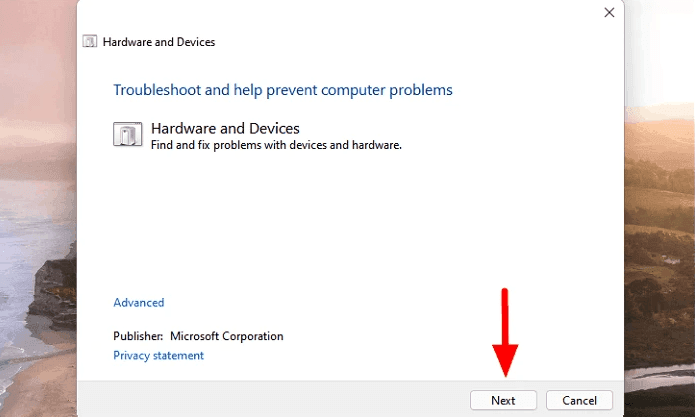
Hardware issues also cause files or folders on external hard drive disappeared. Try to check your device using a troubleshooter.
In the previous system, the device troubleshooter was available on the Control Panel. For Windows 10 and later system, go to Settings > Troubleshoot > Additional Troubleshooters and select Hardware and Devices to scan your external hard drive for hardware issues.
Conclusion
The “files disappeared from external hard drive” issue is a nightmare, but you still can fix it without data loss. Here are 6 effective ways. In fact, whether files are permanently deleted or hidden, they exist deep within the file system. You can use software to scan it and find lost data.
AOMEI FastRecovery is a reliable data recovery software for Windows 7, 8/8.1, 10, 11, and Windows Server that integrates two advanced scanning methods and a suite of recovery features, such as filter, search, selective recovery, etc., making this process simple and efficient.

 as a preferred
source on Google
as a preferred
source on Google