




How to Recover Data from Buffalo External Hard Drive
This article describes the best method to recover data from Buffalo external hard drive and guides you step by step through the process. Scroll down to explore more!

By Ivy Updated on May 10, 2026


"Hey, guys! I have a Buffalo external hard drive that has been acting up lately. I accidentally deleted some important files from it and now I'm freaking out!" Has anyone here ever tried to recover data from a Buffalo external hard drive? It is a 500GB drive and runs on a Windows 10 laptop. Any advice would be super helpful! Thanks in advance!"
- Question from Reddit
Don't worry too much, your data is still recoverable if you act quickly. The deleted files initially remain on the Buffalo external hard disk, but the space they occupy is marked as “free” space for new data.
It means you can't add new data or format the disk, even if you are asked to format the disk before using it. Otherwise, your old files will be overwritten, resulting in permanently deleted files.
Read on to learn the possible reasons and how to easily recover data from Butffalo external hard drive.
Common Reasons Behind Buffalo External Hard Drive Data Loss
There are undoubtedly many reasons for data loss on Buffalo, which can give you some clues to recover your data and protect it safely after data recovery. We collect some common reasons below:
- Accidental deletion.
- File system corruptionor incompatible.
- Sudden power outages.
- Virus or malware infection.
- Physical damage, such as dropping the drive, exposing it to extreme temperatures, or water damage, etc.
How to Perform Buffalo External Hard Drive Data Recovery
AOMEI FastRecovery is a safe & reliable data recovery software for Buffalo external hard drive. It enables you to recover deleted files in Windows 7, 8, 10, 11, etc., and Windows Server easily and quickly, with a success rate of more than 95%.
 AOMEI FastRecovery
- 🧬 Recoverable scopes: handle different data loss scenarios, such as accidental deletion, disk formatting, virus infection, etc.
- 📚 1000+ data formats: Recover deleted Word/Excel/PPT documents, JPG/PNG/GIF images, emails, MP3/WAV/AIFF audio files, MP4/MOV/AVI videos, and more.
- 2️⃣ scanning modes: Perform a quick or deep scan to find as many files as possible.
- 🔥 Highlight features: Support search, filter, preview, selective recovery, and crashed PC recovery, making it easy to find files and recover.
- ❌💰 Free data recovery, up to 500MB.
 100% Secure
-
Don't download and install FastRecovery on the Buffalo external drive where you store deleted files, as this may cause data overwriting.
-
Any newly added data or disk formatting can overwrite data. Please avoid these operations after realizing data loss.
Step 1. Select your scenario
Reconnect the Buffalo hard disk and be sure your Windows system recognizes it. Install and launch AOMEI FastRecovery, click Deleted Files Recovery, specifically designed for quick recovery.

You can also choose a more suitable alternative. All of them can help you retrieve data without causing any damage.
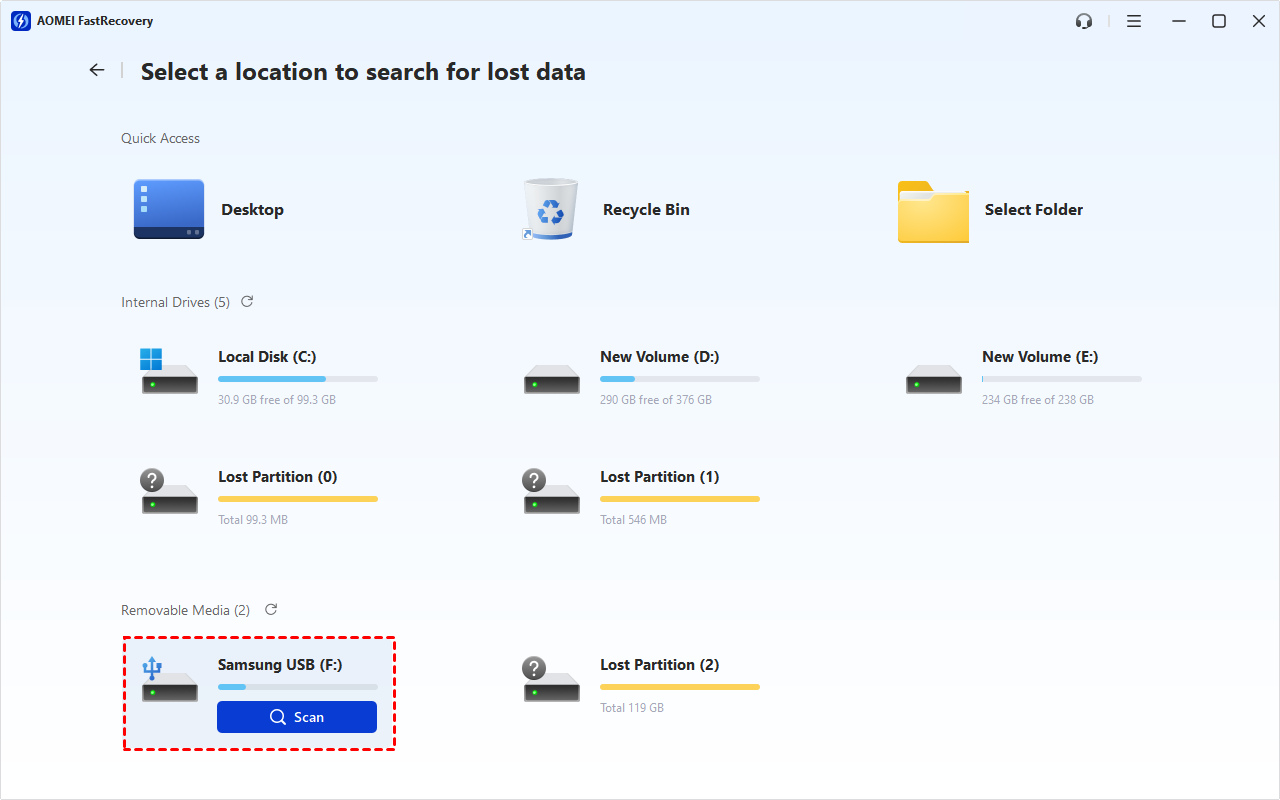
Step 2. Select Buffalo's external disk
Hover the mouse over the drive with saved deleted files, and click Scan.
Step 3. Scan for deleted or lost data
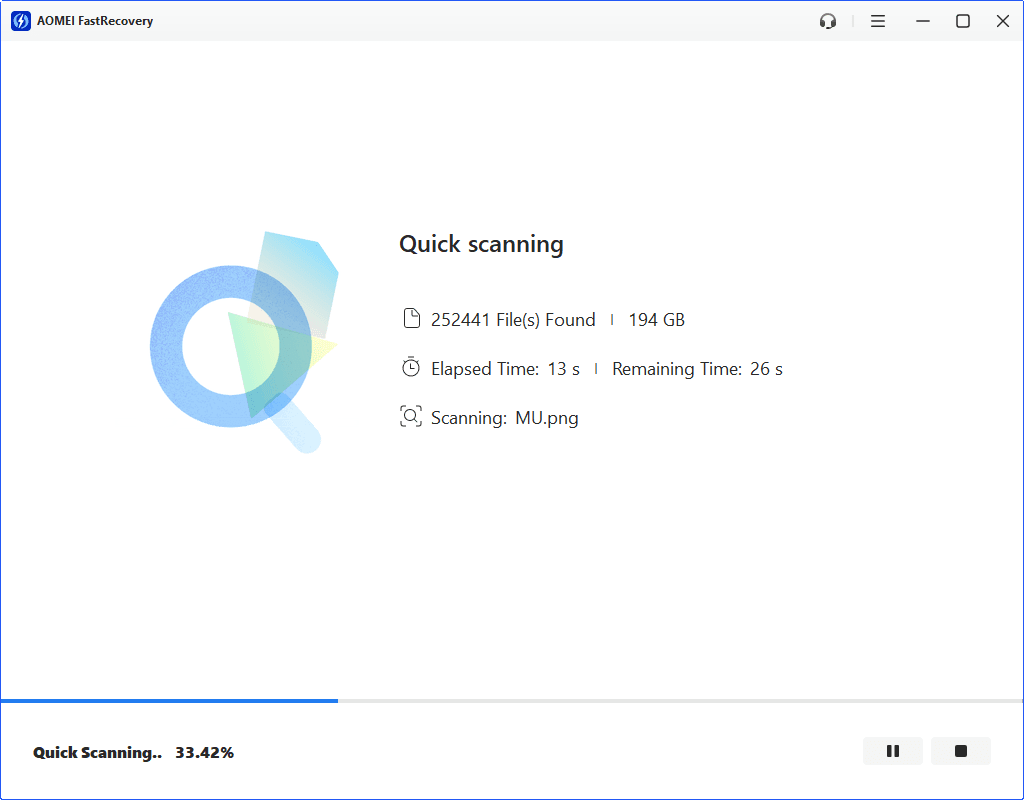
It will automatically start Quick Scan to find deleted or lost videos.
-
Scan time mainly depends on disk size and health, especially regarding bad sectors or file system corruption.
-
During scanning, you can click the Stop or Pause button if you select the wrong disk or something goes wrong.
Step 4. Find all recoverable data
Wait for the process to complete. Under the Type section, check all the data types and click the Recover button.
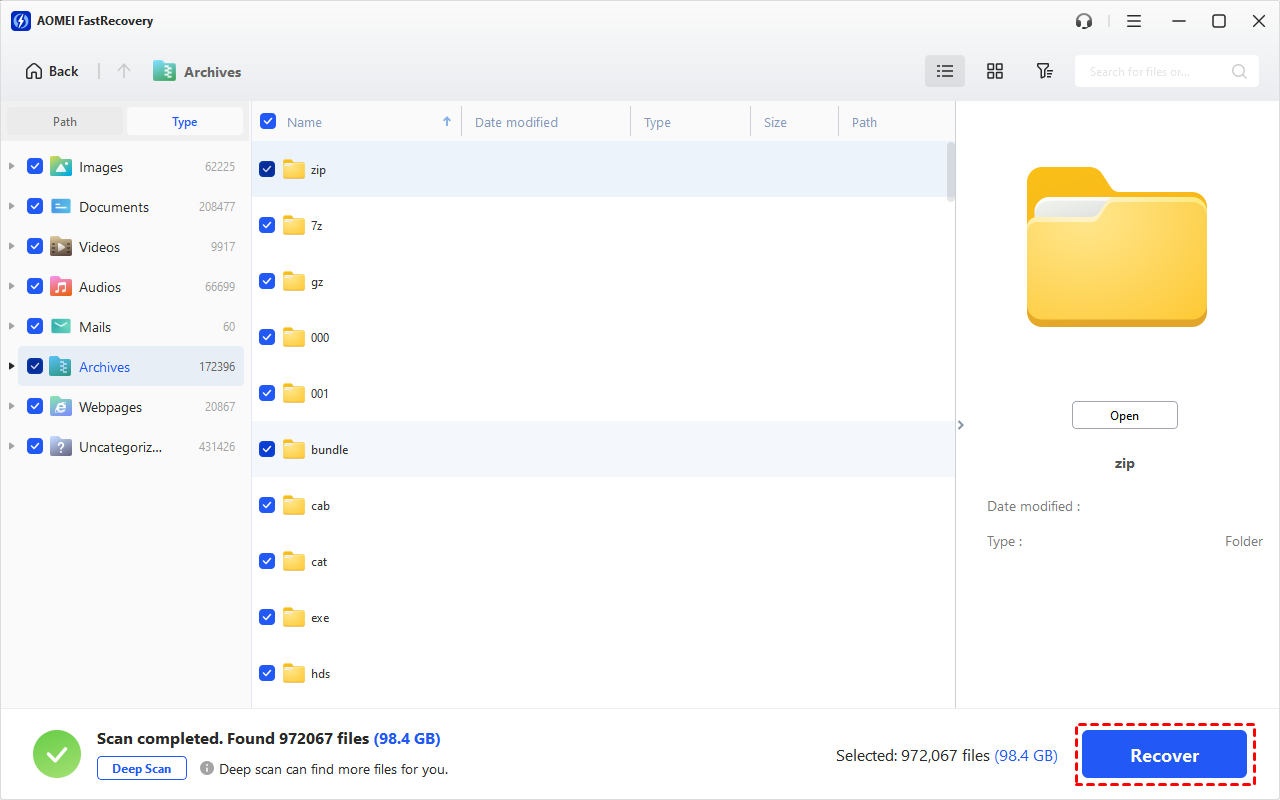
Or go to the Path tab, check all subdirectories.
To recover specific files or folders, you have two ways in the following:
1️⃣Under the Type section:
- Specify the data type and click the arrow next to type, size, date modified, etc., to sort files.
- To locate files quickly, type the file name or extension in the search box.
- Or use the filter feature, similar to the Type category, allowing you to further specify the size of files, from less than 512 KB to 1GB above.
- Once found, double-click the files to preview.
2️⃣ Under the Path section: Directly navigate to the original location where you saved deleted files. Sort files if needed.
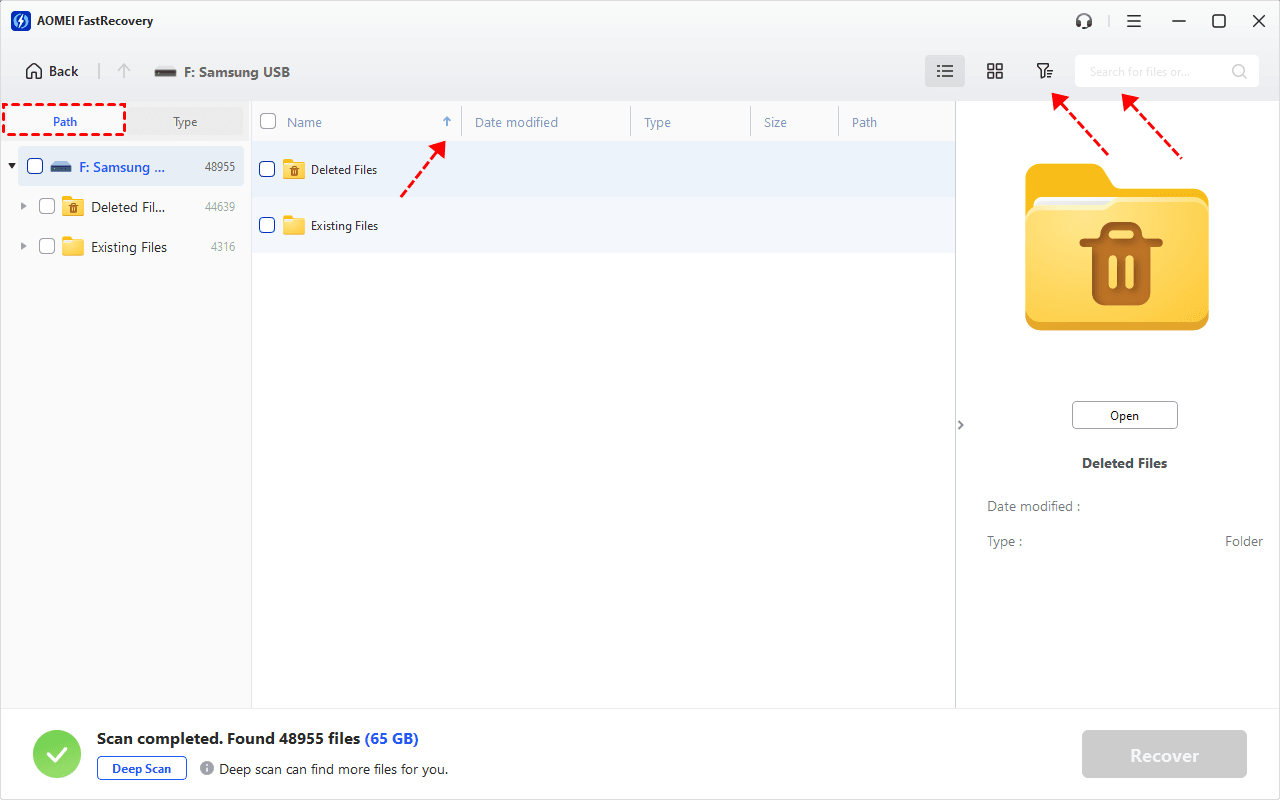
- The Type categories and filter options include all supported data types, such as images, videos, documents, mails, web pages, compressed files, etc.
- Click the Deep Scan to find more data if Quick Scan fails. It will scan every sector of the disk and take longer.
Step 5. Select a location
Click the Recover button and select a new location to save the recovered files. Otherwise, your data may be overwritten.
You can perform Buffalo external hard drive data recovery for free, up to 500MB. To recover all of them, try advanced editions of AOMEI FastRecovery.
Bonus Tips to Prevent Data Loss on Buffalo External Hard Drive
Performingdata recovery from Buffalo external drive helps to get your files back, but this is not 100% guaranteed. So instead of recovering data from Buffalo external HDD or NAS drive, you’d better take some precautions to protect your data safely. Here are some feasible choices:
- Double-check the Buffalo drive before deleting any file.
- Always use the “Safely remove hardware and eject media” option to eject a drive.
- Scan your drive regularly for malware or viruses. Use anti-virus software like Windows Defender or third-party options.
- Backup files on Buffalo external drive or NAS automatically. Tryfree backup software for Windows- AOMEI Backupper Standard.
Conclusion
That’s all for Buffalo external hard drive data recovery. When it comes to data recovery, the easiest method is to use safe & reliable software, such as AOMEI FastRecovery, and you don’t even need to know the possible reasons for data loss.
You probably also know that data recovery does not necessarily recover all data. So to avoid any data loss, we strongly recommend you to backup Buffalo external hard drive or data on the Buffalo NAS regularly.

 as a preferred
source on Google
as a preferred
source on Google