




How to Recover Deleted Photos from Windows 10 or 11
Accidentally deleted valuable photos? Don’t worry, it's possible to recover deleted photos in Windows 10 or 11, with 4 methods available.

By Ivy Updated on May 10, 2026


“I have some important photos on my Dell laptop with Windows 10 installed. I was planning to move it to an SD card but somehow these photos are deleted. I don’t know what to do. Is there someone who can tell me how to recover deleted photos from Windows 10 for free? Thanks a lot!”
- Question from Reddit

As a media that records people’s time and other useful information, photos can be very important. Usually, photos are stored on phones, computers, cameras, and so on. You can easily recover deleted phone photosfrom "Recently Deleted" sectionn and the operation can be different when photos are removed from a Windows computer.
If you have deleted photos via “Ctrl” + “D” or the “Delete” option, you can just undo the operation or retrieve the lost photos from the Recycle Bin. If you have permanently deleted photos from Windows 10/11, you can recover the deleted files using File History or professional data recovery for Windows.
Method 1: Undo deleted photos on Windows 10/11
Windows Undo feature enables you to withdraw actions like photo deletion. All you need to do is to press “Ctrl” + “Z” at the same time or right-click the blank space and choose “Undo Delete”. After that, you can see the deleted photos get back on your computer.

Method 2: Restore deleted photos from Recycle Bin
Undo takes effect only for recent actions. If your photos are deleted for a period of time, try to check and recover deleted photos from Recycle Bin.
Step 1. On your Windows 10/11 computer, double-click the Recycle Bin icon to open the Recycle Bin.
Step 2. Select the deleted photos you still want to keep, right-click them, and choose “Restore”. You'll see the photos again on your computer.
✍What if you can’t find the Recycle Bin?
Sometimes, you may find that there is no Recycle Bin icon on your computer desktop. Then, you can add the Recycle Bin by adjusting the Registry.
- First of all, press “Windows” + “R”, type in “regedit” to open Registry Editor.
- Then, go to HKEY_LOCAL_MACHINE\SOFTWARE\Microsoft\Windows\CurrentVersion\Explorer\DesktopName\Space.
- Right-click the blank space, go to "New" > "Key" and input {645FF040-5081-101B-9F08-00AA002F954E}.
- Finally, close Registry Editor and reboot your computer. The recycle bin will appear again.
Method 3: Recover deleted photos from File History (with Backup)
You won’t be able to find deleted pictures from Recycle Bin if use Shift + Delete keys, which permanently delete photos from Windows 10 or 11. Try to restore permanently deleted photos from File History if you enable this feature beforehand.
✨Important Tip: If you don't enable File History, go to Control Panel and select File History. Under keep a history of your files, click Turn on.
Step 1. In the Search box, type in “Restore your files with File History” and hit the Enter key to open it.
Step 2. Find the deleted photos you need to retrieve and click the Restore button. It will restore deleted photos to the original location automatically,
Alternatively, click the Settings icon, choose "Restore to", and choose a different location to save the recovered photos.
Method 4: Recover permanently deleted photos without backup
It's still possible to recover permanently deleted photos without backup. AOMEI FastRecovery is one of the best photo recovery software for Windows that can recover deleted photos in Windows 10 or 11, even if you use “Shift+Del” keys or after Recycle Bin empty.
AOMEI FastRecovery- ✅Recoverable Scope: Recover data in any scenarios, such as permanent deletions, disk formatting, system crashes, virus attacks, etc.
- 2️⃣Scanning Modes: Perform a quick scan automatically and integrate Deep Scan for more thorough results.
- 👍A wide range of image formats, such as JPG/JPEG/JPE, PNG, TIF/TIFF, HEVC/HEIC/HEIF, GIF, PSD, SVG, ARW, X3F, etc.
- 🧬Flexible Layout: Organize and display deleted or lost files by Type or Path, allowing sorting across multiple options.
- 🔥Highlight Features: Support file filter, search, preview, and crashed PC recovery, making recovery simple and efficient.
- 👍Free data recovery, supporting up to 500MB.
 100% Secure
-
Don't download and install FastRecovery on the drive where you store deleted files, as this may cause data overwriting.
-
Any newly added data or disk formatting can overwrite data. Please avoid these operations after realizing data loss.
Step 1. Install and run AOMEI Data Recovery, then click Deleted Files Recovery for fast recovery. You can also choose a more suitable alternative. All of them can help you retrieve data without causing any damage.

Step 2. Hover the mouse over the drive that contains your deleted photos, and click Scan.
Step 3. The tool will atomically scan the drive with Quick Scan, displaying all files by Type or Path, and supports sorting through multiple options. Click “Images” and choose the image type you want to recover.
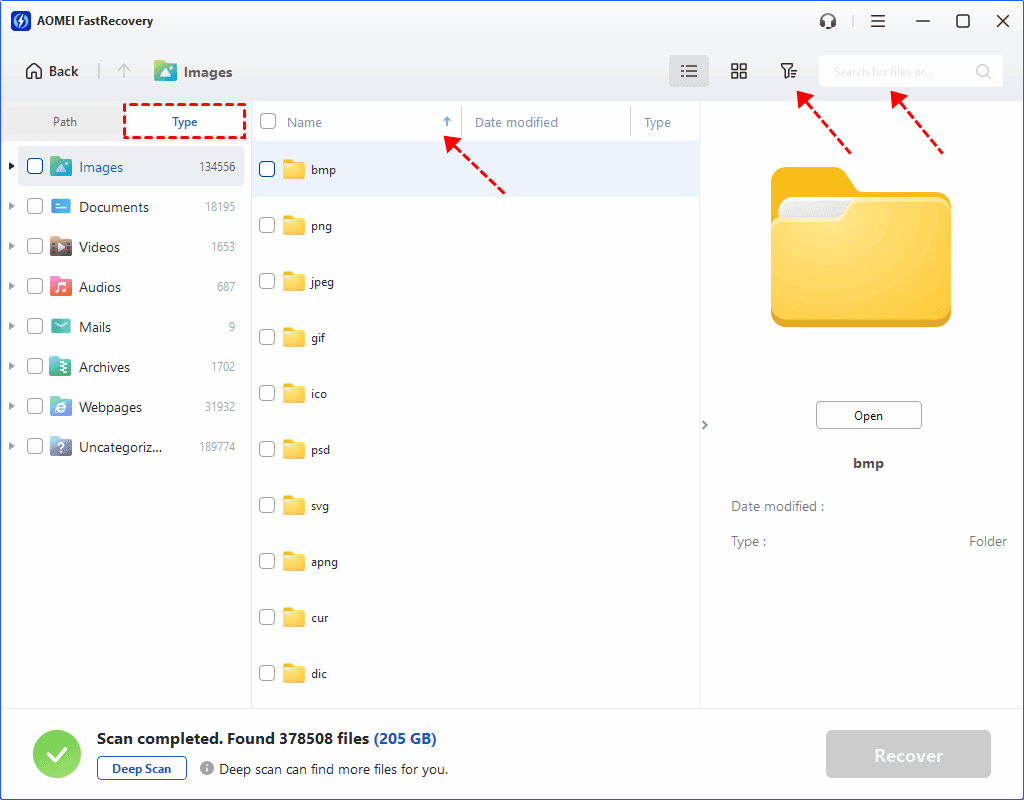
- The Type categories and filter options include all supported data types, such as images, videos, documents, mails, web pages, compressed files, etc.
- Click the Deep Scan to find more data if Quick Scan fails. It will scan every sector of the disk and take longer.
Step 4. Once confirmed, click "Recover" and choose a new path to save the restored photos. Restoring photos to original location may cause data overwriting.
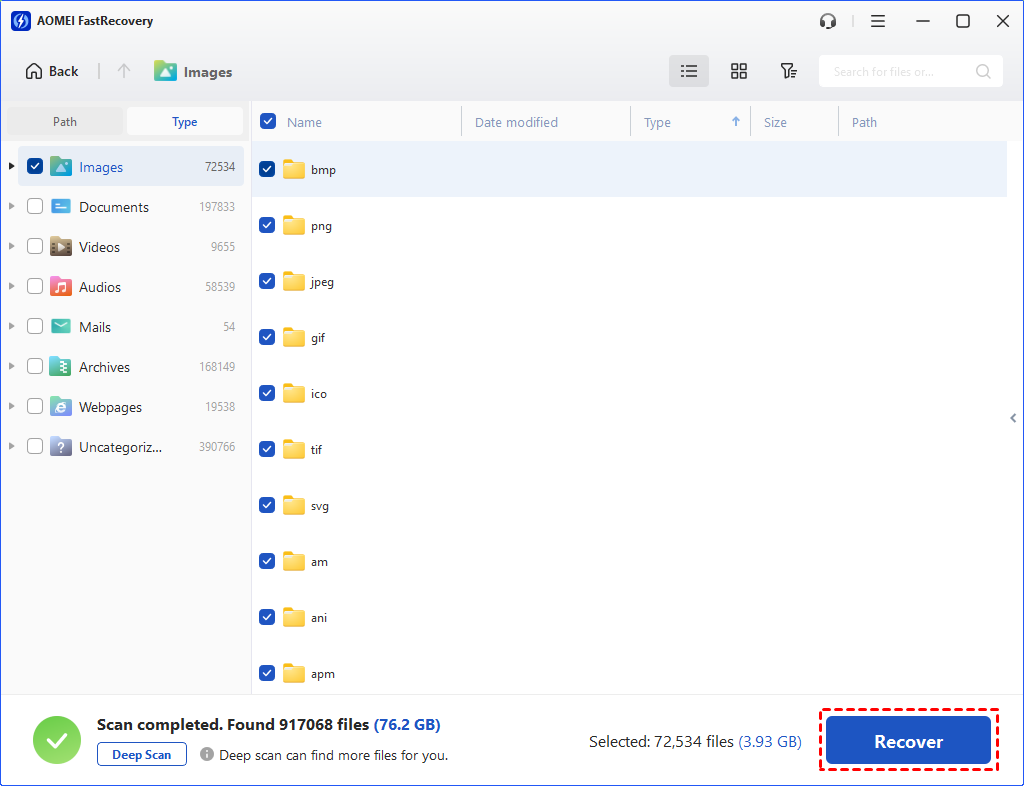
The free edition can recover deleted photos for free, up to 500MB in total. To recover unlimited files, try the advanced editions.
Conclusion
Accidentally delete photos on Windows 10 or 11? Don't worry, and there are 4 useful methods to recover deleted photos on Windows 10 or 11, even if they are permanently deleted or after the Recycle Bin is emptied. Always undo deletion or check the Recycle Bin first. If your photos are permanently deleted, try File History or professional data recovery software - AOMEI FastRecovery.
FAQs
1. How do I find recently deleted photos on Windows 10?
Recently deleted photos are usually in the Recycle Bin. If not, your photos are permanently deleted. Please act quickly and stop using this drive immediately.
2. How to recover deleted photos from SD Card in Windows 10?
If you connected SD card to Windows 10 PC and deleted photos from SD card, the deleted photos won’t appear in Recycle Bin. You can employ AOMEI FastRecovery to scan SD card and restore deleted photos from it.
3. Are permanently deleted photos gone forever Windows 10?
No! Permanently removing pictures are still on Windows 10, but the occupied space is marked as free to store new data. Don't add new data to your drive or format it. Check if there are any backup or directly use a professional data recovery software.

 as a preferred
source on Google
as a preferred
source on Google