




TIFF File Recovery: How to Recover Deleted TIFF Files
How to recover deleted TIFF files easily and quickly? This article provides you with 3 simple and efficient methods, along with step-by-step instructions.

By Ivy Updated on April 30, 2026


What is a TIFF file?
The Tagged Image File Format (TIFF/TIF) is a versatile format designed for raster images, suitable for use on various devices that adhere to this standardized format. It comprehensively describes image data in different color spaces, including bi-level, grayscale, palette color, and full color.
Each TIFF file can comprise multiple layers and a limited number of color components. Graphic programs benefit from this feature as each layer can be independently edited and saved as a separate file.
Within the format, lossy and lossless compression methods are available, allowing users to prioritize either storage space or processing time based on their specific needs. Moreover, TIFF is independent of any particular machine and remains unaffected by factors such as processors, operating systems, or file systems.
How to recover deleted TIFF files on Windows
If you find yourself in the unfortunate situation, there is still hope for TIFF file recovery. You can try the following 3 proven methods.
Way 1. Restore deleted TIFF files from Recycle Bin
For accidentally deleted TIFF files, Windows Recycle Bin is a straightforward solution. You can recover pictures from Recycle Bin directly before pressing Shift + Delete keys or emptying this temporary storage. Sometimes, you can also recover deleted AVI files from the desktop Recycle Bin.
Step 1. Open your desktop Recycle Bin.
Step 2. Locate the TIFF picture you want to retrieve, right-click on it, and click Restore to save it to the previous path.

Way 2. Recover deleted or lost TIFF files using software
Without backups, powerful data recovery software ensures TIFF file recovery with a high success rate, especially for users who want to recover deleted photos from Recycle Bin after emptying it.
One of the best TIFF file recovery software is AOMEI FastRecovery, which boasts a user-friendly interface and a streamlined recovery process.
AOMEI FastRecovery- Recoverable scope: Handle data loss scenarios such as deletion, disk formatting, system crashes,virus attacks, and more.
- Multiple image formats: Recover deleted photos, including JPG/JPEG/JPE, PNG, TIF/TIFF, HEVC/HEIC/HEIF, GIF, PSD, SVG, ARW, X3F, etc.
- 2 scanning methods: Integrate Quick & Deep Scan to search all the recoverable files for complete recovery.
- Simplified layout: Organize data by type and path for easier navigation, providing options to sort, search, filter, and preview files.
- Wide compatibility: Compatible with Windows 11, 10, 8, 7, Server, and NTFS, FAT32, exFAT, and ReFS file systems.
 100% Secure
🔥The free edition offers a 500MB data recovery allowance. For unlimited data recovery, it's advisable to upgrade AOMEI FastRecovery to the Professional or Technician edition.
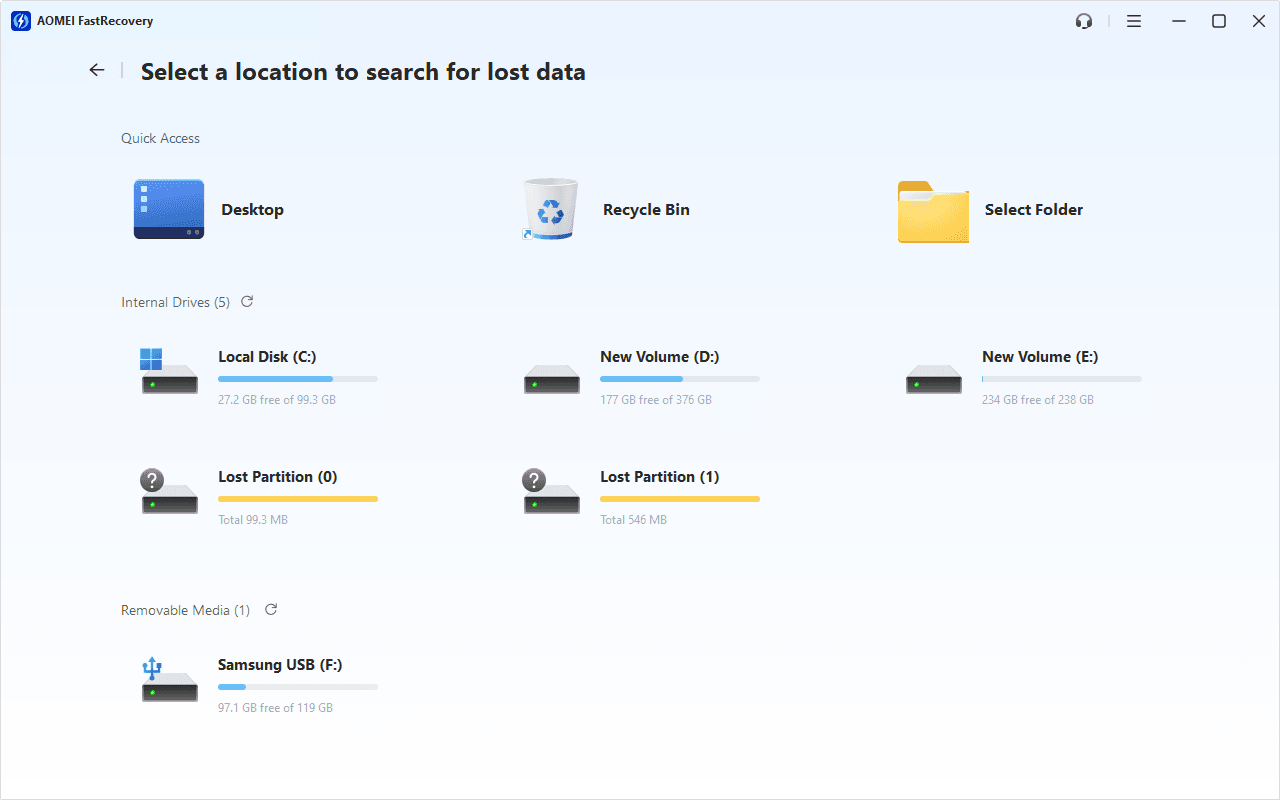
Step 1. Download and install AOMEI FastRecovery on your Windows computer. On the main page, click Deleted Files Recovery.

Step 2. Hover the mouse over the drive containing deleted TIFF files, and click Scan to start the quick scanning process and display all recoverable data.
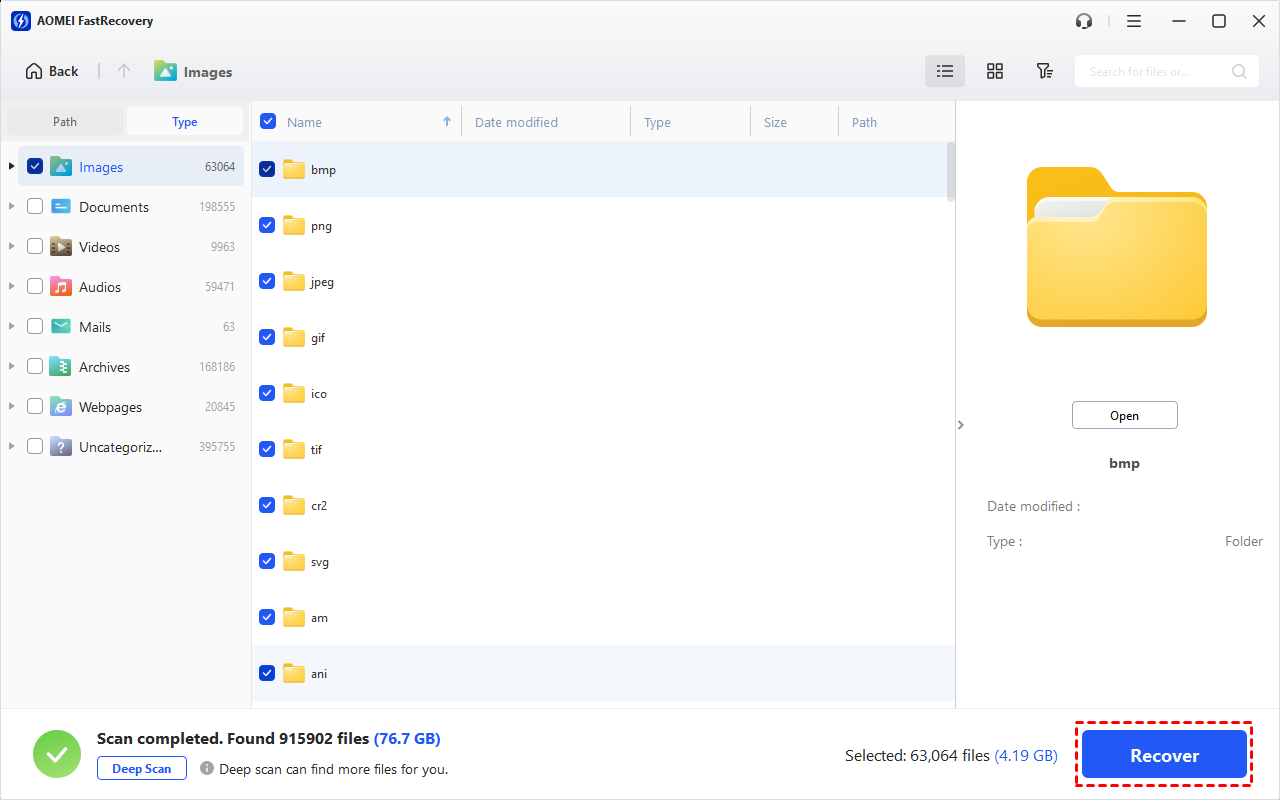
Step 3. Under the Type section, specify the Image data type and expand it to see all data formats. You can sort them or search the extension (.tiff) to locate files quickly.
-
You can also locate deleted files by Path if you remember this.
-
Click the Deep Scan button if the Quick Scan fails. Deep Scan searches every sector of the disk to find more files.
Step 4. Select the deleted TIFF files you want and then click Recover to get them back quickly. Please select a new location to save them, as restoring to the original location may result in data overwriting.
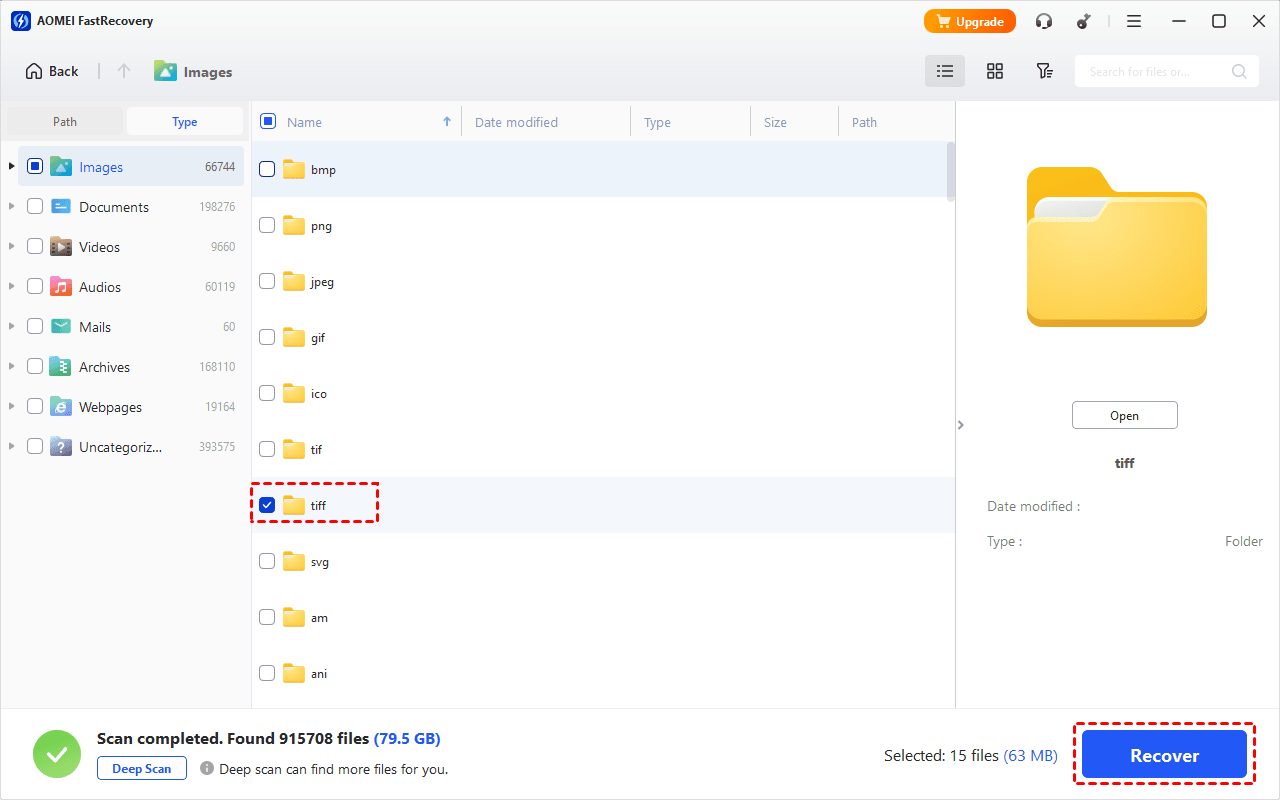
You will be asked to upgrade to the advanced edition of AOMEI FastRecovery to enjoy unlimited data recovery. The free edition supports up to 500MB.
Way 3. Restore deleted, lost, or corrupted TIFF files using File History
File History is a free backup software that aims to back up files in Documents, Music, Pictures, Videos, Desktop folders, and offline OneDrive files saved on PCs. If you enable this feature and store TIFF files in these locations before deletion, try to recover TIFF images from File History.
Step 1. Type System and Security in the search bar to open it. Go to File History and select Restore your files with File History.
Step 2. Click Restore personal files.
Step 3. Select the desired TIFF files and click Restore to get your selected TIFF file back quickly.
How to open TIFF files
So how do you open a TIFF file? In Windows, all versions are capable of opening TIFF files. Let’s show how to open a downloaded TIFF image on Windows 10 with Microsoft Photos.
Step 1. Press Win + E to open File Explorer. Then, go to the Downloads section.
Step 2. Right-click on your TIFF file and select Open with > Photos.
Elements, Microsoft Paint, File Viewer Plus, CorelDRAW Graphics Suite 2021, as well as ACD Systems ACDSee Photo Studio, can also help Windows users open TIFF photos.
Besides, Mac devices also provide seamless support for TIFF files through photo viewing and editing software.
- Apple Photos
- Apple Preview
- Adobe Illustrator 2021
- Adobe Photoshop 2022
- Adobe Photoshop Elements
- CorelDRAW Graphics Suite 2021
- MacPhun ColorStrokes
Possible Reasons for TIFF Files Loss
Sometimes, users can’t find their important TIFF files where they should be. Here are some common reasons why this happens:
- Improper Ejection: Users often pull out external storage devices without safely ejecting them first, which can corrupt the files.
- Antivirus Issues: Some antivirus programs may delete files they think are suspicious during scans, including TIFF files.
- Accidental Formatting: Formatting a drive by mistake can erase important data, including TIFF files.
- File Transfer Problems: Interruptions during file transfers can cause TIFF files to become corrupted.
- Accidental Deletion: Files can be accidentally deleted, especially if users press Shift + Delete.
- Software Issues: Problems with software, like crashes or compatibility issues, can lead to TIFF files being deleted.
- Storage Device Problems: Issues with storage devices, like a hard drive crash or a corrupted memory card, can result in lost TIFF files.
- Virus or Malware Attacks: Viruses or malware can corrupt files and cause TIFF files to be lost.
How to prevent TIFF files from data loss
Are you seeking practical data loss prevention measures to prevent TIFF photo loss? If it happens to be your case, please refer to the pertinent suggestions below to minimize potential data loss.
- Refrain from downloading TIFF image files from untrustworthy sources.
- To prevent potential data corruption, please avoid power outages and failures.
- Run the most up-to-date antivirus software to protect your PC.
- Exercise caution when engaging in file conversion activities.
- Regular backups made by Windows backup features or third-party tools like AOMEI Backupper Standard are crucial to mitigate the risk of data loss.

 as a preferred
source on Google
as a preferred
source on Google