




How to Sync Windows Server with OneDrive - Full Guide
This page covers a full guide on how to sync Windows Server with OneDrive as well as sync OneDrive with server. Scroll down to check the details.

By Jonna Updated on May 9, 2026


Does OneDrive Work on Windows Servers?
Microsoft OneDrive is a cloud storage and file synchronization service developed by Microsoft. Deeply integrated with Windows and Microsoft 365, it lets users store, back up, sync, share, and collaborate on files across devices - all while keeping data secure.
And yes, OneDrive can work on Windows Server systems, but it is not designed as a full server backup platform. Supported on Windows Server 2016 or newer, it mainly focuses on syncing files and folders. Certain system directories, application files, and locked databases may not sync properly. File path length restrictions, sync conflicts, and upload limits may also affect performance in business environments.
In this guide, we will walk through everything about how to sync Windows Server with OneDrive, including both manual and automated methods.
Part 1. How to Use OneDrive App to Sync Windows Server
Setting up OneDrive on Windows Server is relatively straightforward. Once installed and configured, you can rely on the OneDrive sync folder to perform two way sync between the server system and Microsoft's cloud platform. The following is a step-by-step guide on Windows Server OneDrive sync:
By default, OneDrive creates a sync folder in the user profile. You can choose which OneDrive folders should remain synchronized with the server system. And files placed inside the OneDrive directory automatically begin uploading to the cloud. You can also drag and drop any files and folders into this folder for manual synchronization.
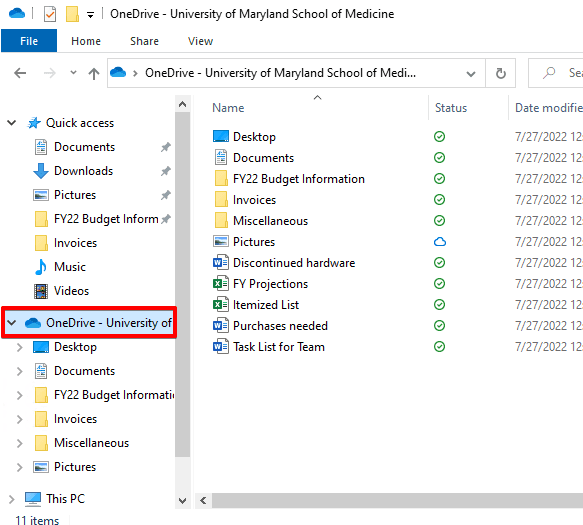
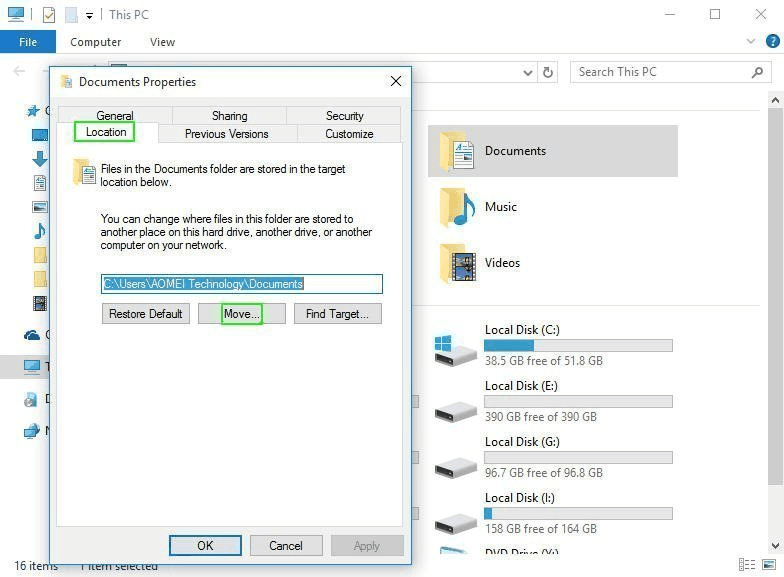
If you wish to set up OneDrive sync for more folders, you can use the Properties function to let Windows Server backup to OneDrive. That is to set the specific folder locations to the OneDrive location, which allows you to sync everything in these folders to OneDrive automatically. Here is how:
- Right-click the target folder > choose Properties > go to the Location tab and hit Move to change the default save location.
- Set the folder location inside the OneDrive folder and apply changes.
Part 2. Set up OneDrive Sync on Windows Server using Sync Software
As you can see, manual syncing of Windows Server with OneDrive desktop app has limits. It depends heavily on users placing files in the OneDrive sync folder. If you need a more flexible and automated approach, AOMEI Backupper Server is a powerful alternative.
Widely supported on Windows Server 2012 (R2), 2016, 2019, 2022, 2025, and Windows 7/8/8.1/10/11, it offers a wide range of sync features:
 AOMEI Backupper
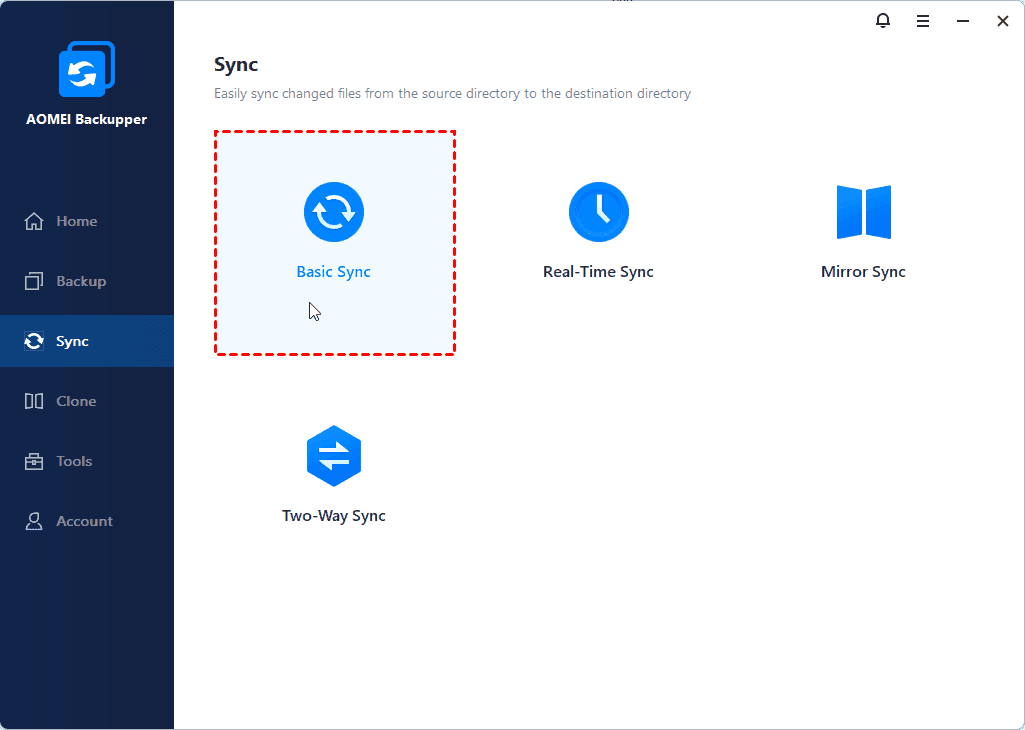
- Flexible sync: Basic Sync for direct folder sync, Real-Time Sync for immediate file updates, Mirror Sync to keep destination files identical to source files, and Two-Way Sync for bidirectional synchronization.
- Auto sync: Scheduled sync based on daily, weekly, or monthly intervals to keep data secure and up to date.
- Various locations: Support cloud storage, including OneDrive, Google Drive, Dropbox, and other paths like local disks, NAS devices, and external drives; also, it works for server-to-server sync.
 100% Secure
#1. How to Automatically Sync Windows Server with OneDrive
To automatically OneDrive server backup using AOMEI Backupper Server, follow these steps:
Step 1. Download and install the AOMEI Backupper Server software, and click on Sync > Basic Sync. You can also use Real-Time Sync to synchronize changes instantly.
👉Tip: There is also a Backup function that lets you create Windows Server image backup for quick disaster recovery.
Step 2. Click Select Source to choose folders to sync.
Step 3. Click on the PC icon and select the local path of OneDrive as the destination path (this requires the OneDrive desktop app installed on your computer in advance).
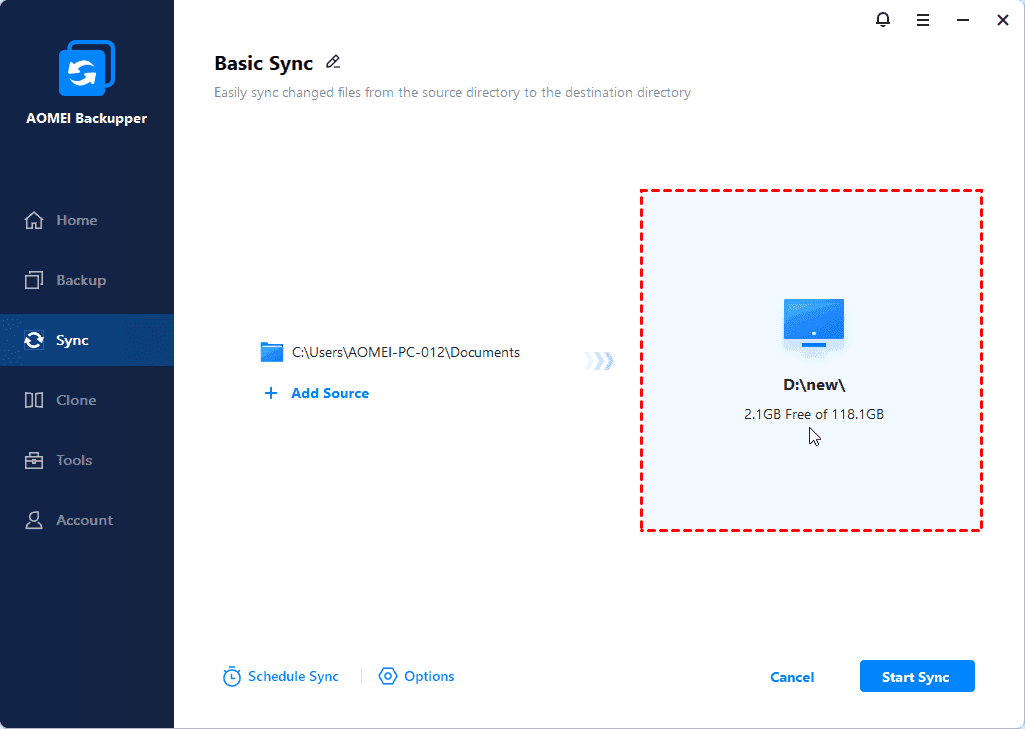
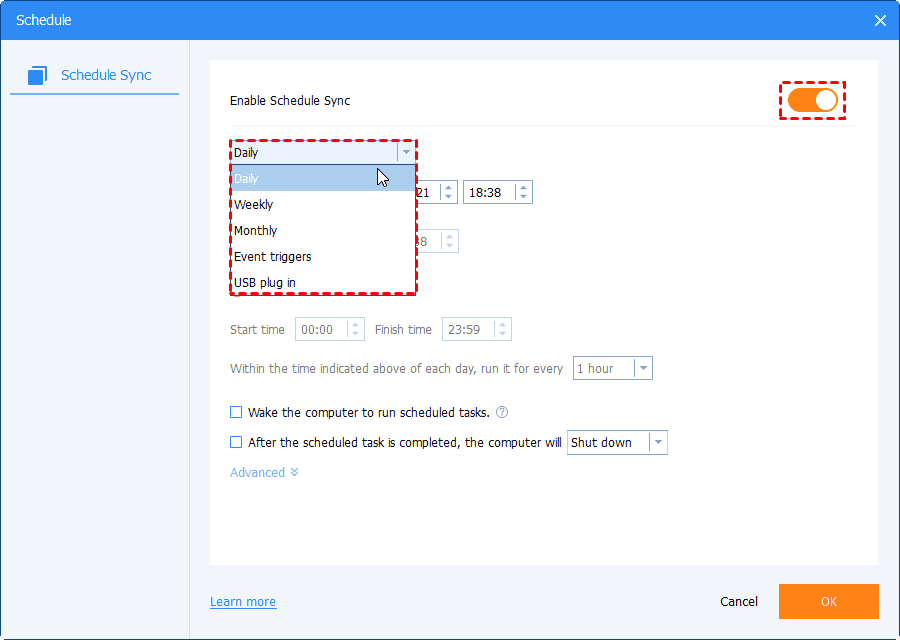
Step 4. Hit Schedule Sync > Enable Schedule Sync to select an automatic sync mode, and click on Start Sync.
👉Tips:
- There is a file filter feature for excluding or including specific file types to sync.
- The main differences between the Sync and Backup features on AOMEI Backupper Server include:
|
Aspects |
Sync |
Backup |
|
Data Format |
Compressed image file (.adi) |
Raw, uncompressed files/folders |
|
Primary Goal |
Disaster recovery & long-term retention |
Real-time data consistency |
|
Versioning |
Multiple versions |
No versions - only the latest state |
|
Recovery Need |
Requires restore from image |
No restore - files accessible directly |
|
Storage Efficiency |
High (compression) |
Low (raw copies, no compression) |
|
Risk of Data Loss |
Low (isolated image, versioned) |
High (syncs deletions/corruption) |
|
Use Cases |
Real-time file sharing; redundant file access; two-way collaboration |
System/OS protection; long-term data protection; disaster recovery; ransomware protection |
#2. How to Sync OneDrive to Windows Server
You can also use AOMEI Backupper Server to set up Windows Server backup OneDrive:
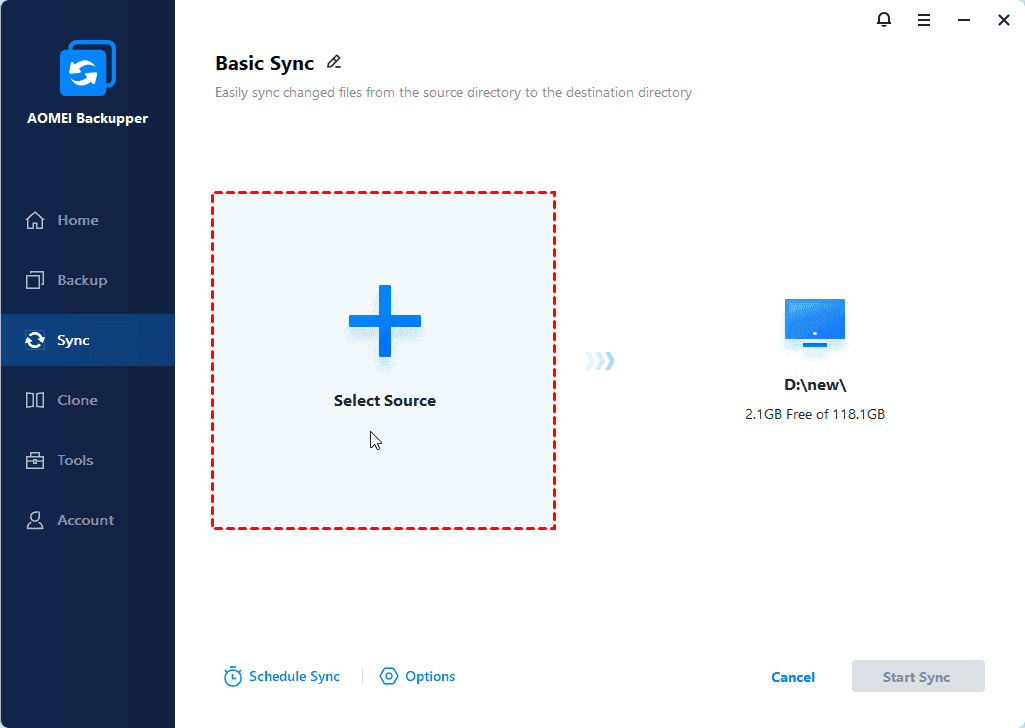
Step 1. Click Sync > Basic Sync. Then, hit Select Source to choose the OneDrive folder on your computer for backup.
Step 2. Then, choose a local location on your computer as the target directory.
Step 3. Click Start Sync to sync OneDrive folders to PC.
FAQs on Windows Server OneDrive Sync
#1. Can OneDrive sync my entire PC?
Technically yes, but it’s not recommended. Syncing an entire system, including OS files, can lead to errors and unnecessary storage usage. It’s better to sync specific folders.
#2. Why is my OneDrive suddenly not syncing?
Common causes include:
- Network interruptions
- Storage quota exceeded
- File conflicts or naming issues
- Outdated OneDrive client
Restarting the client or checking logs usually resolves the issue.
#3. How to force OneDrive to sync a specific file?
You can:
- Right-click the file and select “Always keep on this device”.
- Move the file out and back into the sync folder.
- Restart OneDrive.
For automatic sync, you can use backup and sync tools like AOMEI Backupper for more reliable control of syncing Windows Server with OneDrive.
Conclusion
For basic use, Microsoft's built-in client provides a straightforward way to sync Windows Server with OneDrive and keep selected folders available in the cloud. For advanced needs, automated tools like AOMEI Backupper offer greater reliability. It provides scheduled syncing, real-time syncing, mirror syncing, OS/disk backup, and flexible destinations.

 as a preferred
source on Google
as a preferred
source on Google