




How to Sync a Network Folder to OneDrive (2 Ways)
Want to sync a network folder using OneDrive but failed? Don’t worry! This page offers two free sync tools to help you sync network share to OneDrive.

By Lily Updated on December 5, 2025


Can OneDrive Sync a Network Folder Directly?
Short answer: not natively. OneDrive is designed to sync files that live inside its local sync directory, and Microsoft intentionally blocks users from selecting mapped network drives or UNC paths (such as \\Server\Share) as direct sync locations. This limitation exists to ensure stable, conflict-free file syncing—something network paths can’t always guarantee due to variable permissions, offline scenarios, and inconsistent network availability.
Then, how to let OneDrive sync network share? This guide will provide safe and proven methods to help you achieve the same result.
Two Free Tools to Sync a Network Folder to OneDrive
If you prefer a straightforward, reliable solution, two free tools stand out: AOMEI Backupper Standard and FreeFileSync. Both can sync network folders to your local OneDrive directory, allowing OneDrive to upload everything to the cloud automatically.
1. AOMEI Backupper Standard
AOMEI Backupper Standard is a free file sync tool that handles network shares smoothly.

 AOMEI Backupper
- Batch Sync: Synchronize multiple folders simultaneously to work faster and smarter.
- Scheduled Sync: Set daily, weekly, or monthly sync tasks for continuous protection.
- Flexible Sources & Destinations: Support local disk, external drive, NAS device, and cloud storage, etc. You can sync files between PC and USB easily.
- User-Friendly Interface: Simple design that makes advanced syncing accessible to everyone.
 100% Secure
Download AOMEI Backupper now to try it out!
2. FreeFileSync
FreeFileSync is a popular open-source folder synchronization tool that offers powerful customization for advanced users. It works exceptionally well with network paths and local cloud folders, including OneDrive.
Key Features:
- Choose between one-way, two-way, or mirror syncs depending on your workflow.
- Displays file differences side-by-side before syncing.
- Supports UNC paths like \\Server\Share.
- Highly configurable filters, rules, and conflict handling.
How to Let OneDrive Sync a Network Folder Step by Step
Now let’s see how to set up a OneDrive sync task for a network folder below.
💡 Note: Please make sure you have installed the OneDrive desktop app before you try the following two methods. Note down the location of the OneDrive folder for later use.
Method 1: Using AOMEI Backupper Standard
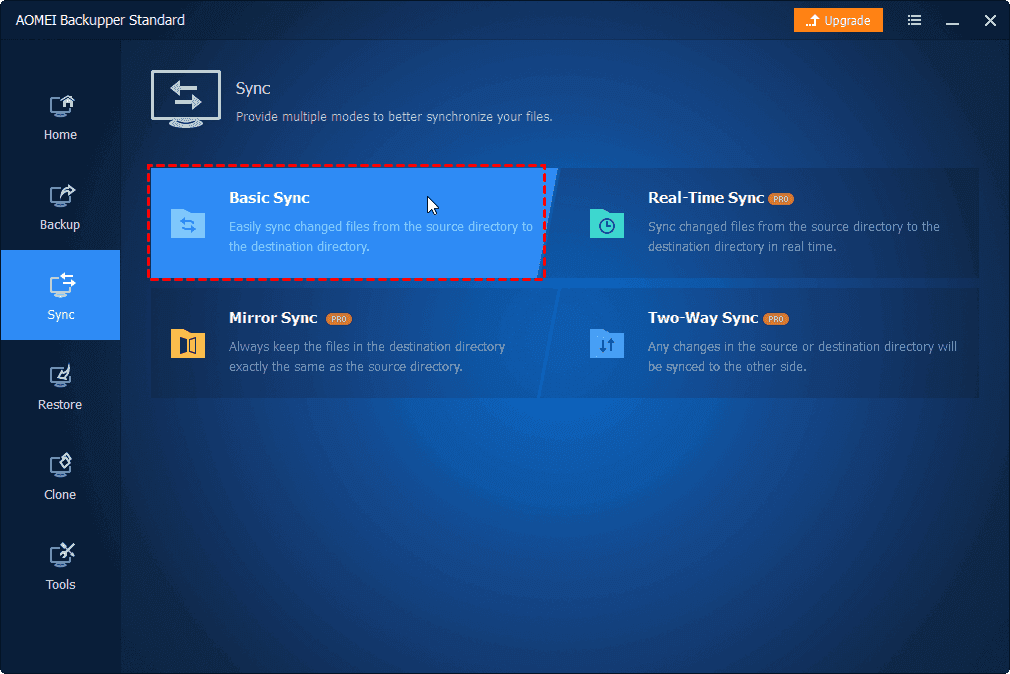
Step 1. Install and launch AOMEI Backupper. Click Sync and select Basic Sync.
Step 2. Click Select Source > Share/NAS > Add Network Share successively. Then, type a network path, select a shared folder you want to sync and click OK.
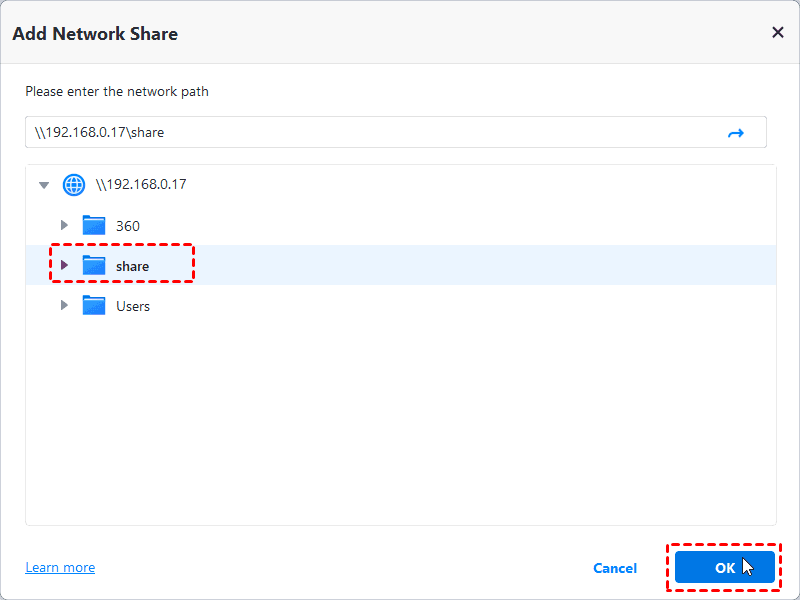
Step 3. You’ll be back on the Select Share/NAS Device window. Check the folder you added and click OK.
Step 4. Click the destination box and select your OneDrive local folder as the target location.
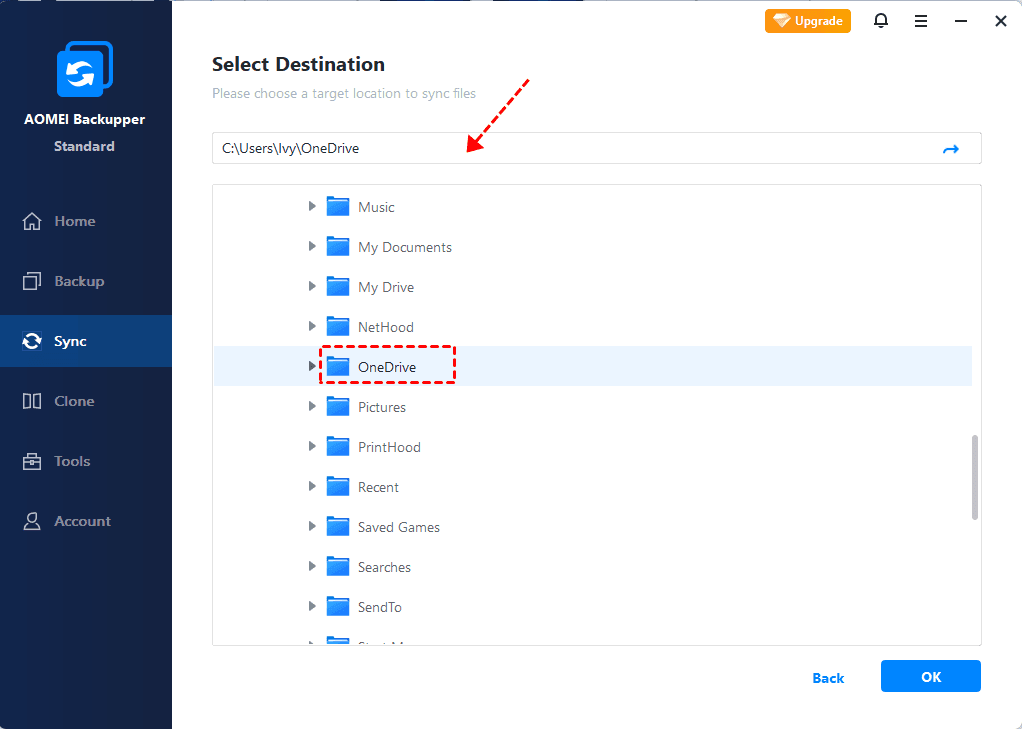
Step 5. Enable Schedule Sync and choose your preferred frequency as necessary. Finally, click Start Sync to begin syncing a network folder to OneDrive.
Method 2: Using FreeFileSync
Step 1. Download and install FreeFileSync. Open the program and you’ll see a two-panel interface.
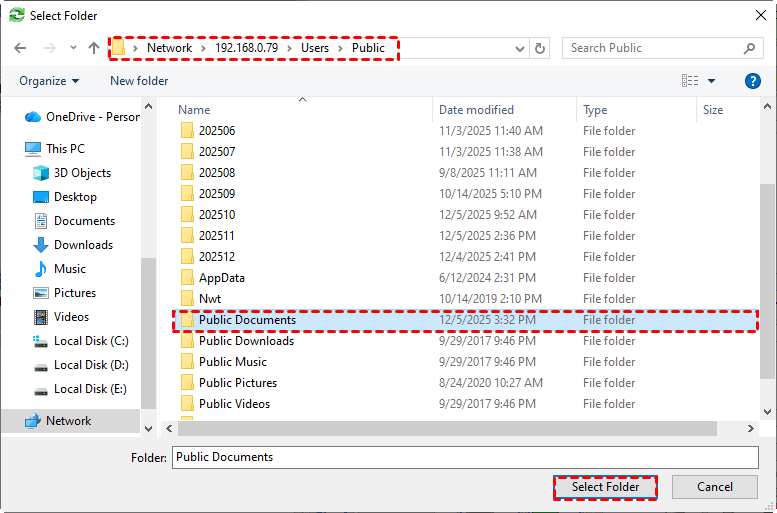
Step 2. In the left folder section, click Browse and enter the network path in the address bar. Then navigate to the folder you want to sync and click Select Folder.
Step 3. In the right folder section, click Browse to select your OneDrive local folder.
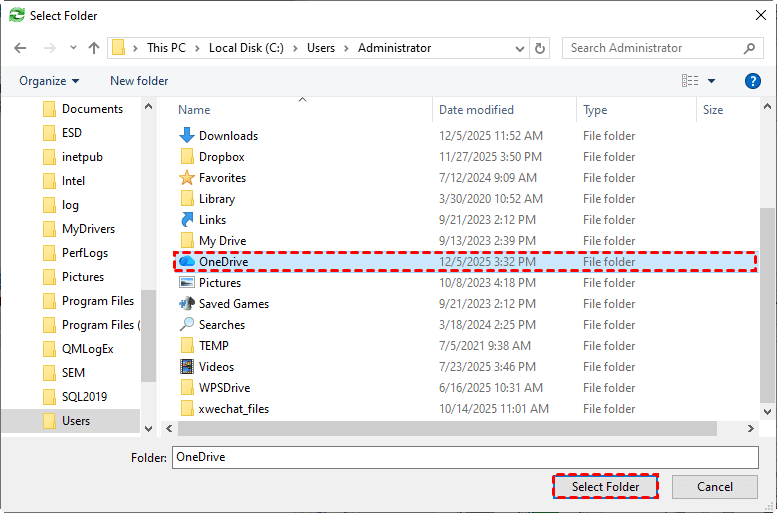
💡 Note: FreeFileSync only synchronizes the files within the source folder but not the folder itself. To better organize your files, you may create a new folder in the OneDrive folder to hold all synced files.
Step 4. Click Compare to see the differences between the two directories.
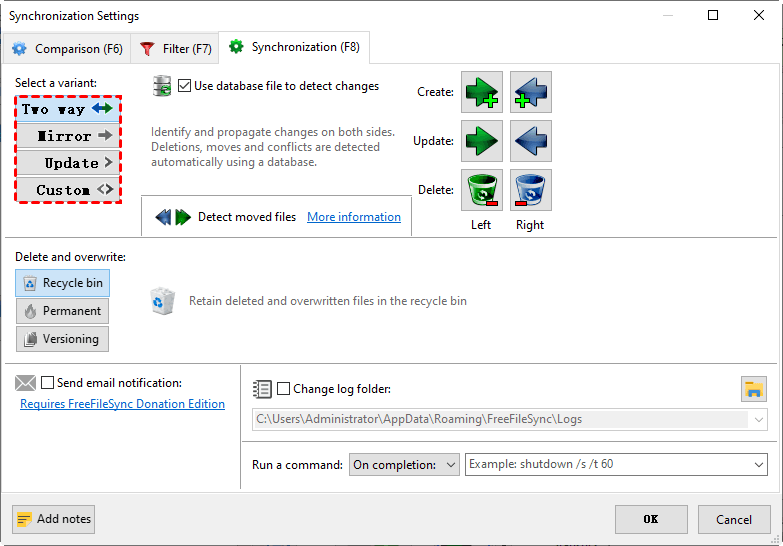
Step 5. Click the green gear from the toolbar and choose Update to copy new and updated files to the right folder. Then click OK.
Step 6. Click Synchronize > Start to start syncing.
Best Practices for Stable OneDrive Sync
Even when you use the right tools or methods, OneDrive can still run into sync delays, file conflicts, or unexpected errors—especially when network folders are involved. Following these best practices will help keep your sync smooth, reliable, and conflict-free.
1. Keep Your Network Connection Stable
OneDrive relies heavily on a consistent network connection. Follow these tips to ensure a stable network:
- Use wired Ethernet when possible, especially for large sync jobs
- Avoid syncing over guest Wi-Fi or unstable VPN connections
- Ensure your NAS or file server has a reliable uptime
2. Watch Your File Names and Path Lengths
OneDrive enforces strict rules to prevent sync failures. Here are key restrictions to watch:
- No special characters: * : ? " < > |
- Keep file paths shorter than 400 characters
- Avoid leading/trailing spaces or periods
- Do not use reserved Windows filenames (e.g., CON, AUX, NUL)
These small details can quietly prevent files from uploading.
3. Ensure Proper Folder Permissions
If your network folder is hosted on a server or NAS, incorrect permissions will break your sync—even if your local machine can browse the folder. Here is a checklist:
- Confirm full read/write access on the network share
- Avoid syncing files with shared locks or open sessions
- Ensure no conflicting ownership between user accounts
Proper permissions eliminate many invisible OneDrive errors.
Summary
Although OneDrive cannot sync a network folder directly, there are free file sync tools to help you sync network folders to OneDrive. AOMEI Backupper Standard and FreeFileSync make the process simple by syncing network shares to your local OneDrive directory, where OneDrive can safely upload them to the cloud.
Actually, AOMEI Backupper is not only a free file sync tool but also all-around backup and restore software. It enables you to backup external drive, Windows OS, individual files and restore them whenever needed. Why not give it a shot?

 as a preferred
source on Google
as a preferred
source on Google