




Restore MBR Image to GPT Disk (Safe Boot & No Data Loss)
This guide explains how to restore MBR image to GPT disk, including details about MBR vs GPT, step-by-step image restore guidelines, and so on.

By Jonna Updated on May 18, 2026


User Case: Image MBR but Restore to GPT
I want to migrate an older drive originally using MBR (1TB) to a much larger new GPT (20TB) disk.
Previously, I've only done an image for the MBR disk, so I am planning to restore the MBR image to the GPT disk. Is this possible?
If you've recently upgraded your hardware, switched to UEFI firmware, or purchased a new SSD, there's a good chance you'll eventually need to restore an MBR image to a GPT disk. However, a backup image created from an old MBR system doesn't always restore smoothly onto a newer GPT disk. Boot issues, partition mismatches, Secure Boot incompatibility, and startup errors may all lead to restoration failures. This is because MBR vs GPT differ in many aspects:
|
Comparison Aspect |
MBR (Master Boot Record) |
GPT (GUID Partition Table) |
|
Definition |
Legacy traditional partition table standard, widely used for decades on BIOS-based systems |
Modern UEFI-based partition standard, part of the UEFI specification, successor to MBR |
|
Partition Limit |
Max 4 primary partitions; Can create 1 extended partition +multiple logical drives |
Up to 128 default partitions; No need for an extended/logical partition structure |
|
Maximum Disk Size Support |
Only supports up to 2 TB |
Supports up to 9.4 Zettabytes; No practical disk size limit for consumer/enterprise use |
|
System Boot Speed |
Slow boot process, legacy startup flow |
Faster boot, quicker POST and system startup under UEFI |
|
Secure Boot Support |
Not supported |
Supported (UEFI mode) |
|
OS Compatibility |
BIOS, Older Windows |
UEFI, Modern Windows; Most modern motherboards prefer GPT |
According to your needs, you may also directly convert MBR to GPT or clone MBR to GPT, or vice versa, without a disk image.
Best Free Disk Backup & Restore Software for Windows PCs
To restore MBR image to GPT disk without losing any data, you may need a professional yet free backup and recovery solution like AOMEI Backupper Standard. It supports system imaging, disk imaging, partition imaging, disk cloning, and flexible restoration options across different hardware environments. One of its biggest advantages is compatibility with both MBR and GPT disks.
 AOMEI Backupper
- Support Disk Backup, System Backup, Partition Backup, and File Backup to create backup images for everything on computer.
- Quickly restore your backup data to the original location or a new location.
- Support either changing the disc from MBR to GPT by restoring an MBR image to a GPT disk on the same PC or restoring to a new device with the help of Universal Restore. (Universal Restore is available in Pro or higher editions)
 100% Secure
How to Restore MBR Image to GPT Disk
Here are the steps on how to convert MBR to GPT without data loss by restoring your MBR Image via AOMEI Backupper. Please first download and install AOMEI Backupper Standard on your PC, and then make preparations as follows:
- Make sure you have a bootable MBR disk image, especially if it is an OS drive.
- Ensure that your operating system supports UEFI on the motherboard and that you have a GPT disk ready for UEFI boot.
- It is also suggested to create a bootable USB or CD/DVD, so that you can boot up computer even if it's unbootable. Or, you can directly add an entry of this software to the computer boot up options by creating a Recovery Environment.
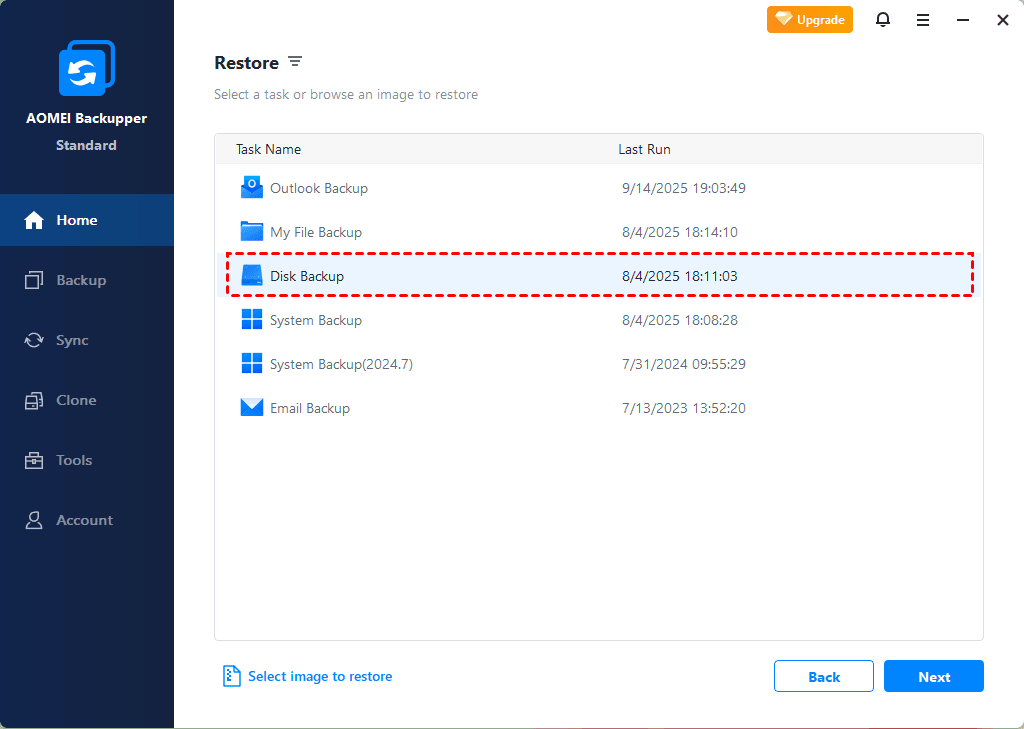
Step 1. Run AOMEI Backupper, click Home > Restore to choose the MBR backup image created before, and click Next.
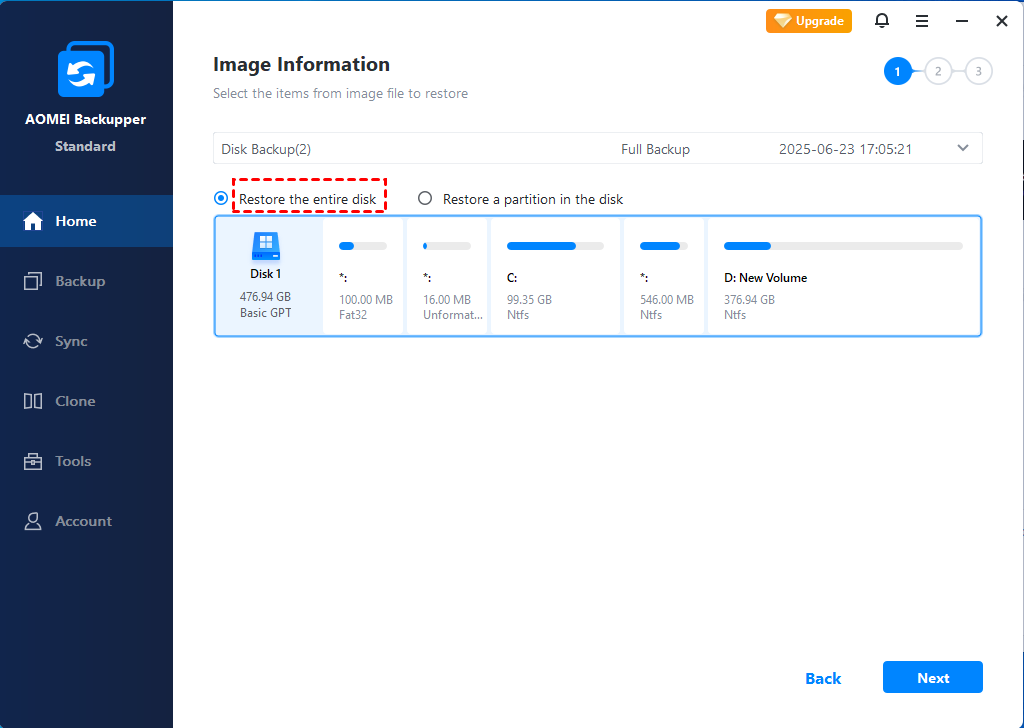
Step 2. Select Restore the entire disk or click Restore a partition in the disk if you don't want to restore the entire drive, and hit Next.
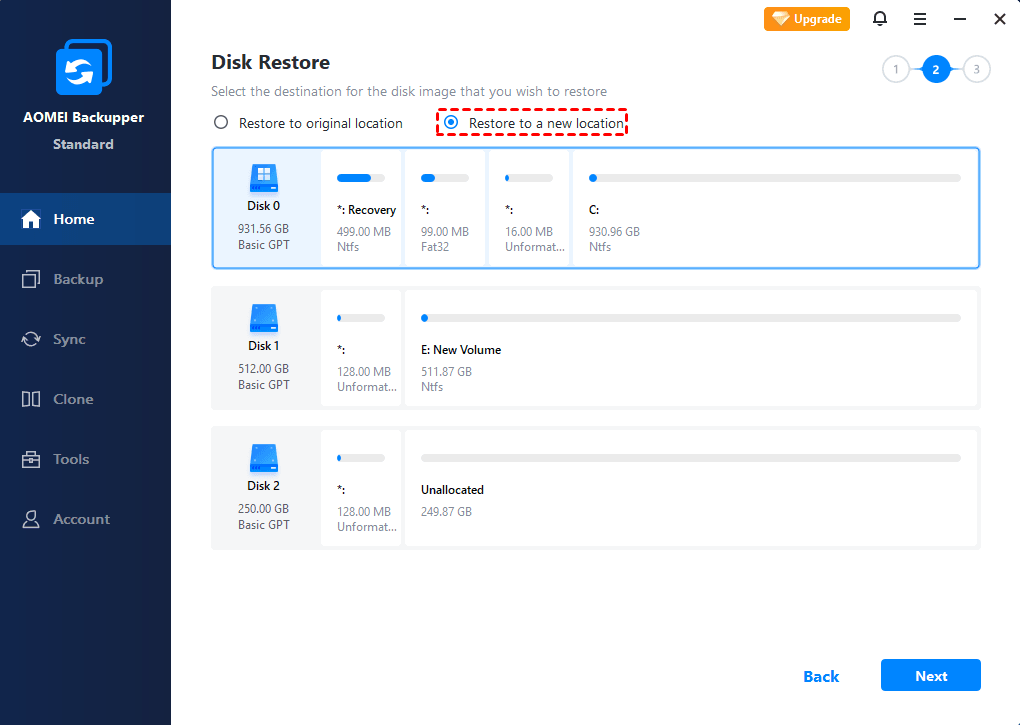
Step 3. Choose Restore to a new location, and hit Next.
Step 4. Click Start Restore to restore MBR image to GPT disk.
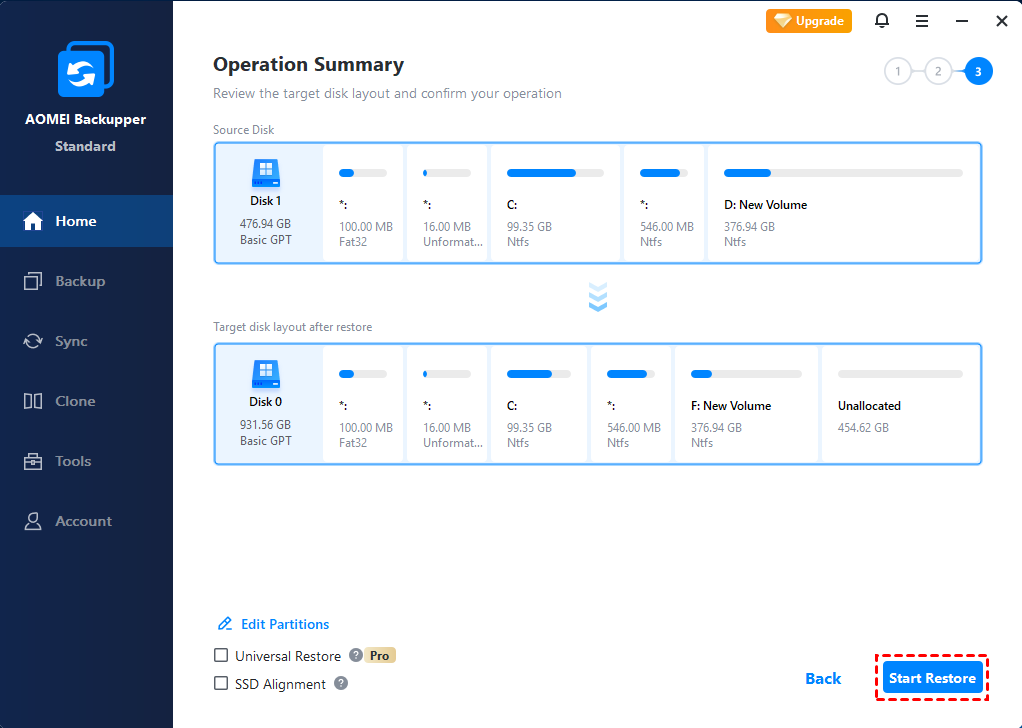
-
The Universal Restore option is ticked by default if the program detects that any hardware on the target computer differs from that on the source computer, which means you can transfer to new PC without worry about data loss or boot errors. (available after upgrade to Pro or higher edition)
-
The SSD Alignment option here helps to align the target GPT SSD for better performance.
More Info about MBR to GPT Without Data Loss
Necessity of Restoring to GPT from MBR Backup
There are several practical reasons to migrate old MBR systems to GPT-based storage.
- Better Support for Modern Hardware - Many modern motherboards now prioritize UEFI firmware exclusively; Legacy BIOS compatibility is gradually disappearing, especially in newer laptops and enterprise systems.
- Secure Boot Compatibility - Secure Boot improves protection against boot-level malware and unauthorized startup modifications; GPT partition style is required for Secure Boot functionality.
- Larger Disk Support - MBR cannot fully utilize drives larger than 2TB; GPT removes this limitation entirely.
- Windows 11 Compatibility - Windows 11 officially requires UEFI firmware and Secure Boot in most environments.
FAQs on Restoring MBR to GPT
#1. Can I restore an MBR image directly to a GPT disk?
Yes, it is possible. However, successful restoration depends on whether the backup software supports cross-partition-style restoration and UEFI boot configuration. Tools like AOMEI Backupper simplify this process significantly. After restoration, you must ensure:
- UEFI boot mode is enabled
- EFI system partition exists
- Windows Boot Manager is configured properly
Without those settings, the restored system may fail to boot.
#2. Does Acronis support restoring MBR image to GPT disk?
Yes, newer versions of Acronis True Image can restore MBR backups to GPT disks under certain conditions. However, users sometimes report additional boot repair steps afterward.
#3. Can Macrium Reflect restore MBR image to GPT disk?
Yes, Macrium Reflect also supports this scenario. The software includes boot repair tools that help adapt restored systems to GPT and UEFI environments.
#4. Is it possible to convert MBR image for GPT disk?
Technically, the image itself does not need conversion. Instead, the restore process adapts the partition layout during deployment. The software restores operating system data while creating GPT-compatible boot structures on the destination drive. This distinction matters because many users assume the backup image must first be modified separately.
#5. How to fix boot after MBR image to GPT?
If Windows fails to boot after restoration, several fixes may help. Common solutions include:
- Verify UEFI mode is enabled
- Disable Legacy BIOS boot
- Rebuild EFI boot files
- Repair Windows Boot Manager
- Use Startup Repair from Windows recovery media
- Confirm EFI partition exists
Sometimes a missing EFI partition causes startup failure. In those cases, rebuilding boot records manually through Command Prompt may resolve the issue.
Summary
Whether you're upgrading to a larger drive, replacing a failing drive, or updating an old system, migrating from older MBR systems to modern GPT hardware doesn’t have to mean reinstalling Windows from scratch. With the right software like AOMEI Backupper and proper configuration, you can safely restore MBR image to GPT disk while preserving applications, settings, and personal files.

 as a preferred
source on Google
as a preferred
source on Google