




[Stepwise] How to Convert MBR Disk to GPT without Losing Data in Windows
If you need to convert MBR disk to GPT in Windows, there are several effective options available. Explore these methods in detail and choose the one that best fits your needs and system environment.

By Hedy Updated on June 4, 2026


About MBR and GPT
When managing modern hard drives, understanding partition styles is essential. Two main partition styles exist: MBR (Master Boot Record) and GPT (GUID Partition Table). Each has unique advantages and limitations, and knowing when to convert MBR disk to GPT can maximize your storage potential and system compatibility.
MBR vs GPT: key differences
Before converting, it’s important to understand the differences between MBR and GPT.
1. Partitioning method
▸ MBR: Uses a 32-bit partition table, supporting up to 4 primary partitions or 3 primary partitions plus 1 extended partition with multiple logical partitions.
▸ GPT: Uses a modern 64-bit table and supports up to 128 primary partitions on a single disk.
2. Disk capacity
▸ MBR: Limited to 2TB of disk space; extra space cannot be used.
▸ GPT: Supports drives larger than 2TB, ideal for high-capacity HDDs and SSDs.
3. Data redundancy
▸ MBR: Lacks built-in redundancy; if the MBR is corrupted, data loss can occur.
▸ GPT: Contains a backup partition table at the end of the disk, improving data integrity and recoverability.
4. Compatibility
▸ MBR: Compatible with older OS versions, BIOS firmware, and most legacy systems.
▸ GPT: Requires UEFI firmware for booting; fully supported by Windows 10/11 and modern systems.
5. Partition identification
▸ MBR: Uses a single-byte value, limiting unique identifiers.
▸ GPT: Uses GUIDs (Globally Unique Identifiers), ensuring unique partition names.
6. Backup and restore
▸ MBR: Backup requires third-party tools.
▸ GPT: Built-in redundancy simplifies backup and restore processes.
Why convert MBR disk to GPT?
Users often consider converting MBR to GPT for several reasons:
◈ Larger disks: MBR cannot fully utilize disks larger than 2TB. Converting to GPT unlocks the full storage.
◈ More partitions: MBR restricts primary partitions to 4. GPT allows up to 128, ideal for organized storage.
◈ Modern OS compatibility: Windows 10/11 64-bit and other modern OS versions perform better with GPT.
◈ UEFI boot requirement: To install Windows on a UEFI system, the disk must use GPT.
◈ Enhanced data integrity: GPT’s backup table reduces the risk of data loss due to corruption.
3 reliable ways to convert MBR disk to GPT
There are multiple ways to convert an MBR disk to GPT, ranging from built-in Windows tools to third-party software.
✍ Before converting a hard drive to GPT, it’s important to know the operating system requirements:
GPT disks are incompatible with older systems like Windows XP 32-bit, Windows 2000, Windows NT 4, and Windows 95/98. On these systems, GPT drives will appear as a protective partition and cannot be read, written to, or used as a boot drive.
Modern systems such as Windows 11, 10, 8.1, 8, 7, Vista, and Windows Server editions from 2003 to 2022 (both 32-bit and 64-bit) can use GPT disks for data storage. If you plan to boot from a GPT drive, the system must be 64-bit, and the motherboard must support UEFI mode.
Check that your operating system fully supports GPT before proceeding. Once confirmed, you can choose from two simple and effective methods to convert your hard drive to GPT.
Way 1. Using AOMEI Partition Software (no data loss)
When you have a hard drive with multiple partitions and want to preserve your data—or if you need to convert a system disk without access to Windows installation media—a reliable third-party tool is the safest solution. AOMEI Partition Software is designed for exactly this scenario. It enables you to convert both data and system disks from MBR to GPT without deleting any partitions. Additionally, it supports converting GPT disks back to MBR without losing data.
 AOMEI Partition Software
A free and reliable disk partition software that helps you resize partitions, migrate OS, convert disks, and optimize PC efficiently.
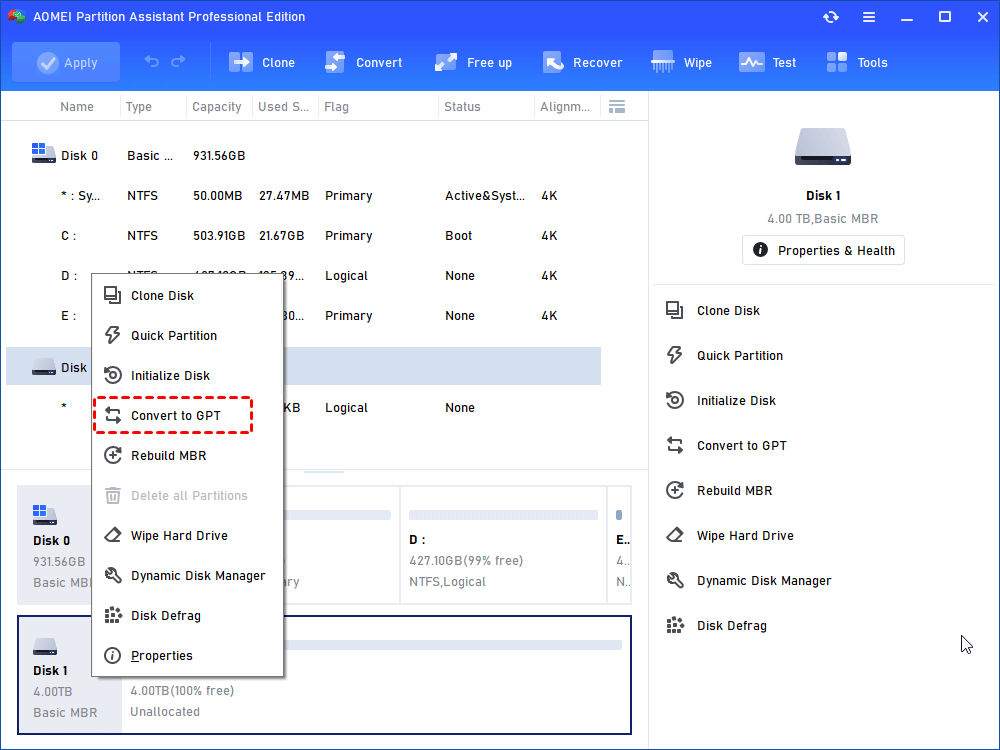
Step 1. Launch AOMEI Partition Assistant Professional. Find the target HDD, right-click on it, and select “Convert to GPT”.
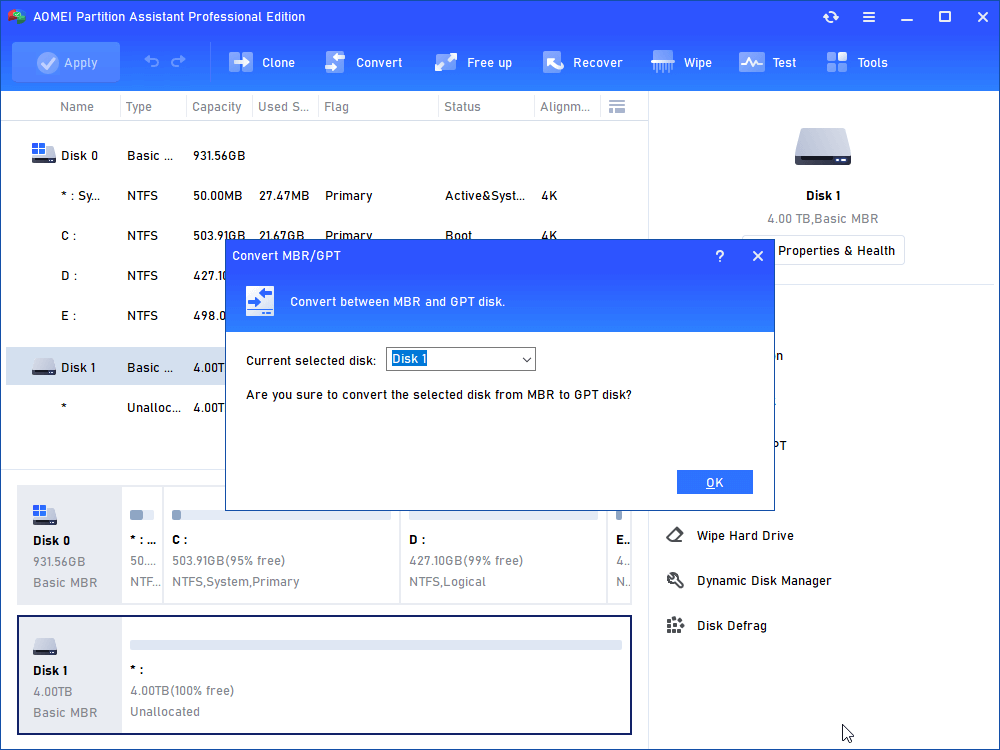
Step 2. Confirm the conversion by clicking OK and then Yes.
Step 3. Return to the main interface and click Apply → Proceed to execute the conversion.
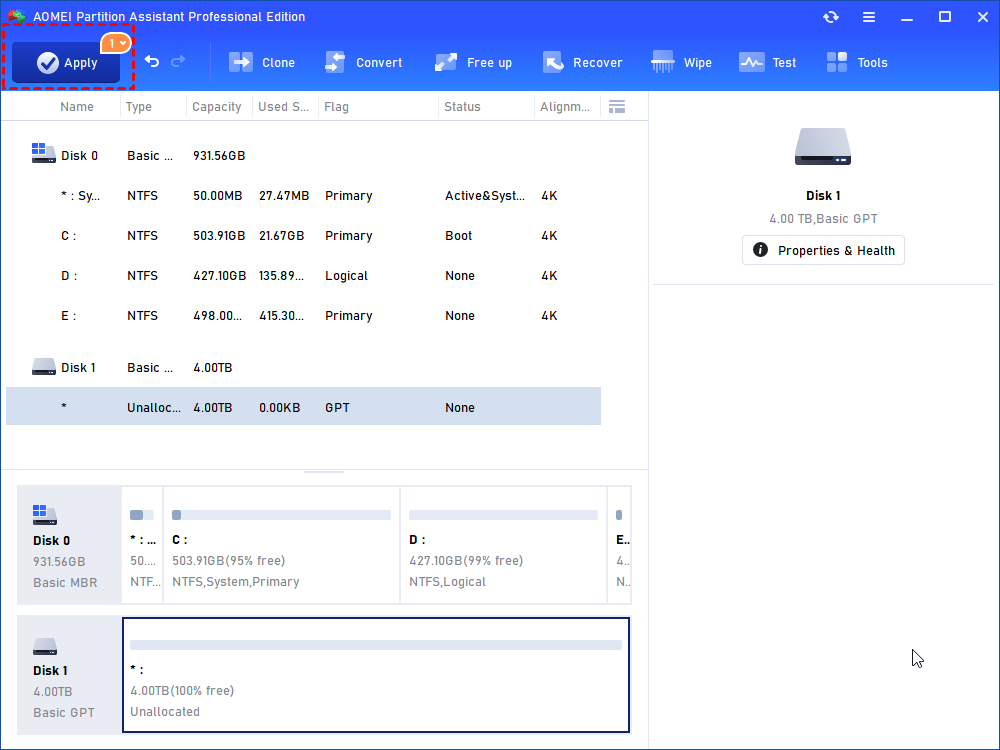
The process is straightforward, ensuring your data remains intact while transforming the disk to GPT format.
Way 2. Using Disk Management (Windows built-in tool)
Disk Management is a built-in Windows utility designed for basic disk and partition management. It allows you to format, resize, delete, and clean partitions. In addition, it can be used to convert a disk from MBR to GPT.
🔊 Important: To perform this conversion with Disk Management, all partitions on the target disk must be removed first, leaving the disk as unallocated space. Because this process deletes existing data, creating a backup in advance is strongly recommended.
Step 1. Right-click “This PC” (or “My Computer”) and select Manage, then open Disk Management.
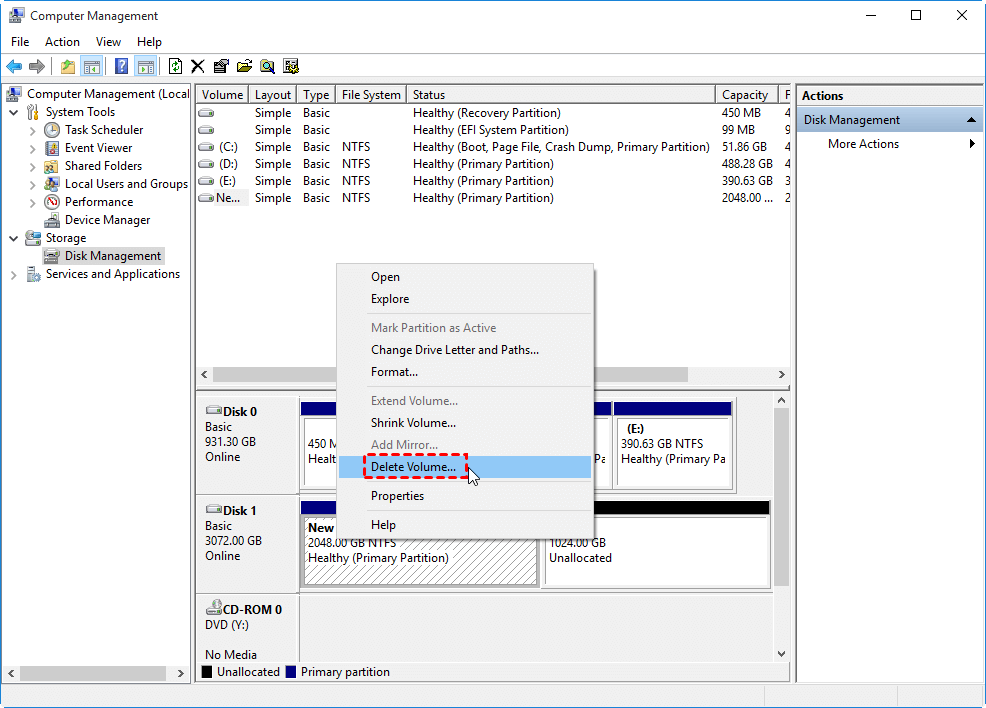
Step 2. Locate the disk you want to convert. Right-click each partition on that disk and choose “Delete Volume” until the entire disk becomes unallocated.
Step 3. Right-click the disk itself and select “Convert to GPT Disk”.
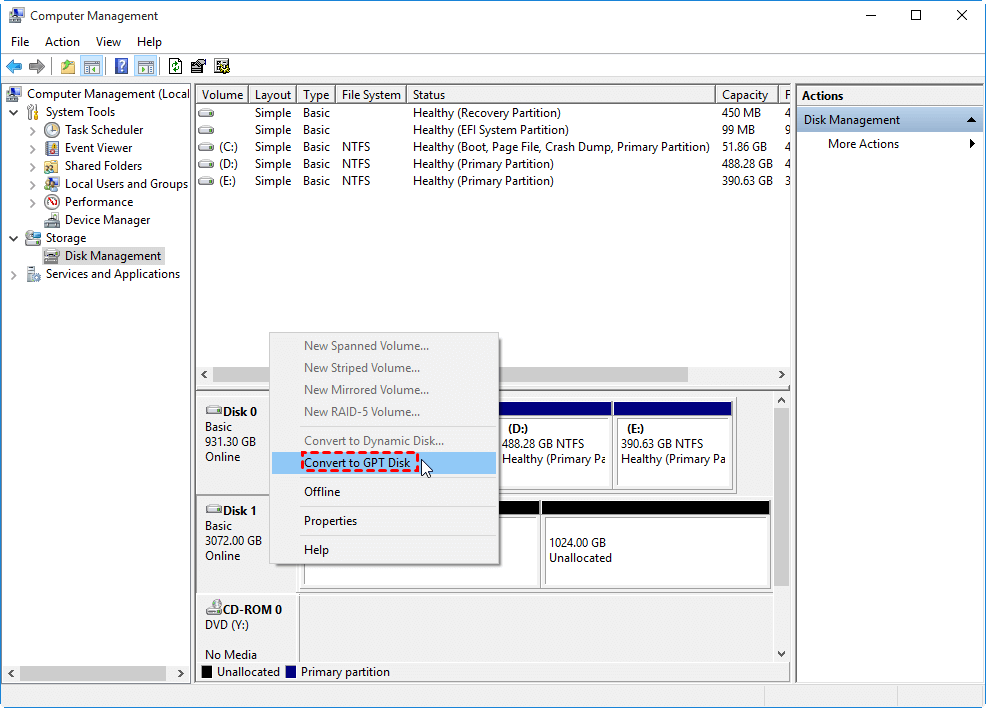
Step 4. Follow the prompts to complete the conversion. The operation typically finishes quickly with minimal effort.
Way 3. Using Diskpart via CMD
If your hard drive is initialized as MBR but either unallocated or without important data, you can convert it to GPT using Command Prompt (CMD).
Step 1. Press Windows + R, type cmd, and hit Enter.
Step 2. Enter diskpart and press Enter to launch the DiskPart utility.
Step 3. Execute the following commands one by one:
list disk
select disk n (replace n with the number of the disk you want to convert)
clean
convert gpt
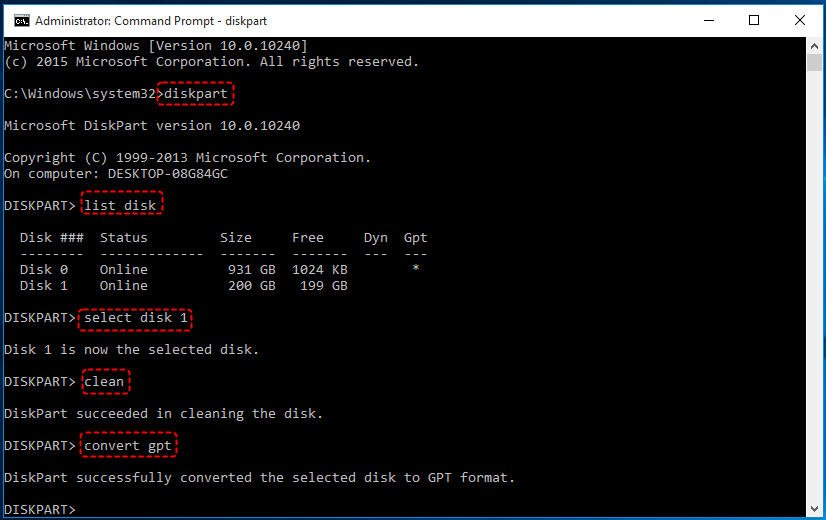
Once you see the message “DiskPart successfully converted the selected disk to GPT format”, type exit and press Enter to close the window.
✍ Notes:
✦ If the disk is unallocated, the clean command can be skipped.
✦ The clean command will erase all data, so ensure important files are backed up beforehand.
✦ To convert a system disk with Windows installed, boot from Windows installation media, press Shift + F10 to open Command Prompt, and then run the commands above.
✦ For Windows 10 version 1703 and later, the built-in MBR2GPT tool can convert a system disk from MBR to GPT without deleting data, providing a safer alternative for OS drives.
Conclusion
MBR and GPT are two disk partition styles with key differences in capacity, partition limits, compatibility, and data protection. GPT supports larger drives, more partitions, and better reliability, making it ideal for modern systems. Converting MBR to GPT is often necessary for UEFI booting and full disk usage. You can perform the conversion using tools like AOMEI Partition Software, Disk Management, or DiskPart, depending on your data safety needs.

 as a preferred
source on Google
as a preferred
source on Google