



[Answered] Do I Need to Format A New SSD Before Cloning?
Do I need to format a new SSD before cloning? Although the answer is no, you can also refer to this article to get the full explanation and step-by-step guide on formatting the SSD.

By Hedy Updated on March 24, 2026


Disk cloning is the process of creating an exact copy of a hard drive onto another drive, essentially producing a fully bootable replica of your system. Unlike standard file copying, cloning captures every file, including hidden and system files, ensuring nothing is missed. This makes it a reliable method for both personal and professional use.
The benefits of disk cloning include:
◾ Restoring a hard drive to its original state using a cloned copy
◾ Replicating identical settings across multiple machines
◾ Simplifying large-scale software or system installations
◾ Protecting data during upgrades from HDD to SSD
◾ Securely transferring all data without risk of loss
It’s a safe, efficient, and comprehensive solution for managing and safeguarding your data.
What to do before disk cloning?
Before you begin the disk cloning process, it’s important to prepare carefully. Here’s a detailed guide to ensure everything goes smoothly:
1. Ensure a suitable second drive
Cloning requires two drives: the source and the target. The target drive must have enough space to hold all the data from the source drive. Interestingly, the target drive doesn’t need to be larger in total capacity—it only needs to be larger than the amount of data currently stored on the source drive.
2. Prepare connection tools
You’ll need the right tools to connect your drives. A SATA cable is required to link the hard drive to your computer. A USB-to-SATA adapter can connect the second drive to a laptop or desktop externally. Additionally, a screwdriver is necessary if you need to open your PC case to access internal drives.
3. Ensure stable power supply
Cloning large amounts of data can take time. To prevent interruptions or data loss, make sure your system is connected to a stable power source throughout the process.
4. Initialize the target SSD
Before cloning, the target SSD must be initialized. This step is crucial because an uninitialized SSD may not function correctly. For a new SSD, initialization involves formatting it and confirming that its partition style matches the source drive. If the target SSD already contains data, there’s no need to pre-format it—the cloning process will automatically overwrite and format the drive as needed.
Do I need to format a new SSD before cloning?
No, you don’t need to format a new SSD before cloning. Most cloning software automatically handles the formatting and prepares the target drive. However, if the SSD has existing partitions or data, it’s recommended to back up important files or delete old partitions to avoid conflicts.
Some people still format a new SSD before cloning for a few practical reasons:
✅ Clean slate: Formatting ensures no leftover data or hidden partitions exist that could interfere with the cloning process.
✅ File system compatibility: Formatting sets the correct file system (NTFS, exFAT, etc.) compatible with the source drive.
✅ Avoid errors: It can prevent errors during cloning if the new SSD has stray metadata or previous formatting issues.
✅ Optimization: Some prefer initializing and formatting to align partitions properly, which can slightly improve SSD performance.
In reality, modern cloning software often handles unformatted drives automatically, but formatting is a cautious habit for some users.
How to format a new SSD if you need
AOMEI Partition Software is a reliable and user-friendly disk management tool that makes formatting a new SSD quick and safe before cloning. If your new SSD isn’t pre-formatted or has leftover partitions, formatting ensures the drive is clean, compatible, and ready for a seamless cloning process. With AOMEI Partition Software, you can choose the desired file system (NTFS, exFAT, or FAT32), set the partition style (MBR or GPT), and optimize alignment for SSD performance. Its intuitive interface guides you step by step, reducing the risk of errors and preparing your SSD for efficient, reliable cloning.
Formatting a new SSD with AOMEI also helps prevent potential boot issues, ensures proper space allocation, and improves overall drive longevity, making it an essential preparatory step for a smooth cloning experience.
 AOMEI Partition Software
A free and reliable disk partition software that helps you resize partitions, migrate OS, convert disks, and optimize PC efficiently.
Step 1. Install and open AOMEI Partition Software. Once launched, the main interface will display all connected disks and their partitions.
Step 2. Locate the target partition, right-click it, and choose “Format Partition”.
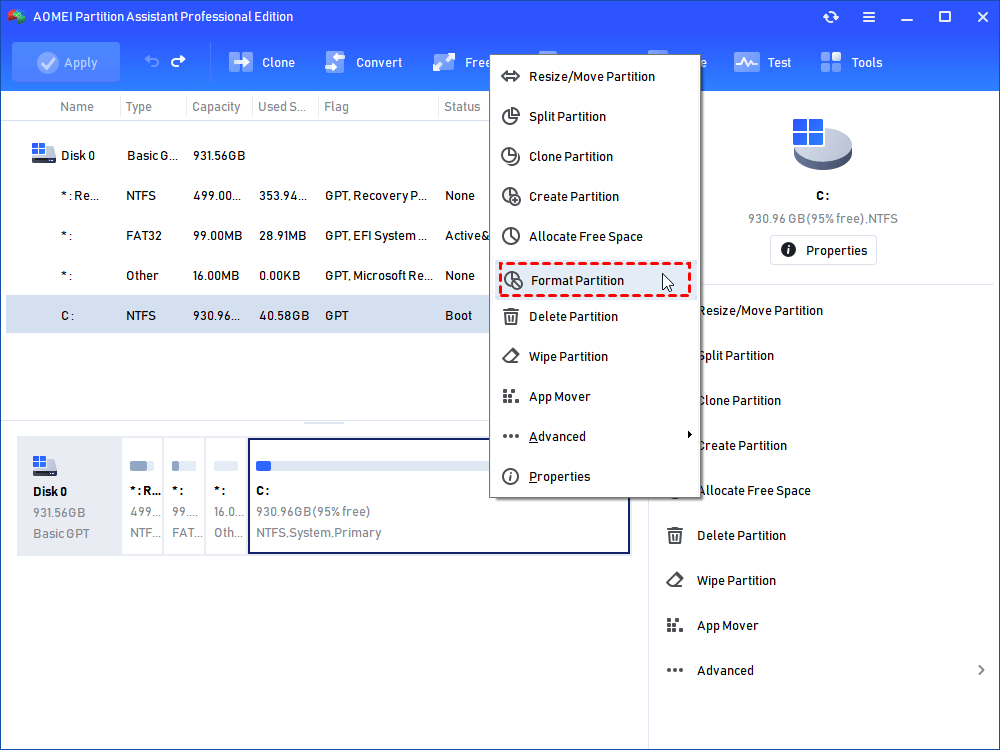
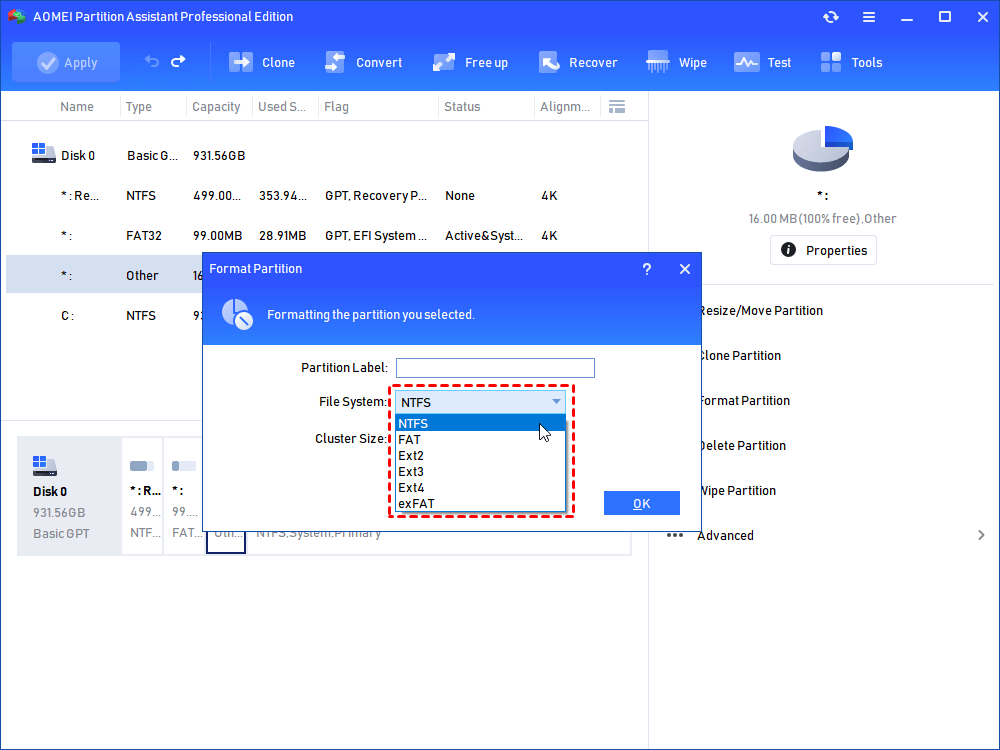
Step 3. Set a new partition label and select the desired file system, then click “OK” to confirm.
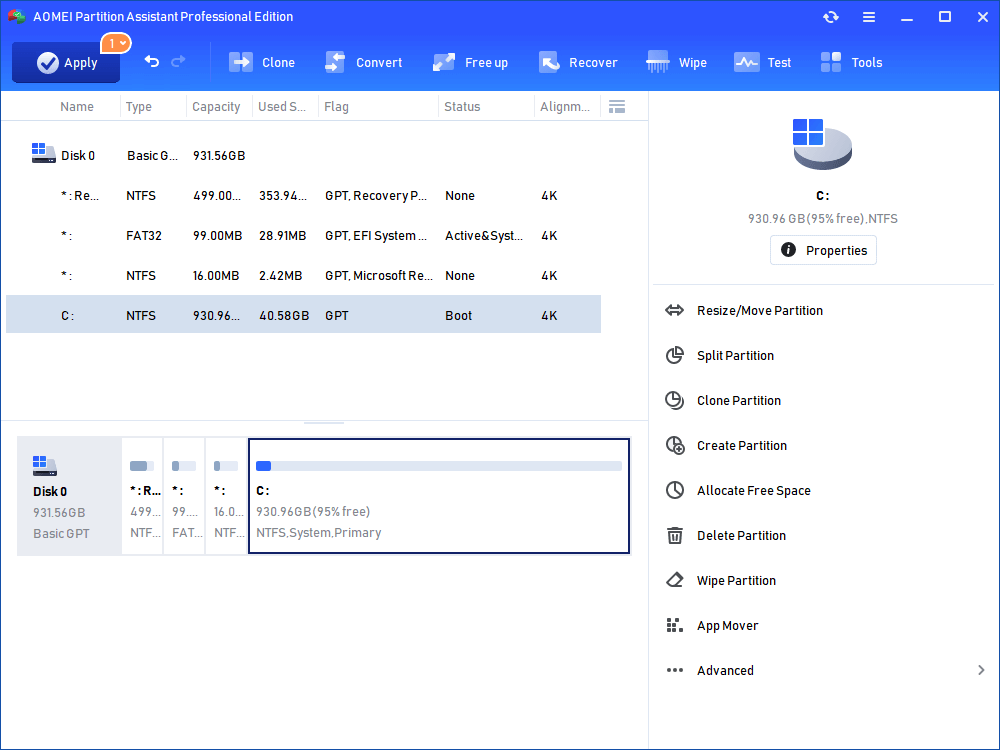
Step 4. Back in the main interface, click “Apply” in the upper-left corner and select “Proceed” to execute the operation.
Conclusion
Disk cloning creates a complete, bootable copy of your system, making it ideal for backups, upgrades, and system deployment. Proper preparation—such as ensuring sufficient space, stable power, and correct drive setup—helps avoid issues. While formatting a new SSD isn’t required, it can improve compatibility and reduce errors. Tools like AOMEI Partition Software simplify formatting and ensure your SSD is fully ready for a smooth, reliable cloning process.

 as a preferred
source on Google
as a preferred
source on Google