



How to Move a Folder in Windows 11/10/8/7
How to move a folder in Windows PCs? If you are struggling in a single folder consuming too much space on the current drive, you can read this guide to get several reliable methods to transfer folders safely.

By Hedy Updated on May 29, 2026


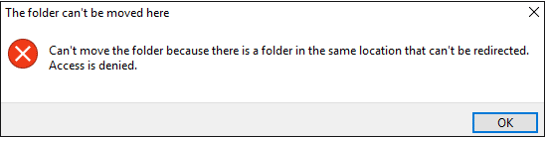
Error message: Can’t move the folder because there is a folder in the same location
Many users often find that their C drive fills up unusually fast, and this problem is especially common on Windows 11 systems, which require more space on the C drive to store essential system files and folders. When attempting to free up space by moving large files or folders to another drive, the system may prevent the transfer, displaying error messages or warnings. As a result, even if other drives have ample free space, it can be difficult—or sometimes impossible—to use them to relieve the C drive from running out of storage.
What folders can be moved from C drive?
While relocating folders from your C drive can help free up space, it’s important to know which files and folders are safe to move—and which are not. The C drive houses many critical system directories, and moving or altering them incorrectly can prevent the operating system from booting.
Folders within the User directory, such as AppData, Documents, Desktop, Downloads, and Favorites, can generally be moved without issue. However, three core directories must never be relocated: Windows, Program Files, and Program Files (x86). These folders contain essential system files and application installation paths. Moving them can lead to system or program boot failures.
If your goal is to move installed applications specifically, you can skip this step and refer to the section on “Moving installed apps to another drive”.
How to move a folder to fix "Can’t move the folder because there is a folder in the same location"
Beyond the usual “Copy & Paste” or “Drag & Drop” methods, there are safer and more efficient ways to move folders and files on a Windows computer. In this guide, we’ll explore several alternative techniques that help you relocate your data without risking system stability or losing important files.
Way 1. Move a folder via File Explorer
In this method, we’ll demonstrate how to move the Documents folder from the C drive to the D drive.
Step 1. Press Windows + E to open File Explorer.
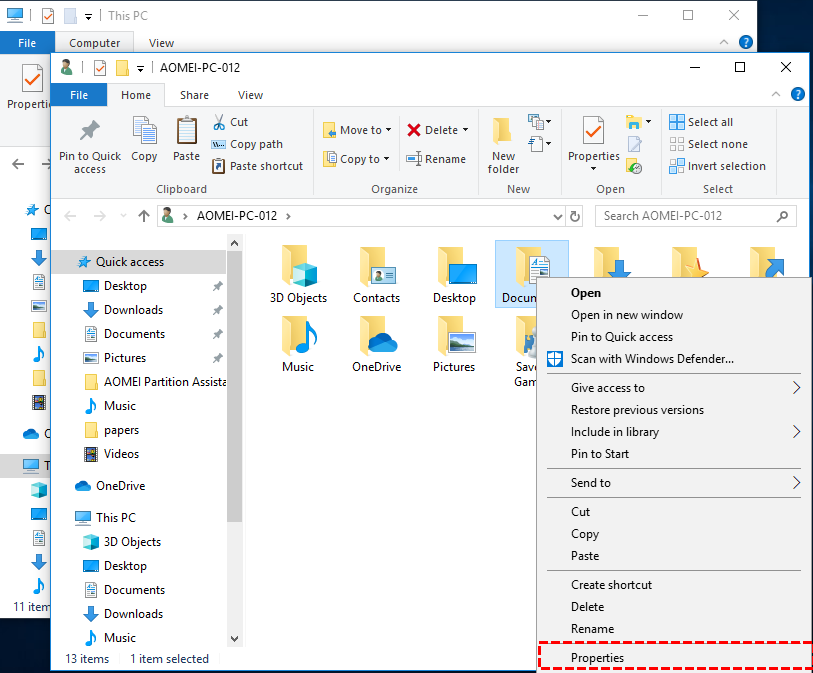
Step 2. Right-click the Documents folder (or any folder you want to move) and select Properties.
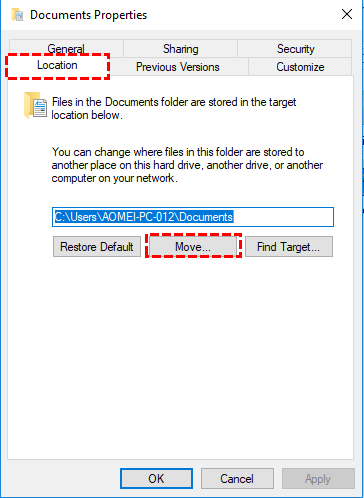
Step 3. In the Properties window, go to the Location tab and click Move.
Step 4. Select the D drive as the new destination, then click Apply to complete the process.
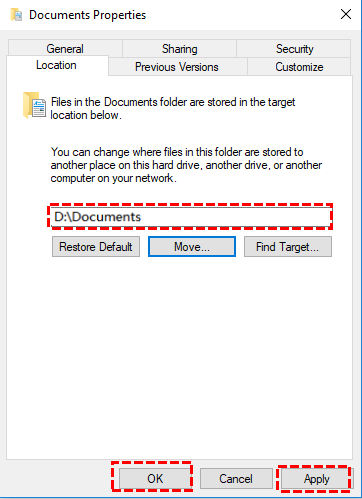
This method safely transfers your folder while keeping system links intact.
Way 2. Move folders with Registry Editor
The Registry Editor allows you to change the storage path for folders, but the process is more advanced and requires caution to avoid system issues.
Step 1. Press Windows + R to open the Run dialog.
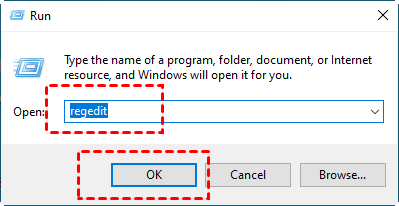
Step 2. Type regedit or regedit.exe and click OK to launch the Registry Editor.
Step 3. Navigate to the folder containing user directories:
Windows 7/8/8.1:
HKEY_LOCAL_MACHINE\SOFTWARE\Microsoft\Windows\CurrentVersion
Windows 10:
HKEY_LOCAL_MACHINE\SOFTWARE\Wow6432Node\Microsoft\Windows\CurrentVersion
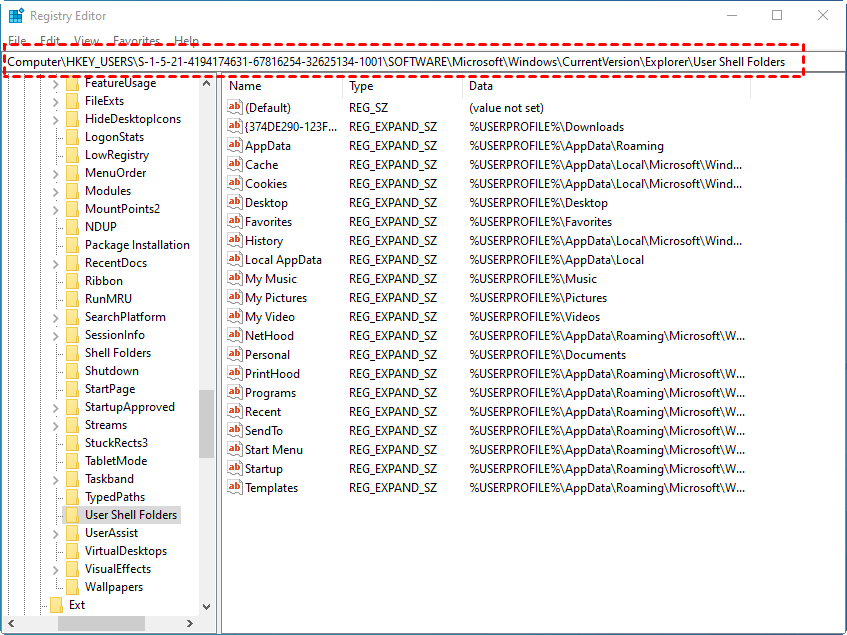
Here, you’ll find all the user folders listed.
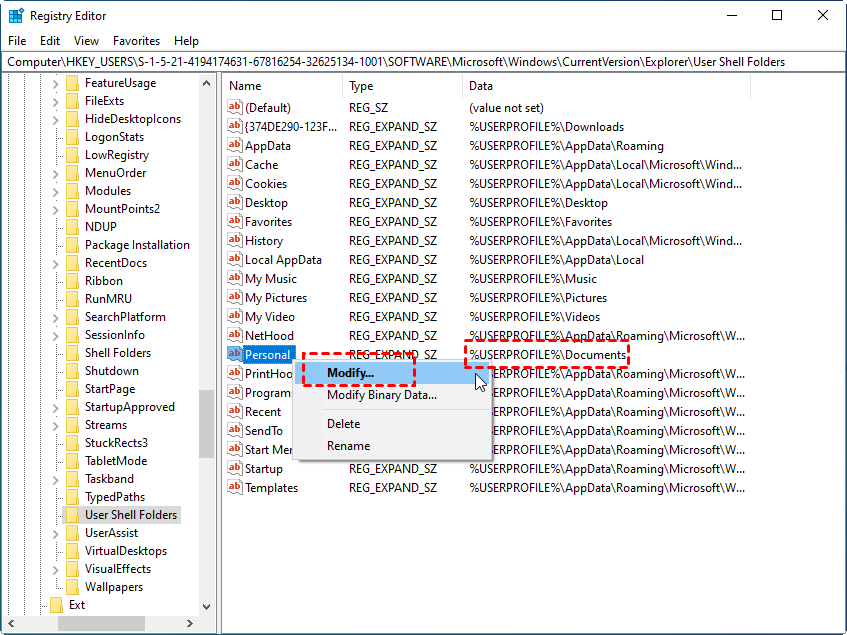
Step 4. Locate the string or data entry for %USERPROFILE%\Documents, right-click it, and select Modify.
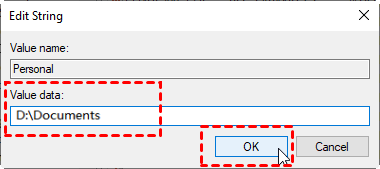
Step 5. In the Value data field, enter the new folder location (for example, D:\Documents) and click OK. Make sure the destination folder exists beforehand.
Step 6. Close Registry Editor. Then, open Task Manager by right-clicking the Windows taskbar.
Step 7. Under the Processes tab, locate Windows Explorer, right-click it, and select Restart to apply the changes.
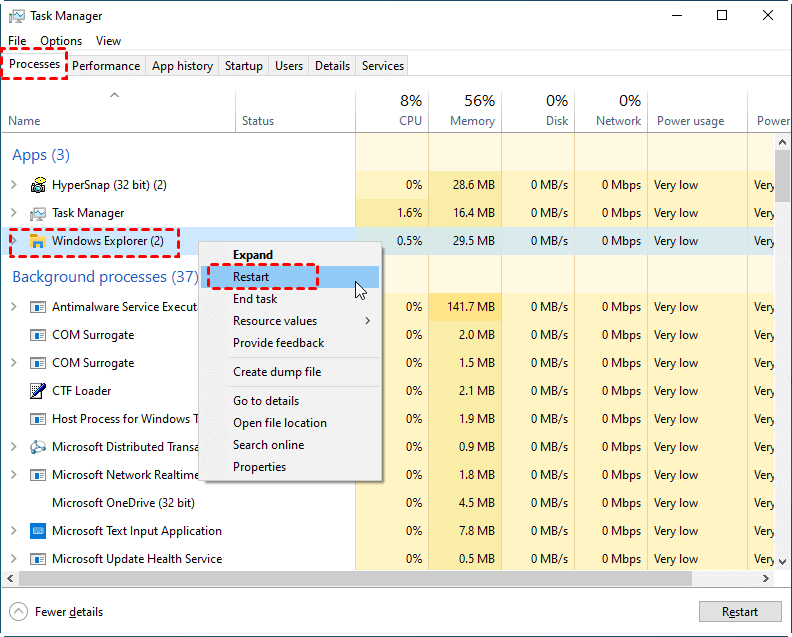
This method effectively redirects the folder to a new location while keeping system references intact.
Way 3. Move a folder in CMD
You can also use CMD commands to move files and folders efficiently. Two common options are the copy command and Robocopy, each suited for different scenarios.
Step 1. Press Windows + R, type CMD, and press Enter to open the Command Prompt.
Step 2. To copy a single file, type:
copy c:\workfile.txt d:
Step 3. To copy all text files in a folder, type:
copy *.txt d:
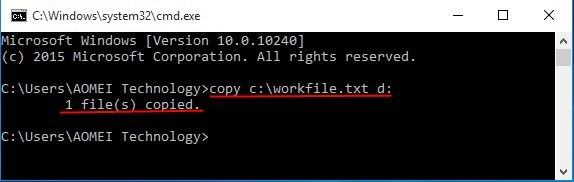
This method works well for small numbers of files or simple transfers.
Robocopy is a powerful Microsoft utility designed for directory and file replication. It is particularly useful when moving large datasets, multiple files, or performing backups. Robocopy supports resuming interrupted transfers, logging, and advanced options for copying.
Two common commands for moving folders are:
1. Copying all attributes:
robocopy C:\src D:\dst /E /COPYALL
C:\src – Source folder
D:\dst – Destination folder
/E – Includes all subfolders, even empty ones
/COPYALL – Copies all file attributes, NTFS ACLs, ownership, and timestamps
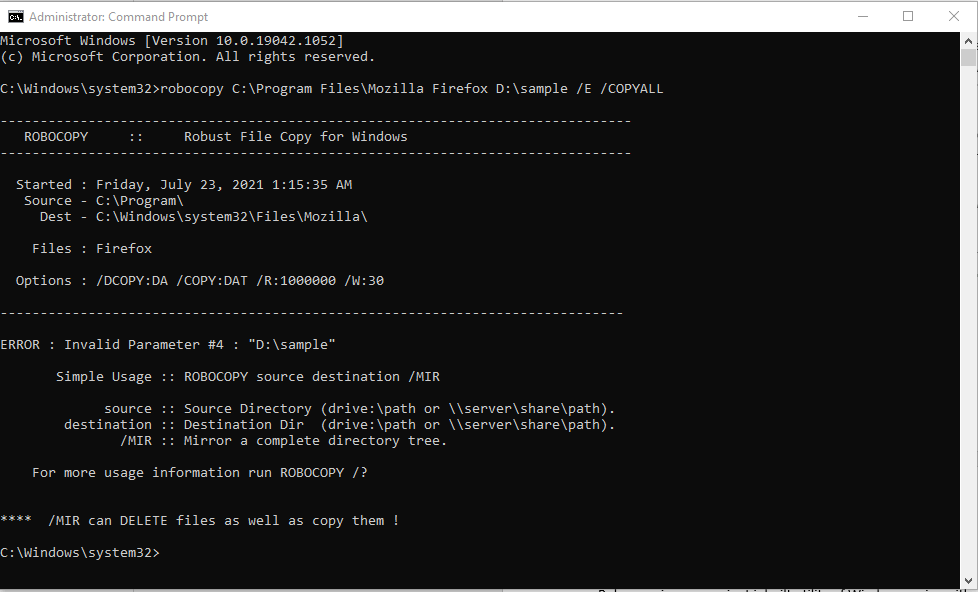
Step 1. Search CMD in the Start menu, right-click it, and select Run as administrator.
Step 2. Paste the command and adjust the source and destination paths as needed.
2. Moving files and folders:
robocopy C:\src D:\dst /MOVE
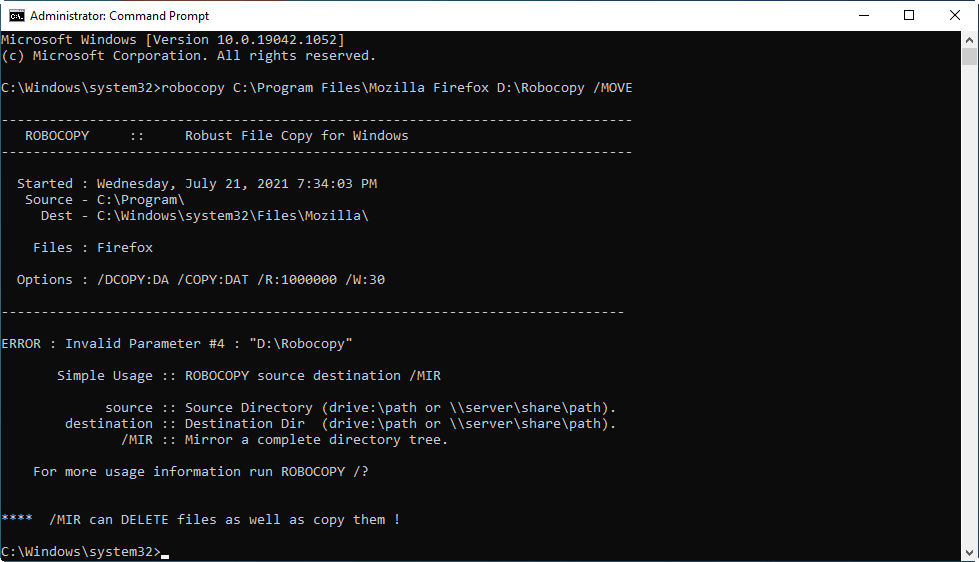
This command moves files and directories to the new location and deletes them from the source after the transfer.
Robocopy provides a robust and reliable way to manage large-scale file transfers safely.
Way 4. Move folders & apps via a third-party tool
If you prefer to avoid complicated steps or command-line operations, a third-party tool can simplify the process. AOMEI Partition Software is a user-friendly solution for Windows 7, 8, 8.1, 10, and 11 that allows you to safely move folders and even installed applications to another drive.
Using this tool, you can free up significant space on your C drive without risking system errors. Beyond relocating files, it also offers features to clean up junk files, helping you maintain a faster and more organized PC and disk storage.
 AOMEI Partition Software
A safe and reliable disk partition management tool that helps you migrate OS to SSD or HDD, reorganize disk space, and improve overall PC performance.
1. Move folders to another location
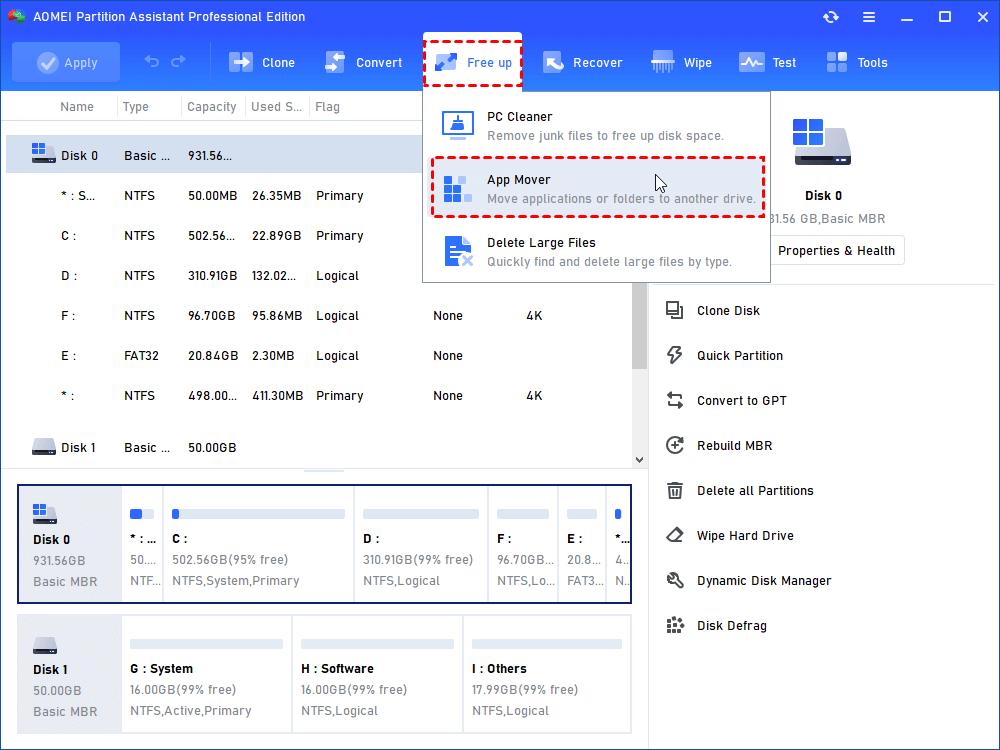
Step 1. Install and launch AOMEI Partition Software. In the Free Up section, select App Mover.
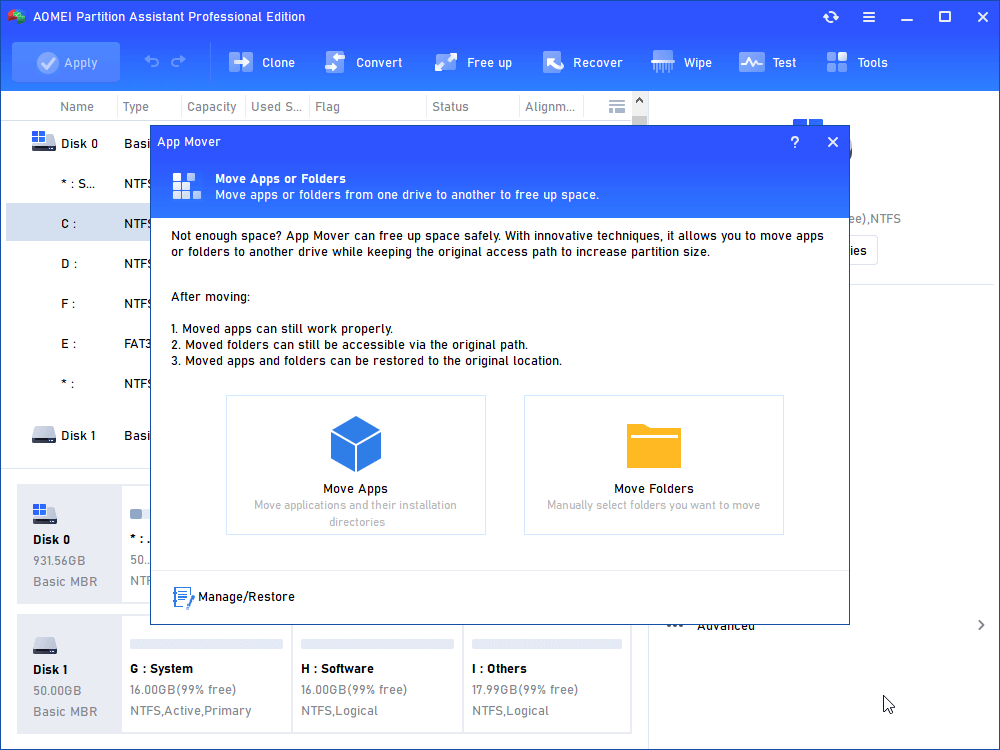
Step 2. In the App Mover window, choose Move Folders to begin relocating your folders.
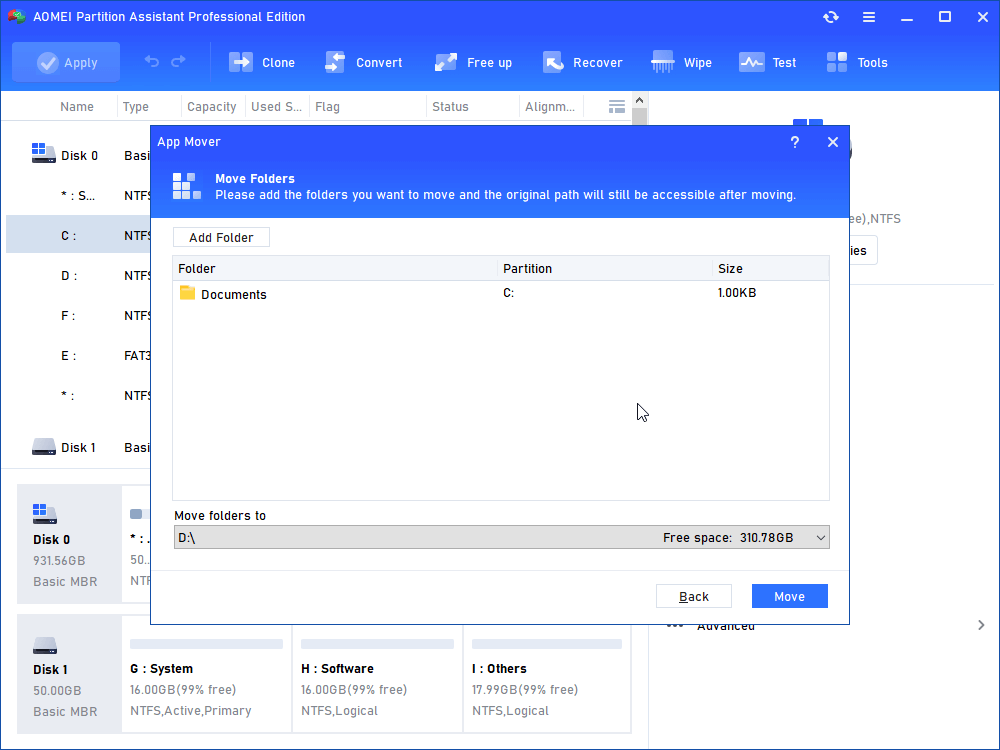
Step 3. Add the folders you want to move and specify their new destination locations. Then click Move.
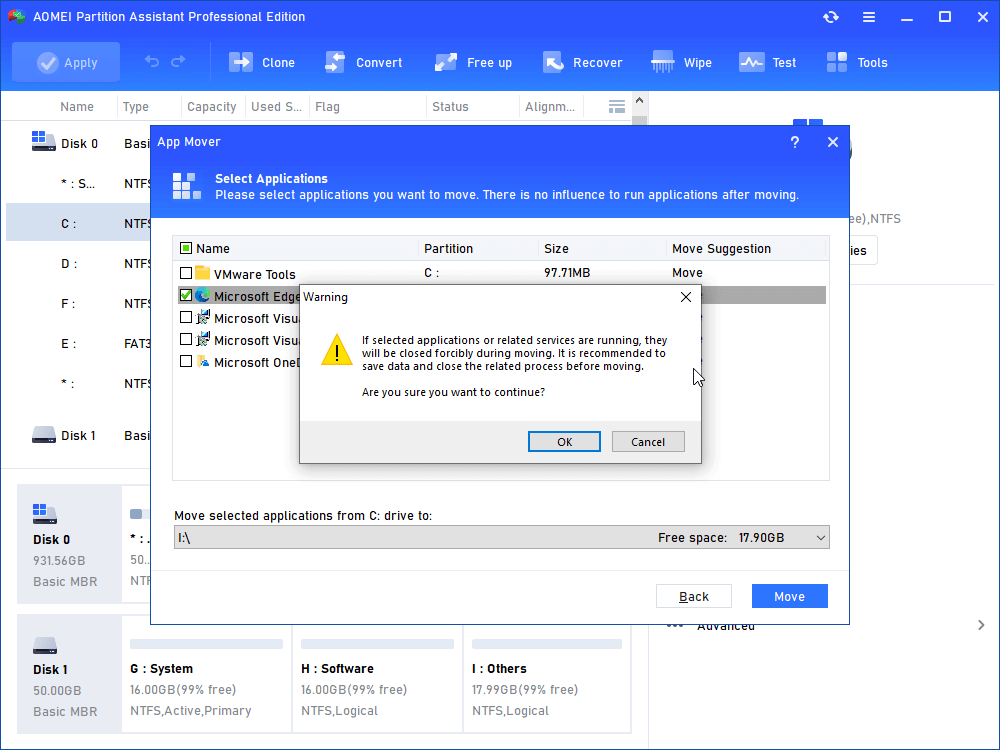
Step 4. A pop-up message will appear, notifying you that running programs will be force-closed during the move. Click OK to proceed.
Step 5. Wait for the process to complete, then click Finish to finalize the folder transfer.
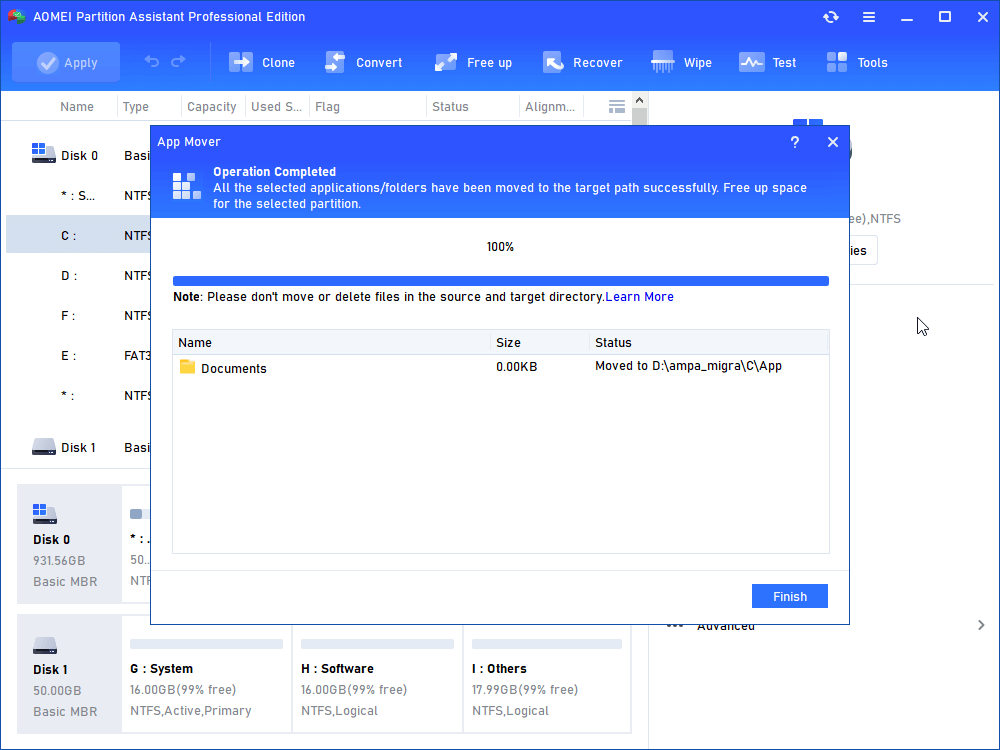
This method ensures a safe and efficient way to free up space on your C drive without disrupting system operations.
2. Move installed apps to another drive
If you have large applications installed on your C drive, follow these steps to move them to another drive and free up space.
Step 1. In the Free Up section, select App Mover as shown in step 2.
Step 2. In the pop-up window, choose the C drive (or the partition you want to free up) and click Next.
Step 3. All movable apps on the selected drive will be listed. Choose the apps you want to move, select the destination drive (e.g., D drive), and click Move to begin the operation.
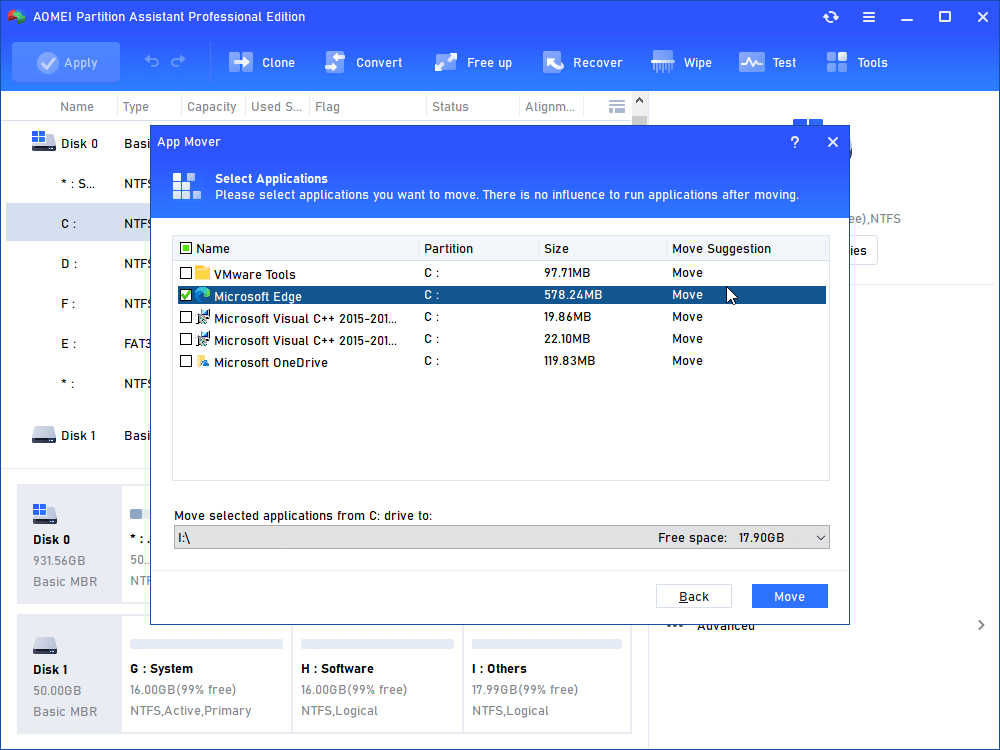
Step 4. Confirm that all apps are closed and that you are moving them from the C drive to the D drive. Then click OK to proceed.
Step 5. Wait for the transfer process to finish, and click Finish to complete the action.
Once done, the selected apps will be successfully moved, freeing up valuable space on your C drive.
Conclusion
If you're unsure how to move a folder safely, this guide can help. While Windows built-in tools are useful, they can be complicated for some users. In that case, AOMEI Partition Software simplifies the task and makes the process much easier.
In addition to moving folders and apps, this tool allows you to allocate free space from one drive to another, helping you extend the space on your C drive.

 as a preferred
source on Google
as a preferred
source on Google