




Answered: Can Samsung Data Migration Change Source Disk?
Can Samsung Data Migration change source disk?This guide answers the question and also introduces a powerful tool to help you manage Samsung SSD easily and effectively.

By Hedy Updated on May 29, 2026


Can Samsung Data Migration change source disk?
No, Samsung Data Migration (SDM) cannot change the source disk itself. Its purpose is to clone the existing contents of a source disk (usually your current OS drive) to a Samsung SSD. The source disk you select is just the disk you want to copy from—SDM doesn’t modify or “switch” which disk is considered the source automatically.
Here’s a more detailed breakdown:
🔶 Source disk selection
● SDM allows you to choose the disk you want to clone. Usually, this is your current system drive (HDD or SSD).
● You cannot make SDM treat another disk as the system disk unless you manually select it as the source before cloning.
🔶 Destination disk
● The destination is your Samsung SSD. All data from the source disk will be copied here.
🔶 Post-cloning steps
● To make your computer boot from the new Samsung SSD, you may need to change the boot order in BIOS. SDM itself does not change which disk is the primary boot drive.
⚠️ Important: SDM clones the source disk as-is, including partitions and the OS. It cannot merge disks, move partitions selectively, or make a different disk “source” automatically.
How to boot from a Samsung SSD after cloning with Samsung Data Migration
Step 1. Make sure your Samsung SSD is installed properly (SATA or NVMe, depending on your model). Connect it to your computer and ensure it’s recognized in Disk Management (Windows) or BIOS.
Step 2. Open Samsung Data Migration (SDM), select your current system disk (HDD or old SSD) as the Source Disk, and select your Samsung SSD as the Destination Disk.
Step 3. Start the cloning process. SDM will copy all partitions, including the OS, apps, and data. Do not interrupt the process.
Step 4. Restart your computer and enter BIOS/UEFI settings (usually pressing F2, DEL, or F12 during boot). Go to the Boot section, set your Samsung SSD as the first boot device, save changes and exit BIOS.
Step 5. Your computer should now boot from the Samsung SSD. Check by opening System Information or Disk Management—your SSD should now be the primary drive with the OS.
Step 6. Once you confirm the SSD boots properly, you can keep the old disk as a backup, or reformat it to use as storage.
A reliable alternative to Samsung Data Migration: manage your drive easily
If you’re looking for a powerful and flexible tool to manage your drives—especially as an alternative to Samsung Data Migration (SDM)—AOMEI Partition Software is an excellent choice. While SDM is designed specifically for Samsung SSDs and focuses mainly on cloning system drives, it can be limited in features and compatibility.
✍ Key advantages over Samsung Data Migration:
1. Broader compatibility
Unlike Samsung Data Migration, which only supports Samsung SSDs, AOMEI Partition Software works with SSD and HDD from any brand—including Samsung, Crucial, Western Digital, Kingston, and more. This makes it ideal if you work with multiple drive models or plan to switch brands.
2. Comprehensive Drive Management
AOMEI enables a full suite of drive tasks you can’t get in Samsung’s basic tool:
✔️ Resize, move, merge, split, format, or delete partitions
✔️ Convert between MBR and GPT without data loss
✔️ Align SSD partitions for better performance
✔️ Change drive letters and cluster sizes
✔️ Create bootable media for system repairs
These features give you far more control over how your storage is organized and optimized.
3. User‑friendly experience
AOMEI’s clean, intuitive interface guides you step‑by‑step through operations. Whether you’re a beginner formatting partitions or an experienced user performing advanced cloning, the software is easy to navigate and understand.
4. Safe, reliable performance
Built‑in safeguards help protect your data during sensitive tasks like resizing partitions or cloning drives. The software also supports data integrity checks and ensures operations are completed without corruption.
Here, let us take the “Format Partition” feature as an example to show you how powerful AOMEI Partition Software is in managing disks and partitions:
 AOMEI Partition Software
A safe and reliable disk partition management tool that helps you migrate OS to SSD or HDD, reorganize disk space, and improve overall PC performance.
Step 1. Install and open AOMEI Partition Software. Once launched, the main interface will display all connected disks and their partitions.
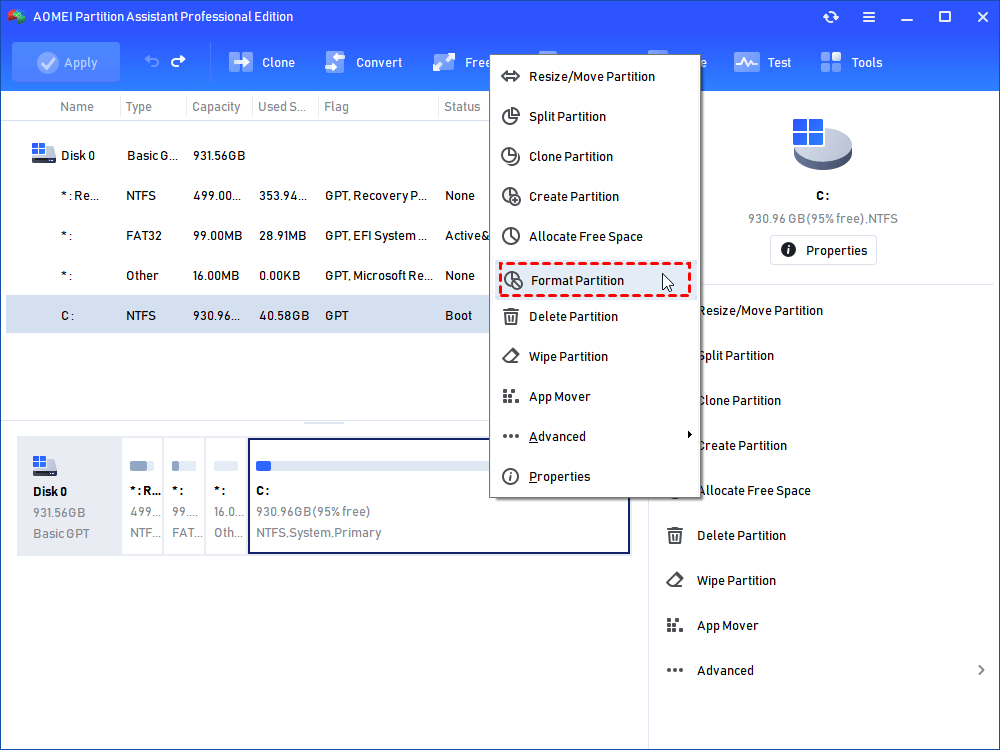
Step 2. Locate the target partition, right-click it, and choose “Format Partition”.
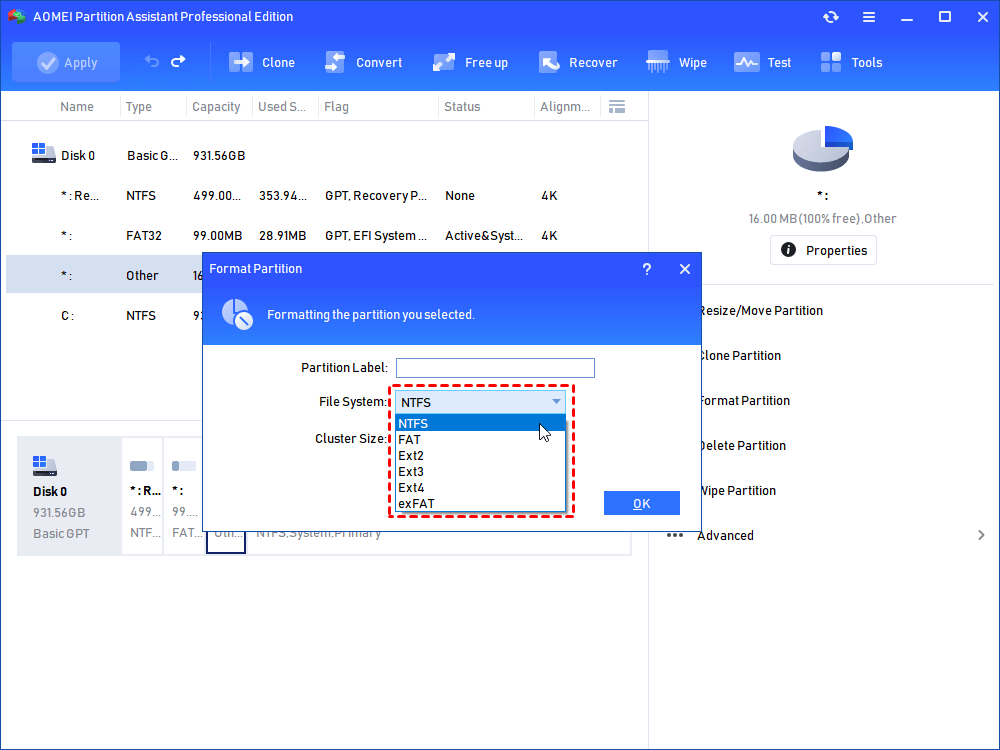
Step 3. Set a new partition label and select the desired file system, then click “OK” to confirm.
Step 4. Back in the main interface, click “Apply” in the upper-left corner and select “Proceed” to execute the operation.
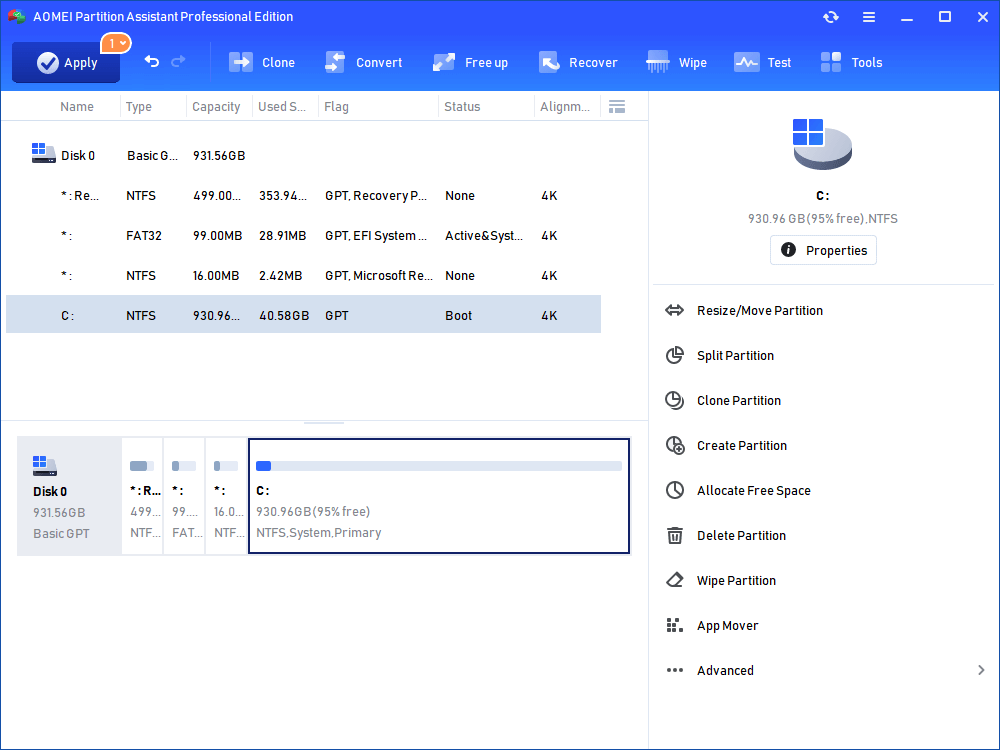
The formatting process will complete in just a few seconds.
Conclusion
Samsung Data Migration cannot change or redefine the source disk—it only clones the selected drive to a Samsung SSD. To boot from the cloned SSD, you must manually adjust the BIOS boot order. For greater flexibility, AOMEI Partition Software offers broader compatibility, advanced disk management features, and an easier user experience, making it a more powerful and reliable alternative for managing and optimizing your drives.

 as a preferred
source on Google
as a preferred
source on Google