




Fixed: Could Not Find Recovery Environment in Windows 11
Troubled by the "could not find recovery environment" error on Windows 11? This guide walks you through the fixes step-by-step and offers the best way to build a recovery environment yourself.

By Lily Updated on December 16, 2025


Error: Windows 11 Could Not Find Recovery Environment
I’m attempting to reset my computer because of recent performance issues while playing games and doing other tasks and when I try to, I get an error.
I go to Recovery -> Reset this PC -> Keep my files and I get this error ‘Could not find the recovery environment. Insert your Windows installation or recovery media, and restart your PC with the media’. Does anyone have a fix?"
- Question from Microsoft Community
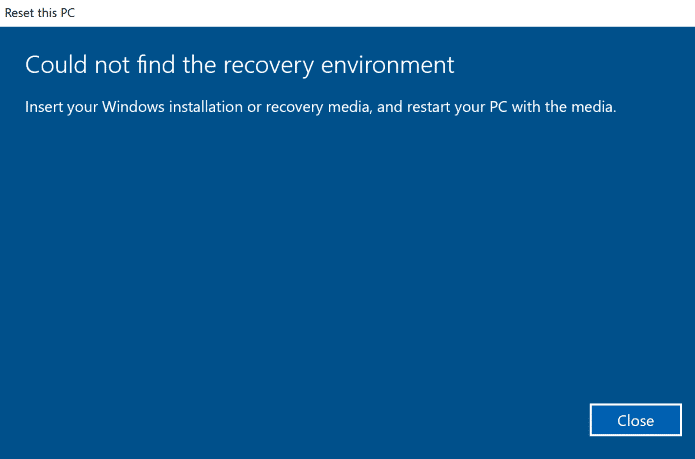
The Windows recovery environment not found error can be caused by:
🎯 Windows Recovery Environment Is Disabled
🎯 WinRE Image File Is Missing or Corrupted
🎯 Recovery Partition Has Been Deleted or Damaged
 AOMEI Backupper
If the built-in Windows Recovery Environment keeps failing, use AOMEI Backupper to create your own recovery environment.
How to Fix “Could Not Find the Recovery Environment” in Windows 11
If you encounter the “could not find recovery environment Windows 11” error, you can try the following solutions to fix it.
Fix 1: Enable WinRE via Command Prompt
If Windows 11 could not find recovery environment, it could simply because Windows Recovery Environment (WinRE) is disabled. You can check and re-enable it using Command Prompt in just a few steps.
1. Press Win + S, type cmd. Right-click Command Prompt and select Run as administrator.
2. In the Command Prompt window, type reagentc /info and press Enter.
3. Look for the line Windows RE status.
- If it shows Disabled, type reagentc /enable and press Enter to enable WinRE.
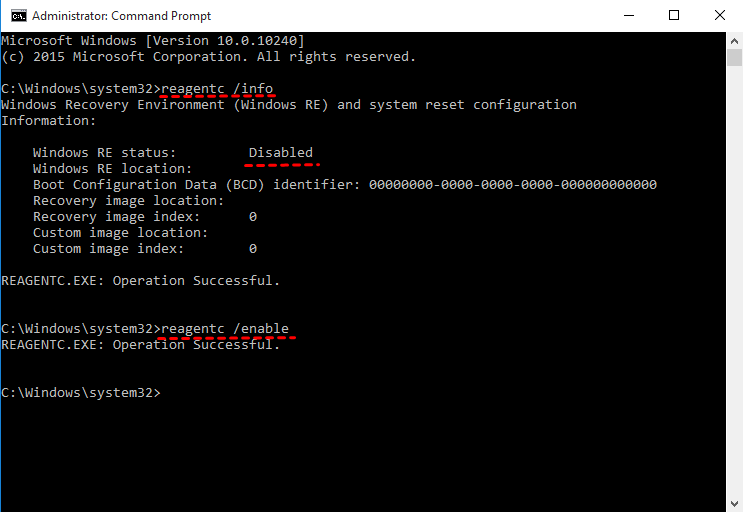
- If it shows Enabled, move on to other fixes.
Fix 2: Repair System Files (If Enabling Fails)
If enabling WinRE via Command Prompt fails, corrupted or missing system files may be preventing Windows 11 from locating the recovery environment. In this case, repairing system files can often resolve the error.
1. Open Command Prompt as administrator. Type sfc /scannow and press Enter. This scan checks protected system files and automatically replaces corrupted versions.
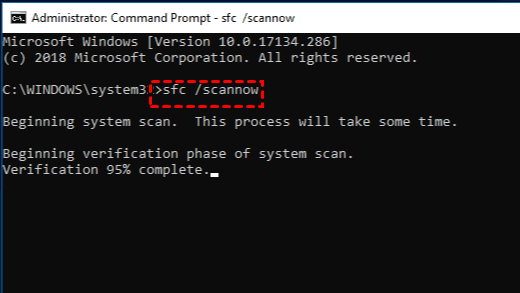
2. Wait for the scan process to finish. Review the result message:
- If corrupt files were found and repaired, restart your PC and try enabling WinRE again.
- If no issues are found, continue with the next step.
3. In the Command Prompt window, type DISM /Online /Cleanup-Image /RestoreHealth and press Enter to download healthy files from Windows Update and replace damaged components.
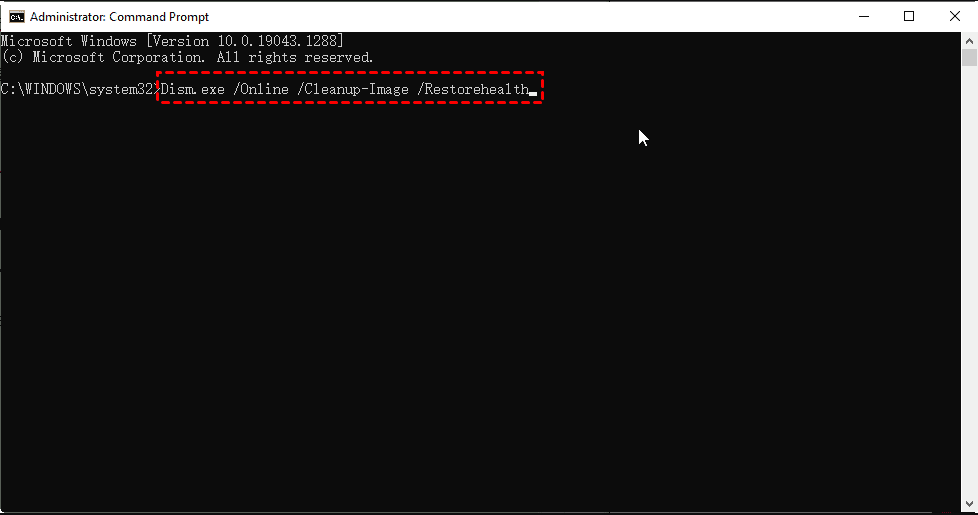
4. Keep your internet connection active while the DISM command is running. After the DISM command finishes, restart your PC and try enabling WinRE again.
Fix 3: Use Windows Installation Media
If WinRE cannot be enabled and system file repairs don’t help, the recovery environment may be missing or severely damaged. In this case, you can use a Windows installation media to reset your PC.
1. Boot your computer from Windows 11 installation media. If you don’t have one, you can create a Windows 11 bootable USB by yourself.
2. Once the Windows Setup screen appears, choose your language and keyboard layout.
3. Select Repair your computer (bottom left) to access Troubleshoot > Reset this PC.
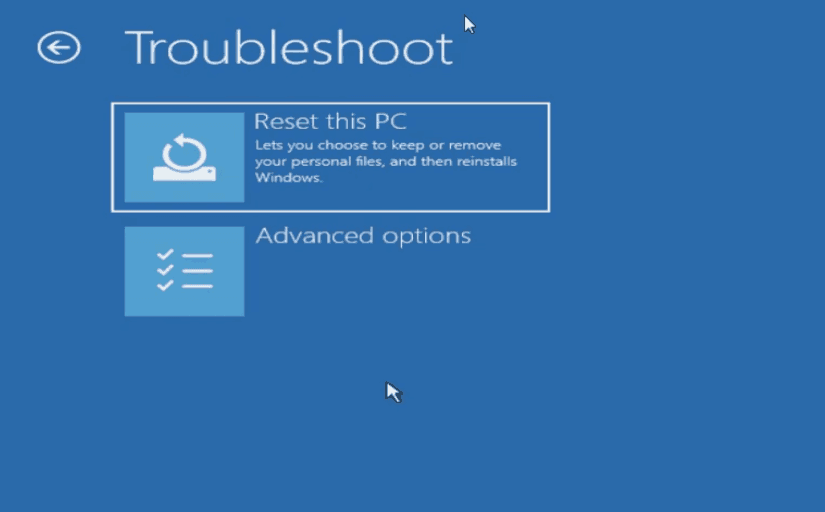
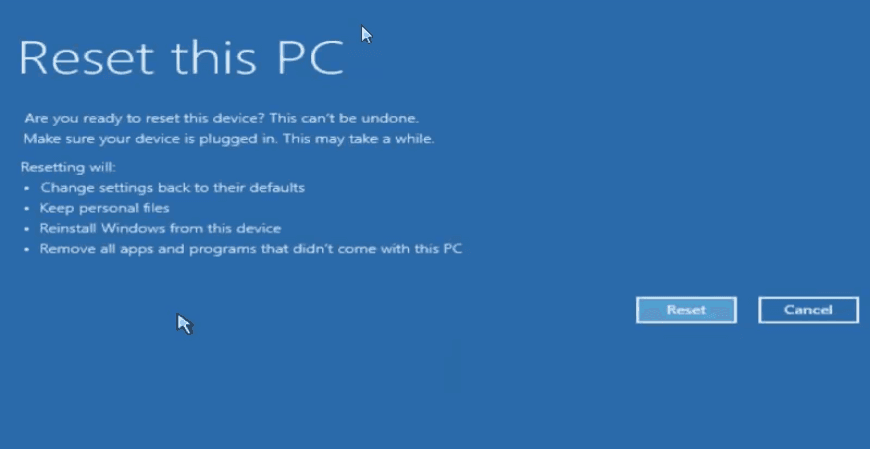
4. Choose Keep my files or Remove everything as per your needs.
5. Choose the way to install Windows.
- Cloud download: Download and reinstall Windows
- Local reinstall: Reinstall Windows from this device
6. Choose the way to reset your PC.
- Just remove my files: Use this if you are keeping your PC.
- Fully clean the drive: Use this if you will recycle the PC. This can take several hours.
7. Confirm your settings and click Reset.
Bonus: Best Way to Create Your Own Windows Recovery Environment
If the built-in Windows Recovery Environment keeps failing or you want a more reliable fallback, creating your own recovery environment is the safest long-term solution. AOMEI Backupper Professional can give you a hand.
 AOMEI Backupper
- Multiple Backup Types: You are able to backup OS, disks, partitions, personal files as well as backup Outlook by choosing the corresponding backup type.
- Schedule Backup: Set backups to run daily, weekly, or monthly without manual intervention.
- Incremental and Differential Backup: Save space and speed up backups with smart data comparison.
- Create Recovery Environment: Enter the recovery interface before loading Windows. You can also create a bootable USB/CD/DVD that can be used on different computers.
 100% Secure
Download AOMEI Backupper and follow the steps below to create AOMEI Backupper recovery environment:
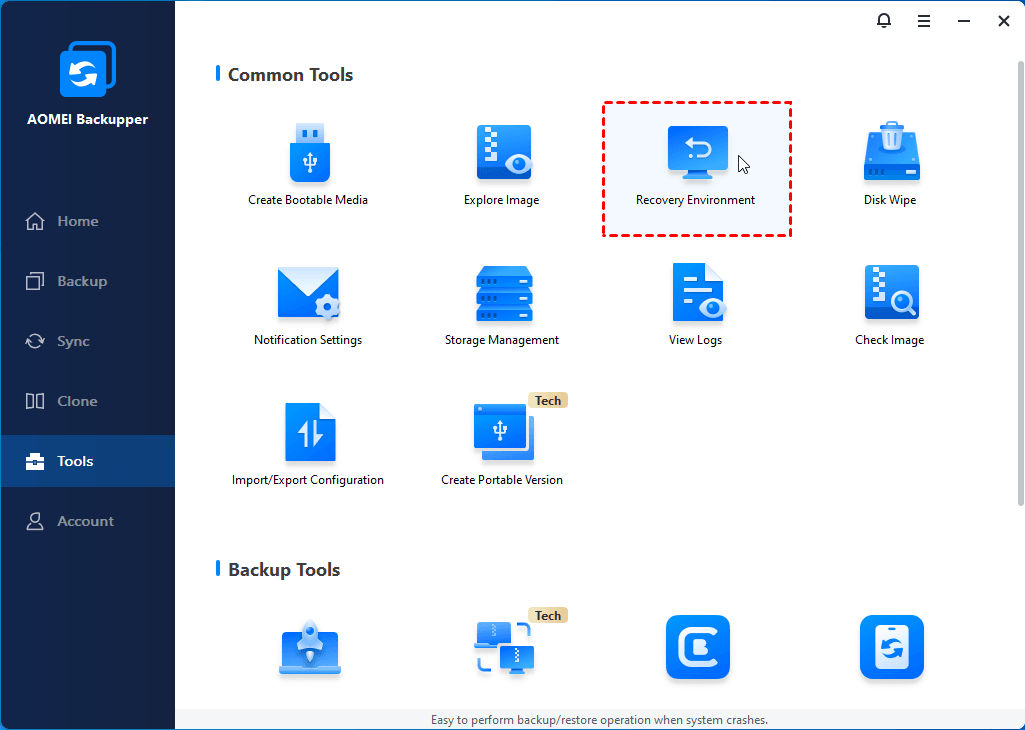
Step 1. Install and launch AOMEI Backupper. Click Tools > Recovery Environment.
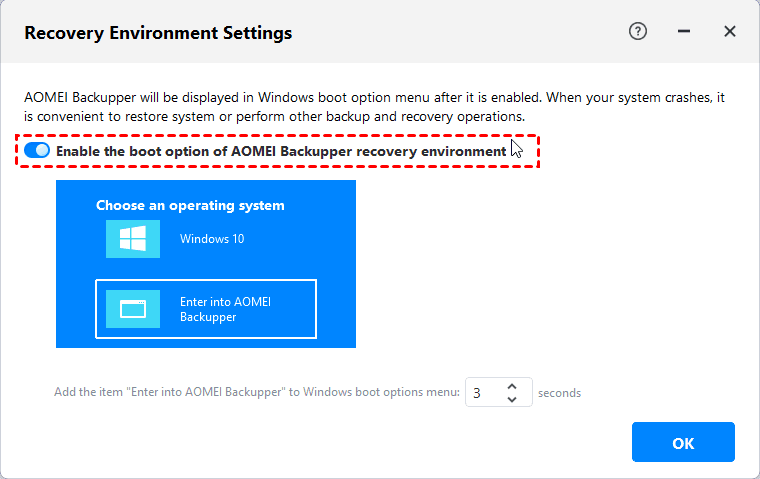
Step 2. In the Recovery Environment Settings window, switch on Enable the boot option of AOMEI Backupper recovery environment. Then set the standing time of the boot menu and click OK.
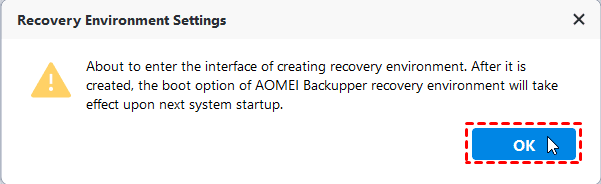
Step 3. A confirmation window will pop up. Please click OK to continue.
💡 Notes:
★ To restore your computer in case of system errors, you may backup Windows 11 to an external drive or other secure locations in advance.
★ The recovery environment created by AOMEI Backupper will become invalid if your C drive is wiped or damaged. You may go to Tools > Create Bootable Media to make a spare bootup USB.
To Sum Up
The “could not find recovery environment Windows 11” error usually indicates that WinRE is disabled, corrupted, or missing entirely. You can follow the solutions offered in this article to get it fixed.
For long-term reliability, you may create a custom recovery environment with AOMEI Backupper. It offers you all-around backup and recovery solutions. You can even restore a system image to a different computer. Why not give it a shot?

 as a preferred
source on Google
as a preferred
source on Google