




Drobo PC Backup on Windows PCs - Full Guide
Want to create Drobo PC backup for local files or back up Drobo files to a local storage path? Here is a complete guide!

By Jonna Updated on May 18, 2026


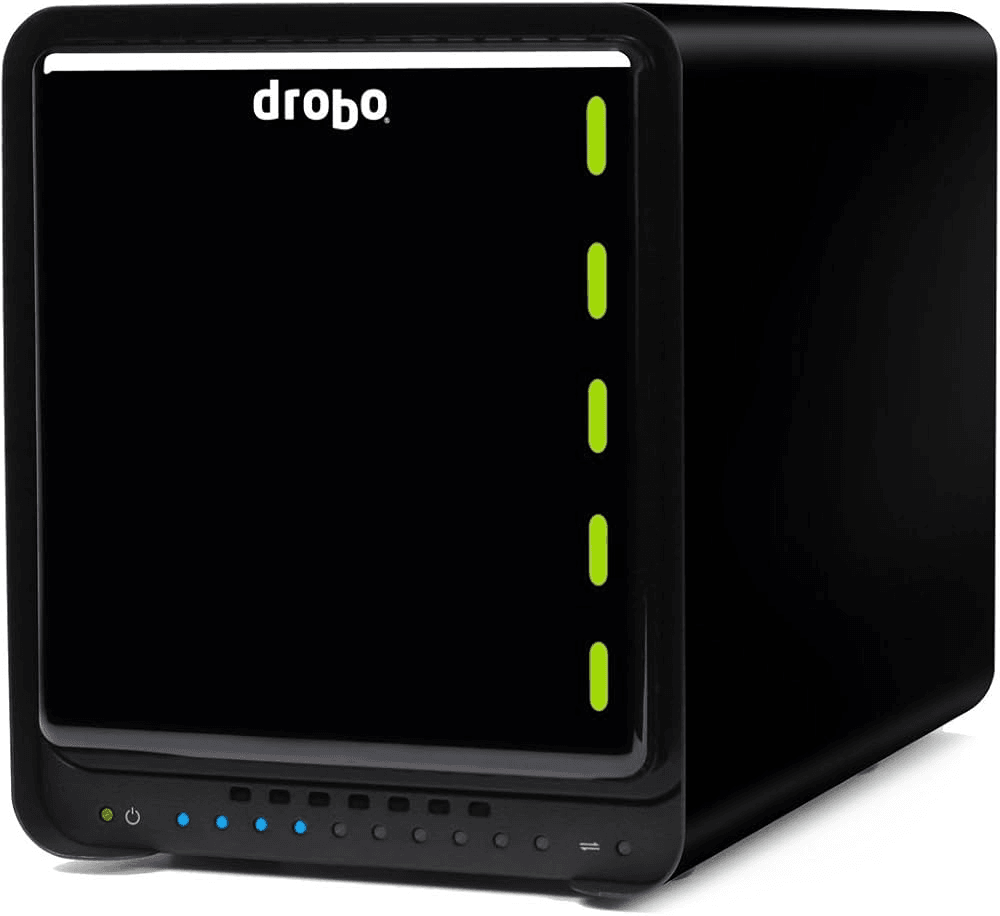
Overview of Drobo NAS
Drobo was a brand of easy-to-use, self-managing network-attached storage (NAS) appliances, founded in 2005 (originally Data Robotics). It specialized in zero-configuration RAID (BeyondRAID), mixed-drive support, and instant expansion - targeting home users, creatives, and small businesses.
Drobo models vary widely. Some are direct-attached storage devices connected via USB or Thunderbolt. Others operate as network-attached storage (NAS), allowing multiple computers on a local network to back up to a centralized storage system. In this guide, we will focus on Drobo PC backup, including backing up PC to Drobo NAS as well as backing up Drobo NAS files. Let's begin now!
Best Free All-in-One Backup Software for Drobo PC Backup
There used to be a Drobo PC Backup software that allows to automatically back up data to your Drobo, but it is not available now. Don't worry, you can turn to AOMEI Backupper Standard. It is a free Windows backup and restore software that makes PC data backup simple. This Drobo backup software comes with these main features:
 AOMEI Backupper
- Flexible backup options - It provides file/folder backup, system backup, disk backup, and partition backup.
- Various destinations - It supports backing up to various locations, including local drives, external hard drives, NAS devices, network shares, and cloud. So you can use it to backup PC to NAS as well as backup NAS to PC and other storage.
- Scheduled backup - You are allowed to set backups to run daily, weekly, or monthly with no manual intervention.
- Incremental & differential backup - Automatically backs up only changed data to save time and space. (Differential backupis available in Pro version)
 100% Secure
Get the AOMEI Backupper Drobo PC backup software downloaded and installed on your computer. It also offers an AOMEI Backupper Server for server users.
Part 1. How to Perform Drobo PC Backup for Entire Computer
Here is how to use this AOMEI Backupper NAS backup software for Drobo PC backup.
Step 1. Run AOMEI Backupper Standard and then select System Backup under the Backup tab.
👉Tip: To back up specific files or folders, you can choose File Backup instead.
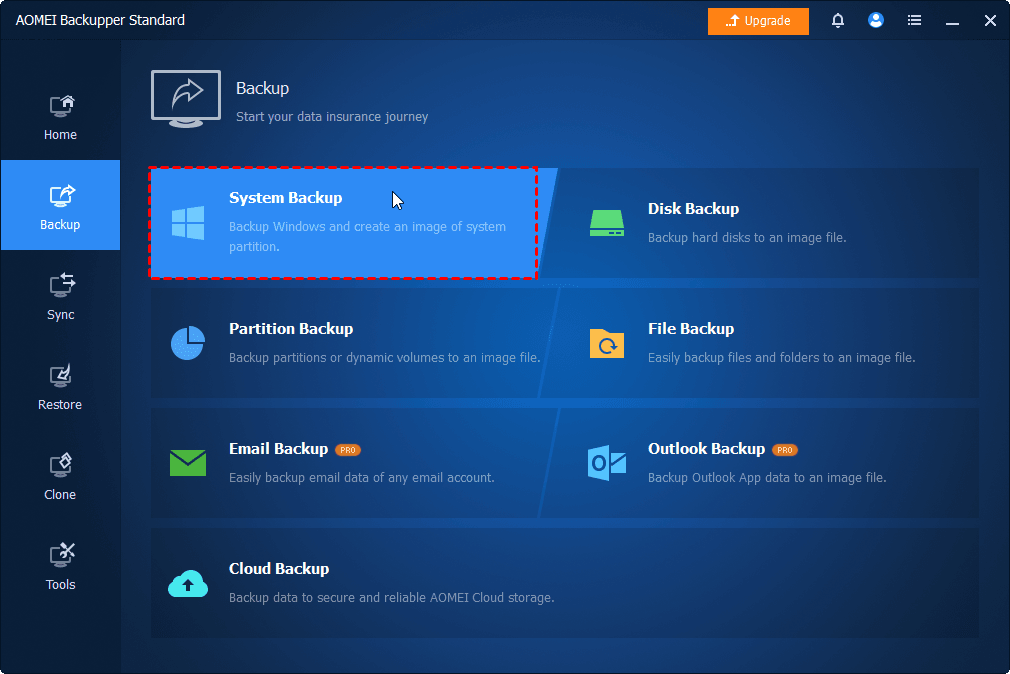
Step 2. It will automatically select OS-related partition(s) to back up. You only add the Drobo NAS as the backup location by clicking on the PC icon > expanding NAS > clicking Add NAS.
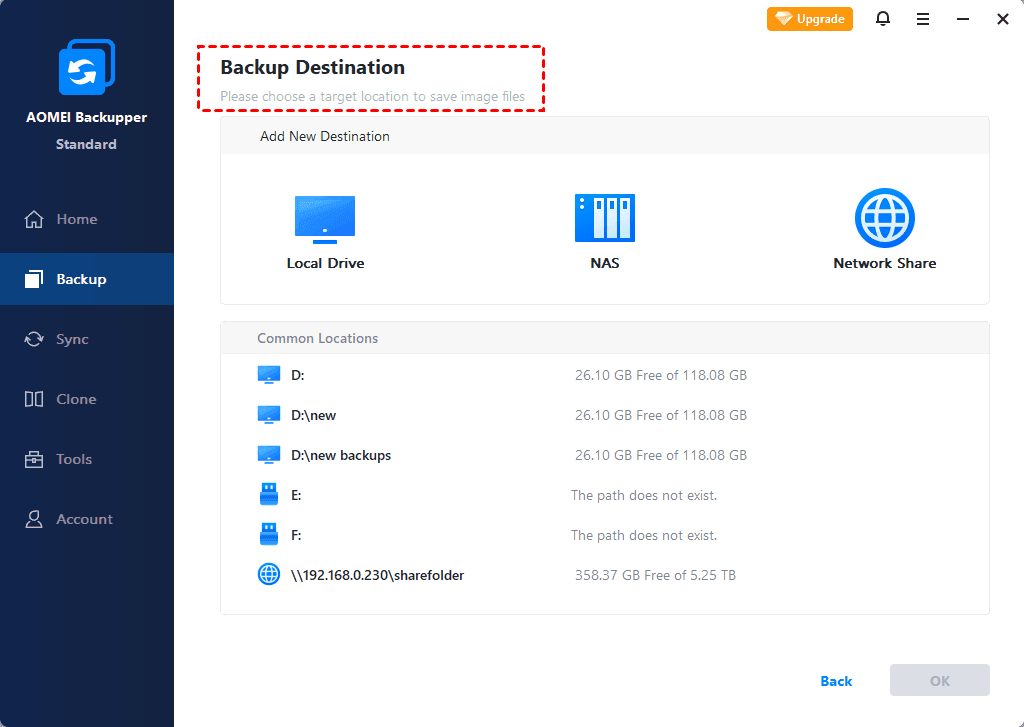
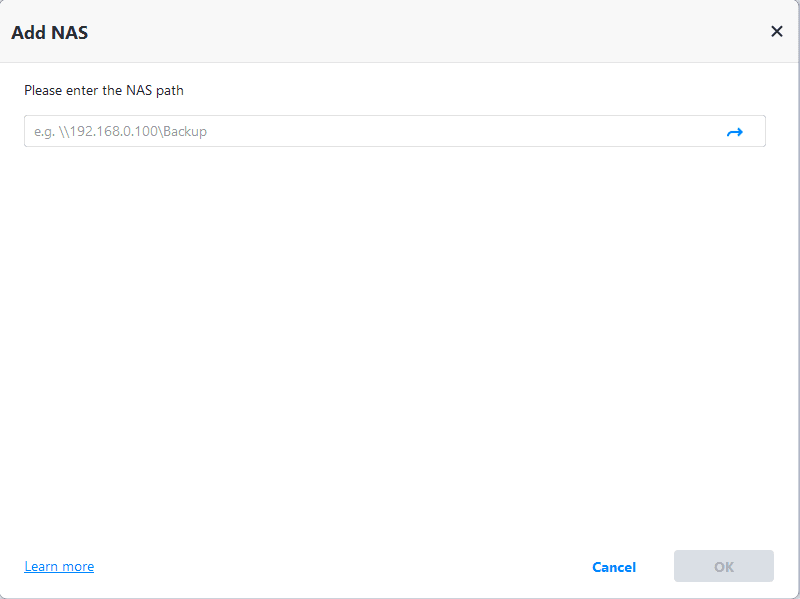
Step 3. Enter your Drobo NAS path and click OK to connect it as a destination.
Step 4. Click Schedule > Enable Schedule Backup to set up automatic backup as needed.

Step 5. Finally, click on Start Backup to backup Windows to NAS.
✅Useful Tips:
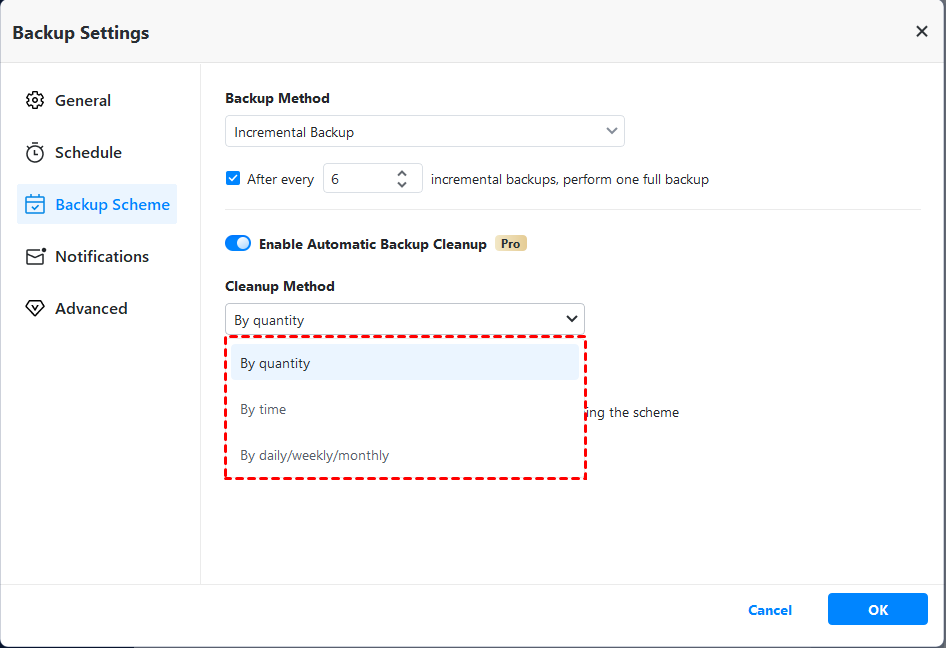
- To save the disk storage from continuous backups, there is an effective way to delete old backups - by enabling Automatic Backup Cleanup under Backup Scheme (it requires an upgrade).
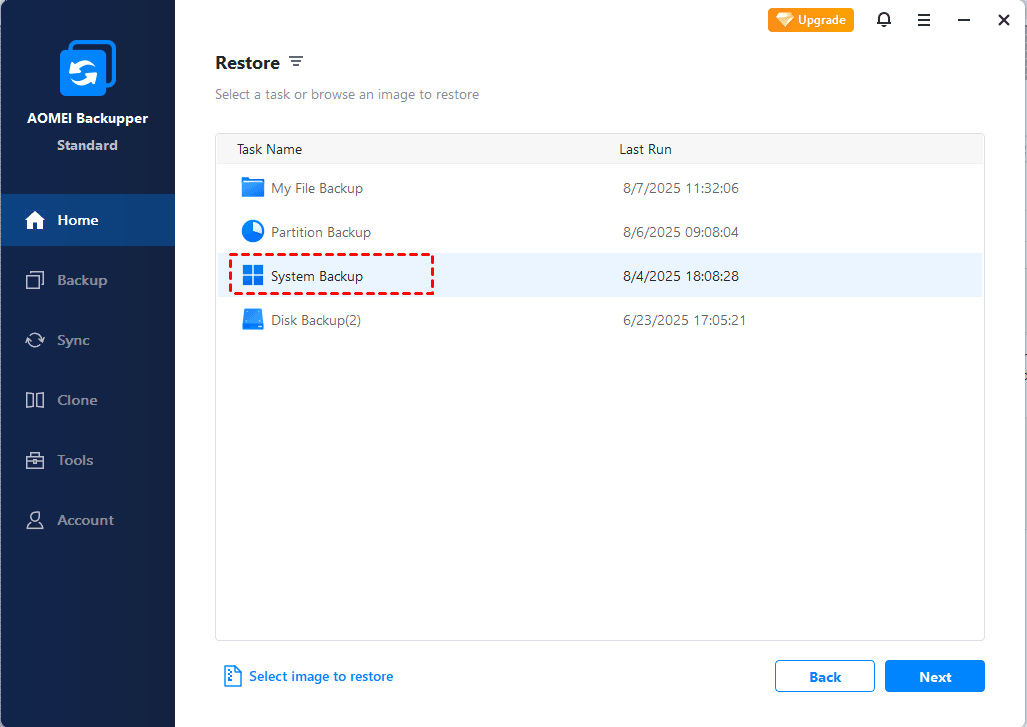
- To restore the system image when something goes wrong, you can go to Home > Restore > select the backup task and follow the on-screen guide to restore it directly.
Part 2. How to Backup Drobo Files with Ease
You can also use this Drobo backup APP to back up the Drobo files to PC, USB drive, another NAS, and other storage locations.
Step 1. Go to Backup and File Backup on the AOMEI Backupper interface.
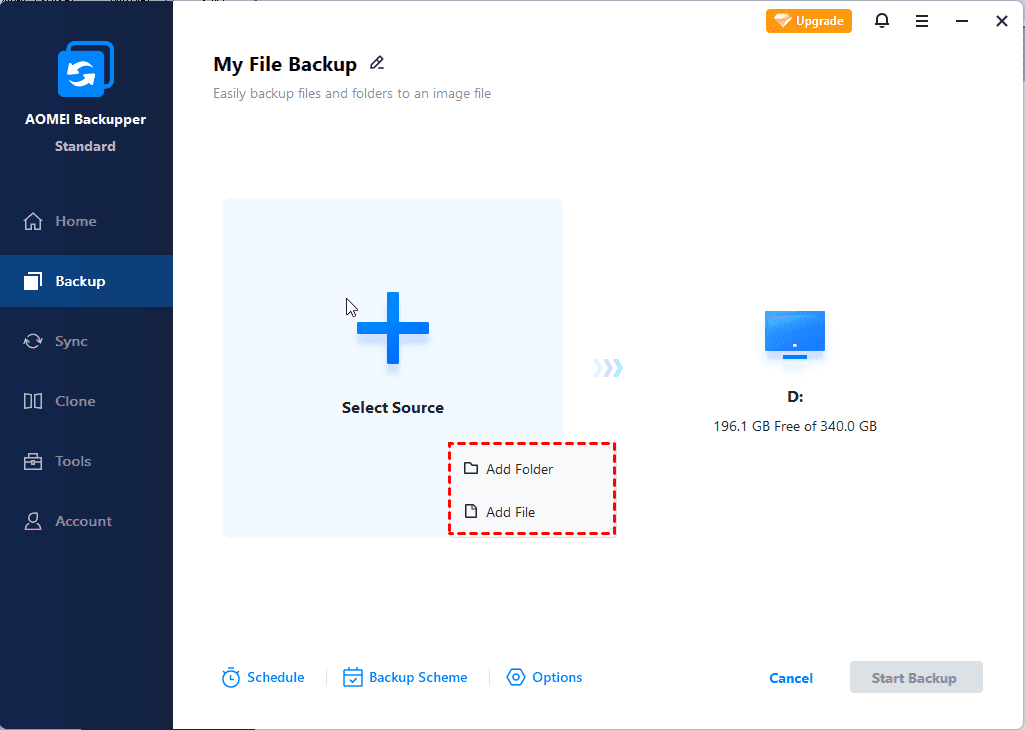
Step 2. Click on Select Source, hit NAS > Add NAS to connect the Drobo NAS and choose files/folders on it for backup.
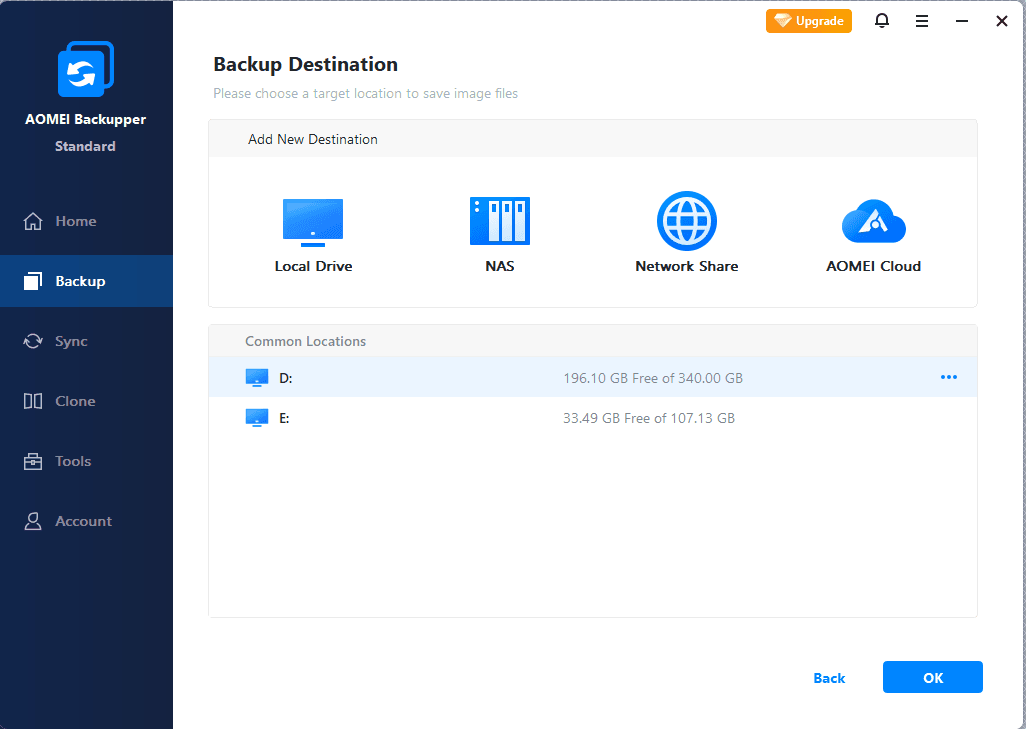
Step 3. Then, select a local or external drive as the target path, and click on Start Backup.
FAQs on Drobo PC Backup
#1. Is Drobo still supported?
No, Drobo is not formally supported now. As of January 27, 2023, Drobo products and services were discontinued. There is no active technical support, and the company is no longer manufacturing or selling new hardware.
But many Drobo devices continue functioning normally. Existing hardware can still work effectively for backups.
#2. Why use Drobo for Windows PC backup?
There are several advantages:
- Large storage capacity
- Expandable drive architecture
- Built-in redundancy
- Centralized storage management
- Easy scalability
- Multi-device backup support
- Good performance for imaging workloads
These benefits make Drobo PC Backup attractive for users with growing storage needs.
#3. Is Drobo safe for long term PC backup?
Generally, yes - provided you also maintain secondary backups. Long-term safety improves when users:
- Monitor drive health
- Update firmware when available
- Maintain backup verification routines
- Keep redundant copies elsewhere
- Protect the NAS with UPS battery backup
#4. Which software works best with Drobo for PC backup?
For simplicity, flexible scheduling, and NAS compatibility, AOMEI Backupper is a great option. It supports local to NAS backup, NAS to local backup, NAS to NAS backup, and sso on.
#5. Can I backup my entire computer to Drobo?
Yes. Using AOMEI Backupper’s System Backup, you can create OS backup image, and its Disk Backup offers to create full PC backup for entire disks.
In the End
Relying on the free and professional backup software AOMEI Backupper Standard, it makes Drobo PC backup a simple thing. You can use it to create entire PC backup to NAS from Drobo, Snology, and various brands. Also, it is capable of backing up NAS data for secondary protection. Also, it allows to transfer files from PC to PC and clone hard drive on Windows PCs with ease.

 as a preferred
source on Google
as a preferred
source on Google