




Top 4 NAS Backup Software to Backup Data to/from Your NAS
Find the best NAS backup software for your Synology, QNAP, or other NAS devices. Compare key features, pros, and cons of each solution.

By Lily Updated on March 20, 2026


Modern businesses and home users rely on Network Attached Storage (NAS) to centralize files, streamline collaboration, and safeguard critical data. But a NAS is only as reliable as the backup strategy that protects it. With rising cybersecurity risks and expanding data volumes, choosing the right NAS backup software is no longer optional—it’s essential.

Best NAS Backup Software for Different Needs
Below are the most trusted NAS backup solutions, along with their key features, pros & cons, and recommended use cases to help you choose the right tool.
1. AOMEI Backupper Standard (Free, Beginner-Friendly)
AOMEI Backupper Standard is a free Windows backup tool tailored for individuals and small offices.

 AOMEI Backupper
- Supports file/folder/partition/full-system/disk backups, as well as sync and cloning.
- Saves images on NAS, network share, external drives, and cloud storage.
- Supports scheduled backups and incremental backups (after the initial full backup).
- Offers restoration of files/folders, partitions or entire system depending on backup type.
 100% Secure
|
👍Pros |
👎Cons |
🌟Best For |
|
|
Home users or small offices who want a simple, free, reliable way to back up Windows PCs without complicated setup. |
2. Active Backup for Business (Synology Users)
Active Backup for Business is a purpose-built, centralized Synology backup solution.

Key Features:
- Centralized backup solution: Back up PCs, physical servers, file servers, VMs, and other devices — all from a unified console.
- Supports global deduplication, compression, incremental backups and efficient storage utilization.
- Flexible recovery: Allows bare-metal recovery, granular file/folder restore, or full system restore depending on needs.
- Versioning and backup scheduling: Supports version control, retention rules, and scheduled backups.
|
👍Pros |
👎Cons |
🌟Best For |
|
|
Small to medium businesses (or individuals) already invested in Synology NAS. |
3. Hybrid Backup Sync (QNAP Users)
Hybrid Backup Sync is the integrated backup/sync tool for QNAP NAS devices.

Key Features:
- Built by QNAP as a native tool: Supports backup/sync/restore for NAS, servers, PCs/Macs, cloud, remote NAS, etc.
- Supports incremental backups, versioning, snapshot-based backup/restore (depending on QNAP model), making it suitable for versioned data protection.
- Supports data deduplication/compression and can integrate with remote or cloud storage for hybrid backup strategy.
|
👍Pros |
👎Cons |
🌟Best For |
|
|
Users with a QNAP NAS who want a flexible, fully integrated backup/sync system. |
4. Veeam Backup & Replication (Enterprise Workloads)
Veeam Backup & Replication is a powerful enterprise backup and disaster recovery tool designed for complex environments.

Key Features:
- Supports backup for virtualized environments (VMware, Hyper-V, etc.), physical servers, PCs — both image-level and file-level backup/restore.
- Offers a range of backup methods: Full backups, incremental backups (using changed-block tracking), synthetic full backups, and forward/reverse incremental backup.
- Provides advanced restore options: Full VM recovery, granular file and application-item recovery depending on the environment.
- Supports scheduling/automation, reporting and monitoring, and can combine with local, NAS, cloud or object storage depending on configuration.
|
👍Pros |
👎Cons |
🌟Best For |
|
|
Medium to large businesses, data centers, or enterprises with virtualized workloads (VMs) or complex infrastructure. |
Example: How to Perform NAS Backup with AOMEI Backupper
Here I’ll walk you through the exact steps to create a NAS backup using AOMEI Backupper. Two cases will be described below:
Case 1: Backup Windows to NAS
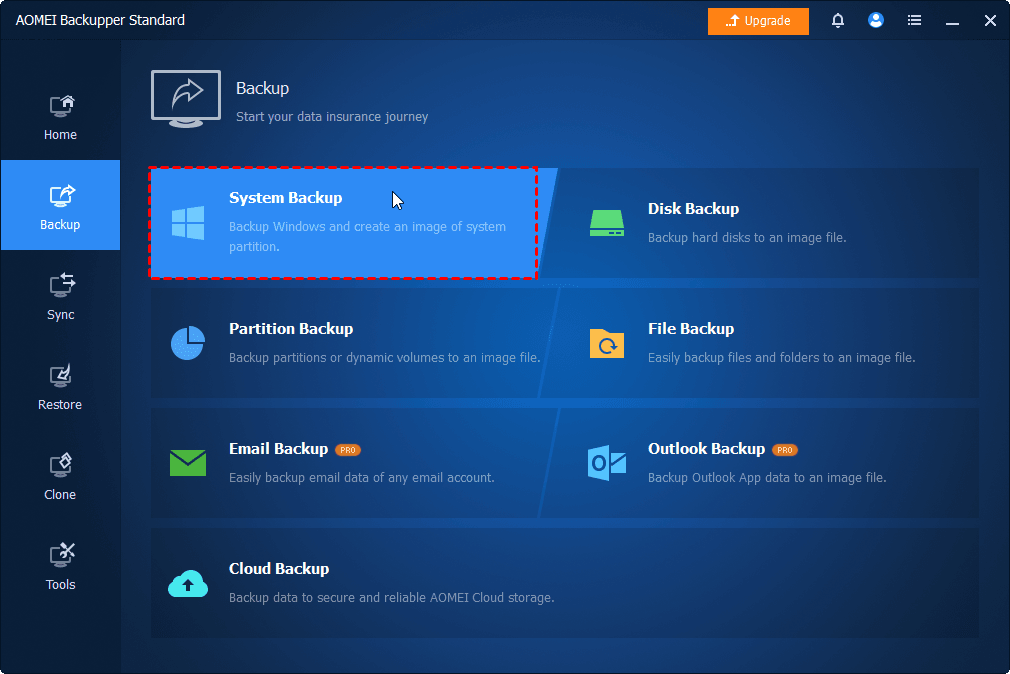
1. Install and run AOMEI Backupper. From the left panel, click Backup, and select System Backup.
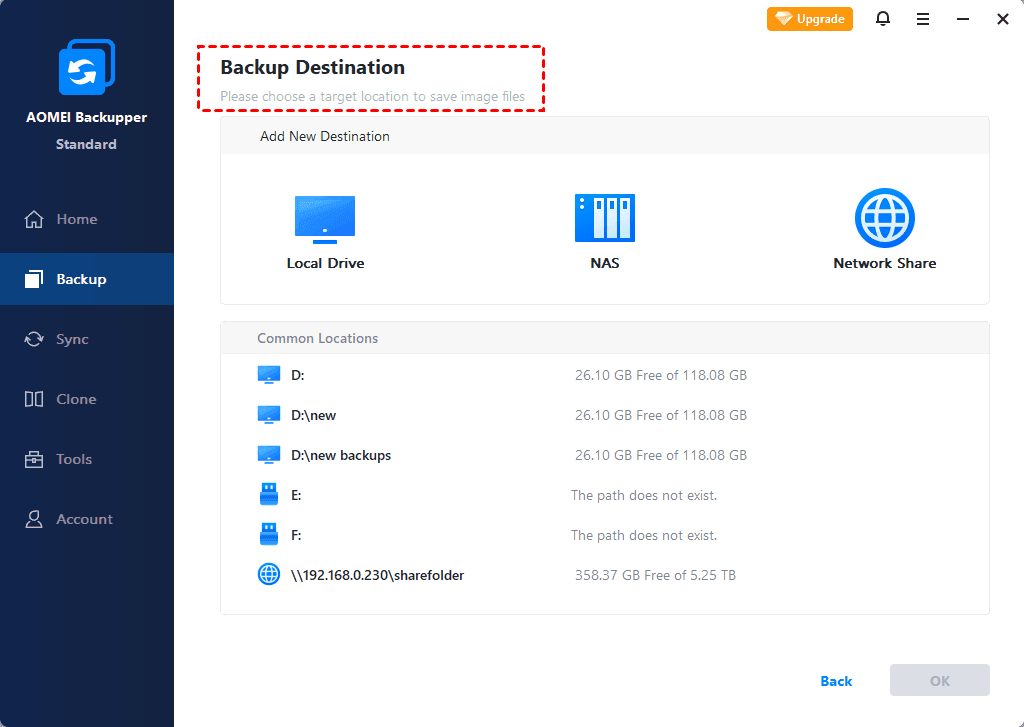
2. Boot-related partitions are selected by default. Click the destination box and select NAS > Add NAS in the Select Destination window.
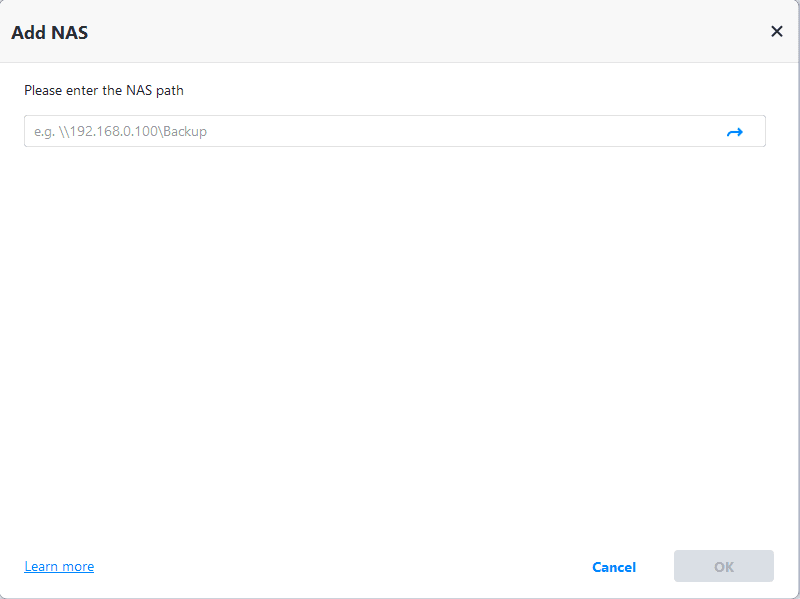
3. On this screen, type your NAS path and click the right arrow. Input username and password if required, then click OK.
4. Choose one folder on the NAS as the destination path to store the backup image.
5. Click Schedule to enable automatic Windows backup (One Time, Daily, Weekly, Monthly, or Event triggers). Finally, click Start Backup to begin backing up Windows OS to your NAS.

Case 2: Backup NAS to Cloud
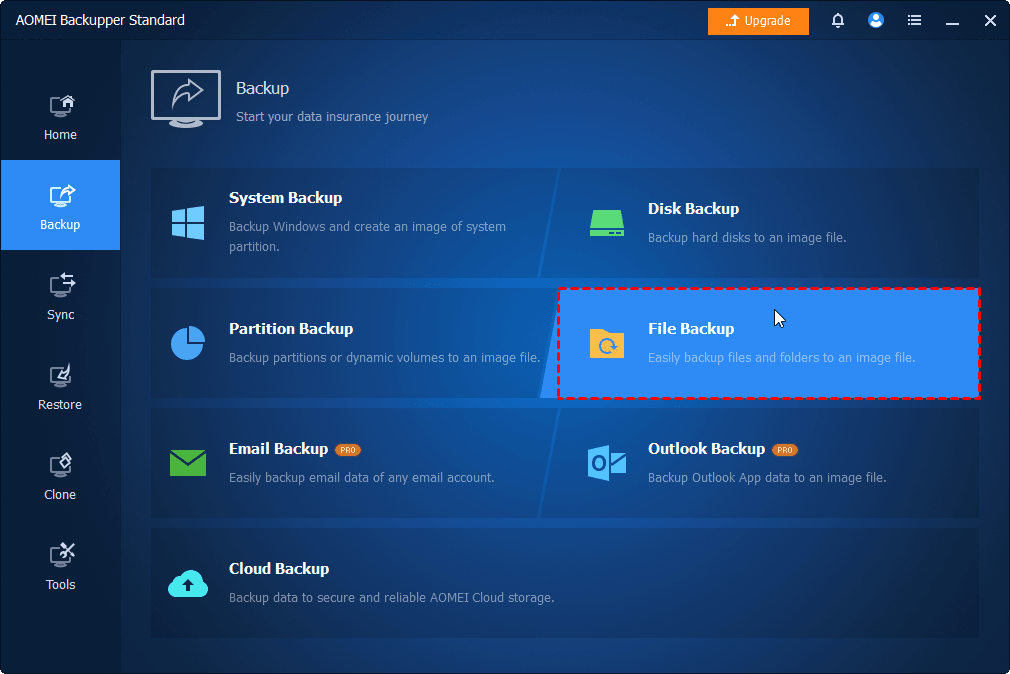
1. Launch AOMEI Backupper and click Backup > File Backup.
2. Click Select Source to add the source data.
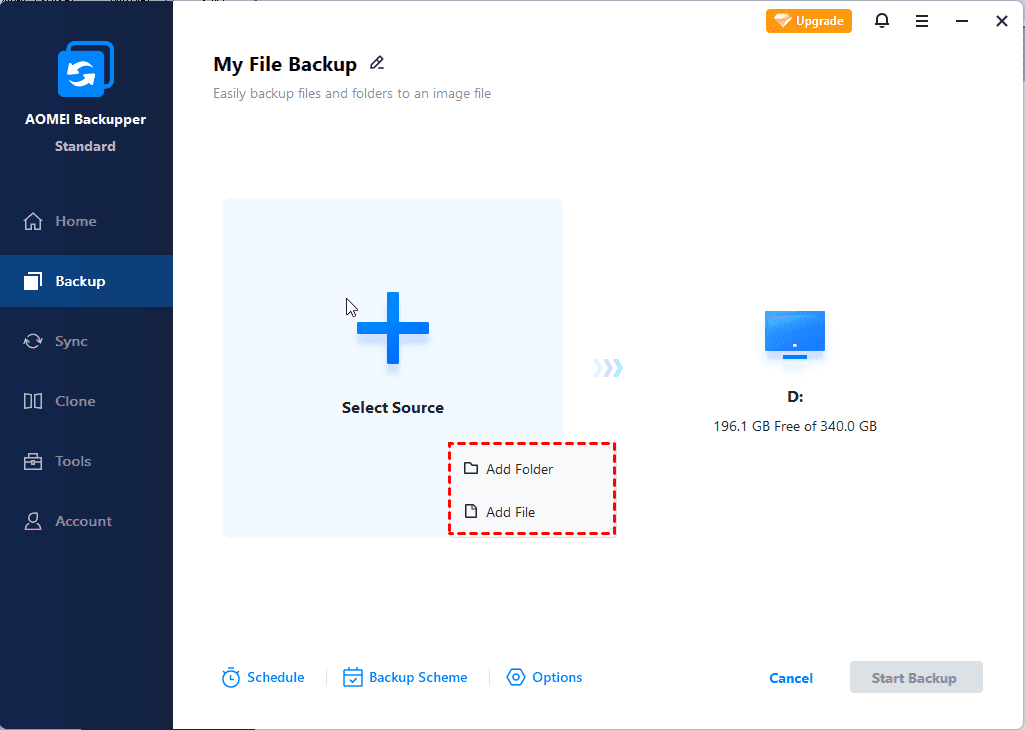
3. In the Select Source window, click NAS > Add NAS. Then enter your NAS path, select a shared folder you want to backup and click OK.
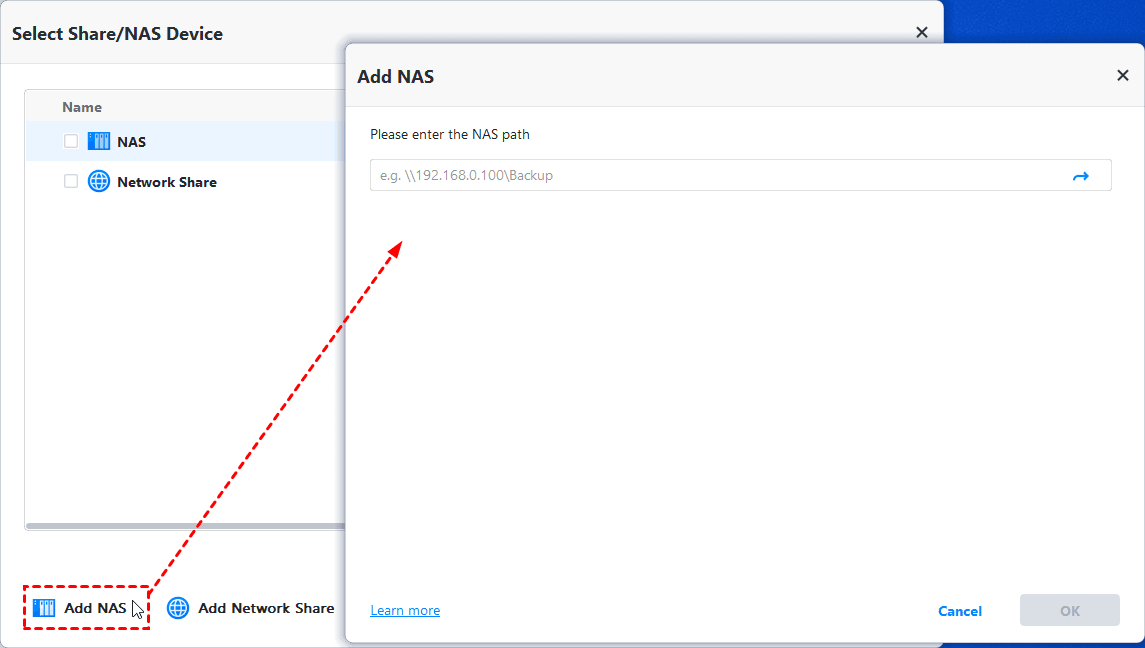
4. You’ll be back on the Select Source window. Check the folder you added and click OK.
5. Click the destination box > AOMEI Cloud > sign in to your AOMEI account or create one. Then click OK.
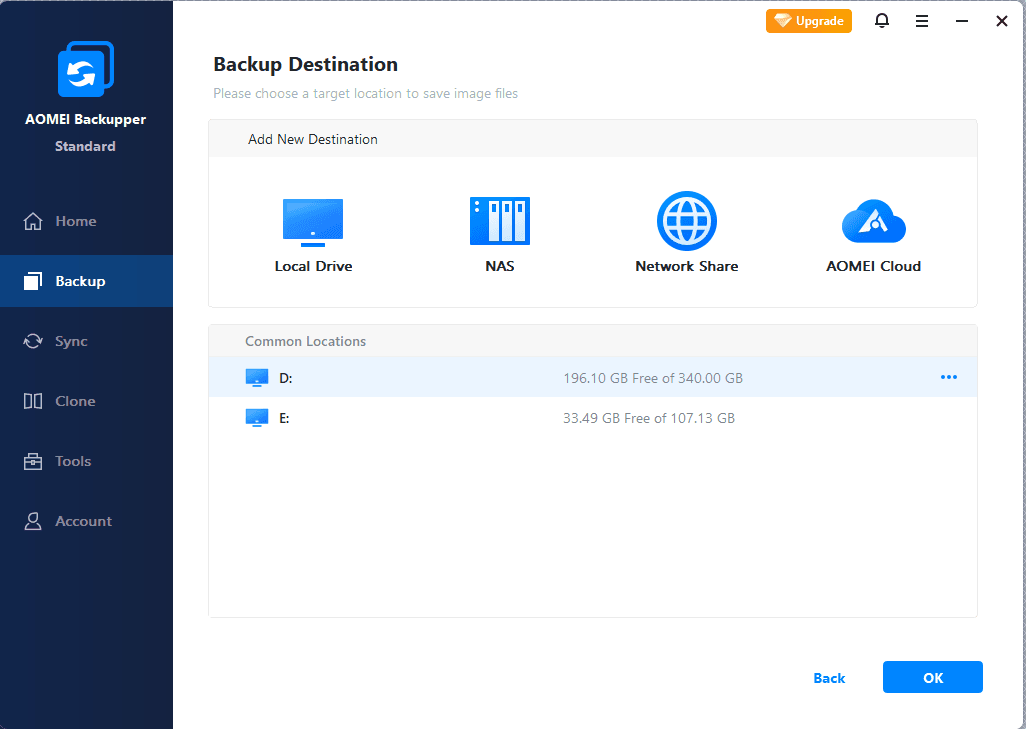
6. Click Schedule to run automatic NAS backup and click Start Backup.
Notes:
◆ AOMEI Cloud offers 1 TB of free storage for the first 15 days after you create an account—great for testing PC backups.
◆ AOMEI Backupper also allows you to backup to third-party cloud services, such as OneDrive, Google Drive, and Dropbox. Just make sure you have installed the desktop app of the cloud service in advance.
Wrapping Things Up
Choosing the right NAS backup software comes down to your environment, technical skill level, and the scale of the data you need to protect.
- For most home users and small offices, AOMEI Backupper Standard offers the easiest free option for reliable PC-to-NAS backups.
- If you’re a Synology user, Active Backup for Business provides a powerful, license-free, centralized solution built specifically for that ecosystem.
- QNAP users will benefit from the flexibility and hybrid backup options in Hybrid Backup Sync.
- For organizations running complex virtualized or mixed infrastructures, Veeam Backup & Replication remains the go-to enterprise-class tool.
Don’t hesitate to download AOMEI Backupper to explore all the wonderful features!

 as a preferred
source on Google
as a preferred
source on Google