




How to Schedule a Windows Backup on Windows 11 [Full Guide]
You'll get 5 of the most popular schedule Windows backup tools to choose from, along with step-by-step guides covering everything from basic backup to change schedule, etc. Scroll down to learn more!

By Ivy Updated on November 28, 2025


According to Microsoft’s annual "Windows IT Pro Report" and Windows Insider telemetry dashboards, roughly 34 % of Windows 11 users have never turned on any form of automatic backup. Not File History. Not OneDrive. Nothing.
This means that millions of family photos, important documents, game saves, etc., may be lost for various reasons, such as spilled coffee, ransomware attacks, curious children, and more.
Fortunately, with just a few clicks, you can set up schedule Windows backups to save your files or OS automatically. When disaster hits, you just click Restore and you’re back - like it never happened.
Can I Schedule a Windows Backup?
Here’s a comparison of the 5 real options users actually use when searching “schedule Windows backup” online, including both built-in and third-party ones. Pick one based on your needs.
|
Feature |
File History |
Backup and Restore(Windows 7) |
OneDrive |
Xcopy/Robocopy+ Task Scheduler |
AOMEI Backupper Standard |
|
Cost |
Free |
Free |
Free (5 GB) |
Free |
Free |
|
Scheduling |
From 10 minutes to daily |
Daily, weekly, monthly |
Real-time |
Daily, weekly, monthly |
Daily, weekly, monthly, or event triggers (e.g., USB plug in) |
|
Full system image |
❌ | ✅ | ❌ | ❌ | ✅ |
|
Incremental backup |
✅ |
❌ | ✅ | ❌ | ✅ |
|
Compression |
❌ | ❌ | ❌ | ❌ | ✅ |
|
Bootable USB |
❌ | ✅ | ❌ | ❌ | ✅ |
|
Email notifications |
❌ | ❌ | ❌ | ✅ | ✅ |
|
Off-site / cloud destinations |
❌ | ❌ | ✅ |
✅(scripted) |
✅ |
|
Ease of use |
8 |
7 |
8 |
4 |
9 |
|
Best for |
Frequently modified data |
Back up OS and user data |
Any type of file |
Advanced users, any type of file |
Beginners, full backup types
|
In sum, if you want an all-in-one backup software for Windows 11, AOMEI BackupperStandard is undoubtedly the best choice. It minimizes backup image size while making the backup process as smart and efficient as possible.
How to Set up Schedule Windows Backup in Windows 11
With the best Windows 11 backup software - AOMEI Backupper Standard, you can easily backup file, system, disk, partition and and set up continuous backup to avoid zero data loss.
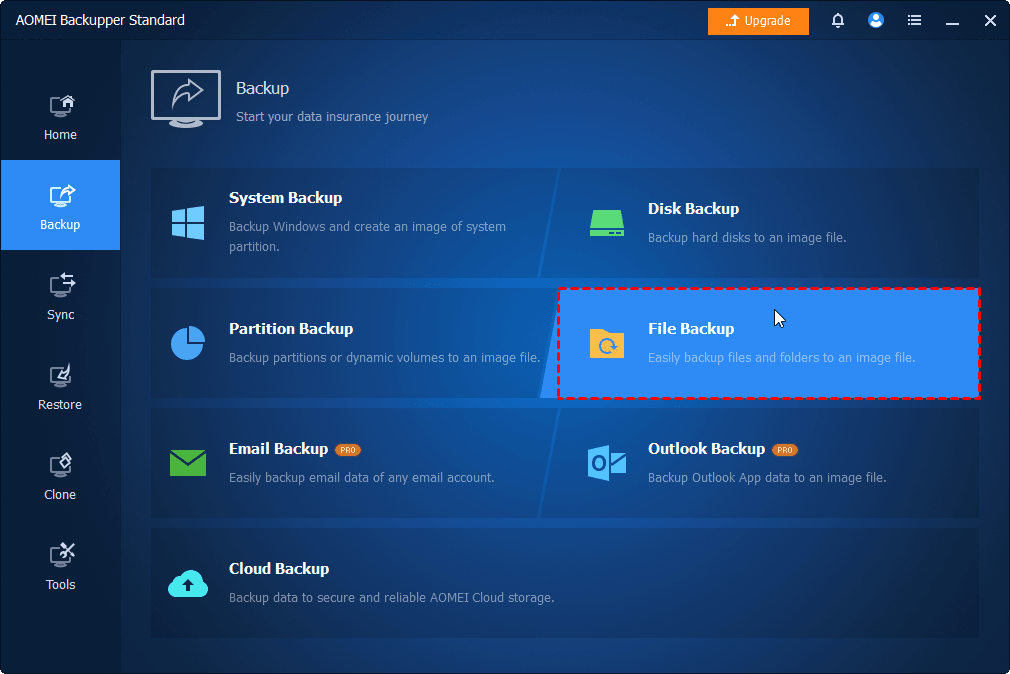
Step 1. Download and install AOMEI Backupper Standard. Then, go to Backup > File Backup. You can also select System Backup, Disk Backup, etc.
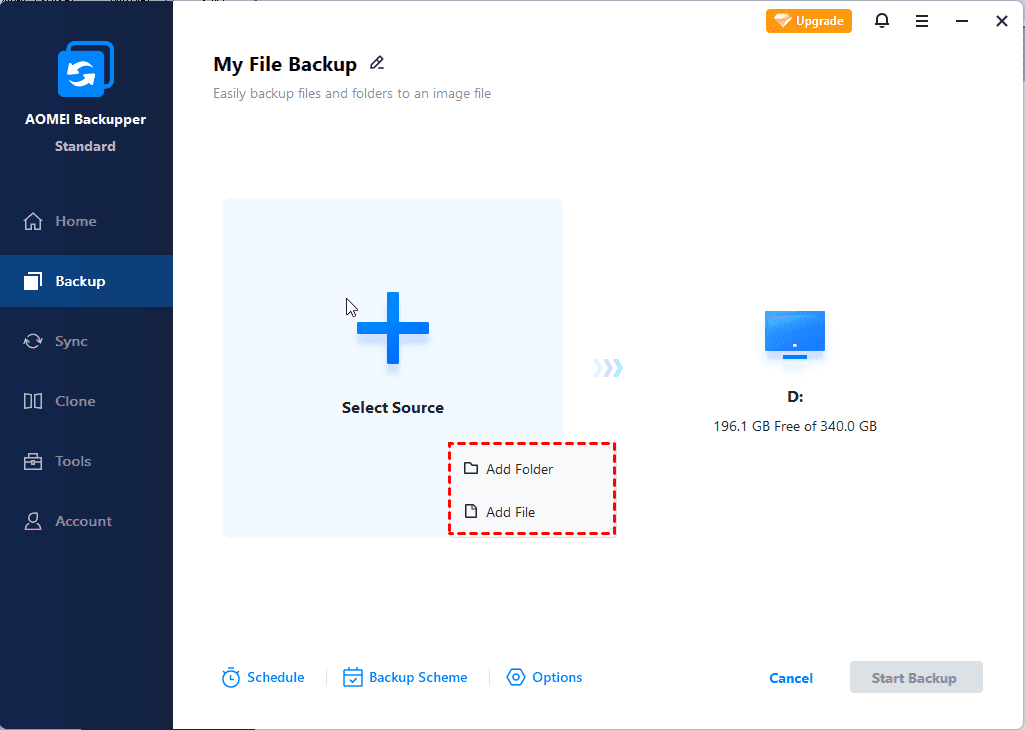
Step 2. Click Select Source > Add File/Folder.
Step 3. In the Open window, click Desktop, Libraries, This PC, or Share/NAS to browse and select any files and folders.
- Desktop: Quick access to desktop data.
- Libraries: Click to see all library folders.
- This PC: Find any local drives, such as internal or external drives, cloud drive (with desktop app installed), network drives.
- Share/NAS: Click to add a network drive or NAS manually. Click Add Network Share/NAS and enter the network or NAS path, and click OK.

Step 4. Click Add Source to select two or more folders.
Step 5. Click the PC icon on the right side.
Step 6. Under Common Locations, select an existing location to save your files. Or click Local Drive, Network Share, etc., to add a new one.
Step 7. Click Schedule and enable it. Select Daily, Weekly, Monthly (By week), etc., from the drop-down menu.

Step 8. By default, this software enables compression, incremental backup, splitting, etc., to make backup image smaller. Or enable email notification to get the result. At last, click Start Backup to schedule Windows backup.
How to Change Schedule in Windows Backup
You can change the schedule at any time if you need to adjust the frequency or use event triggers, such as USB Plug in.
Step 1. Under the Home tab, find the backup task, right-click the three-dot icon, and select Schedule.
Step 2. Click Enable Schedule Backup and OK.
Step 3. The default option is Daily. Click the drop-down menu to change it, with up to 7 options. Confirm and click OK to change Schedule.
In addition to daily, weekly, monthly basis, you can still use Event triggers, such as USB plug in. It allows you to schedule Windows backup anytime - simply insert a USB drive and the backup will start immediately.
How to Create Windows 11 Bootable USB
Creating Windows 11 bootable USB is the easiest method (compared with CD/DVD or ISO file) to start a failing computer and restore Windows 11 to new hard drive or SSD without downtime. It’s fully compatible with Windows 11, supports booting any computer, either 32-bit or 64-bit, and can add drivers if needed.
Step 1. Launch AOMEI Backupper. Then, go to Tools and click Create Bootable Media.
Step 2. Select USB Boot Device and click Create. You can also click Add drivers to add the "inf" files of the driver you need on your computer.
How to Restore Files from Backup in Windows 11
You can restore files from backup when they are missing or corrupted.
Step 1. Under the Home tab, click Restore. It will automatically scan and list all available backup images.
Step 2. Select a file backup task and click Next. Or click Select image to restore.
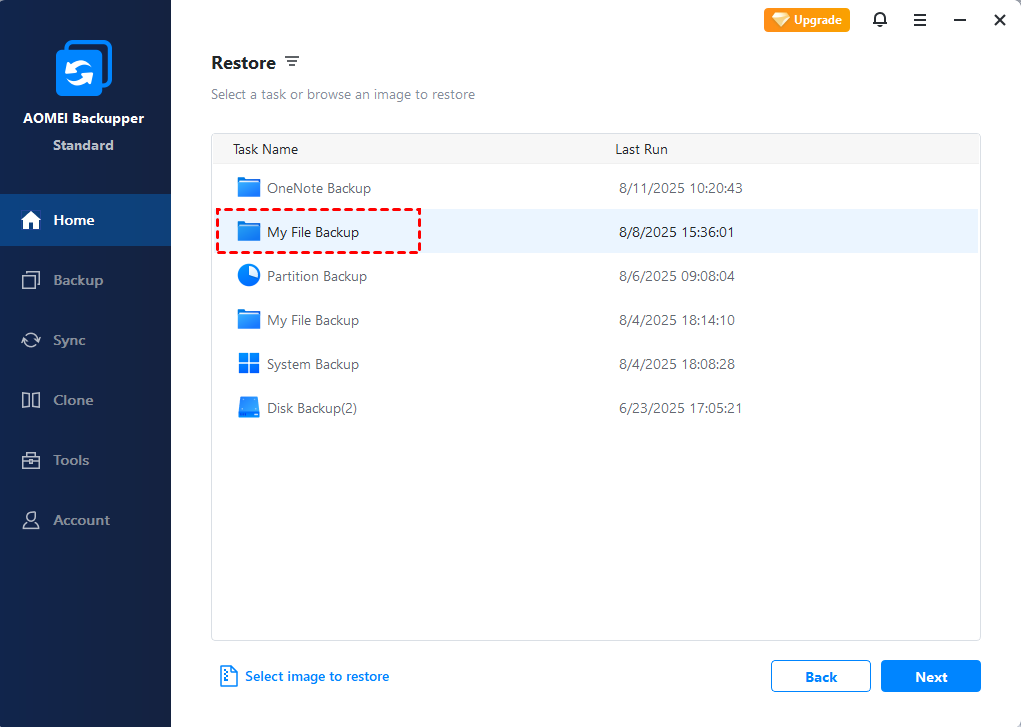
Step 3. Select the files or folders that you want to restore. Click Next.
Step 4. Select Restore to original location, or new one.
Step 5. Click This PC, Network Share, or NAS to select a new location.
Step 6. Click Options, and you’ll see the following 3 options. Set it up and click Start Restore.
- Restore NTFS permissions: NTFS permissions can only be restored to NTFS drive.
- Replace existing files: Overwrite existing files with the same name.
- Restore only files: Only restore selected files not included in the original path.
How to Restore System Image to New Hard Drive in Windows 11
With a system image, you can easily restore Windows 11 image to new hard drive or SSD, even if it’s failing. Directly go to Step 4 if your computer is still bootable.
Step 1. Connect your bootable USB drive and backup drive. Restart your computer and press the BIOS key (e.g., F2, F10, F12, ESC, etc) to access the Windows PE environment.
Step 2. Go to the Boot tab, set the USB drive as the first boot order.
Step 3. Press F10 to save changes and reboot. It will load AOMEI Backupper Standard automatically.
Step 4. Under the Home tab, click Restore.
Step 5. Select the system image task and click Next. Or click Select image to restore.
Step 6. Select Restore this system backup and click Next. You can click the drop-down arrow to select full/incremental/differential backup (if exists).
Step 7. Select Restore to new location. Then, choose a new hard drive or SSD to receive the backup.
Step 8. Check SSD Alignment to accelerate the writing and reading speed of SSD drive (if it is). Confirm and click Start Restore.
💡Notes:
◾ Optionally, click Edit Partitions to extend partition to full capacity. It’s only available when system partition consists of one partition.
◾ The Universal Restore feature will install all necessary drivers required to start Windows, ensuring you can successfully restore Windows 11 to new hardware. It’s enabled automatically when this software detects different hardware.
Conclusion
This article compares the 5 most popular schedule Windows backup software and selects the best option to backup files, OS, disk, partition automatically, and restore them when needed. Besides, you can create Windows 11 bootable USB to start a failing computer when needed. Worth a try - more features await your discovery.

 as a preferred
source on Google
as a preferred
source on Google