




Best Free Bootable Backup Software for Windows 11/10/8/7
Discover the best bootable backup software for Windows 11/10/8/7 and learn how to protect your system with a bootable backup step by step.

By Lily Updated on December 11, 2025


A reliable backup is essential, but when your system refuses to boot, a normal file backup won’t save you. That’s where bootable backup software becomes indispensable. Instead of relying on Windows to start normally, these tools let you create a fully functional rescue environment that can boot your PC independently and restore your entire system image.
This article will walk you through the best bootable backup software and explain how to create a bootable backup step by step.
Best Free Bootable Backup Software for Windows PC
When it comes to free bootable backup software that’s both beginner-friendly and powerful enough for full system recovery, AOMEI Backupper Standard stands out as the top choice. It combines an intuitive interface with professional-grade backup and imaging features.

 AOMEI Backupper
- Full System Image Backup: Capture everything—operating system, installed programs, settings, and personal files—in a single image.
- Disk & Partition Backup: Protect specific drives or partitions with flexible scheduling options.
- Schedule Backup: Set backups to run daily, weekly, or monthly without manual intervention.
- Incremental Backup: Save space and speed up backups with smart data comparison.
- Create Bootable Rescue Media: Build a WinPE bootable USB/CD/DVD so you can access backup tools outside of Windows.
 100% Secure
Download AOMEI Backupper now to try it out!
How to Create a Bootable Backup in Windows 11/10 Step by Step
Creating a bootable backup with AOMEI Backupper involves two key steps: first, you make a full system image, and then you create a bootable USB that lets you restore that image even if your PC won’t start. Follow the guide below to prepare a complete recovery solution.
Part 1: Create a System Image
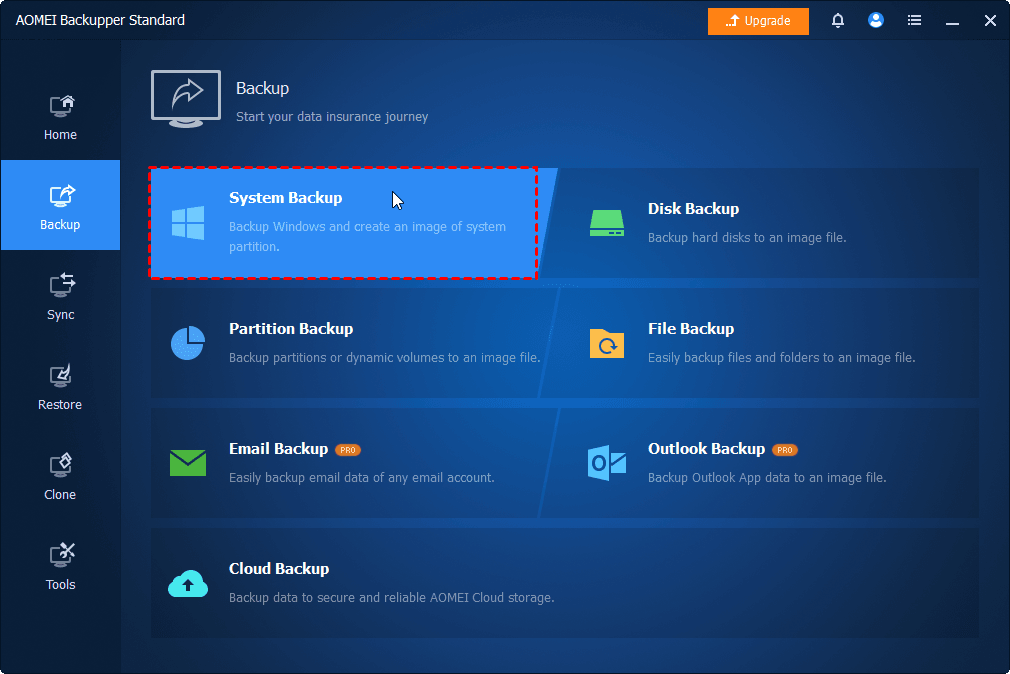
1. Install and launch AOMEI Backupper Standard. On the left menu, click Backup and choose System Backup.
2. The program automatically selects the system partitions required to boot Windows. Click the destination box and choose where to store the image:
- External hard drive
- USB flash drive
- Network location or NAS
- Internal secondary drive
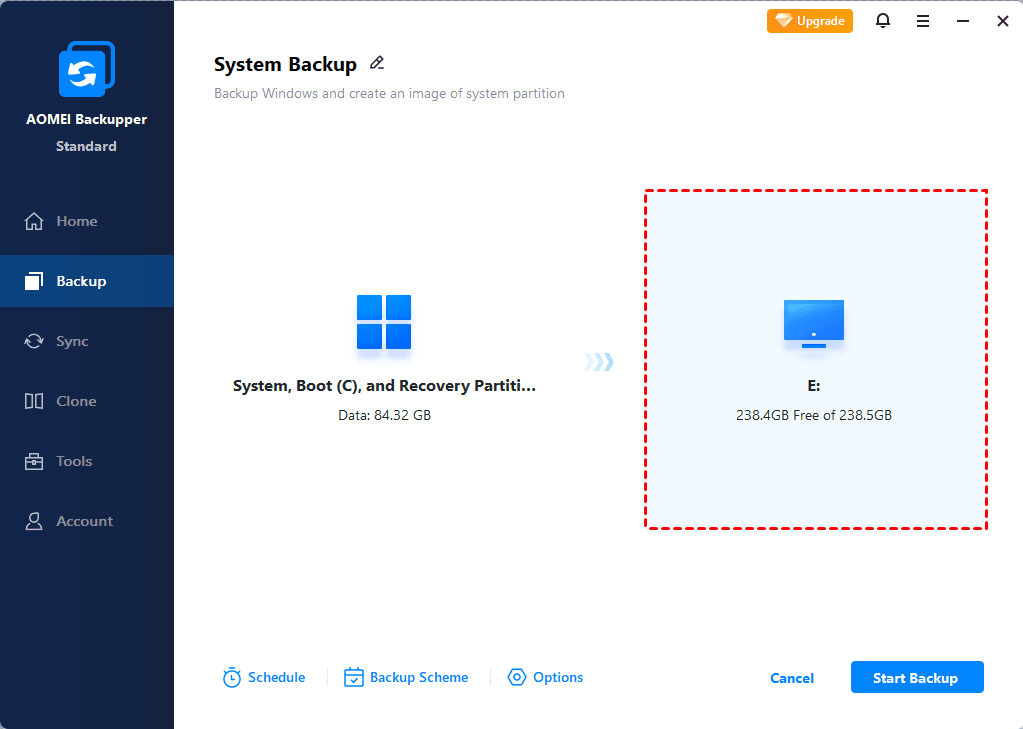
3. (Optional) Click Options to enable compression, encryption (paid), or image splitting. Set Schedule if you want the system image to run regularly.

4. Click Start Backup to begin creating the system image.
Part 2: Create a Bootable USB
1. Connect a blank USB drive. Open AOMEI Backupper and go to Tools > Create Bootable Media.
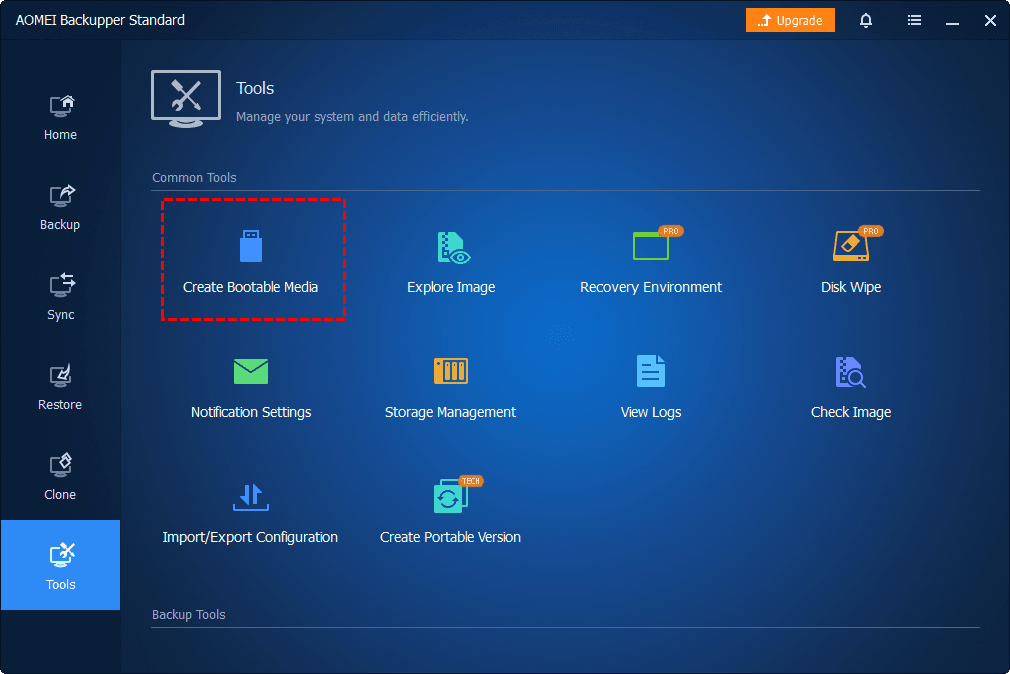
2. Select USB Boot Device as the destination and click Create.
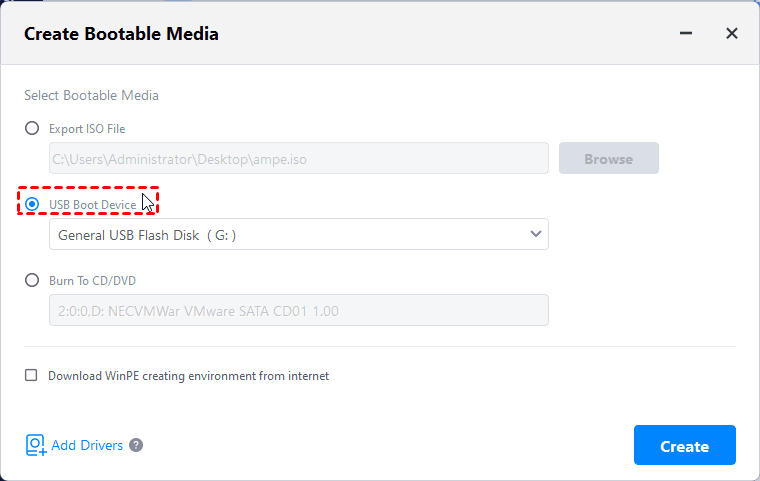
3. You will be prompted that the USB drive will be formatted. Click OK to begin building the bootable media.
4. When the creation completes, safely eject the USB.
How to Restore from a Bootable Backup
Once you’ve created both the system image and the bootable USB, restoring your Windows system becomes straightforward—even if the PC can’t start normally. Follow the steps below to recover your system quickly and safely.
1. (Optional) If your PC encounters severe problems and can’t boot now, you can boot your PC from the bootable USB.
- Insert the bootable USB created with AOMEI Backupper.
- Power on your PC and immediately press the BIOS/UEFI hotkey (usually F2, F12, ESC, or DEL).
- Change the boot order so the USB device is first.
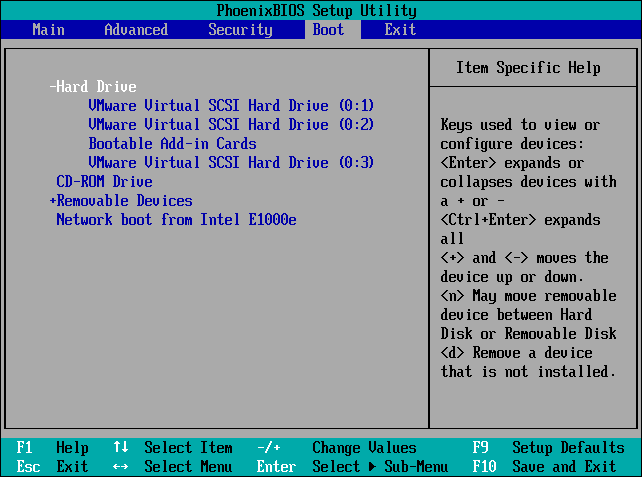
- Save the settings and exit. Your system will automatically load into the AOMEI WinPE recovery environment.
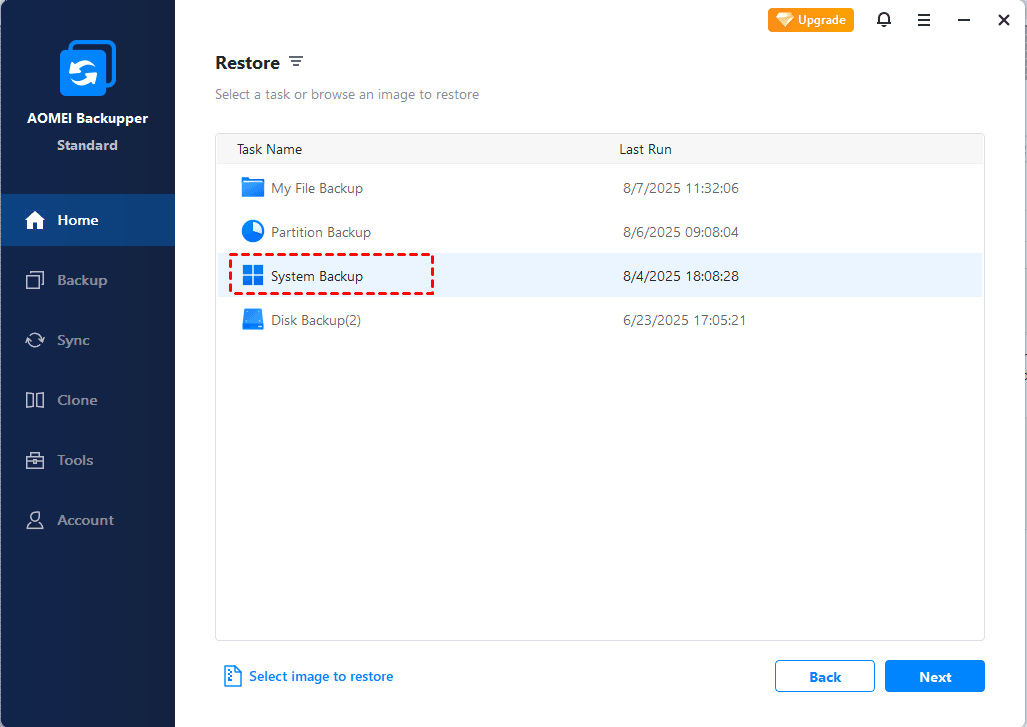
2. Once AOMEI Backupper loads, go to Home > Restore. Then select the system backup task you created earlier and click Next.
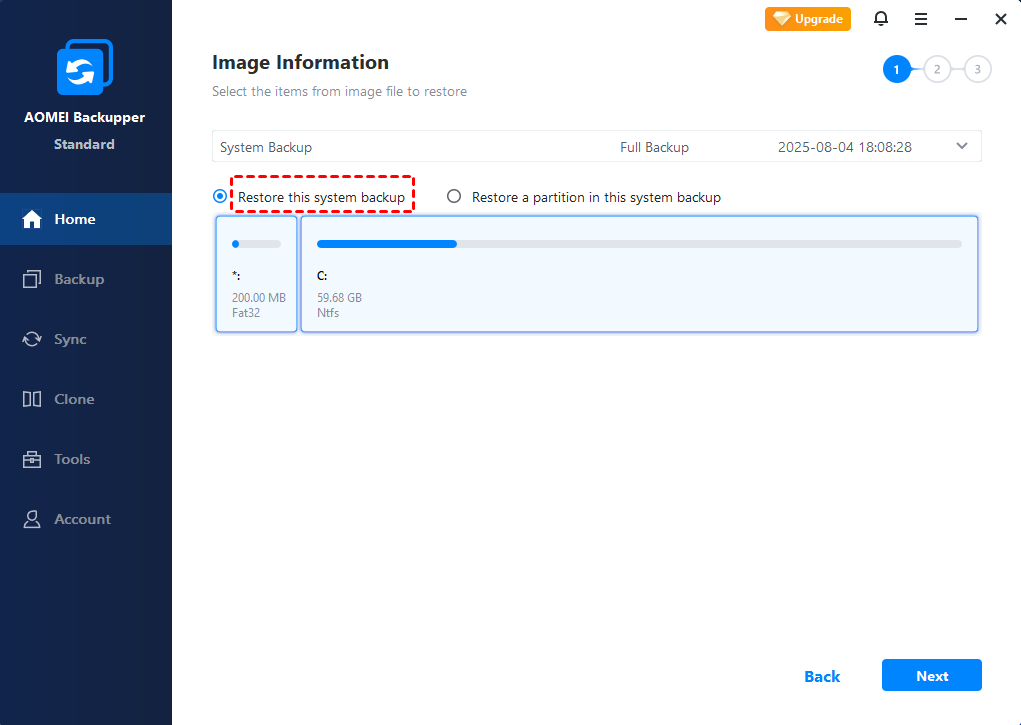
3. If you have multiple backup versions, click the drop-down menu to select a backup version to restore from. Then select Restore this system backup and click Next.
4. Select Restore to original location and click Next.
5. Preview the operation and click Start Restore to begin the recovery process.
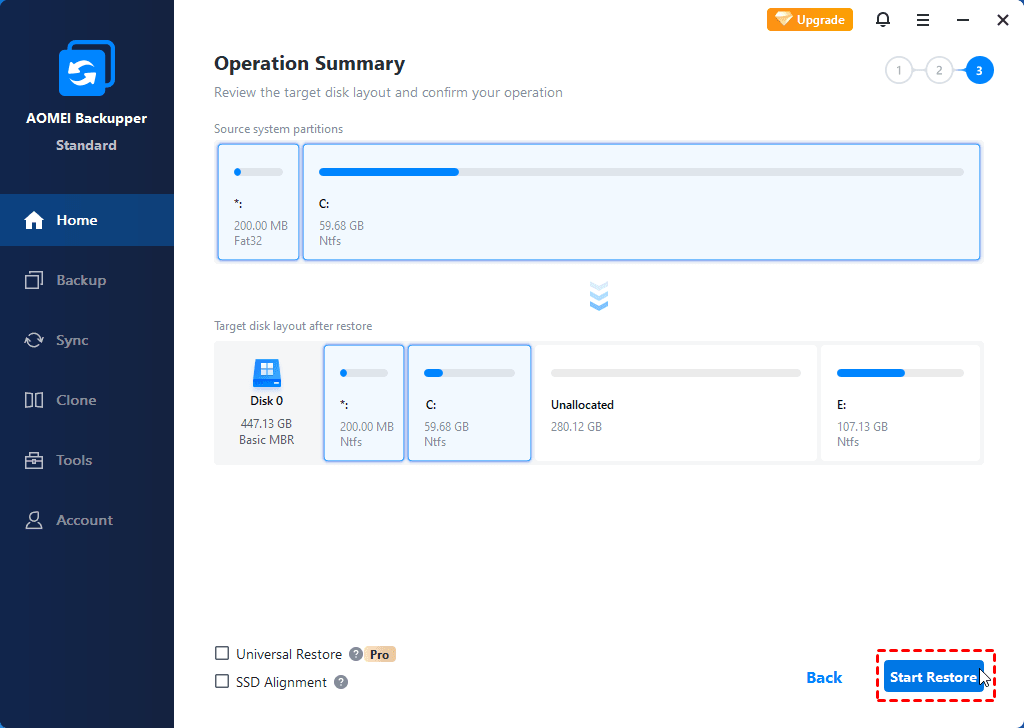
💡Note: If you're restoring to a new machine, tick the Universal Restore option to ensure a bootable system after recovery. You should upgrade to AOMEI Backupper Professional or higher to enjoy this feature.
6. (Optional) After the restore finishes, shut down your PC, remove the bootable USB, and change boot order to boot from your system disk again.
FAQs about Bootable Windows Backup
1. Do I need a bootable USB to restore a system image?
Yes. If Windows cannot load normally, a bootable USB lets you enter a recovery environment so you can access your backup and restore your system.
2. Where should I store my bootable backup?
Store your system image on an external hard drive, USB HDD, NAS, or network location. Avoid saving it on the same disk as Windows.
3. How often should I update my bootable backup?
Update it after major Windows updates, software installations, or any significant system changes. Monthly updates are ideal for most users.
4. What to do if my bootable USB doesn't work?
Try recreating the bootable media, switching USB ports, testing on another PC, or enabling legacy boot/UEFI mode depending on your system’s configuration.
Summary
Bootable backup software is essential for protecting your Windows system against crashes, corruption, and boot failures. By creating a complete system image and a bootable USB, you ensure that your PC can be restored even when Windows cannot start.
AOMEI Backupper is considered the best bootable backup software. It offers free, reliable features for system imaging, rescue media creation, and full recovery. Besides system image, you can also use it to create a disk image. Try it now to discover more!

 as a preferred
source on Google
as a preferred
source on Google