




How to Get iPhone Text Messages on Windows 10: 4 Easy Methods
Want to view iPhone text messages on your Windows 10 computer? This guide explains several ways to get iPhone messages on Windows 10. Follow the step-by-step instructions to transfer, manage, and save important iPhone messages safely.

By Jonna Updated on September 1, 2026


Can You Directly View iPhone Messages on Windows 10?
The short answer is no. Windows 10 cannot directly access the iPhone Messages app. When you connect an iPhone to a PC, Windows only provides access to photos and videos through File Explorer. Unlike Android devices, iPhones do not allow users to browse internal folders containing SMS or iMessage data. For how to get iPhone text messages on Windows 10, you have different solutions.
If by "get" you mean send and receive iPhone messages directly inside Windows 10, the options are more limited. Apple's official message-forwarding features are designed primarily for Apple devices such as Mac, iPad, and Apple Vision Pro. If you mean viewing iPhone messages on PC or saving existing iPhone messages on your Windows PC, you have more options. A dedicated iPhone management tool can help you access supported message data and create a local backup. You can also use iCloud Sync or email for a small number of conversations for message migration.
|
Your Goal |
Recommended Method |
|
View or back up messages selectively |
AOMEI FoneBackup >> |
|
Keep messages synchronized with Apple devices |
Messages in iCloud >> |
|
Save a few messages on PC |
Email >> |
|
Send and receive live text messages on Windows |
Phone Link >> |
Method 1. Get iPhone Text Messages on Windows 10 Using AOMEI FoneBackup
AOMEI FoneBackup is an iPhone data backup and transfer program for Windows. It is designed to help users manage different types of iPhone content, including messages, photos, contacts, music, and other supported data.
One advantage of using a dedicated iPhone management tool is that you don't have to treat your entire iPhone backup as one large package. AOMEI FoneBackup provides a selective backup option that can be useful when your primary goal is to work with messages rather than create a complete iPhone backup.
 AOMEI FoneBackup
- Selective backup: Preview & choose iPhone messages instead of always backing up everything on iPhone.
- No data loss: Transferring messages will not alter or erase existing data on your iPhone or PC.
- Various paths: Save iPhone messages on local disk, external hard drive, USB, NAS, and multiple locations.
- Apart from iPhone-to-computer transfer, it also supports computer-to-iPhone transfer and iPhone-to-iPhone message transfer.
 100% Secure
Step 1. Download and install AOMEI FoneBackup on your Windows 10 computer. Connect your iPhone to the PC using a USB cable.
Step 2. Run it and click Phone Backup > Choose Selective Backup.
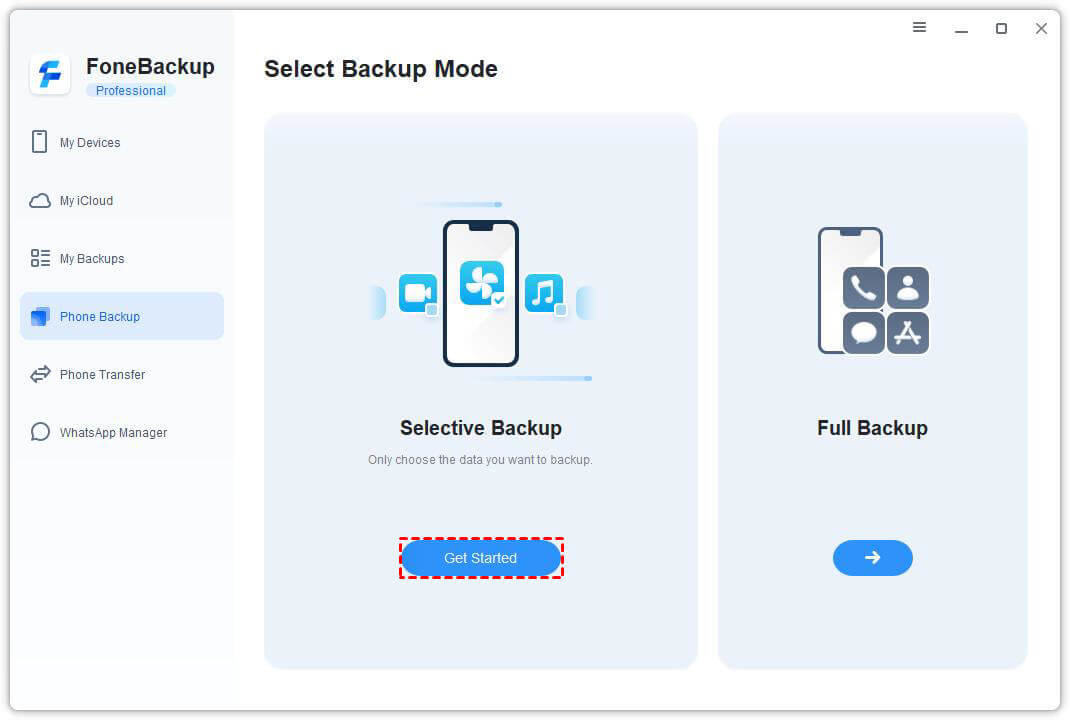
Step 3. Select the Messages icon. Click Messages to see all your messages listed there. Select the messages you need and click OK.
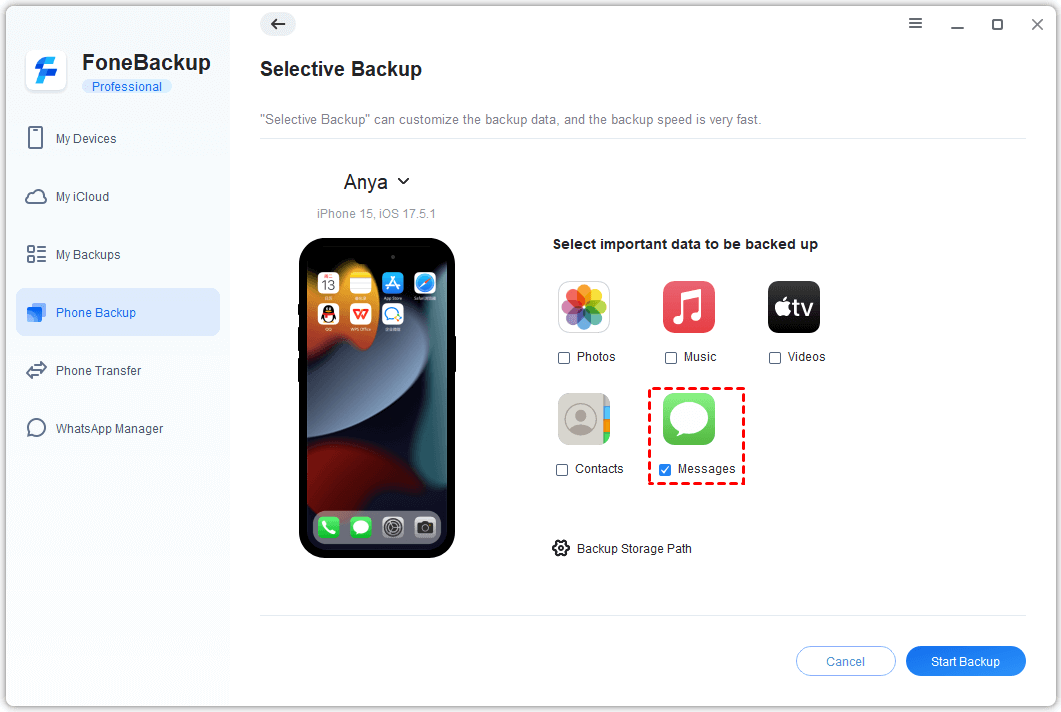
Step 4. Then click on Backup Storage Path to choose a storage path to save your messages and click Start Backup to save iPhone text messages to your computer.
Method 2. Access Messages via iCloud Sync
Messages in iCloud is different from simply creating an iCloud device backup. When Messages in iCloud is enabled, your message history can remain synchronized across supported Apple devices signed in to the same Apple Account. Apple states that Messages in iCloud keeps the entire message history up to date across those devices.
However, this does not give Windows 10 a native iMessage application. If your goal is specifically to read messages directly on a Windows 10 desktop, this is not the most convenient solution.
Step 1. Open Settings on iPhone. Tap your Apple Account.
Step 2. Tap iCloud and select Messages, then enable the synchronization option to get iPhone texts on Windows.
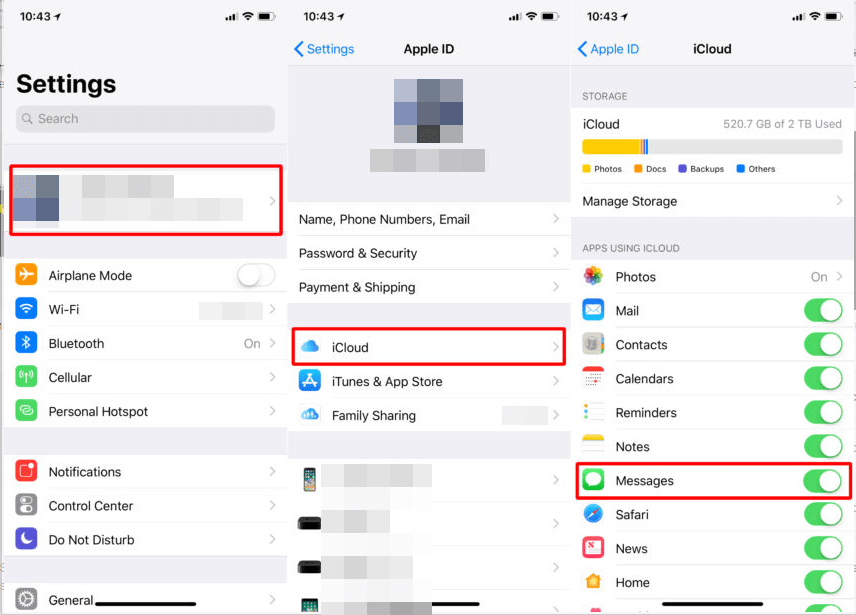
Step 3. Your messages can then synchronize with supported Apple devices using the same Apple Account.
Key Limitations:
- Does not provide a native Messages app for Windows 10
- Requires an Apple device for the normal Messages experience
- Not ideal if your only computer is Windows
Method 3. Send Individual iPhone Messages to Your Email
If you don't want to install additional software, you can manually forward selected messages to an email account and then open that email on your Windows 10 PC. This is particularly useful when you only need a few messages rather than your entire message history.
Step 1. Open the Messages app and go to the conversation. Touch and hold the message you want to send.
Step 2. Tap Copy on the menu that pops up.
Step 3. Open the Mail app and start a new email.
Step 4. Tap and hold inside the email body, then tap Paste.
Step 5. Type your email address in the "To" field and tap Send to share iPhone messages to Windows 10.
Key Limitations:
- Not practical for hundreds or thousands of messages
- Manual process
- Conversation formatting may not be preserved perfectly
- Attachments may require separate handling
Method 4. Send and Receive Live iPhone Messages on Windows 10 via Phone Link
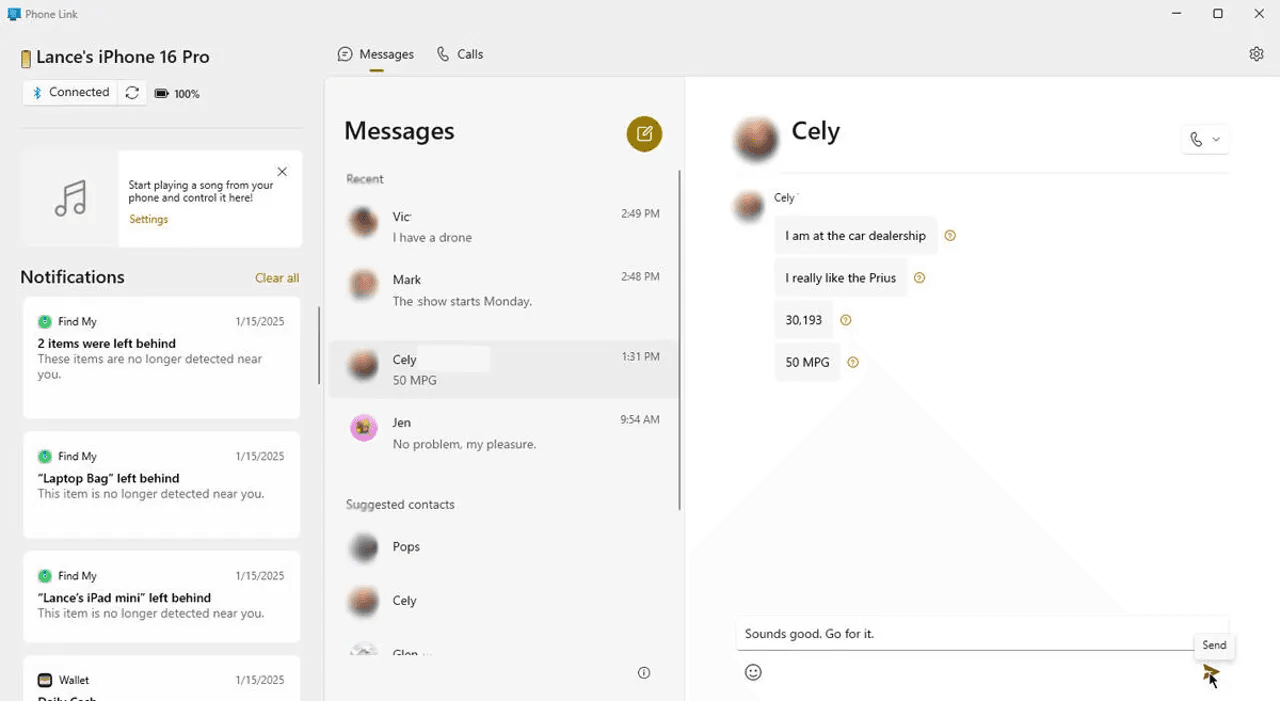
If you want to send and receive live text messages on Windows 10 while working at your desk, using Bluetooth sync tools like Microsoft Phone Link (or Intel Unison) is an effective approach. Microsoft’s Phone Link app allows iPhone users to pair their mobile devices with Windows 10/11 to send texts, receive SMS notifications, and handle phone calls directly from the desktop interface.
Here is how to set up live message syncing to export iPhone messages to PC:
Step 1. Open Microsoft Phone Link on your Windows 10 PC and download the Link to Windows app from the Apple App Store on your iPhone.
Step 2. Turn on Bluetooth on both your Windows 10 PC and your iPhone.
Step 3. Open Phone Link on your PC, select iPhone, and scan the QR code displayed on your PC screen using your iPhone camera.
Step 4. On your iPhone, go to Settings > Bluetooth, tap the info (i) icon next to your PC's name, and toggle on Show Notifications and Sync Contacts.
Step 5. Once paired, open the messaging tab in Phone Link on Windows 10. Incoming SMS and iMessages will trigger desktop pop-ups, allowing you to reply directly from your PC keyboard.
Key Limitations:
- Requires an active, continuous Bluetooth connection between your PC and iPhone.
- Syncs only active messages while connected; it cannot import your full historical text message archive.
- Group messaging and multimedia (MMS) support may be restricted depending on carrier settings.
FAQs About Getting iPhone Text Messages on Windows 10
Can I get iPhone text messages on Windows 10 without a USB cable?
Yes. Tools like Microsoft Phone Link work wirelessly via Bluetooth to sync incoming and outgoing messages in real time. Email forwarding and iCloud Notes workarounds also require no cable. However, for transferring large message histories with attachments, a USB cable with AOMEI FoneBackup is faster and more stable
Can I reply to iPhone text messages directly from Windows 10?
Yes, but only when using live pairing tools like Microsoft Phone Link. Backup and export software like AOMEI FoneBackup or iTunes are designed for viewing and saving messages rather than live two-way chatting.
Can I transfer all iPhone messages to my computer?
Yes, depending on the method and software you use. A dedicated backup tool or a complete Apple backup is more practical for a large message library than manually forwarding individual conversations.
In the End
Although Apple does not provide a native iMessage app for Windows, getting your iPhone text messages on Windows 10 is straightforward with the right tools.
For users looking to save, export, or print past conversations, AOMEI FoneBackup offers a reliable, selective, and user-friendly solution that converts iOS messages into readable PC files. If you need live notification pop-ups and desktop typing capabilities, Bluetooth pairing via Phone Link is ideal. Choose the method that best fits your workflow to access your iPhone texts on Windows 10.

 as a preferred
source on Google
as a preferred
source on Google