




How to Transfer Messages from iPhone to iPhone without iTunes
Learn how to transfer messages from iPhone to iPhone without iTunes using two simple methods. Sync via iCloud or selectively move conversations with AOMEI FoneBackup.

By Kelsey Updated on May 26, 2026


Got a new iPhone? Exciting stuff. But now you're staring at your old phone, wondering how to get your text messages and iMessages onto the new one without involving iTunes. And honestly? Smart move. iTunes has its place, but it's not exactly built for moving just your messages—it's clunky, wipes your new phone's data, and forces you to restore everything. So if you're looking for a clean, simple way to transfer messages from iPhone to iPhone without iTunes, you're in the right place. This guide walks you through two methods that actually let you move your conversations without the headache or data loss.
Why Skip iTunes for iPhone Message Transfers?
iTunes can technically transfer messages, but here's the catch: it only works as part of a full backup and restore. You back up your old iPhone, then restore that backup to your new one. Sounds fine until you realize that restore wipes everything on the new phone. All your existing data? Gone. Plus, you can't pick just the conversations you want - it's all or nothing.
So if you want more control, you need better options. Let's get into them.
Method 1. Sync Messages from iPhone to iPhone via iCloud
iCloud can help with messages, but there's a catch. It's really designed for syncing iMessages between devices that you own—all signed into the same Apple ID. If that's your situation (old iPhone and new iPhone, both yours), this method works great.
🔹What you need:
- Both iPhones are running iOS 11.4 or later
- Both signed into the same Apple ID
- A stable Wi-Fi connection
- Enough iCloud storage (you get 5GB free)
🔍How to transfer messages with iCloud:
Step 1. On both iPhones, connect to Wi-Fi. (This works better if they're on the same network.)
Step 2. On the old iPhone, go to Settings > tap your name at the top > iCloud. Find Messages and toggle it ON.
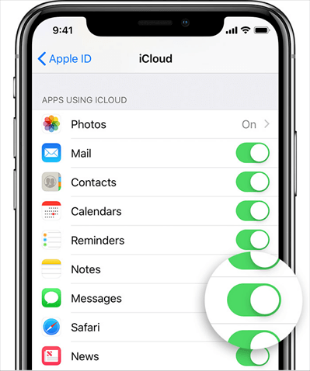
Step 3. Do the same thing on your new iPhone. Sign into the same Apple ID and turn on Messages in iCloud.
Step 4. Give it some time. iCloud will sync your messages across both devices. Any iMessages you had on your old phone will start showing up on the new one.
-
This syncs iMessages, not necessarily all your SMS text messages. Also, any other devices signed into that Apple ID (like an iPad or Mac) will also see these messages. Something to keep in mind.
Method 2. Selectively Transfer Messages from iPhone to iPhone
Here's the problem with iCloud: what if you want to move messages to someone else's iPhone? Or what if you only want to transfer a specific conversation? Or maybe you just don't want to sync everything across all your devices.
That's where AOMEI FoneBackup comes in. It's a free iPhone transfer tool that lets you pick exactly which messages to move. No full backups, no wiping devices, no sharing everything with every device you own.
 AOMEI FoneBackup
- Selective transfer: Pick one conversation or several. Your choice.
- No data loss: It adds messages to the target iPhone, doesn't erase anything else.
- Works with any iPhones: Old iPhone to new iPhone, or even your iPhone to a friend's. Different Apple IDs? No problem.
- iCloud Manager: Upload, download, delete, and sync iCloud photos, videos, contacts, and Drive files across accounts efficiently.
- Also handles other stuff: Photos, contacts, videos, music, same deal.
 100% Secure
Step 1. Download and install AOMEI FoneBackup on your Windows PC. Connect your source iPhone (the one with the messages) using a USB cable and tap "Trust This Computer" when prompted.
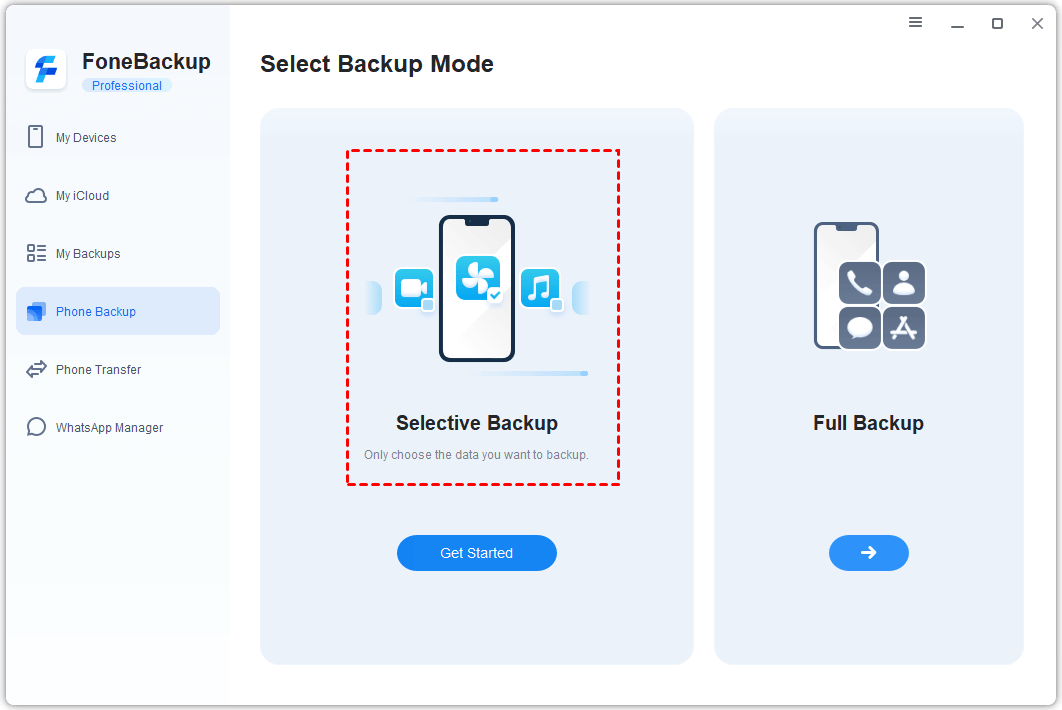
Step 2. Open AOMEI FoneBackup. Click Phone Backup on the home screen, then choose Selective Backup.
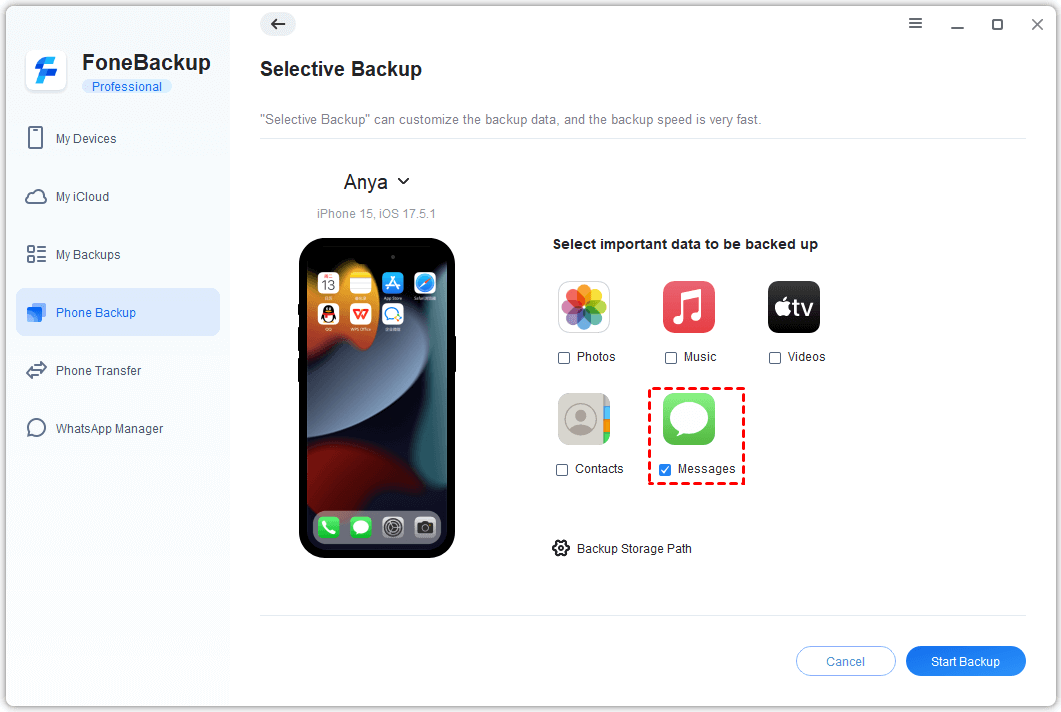
Step 3. Click Messages to preview all your conversations. Select the specific messages or threads you want to transfer, then click OK. Choose a save location on your computer and click Start Backup to copy them from your iPhone to the PC.
Step 4. Disconnect the source iPhone and connect your target iPhone (the one that needs the messages). In AOMEI FoneBackup, go to My Backups, find the backup you just made, and click Restore.
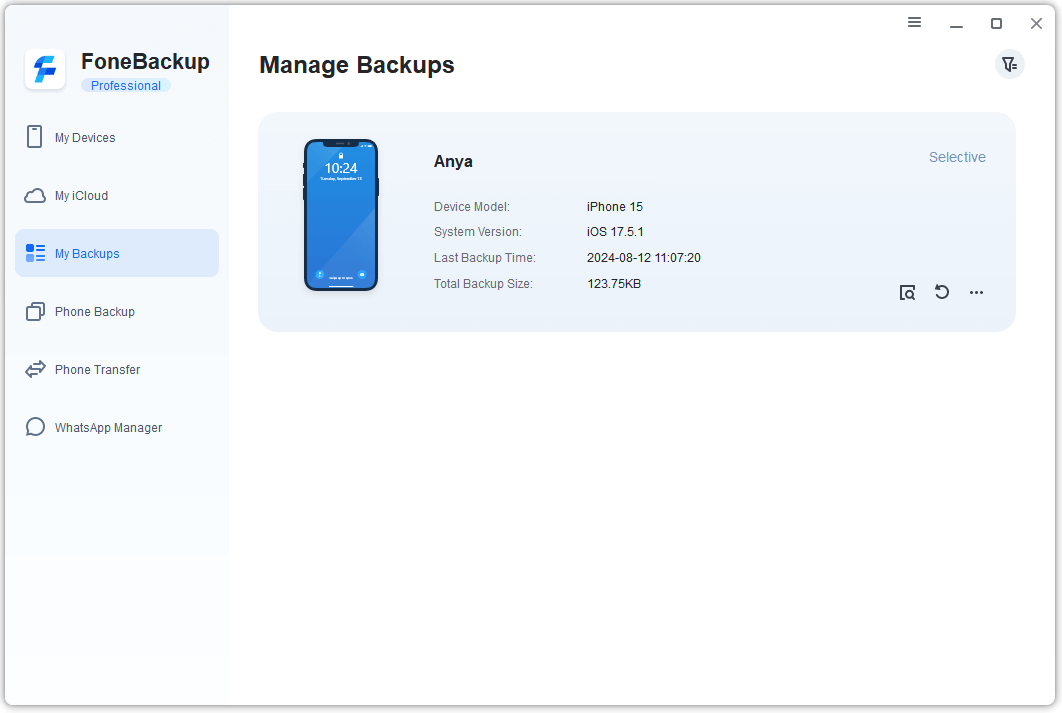
Step 5. Confirm the messages you want to restore and click Start Restore. Wait a moment, your selected messages are now on the target iPhone.
This same method works for contacts, photos, videos, and music, too. Pick what you need, leave what you don't.
The Bottom Line
So, how to transfer messages from iPhone to iPhone without iTunes? You've got two solid options. If you just need your iMessages on another device you own, iCloud sync works fine. But if you want to move specific conversations, or transfer messages to a different Apple ID without wiping anything, AOMEI FoneBackup is the way to go. Give it a try and keep your conversations exactly where you want them.
AOMEI FoneBackupEasily to backup and restore iPhone data, transfer data between PC and iPhone, and manage iCloud and WhatsApp data.

 as a preferred
source on Google
as a preferred
source on Google