




How to Bluetooth Photos from iPhone to iPhone
Want to bluetooth photos from iPhone to iPhone? You can't directly, but AirDrop does the job. Plus two solid alternatives for wireless or USB transfers. Read on.

By Kelsey Updated on May 14, 2026


Bluetooth photos from iPhone to iPhone
Using Bluetooth, how do you transfer photos and videos from iPhone to iPhone wirelessly?
- Question from Apple Community
If you've ever tried to bluetooth photos from iPhone to iPhone, you probably hit a wall pretty fast. Bluetooth is great for speakers and headphones, but when it comes to actually moving photos between iPhones? It's not that simple. In fact, Apple doesn't let you transfer photos directly via Bluetooth, at least not the way you might think.
But here's the good news: there are workarounds. Apple has its own solution (AirDrop) that uses Bluetooth behind the scenes, and there are third-party tools that give you even more control. This guide walks you through exactly how to get photos from one iPhone to another, no complicated setups, no frustration.
Can You Actually "Bluetooth" Photos from iPhone to iPhone?
Let's get this out of the way first. The honest answer? No, you cannot directly transfer photos from iPhone to iPhone using Bluetooth alone. Apple blocks this for copyright and security reasons. You won't find a "send via Bluetooth" option in your share sheet.
But this is the important part - AirDrop does use Bluetooth to help establish a connection. It pairs Bluetooth with Wi-Fi to create a fast, stable link between two Apple devices. So while you can't do a traditional Bluetooth transfer, AirDrop is essentially Apple's version of it.

How to "Bluetooth" Photos via AirDrop
AirDrop is Apple's built-in tool for wirelessly sending files between nearby Apple devices. It uses Bluetooth to discover devices and Wi-Fi to handle the actual transfer. It's fast, it's secure, and it's already on your iPhone.
How to Enable AirDrop on Both iPhones
Before you can send anything, you need to make sure AirDrop is turned on and set up correctly on both phones.
Step 1. On both iPhones, open Control Center. (On iPhones with Face ID, swipe down from the top-right corner. On iPhones with a Home button, swipe up from the bottom.)
Step 2. Press and hold the wireless control box—that's the section in the top-left with the airplane mode, Wi-Fi, and Bluetooth icons.
Step 3. Tap AirDrop. You'll see two options:
-
Contacts Only: Only people in your contacts can see your iPhone. Good for privacy.
-
Everyone: Anyone nearby with an iPhone can see you. Useful if you're sharing with someone not in your contacts.
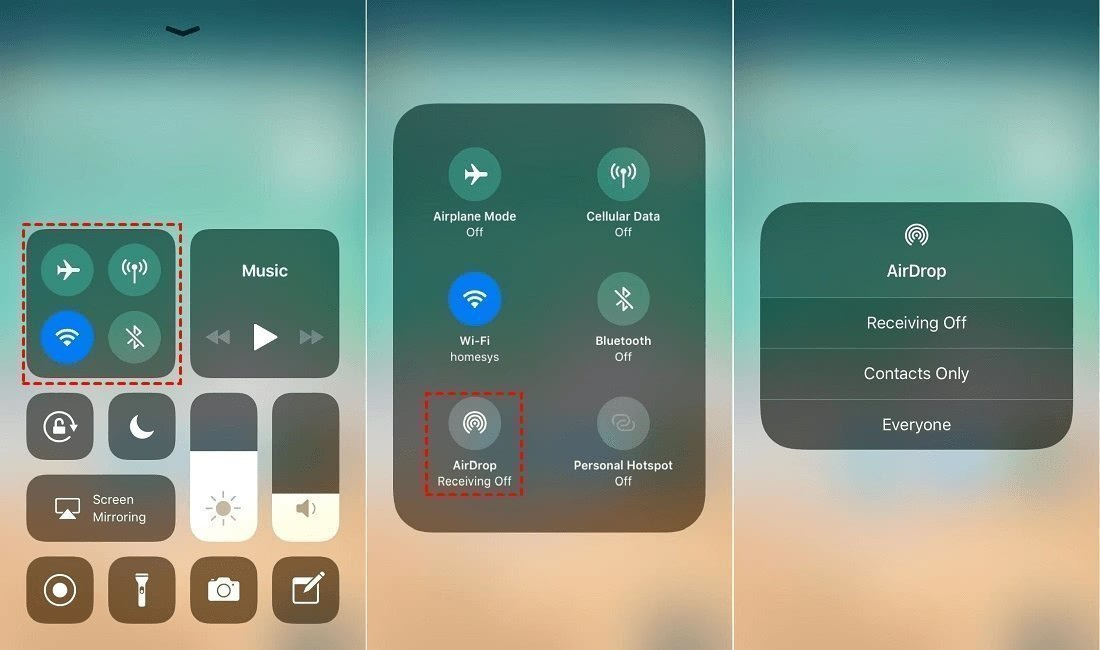
Choose the one that makes sense for your situation.
If the person you're sharing with is in your contacts, go with "Contacts Only." If it's a stranger or someone new, pick "Everyone." You can always switch it back afterward.
How to Send Photos Using AirDrop
Step 1. On the source iPhone (the one with the photos), open the Photos app.
Step 2. Tap "Select" in the top right corner. Choose the photos you want to send. (Stick to smaller batches—AirDrop can get flaky with too many photos at once.)
Step 3. Tap the "Share" icon (that square with an arrow pointing up).
Step 4. At the top of the share sheet, you'll see available AirDrop users. Tap the name of the target iPhone.
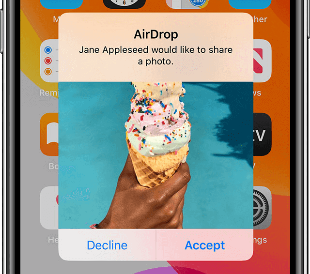
Step 5. On the target iPhone, a pop-up will appear. Tap "Accept." The photos will be transferred and saved directly to the Photos app.
-
AirDrop works best with smaller groups of photos. If you try to send 500 photos at once, it might fail halfway through. Break it into chunks of 50 or so.
Best AirDrop Alternatives for iPhone-to-iPhone Transfer
AirDrop is great, but it's not perfect. Sometimes it doesn't find the other device. Sometimes the transfer drops. And if you're worried about privacy, you might not love the idea of Bluetooth broadcasting your presence.
Here are two solid alternatives, both from AOMEI FoneBackup that give you more control.
Alternative 1. AOMEI FoneBackup App (Wireless, No Bluetooth)
If you want to send photos wirelessly but don't want to rely on Bluetooth, the AOMEI FoneBackup app is a smart choice. It uses Wi-Fi instead, which can be more stable and gives you a different kind of privacy.
How to send photos with the AOMEI FoneBackup app:
Step 1. On both iPhones, download and install the AOMEI FoneBackup app from the App Store. (Search for it or scan the QR code from their site.)

Step 2. Make sure both iPhones are connected to the same Wi-Fi network and placed close to each other.
Step 3. Open the app on both devices. On the source iPhone, tap "Connect Device" and select the name of the target iPhone to establish a connection.
Step 4. On the source iPhone, tap "File Transfer" > "Photos." Browse and select the photos you want to send. Tap "Send."
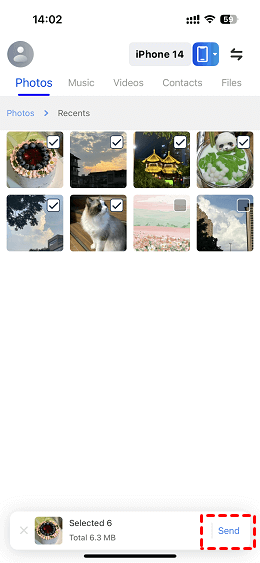
Step 5. On the target iPhone, open the app to receive the photos. They'll save to your camera roll.
Alternative 2. AOMEI FoneBackup Desktop Software (USB, Super Fast)
Sometimes wireless just isn't reliable enough. If you're moving hundreds of photos and want zero risk of failure, go wired. The AOMEI FoneBackup desktop software transfers photos via USB. It's fast, like, 100 photos in 3 seconds fast, and rock-solid stable.
How to transfer photos using the desktop software:
Step 1. Download and install AOMEI FoneBackup on your Windows PC. Connect the source iPhone to the computer with a USB cable. If prompted, tap "Trust This Computer" on your iPhone.
Step 2. Open AOMEI FoneBackup. Click Phone Transfer, then choose iPhone to PC and hit Get Started.
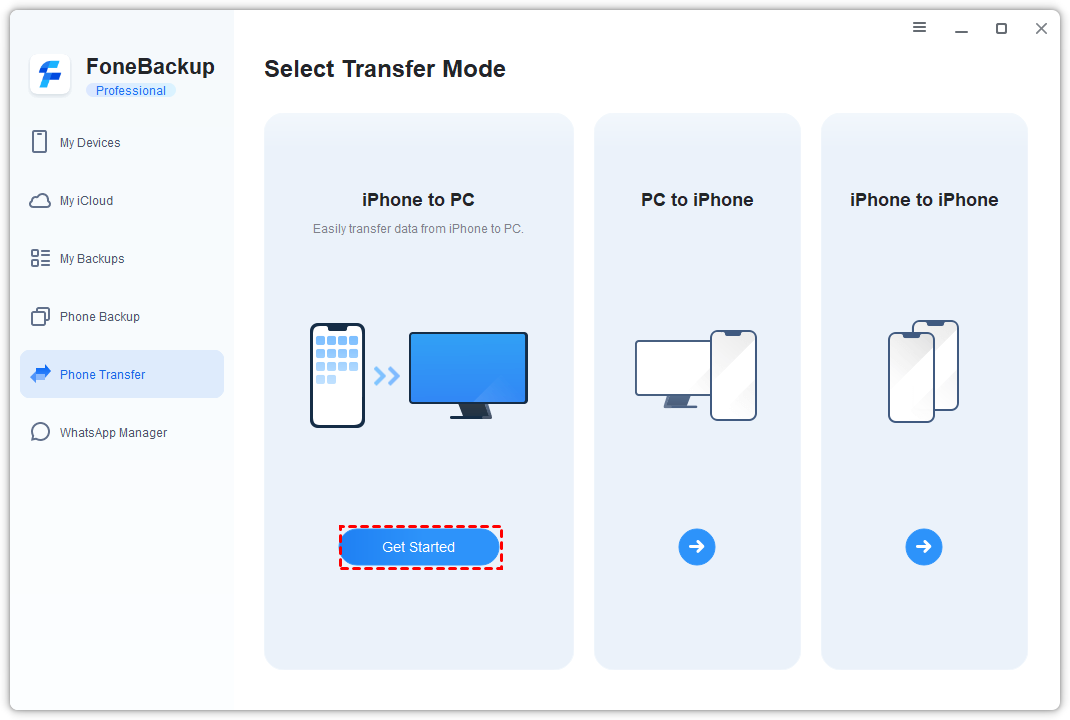
Step 3. Click the "+" icon, then check Photos. Browse and select the photos you want to move. Click OK. Pick a destination folder (maybe create a folder named "Temp Photos" or something). Click Start Transfer.
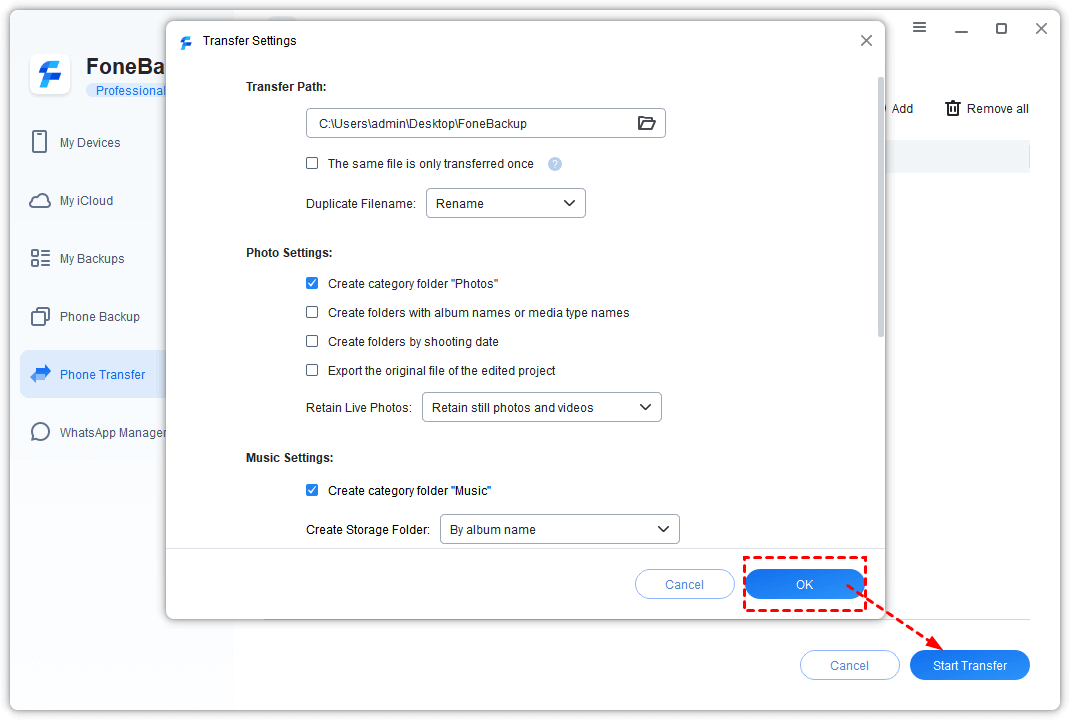
Step 4. Now connect the target iPhone to the computer. In AOMEI FoneBackup, go back to Phone Transfer and choose PC to iPhone.
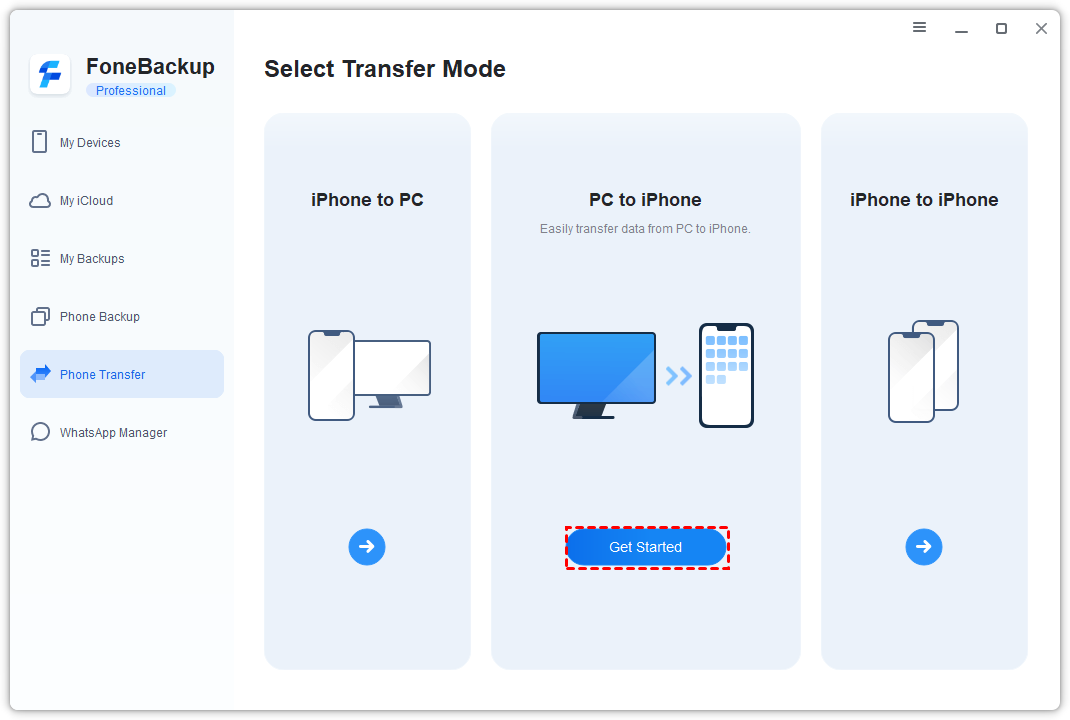
Step 5. Click the folder icon, locate the photos you just saved, and select them. Click Start Transfer to move them onto the target iPhone.

AOMEI FoneBackup also includes a Photo Deduplication tool. If your iPhone is clogged with duplicate photos (happens to everyone), it can automatically find and delete them for you.
The Bottom Line
So, can you bluetooth photos from iPhone to iPhone? Not directly, Apple doesn't allow it. But AirDrop gives you the next best thing, using Bluetooth to set up a fast wireless transfer. And if AirDrop isn't cutting it, AOMEI FoneBackup offers reliable alternatives wireless via their app, or super-fast USB transfers with their desktop software. Either way, your photos can move from one iPhone to another without the headache. Give it a try and see which method works best for you.
 AOMEI FoneBackup
Easily to backup and restore iPhone data, transfer data between PC and iPhone, and manage iCloud and WhatsApp data.

 as a preferred
source on Google
as a preferred
source on Google