




Messages Didn't Transfer to New iPhone? Fix It
When messages fail to appear on a new iPhone, the cause is usually unfinished iCloud syncing, wrong Messages in iCloud settings, limited storage, unstable Wi-Fi, or an incomplete backup restore. This guide explains how to diagnose the issue, try the right fixes, and use AOMEI FoneBackup when you need a computer-based transfer path.

By Jonna Updated on August 12, 2026


Why Messages Didn't Transfer to New iPhone?
Messages didn't transfer to new iPhone can feel confusing because the rest of the setup may look complete. In many cases, the messages are not actually lost. They may still be syncing from iCloud, excluded from the backup, waiting for a stable network, or stored in a backup that was not restored correctly.
The fastest way to choose a fix is to identify how you moved data to the new device. If you used iCloud, check Messages in iCloud and iCloud storage first. If you restored from a computer backup, verify whether the backup includes messages. If you do not want to erase the new iPhone and restore again, AOMEI FoneBackup can be a useful Windows-based option for transferring selected messages from the old iPhone.
Quick Checks Before You Start Fixing
Before changing settings or restoring the device, confirm a few basics. These checks can save time and prevent you from repeating the wrong transfer method.
- Keep the old iPhone available until the missing messages appear on the new iPhone.
- Connect both iPhones to reliable Wi-Fi and keep them plugged into power.
- Check whether the missing conversations still exist on the old iPhone, another Apple device, or iCloud.
- Make sure both devices use the same Apple Account for iCloud and iMessage.
- Do not erase the old iPhone until you have confirmed the message transfer on the new one.
Quick Fixes to Messages Didn't Transfer to New iPhone
Here are some reliable solutions to text messages did not transfer to new iphone. You may try them one by one, or directly use the tool below to transfer messages from iPhone to iPhone without errors.
Fix 1. Check Messages in iCloud Settings
Messages in iCloud changes how messages are handled during transfer. When this option is enabled, messages sync through iCloud instead of being stored inside a normal iCloud backup. That is why some users restore a backup and still find that recent iMessages or text messages did not transfer to new iPhone immediately.
Step 1. On the old iPhone, open Settings and tap [your name].
Step 2. Tap iCloud and check whether Messages is turned on.
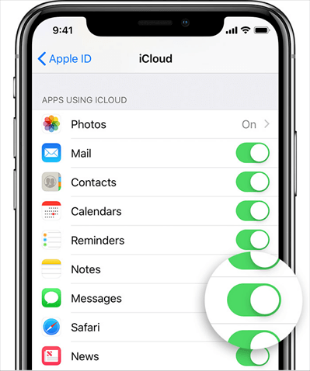
Step 3. On the new iPhone, sign in with the same Apple Account and turn on Messages under iCloud as well.
Step 4. Keep the new iPhone connected to Wi-Fi and power while the conversations download.
If you want messages to be included in a fresh iCloud backup instead, turn off Messages in iCloud on the old iPhone, create a new iCloud backup, then restore that backup to the new iPhone. This normally requires erasing the new iPhone before restoring, so use it only when you are comfortable starting setup again.
It is also advised to give iCloud sync enough time. Large message histories, many images or videos in chats, slow Wi-Fi, and temporary iCloud service delays can all make the process look stuck. If only recent messages are missing, waiting may be better than repeatedly resetting the new device and interrupting the sync.
Fix 2. Make Sure iCloud Has Enough Storage
If iCloud storage is full, messages may fail to upload from the old iPhone or download to the new iPhone properly. This is especially common when message attachments take up a large amount of space.
Step 1. Open Settings on the iPhone.
Step 2. Tap [your name] > iCloud.
Step 3. Tap Manage Account Storage or Manage Storage.
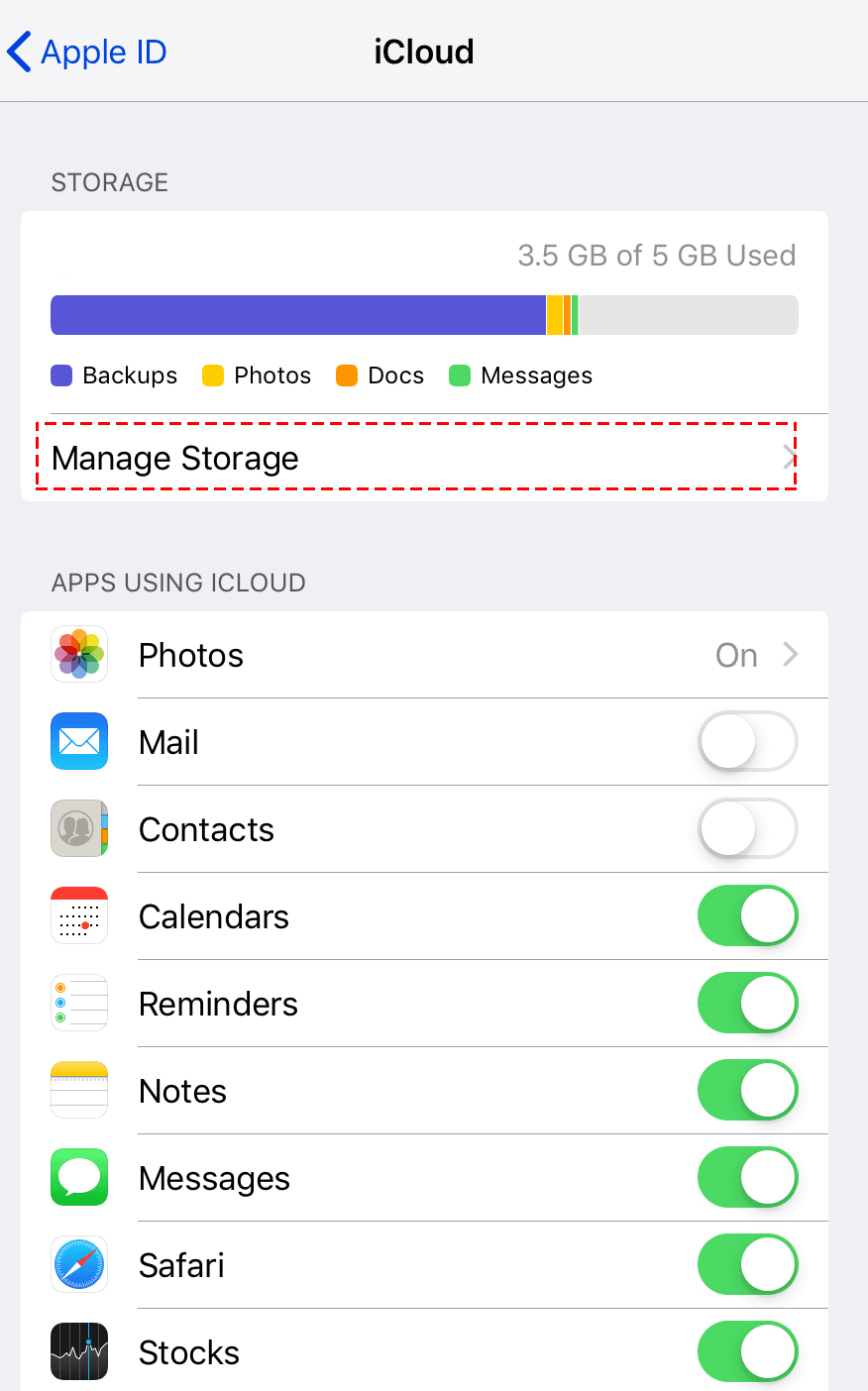
Step 4. Review available storage and remove unnecessary iCloud data or upgrade storage if needed.
After freeing enough space, keep Messages in iCloud enabled and give the device time to upload and download the missing conversations again.
Fix 3. Refresh the Network Connection
Poor Wi-Fi can stop messages from downloading from iCloud or make the transfer appear incomplete. If messages not downloading from iCloud is the main symptom, fix the network before changing backup settings.
Step 1. Turn Wi-Fi off and back on from Settings.
Step 2. Restart the new iPhone and connect to a trusted Wi-Fi network.
Step 3. If the issue continues, go to Settings > General > Transfer or Reset iPhone > Reset.
Step 4. Tap Reset Network Settings and reconnect to Wi-Fi after the device restarts.
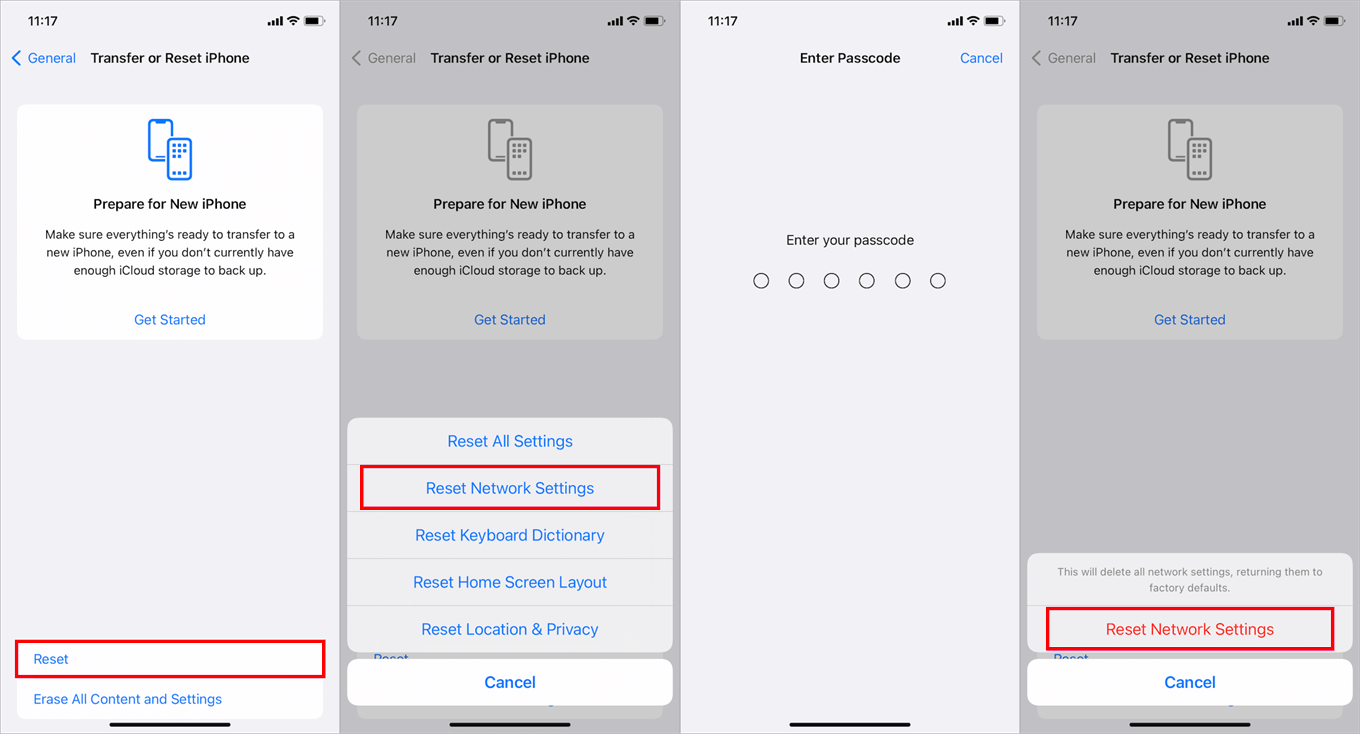
Resetting network settings removes saved Wi-Fi passwords, VPN settings, and related network preferences, so make sure you can reconnect afterward.
Fix 4. Sign Out and Back Into iCloud
A temporary iCloud account error can also explain why text messages did not transfer to new iPhone. Signing out and back in refreshes the connection between the device and iCloud services.
Step 1. Open Settings and tap [your name].
Step 2. Scroll down and tap Sign Out.
Step 3. Enter the Apple Account password if prompted and keep local copies of important iCloud data when offered.
Step 4. Restart the iPhone, then sign in again from Settings.
After signing back in, check iCloud > Messages and wait for the conversations to resync.
Fix 5. Update iOS on Both iPhones
If one device is running an older iOS version, the transfer or iCloud sync process may behave unpredictably. Updating both iPhones can resolve known setup, restore, and Messages bugs.
Step 1. Connect the iPhone to Wi-Fi and power.
Step 2. Go to Settings > General > Software Update.
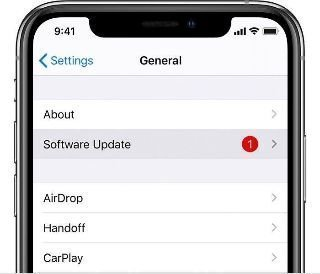
Step 3. Install the available update, then restart the iPhone.
Step 4. Reopen Messages and check whether the missing conversations begin to appear.
Fix 6. Restore from a Computer Backup
If iCloud still does not bring back the messages, a computer backup may help when the old iPhone still contains the full message history. On Windows, you can use Apple Devices or iTunes. On Mac, use Finder on macOS Catalina or later, or iTunes on older macOS versions.
Step 1. Connect the old iPhone to the computer and open Apple Devices, Finder, or iTunes.
Step 2. Select the iPhone and choose Back Up Now.
Step 3. Enable Encrypt local backup if you need protected data included, and save the password carefully.
Step 4. After the backup finishes, connect the new iPhone to the same computer.
Step 5. Choose Restore Backup, select the correct backup, and wait for the restore to finish.
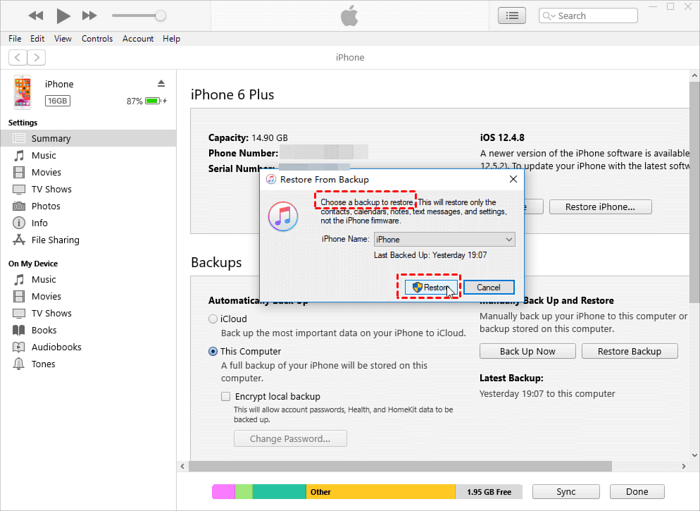
This method usually requires replacing the current content on the new iPhone with the restored backup. If you have already added new data to the new device, consider the next method before erasing anything.
Transfer Messages with AOMEI FoneBackup Without Erasing
When you want to transfer messages to new iPhone but do not want to repeat a full iCloud restore, AOMEI FoneBackup offers a computer-based message transfer solution for Windows users. It can help you back up messages from the old iPhone and restore backup to new iPhone. You may use this tool when the old iPhone still has the missing messages, the new iPhone is already set up, and you prefer not to erase the device again.
 AOMEI FoneBackup
- iPhone message backup: It supports selective message backup to local folder, external drives, USB, and so on.
- Quick backup restore: One-click restore backup messages to new iPhone for migration.
- iPhone to iPhone Transfer: Simply transfer all data from old iPhone to new iPhone, with no iCloud or iTunes.
 100% Secure
Step 1. Download, install, and open AOMEI FoneBackup on the Windows PC. Connect the old iPhone to the computer with a USB cable and tap Trust This Computer if prompted.
Step 2. Choose Phone Backup and select Selective Backup > Get Started.
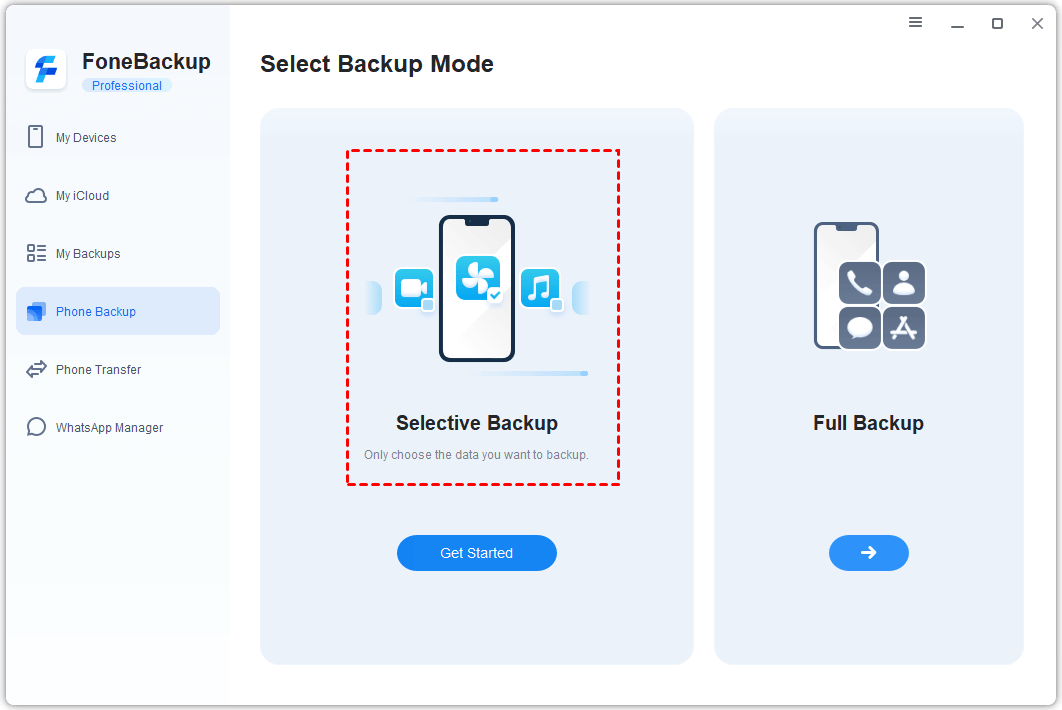
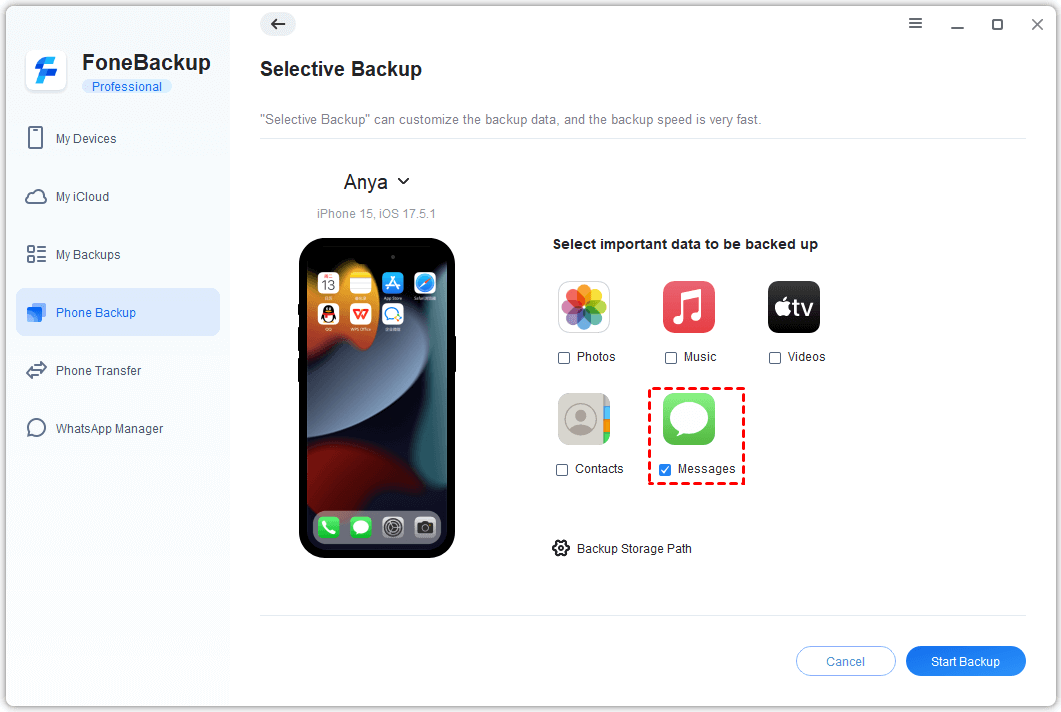
Step 3. Choose Messages, select the conversations you need when preview is available, and click OK. Then, choose a backup path and click Start Backup.
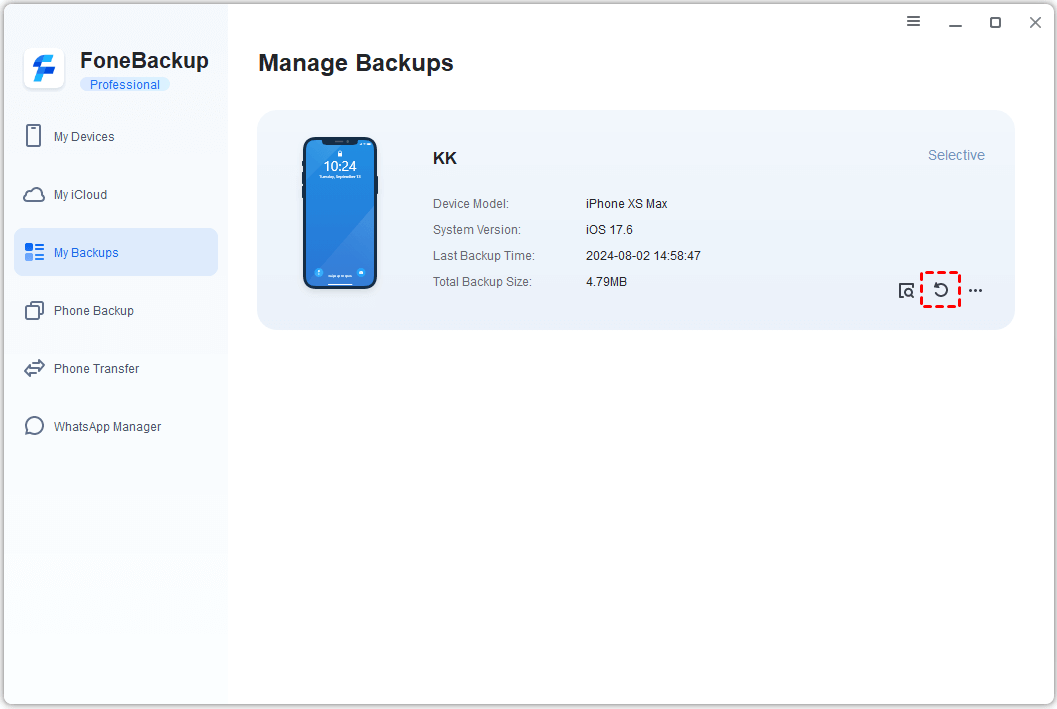
Step 4. Disconnect the old iPhone, connect the new iPhone, and open My Backups on the left menu. Choose the message backup, click Restore, and then click Start Restore.
AOMEI FoneBackup can be especially useful when the message problem is limited to transfer rather than the old iPhone itself. If the messages are already missing from the old device, recoverability depends on whether another valid backup or sync copy exists.
What to Do If Messages Are Still Missing?
If none of the fixes work, avoid making the situation worse. Do not delete messages from the old iPhone, do not erase the old device, and do not overwrite the only backup you have.
- Check whether the missing messages are visible on another Apple device signed in to the same Apple Account.
- Look for a recent iCloud or computer backup made before the messages disappeared.
- Confirm whether the missing items are SMS/MMS messages, iMessages, or attachments, because they may sync differently.
- Try transferring a small message backup first if you use AOMEI FoneBackup, then verify the result on the new iPhone.
- Contact Apple Support if the issue appears tied to iCloud account status or Apple service availability.
FAQ About Messages Not Transferring to New iPhone
Why did only some messages transfer to my new iPhone?
Partial transfer often means the iCloud sync is still running, the network was interrupted, or Messages in iCloud was enabled while the backup you restored did not contain the full message history.
Will turning on Messages in iCloud bring back old messages?
It can help if the old messages are already stored in iCloud and you are signed in with the same Apple Account. It will not help if the messages were never uploaded or were deleted from every synced device.
Can I transfer messages without resetting my new iPhone?
Yes, if the old iPhone still has the messages, AOMEI FoneBackup may help you transfer selected messages through a Windows computer without running a full device erase and restore.
Does an iCloud backup always include messages?
No. If Messages in iCloud is enabled, messages sync through iCloud and are not handled the same way as normal backup content. That setting is one of the first things to check.
Should I erase the old iPhone after setup looks finished?
Wait until you verify the new iPhone contains the messages, photos, contacts, and other important data you need. Keeping the old iPhone untouched gives you more recovery options.
Conclusion
When messages didn't transfer to new iPhone, start with the transfer path you used. For iCloud transfers, check Messages in iCloud, storage, Wi-Fi, and sync time. For backup transfers, confirm that the backup actually includes messages and restore it correctly. If you want a more flexible way to move messages from an old iPhone to a new one without another full reset, AOMEI FoneBackup is a practical Windows-based option to try.

 as a preferred
source on Google
as a preferred
source on Google