



How to Merge Messages from Two iPhones – 3 Ways
Need to merge messages from two iPhones? This guide covers 3 methods - iCloud sync for same Apple ID, AOMEI FoneBackup for different IDs, and manual forwarding. Plus prevention tips to avoid losing messages. Keep reading.

By Ivy Updated on July 20, 2026


You've just picked up a new iPhone, but all your old text messages are still sitting on your previous device. You want to bring them together - merge them into one place so you don't lose those important conversations.
But here's the catch: merging messages from two iPhones means different things depending on your situation.
-
Same Apple ID on both phones: You're dealing with syncing, not merging. iCloud can handle this.
-
Different Apple IDs on each phone: You need a true merge - moving messages from one account to another. iCloud won't help you here.
This guide covers 3 proven ways to merge messages from two iPhones, whether you're using the same Apple ID or different ones. We'll help you choose the right method for your situation.
Quick Guide: Which Method Should You Use?
| ❓ Your Situation | 🛠️ Best Method | 💡 Why |
|---|---|---|
| Same Apple ID on both iPhones | iCloud Messages Sync | Syncs messages across devices automatically |
| Different Apple IDs on each iPhone | AOMEI FoneBackup | Selective Backup & Restore; adds messages without overwriting existing data |
| Only a few important conversations to move | Manual Forwarding | Quick and easy for small batches |
💡 Still unsure? If both phones use the same Apple ID, start with iCloud. If they use different Apple IDs, skip straight to Method 2.
Important: Sync vs Merge - What's the Difference?
Before we dive into the methods, let's clear up a common confusion.
-
Sync (iCloud Messages) makes all your devices show the same messages. You're not "moving" anything - you're just making them visible everywhere. This only works when both iPhones use the same Apple ID.
-
Merge (AOMEI FoneBackup) actually transfers messages from one iPhone to another. This works even when the two iPhones use different Apple IDs.
If you're using different Apple IDs, iCloud won't merge your messages - you'll need a dedicated transfer tool.
Method 1: iCloud Messages Sync - For iPhones using the Same Apple ID
👍 Best for: Users who have the same Apple ID on both iPhones and want to sync messages across devices.
If both of your iPhones use the same Apple ID, iCloud Messages is the simplest way to keep your conversations in sync. When enabled, your iMessages and text messages are uploaded to iCloud and accessible on any device signed in with the same account.
How to enable iCloud Messages Sync:
Step 1. Connect both iPhones to a stable Wi-Fi network.
Step 2. On both iPhones, go to Settings > [Your Name] > iCloud.
Step 3. Scroll down to Messages and toggle the switch on. Wait for the messages to sync across both devices.
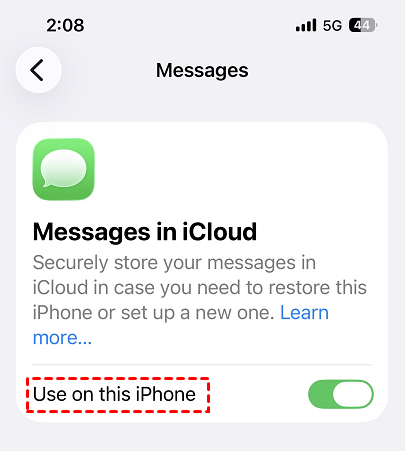
Your messages will now appear on both iPhones. If you only want to sync iMessages (not SMS), you can also go to Settings > Messages and enable iMessage on both devices.
Click iCloud messages sync to learn more about this.
Method 2: AOMEI FoneBackup - for iPhones using Different Apple IDs
🔥 Best for: Users who have different Apple IDs on each iPhone and want to truly merge messages - not just sync them.
If your two iPhones use different Apple IDs, iCloud Messages won't work. In this case, you need a tool that can transfer messages between different Apple accounts.
AOMEI FoneBackup is a free iPhone data transfer tool that lets you selectively transfer messages from one iPhone to another, regardless of whether they use the same or different Apple IDs. It combine Selective Backup and Restore features, which adds messages to the target device rather than overwriting them.
 AOMEI FoneBackup
- No data overwrite: Messages are added to the target iPhone, not replaced. Existing messages remain untouched.
- No Apple ID restriction: Works even when both iPhones use completely different Apple IDs
- Selective transfer: Preview and choose exactly which messages to merge - all conversations or only specific ones.
- Cloud manager: Manage iCloud photos, videos, contacts, and Drive files across multiple accounts.
- Completely offline: All transfers are done via USB cable. No Wi‑Fi or iCloud required.
 100% Secure
How to merge messages with AOMEI FoneBackup:
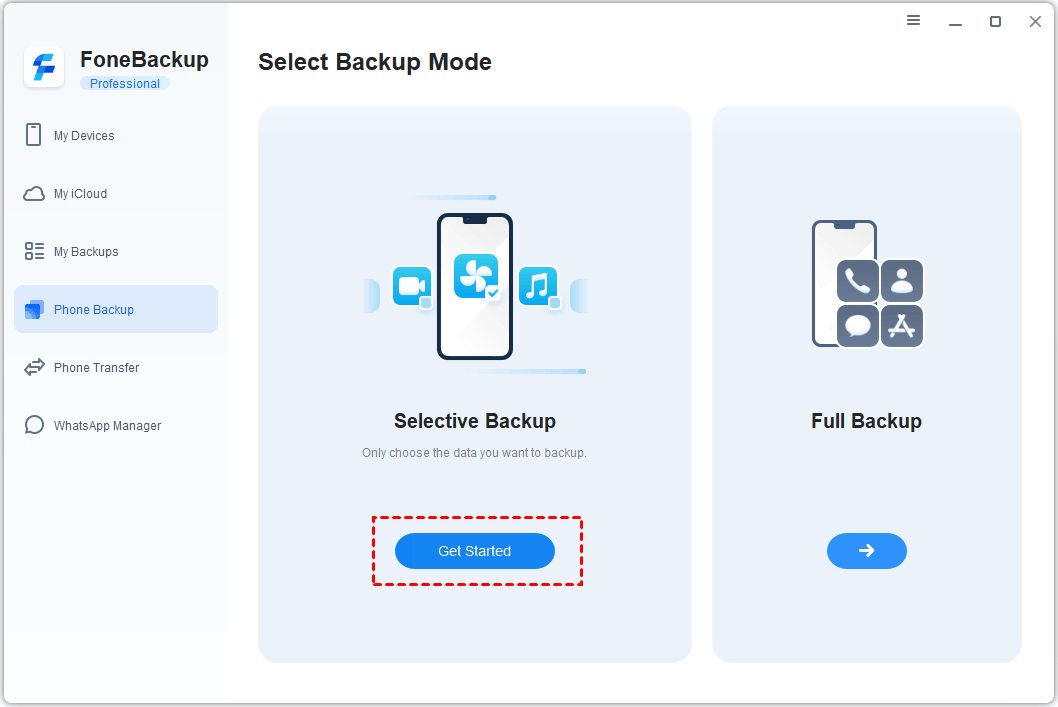
Step 1. Connect the source iPhone to your computer via USB cable. Launch AOMEI FoneBackup and select Phone Backup > Selective Backup. Click Get Started.
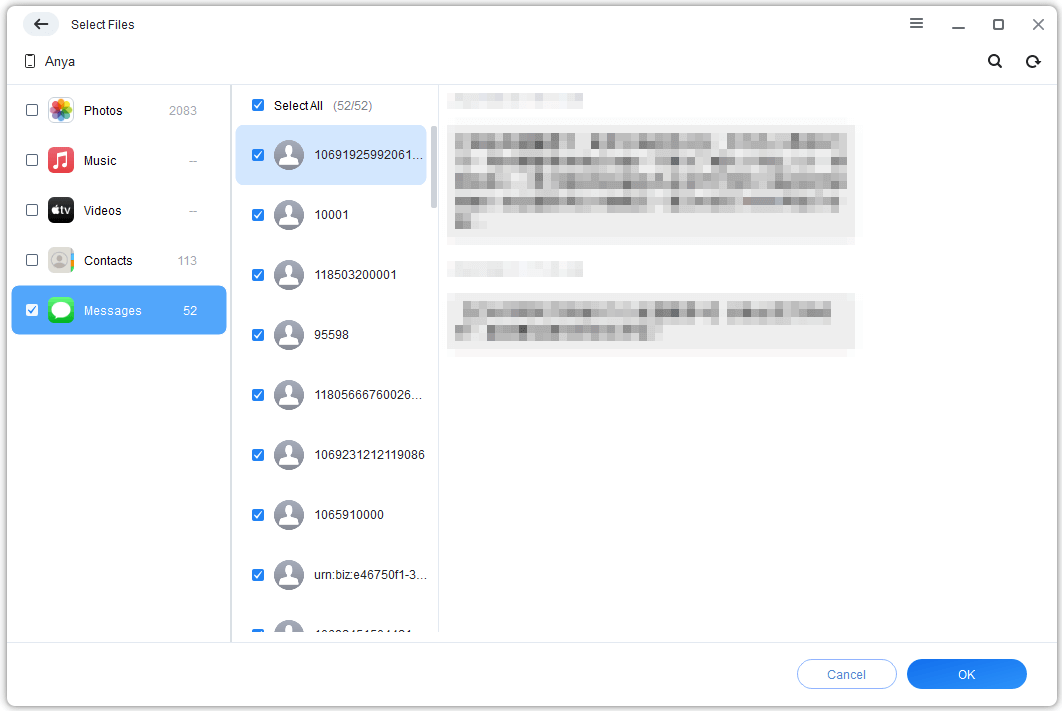
Step 2. Check Messages, preview and select the conversations you want to merge (all messages or specific conversations). Then click OK.
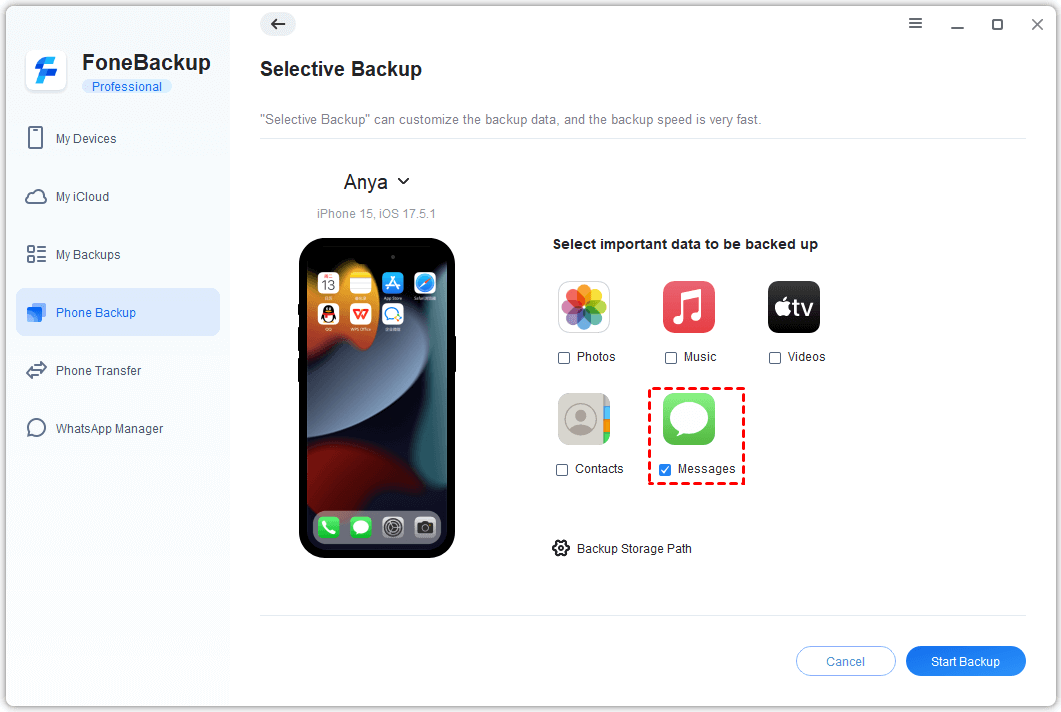
Step 3. Click Backup Storage Path and select a location to save your messages. Then, click Start Backup to back up Messages.
Step 4. After backing up, unplug the old iPhone and plug your new iPhone into the computer.
Step 5. In AOMEI FoneBackup, go to My Backups and locate the backup file you just created and click Restore to transfer Messages to a new iPhone. Existing messages on the new iPhone will not be deleted or overwritten.
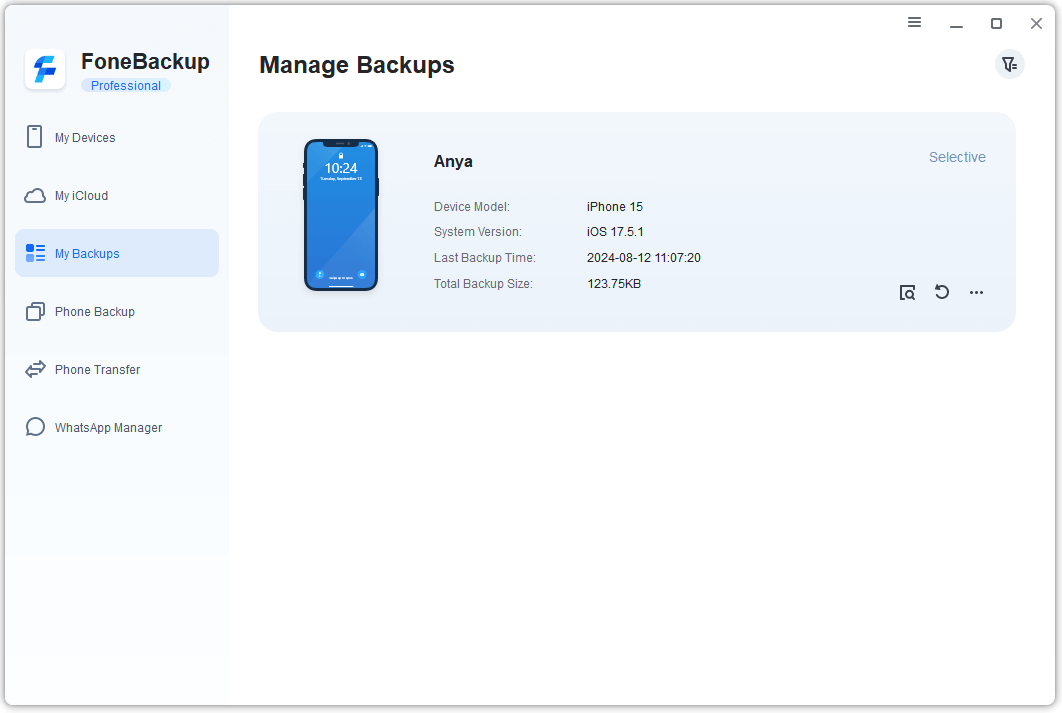
If you want to merge other data, such as photos, contacts, and more, this method works as well.
Method 3: Manual Forwarding - For Small Batches of Messages
👍 Best for: Users who only need to move a few important conversations and don't want to use any software.
If you only need to merge a handful of messages, manual forwarding is the simplest approach. It's time-consuming for large volumes but works without any additional tools.
How to manually forward messages:
Step 1. On the source iPhone, open the Messages app, then the conversation you want to transfer.
Step 2. Tap and hold on a message, select More, then choose multiple messages if needed.
Step 3. Tap the Forward button and select the contact on your target iPhone.
For more transfer ways, see our guide on how to transfer messages from iPhone to iPhone .
FAQs About Merging Messages from Two IPhones
1. Can I merge messages from two iPhones with different Apple IDs?
Yes, but you'll need a third-party tool like AOMEI FoneBackup. iCloud Messages only works when both devices use the same Apple ID.
2. Will merging messages delete anything on my target iPhone?
No, AOMEI FoneBackup's Selective Backup and Restore workflow adds messages to the target iPhone without deleting or overwriting existing data.
3. Can I merge only specific conversations, not all messages?
Yes, AOMEI FoneBackup's Selective Backup feature lets you preview and choose exactly which messages to transfer.
4. What's the difference between iCloud sync and AOMEI FoneBackup merge?
iCloud sync makes messages visible across devices using the same Apple ID. AOMEI FoneBackup actually transfers messages from one device to another, even with different Apple IDs, and adds them without overwriting existing data.
Final Words
Merging messages from two iPhones doesn't have to be complicated — but the right method depends on your situation.
Here's the simple rule:
-
Same Apple ID on both iPhones → Use iCloud Messages Sync. It's free, built-in, and automatic.
-
Different Apple IDs on each iPhone → Use AOMEI FoneBackup. Its backup → restore workflow adds messages without overwriting existing data.
-
Only a few conversations to move → Use Manual Forwarding. Quick and easy for small batches.

 as a preferred
source on Google
as a preferred
source on Google