




How to Sync Messages to iPhone/iPad with iCloud [2026 Guide]
Learn how to sync messages to iPhone with iCloud in minutes. Step-by-step guide, troubleshooting tips, and an alternative way to transfer messages without iCloud.

By Kelsey Updated on May 26, 2026


Got an iPhone and an iPad? Or maybe you just picked up a new iPhone and want your message history on it without moving everything else. Messages hold a lot conversations with friends, important details, maybe even some memories you don't want to lose. The good news? Apple's iCloud makes it pretty simple to sync messages to iPhone and iPad so everything stays in sync across your devices.
This guide walks you through exactly how to set it up, what to do if it's not working, and a solid alternative if iCloud isn't cutting it for you.
Why Sync Messages Across Devices?
If you're like most people, you probably use more than one Apple device. Maybe you text on your iPhone during the day and pick up your iPad at night. Or you just got a new iPhone and want your old conversations on it.
Syncing messages means:
-
You see the same conversations on all devices
-
Messages you send from your iPad show up in the right threads on your iPhone
-
If you get a new device, your message history comes with you
Let's get into how to make that happen.
How to Sync Messages with iCloud (The Official Way)
iCloud sync is Apple's built-in solution. It keeps your messages updated across all devices signed into the same Apple ID. No cables, no computers—just a toggle switch.
🔍Before you start, make sure:
- Both devices are running iOS 12 or later (they probably are)
- Both are signed into the same Apple ID
- Both are connected to Wi-Fi (cellular works too, but Wi-Fi is faster)
Steps to Sync iCloud Messages to iPhone/iPad:
Step 1. On your iPhone, go to Settings > tap your name at the top > iCloud.
Step 2. Scroll down until you see Messages. Toggle it ON. If it asks to merge messages, tap Merge or Enable.
Step 3. That's it. Now grab your iPad (or your other iPhone) and do the same thing. Go to Settings > your name > iCloud > toggle on Messages.
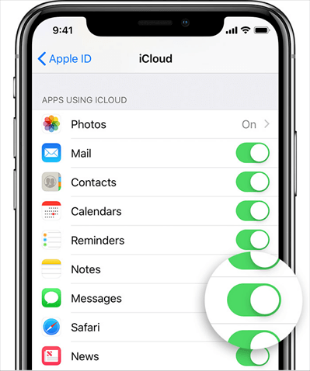
Step 4. Give it a few minutes. Your messages will start appearing on the other device. How long depends on how many messages you have and your internet speed.
-
This syncs messages across all devices signed into that Apple ID. If you have an old iPad you forgot about, messages will show up there. Something to keep in mind.
Troubleshooting: When iCloud Messages Won't Sync
Sometimes it just doesn't work. iCloud messages not syncing is a known annoyance, but usually fixable. Here are the most common culprits and how to fix them.
Fix 1. Turn Messages in iCloud Off and On Again
Sounds simple, but it works surprisingly often.
Step 1. Go to Settings > your name > iCloud.
Step 2. Toggle Messages OFF. When the pop-up appears, tap Disable and Download Messages (this keeps a copy on your phone).
Step 3. Wait a few seconds, then toggle it back ON.
Fix 2. Check Two-Factor Authentication
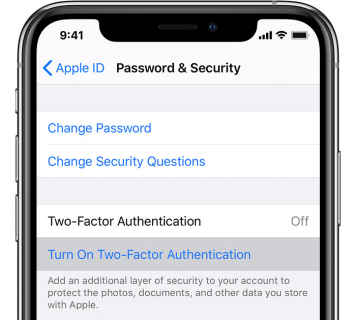
iCloud message sync actually requires two-factor authentication to be turned on. If it's not enabled, sync won't work.
Step 1. Go to Settings > your name > Password & Security.
Step 2. If you see Turn On Two-Factor Authentication, tap it and follow the steps. If it says "On" already, you're good.
Fix 3. Check Your Wi-Fi Connection
This one's obvious but easy to overlook. Both devices need a stable internet connection. If your Wi-Fi is spotty, try:
-
Moving closer to your router
-
Restarting your router (unplug for 30 seconds, plug back in)
-
Toggling Wi-Fi off and on on both devices
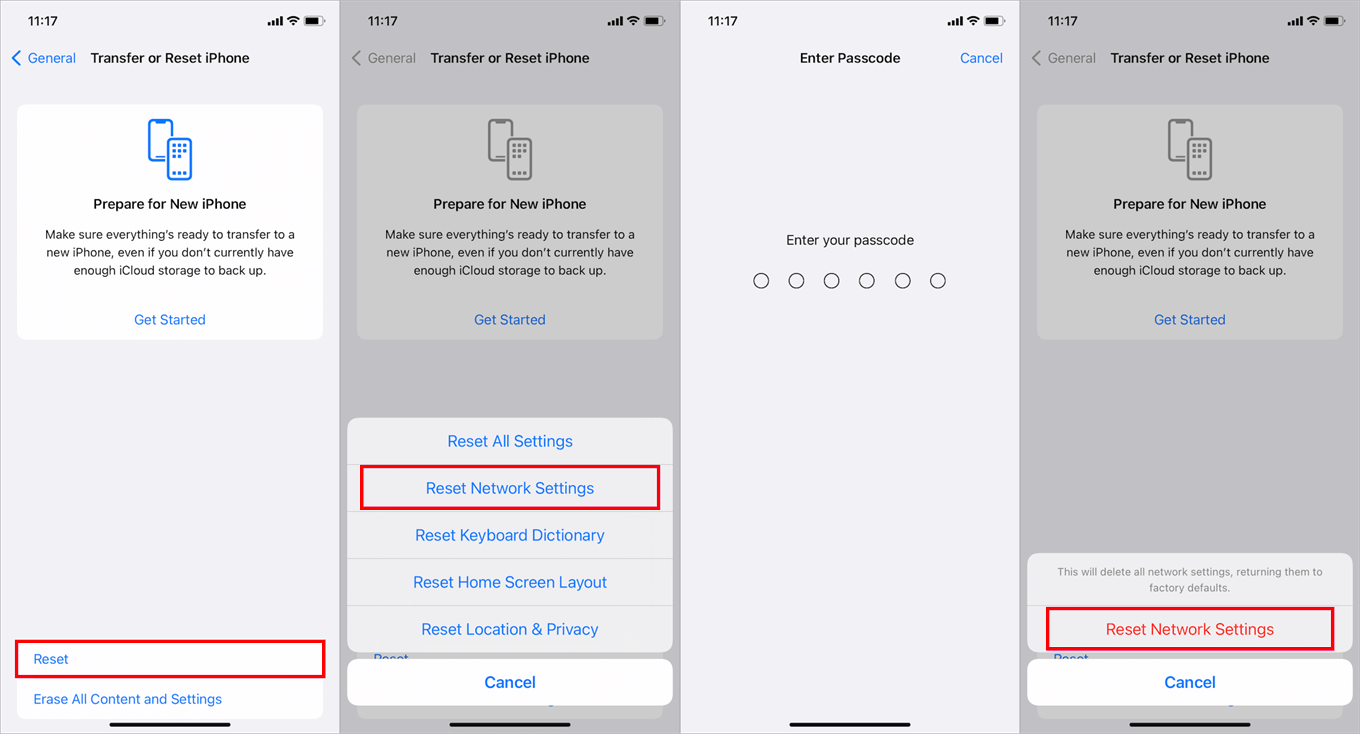
If nothing else works, you can reset network settings. Go to Settings > General > Transfer or Reset iPhone > Reset > Reset Network Settings. You'll have to re-enter Wi-Fi passwords afterward.
Bonus: How to Transfer Messages Between iPhones Without iCloud
Here's the thing about iCloud sync: it's great if you want everything synced everywhere. But what if you only want to move specific messages? Or what if you're transferring messages to someone else's iPhone (different Apple ID)?
That's where AOMEI FoneBackup comes in. It's a desktop tool that lets you pick exactly which messages to transfer—no iCloud required.
 AOMEI FoneBackup
- Selective transfer:Pick one conversation or several. Your choice.
- Works with different Apple IDs:Transfer messages to a friend's iPhone, or your new phone without syncing everything.
- No data loss:Adds messages to the target device—doesn't erase anything.
- Also handles photos, contacts, music:Same selective approach.
- Wide compatibility: Support all iOS versions, including the latest iOS version.
 100% Secure
Step 1. Download and install AOMEI FoneBackup on your Windows PC. Connect your source iPhone (the one with the messages) using a USB cable and tap "Trust This Computer" when prompted.
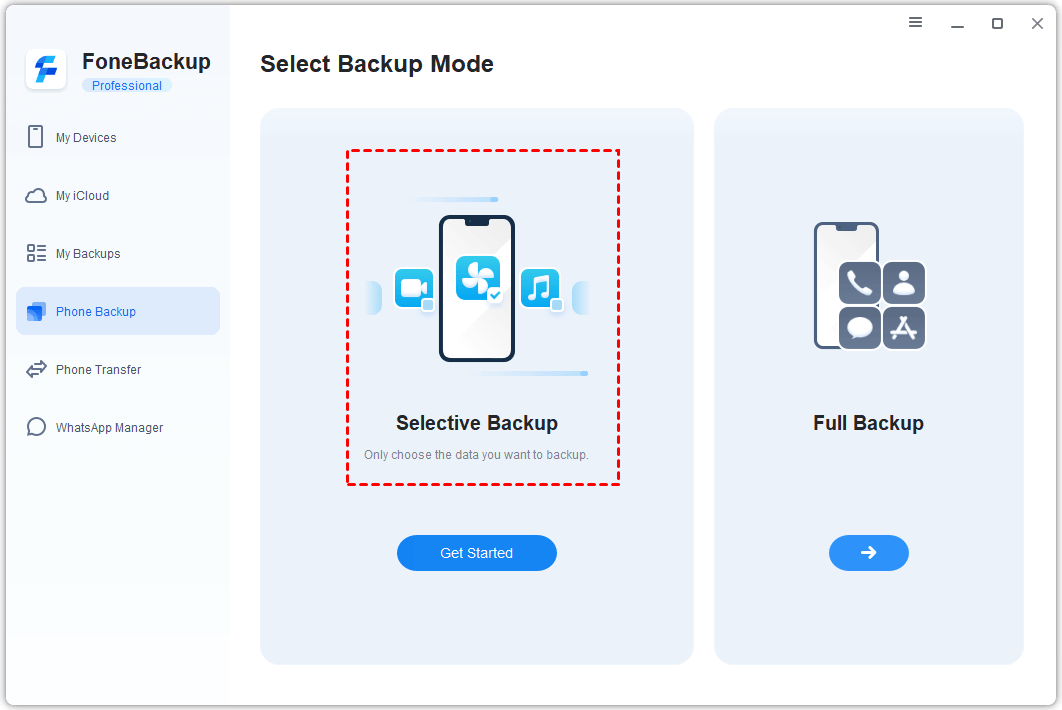
Step 2. Open AOMEI FoneBackup. Click Phone Backup on the home screen, then choose Selective Backup.
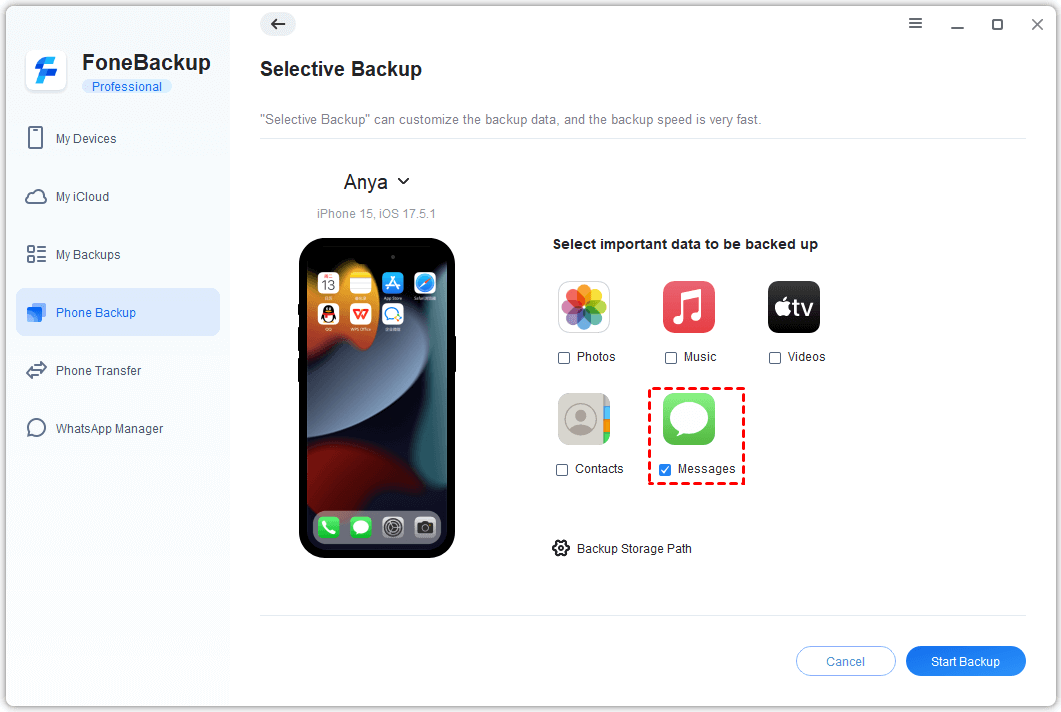
Step 3. Click to preview your messages. Select the specific conversations or individual messages you want to transfer. Click OK, choose a save location on your computer, and click Start Backup to copy them from your iPhone to the PC.
Step 4. Disconnect the source iPhone and connect your target iPhone (the one that needs the messages). In AOMEI FoneBackup, go to My Backups, find the backup you just made, and click Restore.
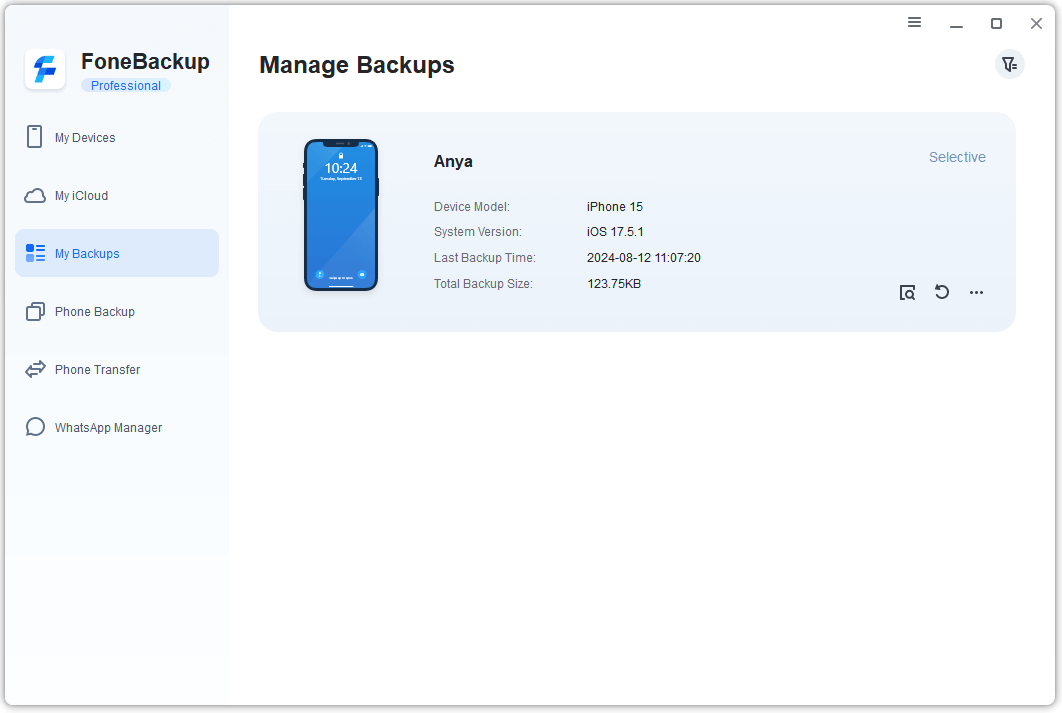
Step 5. Confirm the messages and click Start Restore. Wait a moment—your selected messages are now on the target iPhone.
AOMEI FoneBackup also has aniPhone to iPhone Transferfeature if you want to move everything in one go—settings, apps, messages, the whole package.
The Bottom Line
So, how to sync messages to iPhone with iCloud? It's simple to toggle on Messages in iCloud settings on both devices and let them sync. But if you need more control to pick specific conversations or transfer messages to a different Apple ID, AOMEI FoneBackup is the better choice. Give it a try and keep your conversations exactly where you want them.
AOMEI FoneBackupEasily to backup and restore iPhone data, transfer data between PC and iPhone, and manage iCloud and WhatsApp data.

 as a preferred
source on Google
as a preferred
source on Google