




Are Messages Stored in iCloud? Here's the Truth [2026 Guide]
Wondering are messages stored in iCloud? Yes, but you can't view them online. Learn how Messages in iCloud works, how to see them, and a better backup option.

By Kelsey Updated on May 26, 2026


Can’t view messages in iCloud. Does iCloud save messages?
I'm not sure whether messages are stored in iCloud. I can't find a message icon when I log into icloud.com. If iCloud is backing up and saving messages from iPhone, how can I view them?
- Question from Apple Community
If you've ever poked around iCloud.com looking for your text messages and come up empty, you're not alone. It's confusing. Apple talks about backing up your data, but when you log into iCloud on a browser, there's no Messages icon. So are messages stored in iCloud? And if they are, why can't you see them? Let's clear this up once and for all.
Are Messages Actually Stored in iCloud? (The Short Answer)
Yes, your messages are stored in iCloud, but not in a way you can see them on the web. Here's the deal: Apple has a feature called Messages in iCloud. When you turn it on, your entire message history is synced across all your Apple devices. That means if you get a new iPhone, your old conversations show up automatically. If you reply on your iPad, that message appears on your iPhone too.
But this is the important part, those messages are end-to-end encrypted. Even Apple can't read them. And because of that privacy layer, you can't log into iCloud.com and browse your texts like you can with photos or notes. There's no Messages icon on the website for a reason.
🔍How to turn on Messages in iCloud:
On your iPhone, go to Settings > tap your name at the top > iCloud > scroll down and toggle on Messages.
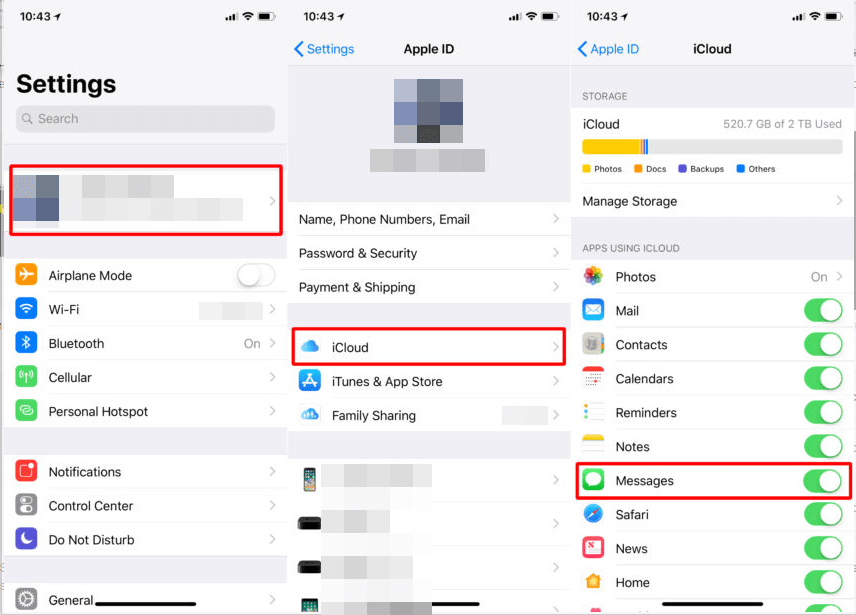
That's it. Once it's on, your messages are safely in iCloud, syncing across your devices.
How to View Text Messages on iCloud
Since you can't view messages on iCloud.com, how do you actually see them? The only way is to sync them to another Apple device signed into the same Apple ID.
🔹On Another iPhone, iPad, or iPod:
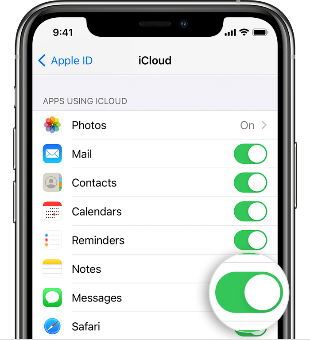
Step 1. On the other device, go to Settings > tap your name > iCloud.
Step 2. Toggle on Messages. Wait a few minutes, and your messages will appear in the Messages app.
🔹On a Mac:
Step 1. Open the Messages app on your Mac.
Step 2. In the menu bar at the top, click Messages > Preferences (or Settings).
Step 3. Click the iMessage tab. Check the box next to Enable Messages in iCloud.
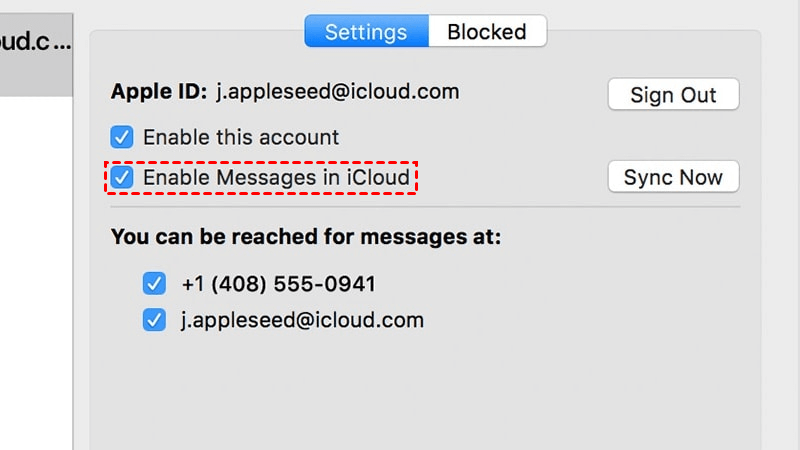
Step 4. Your messages will start syncing to your Mac. Give it some time if you have a lot of them.
-
This syncs messages, not backs them up in a traditional sense. If you delete a message on one device, it deletes everywhere. Something to keep in mind.
Bonus Tip: Backup iPhone Messages to PC
Here's the thing about iCloud: it's great for syncing, but not so great for actually seeing or controlling your message backups. You can't browse them. You can't pick which ones to save. And if you ever leave the Apple ecosystem, good luck getting your messages out.
That's where AOMEI FoneBackup comes in. It's a Windows tool that lets you backup your iPhone messages to your computer—and actually see what you're saving.
 AOMEI FoneBackup
- No storage limits: Your computer's hard drive, not 5GB of iCloud space.
- Preview before you backup: See your messages and pick exactly which ones to save.
- Transfer between iPhone and PC: Move media files and personal data to PC/iPhone instantly - no iCloud or Wi-Fi required.
- Restore selectively: Want to put just a few conversations back on your iPhone? You can.
- iCloud Manager: Upload, download, delete, and sync iCloud photos, videos, contacts, and Drive files across accounts efficiently.
- Wide compatibility: Support all iOS versions, including the latest iOS and all models of iPhone, iPad, and iPod.
 100% Secure
Step 1. Download and install AOMEI FoneBackup on your Windows PC. Connect your iPhone with a USB cable and tap "Trust This Computer" when prompted.
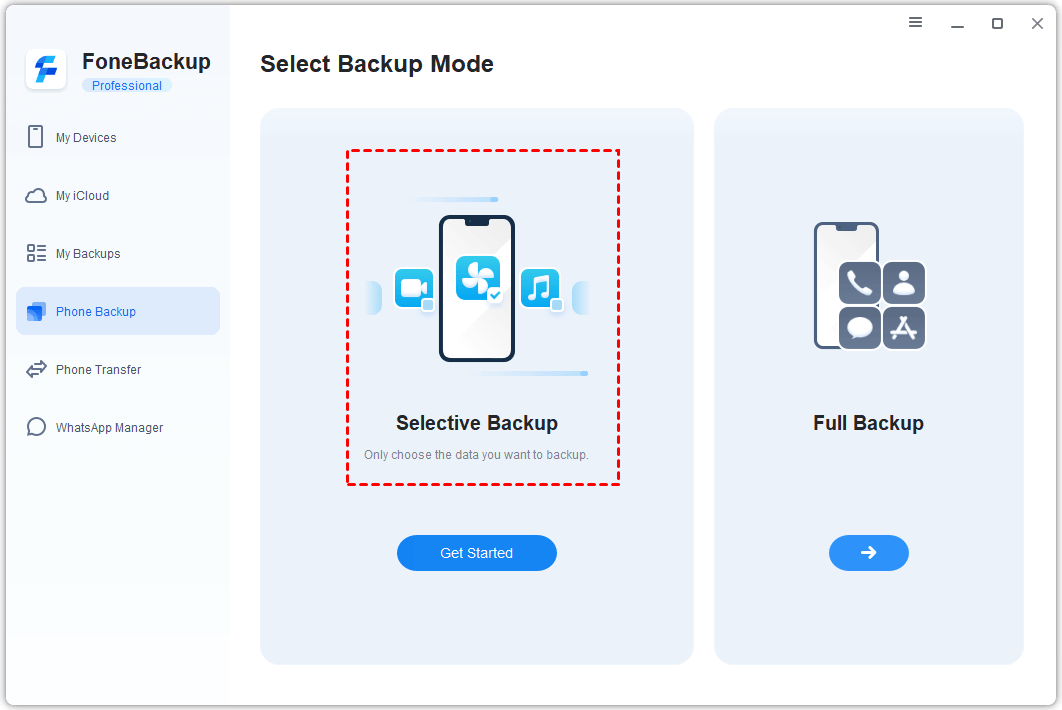
Step 2. Open AOMEI FoneBackup. On the home screen, click Phone Backup, then choose Selective Backup.
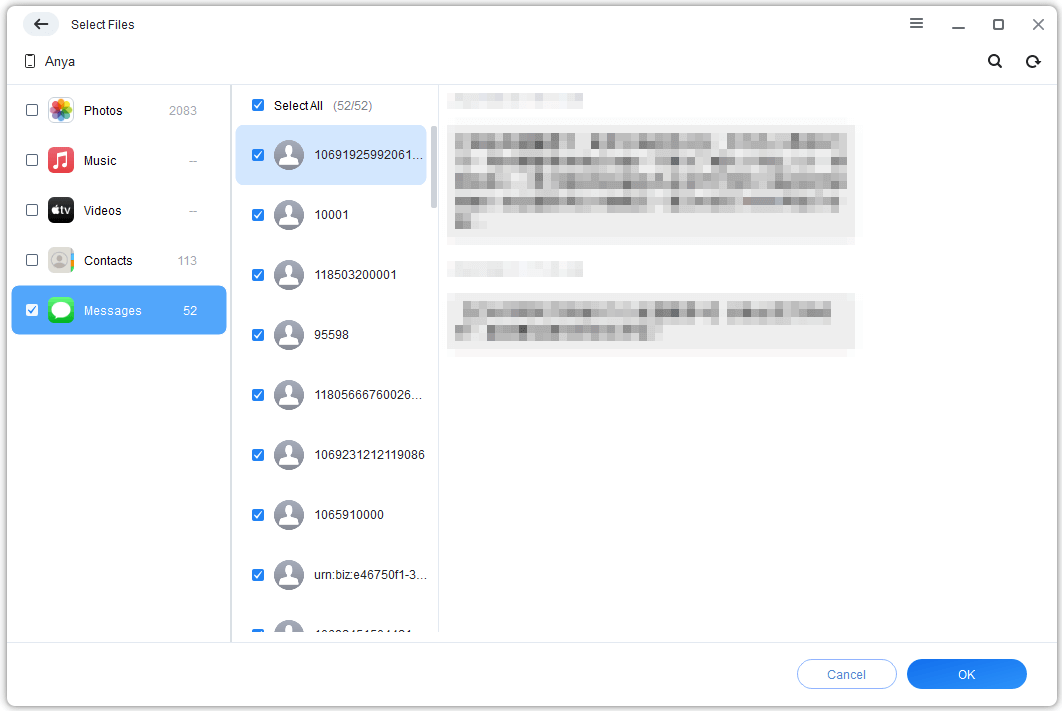
Step 3. Click the Messages icon. You'll see a preview of all your conversations. Select the messages or threads you want to save. Click OK.
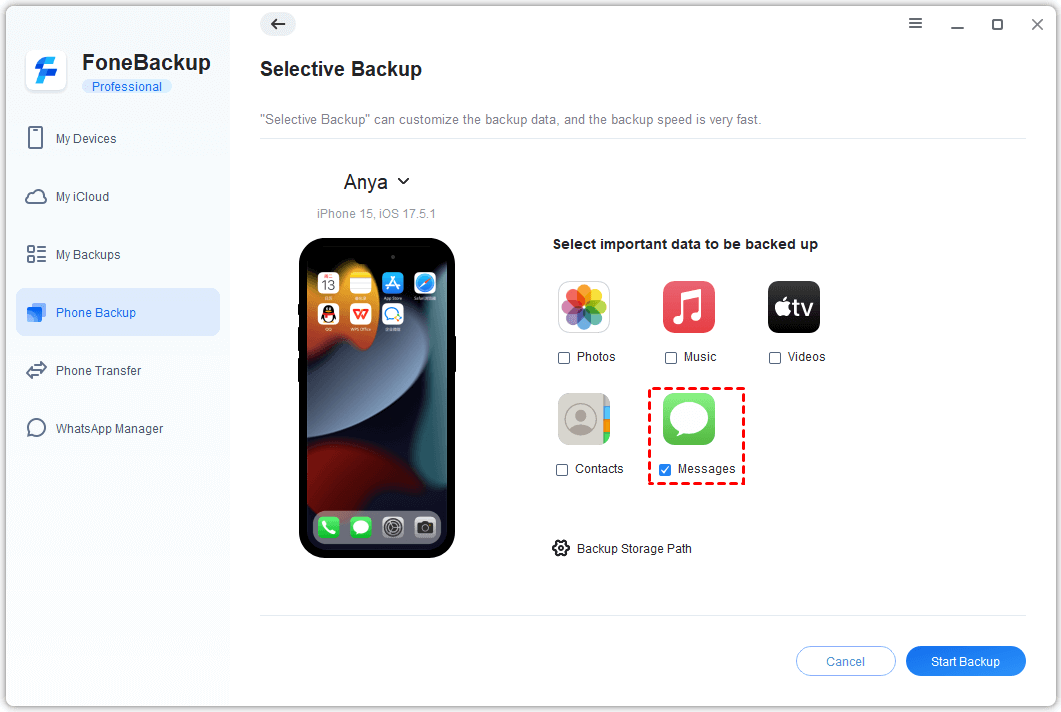
Step 4. Choose a folder on your computer where these messages will be stored. Click Start Backup. The messages are copied from your iPhone to the PC.
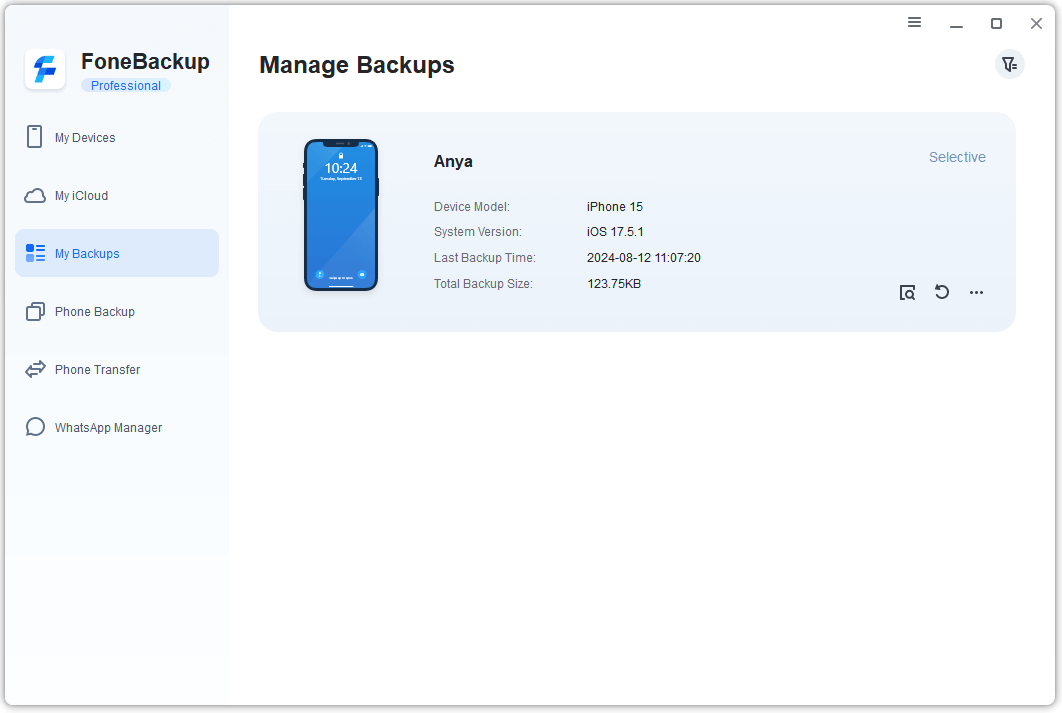
Step 5. When it's done, go to My Backups to see your backup. You can browse, restore, or delete it anytime.
AOMEI FoneBackup also lets you backup photos, videos, contacts, and music the same way. Pick what matters, leave what doesn't.
The Bottom Line
So, are messages stored in iCloud? Yes, when you turn on Messages in iCloud, they sync across your devices and are stored securely. But you can't view them on iCloud.com because of encryption. If you just want to keep messages in sync between your iPhone, iPad, and Mac, iCloud works fine. But if you want actual backups you can see, browse, and control, AOMEI FoneBackup is the better choice.

 as a preferred
source on Google
as a preferred
source on Google