




How to Backup iPhone Without iTunes and iCloud | Better Way
Learn how to backup iPhone without iTunes and iCloud using AOMEI FoneBackup. Full or selective backup - store on your PC or external drive. No subscription needed.

By Kelsey Updated on May 14, 2026


How do I backup iPhone without iTunes or iCloud?
I have an issue with using iTunes, and I do not want to buy extra iCloud storage. How can I backup iPhone without iTunes or iCloud? I'd like to choose the wanted files from iPhone to backup, is it possible?
- Question from Reddit
You know you should back up your iPhone. That's the responsible part. But the tools Apple gives you iTunes and iCloud, come with their own set of frustrations. iCloud gives you 5GB free, then asks for a monthly subscription. iTunes backs up everything or nothing, and you can't even see what's inside the backup files.
If you're reading this, you're probably looking for a way to back up an iPhone without iTunes and iCloud. One that lets you pick what to save, see your backups, and store them wherever you want. That's exactly what this guide covers.
Why Skip iTunes and iCloud?
Before we get to the solution, let's be clear about why these two official tools might not be working for you.
⛔The problem with iCloud:
- 5GB free isn't enough. Once you've taken a few hundred photos, you're out of space. The solution? A monthly subscription.
- You can't control the backup. It happens automatically in the background, but you never really know what's included.
- Privacy concerns. Your data sits on Apple's servers. There's always the question of who else might see it.
⛔The problem with iTunes:
- All or nothing. You can't pick specific files to back up. It's your whole iPhone or nothing.
- Locked‑away backups. Even if you find the backup folder on your computer, you can't open it or see what's inside.
- Unpredictable errors. iTunes backups fail for all kinds of reasons: drivers, software conflicts, you name it.
If any of that sounds familiar, you're ready for a different approach.
Best Way to Backup iPhone Without iTunes and iCloud
AOMEI FoneBackup is a free Windows tool designed specifically for people who want more control over their iPhone backups. It stores your data on your own computer (or external drive), not on someone else's server. You can back up everything, or pick exactly what you want to save.
 AOMEI FoneBackup
- Two backup modes: Full Backup saves everything on your iPhone. Selective Backup lets you pick specific files—photos, contacts, messages, whatever matters.
- Keep every backup separately: Unlike iCloud, which only keeps one backup, AOMEI FoneBackup stores each backup individually. You can browse them anytime.
- Unlimited storage space: Save backups to your PC, an external hard drive, or a NAS. You're only limited by your own hardware.
- Simple to use: No complicated menus. A few clicks and your backup is done.
- Wide compatibility: Support all iOS versions, all models of iPhone, iPad, and iPod.
 100% Secure
Option 1. Fully Backup Everything on Your iPhone
Use this if you want a complete copy of your iPhone, settings, messages, app data, photos, and everything.
Step 1. Download and install AOMEI FoneBackup on your Windows PC. Connect your iPhone with a USB cable and tap "Trust This Computer" when prompted.
Step 2. Open AOMEI FoneBackup. Click Phone Backup, then under Full Backup, click Get Started.
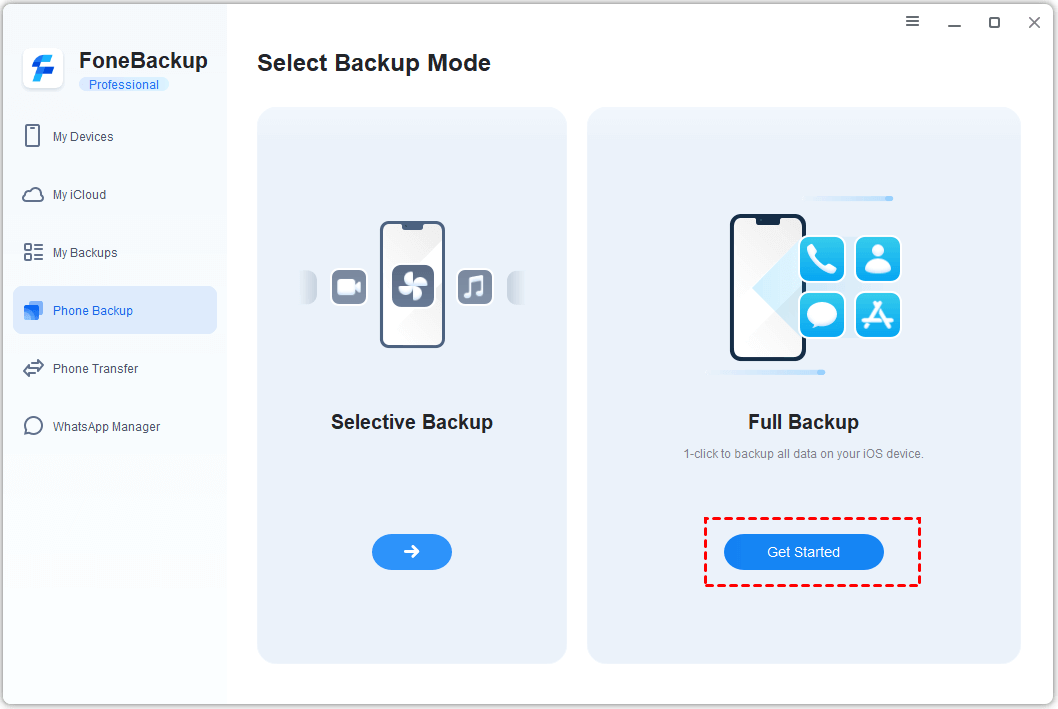
If you want to keep sensitive data like Health records and Keychain private, enable Backup Encryption and set a password.
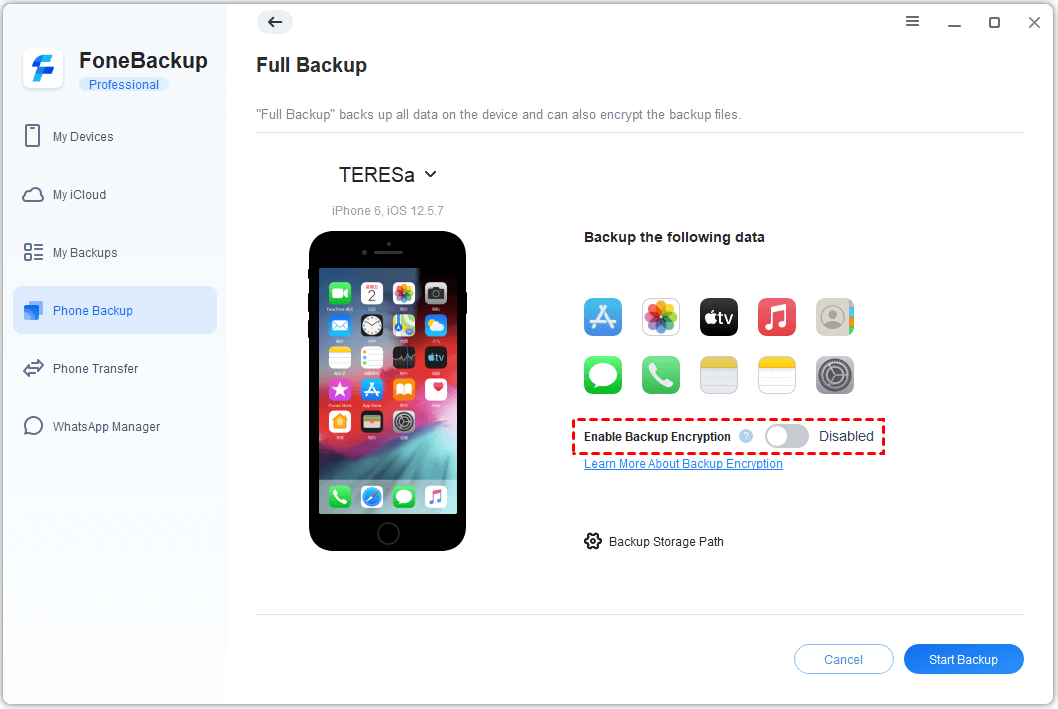
Step 4. Choose where to save the backup. You can select a folder on your PC, an external hard drive, or any other location.
Step 5. Click Start Backup. Wait for the process to finish. Your entire iPhone is now safely backed up.
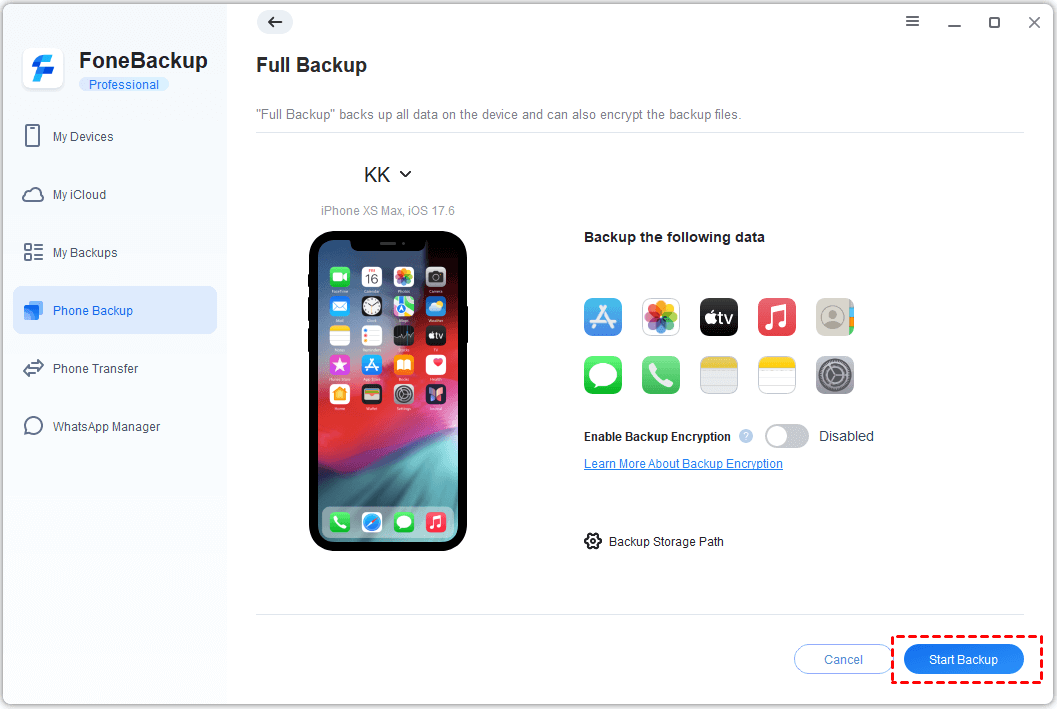
Option 2. Selectively Backup Only What You Want
This is what you can't do with iTunes or iCloud. Pick exactly which files to save, nothing more, nothing less.
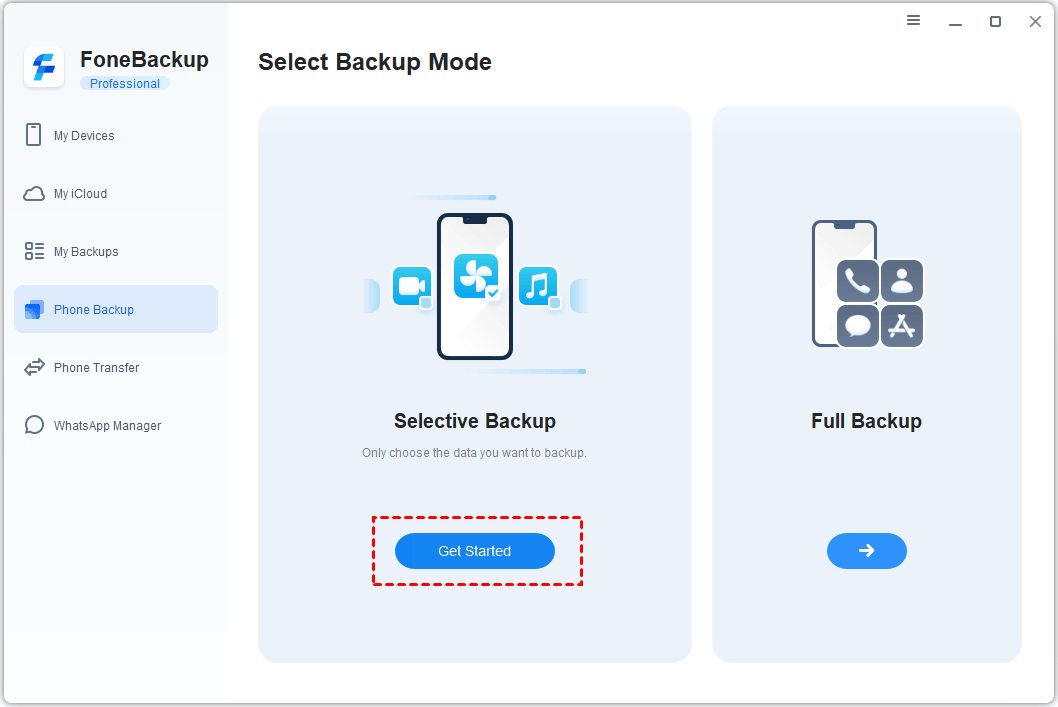
Step 1. Connect your iPhone to your PC and open AOMEI FoneBackup. Click Phone Backup, then under Selective Backup, click Get Started.
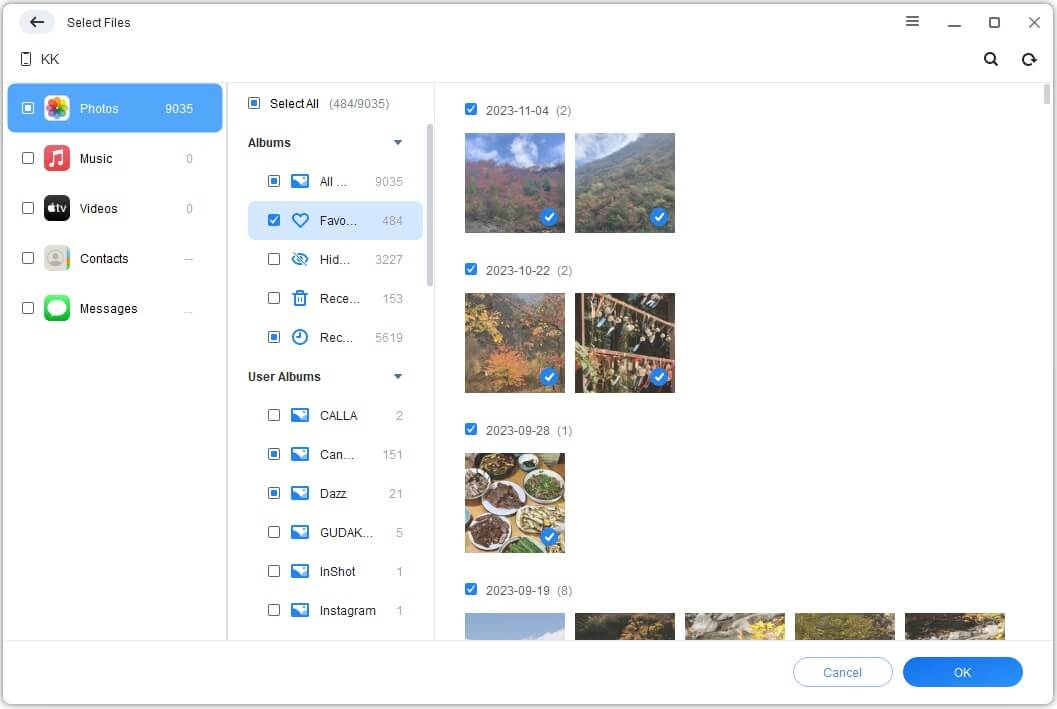
Step 2. You'll see icons for different data types: Photos, Videos, Contacts, Messages, Music, and more. Click each one to preview the files inside. Check the boxes next to the ones you want to back up. Click OK.
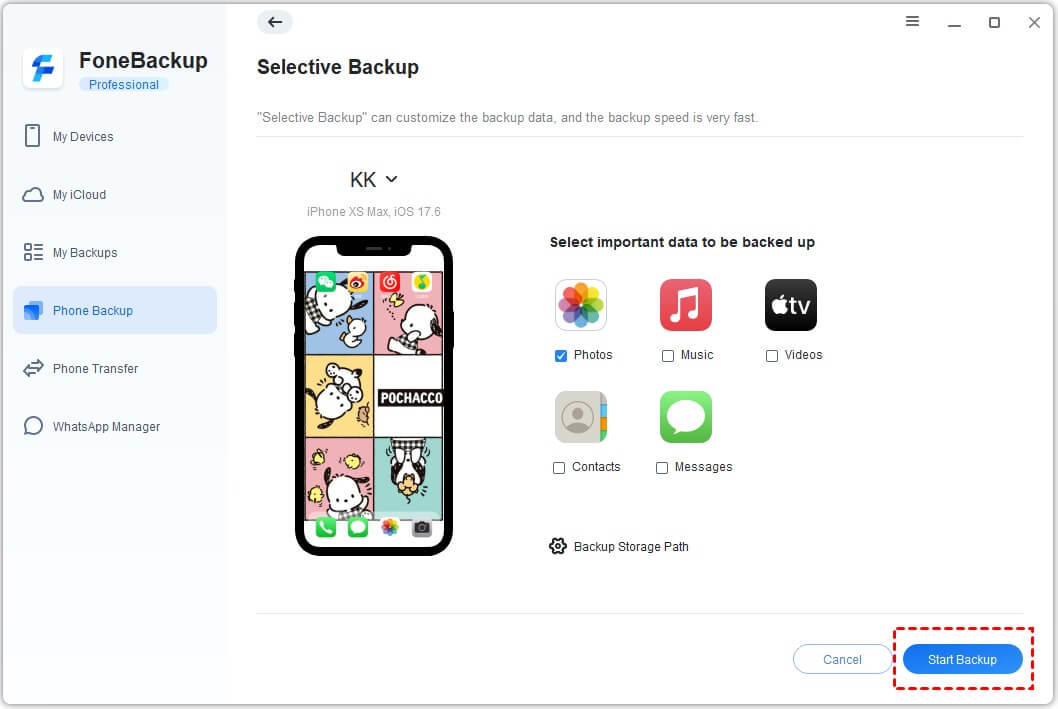
Step 3. Choose a storage location. Any folder on your PC, external drive, or USB stick works.
Step 4. Click Start Backup. The selected files will copy to your computer.
Step 5. When the backup finishes, you can go to My Backups to view, locate, or delete your backup files anytime.
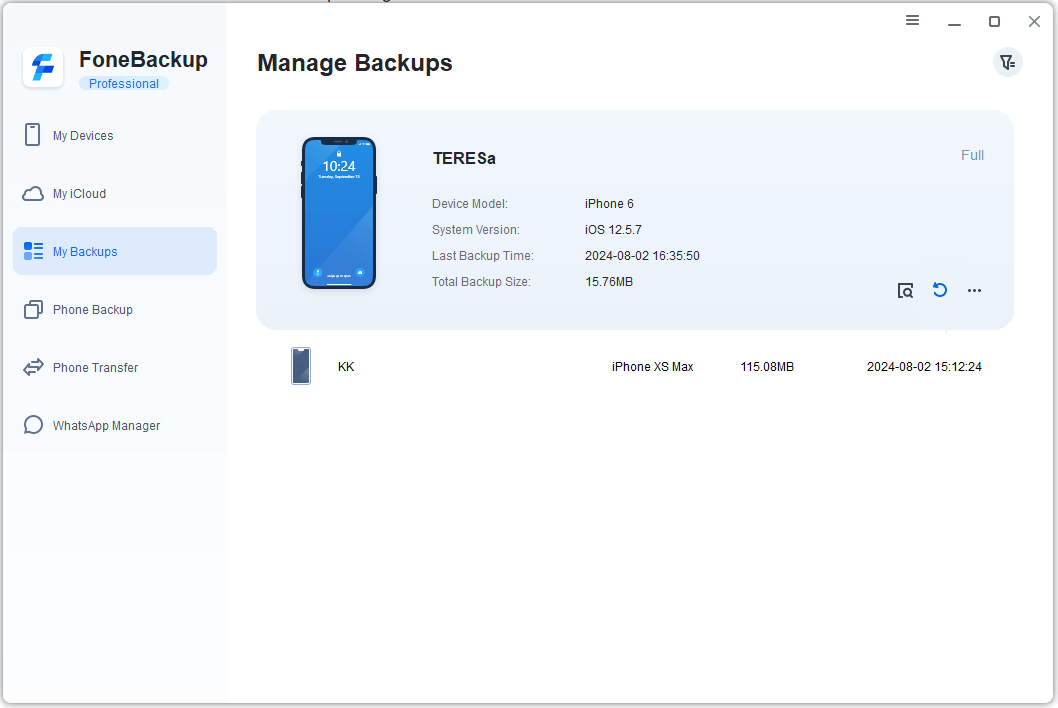
Backing up is only half the story. When you need to restore your data, AOMEI FoneBackup makes that easy too.
-
Go to My Backups, find the backup you want, and click Restore.
-
You can restore everything or pick specific files; there's no need to wipe your iPhone first.
Conclusion
Hope you can make full use of AOMEI FoneBackup to back up your iPhone without iTunes and iCloud. Besides the backup functions, AOMEI FoneBackup is also a data transfer tool, allowing you to transfer photos, music, videos, and contacts from iPhone to iPhone, iPhone to computer, and vice versa. If this guide helps you, please share it with others.

 as a preferred
source on Google
as a preferred
source on Google