




3 Ways to Restore Deleted Photos on iPhone
Learn how to restore deleted photos on iPhone from iCloud with 3 methods - Recently Deleted, iCloud.com, and backup restore. Plus a tool to prevent data loss.

By Kelsey Updated on May 14, 2026


iPhone storage runs out fast. One day you're happily snapping photos, the next you're staring at that dreaded "Storage Almost Full" message. So you start cleaning house, deleting screenshots, clearing out duplicates, maybe a few old videos. And somewhere in that flurry of tapping, you accidentally delete something you actually wanted to keep.
If that's happened to you, take a breath. Deleted photos don't vanish instantly. Apple gives you several ways to pull them back, depending on how your phone was set up. This guide covers three methods to restore deleted photos on iPhone, including one that works even if you emptied the Recently Deleted folder.
Method 1. Recover Photos from Recently Deleted Album
When you delete a photo on iPhone, it doesn't disappear immediately. Instead, it moves to the Recently Deleted album, where it sits for 30 days. During that window, you can bring it back with a few taps.
Step 1. Open the Photos app on your iPhone.
Step 2. Tap Albums at the bottom, then scroll all the way down to find Recently Deleted under the Utilities section.
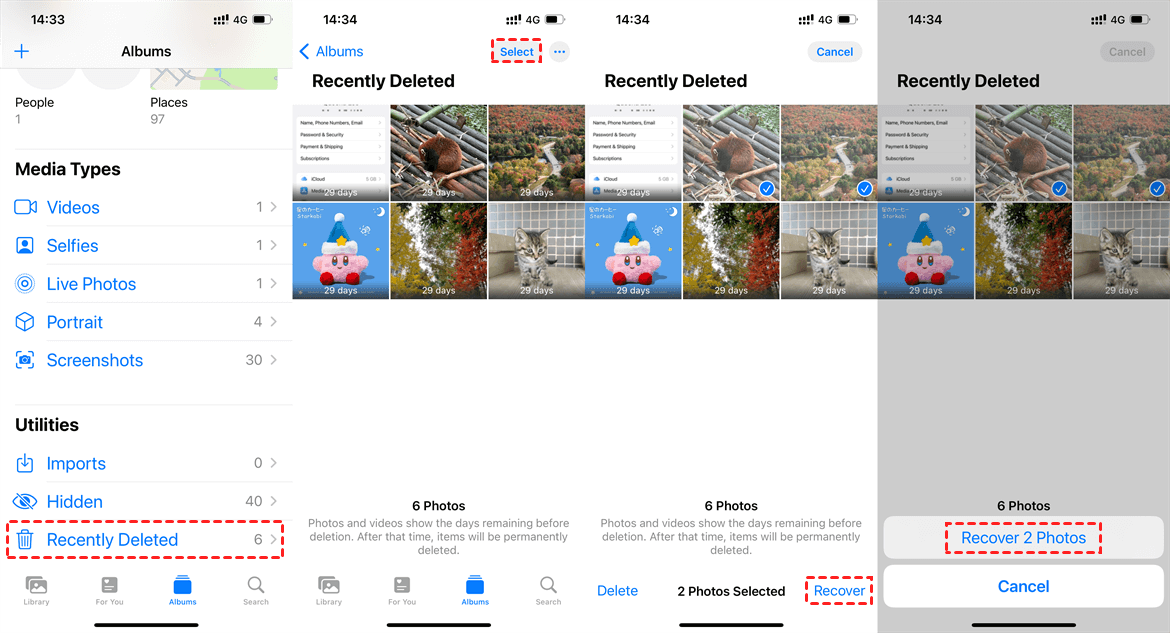
Step 3. Tap Select in the top‑right corner. Choose the photos you want to recover.
Step 4. Tap Recover at the bottom‑right corner. Confirm when prompted.
Your photos will move back to your main library, exactly where they were before.
Method 2. Recover iPhone Photos from iCloud.com
If you have iCloud Photos enabled, your deleted photos also live in iCloud's Recently Deleted folder for 30 days. You can recover them directly from a web browser.
Step 1. On a computer or iPhone, open a browser and go to iCloud.com. Sign in with your Apple ID.
Step 2. Click Photos. Look through your main library or open the Recently Deleted folder in the sidebar.
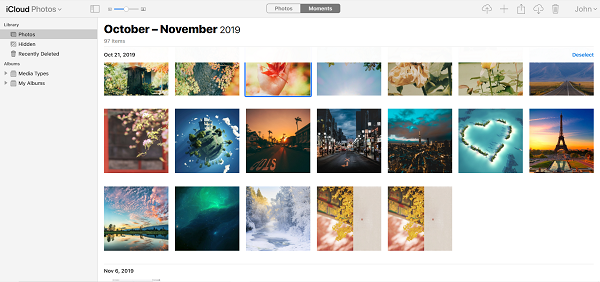
Step 3. Select the photos you want to recover. Click Recover (or the arrow icon) and confirm.
Once recovered, the photos will reappear in your iCloud Photos library and sync back to your iPhone.
Method 3. Recover from iCloud or iTunes Backup
What if you deleted the photos more than 30 days ago, or you emptied the Recently Deleted folder? If you have an older backup from before the deletion, you can restore that backup to get your photos back.
-
Restoring from a backup erases everything currently on your iPhone and replaces it with the backup. So before doing this, make sure there's nothing on your phone right now you'd regret losing.
Restore from iCloud Backup
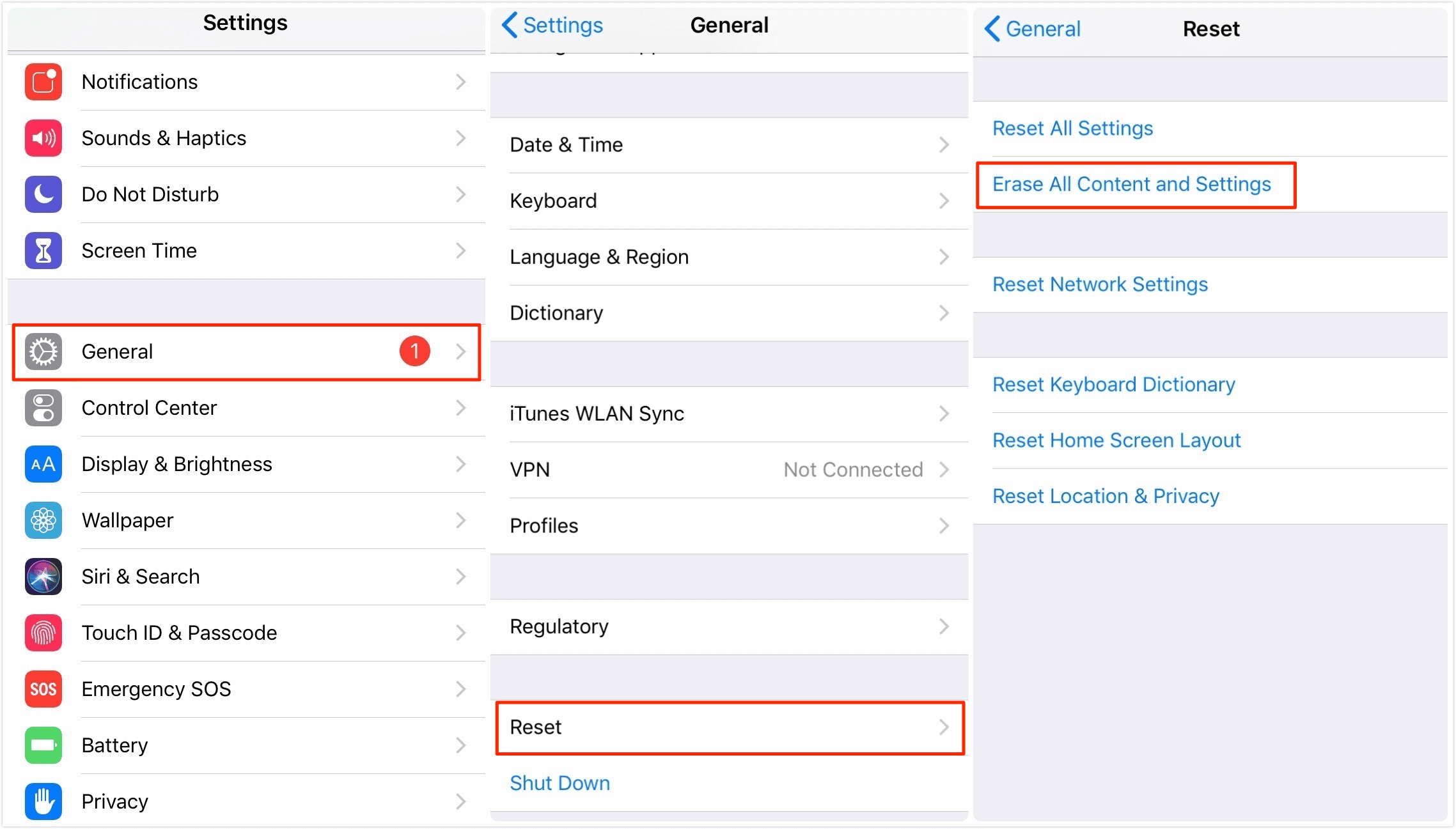
Step 1. On your iPhone, go to Settings > General > Transfer or Reset iPhone > Erase All Content and Settings. Confirm your passcode.
Step 2. After the erase completes, set up your iPhone until you reach the Apps & Data screen.
Step 3. Tap Restore from iCloud Backup. Sign in with your Apple ID and choose a backup from before your photos were deleted.
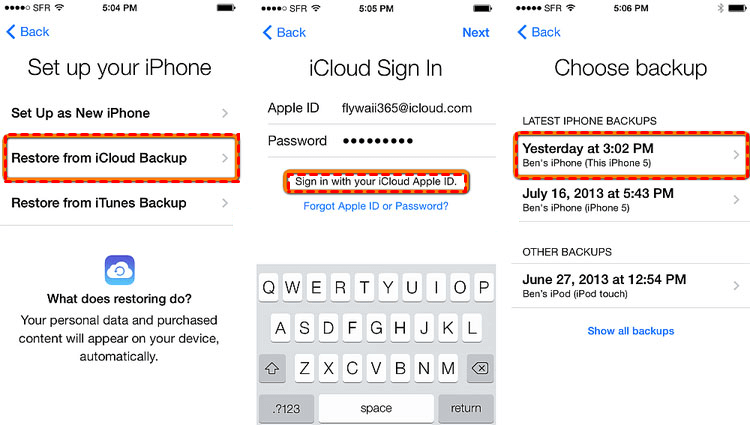
Step 4. Wait for the restore to finish. Your photos and everything else from that backup will be back.
Restore from iTunes Backup
Step 1. Connect your iPhone to the computer you use for iTunes backups. Open iTunes (or Finder on newer Macs).
Step 2. Click the device icon near the top left. Under Summary, find the Backups section.

Step 3. Click Restore Backup. Choose the backup you want (look for one from before the deletion). If the backup is encrypted, enter the password.
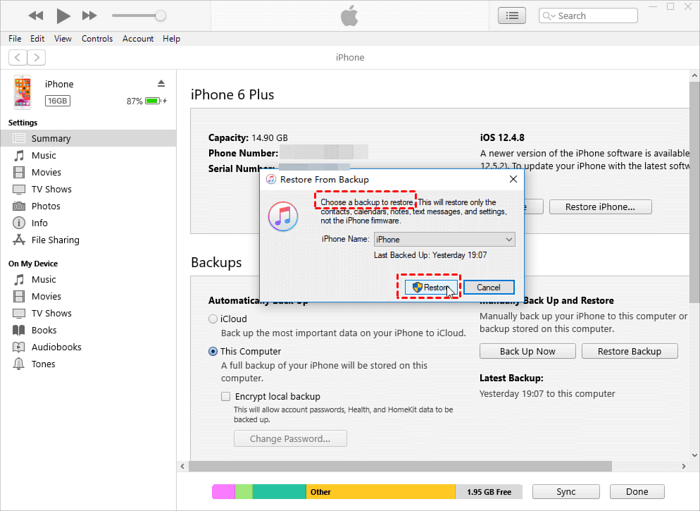
Step 4. Wait for the restore to complete. Your iPhone will restart with the restored data.
How to Quickly Recover Deleted Photos Next Time
The three methods above work if you catch the photos within 30 days or have an old backup. But what if you don't? The best protection is a backup strategy that doesn't rely on you remembering to act within a time limit.
AOMEI FoneBackup is a free Windows tool that lets you backup your iPhone photos to your computer, selectively, without overwriting anything, and without the all-or-nothing restore that iCloud and iTunes force on you.
 AOMEI FoneBackup
- Pick what to backup: Only want to save your photos? You can. No need to back up your whole phone.
- Restore without erasing: If a photo disappears, you can pull it from your computer backup without wiping your iPhone.
- Two backup modes: Save photos as an image file or transfer them in original quality.
- Works with all iOS Devices: iPhone 4 up to the latest iPhone modeland iOS version.
 100% Secure
Step 1. Download and install AOMEI FoneBackup on your Windows PC. Connect your iPhone with a USB cable and tap "Trust This Computer" when prompted.
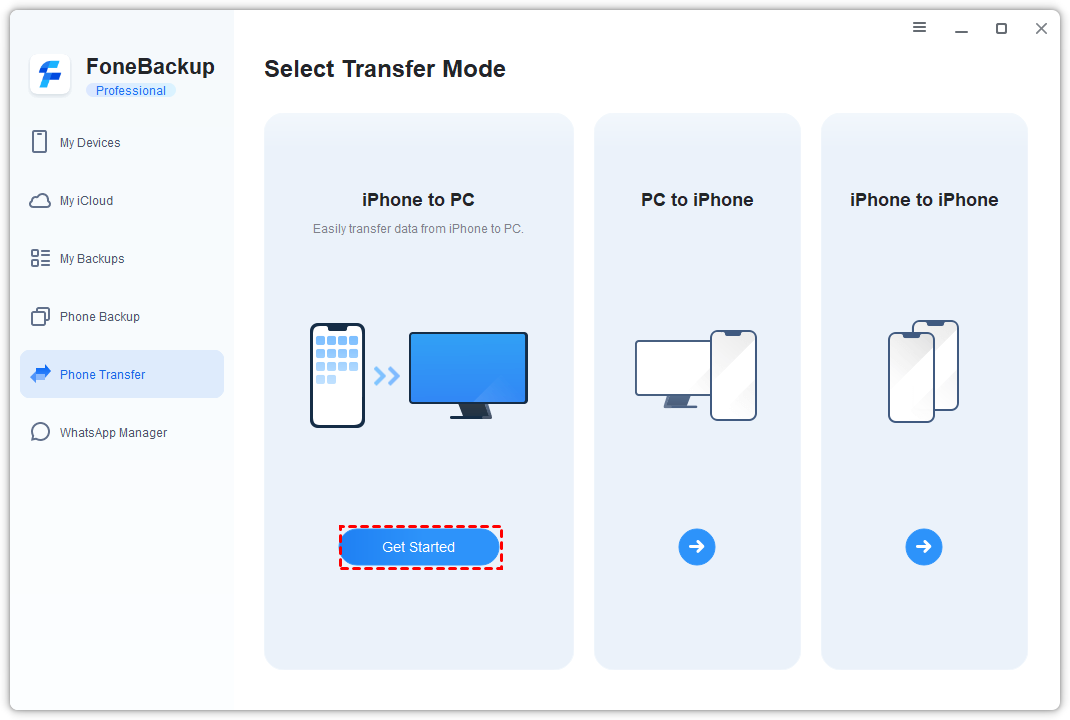
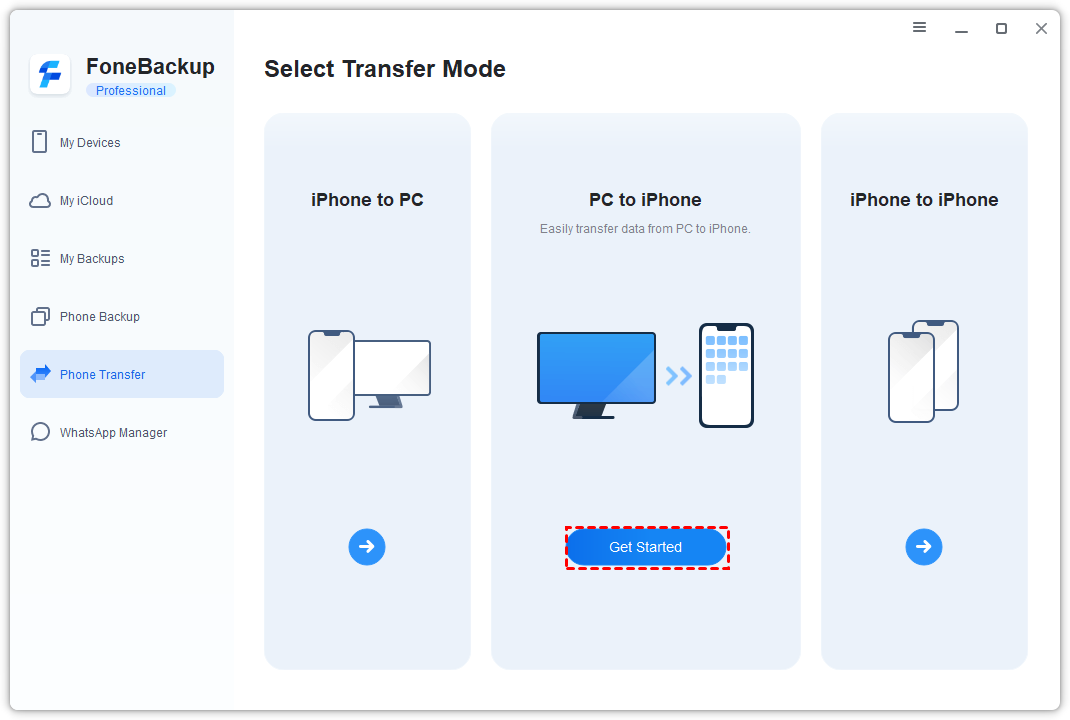
Step 2. Open AOMEI FoneBackup. Click Phone Transfer, then choose iPhone to PC and hit Start Transfer.
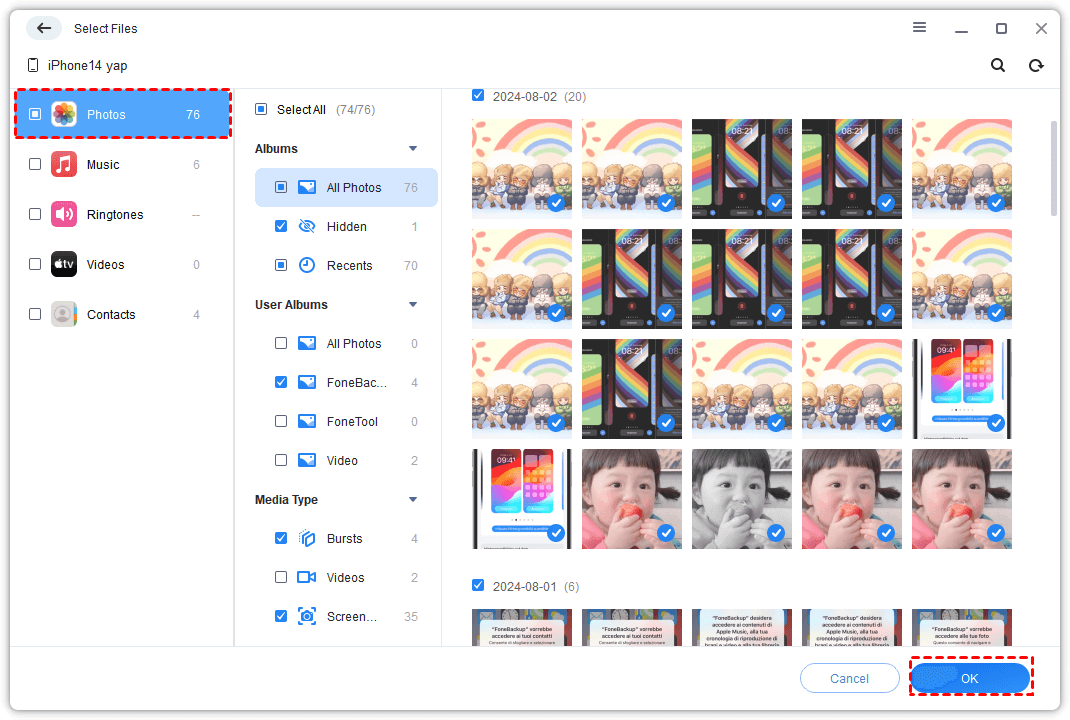
Step 3. Click the plus icon, then select Photos. Preview your photos and choose the ones you want to back up. Click OK.
Step 4. Choose where to save the photos on your computer.
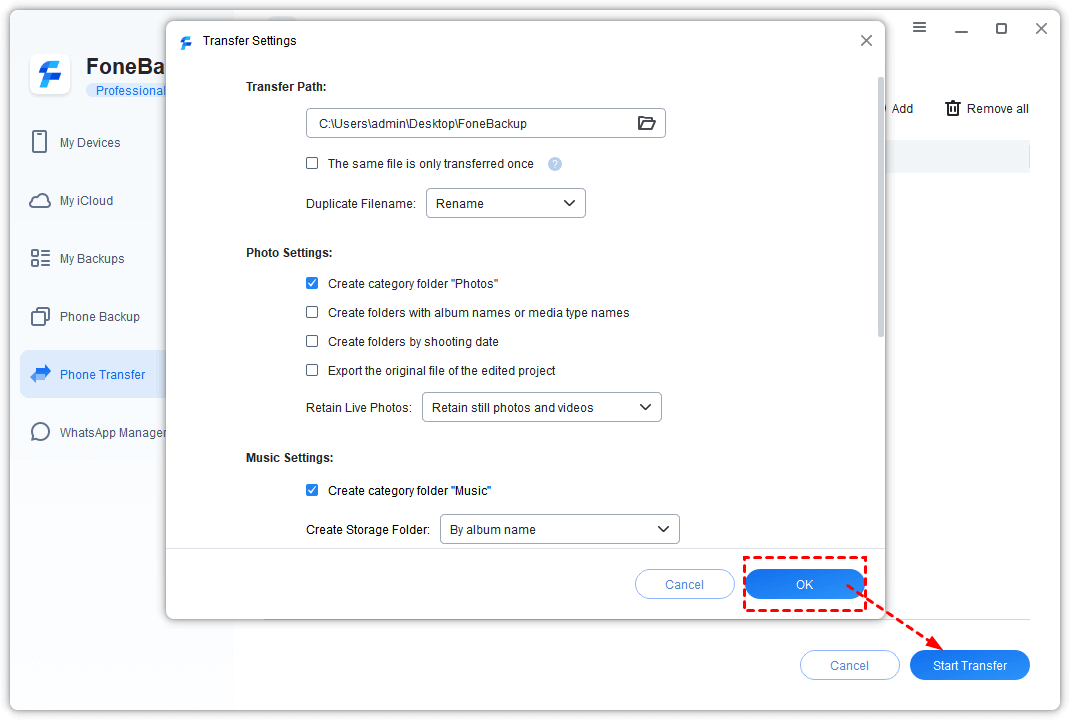
Step 5. Click Start Transfer. A few minutes later, your photos are safely stored on your PC.
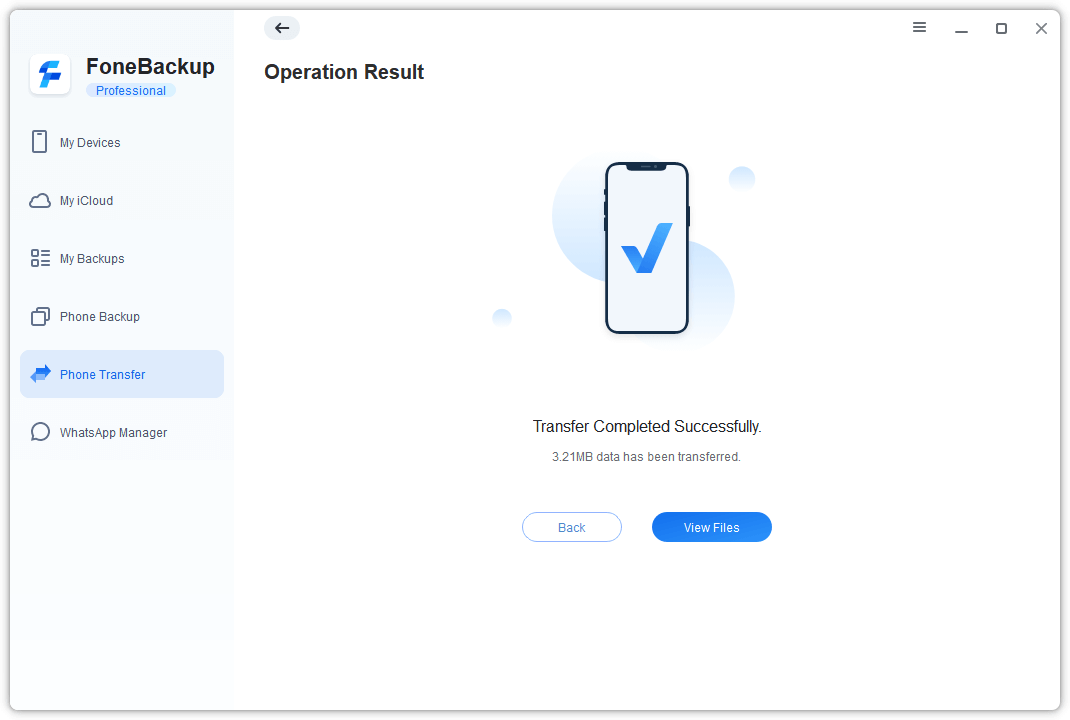
If you ever need to restore them, simply connect your iPhone again, choose PC to iPhone, and transfer them back.
Final Words
That’s all about how to restore deleted photos on iPhone. You can go to the Recently Deleted album or iCloud.com to find photos that were deleted in the past 30 days. If you have a backup available, you can choose to restore your iPhone from that backup.
If you have any questions, please feel free to contact us, and we will reply to you as soon as possible.

 as a preferred
source on Google
as a preferred
source on Google