



How to Transfer Contacts from Dell Laptop to iPhone (3 Quick Ways)
Learn how to transfer contacts from Dell laptop to iPhone with 3 easy methods. Use AOMEI FoneBackup, iTunes, or iCloud, whichever fits your needs. Step-by-step guide.

By Kelsey Updated on May 14, 2026


How to Sync Contacts from Dell Laptop to iPhone
Trying to transfer contacts from my Dell laptop to my new iPhone 16 Pro. Can I use iTunes? Or is there any other way? Thanks in advance!
- Question from Apple Community
So you just got a new iPhone, congrats! You probably already moved your contacts from your old Android using the Move to iOS app. But what about the contacts still sitting on your Dell laptop? Maybe it's a backup file, an old spreadsheet, or just a list you've been keeping for years. The good news? You don't have to type them all in manually. This guide covers 3 ways to transfer contacts from Dell laptop to iPhone, whether you want to use iTunes, iCloud, or a dedicated tool that gives you more control.

| Method | Best For... | Keeps Existing Contacts? | Requires Cable? | Internet Needed? |
|---|---|---|---|---|
| AOMEI FoneBackup | Selective transfer, CSV/vCard files, no data loss | Yes | Yes | No |
| iTunes | Syncing from Windows/Outlook/Google | No (replaces contacts) | Yes | No |
| iCloud | Wireless transfer, Apple ecosystem | Yes (but may merge) | No | Yes |
Way 1. Transfer Contacts from Dell Laptop to iPhone with AOMEI FoneBackup
If you want to pick exactly which contacts to move or if you're dealing with CSV or vCard files, AOMEl FoneBackup is the way to go. It's a Windows tool built specifically for managing iPhone data, and it handles contacts beautifully.
 AOMEI FoneBackup
- Selective Transfer: Move all contacts, photos, music or just the ones you pick.
- No Data Loss: It adds contacts to your iPhone without erasing what's already there.
- 1-Click iPhone Backup: Fully back up photos, videos, contacts and more to PC, external drive, SSD, USB, or NAS.
- Works Offline: No internet needed, just a USB cable.
- Supports CSV and vCard: Whatever format your contacts are in, it probably works.
- Wide Compatibility: Support all iOS versions, and all models of iPhone.
 100% Secure
How to Transfer Contacts with AOMEI FoneBackup, just 5 simple steps:
Step 1. Download and install AOMEI FoneBackup on your Dell laptop. Connect your iPhone with a USB cable and tap "Trust This Computer" when prompted.
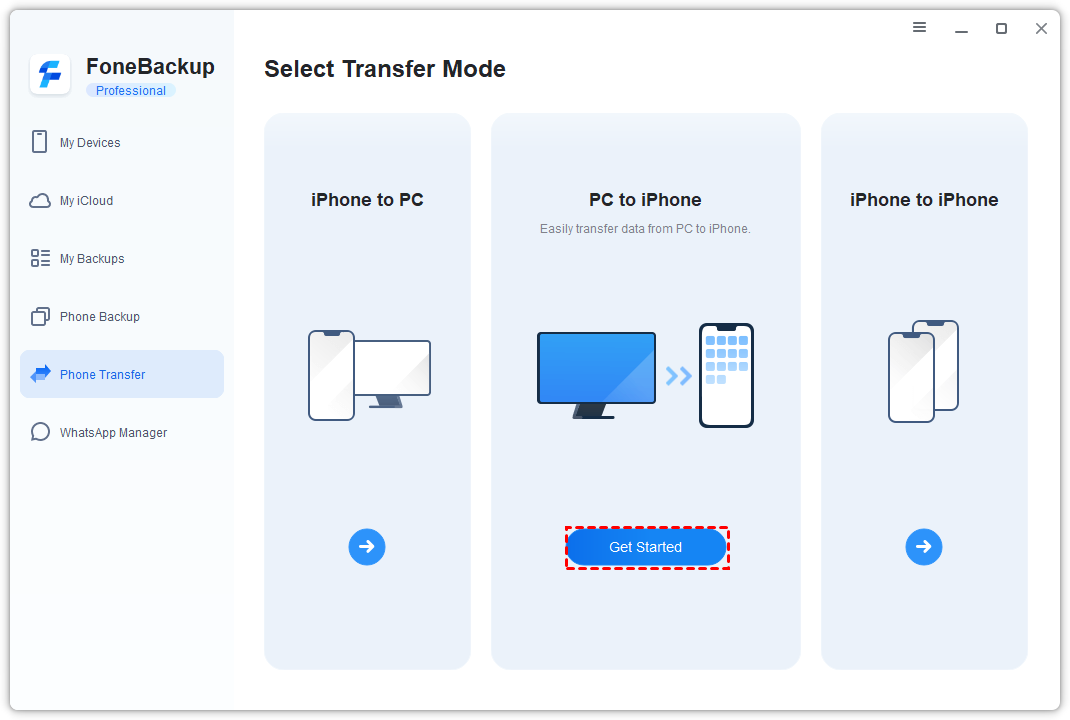
Step 2. Open AOMEI FoneBackup. On the home screen, click Phone Transfer > PC to iPhone.
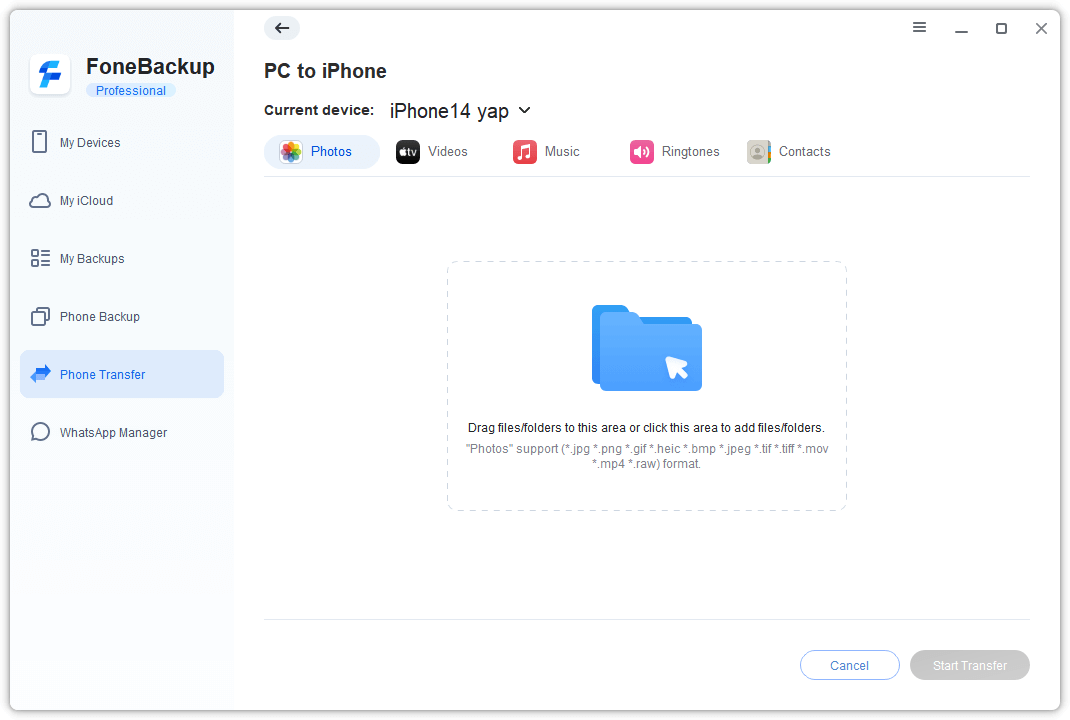
Step 3. Click the "+" (Plus) icon. Browse your laptop and select the contact files you want to transfer (CSV or vCard). You can also preview and pick specific contacts if you have a backup file.
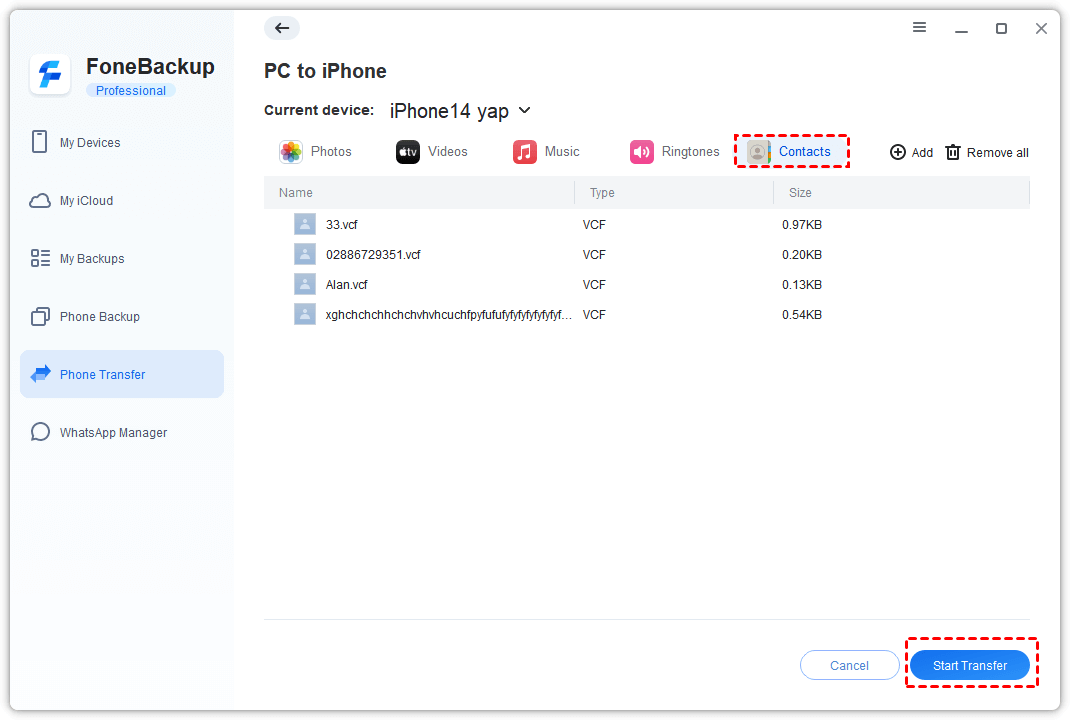
Step 4. Confirm the contacts that will be added to your iPhone. Make sure everything looks right.
Step 5. Click Start Transfer. Wait a few seconds, and then open the Contacts app on your iPhone to see them.
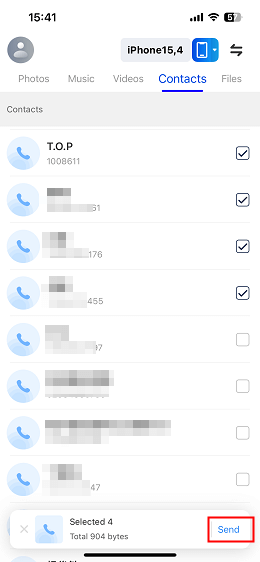
AOMEI FoneBackup also has a mobile app you can download from the App Store. It lets you transfer photos, videos, and contacts between iPhones wirelessly. Handy for sharing with friends.
Way 2. Sync Contacts from Laptop to iPhone with iTunes
You can import contacts with iTunes, but there's a catch: it will replace all existing contacts on your phone. If you're okay with that, here's how to do it.
Step 1. Download and install the latest version of iTunes on your Dell laptop.
Step 2. Connect your iPhone with a USB cable. When prompted on your iPhone, tap "Trust This Computer."
Step 3. In iTunes, click the device icon (it looks like a small phone) near the top left.
Step 4. In the left sidebar, click Info. Check the box next to "Sync Contacts with." Choose where your contacts are coming from (Windows Contacts, Google Contacts, or Outlook).
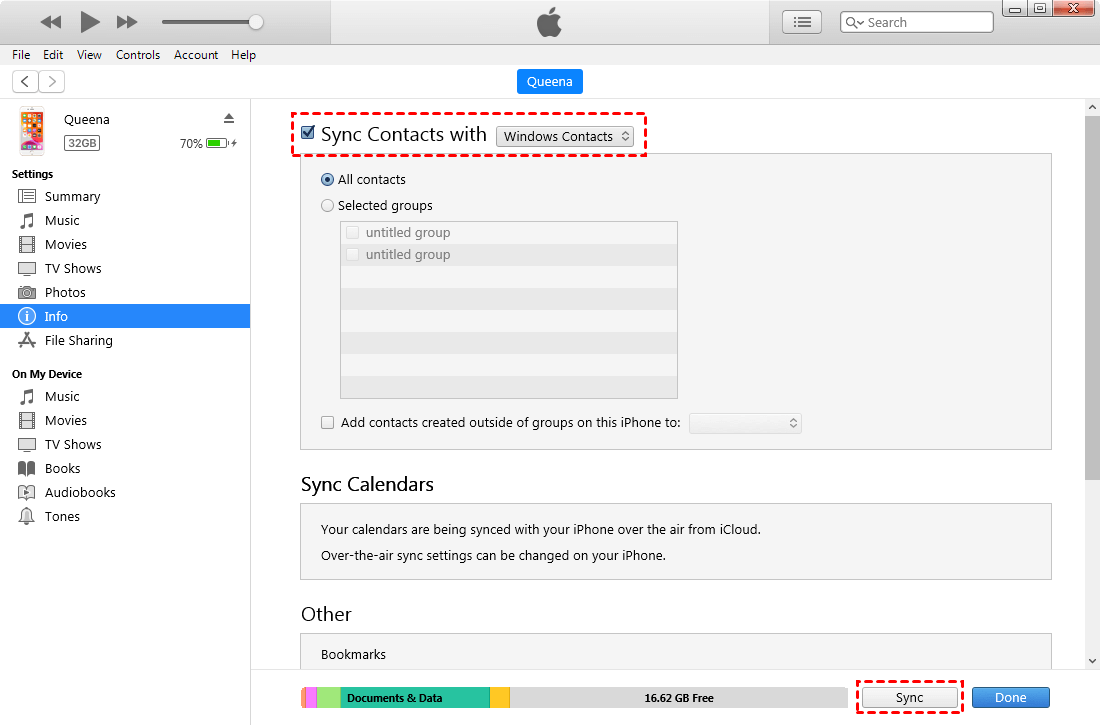
Step 5. Click Sync at the bottom right. iTunes will replace your iPhone's contacts with the ones from your laptop.
Way 3. Get Contacts from Laptop to iPhone Wirelessly with iCloud
If you'd rather go wireless, iCloud is a solid option. Upload your contacts to iCloud from your laptop, then sync them to your iPhone. No cables needed.
Step 1. Add Contacts to iCloud from your laptop
-
Open a browser and go to iCloud.com. Sign in with your Apple ID.
-
Click Contacts.
-
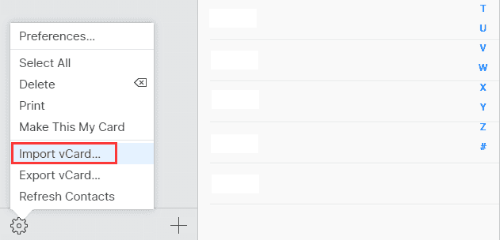
Click the gear icon (bottom left) and select Import vCard... Choose your contact file from your laptop.
Step 2. Sync iCloud Contacts to iPhone
-
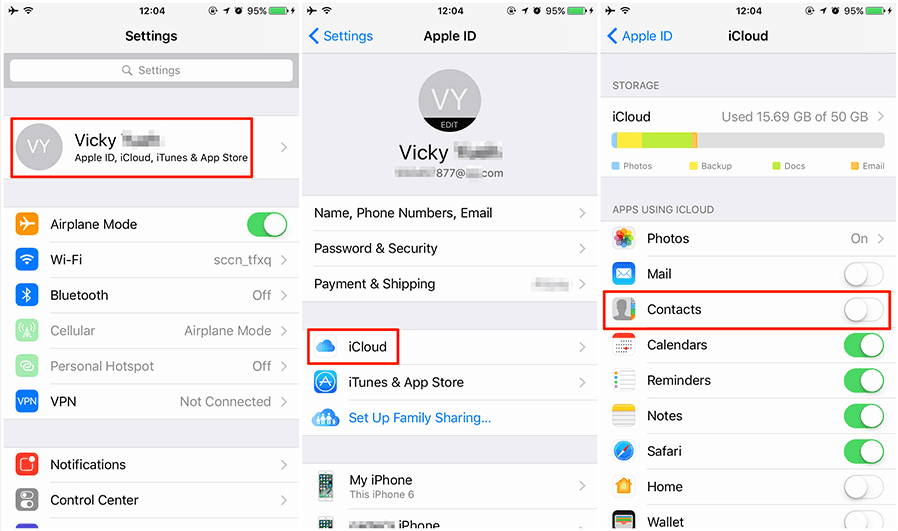
On your iPhone, go to Settings > tap your name at the top > iCloud.
-
Toggle on Contacts. Wait for the sync to complete.
-
Open the Contacts app and pull down from the top to refresh. Your contacts should appear.
-
iCloud works best with a stable Wi-Fi connection. Also, any contacts already on your iPhone will be uploaded to iCloud at the same time, so you might end up with duplicates if you're not careful.
Final Words
At the end of the day, getting your contacts from a Dell laptop to your iPhone doesn't have to be a headache. iTunes works if you're okay with replacing everything. iCloud is great for a wireless setup. But if you want something fast, selective, and safe, with no risk of wiping your phone, AOMEI FoneBackup is the tool to grab. Download it here and move those contacts in minutes.

 as a preferred
source on Google
as a preferred
source on Google