




How to Transfer Photos from Dell Laptop to iPhone Easily
This guide compares wired and wireless ways to move photos from a Dell laptop to an iPhone, explains when each method fits, and gives practical steps.

By Jonna Updated on August 13, 2026


Why Cannot Drag Photos Directly to iPhone?
A Dell laptop can often read photos from an iPhone like a camera folder, which makes importing iPhone pictures to Windows feel simple. The reverse direction is different. iOS does not work like a normal removable USB drive where you can drag a photo folder into the device storage and expect it to appear in Photos.
That is why you need a transfer tool, iTunes photo sync, or a cloud service. The right choice depends on whether you care more about keeping existing iPhone photos untouched, avoiding cables, or using Apple's built-in sync system.
Before Starting: Prepare Your Photos
A little preparation makes the transfer cleaner, especially when you are moving travel photos, edited images, or a large folder from a Dell laptop.
- Put the photos you want to transfer into one clear folder on the Dell laptop.
- Remove duplicate or unwanted images before starting the transfer.
- Check whether you need original full-resolution files or only selected compressed copies.
- Unlock the iPhone and keep it connected during a USB transfer.
- Make sure the iPhone has enough free storage for the photo batch.
3 Methods for Dell Laptop to iPhone Photo Transfer
Before following the steps, compare the main options. This table helps you choose the method that matches your situation instead of trying every tool in order.
|
Method |
Pros |
Cons |
Best for |
|
AOMEI FoneBackup |
Transfers selected photos from Windows to iPhone; does not require iTunes sync; easier to manage batches |
Requires installing a Windows tool and connecting iPhone by USB |
Users who want direct PC-to-iPhone photo transfer without iTunes |
|
iTunes photo sync |
Official Apple desktop route; can sync a chosen folder from the Dell laptop |
May replace or remove previously synced photos when sync settings change; less flexible for quick batches |
Users already comfortable with iTunes and folder sync |
|
iCloud for Windows |
Wireless after upload; photos can appear across Apple devices signed in to the same account |
Depends on iCloud storage and internet speed; large photo libraries may take time |
Users who want a cable-free method and have enough iCloud space |
Way 1. Transfer Photos from Dell Laptop to iPhone Without iTunes
AOMEI FoneBackup is a practical choice when you want to move photos from Dell laptop to iPhone without relying on iTunes. It is built for computer-based iPhone backup, transfer, and management workflows, especially for users who want clearer control over what moves between a Windows PC and an iPhone.
 AOMEI FoneBackup
- Transfer between iPhone and PC: Choose photos, videos, contacts, messages, or other files to transfer from PC to iPhone, iPhone to PC, and iPhone to iPhone.
- Fast transfer: Transfer data quickly and efficiently, reducing the time needed to move large amounts of content between devices.
 100% Secure
Step 1: Install and open AOMEI FoneBackup on the Dell laptop. Connect the iPhone to the Dell laptop with a USB cable, unlock the iPhone, and tap Trust This Computer if prompted.
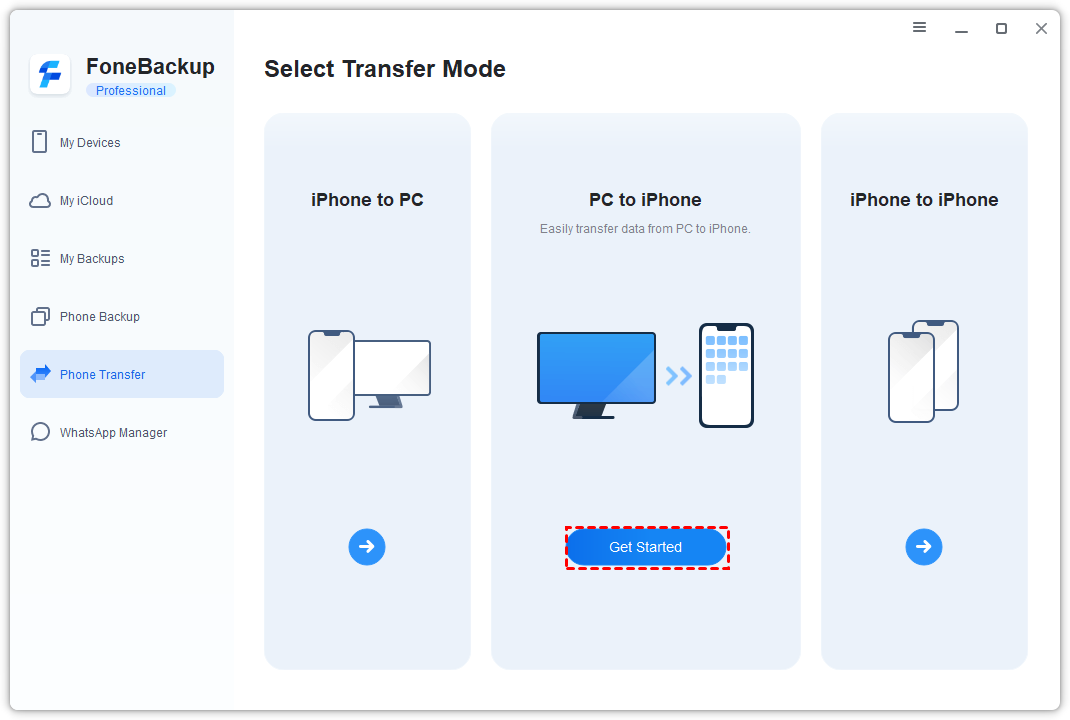
Step 2: Choose Phone Transfer from the main interface. Select PC to iPhone and click Get Started.
📢Tip: To transfer photos from iPhone to PC, use the iPhone to PC option, and use iPhone to iPhone to transfer across iPhones; also, it supports to transfer messages, contacts, and other data across PCs & iPhones.
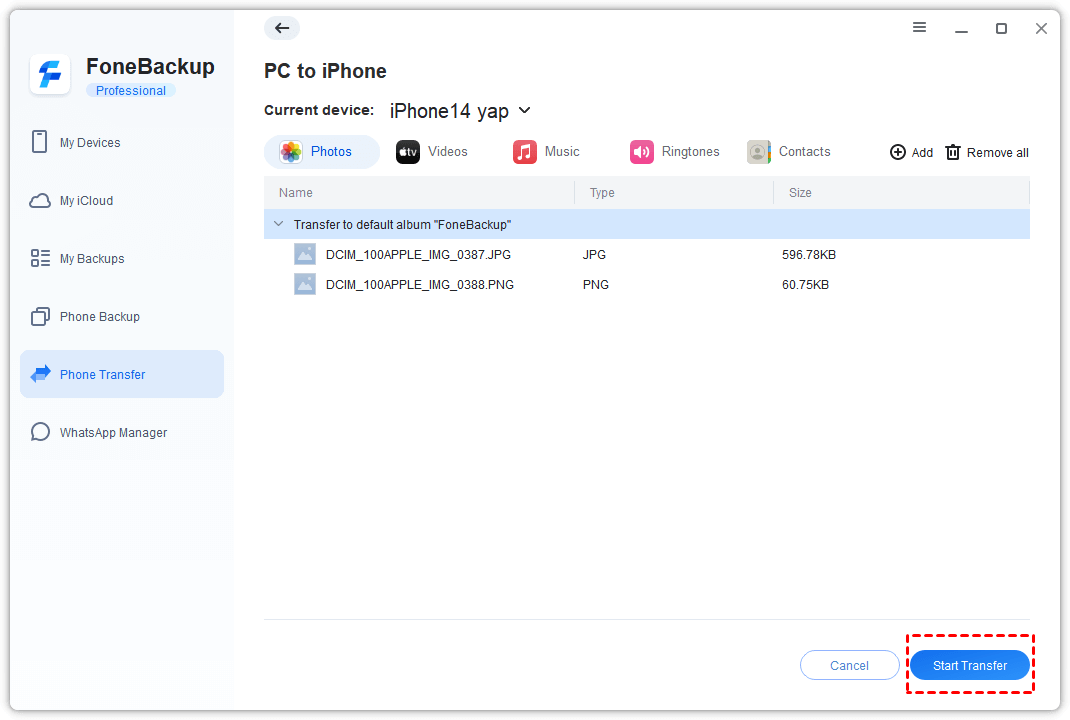
Step 3: Click the box area to add photos on the Dell laptop, or drag and drop them directly.

Step 4: Review the selected photos and click Start Transfer. Keep the iPhone connected until the transfer completes, then open Photos on the iPhone to check the imported pictures.
Way 2. Transfer Photos from Dell Laptop to iPhone with iTunes
iTunes can sync photos from a folder on your Dell laptop to the iPhone. It works, but you need to understand the trade-off: iTunes photo sync manages a synced photo library, so changing sync settings later may affect photos previously synced by iTunes.
Step 1: Install or open the latest iTunes on the Dell laptop. Connect the iPhone with a USB cable and click the device icon after iTunes detects it.
Step 2: Choose Photos from the left panel. Then, enable Sync Photos from and select the folder that contains the photos you want to transfer.
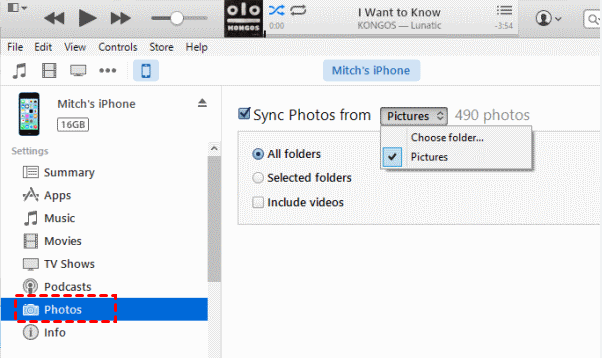
Step 3: Choose All folders or Selected folders based on your needs.
Step 4: If you want videos in the same folder to sync too, enable Include videos. Click Apply and wait for the process to finish.
If iCloud Photos is enabled on the iPhone, iTunes photo sync may be unavailable or behave differently. Check iCloud Photos settings before using this method.
Way 3. Transfer Photos from Dell Laptop to iPhone via iCloud
iCloud is better when you want a wireless transfer solution. Instead of pushing photos directly through USB, you upload photos from the Dell laptop to iCloud and then let the iPhone download or display them through the same Apple Account.
Step 1: Install and open iCloud for Windows on the Dell laptop. Sign in with the same Apple Account used on the iPhone.
Step 2: Open Photos options in iCloud for Windows and enable iCloud Photos.
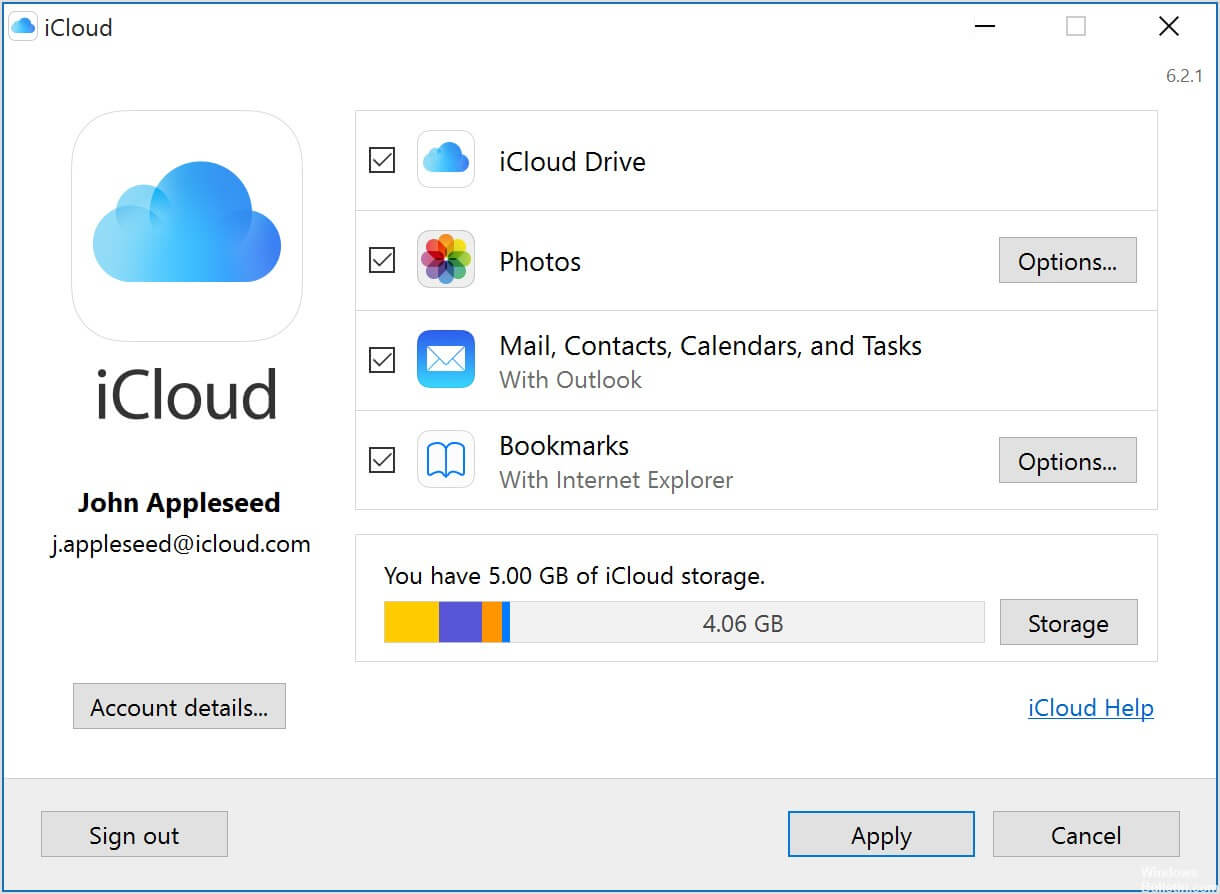
Step 3: Open iCloud Photos in File Explorer on the Dell laptop. Then, copy or drag the photos into the iCloud Photos upload location.
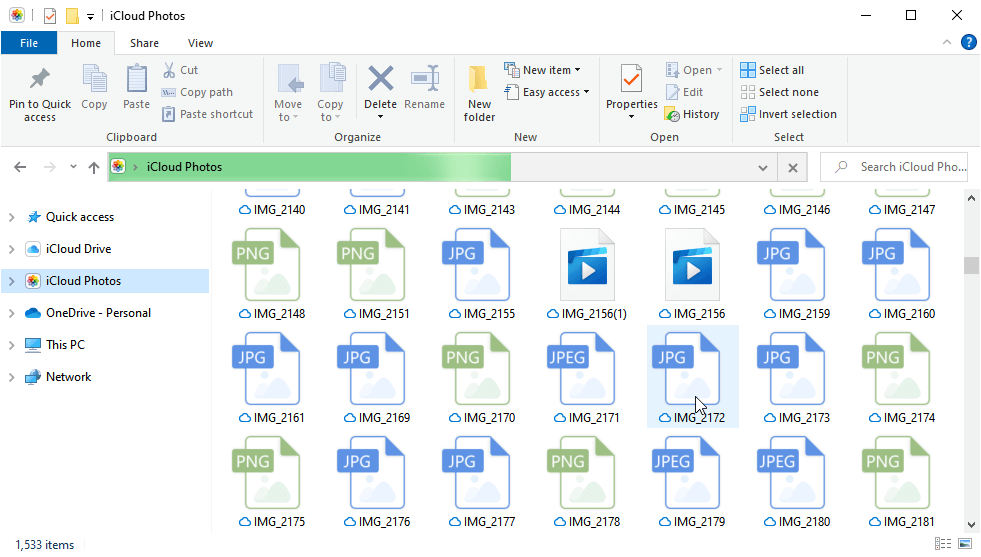
Step 4: On the iPhone, open Settings > [your name] > iCloud > Photos and make sure Sync this iPhone is enabled.
Step 5: Wait for the photos to upload and appear in the iPhone Photos app.
iCloud is convenient, but it is not instant for large folders. Keep the laptop online until the upload completes, and make sure there is enough iCloud storage for the photos.
FAQ About Transferring Photos from Dell Laptop to iPhone
#1. Can I drag and drop photos from a Dell laptop to an iPhone?
Not directly, like copying files to a USB drive. You need a transfer tool, iTunes sync, iCloud, or another supported workflow to make the photos appear in the iPhone Photos app.
#2. Will iTunes delete my existing iPhone photos?
iTunes sync can affect photos that were previously synced from a computer, especially if you change the synced folder. Review the warning carefully before clicking Apply or Sync.
#3. Can I transfer photos without a USB cable?
Yes. iCloud for Windows can upload photos from the Dell laptop and sync them to the iPhone wirelessly, but it depends on internet speed and iCloud storage.
#4. Which method is best for a small batch of photos?
AOMEI FoneBackup is usually the easiest for selected Windows-to-iPhone photo batches because you can choose specific files and avoid setting up iTunes photo sync.
#5. Should I delete the photos from my Dell laptop after transfer?
Only after you confirm the photos are visible and open correctly on the iPhone. Keeping a local copy is safer if the photos matter.
Conclusion
To transfer photos from Dell laptop to iPhone, choose the method by workflow. AOMEI FoneBackup is the simplest choice for selected photo batches without iTunes. iTunes works for users who accept Apple's folder sync behavior. iCloud is useful when you want wireless transfer and have enough storage. Whichever method you use, verify the photos on the iPhone before removing the originals from your Dell laptop.

 as a preferred
source on Google
as a preferred
source on Google