




[Full Explained] Can You Add A Partition to An Existing Drive?
Can you add a partition to an existing drive? Yes, you can. This article will walk you through the full steps to help you create a new partition with or without unallocated space.

By Hedy Updated on May 29, 2026


Can you add a partition to an existing drive?
Yes, you can add a partition to an existing drive as long as the disk has unallocated space or enough free space to shrink an existing partition. In Windows, a partition is a separate section of a hard drive or SSD used to organize data.
Here are the general steps to add a partition to an existing drive:
✦ Verify unallocated space
Begin by checking whether your hard drive already contains unallocated space. This unused area can be turned into a new partition. On Windows systems, the built-in Disk Management utility allows you to view the current disk layout and available space.
✦ Reduce the size of an existing partition
If no unallocated space is available, you will need to shrink one of the current partitions to free up storage space. Before resizing any partition, make sure important files are backed up to avoid unexpected data loss or partition issues.
✦ Create the new partition
After unallocated space becomes available, you can use it to build a new partition. In Windows, Disk Management makes the process simple by allowing you to create, format, and assign a drive letter to the newly added partition.
How to add a partition to an existing drive easily and quickly
AOMEI Partition Software is a reliable and user-friendly disk management tool that helps you add a partition to an existing drive easily and quickly without complicated operations. Compared with Windows Disk Management, it offers more flexible features and a simpler interface, making it suitable for both beginners and advanced users.
✍ With AOMEI Partition Software, you can:
✔️ Create a new partition from unallocated space
✔️ Shrink an existing partition to free up space
✔️ Split a large partition into smaller ones
✔️ Resize partitions or move partitions without data loss
✔️ Merge partitions when necessary
Let’s see how do I add a partition to an existing hard drive:
 AOMEI Partition Software
A safe and reliable disk partition management tool that helps you migrate OS to SSD or HDD, reorganize disk space, and improve overall PC performance.
Case one. With unallocated space
If there is already unallocated space on your hard drive, you can directly create a new partition without affecting existing data. AOMEI Partition Software makes the process simple and fast.
Step 1. Install and launch AOMEI Partition Software. On the main interface, you’ll find all disks and partitions.
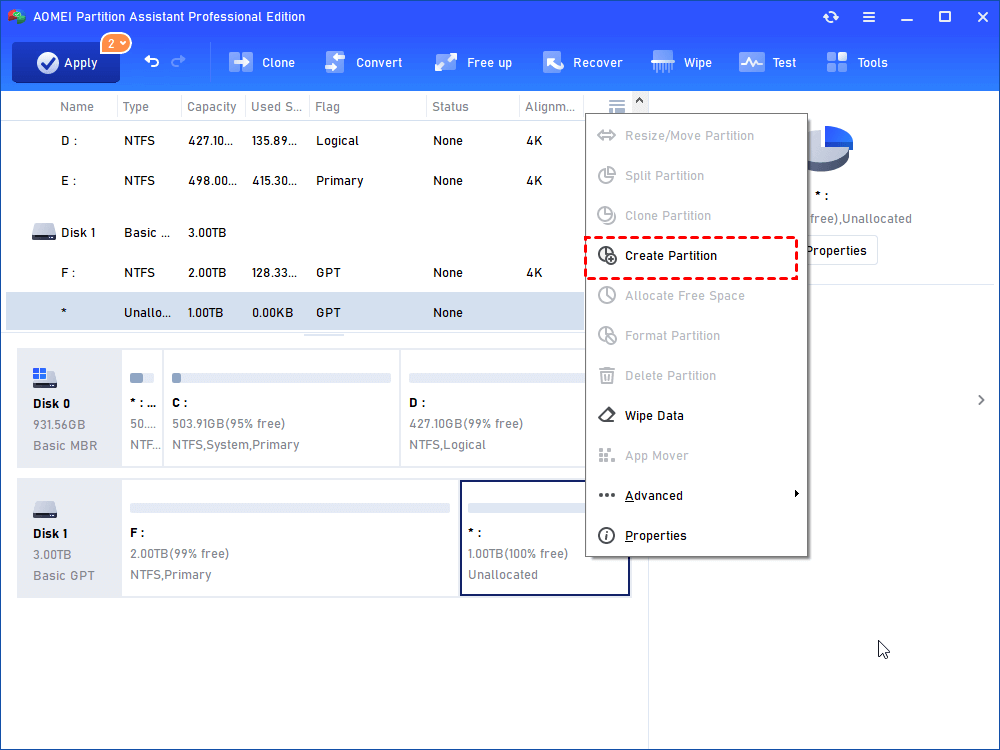
Step 2. Right-click on the unallocated space and select “Create Partition”.
Step 3. If you want to use the entire unallocated space as the new partition, just preset the file system and click "OK".
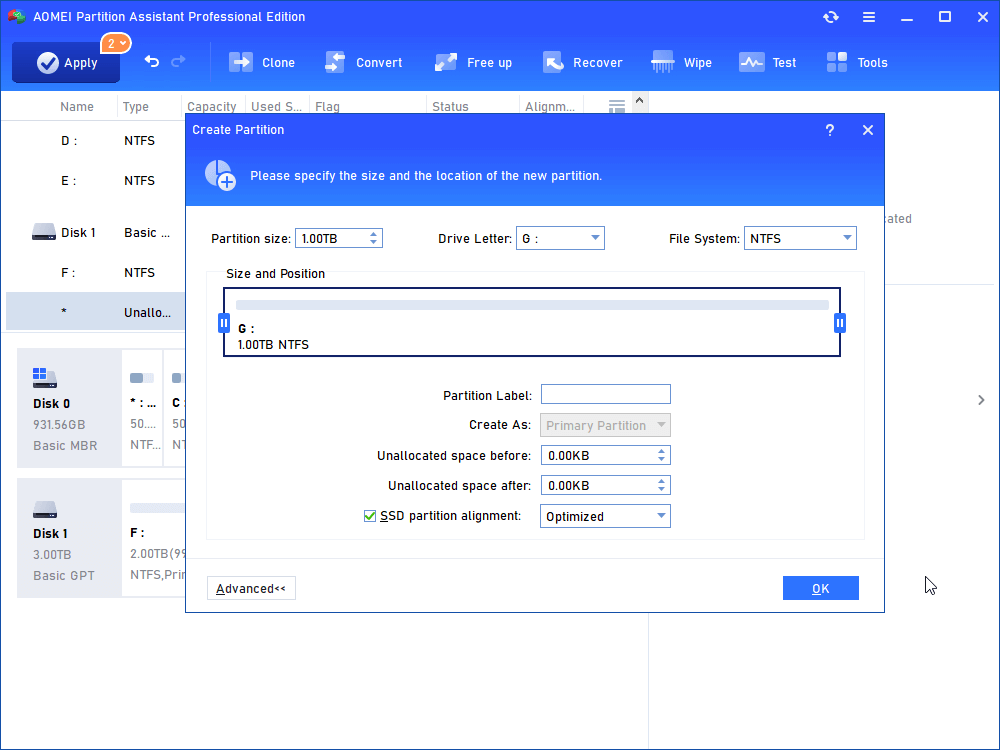
If you hope to create more partitions later, you can move the green circles on both sides and leave some unallocated space to create more partitions.
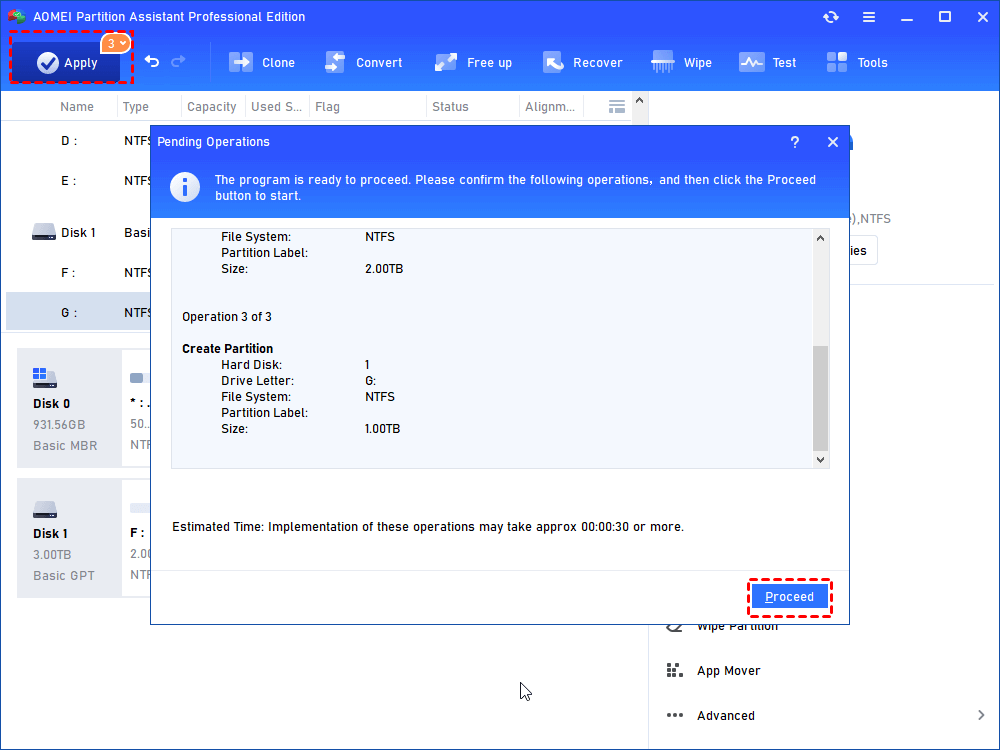
Step 4. Click on “Apply” on the upper left and then hit “Proceed” to start the partition-building process.
Case two. Without unallocated space
If your drive does not have unallocated space, you can still add a new partition by shrinking an existing partition. AOMEI Partition Software can safely reduce the process by directly size of a partition and generating unallocated space for creating a new one without data loss.
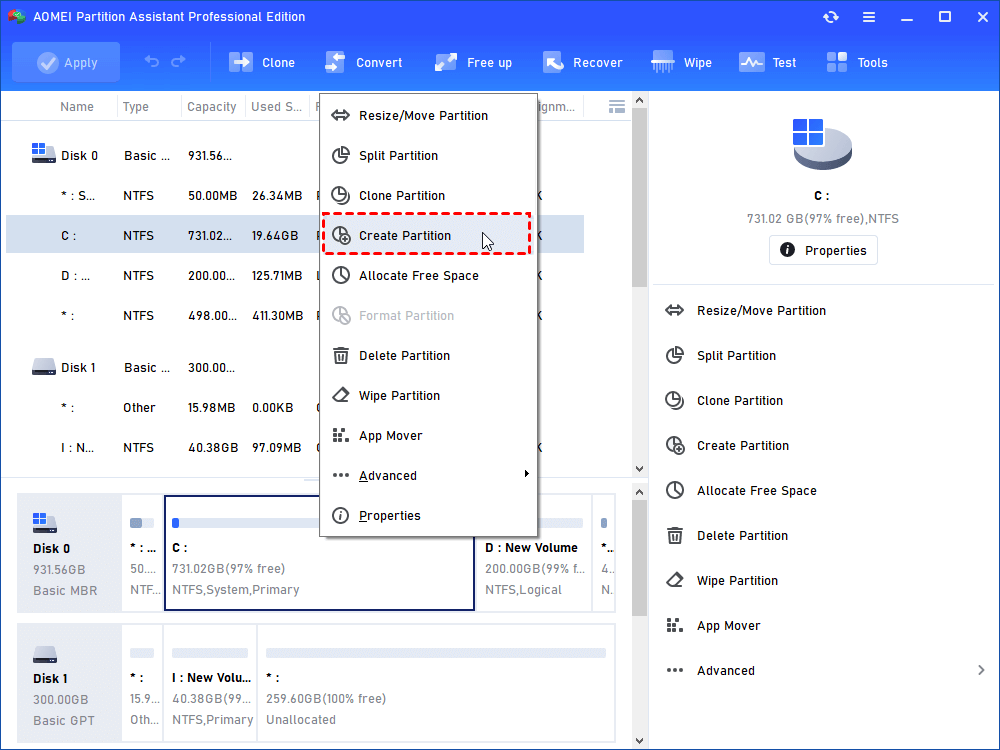
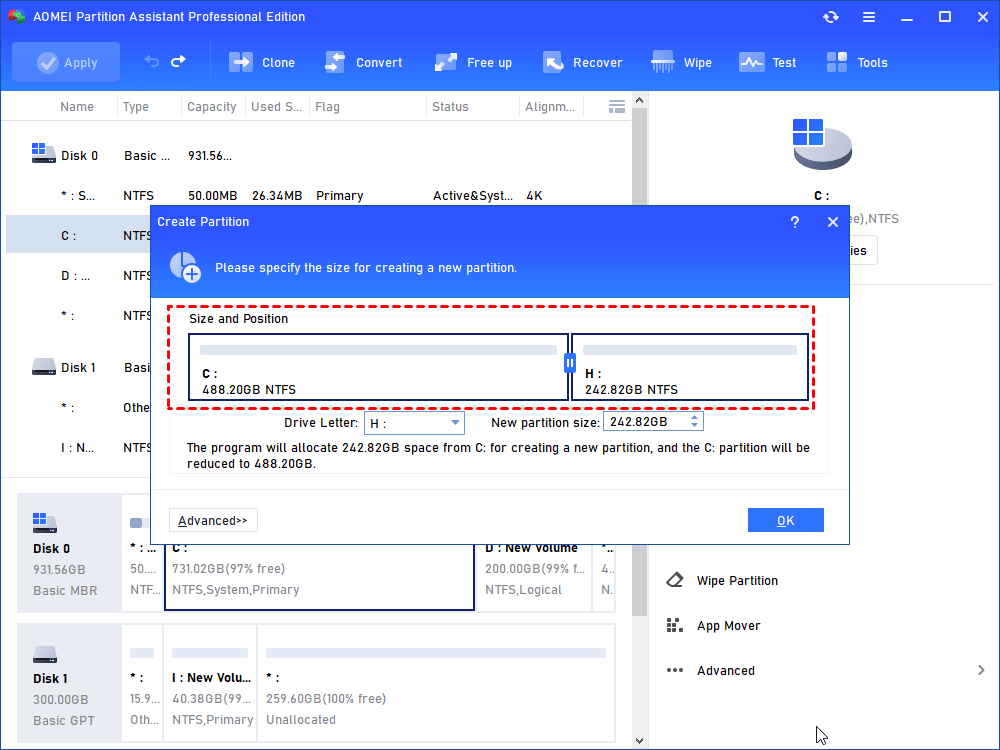
Step 1. Open AOMEI Partition Software. Right-click on the partition with extra space and select “Create Partition”.
Step 2. Specify the size for creating a new partition and click "OK".
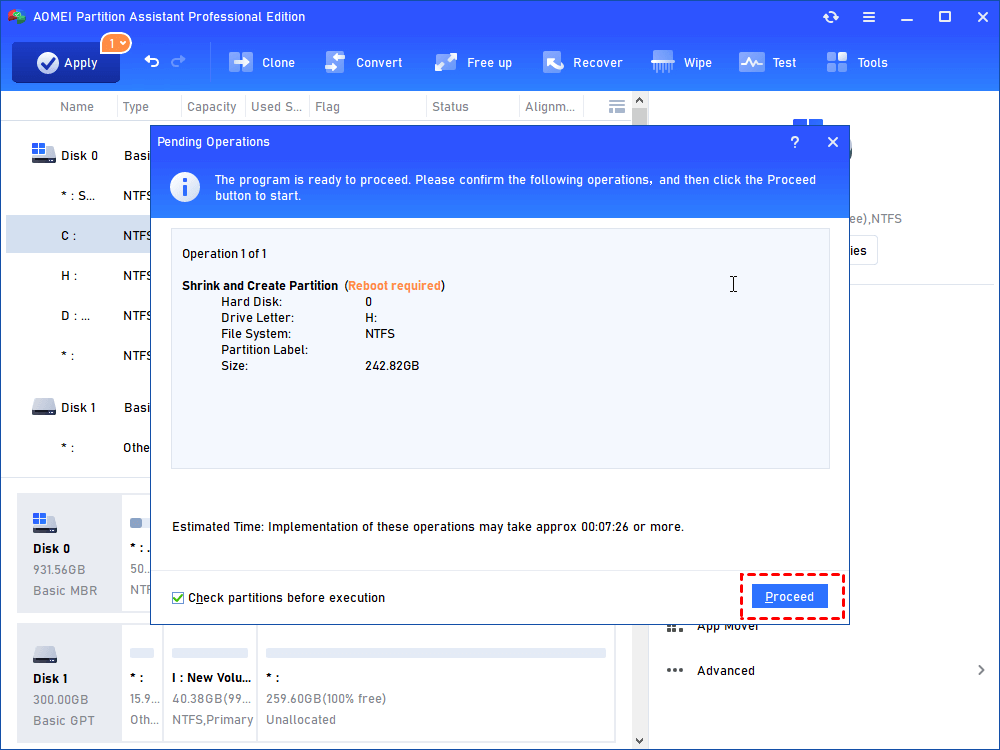
Step 4. Click on “Apply” on the upper left and then hit “Proceed” to complete the process.
Compared with the built-in Windows Disk Management utility, AOMEI Partition Software provides more advanced partition management features and avoids many limitations. Whether you want to create, resize, split, or merge partitions, it offers an efficient and secure solution for managing your hard drives.
Bonus: How to partition an external hard drive without data loss
Partitioning an external hard disk drive helps you organize data more efficiently and improve disk management. By dividing one physical drive into multiple sections, you can store different types of files separately, making them easier to manage and protect.
Here we recommend AOMEI Partition Software’s practical feature called “Split Partition” to help you partition an external hard drive without deleting files or formatting the disk. Instead of manually shrinking a volume and creating a new partition separately, the tool can divide one large partition into two smaller partitions in just a few clicks.
With this feature, you can better organize your external hard drive for different purposes, such as separating work files, backups, games, videos, or personal data. Let’s see how to partition an external hard drive.
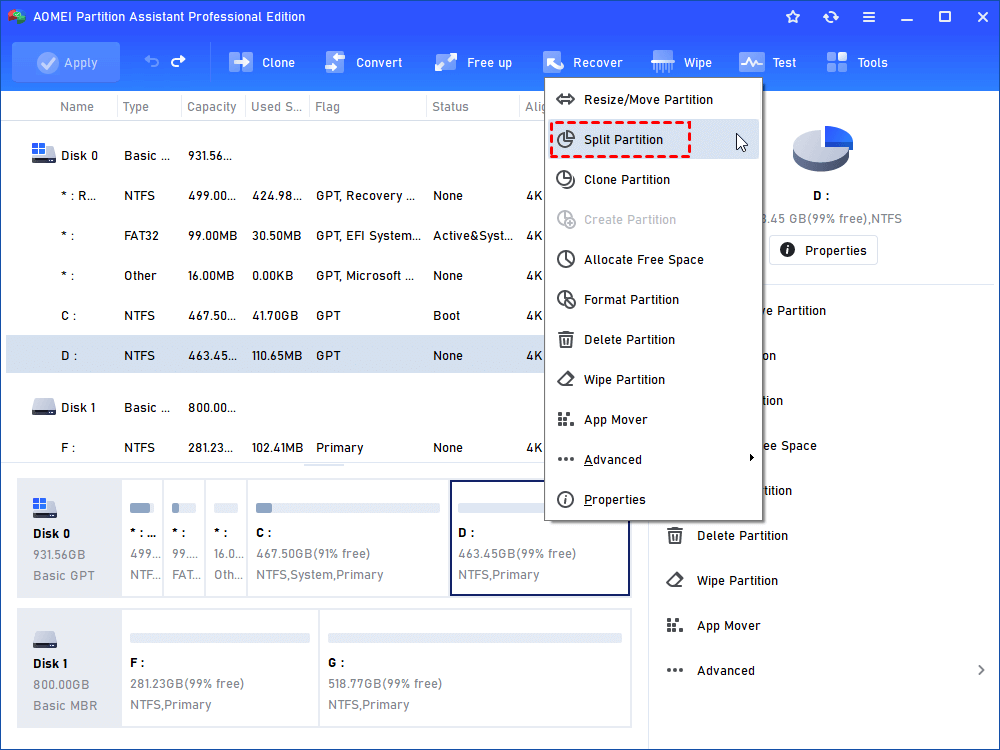
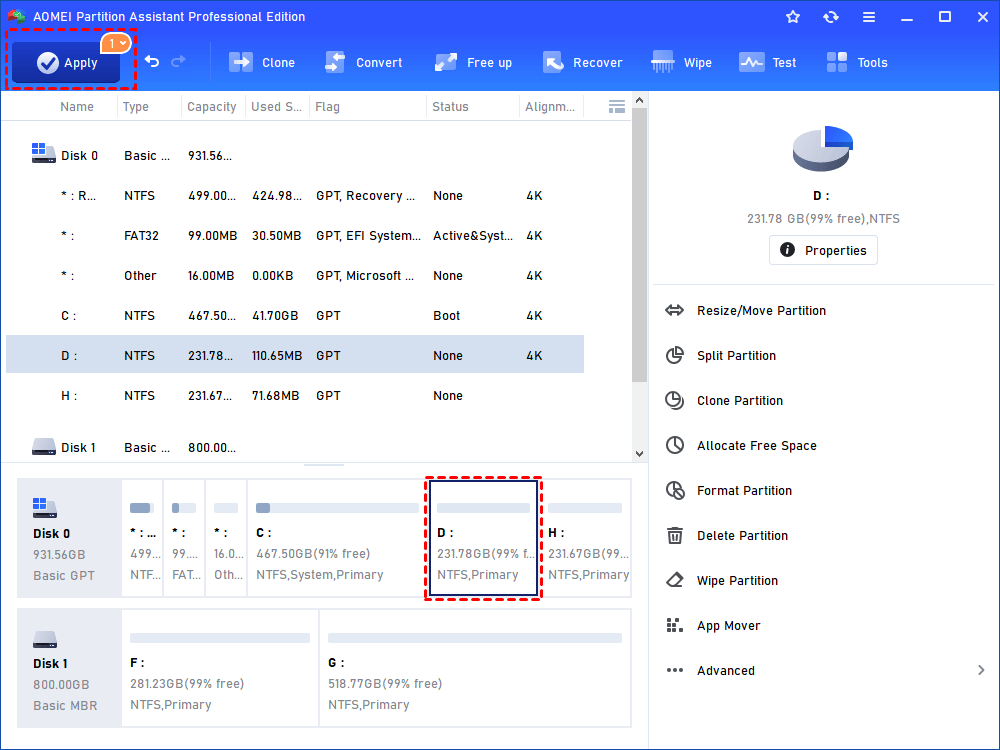
Step 1. Install and run AOMEI Partition Software. Right-click the external hard drive (Here is D drive)and select “Split Partition”.
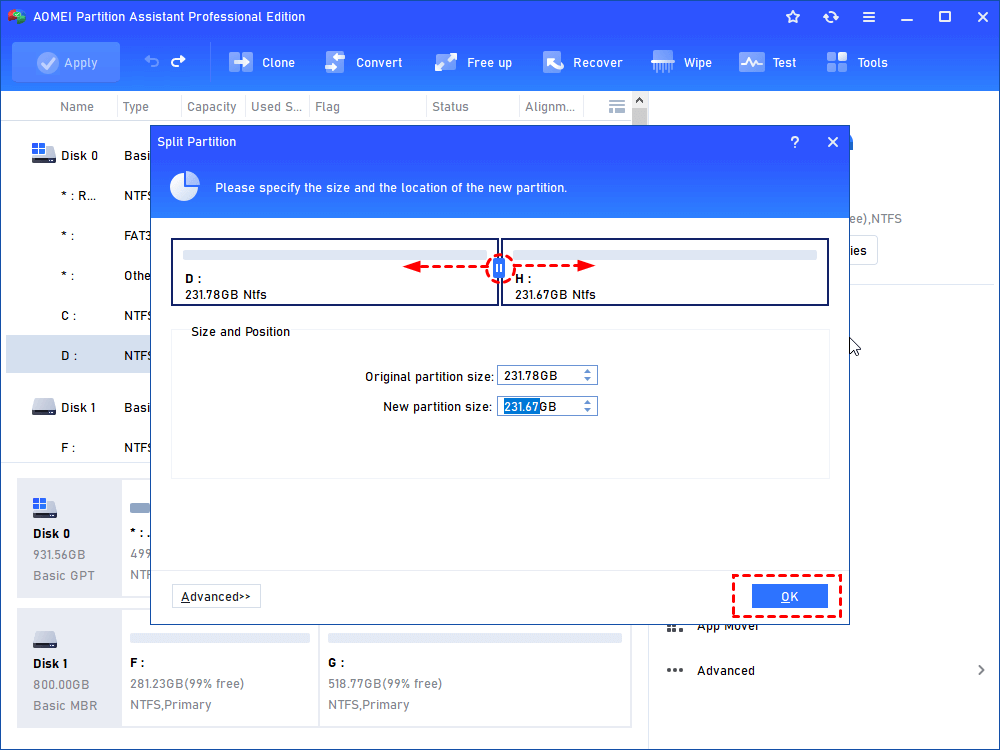
Step 2. In this window, you can specify the size and location of the new partition, and click “OK”.
Step 3. Back to the main interface, click “Apply” and “Proceed” to commit the pending operation.
FAQs
▶ Can I add a partition without formatting the drive?
Yes. Modern partition tools can shrink existing partitions and create new ones without formatting the entire drive or deleting current files.
▶ Is partitioning safe for SSDs?
Yes. SSDs fully support partitioning, and modern SSD technology handles partition management efficiently without major performance issues.
▶ Why can’t I extend my partition in Disk Management?
Usually because the unallocated space is not directly adjacent to the target partition. Windows Disk Management has limitations with non-adjacent space.
▶ What is the best software for partition management?
Many users prefer AOMEI PartitionSoftware because it offers advanced features such as moving, merging, resizing, and splitting partitions safely.
▶ Should I back up files before partitioning?
Absolutely. Although partition operations are generally safe, backing up important data protects against unexpected power failures or software errors.
Conclusion
Adding a partition to an existing drive is possible with either unallocated space or by shrinking an existing partition. While Windows Disk Management can handle basic tasks, AOMEI Partition Software offers a faster and more flexible solution for creating, resizing, splitting, and merging partitions without data loss. Its “Split Partition” feature also makes partitioning external hard drives simple, helping users organize files, backups, and applications more efficiently and securely.

 as a preferred
source on Google
as a preferred
source on Google