



4 Ways to Fix No EFI System Partition Was Found
When you receive an error message saying “No EFI partition was found”, you will fail to boot the OS. This article will focus on how to recover or recreate an EFI partition to help you resolve it.

By Hedy Updated on May 29, 2026


Overview of EFI system partition
Before exploring ways to fix the “No EFI System Partition Was Found” error, it is important to understand why the EFI partition plays such a critical role in your system.
1. What is an EFI system partition?
The EFI System Partition (ESP) is a small but essential section of your storage device that enables your computer to start properly. It typically remains hidden from view and does not appear in File Explorer because it lacks a drive letter. On systems that rely on UEFI firmware, this partition stores the bootloader and related files required to locate and launch the operating system.
2. Is the EFI system partition necessary?
Beyond boot files, the ESP also contains recovery tools and diagnostic utilities used to resolve startup issues. Without it, the system may fail to boot correctly. Maintaining a functional EFI partition is therefore crucial for system stability. The following guide will walk through practical solutions to fix the “No EFI System Partition Was Found” error and restore normal boot operation.
How to fix the "no EFI system partition was found" error?
After understanding the root causes of the EFI partition missing error, the next step is to explore practical ways to get your system running again. Several effective methods can restore normal boot functionality, whether through basic boot repair procedures or by recreating the required partition.
Each approach addresses the issue from a different angle, so reviewing all available options is recommended. By following these solutions carefully, you can resolve the “No EFI System Partition Was Found” error and reduce the risk of similar boot problems in the future.
Fix 1. Use AOMEI Partition Software
For users unfamiliar with EFI system partitions, using a dedicated boot repair tool offers a far simpler path to restoring system access. There is no need to manually create or configure partitions, which can be complex and error-prone.
A reliable option is AOMEI Partition Software, designed to handle startup issues with minimal effort. This tool allows you to repair boot problems and regain access to Windows without complicated procedures. It also enables the creation of bootable media, making it easier to fix the “No EFI System Partition Was Found” error.
In addition, it can address related issues such as black screens or unexpected system crashes caused by a missing EFI partition, ensuring a smoother and more stable recovery process.
 AOMEI Partition Software
A safe and reliable disk partition management tool that helps you migrate OS to SSD or HDD, reorganize disk space, and improve overall PC performance.
Step 1. Install and open AOMEI Partition Software on a functioning computer. Navigate to “Recover” > “Boot Repair”, then select “Create a bootable disk” to generate a WinPE-based Boot Repair media.
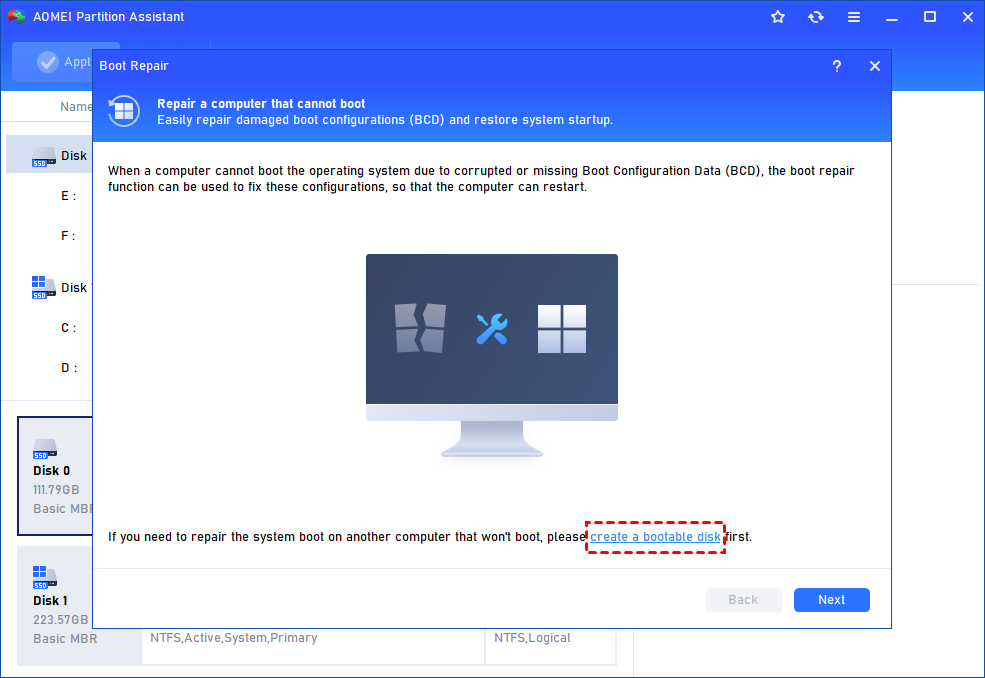
Step 2. Insert the created bootable disk into the unbootable PC and start it from the WinPE environment. The Boot Repair tool will launch automatically and begin scanning for existing boot entries, displaying all detected results.
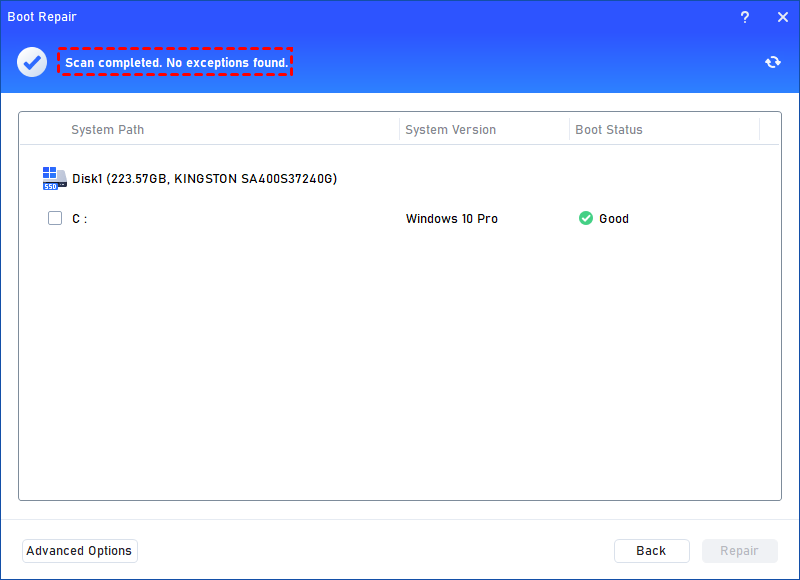
✍ Advanced Settings (Choose where to store the repaired boot entry):
♦ Repair to the current disk: Ensures the system boots from the existing disk by fixing and completing necessary boot files (default option).
♦ Repair to another disk: Repairs or creates a new boot entry on a selected disk, allowing the system to boot from that location.
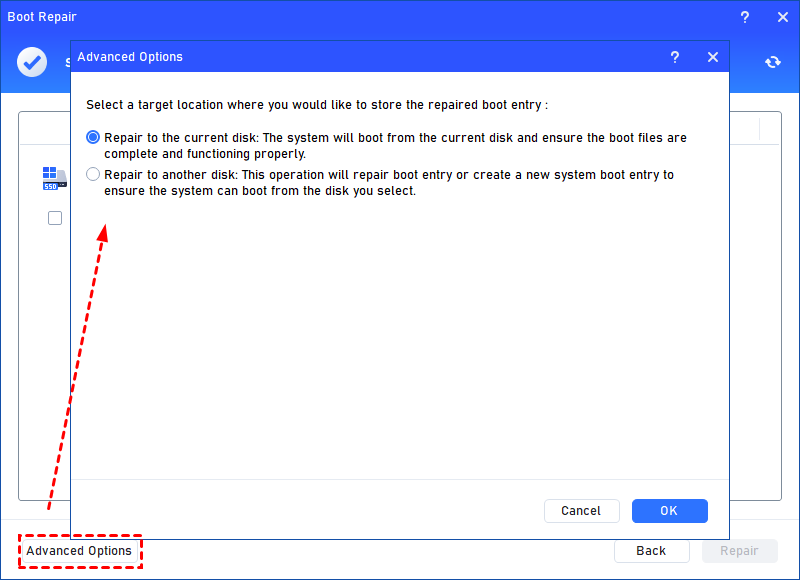
For most users, repairing to the current disk is the recommended choice.
Step 3. Select one or more boot entries that can be repaired, then click “Repair” to begin the process.
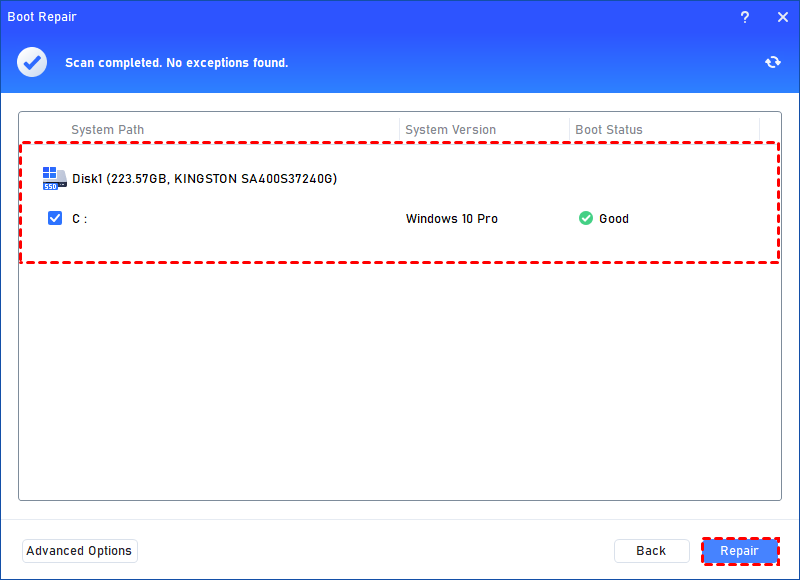
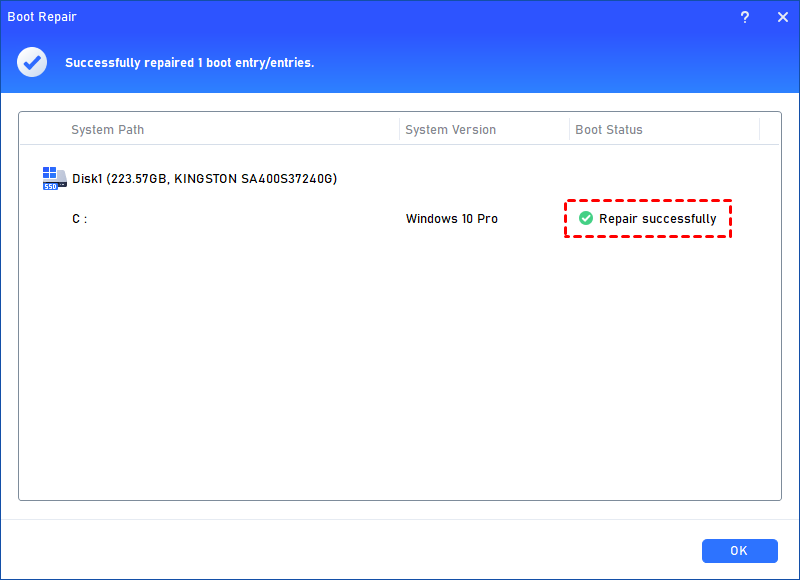
Step 4. Wait for the operation to complete. Once finished, review the results. A successful repair will display a “Repair Successfully” confirmation message.
Fix 2. Recover the lost EFI system partition
To eliminate this issue for good, restoring the missing EFI System Partition (ESP) is often necessary. Instead of applying temporary fixes, recovering the lost partition ensures long-term system stability and proper boot functionality.
AOMEI Partition Software provides a dedicated “Recover Partition” feature that simplifies this process. It can scan your device and retrieve lost partitions, including the EFI partition, helping resolve the “No EFI System Partition Was Found Windows 10” error effectively.
Whether the partition was lost due to a system crash or malware attack, this tool offers a dependable recovery solution. It also allows users to detect and address corrupted files in advance, reducing the likelihood of future boot-related problems.
Step 1. Install and open AOMEI Partition Software. If you can't boot your PC, you need to create bootable media in a running computer. And then, boot into the software on the problematic PC.
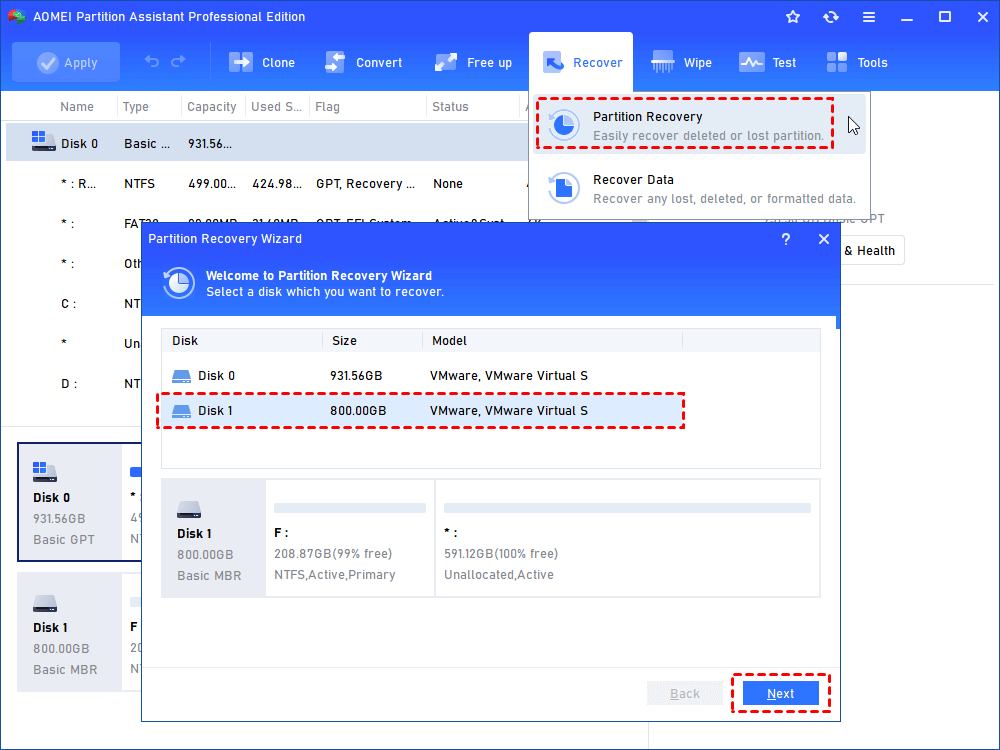
Step 2. At the main interface of the software, select ''Partition Recovery'' from the Recover panel. Then choose the disk that had no EFI partition and click ''Next''.
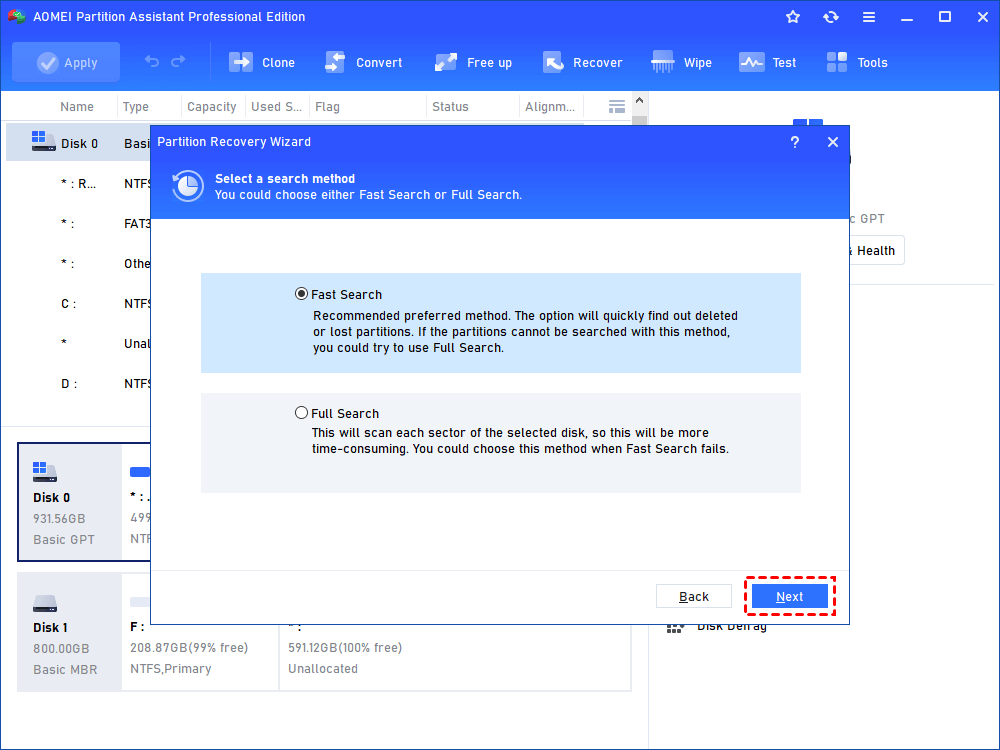
Step 3. In the pop-out window, select a search method. Choose ''Fast Search'' first; if it doesn't work, turn to ''Full Search''.
Step 4. Select the missing EFI system partition in the following list that appears and hit ''Proceed''.
Fix 3. Recreate an EFI system partition
If the earlier solutions do not work, additional advanced methods can be considered to resolve the “No EFI System Partition Was Found” error. These approaches involve manually recreating the EFI System Partition, so a basic level of technical knowledge is required. Follow the steps below carefully to complete the process.
Step 1. Begin by booting your computer using Windows installation media. On the initial setup screen, press Shift + F10 to open the Command Prompt utility.
Step 2. In Command Prompt, enter the following commands one by one, pressing Enter after each line. These commands will shrink an existing partition to free up space for the EFI partition:
diskpart
list disk
select disk 1
list partition
select partition 2
shrink desired=100
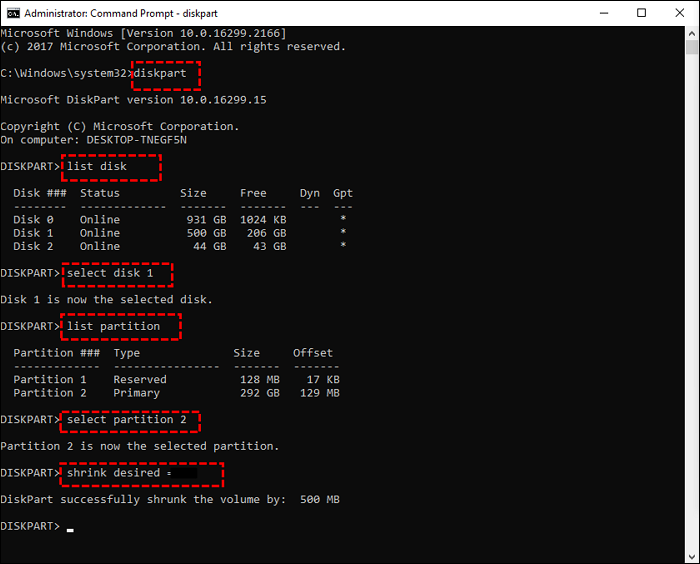
(Replace the disk and partition numbers with the correct ones for your system.)
This process will generate approximately 100MB of unallocated space.
Step 3. Next, use the newly created unallocated space to build the EFI partition by running these commands:
create partition efi size=100
format quick fs=fat32
assign letter=S
exit
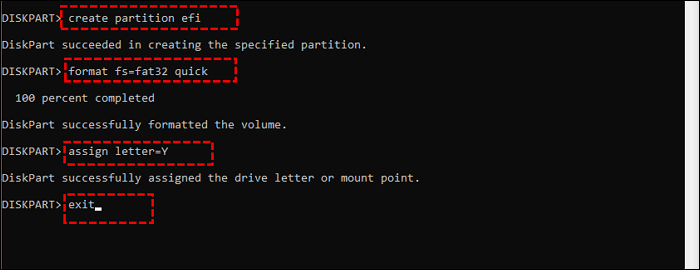
(You may assign a different available drive letter if preferred.)
Step 4. Finally, recreate the boot configuration data and transfer the required boot files to the new EFI partition:
bcdboot X:\windows /s S:
execute-bcdboot-command.png
(Replace X with your Windows partition letter and S with the EFI partition letter.)
Once all commands are executed, restart your computer. The system should now boot normally, resolving the “No EFI System Partition Was Found” issue.
Fix 4. Check BIOS settings
This boot issue can also occur when the system is not configured to use UEFI mode during startup. In such cases, adjusting the BIOS settings can help restore normal boot functionality. Follow the steps below to resolve the “No EFI System Partition Was FoundWindows 11” error by enabling UEFI mode.
Step 1. Restart your computer and press the appropriate BIOS key while the system is starting. The key varies by manufacturer, but commonly used options include F2, F10, or Esc. This will open the BIOS setup interface.
Step 2. Once inside the BIOS, navigate to the Boot Settings section. Locate the boot mode option and change it from Legacy or CSM to UEFI. This ensures the system aligns with the required boot configuration.
Step 3. After making the change, press F10 and then hit Enter to save the settings and exit the BIOS. The system will restart automatically with the updated configuration.
After completing these steps, check whether the system boots correctly and the error has been resolved.
FAQs
1. Why is the EFI system partition missing?
The EFI System Partition may disappear due to accidental deletion during disk operations. It can also become corrupted after unexpected power loss. In some cases, bad sectors on the drive may damage the partition, making it inaccessible.
2. What happens if there is no EFI partition?
Without the EFI partition, the system cannot boot properly because it stores essential UEFI bootloaders and drivers. If it is missing, the operating system will fail to start. Recreating the ESP or using a reliable tool can help restore functionality.
3. How to fix “No EFI system partition found” on Ubuntu?
If Ubuntu fails to boot, a missing or damaged EFI partition could be the cause. Follow these steps to resolve the issue:
Boot your system using a Ubuntu USB drive and select “Try Ubuntu without installing”.
Open the terminal and mount the EFI partition using:
sudo mount /dev/sda1 /mnt
Navigate to the EFI directory:
cd /mnt/EFI
Rename the bootloader file to restore boot functionality:
sudo mv grubx64.efi bootx64.efi
Conclusion
This article has outlined several effective approaches to resolve the “No EFI System Partition Was Found” error. By applying the appropriate method, users can restore normal system startup without unnecessary complications.
Among the available options, AOMEI Partition Software stands out as a reliable third-party solution. With features such as boot repair and partition recovery, it offers multiple ways to address EFI-related issues and ensure a stable, trouble-free boot process.

 as a preferred
source on Google
as a preferred
source on Google